


10 Best AI Video Upscalers: Which Tools Actually Deliver



Ever groaned at grainy home videos or wished your 720p clips could look sharper on a 4K screen? That fuzzy, low-resolution footage can be a real letdown. The good news is AI video upscaler tools are here, offering a chance to restore old memories or boost the quality of newer projects by enhancing, restoring, and upscaling.
But with a flood of tools all claiming to be the best, picking the right one feels like a minefield. Based on my testing of both software and online tools, along with reading community feedback, here are some common struggles:
- The plastic look and cartoon effect: loss of natural skin details, resulting in an overly smooth look
- Artifacts and quality loss: outputs with edge halos, color banding, or jagged edges
- Ghost faces after processing: some tools struggle with faces at a distance, resulting in distorted results
- Slow speed and resource-intensive: rendering can take hours and performance may be unstable
- Inconsistent results: AI may alter textures, colors, or add excessive contrast
Bearing in mind these aspects to filter out better performing AI video upscalers, and after testing with various video files, here is a list of popular AI video upscalers to help you enhance and upscale video quality. As they also fix video quality problems besides resolution upscaling, some users also address these tools as video resolvers.
Part 1. Top AI Video Upscalers for Various Needs
1. Topaz Video: Upscaling with Granular Control
Best for: Users needing fine-tuned control with various AI models for specific issues like face restoration, denoising, or animation enhancement.
Pricing: Topaz labs switched to subscription mode from 2025, starting from $299 annual billing, or pay by month with annual commitment for $396.
Platforms: Windows 10 or later, macOS Catalina 10.15 or higher.
Topaz Video is a powerful video upscaling software with a vast collection of AI models for general restoration and specific problems. It is best suited for technically experienced users who understand video processing, including how to tweak parameters and follow proper workflows to avoid waxy or distorted output.
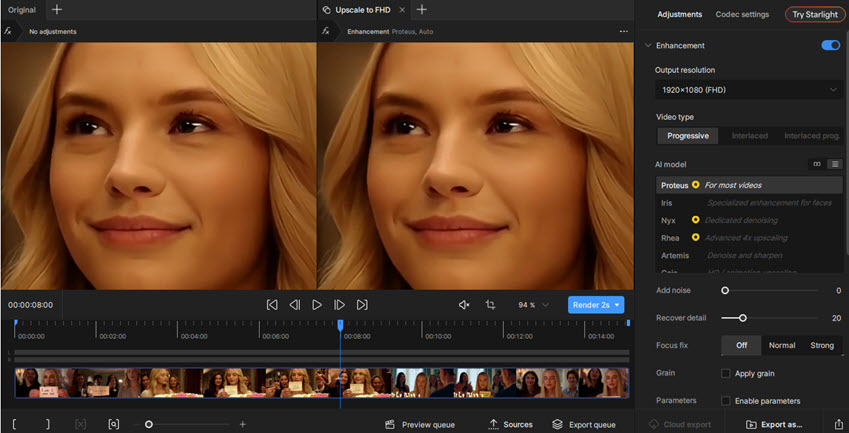
For instance, the Proteus model is designed for general purposes, Iris focuses on facial detail restoration, and Artemis handles noise removal and sharpening. There are also dedicated features for focus correction and deinterlacing.
As some Topaz models are resource intensive and require higher hardware capabilities, you may need to handle the processing to its online server. Personal license users needing starlight model must purchase credits for cloud rendering.
Side note: Topaz's video upscaling software was initially released in 2020, featuring models to upscale and restore footage while addressing quality issues in a standalone app called Topaz Video AI. After the company transitioned to a subscription-only model, the successor is renamed as Topaz Video.
- Extensive range of specialized AI models for different enhancement tasks.
- Capable of producing high-quality results with careful tweaking and the right model selection.
- Before exporting, you can preview the video quality, test and iterate settings.
- Very slow processing times and demanding hardware requirements (GPU, VRAM, RAM speed).
- Can be complex to master, with many models and parameters requiring experimentation.
- Since Topaz Labs switched to a subscription model, the cost can feel steep for individual users.
- Risk of unnatural results such as plastic faces or smearing.
2. Aiarty Video Enhancer: Upscaling with Natural Results
Ideal for: Anyone look for desktop tool to upscale video to 2K, 4K, restore old footage, fix grainy low-light videos, and enhance video quality, with enhancement strength controls to stay natural and faithful.
Pricing: Freemium to evaluate the software; $165 Lifetime License with unlimited updates to all future versions for life; 1 year plan also available for $79. Occasionally, special events also offer free activation codes.
Platforms: Windows 10 and later, Mac (Intel/Apple Silicon processors).
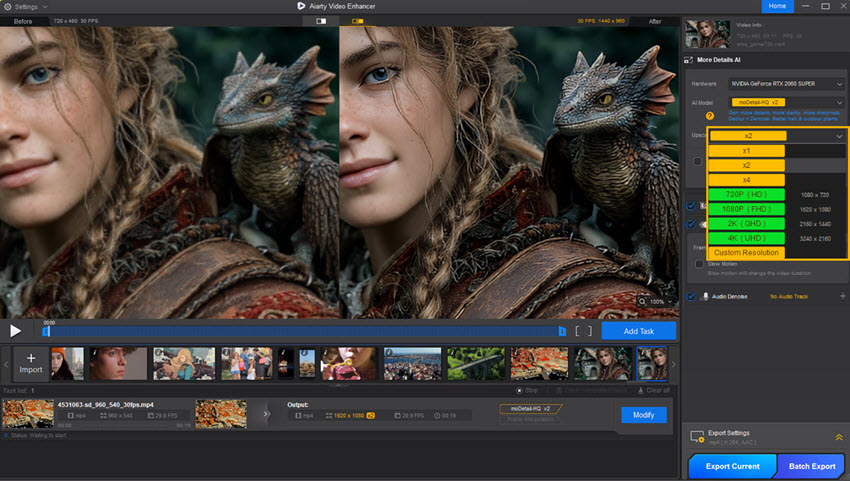
Aiarty Video Enhancer is the best video upscaler for natural results and efficient processing. It has all the core features to denoise, deblur, restore, upscale, and enhance videos, while offering manual strength control to avoid over-processing.
For flexibly and case-specific workflow, users can optionally adjust colors, increase frame rate with AI interpolation, clean up audio noise, and turn SDR to 10-bit HDR video for immersive visuals.
There are dedicated AI models catering to different video types and scenarios: users can quickly switch among each, see enhanced results in previewer, and stay with the best setting for their footage.
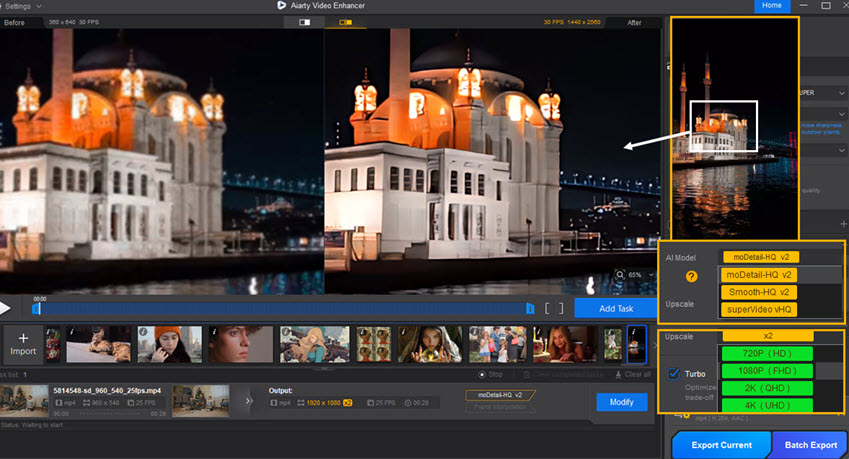
Test: upscale, enhance quality, and adjust model strength
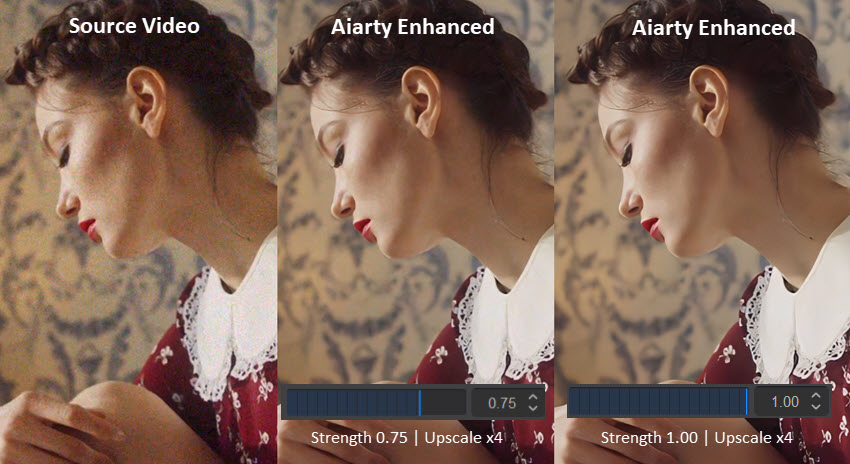
You can select x2, x4, 4K or custom resolutions to upscale videos, and switch among three essential AI models for different scenarios. The strength slider will adjust how strong the AI models are applied.
Below is a screenshot of low resolution video vs Aiarty upscaled footage, with different strength value.
Its secure, offline processing addresses privacy concerns, making Aiarty Video Enhancer a safe, stable, and fast solution for creators seeking detailed restoration and quality enhancement.
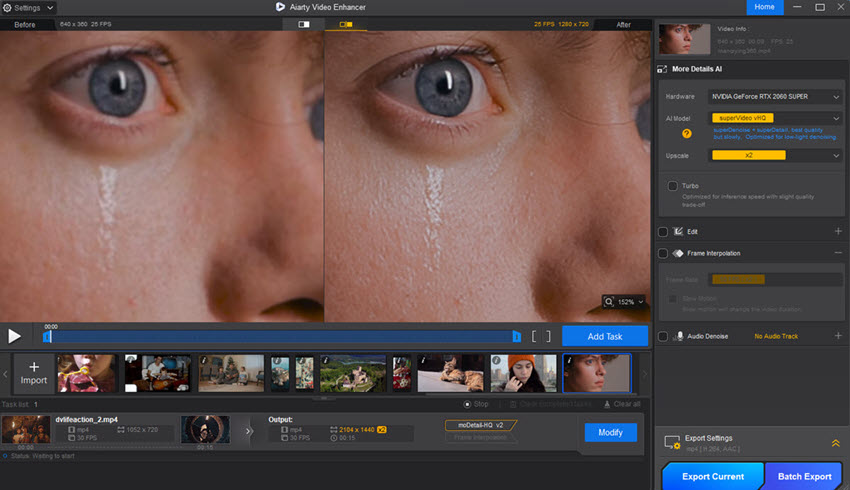
Side note: Technically, it uses advanced hybrid Diffusion+GAN models to genuinely generate intricate details in textures like hair, skin, and outdoor plants, excelling at restoring old, low-res footage (360p/480p) and polishing modern clips. For general computers, "Turbo mode" in Aiarty can significantly cut render times, with 95% efficient GPU utilization.
- Impressive processing speed with "Turbo mode" and high GPU optimization.
- Essential AI models to denoise, deblur, restore details, fix flawed videos (with strength control for AI models).
- Includes color correction, AI audio enhancer, AI frame interpolation, and HDR features.
- Local processing, ensuring data privacy.
- It run efficiently with full GPU acceleration, while CPU-only processing can be slower.
- Currently it works offline to ensure user privacy, so there's no online cloud rendering options.
Serge Morgotch provides a thorough test of Aiarty Video Enhancer, using various video clips. Watch the YouTube video above for a direct comparison of before-and-after results.
To jump directly to specific tests and demonstrations within the video, refer to the timestamps.
- 04:21 - Testing 1: Source HD vs 4K upscaled by Aiarty
- 05:40 - Testing 2: Deblurring a portrait Video
- 06:29 - Testing 3: Denoising a dark scene video
Click buttons below to download Aiarty Video Enhancer.
3. Video2X: Open-Source Upscaler for Animation
Ideal Use Case: Those looking to upscale animated content, willing to handle some technical setup.
Pricing Tier: Free (Open-Source)
Platforms: Windows, Linux, or Google Colab.
Video2X is a popular free and open-source AI video upscaler, particularly favored for animated content. It often leverages upscaling algorithms like Waifu2x, RealSR, Anime4K, and Real-CUGAN, providing users with choices for how their animation is processed, aiming for sharper lines than general-purpose upscalers.
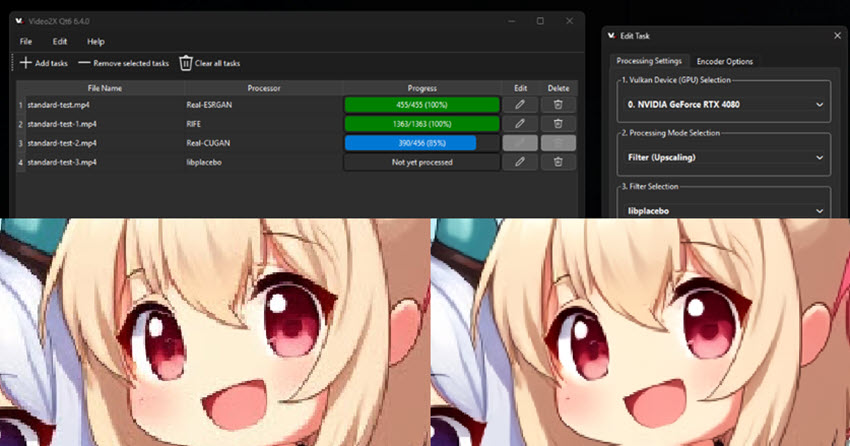
However, its open-source nature can mean a more technical setup and a less polished user interface compared to commercial software. Users report that input videos "must be MP4" to avoid audio/video sync issues, and it can still be quite demanding on hardware, with one user noting their "32GB RAM got maxed out."
While effective for animation, results on realistic or live-action footage can be less impressive, sometimes leading to an "oily" or overly smooth look. Some users also experience light flickering or blurriness if the original bitrate is too low.
- Completely free and open-source, making it highly accessible.
- Generally good results for its upscaling quality on anime compared to other free tools.
- Supports various AI upscaling algorithms, offering some flexibility.
- Primarily optimized for animation; results on live-action footage may be subpar or look unnatural.
- Requires MP4 input to avoid "audio-video out of sync" issues.
- Can be very resource-intensive, especially on RAM (32GB RAM maxed out).
Also read: Video2X vs Topaz: Free vs Professional AI Video Enhancer Compared
4. DaVinci Resolve Super Scale: Integrated Upscaler for Video Editing
Ideal Use Case: Editors already using DaVinci Resolve Studio who need a convenient, built-in upscaling solution for moderately good quality source footage.
Pricing Tier: Premium (Included with DaVinci Resolve Studio paid version)
Platforms: Windows 10 Creators Update and later, Mac 14.3 Sonoma or later, Rocky Linux 8.6.
DaVinci Resolve's "Super Scale" feature is an integrated upscaling tool available in the paid Studio version of this powerful video editing software. Its main advantage is convenience, allowing editors to upscale clips directly within their existing NLE timeline without needing to export and re-import from a separate application.
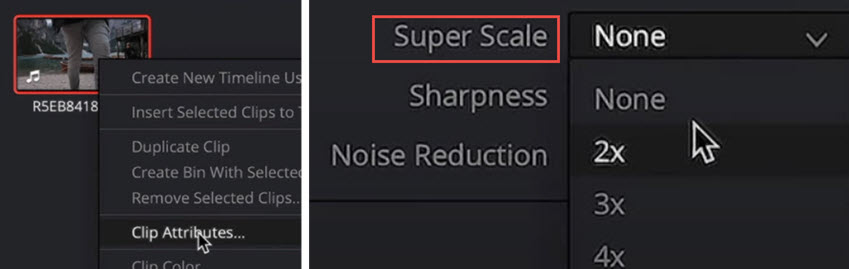
When working with decent quality source material, it can provide a noticeable improvement, making it a useful feature for delivering projects in a higher resolution than the original footage.
However, Super Scale is not a magic bullet. It's only available in the paid Studio version; the free version will apply a "huge DaVinci watermark." Users report it's very resource-intensive, leading to "15 hours" of rendering for a project and requiring a "powerful GPU." It struggles with heavily compressed or very low-quality source video. Please note that applying it to a single clip can inadvertently try to process all clips on the timeline, so using subclips is recommended.
- Integrate seamlessly into the video editing and upscaling workflow for existing DaVinci Users.
- Can produce good results if the source footage is already of reasonable quality.
- Free version will place a noticeable watermark. The Super Scale feature is available in the Paid Studio version.
- Extremely resource-intensive, leading to very long render times and requiring a powerful GPU.
- Not effective for heavily compressed source videos.
5. Neural.love: Video Upscaler Online
Ideal Use Case: Users seeking an online solution for AI video upscaling and deblurring.
Pricing Tier: Subscription/Credit-based (May have limitations on file size, length, or features in free/lower tiers.)
Platforms: Online.
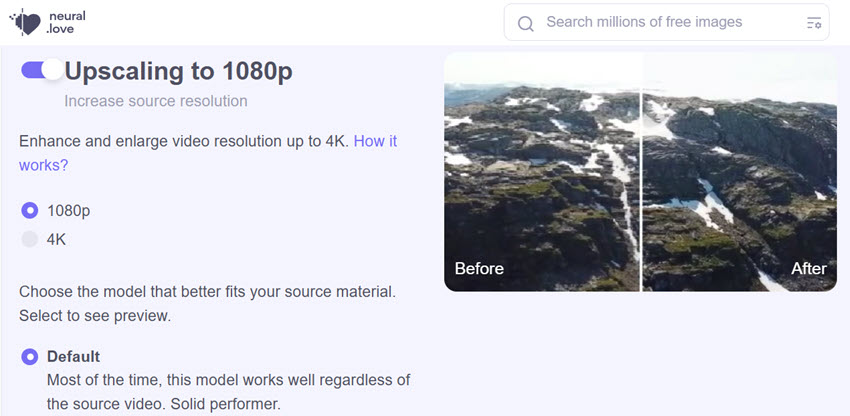
Neural.love is an online platform offering a suite of AI-powered tools for media enhancement, including Neural love video upscaling (often up to 4K), frame interpolation for smoother motion or slow-motion effects, AI-drive face restoration, and colorizing feature for monochrome footage.
Being an online service, performance relies on your internet connection for uploads/downloads and server availability. While convenient for simpler tasks, the quality and control might not match dedicated, powerful desktop software for highly complex restorations.
- Access from any platform, and no need to install it locally.
- Processing is done in the cloud, so no powerful local hardware is required.
- Reliant on internet connection for uploads/downloads and server performance.
- Pricing is expensive for frequent use due to credit or subscription models.
- Output quality and level of control won’t match dedicated desktop software for complex or very poor-quality sources.
6. BigMP4: Online Upscaling for Short Videos
Ideal Use Case: Users needing a web-based tool for quick upscaling of short-length videos.
Pricing Tier: Free plan with 10MB limit; Paid yearly plans starting from $12.99 with higher limits and GPU points.
Platforms: Online, Windows/Mac.
BigMP4 provides an online platform for AI media enhancement, capable of upscaling videos (MP4, MOV, etc.) and images to 2K/4K/8K, and converting frame rates up to 240fps. Like all online AI tools, it processes files on its servers, which means users must upload their footage to a third party. While BigMP4 states that uploaded files are deleted within one week, this doesn't eliminate the privacy concern that your sensitive videos are leaving your local machine.
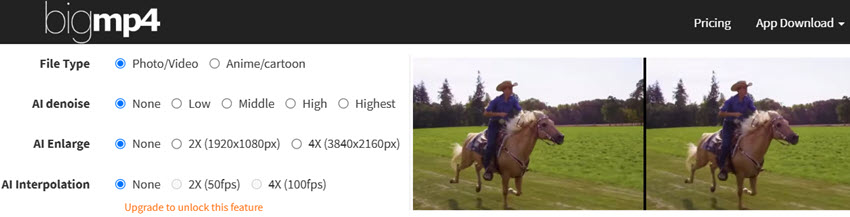
As an online video upscaler, its performance and output quality can depend on server load and the complexity of the source video. While convenient for basic upscaling of shorter clips, it doesn’t offer the advanced controls, specialized models, or the processing power of dedicated desktop software, especially for restoring heavily degraded footage.
- Simple, web-based interface. Easy for quick upscaling.
- Besides video upscaling, there are colorization and FPS increasing tools.
- No dedicated AI upscaler models for different detail enhancement.
- The 100MB file size limit on paid plans can be restrictive for many video projects.
- GPU point system for paid plans indicates metered usage.
7. Krea AI Video Upscaler: Creative Upscaling
Ideal Use Case: Users seeking creative upscaling for short AI videos, rather than pure, faithful upscaling.
Pricing Tier: Starting from $8/month.
Platforms: Online.
Krea AI offers a suite of AI tools, with its video upscaler and enhancer positioning itself for creative and generative improvements, capable of upscaling up to 8K. It features distinct models: the "Krea Video model" is its own generative upscaler, best for adding new details and improving AI-generated videos (max 4K, 40s duration).
Interestingly, it also incorporates a "Topaz Video model" plugin for tasks like adding frames, grain, and fixing focus, but this is noted as an "expensive model" (max 8K, 60s duration).
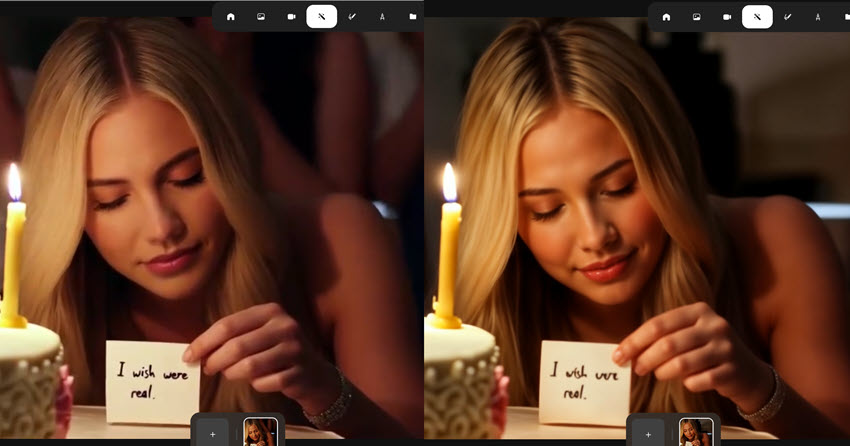
Users find Krea "is not afraid to be creative," which can be a strength for fixing glitches or when a transformative effect is desired, but also a weakness if faithful reproduction is key. It can add new details but also significantly alter appearances, such as turning a superhero very feminine, or adding strong stylistic effects like contrast and HDR.
Character consistency remains a challenge with such creative upscalers. While the duration limits are better than the previously noted 10s, they still make it unsuitable for long-form video content.
- Offers creative and generative enhancement, capable of adding new details and fixing certain glitches.
- Multiple AI models available, including its own and a Topaz plugin, for different effects (up to 8K with Topaz model).
- Free account only supports 15s video smaller than 75MB.
- Full video enhancement capabilities are locked behind a pricey premium "Max" plan.
- Not suitable for users needing purely faithful, traditional upscaling.
8. Tensorpix: Online Video Upscaler for Short Clips
Best for: upscaling short video clips, restore low quality videos.
Pricing Tier: Free plan for 720p, $363/year for 4K, batch processing 7 videos at once.
Platforms: Online.
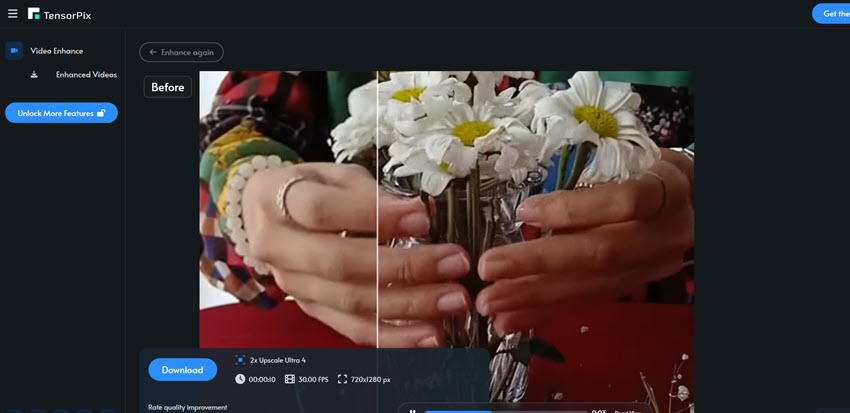
Tensorpix is an online AI video upscaler to improve older, pixelated footage recorded from old tech. Beyond upscaling to 4K, Tensorpix offers features like denoising, color restoration, motion smoothing, and face enhancement. Many find its quality better than other online upscaler.
However, the experience isn't universally smooth. A major pain point is the file upload process, described as "hit and miss," with failures for clips longer than 5 minutes and slow upload speeds. The credit system, while offering flexibility, can also lead to high costs; one user estimated around "$130 to upgrade a 45-minute video to 4K." There are also complaints about misleading free previews where the final output didn't match the initial quality.
- Offers a good range of AI enhancement features beyond basic upscaling.
- Web-based, accessible without high-end local hardware.
- Credit-based pricing can be expensive, especially for longer videos or higher quality.
- As an online tool, requires uploading footage, which carries inherent privacy considerations.
9. ComfyUI with Video Upscaling Models
Best for: Tech-savvy users, AI video enthusiasts, and developers comfortable with a node-based interface, seeking maximum control and customization for upscaling, especially animation or detailed footage.
Pricing Tier: Free/open-source, but requires user-setup and compatible models.
Platforms: Windows, macOS.
ComfyUI offers a node-based interface for Stable Diffusion and related AI models, including open-source video upscaling models, its UX design allows users to build custom workflows for various tasks, including AI video upscaling by integrating compatible models like those in the "Waifu2x" family, or Real-CUGAN, Real-ESRGAN and other specialized upscaling algorithms.
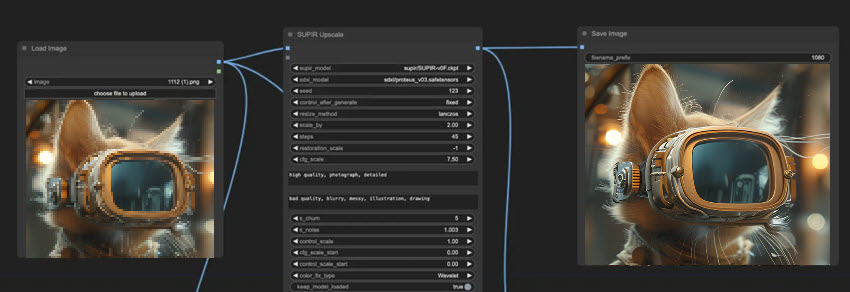
The key strength of ComfyUI is its extreme customizability and the vibrant open-source community developing and sharing models and workflows. Users can chain different operations, fine-tune parameters precisely, and experiment with AI upscaling models.
However, this comes with a steep learning curve, as shown in this ComfyUI upscaling setup. It's not a plug-and-play solution; users need to understand AI concepts, manage model downloads, and construct their node pipelines.
While free, the "cost" is in time, learning, and hardware investment.
- Open-source platform, offering flexible upscaling Model integrations.
- Highly customizable, allowing for tailored video upscaling pipelines.
- Access to a wide variety of community-developed AI video upscalers.
- Also capable of handling image upscaling tasks.
- Very steep learning curve; not suitable for beginners.
- Requires significant technical knowledge for setup, model management, and workflow design.
- You need powerful hardware to run it stably.
- Can be time-consuming to achieve desired results.
10. Squirrel Anime Enhancer: Lightweight Anime Upscaler
Best for: Users looking for a free desktop tool for upscaling anime footage.
Pricing Tier: Free, open-source, hosted on GitHub.
Platforms: Windows 10 and higher.
Squirrel Anime Enhance is a free, open-source tool specifically tailored for enhancing and upscaling anime videos. It typically leverages various upscaling algorithms (real-CUGAN, real-ESR, waifu2x) and AI models like RIFE for frame interpolation. This AI video upscaler aims to preserve the characteristic sharp lines and art style of anime, which general-purpose upscalers might mishandle.
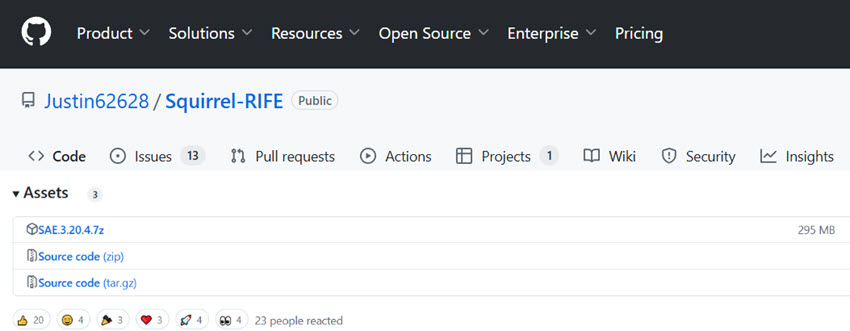
Being a smaller, often community-driven project, it requires some manual setup or troubleshooting. A common quirk noted is that the repaired video is in MOV format, audio needs to be added separately by the user. This extra step for audio muxing can be an inconvenience.
It's also worth noting that this algorithm is not very suitable for repairing live-action film and television programs. Some users also report playback issues like a black screen during playback.
Learn more about Anime upscaling tech on Github: https://github.com/mpv-player/mpv/wiki/User-Scripts#user-shaders
- Free and open-source, specifically designed for anime enhancement.
- Can produce good results for upscaling and potentially smoothing anime footage.
- Output is typically MOV format, requiring users to manually re-attach audio.
- Not suitable for live-action or realistic video footage.
Part 2. How to Choose the Best AI Video Upscaler for You
There isn't a single "best" video upscaler for every user, as everybody's scenarios or video problems can be different. Still, you can look for the following aspects when testing the tool and making informed decisions.
Key Features to Look For:
- Specific AI Models: Tools offering tailored models give you more control (e.g., for realistic details restoration, low-light denoising, AI-generated video upscaling).
- Preview Options: Essential for seeing what you’ll get before committing time to rendering and output.
- Batch Processing (and queuing list): It will improve your efficiency if you have multiple clips or projects.
- Output Controls: Option to choose your format and codec to export in manageable file size, such as AV1/H.265 for better compression at higher quality.
- User-Friendliness: Is the interface intuitive, or will you need a manual for everything.
Plus, you can try out the video upscaling tools, with these questions in mind.
What Kind of Video Are You Working With?
Are you dealing with live-action footage or anime? Do you need to refine 2K to 4K or restore low-res VHS to an acceptable clarity on modern display? Are you looking for specific fixes such as noise reduction, reducing compression artifacts, or upscaling while avoid over sharpening?
There are general models or video type-specific ones. An upscaling algorithm great for cartoons might make real faces look strange, as seen with Video2X using anime engines like Waifu2x. In my tests, using Real-ESRGAN or SRMD in Video2X can reduce this effect, as long as you have the patience to configure tools and downloading models from Github.
What's Your Hardware Situation?
Be realistic about your computer. Check the GPU, VRAM, and RAM. Most powerful upscalers list their minimum and recommended specs. There’s no point investing in software your machine can’t handle.
What's Your Budget and Patience Level?
Are you looking for a free solution, a one-time purchase, or are you okay with a subscription? Also, do you want a simple, mostly automatic tool, or are you willing to dive into settings and experiment? This will narrow down your options significantly.
What Level of Quality and Realism Do You Expect?
Are you aiming for subtle sharpening or a dramatic HD or 4K transformation? How important is it to maintain the original look and feel versus a more creative output? If the original video quality is too poor, you cannot expect upscaling software to fill in details out of "nothing".
Part 3. What Are the Differences Between Various AI Video Upscalers
For a broader category, video upscalers are either for post-processing or for real-time upscaling during video playback. The post-processing may lean towards faithful enhancement and restoration or creative upscaling, depend on each tool's positioning or feature emphasis.
1. For video quality upscaling and restoration:
For video quality upscalers, software like Topaz Video, Aiarty Video Enhancer, and Video2X focus on improving low-res, flawed footage. They help fix poor video quality, reduce noise, remove compression artifacts, and restore old clips.
Besides resolution upscaling, Aiarty also offers frame interpolation, audio background noise removal, and color correction for an overall video quality boost.
Also, there are traditional video editors now integrating some AI-driven upscaling. For instance, DaVinci Resolve uses Super Scale through its neural engine. Video upscaling in Premiere Pro are moving from traditional super sampling as as "set to frame size" and detail-preserving via After Effects, toward integration with plugins from Neat Video and Topaz, as long as you have powerful hardware.
2. For creative upscaling and generative restoration:
There are Astra from Topaz and Krea AI video upscaler that interpret and generate new AI details for artistic look. For open source tools, SeedVR2 via ComfyUI upscaling leans more toward generating new details than pixel-for-pixel fidelity, though it tries to strike a balance between source footage and AI-interpreted details.
3. For streaming video upscaling:
There are real-time upscaling technologies like NVIDIA RTX Video Super Resolution and AMD's FidelityFX Super Resolution. They enhance streaming video as you watch it.
Final Words
As we've seen, finding the right AI video upscaling software really boils down to understanding your specific needs, the type of footage you're working with, and your technical comfort level.
While no tool is flawless, the advancements are undeniable, offering us new ways to rescue old memories and polish current projects. Among them, Aiarty Video Enhancer stands out as an excellent overall choice to upscale, denoise, deblur and restore videos offline, with GPU-optimized Turbo speed.
Its hybrid AI models offer flexible solutions for different enhancement needs, working reliable for both casual users and serious creators.
You May Also Like


This post was written by Brenda Peng who is a seasoned editor at Digiarty Software who loves turning ordinary photos into extraordinary works of art. With AI assistance for brainstorming and drafting, the post is reviewed for accuracy by our expert Abby Poole for her expertise in this field.
