


Choosing a photo editor is not just about finding the easiest or most powerful option, it is about matching the software to how you plan to use it. Different beginners may prioritize different things, from quick improvements and creative effects to learning a more advanced editing workflow.
Task-oriented beginners – Need to fix photos quickly or create polished results with minimal effort. Look for features such as presets, filters, auto enhance, AI improvements, automatic color correction, and quick tools for cropping, resizing, and applying creative styles.
Skill-building beginners – Want to understand editing and improve over time. Prioritize RAW support, manual controls for exposure and color, layers, masking, selections, photo organization, and learning resources that help build a stronger editing foundation.
In this guide, we include both popular editors and free hidden gems, so beginners can find tools that match their skills, budget, and intended project types. Some focus on speed and simplicity, while others provide advanced features that can grow with your photo editing skills.
Here is a quick glance of the best beginner photo editors.
Lightroom
Best for beginners who want to grow into serious photography
Lightroom is one of the industry-standard apps for serious beginners who want to learn photo editing properly. While its busy interface may seem daunting, the skills you develop are highly transferable, and the feature-rich app gives you plenty of room to grow your skills.
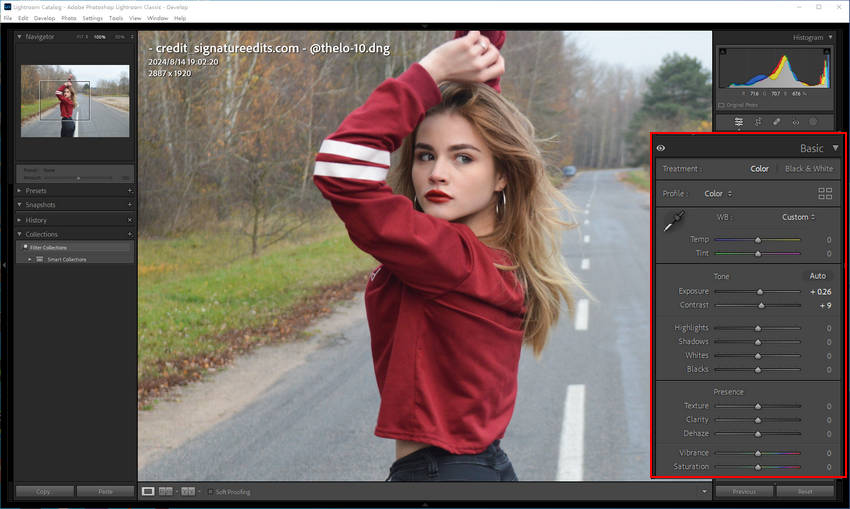
Lightroom combines photo culling, RAW developing, photo editing, and color grading into one app. You need to get accustomed to its catalog-based photo management before getting started. Beginners can better organize photos with ratings, lables, and collections, as camera photos usually come with bursts, missed focus, and unwanted ones. You can quickly rate and pick the best shots worth further editing.
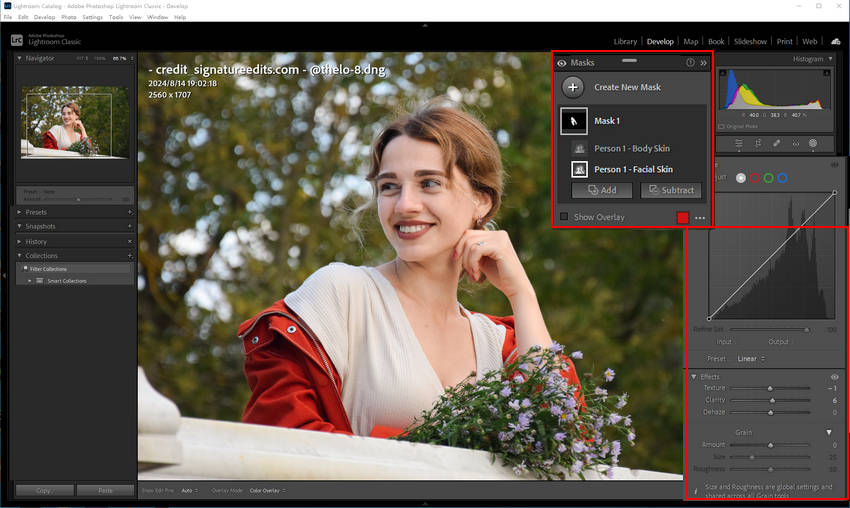
With the non-destructive workflow and external editor support, you can develop RAW photos easily in Lightroom or send them to dedicated photo enhancers for noise reduction. Lightroom receives the enhanced results in realtime for a seamless workflow.
For beginners needing faster results, the recent updates in Lightroom brings much better noise reduction, Super Resolution, and detail restoration with deep-learning algorithms. Its adaptive mask helps select edges around faces, hair, skyline, and subjects, reducing the time of manual work.
Affinity Photo
Best free photoshop alternative for beginners who want more creative control
For beginners planning to learn the Photoshop-like editing that involves layers and compositions; while avoiding the subscription plans, Affinity Photo is a surprisingly feature-rich photo editor for free. More precisely, it also includes vector-based editing as in Adobe illustrator and layout designing as in Adobe In-design.
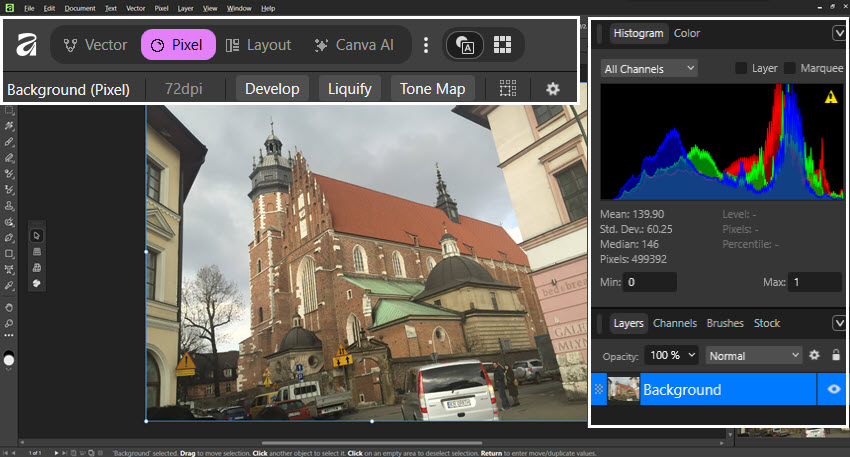
Developed by Canva, Affinity Photo is ideal for creative projects such as graphic designs, photo retouching, image editing, and social media posts. You have all the core features to flexibly manipulate the image non-destructively: adjustment layers, blend modes, masks, curves, and more.
For RAW processing and photo editing, you can experiment with lens correction, basic adjustments for exposure, white balance, noise reduction, upscaling, and color editing. Its non-destructive Live Filters make it handy to see changes in real-time, without actually altering the original photo.
It doesn't offer baked-in templates, filters, or automatic workflows, as it is not designed as the online Canva platform. For beginners, Affinity Photo is a nice choice to grow skills and get prepared for serious editing and designing, without costing a penny as compared to Photoshop.
Affinity works for both Windows and Mac. I also tested more free photo editing apps for Mac if your workflow mainly runs with Mac.
Photopea
Best free photo editor online for beginners who need Photoshop-like tools
As the free Photoshop alternative online, Photopea is best suited for beginners needing a layer-based editor without installing a large app. The interface looks familiar to Photoshop users, and it is a nice starting point for beginners to build their skills without committing to subscription plans.
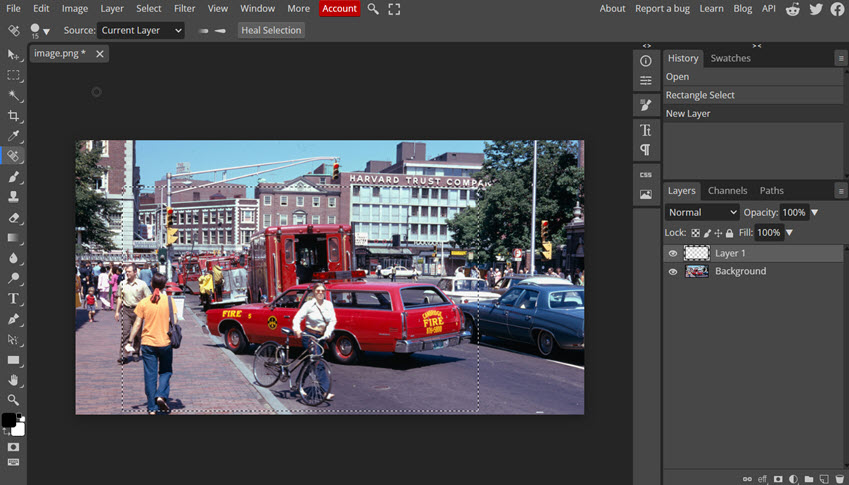
For basic editing, you can experiment with layers, masks, filters, color correction, effects, and text tools. For RAW developing, you have simple options for contrast, exposure, and tint, though it lacks further fine tuning with individual controls. For selection and masks, it works similar as Photoshop. Still, based on my tests, it struggles with complex object such as hair and fuzzy edges, even with its Refine Edge tool.
Photopea supports mainstream formats and PSD projects file from Photoshop, thought it lacks the plugin ecosystem as of Photoshop. It is handy to load a PDF file on the go when you are traveling with only a laptop. Though, depending on the network connection, the auto backup and regular save mechanisms are less ideal than desktop apps.
Luminar Neo
Best beginner Photo editor for fast AI-powered enhancements
Luminar Neo is a popular AI photo editor that made editing easy for beginners, with highlight features for object removal, sky replacement, portrait retouching. For photographers who want more control, it also allows more advanced compositions and local editing with masks.
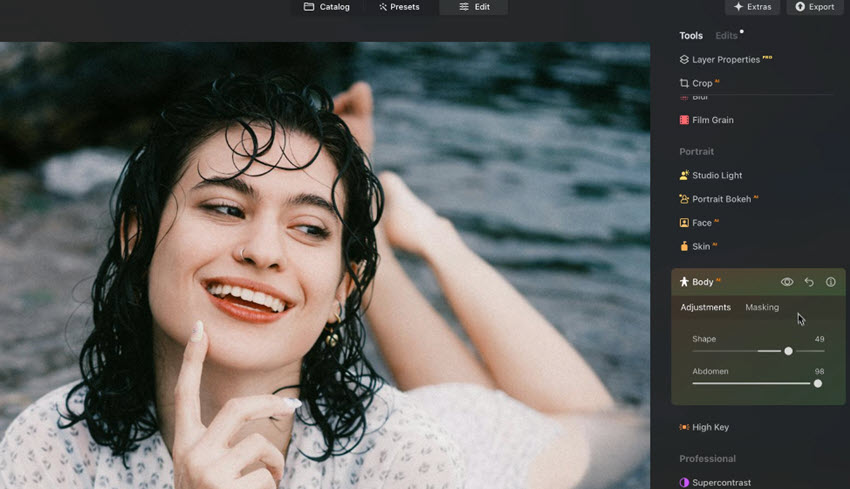
This easy photo editor offers essential presets for scenery, portraits, landscapes, sunsets, city, waterscape, animal, nature, cinematic scenes, blockbuster, etc. Based on your specific photo, it's AI will suggest collections of presets, which is handy for beginners to reach an impressive result quicky.
For color grading, you can adjust exposure, contrast, shadows, highlights, and control color and tonal changes more precisely with curves and HSL tools. Besides adjusting contrast globally, Luminar's super contrast allows you to adjust contrast in shadows, midtones, and highlights in impactful ways.
For portrait photos, beginners can easily retouch the photo with smart tools for body, face, and skin. For landscape photos, there are effects and filters for sunrays, twilight, atmosphere, and water enhancement. It is also baked in with focus stacking, panorama stitching, and HDR merge features for photographers.
You can read my in-depth review of Luminar Neo for more screenshots and hands-on testing.
Polarr
Best beginner photo editor for creative filters and mobile editing
Polarr is one of the top photo editor apps for iPhone and Android, with a 4.7-star rating based on 67K reviews on App Store. Now it is available across Web, Windows, and Mac, making it a nice choice for beginners who need a photo editor with filters and effects.
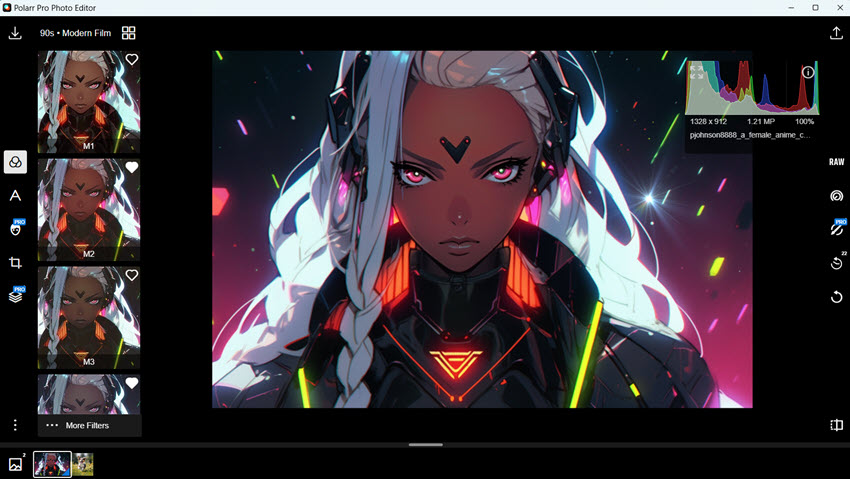
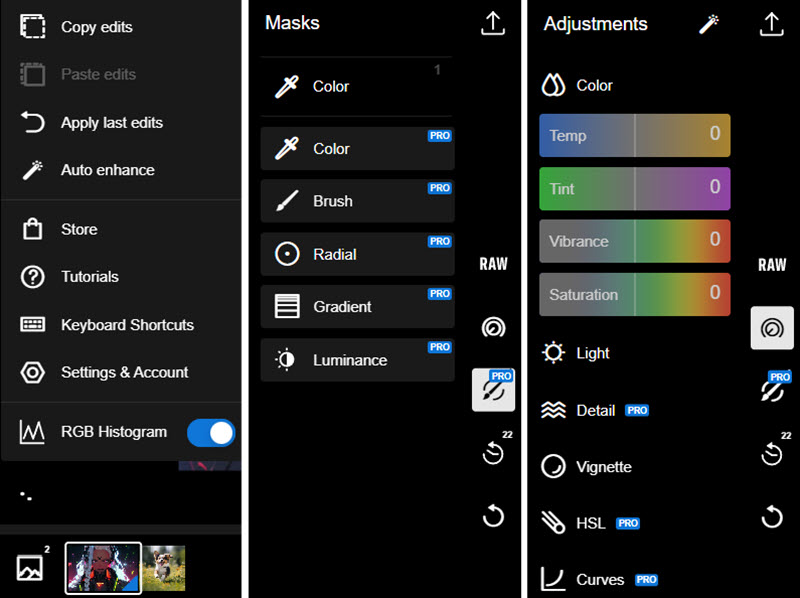
Polarr focuses on fast creative editing with an intuitive interface. With its combination of presets, color LUTs, filters, it is ideal for social media creators and casual photographers. It also allows for manual controls such as exposure, curves, HSL, color toning, and film grain. The selective editing and masks allow users to adjust specific areas instead of applying changes to the entire image.
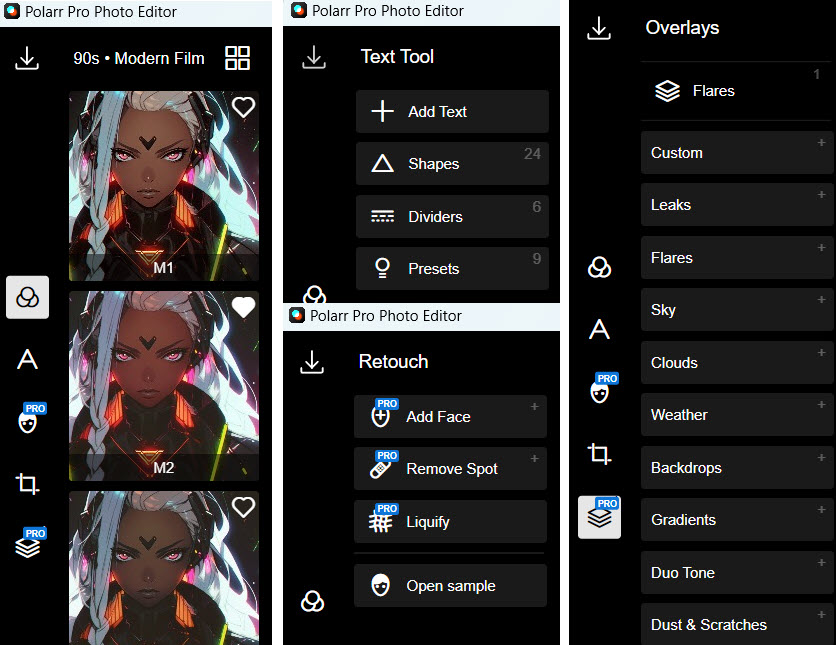
For beginners who mainly edit individual photos, experiment with aesthetics, or want a powerful mobile-first editor, Polarr offers a good balance between simplicity and creative control. The free version offers basic editing, color, shapes, layers, text, and some templates for daily use. Custom filters, trendy templates, pro retouching tools, and masks are included in the subscription plan.
Corel PaintShop Pro
Best all-in-one photo editing software for beginners
Although the latest major update of Corel PaintShop Pro remains 2023, it is still a decent choice for beginners needing a fully-fledged photo editor without subscription. It combines traditional photo editing with creative design tools, and the layer-based workflow makes it possible to create composites, add text, remove objects, and experiment with graphic designs in non-destructive ways.
For beginners, PaintShop Pro offers a comfortable balance between guided tools and manual control. Users can quickly improve images with presets, filters, and automatic corrections, while more experienced beginners can explore RAW editing, curves, color adjustments, layers, selections, and masks.
Compared with simpler beginner editors, PaintShop Pro has a wider feature set, including retouching tools, AI-assisted features, and creative effects. It does not have Lightroom's photo cataloging system, so it is less focused on professional photo organization and culling.
If you are more into drawing and illustrations, you can explore our round up of free open source drawing software, including Krita, GIMP, Pencil2D and more.
Comparing Best Beginner Photo Editors
Besides offering basic photo editing features, what actually sets photo editors apart for different purposes are some the following aspects: photo rating, culling and management features, camera RAW file support, advanced masking and compositing, and AI tools.
These are not criteria that make one photo editor better than another, but aspects that make a photo editor more suitable for certain skill levels or scenarios. Below is a side-by-side comparison.
If you need photo editing, graphic composition, and layout design, Affinity is among the best choices for free photo editing software for beginners. For online convenience, use Photopea for free.
If you are a serious beginner trying to develop your skills and mainly handling camera photos, go with Lightroom. If you do not need systematic culling and rating and prefer some automatic editing for faster results, explore Luminar Neo with its 7-day free trial to see if it suits your needs.
For fully fledged photo editing with traditional core features, Corel PaintShop Pro is worth considering as a one-time purchase, though its company has shifted its focus to other subscription-based apps.
For quick editing and using built-in filters and templates, the free version of Polarr fulfills most daily tasks for social media posts and aesthetic projects.
You May Also Like


This post was written by Brenda Peng who is a seasoned editor at Digiarty Software who loves turning ordinary photos into extraordinary works of art. With AI assistance for brainstorming and drafting, the post is reviewed for accuracy by our expert Abby Poole for her expertise in this field.
