


At first glance, Affinity Photo and Adobe Photoshop appear to cover much of the same ground: layers, masks, RAW editing, retouching, and compositing. The difference becomes clearer once you start working. Affinity brings photo editing, vector illustration, and page layout together in a free desktop application, while Photoshop is built around deep image-editing controls and an established Adobe workflow. Both are capable of professional results, but they suit different habits, projects, and budgets.
This comparison looks beyond the feature lists to the decisions that matter in practice: how each editor handles RAW files, detailed retouching, AI-assisted work, Adobe file compatibility, demanding projects, and the cost of using it over time. It also explains what to expect if you are moving from the older standalone Affinity Photo to the current unified application.
Affinity Photo vs Photoshop Explained
What Is Affinity Photo Today?
Affinity Photo began as a standalone Photoshop alternative, and many photographers still know it by that name. Today, the Affinity application combines raster photo editing, vector design, and page layout in one place. Photographers can develop RAW files, work with layers and masks, retouch portraits, and build composites, while designers can move between pixel artwork, vectors, and layouts without opening separate applications.
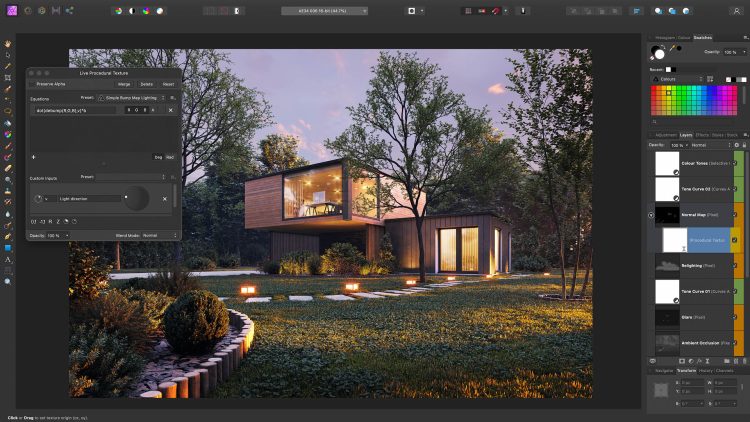
The core photo, vector, and layout tools are free with a Canva account, which makes Affinity an unusually accessible option for serious editing. RAW adjustments, reusable presets, batch tools, and scripting give it more depth than a basic free photo editor. Some generative and AI-assisted features are available through Canva AI Studio with an eligible paid plan. If you still use the former standalone Affinity Photo, keep in mind that its native documents are not fully interchangeable with those made in the unified app.
What Is Adobe Photoshop?
Adobe Photoshop is built for images that need more than overall exposure or color correction. From high-end skin retouching to intricate advertising composites, it offers precise selections, masks, Smart Objects, blending options, and a mature set of painting and repair tools. Adobe Camera Raw handles RAW development, while Lightroom and other Creative Cloud applications fit naturally into the wider editing process. Photoshop is not a dedicated 3D modeling tool; its real advantage here is control over complex images and how they are handed off to others.
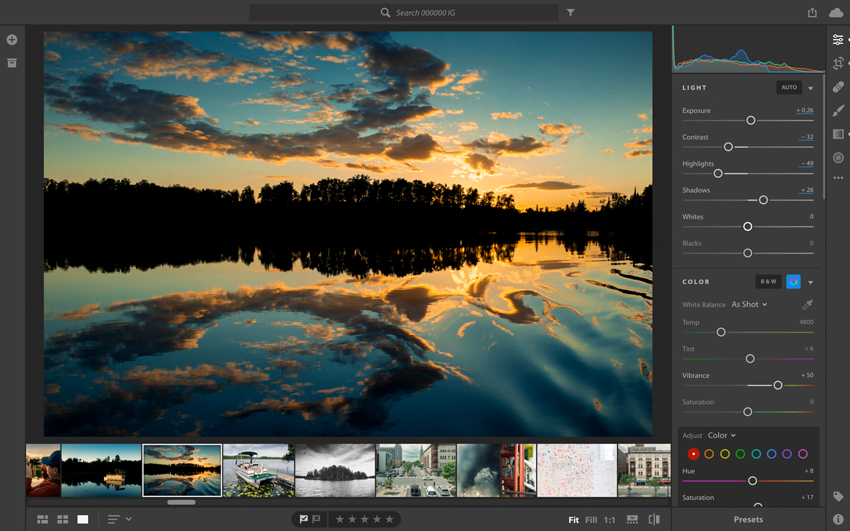
Photoshop also offers AI-assisted selection, background removal, Generative Fill and Expand, prompt-based edits, and tools for refining difficult edges such as hair or fur. These can save time on otherwise tedious tasks, but they do not eliminate the need to inspect details or refine masks by hand. For professionals, Photoshop's wider advantage is the combination of these conveniences with editable layers, dependable PSD handoffs, and a substantial plug-in and training ecosystem.
Read More: Best Photoshop AI Plugins in 2026 (And Faster AI Alternatives)
Affinity Photo vs Photoshop: Interface and Workflow
Both editors can handle demanding layered work, but they organize the process differently. Affinity uses Studios to bring photo, vector, and layout tools into a shared workspace. Photoshop keeps image editing at the center, with customizable panels and close connections to dedicated Adobe applications. Neither approach is inherently better: Affinity can reduce app switching, while Photoshop feels familiar to teams already working with PSD files and Creative Cloud.
Affinity Photo Interface
Affinity organizes related tools into Studios. For photographers and designers, the most useful areas include:
- Pixel Studio: Raster photo editing, retouching, painting, masks, and adjustment layers
- Develop Studio: RAW development, tone, color, and lens adjustments
- Liquify Studio: Distortion and portrait reshaping
- Tone Mapping Studio: Tonal mapping for HDR and other images
- Vector and Layout Studios: Vector illustration and page design, with scripting tools available for repeatable tasks
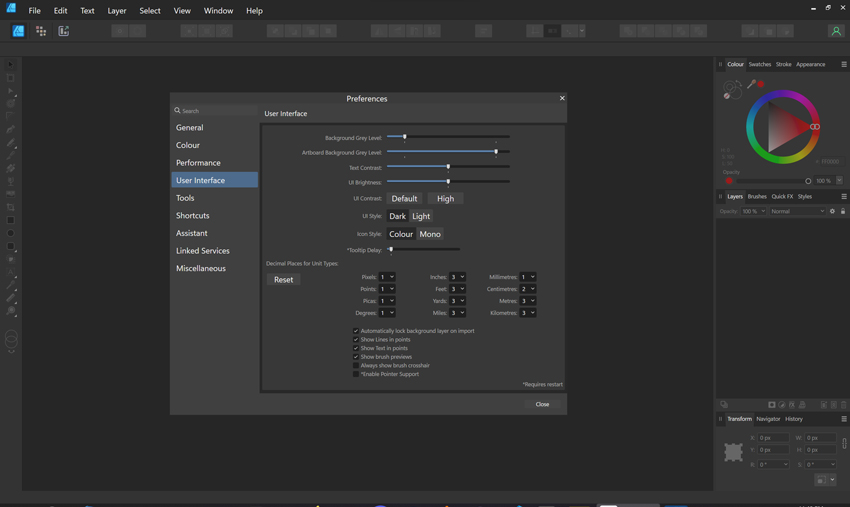
You can adjust the workspace to match the job and move from RAW development to retouching and layout within the same project. That is particularly convenient for a freelancer preparing both photographs and finished marketing materials. The trade-off is that users familiar with the older Affinity Photo interface may need some time to locate tools in the unified workspace.
Photoshop Interface
Photoshop's interface takes a different approach. Its panels and workspaces can be arranged around the kind of editing you do, whether that means retouching portraits, building composites, or painting. Several features are especially useful when a file becomes complex:
- Layers and Smart Objects: Enable non-destructive editing and reusable elements
- Adjustment Layers and Masks: Offer precise control over image corrections
- Workspaces: Preset layouts for photography, graphic design, or painting
- Shortcuts and Automation: Actions and scripts streamline repetitive tasks
Photographers who begin in Lightroom or Adobe Camera Raw may find Photoshop an easy next step for selective retouching, while designers working in Illustrator and other Adobe apps benefit from familiar shortcuts and editable asset workflows. There is more to learn, but that investment can pay off when a project moves through several people or applications.
Workflow Comparison
- Learning Curve: Affinity brings many tasks into one application, which can simplify the overall workflow. Photoshop has a steeper learning curve for detailed retouching, but abundant tutorials and familiar industry conventions help.
- Task Efficiency: Affinity is convenient for projects that mix photography, illustration, and layout. Photoshop is particularly effective for complex retouching, layered composites, and Adobe-centered production.
- Customization: Both offer customizable workspaces and automation. The practical difference is whether you prefer Affinity's integrated Studios or Photoshop's extensive actions, scripts, plug-ins, and application connections.
A portrait photographer who spends most of the day masking and retouching may prefer Photoshop's specialized tools. A solo creator producing photos, icons, and a brochure for the same client may appreciate keeping the work inside Affinity.
Affinity Photo vs Photoshop: Features Comparison
On the surface, both applications have everything needed for serious photo editing. The more useful comparison is what happens after the basics: whether you need sophisticated layer handoffs, a consistent RAW workflow, generative edits, or design tools beyond photography.
1. Core Editing Tools
Layers, masks, adjustment layers, selections, and brushes are available in both. The distinction lies in how far each editor takes these tools and how conveniently they fit into a larger job.
- Affinity offers non-destructive adjustments, live filters, retouching brushes, frequency separation, and pixel-level editing alongside vector and layout tools. This makes it a strong fit for work that moves from photo correction into finished graphics, without requiring several separate design applications.
- Photoshop offers precise masks, Smart Objects, Content-Aware Fill, advanced selections, and a large range of brush and compositing options. Its strength becomes especially clear when a file contains multiple image sources, difficult cutouts, or elements that must remain editable for later client revisions.
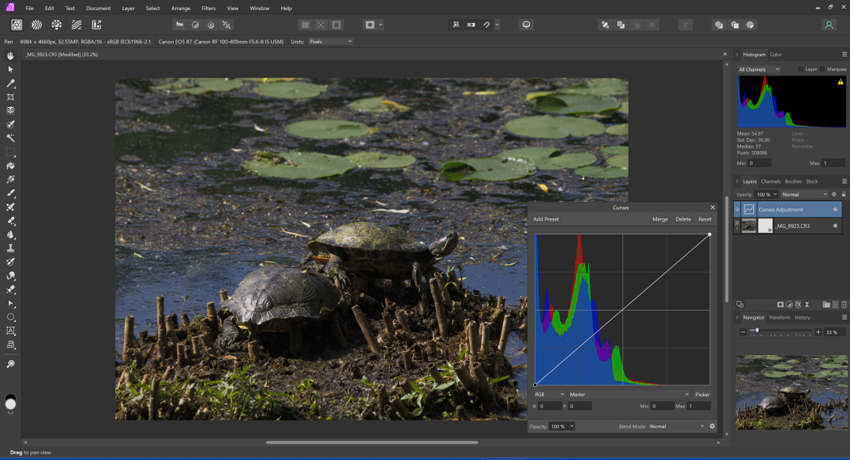
For a straightforward portrait, product shot, or digital illustration, both can deliver excellent results. Photoshop has the more established handoff workflow when clients specifically require layered PSD files with Adobe-native features intact.
2. AI and Automation Tools
- Affinity combines traditional editing with Canva AI Studio options for tasks such as generative adjustments, image enlargement, separating elements in a scene, reducing motion blur, removing noise, and correcting mixed lighting. Scripting tools can also help automate repeatable work. The important distinction is cost: Affinity's core editing tools are free, but Unlike the core editor, Canva AI Studio features require an eligible paid Canva plan.
- Photoshop offers Generative Fill and Expand, intelligent selections, edge refinement, prompt-based image changes, and Adobe Firefly workflows. These tools are particularly useful for compositing, removing distracting objects, or exploring alternatives without rebuilding an image from scratch. Access to certain generative tools and models depends on the Adobe plan and its credit allowances.
3. RAW, HDR, and Advanced Photography Features
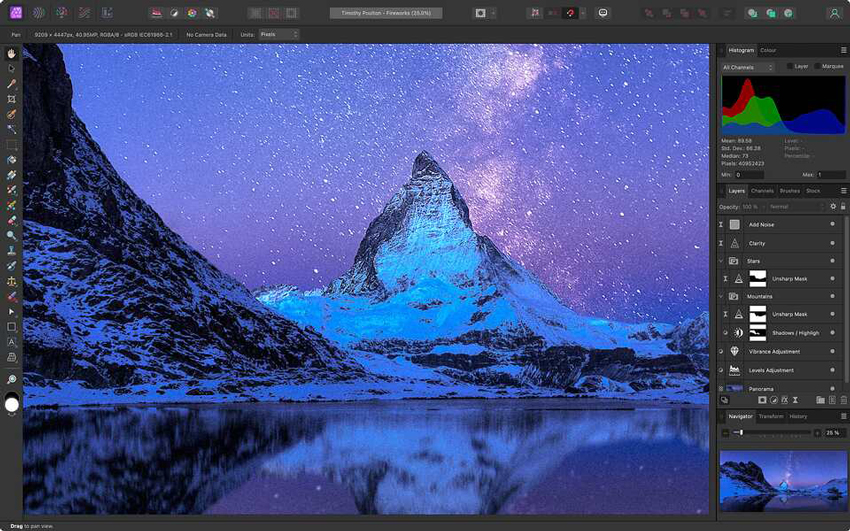
- Affinity provides RAW development with exposure, tone, color, sharpening, and detail controls, as well as reusable presets. It also supports HDR merging, focus stacking, panorama stitching, and tone mapping. This covers a great deal of serious photography work, although it is still an image editor rather than a catalog-centered photo management system.
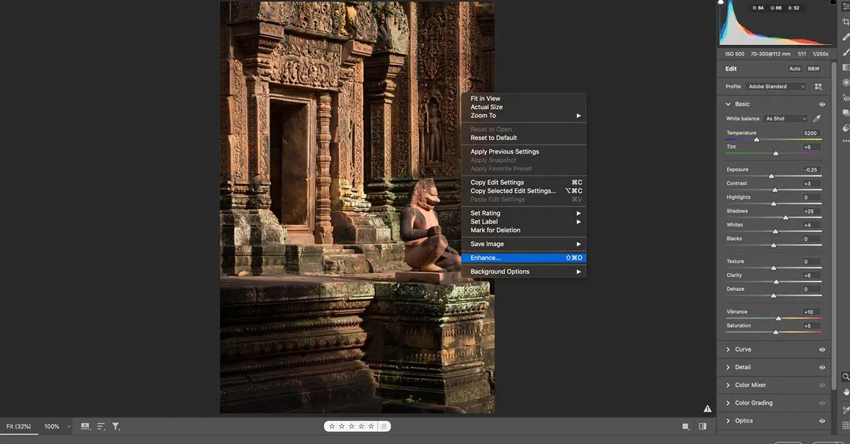
- Photoshop uses Adobe Camera Raw for RAW adjustments, including white balance, exposure, curves, lens corrections, and local masks. Its connection to Lightroom is particularly useful for photographers who need to sort and grade an entire shoot before opening a handful of selected images for intensive retouching.
4. Specialty Features
- Affinity stands out when a job includes more than photography. You can retouch a product image, create supporting vector graphics, and assemble page layouts in the same application. Batch tools, scripts, and common design-file imports make it useful for small creative teams handling a varied workload.
- Photoshop focuses on advanced compositing, digital painting, accurate selections, and reusable Smart Objects. It also benefits from smooth handoffs to Lightroom, Illustrator, and other Adobe applications. For studios delivering complex layered artwork, that established workflow is often more important than having layout tools inside the photo editor itself.
5. File Compatibility and Workflow Integration
- Affinity supports common formats such as PSD, PDF, SVG, TIFF, JPEG, and PNG, as well as INDD imports for page layout work. That makes it flexible for many projects, but compatibility is not identical to working natively in Adobe software. Complex Photoshop effects, Smart Objects, and certain proprietary features can change or lose editability when files move between applications. Documents from the unified Affinity app also may not open in the older standalone editor.
- Photoshop has the edge when a client expects an editable PSD with Smart Objects, linked files, and advanced layer effects preserved exactly. Cloud documents and Adobe integrations also make collaboration easier for teams that share assets across multiple Creative Cloud applications.
Feature Strengths Summary
- Affinity is appealing for its free core editor, capable RAW and layer tools, and the ability to combine photography, vector design, and layout. Its main trade-offs are paid AI services and the need to check compatibility with Adobe-heavy projects.
- Photoshop is a strong choice for intricate retouching, collaborative layered files, and photographers who already work with Lightroom. The subscription cost and generative-credit terms matter most when you do not need those deeper workflows every day.
Improve Photo Quality Before Editing in Affinity or Photoshop
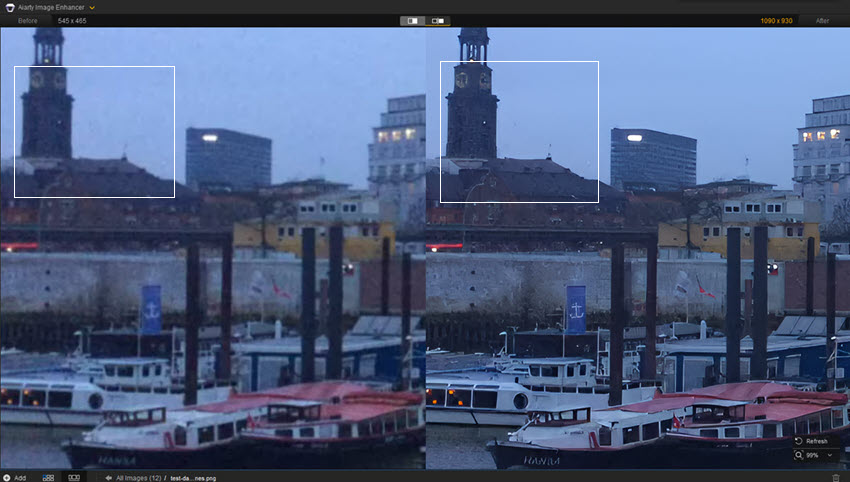
Affinity and Photoshop already have capable editing and AI tools, but working through a large set of noisy or low-resolution files can still call for a more focused process. Aiarty Image Enhancer handles local denoising, deblurring, detail reconstruction, face restoration, and upscaling, with batch processing for mixed image sources. It can help prepare older photos, heavily cropped images, compressed assets, or AI-generated artwork before the finer color, design, and compositing work begins in either editor. Aiarty does not replace their editing tools; it offers a dedicated enhancement step and an optional one-time lifetime license.
Affinity Photo vs Photoshop: Performance
Performance matters most when your everyday files are demanding: large RAW photographs, multilayer composites, high-resolution print artwork, or batches of exports. Both applications can handle serious work, but their speed depends heavily on the computer, document, and particular tools being used. It is more useful to compare your own typical tasks than to declare a blanket winner.
1. Speed and Responsiveness
- Affinity is comfortable for everyday photo retouching and projects that combine raster, vector, and layout elements. Complex effects and large files can still tax the system, particularly when multiple operations are applied at once.
- Photoshop benefits from GPU acceleration and a well-established toolset for layered production work, although high-resolution Smart Objects, heavy filters, and AI operations can demand substantial memory and processing power.
2. Handling Large Files
- Affinity supports high-resolution documents, live filters, HDR work, and multi-image projects. Photographers with very large composites should test representative files and export requirements before relying on it for a full production pipeline.
- Photoshop supports layered work at substantial scale, including PSB files for very large documents. Smart Objects can help keep complex assets editable, though scratch-disk space, RAM, and GPU capacity still affect responsiveness.
3. Resource Usage
- Affinity provides its desktop editing tools without a Creative Cloud subscription. Resource demands still rise with document size, live filters, and the amount of processing required.
- Photoshop tends to reward systems with ample RAM, fast scratch storage, and capable graphics hardware, particularly for compositing and compute-intensive AI work.
4. Stability and Reliability
- Affinity can be reliable for regular editing, but anyone who exchanges intricate PSD files should test those handoffs before a client deadline. Compatibility and stability matter more than which application has the shorter feature list.
- Photoshop has extensive documentation and troubleshooting resources. Plug-ins, drivers, and unusually complex projects can still cause problems, so an established professional reputation is not a substitute for testing your own workflow.
5. Performance Summary
- Affinity is attractive for broad creative work and low software costs, especially when photo, vector, and layout tasks share the same project.
- Photoshop is particularly suited to layered production work and Adobe-based collaboration. Which one feels faster will depend on the files and operations you use most often.
Affinity Photo vs Photoshop: Pros and Cons
The most useful pros and cons are the ones that affect everyday work: how easy it is to finish a file, share it with a client, use AI tools, and manage long-term costs.
Affinity Photo Pros and Cons
- Professional Pixel, Vector, and Layout core tools are free with a Canva account.
- Customizable Studios combine photo editing, vector design, and layout in one app.
- Solid non-destructive editing, retouching, HDR, panorama, and RAW workflows.
- RAW development, reusable presets, and scripting for repeatable work.
- PSD import/export and INDD import for exchanging design files.
- No ongoing fee for the core editing application.
- Canva AI Studio features require an eligible paid Canva plan and may have usage limits.
- Certain Adobe-specific PSD effects and Smart Objects may not transfer with full editability.
- Files from the unified Affinity app may not open in the older standalone application.
- Smaller third-party plug-in and studio-standard handoff ecosystem than Photoshop.
Adobe Photoshop Pros and Cons
- Widely adopted for professional retouching, complex compositing, and layered PSD handoffs.
- Smart Objects, precise masks, advanced selections, Content-Aware Fill, and extensive brush controls.
- Generative Fill, prompt-based editing, edge refinement, and AI-assisted selections.
- Adobe Camera Raw, Lightroom integration, and support for large production files.
- Close integration with Adobe Creative Cloud applications and cloud services.
- Strong professional training, plug-in, and automation ecosystem.
- Desktop Photoshop requires a paid subscription; costs add up over time.
- High-resolution composites and AI models can be demanding on RAM, storage, and GPU.
- Feature depth and the Adobe ecosystem can create a steeper learning curve.
- Generative credits and access to premium or partner AI models vary by plan.
Key Takeaways:
- Choose Affinity when you want professional photo, vector, and layout tools without a recurring software fee.
- Choose Photoshop if Adobe-native collaboration, sophisticated retouching, and integrated AI workflows are central to your projects.
- Both are capable photo editors; consider the specific features, handoff formats, AI access, and subscription cost rather than assumed performance rankings.
Affinity Photo vs Photoshop: Pricing & Licensing
The main pricing difference is straightforward: Affinity's core photo, vector, and layout tools are free with a Canva account, while premium Canva AI features require a paid plan. Photoshop requires an Adobe subscription. The table below lists indicative U.S. plan prices; Adobe monthly figures generally reflect an annual commitment billed monthly, and offers or AI allowances may change.
Pricing note: Prices and AI usage allowances depend on the plan and region. Check the Canva pricing page, Adobe Photoshop plans, and Creative Cloud comparison before subscribing. Owning the older standalone Affinity software does not automatically provide access to Canva AI services.
Affinity Photo vs Photoshop: Choosing the Right Tool for Your Needs
The easiest way to choose is to think about your next real project, not the longest feature list. A hobbyist editing RAW portraits, a freelancer building social graphics, and a studio delivering layered PSD files can reasonably prefer different applications.
1. Hobbyists and Casual Photographers
Affinity makes sense if you want to develop RAW images, refine portraits, use layers, and export finished photographs without taking on a subscription. Its tools are capable enough for substantial personal and freelance work. Photoshop becomes more attractive if you are also using Lightroom or need specific Adobe tools and file compatibility.
2. Freelancers and Solo Creators
Freelancers who routinely turn a photo into an ad, presentation, or print layout may appreciate Affinity's mix of pixel, vector, and page design tools. Photoshop is a safer default when a client supplies complex PSD templates, expects editable Smart Objects, or works with a broader Adobe production team.
3. Professional Studios and Creative Teams
In a studio or agency, the file rarely ends with the person who edited it. Photoshop has an advantage when layered PSD handoffs, Smart Objects, specialist plug-ins, and Adobe application links are built into the production process. Affinity can work well for a team that controls its own formats and templates, but it is worth testing interchange before committing to a client-facing pipeline.
4. Specialized Tasks
For RAW photography, both editors cover exposure, color, masking, and correction, although Photoshop's link to Lightroom and Camera Raw is useful when the job begins with hundreds of photos. Affinity has an advantage for projects that also need illustration or page design. Photoshop offers a broader established environment for complex generative composites, while Affinity provides optional Canva AI services. Neither is a replacement for a dedicated 3D modeling application.
For most individual creators, Affinity deserves a serious look before paying for a subscription. If your work depends on Photoshop-specific collaboration or the depth of its retouching tools, Adobe's ongoing cost may be easier to justify.
Conclusion
Affinity and Photoshop can both deliver professional photo edits. Choosing between them is less about which app has the most tools and more about the type of work you do, how you exchange files, and whether a subscription makes sense for your workload.
Affinity is an appealing choice for photographers and designers who want RAW development, layered retouching, vector artwork, and page layout in one free application. Canva AI tools are available separately through paid access. The main caveat is compatibility: if you work with complex Adobe documents or older standalone Affinity files, make sure the handoff behaves as expected.
Photoshop earns its place with intricate masks, Smart Objects, difficult composites, Camera Raw, and reliable handoffs inside the Adobe ecosystem. Its generative and prompt-based tools can speed up creative edits, but subscription costs and usage allowances should be weighed against how frequently you actually need them.
Bottom line: Choose Affinity if you want capable, free editing that also covers vector and page design. Choose Photoshop when precise compositing, Adobe-native deliverables, and team workflows are part of your routine. And if the main challenge is improving noisy, soft, or undersized images in batches, a dedicated tool such as Aiarty can complement either one.
You May Also Like


This post was written by Brenda Peng who is a seasoned editor at Digiarty Software who loves turning ordinary photos into extraordinary works of art. With AI assistance for brainstorming and drafting, the post is reviewed for accuracy by our expert Abby Poole for her expertise in this field.
