


Photoshop is more than just a photo editor for many Mac users. It defines how images are edited. Layers, masks, advanced selections, adjustment layers, and non-destructive workflows are deeply embedded in daily editing tasks. That’s also why leaving Photoshop can feel difficult, even when its subscription model no longer makes sense.
Fortunately, a Photoshop alternative doesn’t have to mean sacrificing everything. There are several free tools on macOS that aim to replace Photoshop’s core editing capabilities rather than just offering basic photo adjustments. In this article, we focus specifically on free Photoshop alternatives for Mac, evaluating how well each option can handle real Photoshop-style workflows and which types of users they are actually suitable for.
What Makes a Good Free Photoshop Alternative on Mac?
Not all free photo editors can be considered true Photoshop alternatives. The goal isn’t just to crop, apply filters, or adjust colors. It’s to replicate the core functionality and workflow that Photoshop offers. When evaluating a free alternative, consider the following key aspects:
Layer Support
Layers are the backbone of Photoshop editing. A good alternative should allow you to work with multiple layers, adjust their order, opacity, and blending modes. Without layers, advanced compositing and non-destructive edits become almost impossible.
Masks and Selections
Precise selections and masking are essential for complex edits, such as removing backgrounds, applying local adjustments, or combining multiple images. A free alternative should provide selection tools, brush masks, and ideally, support for feathering or refinement.
Retouching and Adjustment Tools
From spot healing to dodge & burn, curves, levels, and color balance, these tools allow you to refine images professionally. A free Photoshop alternative should cover at least the most commonly used retouching and adjustment tools.
PSD Compatibility and File Export
For users switching from Photoshop, opening and saving PSD files without losing layers is crucial. Additionally, flexible export options, including popular image formats and resolution control, ensure the workflow remains smooth.
Learning Curve and Usability
Even the best free alternative won’t help if it’s too complex to use. Look for intuitive interfaces, helpful documentation, and community support to reduce the learning curve while still accessing advanced features.
By keeping these five criteria in mind, you can separate simple photo editors from tools that genuinely allow you to replicate Photoshop’s workflow—free of charge.
Best Free Photoshop Alternatives for Mac
Here are some of the top free tools on Mac that can serve as alternatives to Photoshop, evaluated by how well they replicate Photoshop’s core features and workflow.
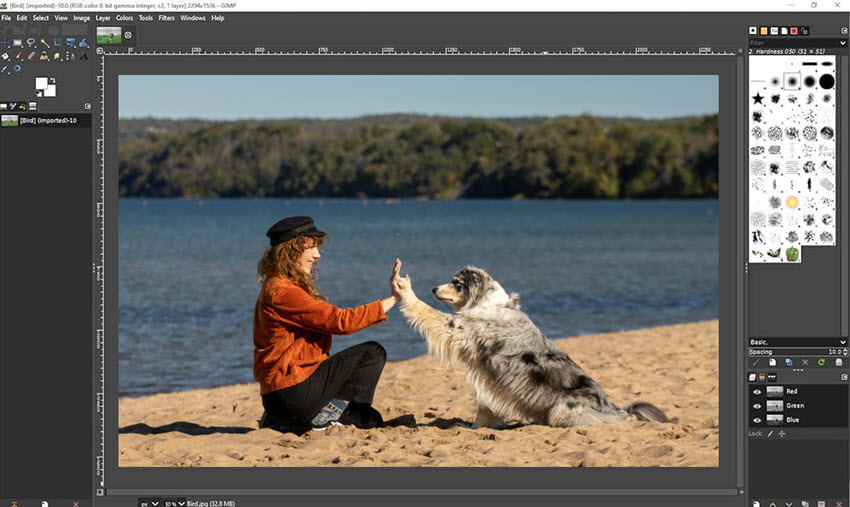
1. GIMP – The Most Complete Free Photoshop Alternative
Functionality vs Photoshop:
- Layers & Masks: Fully supported, including layer groups and blending modes.
- Selections: Advanced selection tools like lasso, rectangle, free select, and fuzzy select.
- Adjustment Tools: Levels, curves, hue/saturation, dodge & burn, and filters similar to Photoshop.
- File Compatibility: Can open and export PSD files (though complex PSDs with adjustment layers may have limitations).
GIMP offers the most comprehensive set of tools among free options, making it closest to Photoshop in terms of workflow. While the interface is less polished and requires some learning, users familiar with layers and masks will feel at home.
Limitations: Some advanced features are less intuitive, and certain Photoshop-specific effects or smart objects aren’t fully supported.
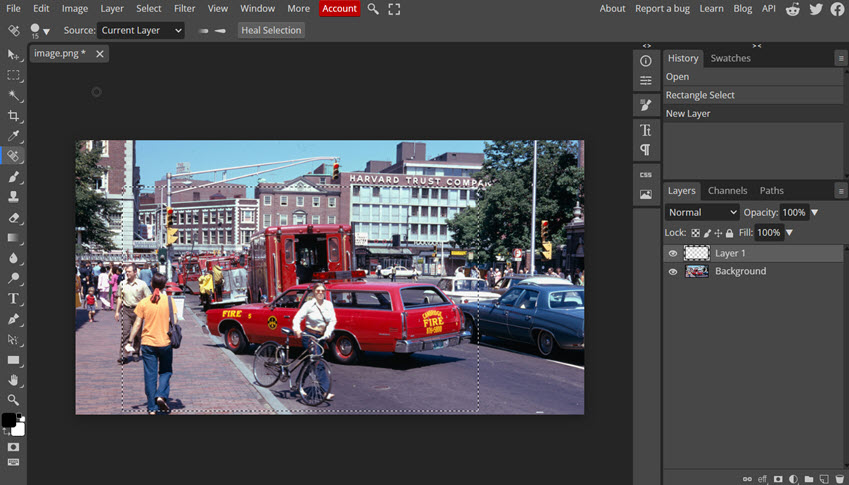
2. Photopea – Browser-Based PSD Editor
Functionality vs Photoshop:
- Layers & Masks: Supports layers, layer groups, blending modes, and layer masks.
- Selections: Includes magic wand, lasso, and marquee tools with feathering.
- Adjustment Tools: Offers curves, levels, hue/saturation, and filters.
- File Compatibility: Full PSD support, including text layers and smart objects in most cases.
Photopea is ideal for users who want a Photoshop-like interface without installing software. Because it runs in a browser, you can access PSD files from anywhere. The workflow is remarkably similar to Photoshop, making it a perfect lightweight alternative.
Limitations: Some advanced features require a paid subscription, and performance can lag with very large files.
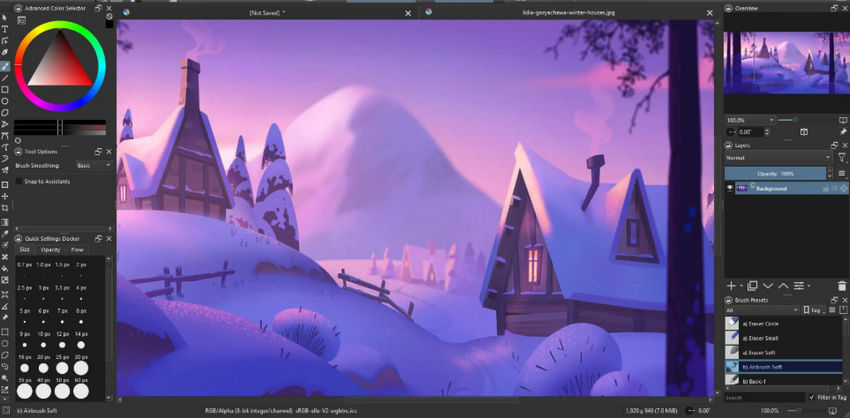
3. Krita – Best for Digital Art and Illustration
Functionality vs Photoshop:
- Layers & Masks: Fully supports multiple layers, layer groups, and masks.
- Selections: Selection tools suitable for digital painting, though less advanced for photo compositing.
- Adjustment Tools: Curves, levels, color balance, filters, and brushes for detailed retouching.
- File Compatibility: PSD support exists, but complex PSDs may not import perfectly.
Krita is ideal for artists who need both painting and editing capabilities. While it is not primarily a photo editor, it replicates Photoshop’s layer-based workflow and provides excellent brush tools and non-destructive editing options.
Limitations: Less suited for photo manipulation or RAW workflow compared to Photoshop or GIMP.
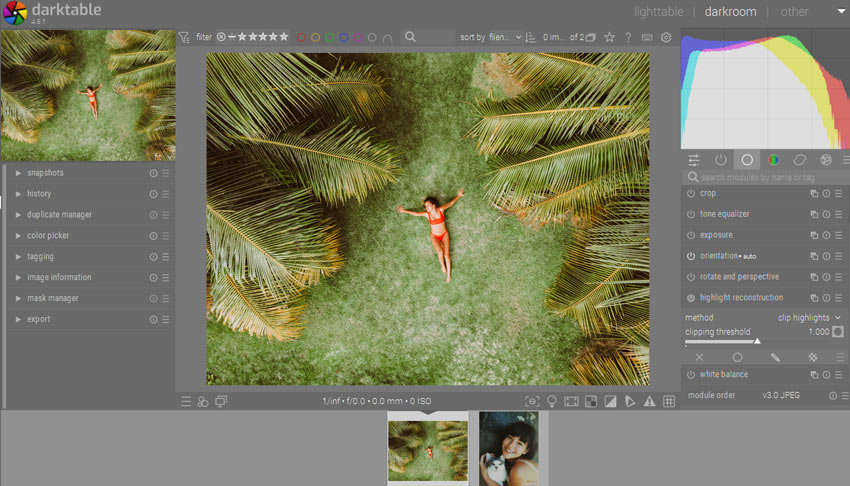
4. Darktable – Photoshop Alternative for RAW Editing
Functionality vs Photoshop:
- Layers & Masks: Supports basic layering via modules but does not replicate Photoshop’s full layer system.
- Selections: Focused on selective adjustments via masks, brushes, and parametric masks.
- Adjustment Tools: Extensive RAW editing tools including exposure, curves, color correction, and local adjustments.
- File Compatibility: Exports common image formats; PSD export is limited.
Darktable is the closest free alternative to Photoshop’s RAW and professional photo workflow. It’s more like a combination of Photoshop + Lightroom, allowing detailed adjustments without destructive edits.
Limitations: Not ideal for compositing or advanced graphic design; layer functionality is limited compared to Photoshop.
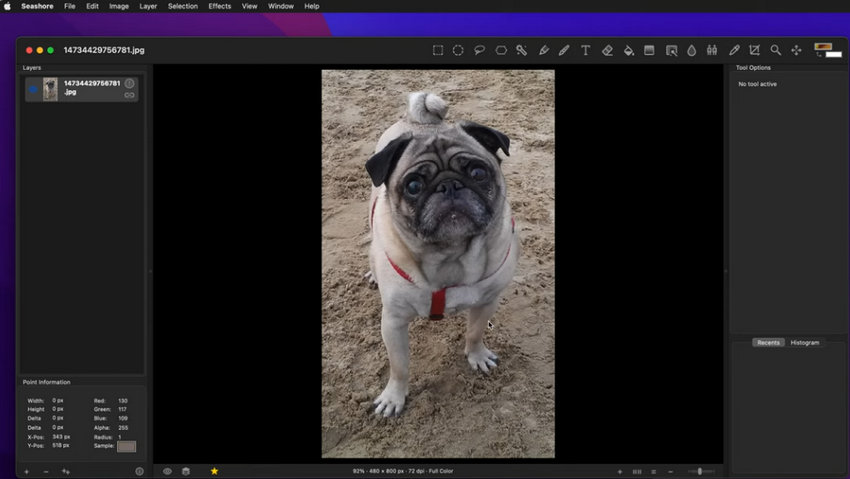
5. Seashore – Lightweight Layer-Based Editing
Functionality vs Photoshop:
- Layers & Masks: Basic layer support, including transparency and simple blending modes.
- Selections: Rectangle, ellipse, and lasso selections.
- Adjustment Tools: Includes basic color adjustment, gradients, and filters.
- File Compatibility: Supports common formats; PSD support is limited.
Seashore is perfect for Mac users who need a simpler, layer-based editor with some Photoshop-like capabilities. It’s easy to learn, lightweight, and open-source.
Limitations: Missing advanced features like full masking, advanced retouching, or smart objects; more suitable for simple compositing and touch-ups.
6. Pixlr E – Browser-Based Photoshop-Like Editing
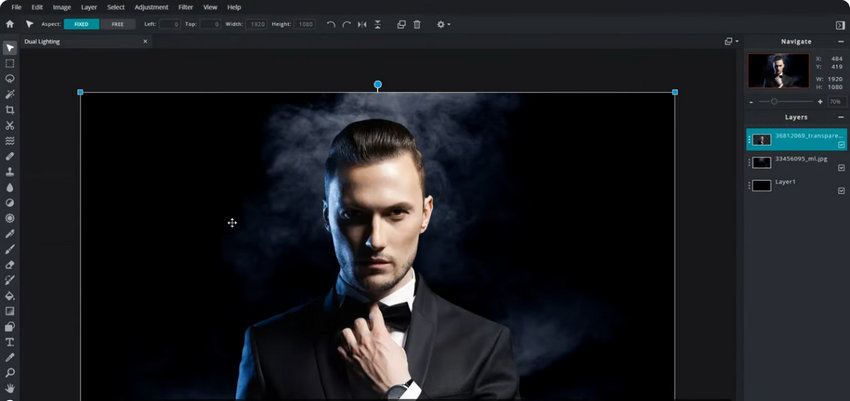
Functionality vs Photoshop:
- Layers & Masks: Supports layers, blending modes, and basic masking.
- Selections: Lasso, marquee, magic wand, and other basic selection tools.
- Adjustment Tools: Curves, levels, color adjustments, filters, and retouch tools.
- File Compatibility: PSD support limited but adequate for most simple projects.
Pixlr E offers a Photoshop-like UI in a browser, making it convenient for quick edits or collaborative work without installation.
Limitations: Advanced workflows like complex compositing or professional retouching are limited; performance depends on browser and internet connection. (Also see: Pixlr alternatives free online)
Limitations of Free Photoshop Alternatives and How AI Can Fit In
Even the best free Photoshop alternatives on Mac have their limits. Tools like GIMP, Photopea, and Krita can handle layers, masks, and retouching, but some tasks remain challenging:
- Upscaling low-resolution images for printing or larger displays
- Restoring details in slightly blurry or compressed photos
- Reducing noise in low-light shots
Manually performing these edits in traditional free editors can be time-consuming, requiring careful adjustments of multiple layers, filters, and masks.
For these tasks, an AI-powered tool like Aiarty Image Enhancer can make the process much easier. It can automatically sharpen blurry areas, reduce noise, enhance details, and upscale images without repeatedly adjusting sliders. Simply import your images, choose the AI model and upscale option, then export. Aiarty also supports batch processing, making it fast and efficient, while delivering high-quality results thanks to advanced AI models.
Check out the video below to see Aiarty Image Enhancer in action and compare before-and-after results.
If you also use Photoshop's Super Resolution to enhance photo quality on Mac, you can explore these top image enhancement software for Mac as alternatives, including Aiarty Image Enhancer, Pixelmator Pro, DXO and more.
You May Also Like


This post was written by Brenda Peng who is a seasoned editor at Digiarty Software who loves turning ordinary photos into extraordinary works of art. With AI assistance for brainstorming and drafting, the post is reviewed for accuracy by our expert Abby Poole for her expertise in this field.
