 Aiarty Image Enhancer
10 Best Free Photoshop Alternatives in 2026 (Compared)

Updated on
Looking for a free Photoshop alternative usually comes down to one question: which parts of Photoshop do you actually use? A photographer correcting RAW files has different requirements from a designer opening layered PSDs, and neither needs the same tools as an illustrator drawing with a tablet. Choosing by feature count alone is a poor way to find a replacement.
For desktop photo editing, Affinity and GIMP are the strongest places to start. Photopea is the practical browser choice for many PSD jobs, while Krita remains better suited to painting than retouching. The other editors in this guide earn their place for narrower tasks. The comparison below also separates fully free software from products with free plans, advertisements, restricted features, or time-limited desktop use.
10 Best Free Photoshop Alternatives at a Glance
| Software | Best For | Free Access | PSD Workflow | Read More |
|---|---|---|---|---|
| Affinity | Layered photo editing, compositing | Free with Canva account | PSD import; check complex effects | |
| GIMP | Open-source raster editing | Fully free | Open/save; check effects | |
| Photopea | Editing PSDs in a browser | Free with ads | Open/save layered PSDs | |
| Krita | Digital painting and illustration | Fully free | Import/export; some limitations | |
| Paint.NET | Fast Windows photo edits | Free direct download | Plugin-dependent | |
| Darktable | RAW development and photo library | Fully free | Not a layered PSD editor | |
| Inkscape | SVG illustration and vector design | Fully free | Not a PSD photo editor | |
| Pixlr | Quick browser photo edits | Freemium; limits apply | Not a full PSD workflow | |
| Canva | Social graphics and layout | Freemium; Pro tools extra | Not a Photoshop PSD workflow | |
| ibisPaint | Drawing on mobile and desktop | Free/limited by platform | Not a full PSD workflow |
Before you switch: Opening a PSD is not the same as preserving everything in it. Smart objects, adjustment layers, live effects, fonts, and color profiles do not always survive a round trip between editors. If you work with client files, test a duplicate of a representative project before moving your workflow.
How to Choose a Free Photoshop Alternative
1. Layers, masks, and selective editing. The first test is whether the software can handle the kind of changes your work requires. Layered composites, object isolation, retouching, and local color adjustments call for very different tools than cropping or applying a preset. Non-destructive adjustments matter when a client requests revisions days later.
2. PSD compatibility and handoff. Photoshop's native format is convenient but not a universal interchange standard. Before committing to a replacement, check how it handles text layers, smart objects, blend modes, groups, and exported files. An editor that displays a PSD correctly may not reproduce its editable structure on export.
3. RAW files and color management. Photographers should look at camera RAW support, lens corrections, highlight recovery, masks, and ICC profile handling. Darktable belongs in this discussion even though its workflow resembles a RAW processor more than a pixel editor. For print design, check how the software handles CMYK preparation rather than assuming all color-managed applications are interchangeable.
4. What 'free' really means. Free open-source downloads, ad-supported browser tools, and free accounts with paid upgrades are not equivalent. Look for save restrictions, export resolution limits, locked assets, AI credit requirements, and device-specific licensing. None of the tools below requires an ongoing Photoshop subscription to get started, but several have meaningful restrictions.
10 Best Free Photoshop Alternatives Reviewed
1. Affinity
- Supported OS: Windows and macOS
- Free access: Free core tools with a Canva account; integrated premium AI tools cost extra
- Best for: Professional photo editing, layered composites, and design
Affinity is the most consequential addition to a free Photoshop shortlist. Its desktop app brings photographic retouching, RAW development, vector design, and page layout into one workspace. Layers, masks, adjustment controls, live filters, and color-management options make it a realistic choice for editors whose work goes beyond basic corrections. It is particularly useful for preparing layered marketing artwork, product photography, and print-ready layouts without maintaining a Photoshop subscription.
The free access model needs one qualification. A Canva account is required, although a paid Canva plan is not necessary for the main pixel, vector, and layout tools. Canva's integrated premium AI features are a separate paid benefit. Affinity can open layered PSDs, but Photoshop-specific smart objects and advanced effects may not translate cleanly; it is not safe to assume a client's working file will remain fully editable in both directions. For a new project that can stay in Affinity's own format, that limitation matters much less.
- A substantial desktop toolkit for photo, vector, and layout work
- Non-destructive adjustments, masks, RAW editing, and color control
- Core editing tools available without a paid plan
- Canva sign-in required
- Premium integrated AI features require payment
- Complex Photoshop documents may lose some editability
2. GIMP
- Supported OS: Windows, macOS, and Linux
- Free access: Fully free and open-source
- Best for: Open-source image manipulation and layered retouching
GIMP remains one of the few serious no-cost desktop editors built around raster image manipulation. It covers masks, selection work, cloning and healing, compositing, color correction, and scripted or plug-in-assisted tasks. Its flexibility is valuable for photographers and designers who want control over how they work rather than a template-driven interface. It also runs on Linux, where direct Photoshop-style alternatives are relatively limited.
The familiar criticism that GIMP offers no non-destructive editing is outdated: GEGL-based filters can remain adjustable. That does not make its entire workflow identical to Photoshop's adjustment layers and smart objects. Complex PSD projects still need checking, RAW development generally involves a separate processor, and the interface takes time to learn. GIMP vs. Photoshop is therefore better judged task by task than through a checklist of menu items.

- Full-featured layers, masks, selections, and retouching
- Adjustable non-destructive GEGL filters
- Free across major desktop systems
- Steep learning curve for Photoshop users
- PSD interchange is imperfect for advanced effects
- RAW workflow is less integrated than dedicated processors
3. Photopea
- Supported OS: Web browser on major desktop platforms
- Free access: Free with advertising; paid option removes ads
- Best for: Working with Photoshop documents in a web browser
Photopea is the simplest recommendation for someone handed a PSD who cannot install Photoshop. Its browser interface is deliberately familiar, with layer groups, masks, blend modes, type, vector paths, and smart objects. Many everyday tasks—editing a banner, changing a product label, adjusting a mask, or exporting a social graphic—can be done without a desktop installation. It is notably closer to Photoshop's document model than a template editor such as Canva.
Compatibility has limits. Complex smart filters, fonts, and proprietary effects may differ from the Adobe original, so a PSD should be checked visually before delivery. Photopea also offers generative editing through Magic Replace; describing it as entirely lacking AI editing tools is no longer correct. The free interface is ad-supported, and a browser session is less comfortable than a dedicated workstation for large, prolonged editing jobs. Save working files locally as you go rather than relying on a tab remaining open.

- Familiar layered PSD editing without installation
- Smart objects, masks, selections, and practical retouching tools
- Free access for common design and photo-editing tasks
- Advertisements in the free experience
- Some Photoshop effects do not round-trip exactly
- Large files and long sessions depend on browser resources
4. Krita
- Supported OS: Windows, macOS, and Linux
- Free access: Fully free and open-source
- Best for: Painting, concept art, and illustration
Krita is an excellent Photoshop substitute when the work begins with a blank canvas rather than a camera file. Its brush engines, stabilizers, brush presets, assistants, and tablet-friendly interface are designed for drawing. Paint layers, masks, groups, blending modes, and frame-by-frame animation allow an illustrator to produce substantial projects without paying for the software.
Krita can open and save many PSD elements, but its own native document format is safer for active painting projects. It also supports CMYK color spaces, contrary to an older claim often repeated in comparison articles; that should not be confused with having the same prepress workflow as a publishing suite. Retouching photographs, managing large RAW libraries, and rebuilding intricate Photoshop composites are not its strongest tasks. Artists will find more value in the brush system than in its photo-correction features.

- Sophisticated brush controls and tablet support
- Layers, masks, and built-in animation workflow
- CMYK support and useful PSD interchange
- Designed for painting rather than professional photo retouching
- PSD effects and text may not translate perfectly
- No dedicated photo-catalog or RAW workflow
5. Paint.NET
- Supported OS: Windows
- Free access: Free download from official website; optional paid Store distribution
- Best for: Quick and dependable Windows photo edits
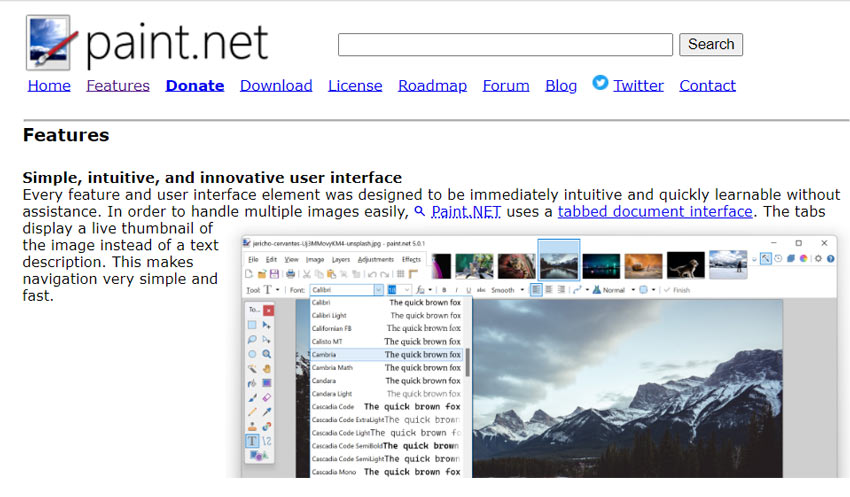
Paint.NET is the sensible option when Photoshop is excessive for the job. Its layout is straightforward, with layers, selections, blending modes, effects, and unlimited undo. It suits routine tasks such as cropping product images, removing small distractions, resizing graphics, and adjusting color for web use. It is actively maintained; describing it as abandoned or several years out of date would be inaccurate.
The classic desktop installer is available free from its website, while the Microsoft Store edition is a paid way to support development. That distinction is worth making because the pricing can look inconsistent across download sources. Paint.NET is not a drop-in replacement for elaborate Photoshop documents, advanced CMYK production, or high-end retouching. PSD support is commonly handled through plug-ins, and a plug-in-dependent workflow should be tested before a client project depends on it.
- Low-friction editing for everyday Windows tasks
- Layers and a useful ecosystem of plug-ins
- Free official desktop download with ongoing maintenance
- Windows-only
- Advanced retouching and prepress tools are limited
- PSD workflow commonly depends on plug-ins
6. Darktable
- Supported OS: Windows, macOS, and Linux
- Free access: Fully free and open-source
- Best for: RAW development, exposure, and color work
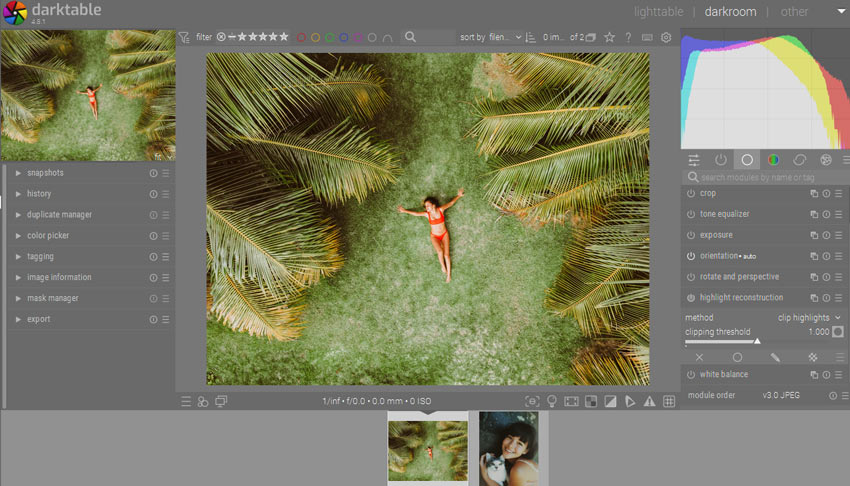
Darktable is included for photographers who mainly use Photoshop to rescue or finish camera files. It processes RAW images non-destructively, with exposure controls, tone and color tools, lens corrections, selective masks, and an image-management workspace. These are the parts of a photographic workflow for which a conventional layered raster editor is not always the best starting point.
It is more accurately compared with Lightroom than with Photoshop. Darktable does not aim to build multi-layer advertising composites, retouch with Photoshop-style smart objects, or edit a client's layered PSD. Its modules can also feel dense until the color workflow is familiar. For a photographer who needs a free RAW processor and rarely creates complex composites, however, it may eliminate the need for a substantial part of an Adobe subscription.
- Non-destructive RAW corrections and selective masking
- Lens and color tools tailored to photographic files
- Useful photo organization without a subscription
- Not a layer-based Photoshop replacement
- Can be difficult to learn at first
- Less suitable for typography and composite artwork
7. Inkscape
- Supported OS: Windows, macOS, and Linux
- Free access: Fully free and open-source
- Best for: Vector logos, icons, and scalable illustrations
Inkscape belongs on this list with a clear caveat: it is a vector editor, not a general photo editor. Its strengths are paths, nodes, strokes, shapes, type placed along curves, and reusable SVG artwork. If Photoshop is mainly being used to make logos, pictograms, diagrams, or scalable illustrations, those tasks are often more appropriately handled as vectors.
Raster manipulation is secondary. Inkscape can place or trace photos, but it does not offer Photoshop's pixel retouching, layered photographic compositing, or RAW development. Print production may also require additional preparation depending on a printer's color and PDF requirements. It is a good complement to a raster editor, not a convincing sole replacement for Photoshop in photographic work.

- Precise SVG path and node editing
- Resolution-independent logos and artwork
- No subscription or feature paywall
- Not designed for pixel-level photo retouching
- RAW and layered PSD workflows are outside its focus
- Some prepress workflows require extra steps
8. Pixlr
- Supported OS: Web browser; other apps vary by platform
- Free access: Free access with ads and usage restrictions; paid plans add more
- Best for: Fast browser-based photo corrections
Pixlr is built for edits that should take minutes rather than an afternoon. Browser-based tools cover cropping, exposure and color adjustments, overlays, cutouts, text, and basic layer work. For preparing a quick social image or adjusting a photograph on a borrowed computer, immediate access is its main advantage.
That convenience comes with a narrower editing environment and limits on the free tier. Paid plans provide benefits such as ad-free use, broader AI access, and unrestricted saving, so it is important to check the current allowance before adopting Pixlr for repetitive production. Selection precision, typography control, layered asset management, and Photoshop-specific file handoff are not its strongest reasons to choose it. It is a quick editor, not a substitute for a demanding PSD production pipeline.

- Quick access without a desktop setup
- Practical routine photo and graphic editing
- Approachable controls for occasional editing
- Free use has advertisements or workflow limits
- Advanced layer and selection tools are less comprehensive
- Paid plans are needed for some higher-volume features
9. Canva
- Supported OS: Web and supported apps
- Free access: Free plan; some assets, AI tools, and exports require payment
- Best for: Social graphics, marketing assets, and templates
Canva solves a different problem from Photoshop. Instead of asking the user to build a composition from pixels and masks, it supplies layouts for posts, presentations, promotional artwork, and other repeatable formats. Its templates, brand elements, and sharing tools are useful when speed and consistency matter more than intricate retouching.
The free plan is sufficient for many simple designs, but certain assets, background removal, print-oriented output options, and other premium features are not included. Canva is also not designed to preserve a complex Photoshop document's complete editable structure. It makes sense as a Photoshop alternative for someone producing campaign graphics from existing photos; it makes much less sense for a retoucher who needs precise masks, healing, and color separation.

- Fast template-based design and collaboration
- Useful for consistent social and marketing assets
- Free entry point for common layout work
- Important assets and tools sit behind paid plans
- Not suitable for advanced raster retouching
- Poor match for complex PSD handoff
10. ibisPaint
- Supported OS: Windows, macOS, iOS, and Android
- Free access: Free access varies by device; Windows demo has a daily time limit
- Best for: Mobile illustration and casual digital painting
ibisPaint earns its place for people who draw primarily on a phone or tablet and want to continue on a desktop. Its brush library, layers, rulers, and timelapse recording suit line art, comics, and casual illustration. The touch-oriented workflow is quite different from Photoshop, but for sketching and painting that difference may be an advantage.
The licensing is not uniform across platforms. The Windows demo allows limited daily use without a purchase, while mobile access has its own advertising and premium-feature conditions. That makes ibisPaint less suitable as an unrestricted free desktop Photoshop replacement. It is also designed for drawing rather than demanding RAW editing or complex commercial photo compositing. Choose it for the drawing experience, not for complete parity with Adobe files.

- Drawing-focused controls across mobile and desktop
- Brushes, layers, and timelapse features
- Well suited to comic and illustration workflows
- Free access restrictions differ by platform
- Windows demo is time-limited each day
- Photo manipulation is not its main strength
Which Free Photoshop Alternative Should You Choose?
If your main job is retouching photographs or building composites from multiple images, start with Affinity or GIMP. Affinity is particularly compelling when non-destructive photo editing and layout need to live in one desktop application; GIMP is better for those who value open-source software, extensibility, and Linux support. Neither should be assumed to preserve every Photoshop-specific effect in a complex PSD.
If editable PSD files pass between you and clients, Photopea deserves a place near the top of the shortlist. Its browser access and familiar document structure can be more useful than a long feature list. For painting and illustration, choose Krita on a desktop or ibisPaint if mobile drawing is central to the work. For RAW processing, Darktable is a more appropriate starting point than most Photoshop-style editors.
The remaining choices are intentionally specialized: Paint.NET for fast Windows edits, Inkscape for vector graphics, Pixlr for quick browser corrections, and Canva for repeatable marketing layouts. A freelancer producing web banners may be happier with Canva and Photopea than with a single heavyweight application.
Where Free Photoshop Alternatives Still Fall Short
The largest gap usually appears during handoff, not while making the first edit. Opening a layered PSD is easy to advertise; preserving linked smart objects, editable type, adjustment behavior, plug-in effects, and color settings is harder. When a job has to move back into Photoshop, a compatible preview does not guarantee an editable project. Keep the original file, duplicate it for testing, and agree on a delivery format before starting work.
Professional retouching can also expose differences in selection refinement, healing, frequency separation workflows, color-managed output, and automation. These are not equally important to every reader. For personal photography or occasional social graphics, a fully free tool may cover almost everything. For a studio receiving intricate client PSDs, time lost repairing incompatible layers can outweigh the cost of the subscription being avoided.
When the Problem Is Image Quality Rather Than Editing
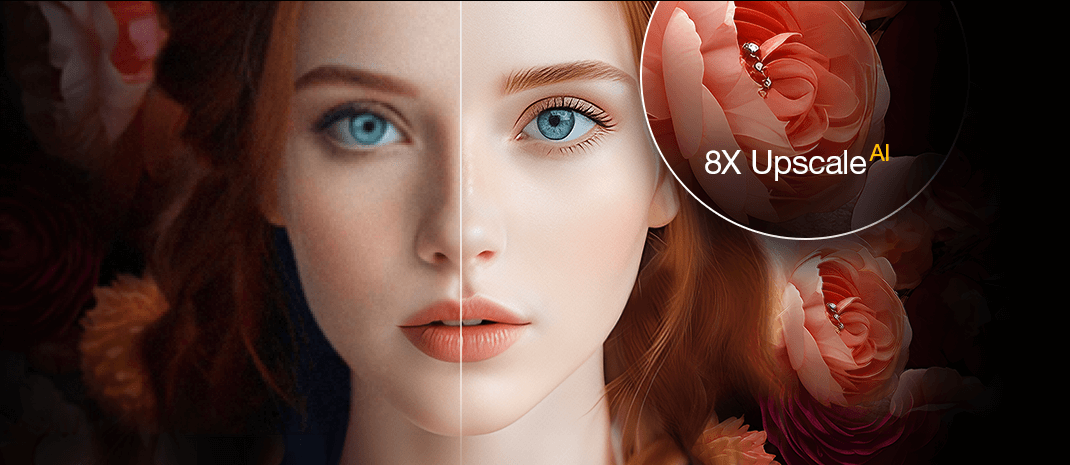
A full photo editor is not always the most direct solution. If the composition is already finished but the file is noisy, soft, or too small for its intended use, the immediate need is image enhancement rather than another set of layout and masking tools. Aiarty Image Enhancer is designed for denoising, sharpening, and upscaling photographic and generated imagery, including batches of files. It is a separate finishing tool, not a replacement for Photoshop's layers, selections, or design features.
For example, a product photographer might correct the background and framing in GIMP or Affinity, then assess whether the exported image needs noise reduction or a larger output size. Enhancement should be checked at full size, particularly around printed labels, fine fabric textures, and other details that must remain faithful to the actual subject.
Enhance Image Quality Without Rebuilding the Edit
- Reduce visible noise and improve soft edges in existing photos
- Upscale suitable low-resolution images for larger output sizes
- Use image enhancement models for photographic and generated material
- Process groups of images locally on supported Windows and Mac computers
Common Questions About Free Photoshop Alternatives
What is the closest free replacement for Photoshop? For full desktop editing, Affinity and GIMP cover a broad range of layered photo work. Photopea is closer to Photoshop's familiar browser-based interface and PSD workflow. The best choice depends on whether you need RAW processing, advanced composites, or reliable file handoff.
Which free editor can open PSD files? Photopea, GIMP, Krita, and Affinity can open PSD files to varying degrees. They do not guarantee perfect compatibility with every adjustment, font, or smart object. Test a copy of an actual project before relying on them for client work.
Are these alternatives genuinely free? GIMP, Krita, Darktable, and Inkscape are free and open-source; Paint.NET provides a free official desktop download. Affinity offers its main creative tools free with a Canva account. Photopea, Pixlr, Canva, and ibisPaint have advertisements, paid features, or platform-specific limits, so their free access is not identical.
Is a free Photoshop alternative good enough for professional work? Often, yes, when the chosen editor matches the task and delivery requirements. Photo retouching, vector illustration, RAW development, and marketing layout can all be done without Photoshop. The main risk is compatibility with a client's Adobe-specific document, not the word 'free' itself.
You May Also Like


Brenda Peng is a seasoned editor at Digiarty Software who loves turning ordinary photos into extraordinary works of art. With years of experience behind the lens and in front of the computer, Brenda shares her passion for photography, image enhancement, and editing through easy-to-follow tutorials.
