


As one of the most popular free photo editors, GIMP is often recommended as a powerful Photoshop alternative for users who don’t want to pay monthly subscription fees. Many people want to know how well GIMP actually performs in real-world editing, whether it’s easy to learn, and if it can truly replace professional tools. Common questions like "Is GIMP good for photo editing?", "Is GIMP safe to use?", and "Can GIMP handle advanced retouching?" frequently appear in Google searches and user forums. In this in-depth GIMP photo editor review, we’ll examine its real capabilities, strengths, limitations, and how it compares to modern alternatives — helping you decide whether GIMP is the right tool for your creative workflow.
What’s GIMP?
GIMP (GNU Image Manipulation Program) is a free, open-source photo editor widely recognized as one of the best Photoshop alternatives available today. It supports advanced image retouching, graphic design, and digital illustration across Windows, macOS, and Linux platforms.
Many users turn to GIMP as a free Photoshop alternative, hoping to get professional-level photo editing without ongoing subscription costs. While it doesn’t fully replace premium software for every workflow, GIMP remains one of the most capable free editors on the market.
Is GIMP free? Yes, GIMP photo editor is totally free and open source. It requires no license fees for personal or commercial use.
Is GIMP safe? Yes, GIMP is safe to use when downloaded from its official website or trusted sources. GIMP does not include built-in advertising, subscriptions, or data collection.
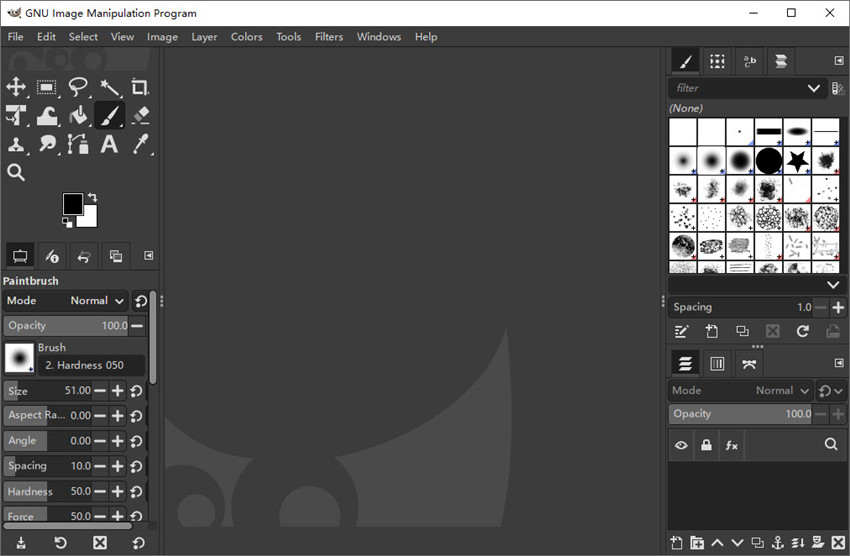
GIMP Interface
GIMP photo editor offers a highly customizable workspace with flexible panel layouts, multi-monitor support, and fully configurable keyboard shortcuts. However, its overall interface still feels less polished than many modern photo editors. New users often find the menu structure dense and difficult to navigate, especially when transitioning from Photoshop or other commercial tools.
Basic tasks may require more steps, and important functions are sometimes hidden in layered submenus. As a result, GIMP has a steeper learning curve and demands more time and patience before users can work efficiently. However, for experienced users who invest time in customization and workflow optimization, the interface can become highly productive and well-suited to professional editing needs.
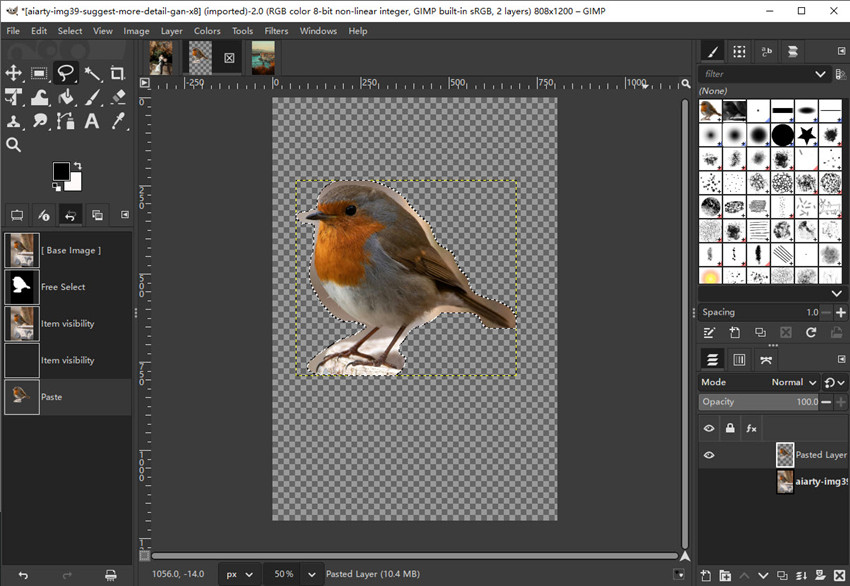
Selection Tools & Alpha to Selection (GIMP’s Signature Advantage)
One of GIMP photo editor’s most distinctive and widely praised features is Alpha to Selection, which allows users to instantly convert transparent areas of a layer into precise selections. This function is frequently mentioned in advanced gimp reviews because it dramatically speeds up compositing, background removal, and graphic design workflows.
In practice, Alpha to Selection makes it much easier to isolate logos, product images, and PNG assets compared to many free editors.
Learn: How to use GIMP to edit photos step by step >>
Besides, GIMP offers a rich set of selection tools, including:
- Fuzzy Select (Magic Wand)
- Foreground Select Tool
- Paths Tool (Pen-style selection)
- Quick Mask Mode
- Intelligent Scissors
These tools provide strong control over complex edges such as hair, fur, and semi-transparent objects.
Compared with Photoshop, GIMP’s tools require more manual refinement. However, experienced users often find GIMP’s combination of Paths Tool and Alpha to Selection offers greater precision in professional compositing tasks. While Photoshop focuses on automation, GIMP emphasizes manual accuracy.
Layers, Masks, and Non-Destructive Editing
GIMP’s layer and masking system is another reason it is frequently considered a serious Photoshop alternative. It offers layer features like:
- Multi-layer editing
- Layer groups
- Layer masks
- Multiple blending modes
- Channel control
Using layer masks, users can perform advanced retouching and compositing without permanently altering original images. Photoshop offers adjustment layers and smart objects for full non-destructive workflows. GIMP photo editor lacks these native features, which means users often rely on duplicated layers and masks. Despite this limitation, many professionals still achieve complex edits in GIMP through careful layer management.
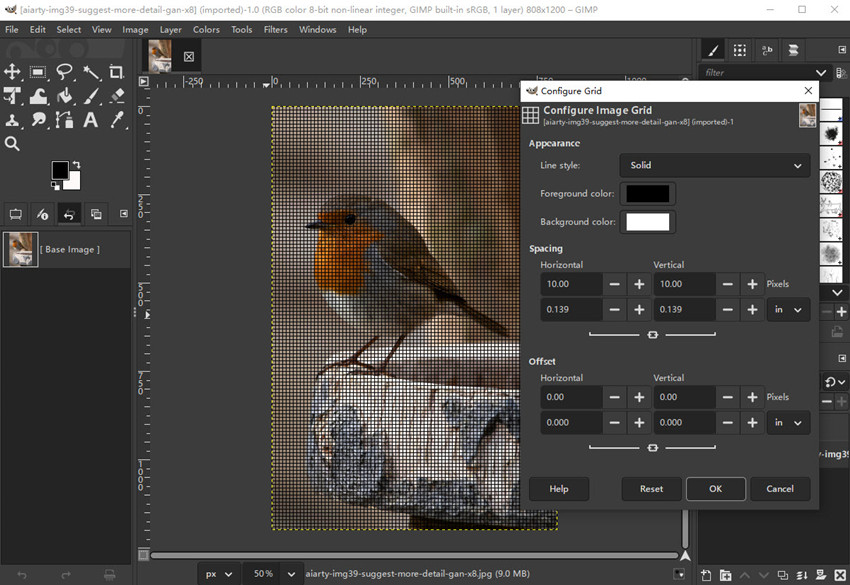
Grid, Guides, and Layout Control
GIMP photo editor includes a professional-grade grid and guide system that is particularly popular among designers. This allows customizable grid spacing,snap-to-grid and snap-to-guide, alignment assistance, and perspective alignment. This system is especially useful for social media graphics, banners, posters, and UI layouts. Compared to many free editors, GIMP offers far more precise layout control, approaching Photoshop’s alignment tools in functionality.
Upscaling and Image Enhancement
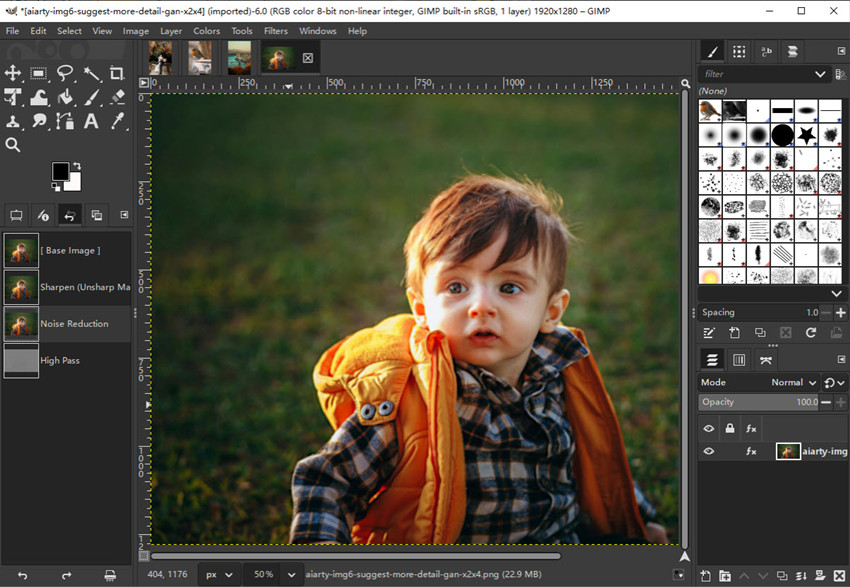
GIMP photo editor relies mainly on traditional resampling methods such as Lanczos and Cubic interpolation for image resizing. Its native capabilities include standard scaling algorithms, manual sharpening, and basic noise reduction filters.
Also Read: How to Upscale an Image in GIMP Without Losing Quality
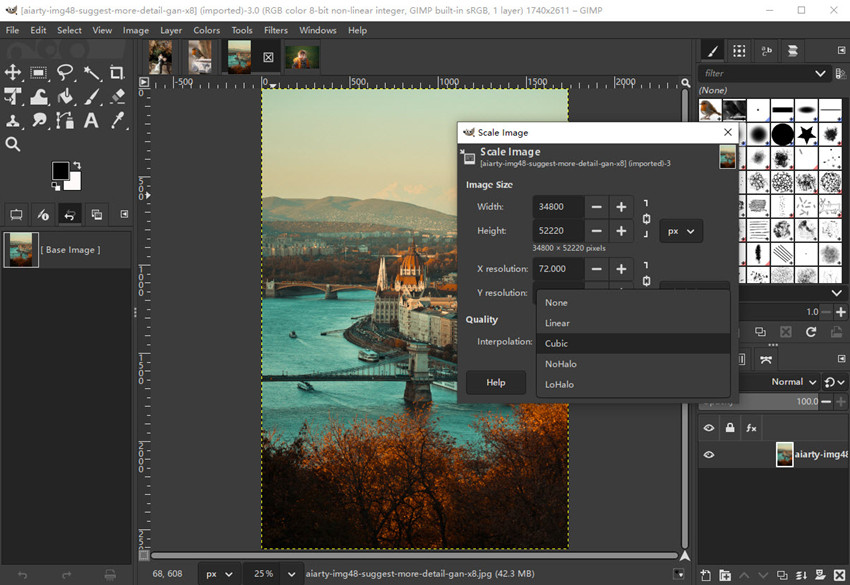
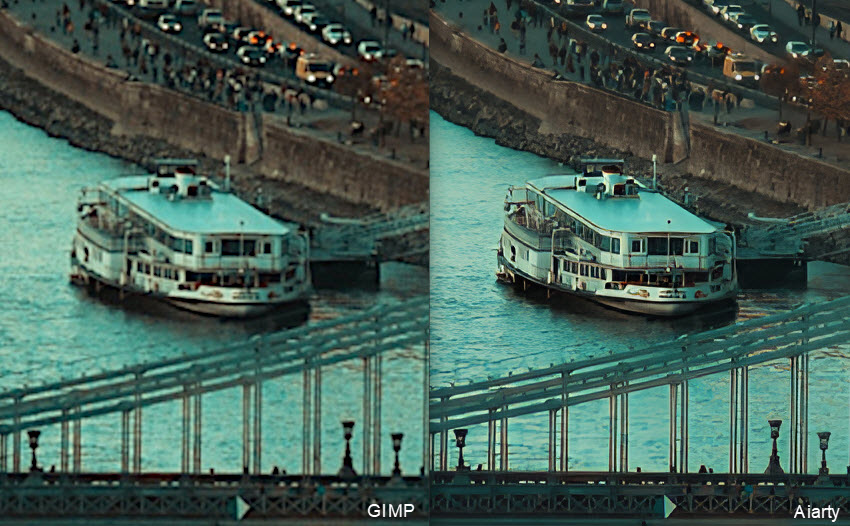
While these tools work well for moderate enlargement and simple edits, they mainly stretch existing pixels rather than generating new details, so fine textures and sharpness are often lost when images are significantly upscaled.
Bonus tips: To bridge this gap, many creators combine GIMP with Aiarty Image Enhancer, which uses AI to upscale and enhance photos. By learning from large training datasets, Aiarty can predict missing details, restore natural patterns, and suppress noise in one unified workflow. This makes it especially effective for restoring low-resolution photos, compressed web images, and old or blurry pictures, where GIMP’s traditional Enhance and Scale tools reach their limits.
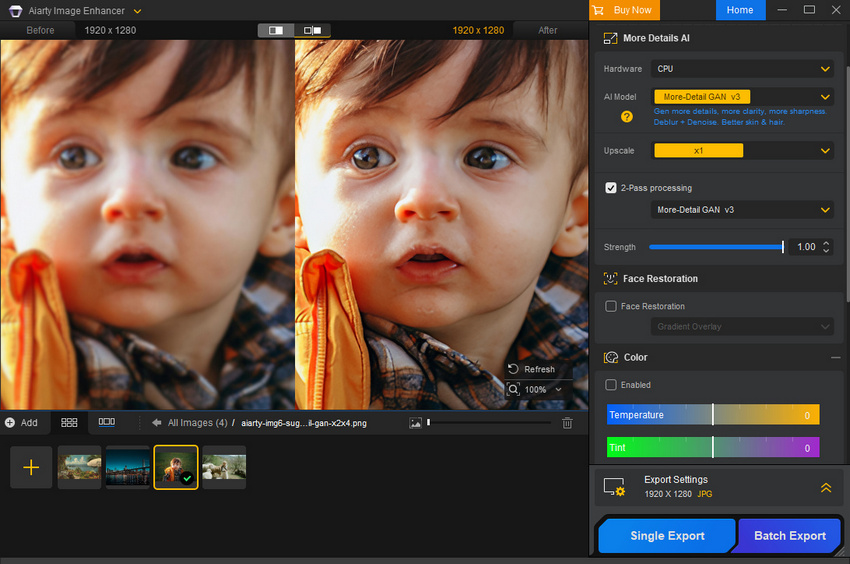
By enhancing images in Aiarty first and refining them in GIMP afterward, users gain both AI efficiency and creative control.
Color Adjustment and Management
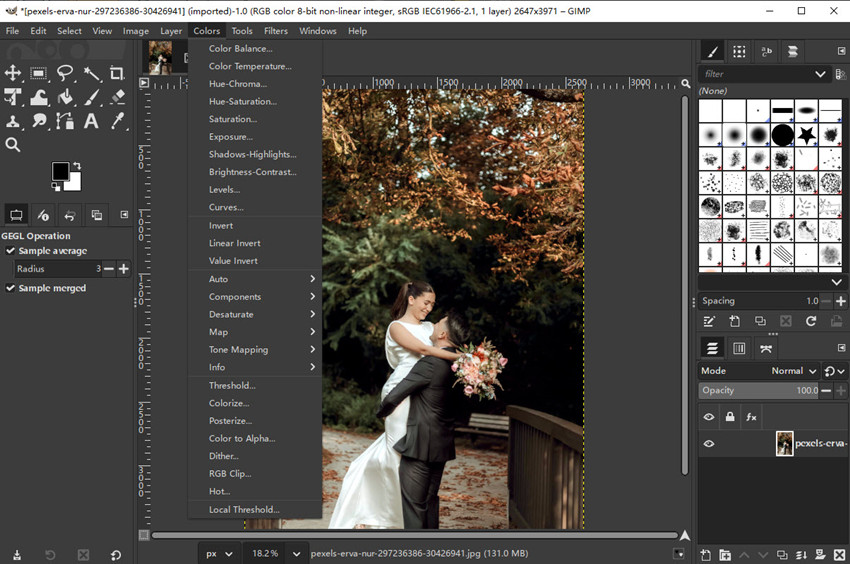
GIMP photo editor provides comprehensive color correction tools, making it suitable for photography and digital art. Users can adjust Levels and Curves, Hue/Saturation, Color BalanceWhite Balance, Exposure correction, and more. These tools of GIMP are comparable to Photoshop’s basic adjustment panels for most everyday editing tasks. However, Photoshop still leads in professional print workflows due to stronger CMYK support and advanced color profiling.
Filters, Effects, and Plugin Ecosystem
GIMP photo editor includes a wide selection of built-in filters and effects that cover most everyday photo editing and creative needs. Popular tools such as Gaussian Blur, High Pass Sharpening, artistic filters, lighting effects, and noise reduction allow users to enhance images, improve clarity, and create stylized visuals without relying on external software. Beyond its default features, GIMP’s open plugin system is one of its biggest strengths. Users can install third-party extensions for batch processing, workflow automation, advanced retouching scripts, and even experimental AI-based tools. This highly flexible ecosystem enables GIMP to adapt to different creative demands and significantly extends its capabilities far beyond a standard installation.
GIMP Pros and Cons
Before deciding whether GIMP photo editor is the right tool for your image editing and upscaling needs, it is important to understand both its strengths and limitations. The following pros and cons highlight what GIMP does well and where it may fall short.
- GIMP is completely free to use, with no subscriptions or hidden costs.
- GIMP ffers advanced features such as layers, masks, curves, color correction, and retouching.
- GIMP works on Windows, macOS, and Linux.
- It supports plugins, scripts, and custom brushes for extended functionality.
- It's good for photo retouching, graphic design, and basic image enhancement.
- It lacks built-in AI upscaling, smart enhancement, and automatic restoration tools. Check: Best GIMP AI Tools and Plugins>>
- Its image upscaling relies on traditional interpolation, which cannot reconstruct lost details.
- The interface and workflow may feel less intuitive for beginners.
- Many tasks require manual adjustments, increasing editing time.
- Some third-party plugins are outdated or unstable.
GIMP vs Photoshop Review
When researching a GIMP review, many users also want to know how GIMP compares to Photoshop. This section breaks down key features, strengths, and limitations of both GIMP and Photoshop, helping you quickly see which tool fits your workflow.
Final Verdict: Is GIMP Worth Using?
Overall, GIMP remains one of the most powerful free photo editors available today and a leading Photoshop alternative. Features like Alpha to Selection, advanced selection tools, layer masks, and the Paths Tool make it suitable for detailed retouching, compositing, and graphic design. With some learning effort, GIMP can deliver results comparable to Photoshop, without subscription costs.
However, in a direct GIMP vs Photoshop comparison, GIMP still lags behind in AI-powered tools, non-destructive workflows, and interface polish. Photoshop offers stronger automation and smarter editing features, making it more efficient for professional and high-volume projects. Users who rely on fast upscaling and intelligent noise reduction may find GIMP’s native tools limited.
In practice, many creators combine GIMP with AI tools like Aiarty Image Enhancer to bridge this gap. This hybrid workflow balances manual control and automation. In conclusion, GIMP is an excellent choice for budget-conscious users seeking a capable Photoshop alternative. While it may not fully replace Photoshop in every workflow, it remains a reliable and future-proof photo editing solution in 2026.
 FAQ
FAQ
In most GIMP reviews, users mention its steep learning curve, less polished interface, and limited AI-powered tools as major drawbacks. Compared with Photoshop, GIMP lacks advanced non-destructive editing, smart automation, and built-in AI enhancement, which can slow down professional workflows.
In a direct GIMP vs Photoshop comparison, GIMP can handle most basic and intermediate photo editing tasks, including retouching, compositing, and graphic design. However, Photoshop remains superior in AI features, cloud integration, and workflow efficiency. For many users, GIMP is a strong Photoshop alternative — but not a complete replacement for advanced professional use.
Yes. GIMP is completely free and open-source, with no subscription fees or hidden costs. Unlike Photoshop, which requires a paid Creative Cloud plan, GIMP can be downloaded and used indefinitely, making it one of the best free photo editors available.
GIMP and Corel PaintShop Pro target different users. GIMP is a free, open-source photo editor with cross-platform support, while PaintShop Pro is a paid Windows-only software with a more beginner-friendly interface and built-in effects. In many GIMP reviews, users prefer GIMP for flexibility and zero cost, while PaintShop Pro is often chosen for ease of use.
You May Also Like


This post was written by Brenda Peng who is a seasoned editor at Digiarty Software who loves turning ordinary photos into extraordinary works of art. With AI assistance for brainstorming and drafting, the post is reviewed for accuracy by our expert Abby Poole for her expertise in this field.
