


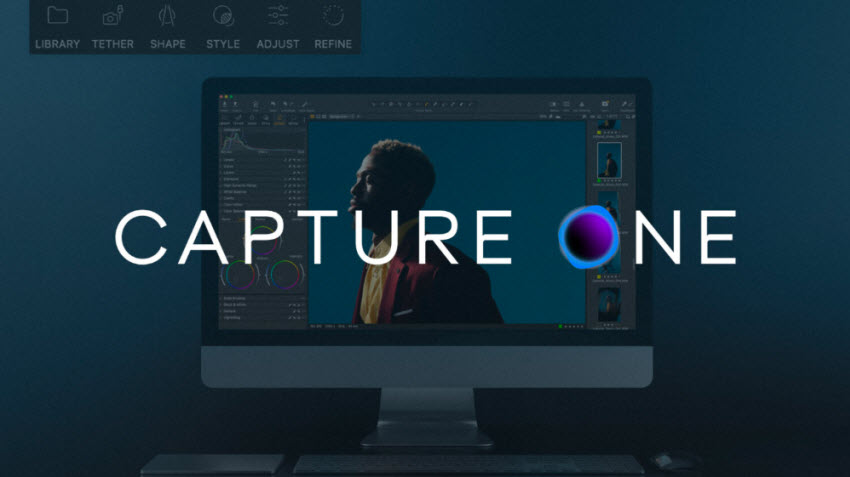
Capture One has become one of the most talked-about professional photo editing and RAW processing tools available today. Developed by Phase One, it’s designed for professional photographers who demand precise color control, advanced workflow support, and robust tethered shooting tools.
In this detailed Capture One review, we’ll explore everything from core features and performance to pricing, pros & cons, real user feedback, and how it compares to competitors like Adobe Lightroom.
What is Capture One?
Capture One is a professional RAW photo editor and digital asset management (DAM) tool designed primarily for photographers who demand high color accuracy, flexible workflows, and reliable tethered shooting. It supports over 650 cameras, offers both catalog and session-based workflows, and runs on Windows, macOS, and iPad, enabling cross-platform editing.
What’s New in Capture One 16.8?
Capture One new version 16.8 is a major update focused on AI-powered image quality improvements and smarter tethered workflows. The update introduces three key upgrades:
- Enhanced Denoise: Capture One 16.8 introduces a much improved AI denoise engine for high-ISO images, delivering cleaner shadows, better detail retention, and more natural textures, especially from ISO 3200 and above. Compared to previous versions, it reduces noise more effectively while preserving fine detail.
- Tethering Workflow Improvements: The default tethering behavior is now “When Preview Is Ready,” enabling smoother image delivery and a more continuous studio workflow, especially during live shoots and client previews.
- AI & Workflow Enhancements: Capture One continues to expand its AI tools, including Eye Masking and other Assisted Editing features, improving speed and consistency in portrait and batch editing workflows while reducing manual selection work.
Capture One Pricing & Licensing
Capture One is positioned as a premium product with 7-day free trial. Available options usually include:
- Capture One Pro: US$329.00 lifetime purchase, or US$204.00/year
- Capture One All in One: US$279.00/year
- Capture One Studio: US$549.00/year
Note: The Brand-specific free versions Capture One Express for Fujifilm or Sony was discontinued in 2024. However, there is still a free version exclusively available for Fujifilm users with basic editing tools and some limitations.
Capture One Core Features
Here are the core features that define what Capture One Pro can do:
Advanced RAW Processing & Image Quality
One of the standout strengths of Capture One is its RAW processing engine, which consistently produces images with better micro-contrast, cleaner highlights and shadows, and more natural color transitions. Compared to some competitors, files processed in Capture One often retain more detail and feel less “mushy,” making them look polished straight out of the RAW conversion. This reduces the need for extensive post-processing, saving time for professional photographers who rely on efficiency without compromising quality.
Tethered Shooting (One of Its Biggest Strengths)
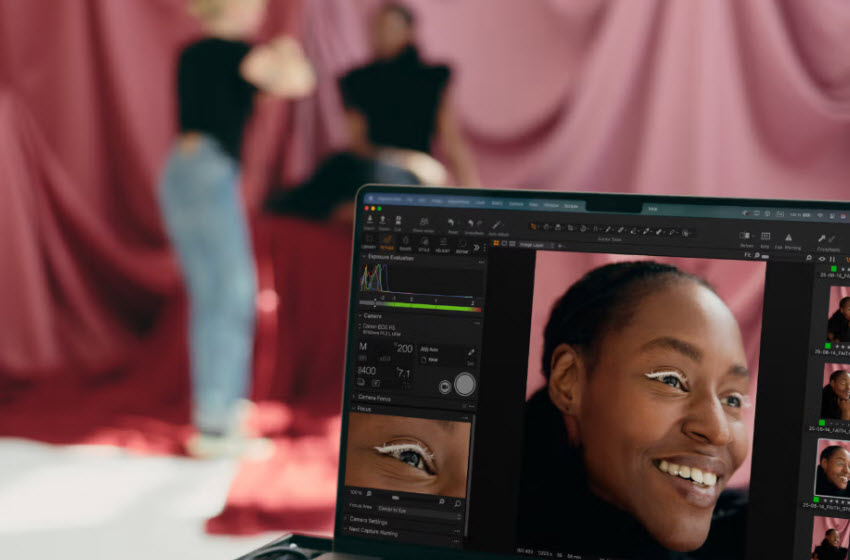
Tethering remains one of Capture One’s strongest features, making it the go-to software for studio and commercial photographers. Key tethering advantages include:
- Fast and stable image transfer
- Live View support
- Remote camera control (ISO, shutter, aperture)
- Automatic file naming and folder creation
- Instant client preview during studio sessions
Tethered shooting in Capture One 16.8 has been improved with a key workflow change.
The default capture behavior is now set to “When Preview Is Ready,” ensuring smoother and more consistent image delivery during live shoots. This reduces interruptions in studio workflows and improves the experience for both photographers and clients reviewing images in real time.
Combined with Capture One’s already industry-leading tethering stability, this update further strengthens its position as the preferred tool for commercial, fashion, and product photography studios.
Professional-Grade Color Tools
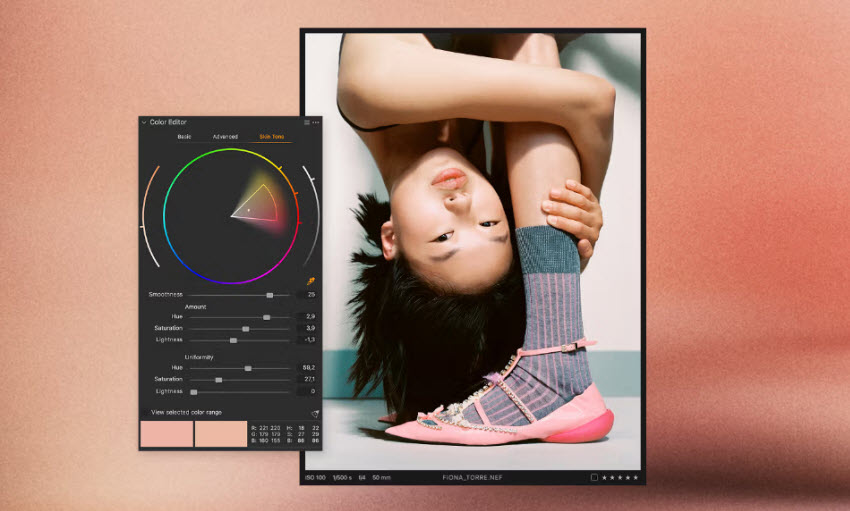
Color control is where Capture One truly shines, often regarded as best-in-class for professional color editing. Its tools allow precise adjustments without breaking skin tones or introducing unwanted artifacts, a key reason many commercial photographers switch from Lightroom to Capture One. Core color features include:
- Advanced Color Editor (Basic, Advanced, Skin Tone tabs)
- RGB and Luma curves
- Color Balance wheels (shadows, midtones, highlights)
- Camera-specific ICC profiles
Layers, Masks & Local Adjustments
Unlike Lightroom’s adjustment-centric workflow, Capture One adopts a layer-based editing system, similar to Photoshop. Adjustments can be applied to individual layers, masks created by brush, gradient, luminosity, or color range, and multiple layers stacked non-destructively.
This layered workflow gives far greater creative control, especially for portrait retouching, selective color grading, and complex edits that require precision.

Refinement Tools
Capture One now includes a significantly upgraded AI-powered denoise system in version 16.8.
The new Enhanced Denoise feature dramatically improves noise reduction performance, especially in high-ISO images. Compared to previous versions, it produces cleaner shadows, smoother gradients, and noticeably better detail preservation without the overly “plastic” look that aggressive noise reduction can introduce.
This upgrade makes Capture One far more competitive with dedicated noise reduction tools and modern AI-based editors. In real-world use, images shot at ISO 3200–6400 benefit the most, with improved clarity and reduced chroma noise while maintaining natural texture.
However, in extremely challenging cases (such as heavily pushed exposure or ISO 12800+), results may still vary depending on camera sensor type and profile.
Workflow & Asset Management
Capture One supports two main workflow models: Catalogs, which are ideal for large, organized photo libraries, and Sessions, a folder-based workflow suited for client projects and studio assignments. While these systems are highly flexible, some users find asset management less intuitive than Lightroom, particularly when handling very large catalogs. Performance can also vary depending on hardware, but overall, Capture One provides a robust framework for professional studio workflows.
Master Capture One Presets and Styles
Capture One presets and styles are powerful tools for speeding up your workflow while keeping edits consistent and professional. Unlike heavy one-click effects, Capture One styles are designed to apply a complete, cohesive look using multiple adjustments at once, while Capture One presets usually target individual settings such as curves, sharpening, noise reduction, or color corrections.
Both can be applied on layers and combined, giving photographers precise control over the intensity of each effect. This distinction allows you to use styles for establishing an overall look and presets for fine-tuning specific elements, making them flexible and non-destructive tools suitable for professional photography across different genres.
How to Create Your Own Capture One Style
Creating a custom Capture One style allows you to standardize your editing look and save time on future projects.
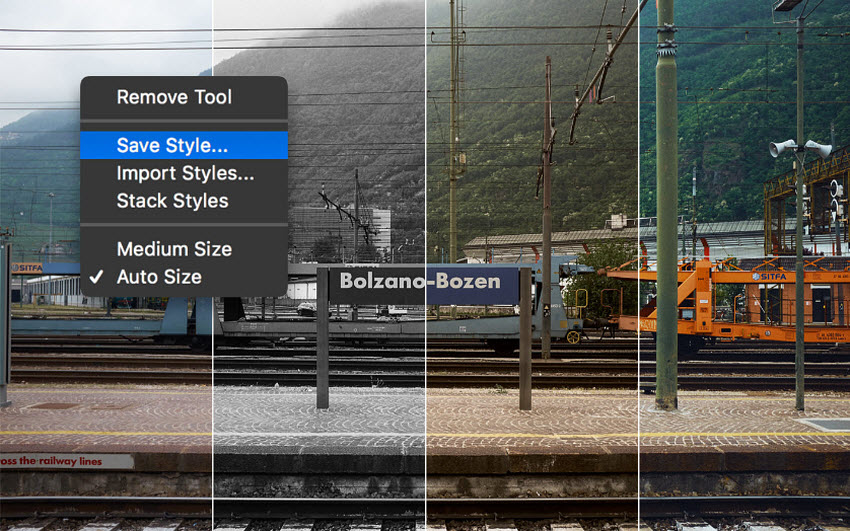
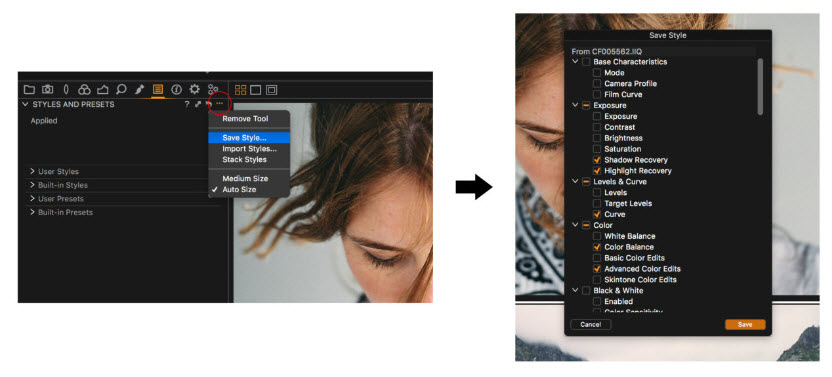
Start by editing an image exactly the way you want your final result to look. Adjust tools such as curves, color balance, contrast, clarity, sharpening, or noise reduction. It’s best to avoid image-specific settings like cropping or heavy local masks unless they are part of your intended style.
Once finished, go to Adjustments, then choose Save User Style. Capture One will prompt you to select which adjustments to include. Choose only the tools that define your look, and exclude exposure or white balance if you prefer to adjust those individually per image.
After saving, your style will appear in the Styles and Presets tool and can be applied to individual images or batches. Applying styles on a new layer is highly recommended, as it allows you to control opacity and fine-tune the effect without affecting the base adjustments.
Capture One vs Lightroom Comparison
Photographers often compare Capture One and Lightroom based on image quality, color control, workflow, and ecosystem support. Here’s a detailed yet concise comparison based on professional reviews and forum discussions.
Image Quality & RAW Processing
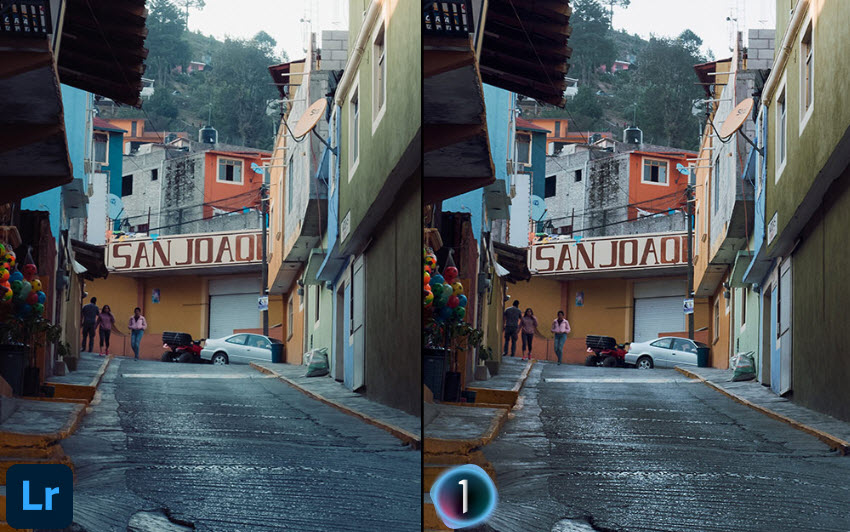
Capture One consistently delivers superior micro-contrast, smoother tonal transitions, and cleaner highlights and shadows. Its RAW engine is especially praised for studio and portrait work, producing files that often require minimal corrections straight out of the camera. Similar to Capture One, Lightroom also produces high-quality RAW conversions, but photographers often find that achieving the same depth and color fidelity requires more manual adjustments.
Color Editing
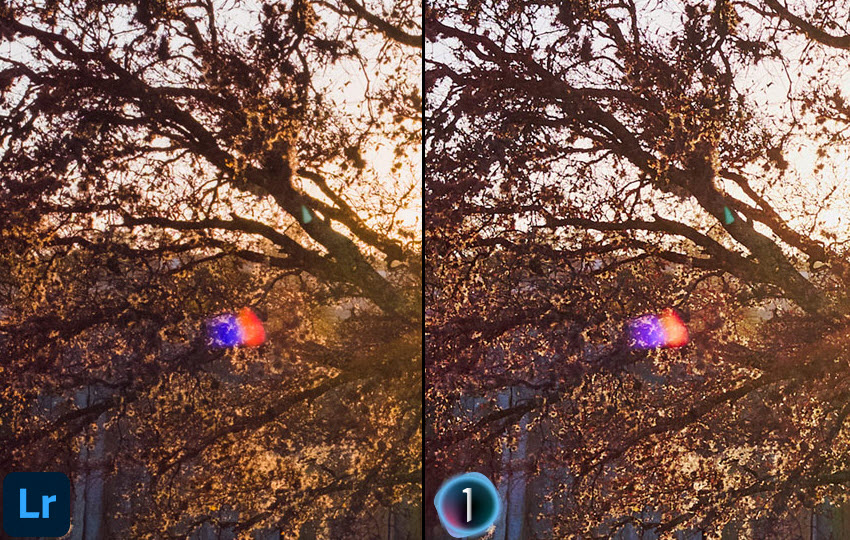
Capture One stands out with its Advanced Color Editor, RGB and Luma curves, and Color Balance wheels, combined with a true layer-based system for selective edits. These tools allow precise control over tones and colors, making it ideal for commercial and professional photographers. Compared to Capture One, Lightroom offers robust color panels and AI-assisted masking, but it lacks a true layer system, limiting precision in complex color grading tasks.
Noise Reduction, Sharpening & Image Enhancement
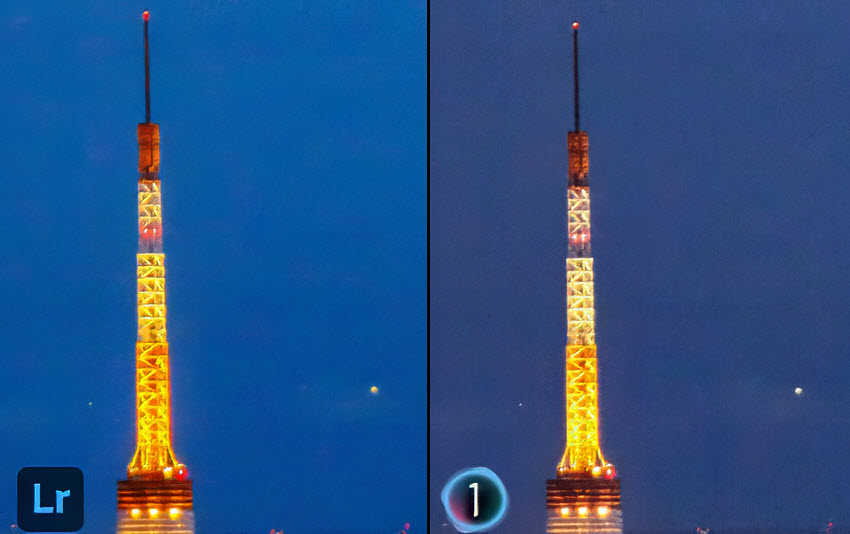
Noise reduction is one of the biggest improvements in Capture One 16.8. With the introduction of Enhanced Denoise, Capture One now delivers significantly better high-ISO performance than previous versions. It produces cleaner images with improved detail reconstruction, making it far more competitive with AI-based tools in Lightroom and dedicated noise reduction software.
Lightroom still maintains an advantage in fully automated AI denoising workflows, especially for users seeking one-click batch processing. However, Capture One now offers a more balanced approach between noise reduction and texture preservation, particularly appealing to professional photographers who prioritize natural-looking results.
In practice, Capture One 16.8 reduces the gap significantly and, in some cases, delivers more natural results than Lightroom’s AI denoise, depending on the image type and camera profile.
Workflow & Asset Management
Capture One supports Catalogs for large photo libraries and Sessions for client-based or studio projects. While flexible, its library management can feel less intuitive and slightly slower for very large collections. Lightroom excels at organization with keyword tagging, smart collections, and cloud/mobile sync, making it ideal for photographers handling thousands of images across devices.
Tethered Shooting
Tethered shooting is one of Capture One’s strongest features. It provides fast and stable image transfer, Live View support, and remote control over camera settings, making it the preferred choice for studio, fashion, and product photography. Compared to Capture One, Lightroom includes basic tethering capabilities, but many users report it is less stable and limited for professional studio workflows.
Ecosystem & Integration
Capture One functions as a standalone professional editor with a highly customizable desktop workflow, but it lacks integration with Adobe Creative Cloud or mobile apps. Lightroom, as part of the Adobe ecosystem, offers seamless integration with Photoshop and Adobe mobile apps, allowing photographers to maintain workflow continuity across devices.
Pricing
Capture One provides both subscription and perpetual license options, offering flexibility for long-term professional use but with a higher upfront cost. Lightroom is subscription-only, making it more affordable initially but requiring ongoing payments over time.
Capture One Pro Strengths & Weaknesses
✅ What Capture One Pro Does Well
Capture One Pro is best known for its exceptional RAW image quality and color accuracy. Its RAW engine delivers strong micro-contrast, smooth tonal transitions, and clean highlights and shadows, often producing pleasing results straight out of conversion.
Another major advantage lies in its professional color editing tools, including the Advanced Color Editor, color balance wheels, and camera-specific ICC profiles. These tools allow precise color control without introducing artifacts, making Capture One especially popular among commercial, fashion, and portrait photographers.
Capture One also excels in layer-based editing and tethered shooting. The ability to stack adjustment layers with masks provides advanced local control, while its fast and reliable tethering makes it a top choice for studio workflows.
❌ Where Capture One Pro Still Has Limitations
Despite its strengths, Capture One Pro has a steeper learning curve, particularly for users coming from Lightroom. Its interface and layered workflow may feel complex at first.
Library management is another common concern. While Catalogs and Sessions offer flexibility, managing very large photo libraries is often considered less intuitive than Lightroom’s system.
Performance can vary depending on hardware, and on lower-end systems, heavy edits or large batch exports may feel slower. Additionally, Capture One’s pricing and update model may not appeal to users who prefer Adobe’s broader subscription ecosystem.
Best Capture One Alternative for Cleaner, More Natural Upscaling
Capture One and Lightroom are both excellent for professional photo editing, RAW processing, and color grading. However, they are not specifically designed for high-quality image upscaling, deep noise removal, or detail reconstruction. When photographers need to push image quality beyond the limits of traditional RAW editors, a dedicated AI-powered enhancer becomes a practical alternative.
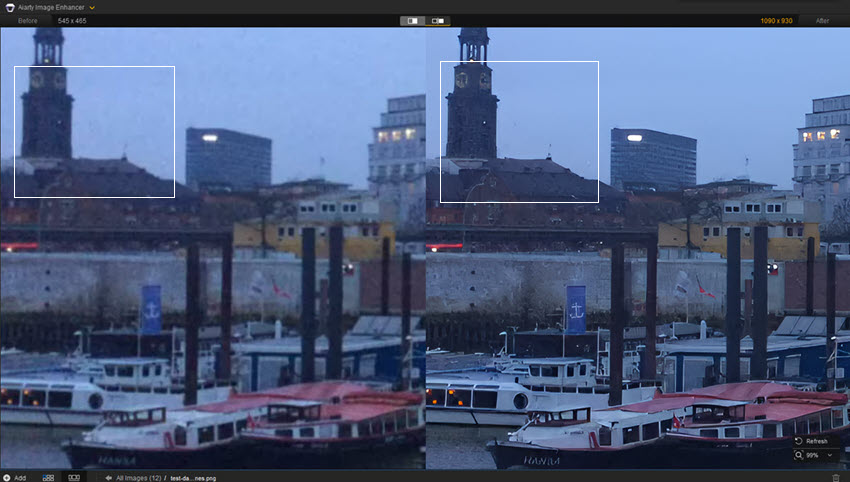
Aiarty Image Enhancer is a good Capture One alternative for cleaner, more natural upscaling. It uses AI-based models to reconstruct missing details, reduce noise, and minimize compression artifacts while keeping textures realistic and consistent. This makes Aiarty especially useful in scenarios where Capture One or Lightroom may fall short, such as:
- Upscaling low-resolution images to 4K, 8K, and higher resolutions for large prints or high-resolution displays
- Enhancing compressed or low-quality older photos with visible artifacts
- Cleaning noisy high-ISO or low-light images without over-smoothing
- Improving detail clarity beyond what standard sharpening tools can safely achieve
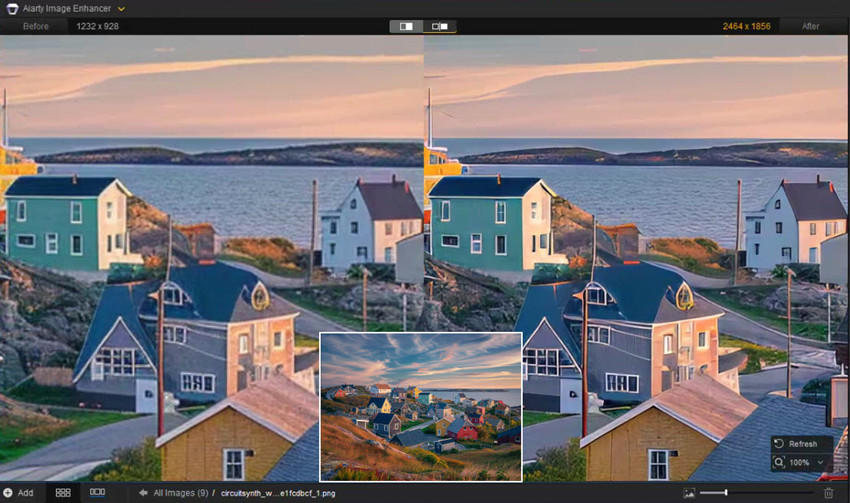
Aiarty will clean noise reduction, controlled sharpening, and preserving natural detail rather than aggressive AI effects. Fine details are well maintained while avoiding the over-processed look sometimes associated with heavy AI sharpening.
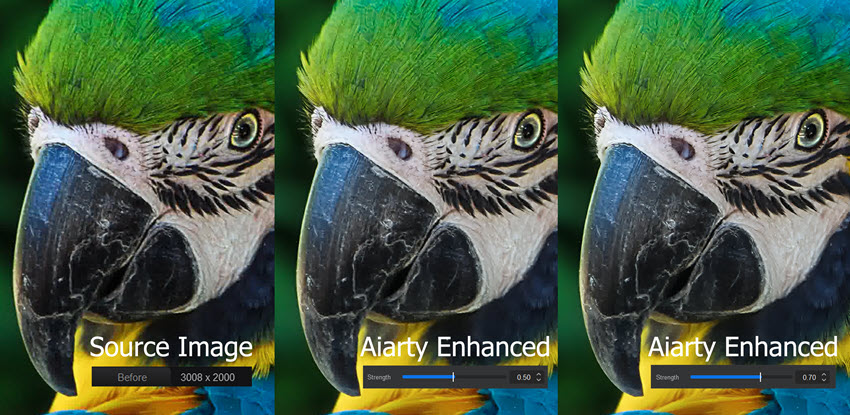
Photographers can control how strong these refinements appear. By adjusting the enhancement strength, it’s easy to strike a balance between detail recovery and a natural, film-like texture. Subtle settings work well for preserving grain and realism, while stronger adjustments can be applied when working with high-ISO or low-light images, all with immediate visual feedback for precise fine-tuning.
Final Words
Capture One remains one of the most powerful and refined photo editing tools available today, especially for photographers who value color accuracy, professional RAW processing, and reliable studio workflows. Its strengths in color control, tethered shooting, and layered adjustments make it a top choice for commercial, portrait, and product photography.
That said, no single tool is perfect for every task. While Capture One and Lightroom excel at core photo editing, there are situations, such as extreme upscaling, heavy noise cleanup, or restoring low-resolution images, where specialized AI tools can push image quality even further. Used together, these tools form a flexible and efficient workflow that adapts to real-world photography needs.
Ultimately, the best choice comes down to how you work. Whether you prioritize precision editing in Capture One, AI-assisted efficiency in Lightroom, or advanced image enhancement beyond traditional RAW editors, understanding each tool’s strengths allows you to build a workflow that delivers consistently high-quality results.
 SpicyGen AI FAQs
Capture One is primarily a paid photo editing software. It offers subscription plans and sometimes perpetual license options, depending on the version and promotional period. While it has trial options, the full version with complete features requires payment.
Yes, Capture One offers a free dedicated version for Fujifilm cameras called Capture One Express for Fujifilm. This version supports RAW editing and basic adjustments optimized for Fujifilm files. However, advanced features available in Capture One Pro, such as layers and tethered shooting, are not included in the free Fujifilm version.
Capture One Express itself has not been fully discontinued, but the company has phased out some older branded Express editions over time. Currently, brand-specific free versions like Capture One Express for Fujifilm or Sony continue to exist, serving as lighter alternatives to the paid Capture One Pro.
Whether Capture One is better than Lightroom depends on your needs. Capture One is often praised for superior RAW image quality, more advanced color editing, and professional tethered shooting, while Lightroom excels in library management, AI-based automation, ecosystem integration with Photoshop, and easier learning curve. Many photographers choose Capture One for studio work and Lightroom for organizational strength.
Capture One is used for professional photo editing and RAW image processing, including precise color grading, advanced masks and layers, high-quality RAW conversion, tethered shooting for studio work, etc. It’s widely used by commercial, portrait, and product photographers.
Some commonly recommended alternatives to Capture One and Lightroom include:
- Darktable – free, open-source RAW editor
- ON1 Photo RAW – all-in-one photo editing with effects
- DxO PhotoLab – advanced noise reduction and optics correction
- Luminar Neo – AI-powered enhancements and creative tools
- Affinity Photo – powerful editor with one-time purchase
These alternatives range from free options to paid software that can complement or replace parts of a Capture One or Lightroom workflow.
You May Also Like


This post was written by Brenda Peng who is a seasoned editor at Digiarty Software who loves turning ordinary photos into extraordinary works of art. With AI assistance for brainstorming and drafting, the post is reviewed for accuracy by our expert Abby Poole for her expertise in this field.
