


In the world of photo editing and enhancement, Topaz Labs tools and Adobe Photoshop are two widely discussed names. While Photoshop is often regarded as the industry standard for image editing, Topaz’s AI-driven tools have gained huge popularity for improving image quality with minimal manual work. This guide breaks down the key differences, strengths, weaknesses, and real-world use cases between the two. The aim is to help photographers, content creators, and designers decide what fits their workflow best.
Looking for a more cost-effective alternative to Topaz Photo AI or Adobe Photoshop for image upscaling and noise reduction without sacrificing image quality?
Aiarty Image Enhancer is well worth considering. Priced significantly lower than Photoshop and Topaz, it delivers powerful AI image enhancement with a much simpler workflow. Aiarty intelligently upscales images up to 4K/8K/32K, reduces noise, sharpens soft details, and restores clarity in compressed or low-resolution photos, all while preserving natural textures and realistic colors.
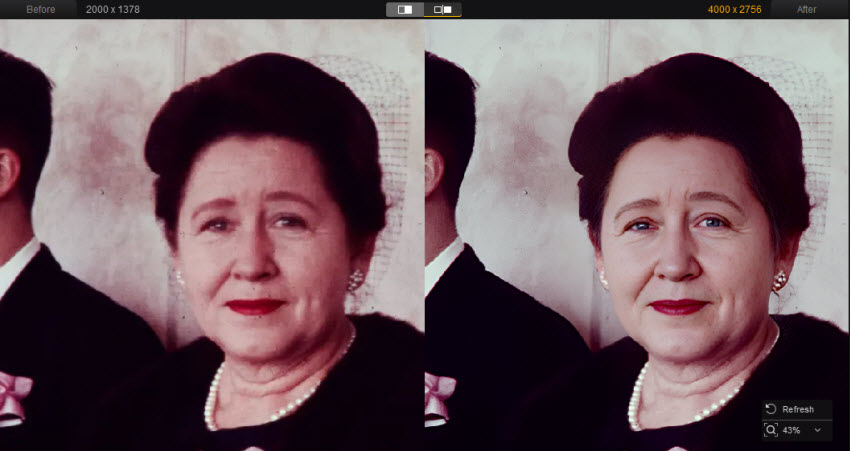
What Are Photoshop and Topaz Labs?
Adobe Photoshop is a full-featured photo editing and graphic design program used worldwide by professionals in photography, advertising, and creative industries. It offers everything from detailed pixel-level retouching to advanced compositing and graphic design workflows.
Topaz Labs is a suite of specialized AI-powered enhancement tools focused on improving image quality—noise reduction, sharpening, upscaling, and detail recovery. These tools are not full editors but are very strong in their specific tasks.
Topaz vs Photoshop Main Features
Photoshop: The All-Purpose Image Editor
Photoshop is designed as a full-scale professional editing platform that supports everything from everyday photo adjustments to complex compositing and graphic design. It offers deep manual control, flexible creative tools, and an increasingly powerful set of AI-assisted features.
Photoshop provides a vast set of editing capabilities:
- Advanced editing tools: layers, masks, precise selection tools, and brushes for detailed pixel-level control.
- Color correction and retouching: tone, exposure, skin retouching, frequency separation, and local adjustments.
- Compositing and design graphics: multi-layer compositing, typography, shapes, and layout design for creative projects.
- AI-powered features: Generative AI tools, Generative Upscale, content-aware fill, and Neural Filters that automate complex edits.
- Plugin ecosystem & Creative Cloud integration: seamless workflow with Lightroom, Camera Raw, and third-party plugins.
This makes Photoshop suitable for everything from simple touch-ups to high-end commercial photography, advertising design, and digital artwork. Its AI tools are now tightly integrated into the editing workflow, assisting with tasks such as image enhancement, selection, and upscaling while still allowing full manual control when needed.
Topaz Labs: AI Image Enhancement Specialists
Topaz Labs focuses on AI-driven quality enhancement, rather than full creative editing. Its tools are built to improve clarity, recover detail, reduce noise, and upscale images, making them especially valuable for photographers working with low-resolution, noisy, or soft images.
Unlike Photoshop, Topaz Labs doesn’t offer full photo editing. Instead, it focuses on quality enhancement using AI. Its main photo tools include:
- Topaz Photo: an all-in-one enhancement tool that automatically analyzes each photo and applies the most suitable combination of noise reduction, sharpening, and detail recovery.
- Topaz Gigapixel: a dedicated AI upscaler designed for enlarging images while preserving texture and edge definition.
- Topaz Bloom: a creative detail-enhancement tool that adds depth, clarity, and micro-contrast to images.
- Topaz Mosaic: a web-based tool to repair images that suffer from heavy compression, blocky artifacts, and pixelation.
In addition to the above image tools, Topaz also offers video enhancement tools like Topaz Video and Topaz Astra, which apply the same AI enhancement philosophy to motion content.
Topaz vs Photoshop Upscaling & Denoising Image Quality
After looking at overall workflows and user experience, it’s worth zooming in on two of the most frequently-used enhancement features: AI Upscaling and Noise Reduction. Both Topaz and Photoshop can handle these tasks, but they approach them very differently.
Note: For image upscaling and denoising, we mainly use Topaz Gigapixel and Topaz Photo(the former DeNoise AI is integrated in it).
1. Upscale
To keep the comparison realistic and reproducible, we tested image upscaling using the following tools on both sides:
Topaz Gigapixel AI (dedicated AI upscaler)
Photoshop:
- Super Resolution (2× enhancement via Adobe Camera Raw)
- Preserve Details 2.0 (traditional algorithm-based upscaling)
- Generative Upscale (newer AI-based approach, 2× and 4×)
All tests were performed on the same source images, and I made a deliberate effort to get the best results from Topaz and Photoshop. Below are the 100% cropped outputs.
The original image is 1740 × 2611 px. Due to page layout limitations, the section below shows only a 100% crop from the original photo.
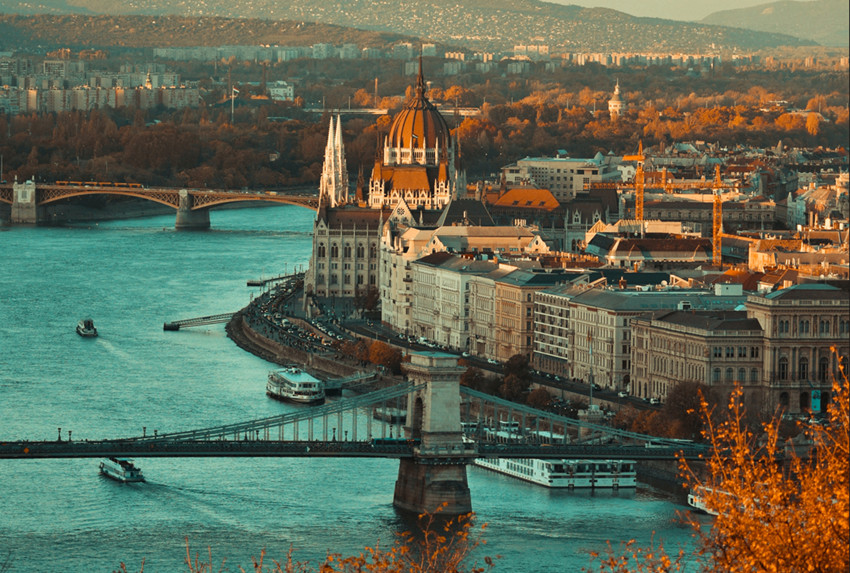
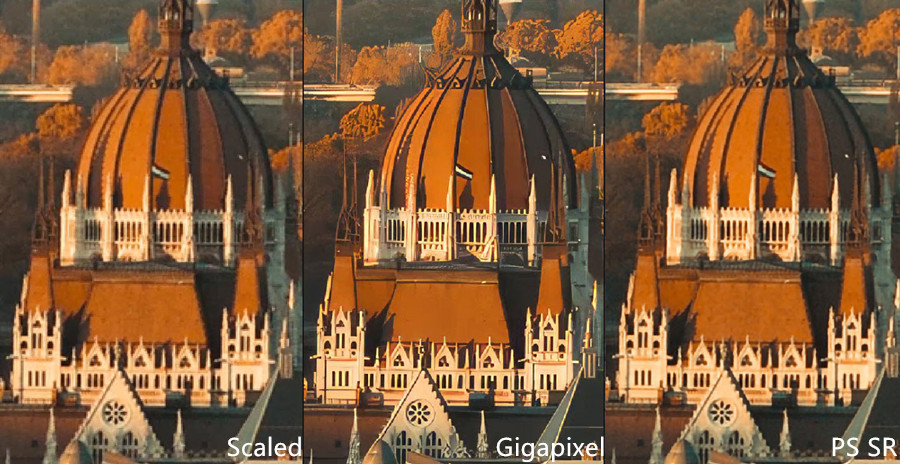
Upscale Image to 200%
In this 200% upscaling test, both Topaz and Photoshop deliver usable results, but the differences are noticeable on close inspection. Photoshop Super Resolution produces a clean and balanced image, though fine architectural details appear slightly soft and smoothed.
Topaz Gigapixel retains stronger edge definition and clearer micro-details, particularly around the dome structure and decorative elements. Textures look more defined without obvious halos, giving the image a more natural sense of sharpness at 100% crop.
Related: Topaz Gigapixel AI vs Photoshop Upscaling Tests
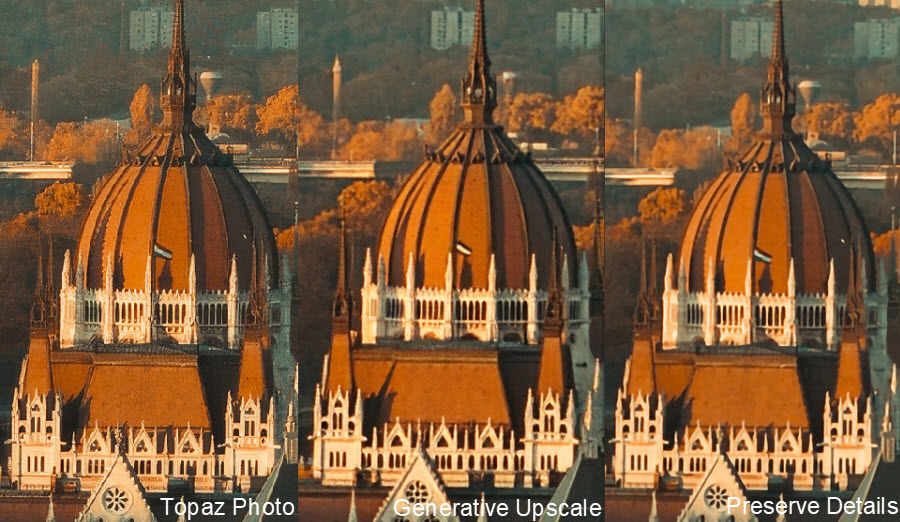
We also tested Photoshop’s Generative Upscale (Firefly model) and Preserve Details 2.0 to provide a broader view of Photoshop’s upscaling options, and to clarify why Topaz Photo AI was not used for upscaling in this comparison.
In this 200% test, Generative Upscale produced sharper-looking results than Preserve Details 2.0, but close inspection reveals subtle texture changes and minor detail reinterpretation, especially in architectural areas. Preserve Details 2.0 is more predictable, though noticeably softer and less detailed.
Compared to Photoshop, Topaz Photo AI’s results add more details. However, it’s less consistent and showed more smoothing compared to Topaz Gigapixel. For this reason, Gigapixel was used for upscaling, while Photo AI was reserved for denoising.
Upscale Image to 400%
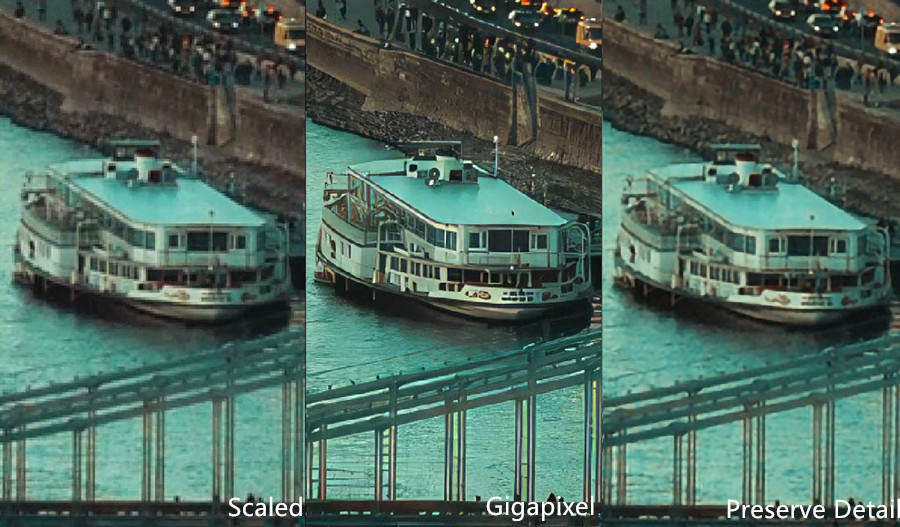
When upscaling the image using Gigapixel and Photoshop Preserve Details 2.0, Gigapixel delivers a much sharper and cleaner result. The boat’s windows, deck structure, and railings are clearly defined. Edges are crisp, and fine details in the hull and surrounding water are well preserved. Photoshop maintains more natural textures but at the cost of less overall sharpness compared to Gigapixel. Edges are slightly softer, and fine structural details like railings and small hull patterns are not as prominent.
2. Denoise
For image denoising, the following tools were used in this comparison:
- Topaz Photo (built-in AI noise reduction), not Gagipixel as it’s an upscaler first, not a dedicated denoising tool.
- Photoshop: tools for image denoising include Reduce Noise Filter, Camera Raw Noise Reduction, and Targeted Noise Reduction.
The source image is a 5088 × 3253 street photo, captured with a high-resolution camera. When zoomed in, noticeable noise appears in the darker areas.
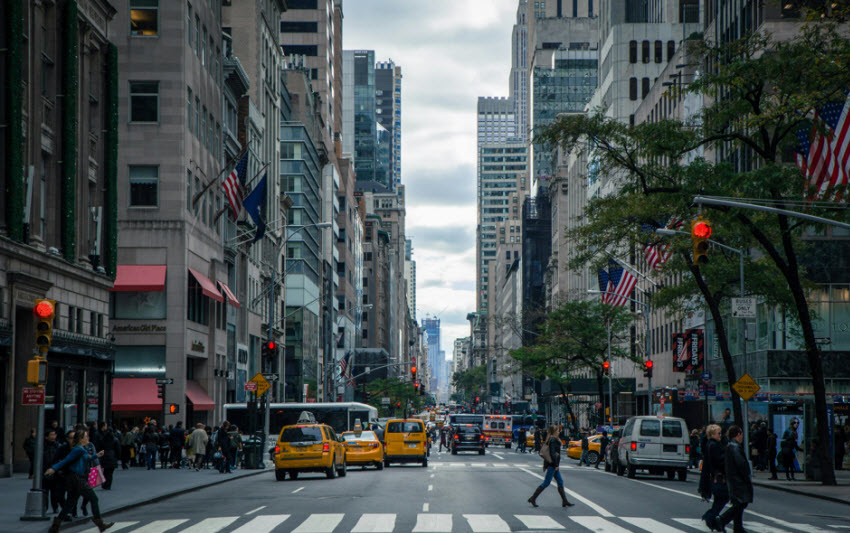
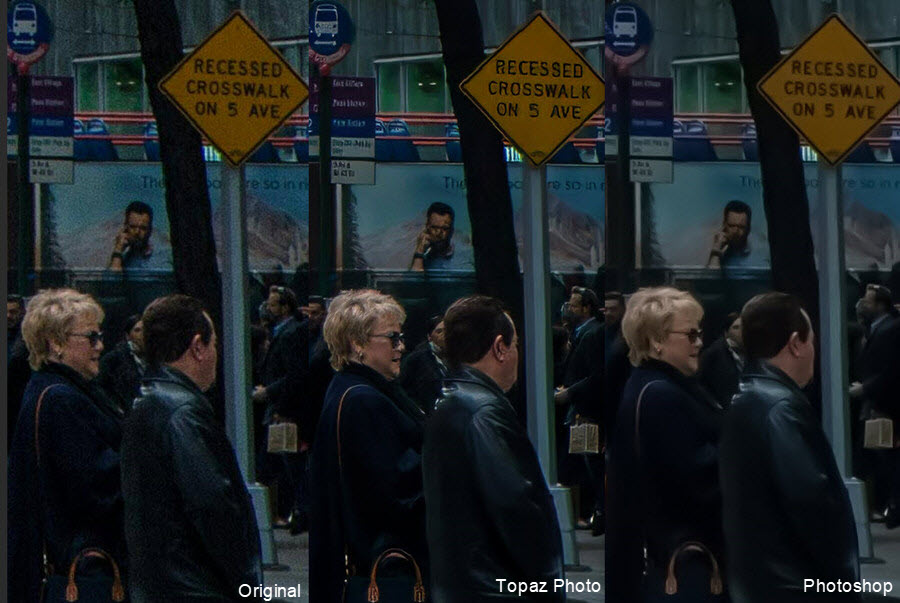
As you can see, both Photoshop and Topaz Photo are effective at reducing noise. In comparison, Topaz tends to preserve more of the original texture, delivering sharper, more detailed results, especially in areas with fine patterns or subtle structures. Photoshop also reduces noise well, but it softens edges and flattens subtle details, which can make certain textures appear less pronounced. This smoothing effect can slightly mute colors and reflections, giving the image a more uniform, but less vibrant, look.
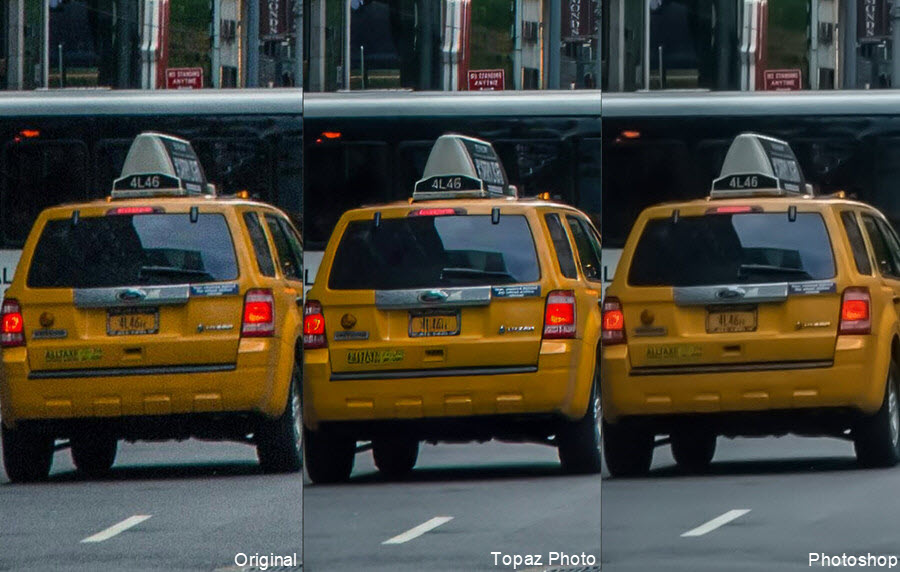
However, in some areas, Topaz Photo appears slightly plastic or over-smoothed, with textures and fine details looking somewhat artificial. Photoshop, on the other hand, produces a more natural appearance, preserving the realistic texture of surfaces, but this comes at the cost of overall softness, with some details appearing less defined compared to Topaz.
Topaz vs Photoshop Speed and Performance
Topaz and Photoshop approach speed and performance from very different angles. Photoshop is built for real-time, interactive editing, while Topaz focuses on task-specific AI processing that minimizes manual input.
Topaz Speed and Performance
Topaz tools rely heavily on GPU acceleration and AI models trained for specific tasks such as noise reduction, sharpening, and upscaling. In many cases, Topaz feels fast not because the processing itself is instant, but because the workflow requires far fewer manual steps. Photo AI automatically analyzes each image and applies recommended settings, allowing users to process images with minimal intervention.
For batch processing, Topaz has a clear advantage. Large sets of photos can be enhanced consistently without the need to fine-tune each image individually. However, AI processing can be resource-intensive, and performance depends strongly on GPU quality. On lower-end systems, processing times may be noticeably longer.
Photoshop Speed and Performance
Photoshop excels at responsive, hands-on editing. Tools such as brushes, masks, layers, and adjustment panels respond instantly. Small edits, selective corrections, and compositing are generally faster in Photoshop because changes happen in real time.
However, Photoshop’s AI-powered features often require more manual setup and fine-tuning. Tasks like noise reduction or upscaling usually involve multiple steps and adjustments, which can slow down workflows when processing many images.
In short, Photoshop performs best in complex, layered editing scenarios, but is less efficient for repetitive, AI-driven enhancement tasks.
Topaz vs Photoshop Pricing
Pricing is one of the biggest differences between Topaz and Photoshop, especially because Topaz offers multiple standalone image tools rather than a single all-in-one platform.
Topaz Pricing
- Topaz Gigapixel: $12/mo, or $149/year for the annual plan
- Topaz Photo: $17/mo, or $199/year for the annual plan
Topaz offers Topaz Photo, Gigipxel, and other standalone tools based on subscription. For the first year, users are not able to cancel the subscription. While these tools can offer more specialized control, purchasing multiple products can significantly increase the total cost.
Photoshop Pricing
- $22.99/month, or $263.88/year for the annual plan of the standalone software
Photoshop is available only through Adobe’s subscription model. Users must pay a monthly or annual fee, either as a standalone Photoshop plan or as part of the Creative Cloud bundle. While the subscription includes continuous updates and access to other Adobe tools, the long-term cost can be higher, especially for users who only need basic photo enhancement features.
Topaz vs Photoshop Limits
Rather than simple drawbacks, the limitations of Topaz and Photoshop define where each tool works best.
Topaz Limits
Topaz tools are designed for specific AI enhancement tasks, not full image editing. Manual control is more limited compared to Photoshop, and advanced layer-based workflows are not supported. While Topaz Photo AI combines multiple functions, users who rely on standalone tools may still need to switch between applications.
Performance is also highly dependent on GPU capability, and older hardware may struggle with large files or batch processing. Topaz is best viewed as a specialized AI solution, not a complete photo editor.
Photoshop Limits
Photoshop’s biggest limitation is complexity. Its powerful tools come with a steep learning curve, which can be overwhelming for users who only want quick improvements. AI features, while improving, are often less aggressive or less specialized than Topaz’s dedicated models.
A Cheaper and High-Quality Topaz & Photoshop Alternative Enhancer
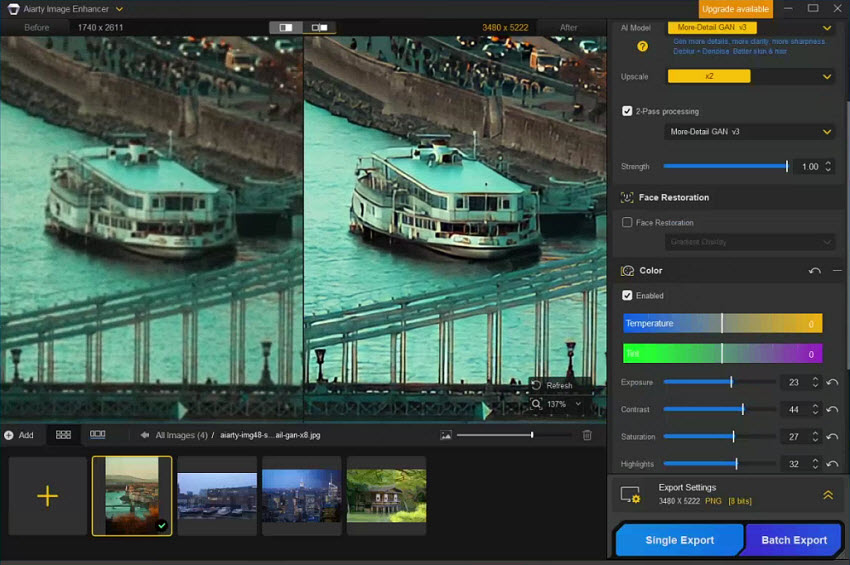
Not everyone needs a full Creative Cloud subscription, and Topaz’s standalone tools can become expensive when multiple products are required. In this context, Aiarty Image Enhancer stands out as a more affordable alternative for high-quality AI image enhancement.
Aiarty Image Enhancer focuses on the same core needs discussed above: AI upscaling, noise reduction, and detail recovery with cleaner results and no aggressive smoothing or artificial textures. It upscales images to 4K/8K/32K, remove noise, blur, compression artifacts with natural details and realistic colors. With built-in batch processing and a simplified workflow, Aiarty reduces the need for manual fine-tuning while keeping results consistent, offering a practical middle ground between Photoshop’s complexity and Topaz’s higher cost.
 Free download Aiarty Image Enhancer for Windows
Free download Aiarty Image Enhancer for macOS
It upscales images that are noticeably sharper and cleaner than Photoshop’s conservative Super Resolution / Preserve Details results, yet it avoids the overly aggressive, sometimes artificial textures that certain Topaz Gigapixel models can create. .
Verdict: Topaz or Photoshop, Which One Should You Choose?
Choosing between Topaz and Photoshop ultimately depends on your workflow, priorities, and budget. Photoshop remains the best choice for professionals who need full creative control, advanced retouching, compositing, and design capabilities. Its strength lies in flexibility and precision, but that power comes with a steeper learning curve and a subscription-based pricing model.
Topaz, on the other hand, is better suited for users who prioritize fast, AI-driven image enhancement. Its dedicated models excel at upscaling and noise reduction, often delivering sharper results with minimal manual input. However, this convenience can sometimes lead to over-smoothed or artificial-looking textures, and costs can add up when multiple Topaz tools are required.
If your work involves complex edits, layered workflows, or commercial design projects, Photoshop is still the more versatile choice. If your main goal is quickly improving image quality, especially for noisy, low-resolution, or compressed photos, Topaz offers a more streamlined AI-first experience. For many photographers and content creators, the decision comes down to whether they value creative control or speed and automation more.
You May Also Like


This post was written by Brenda Peng who is a seasoned editor at Digiarty Software who loves turning ordinary photos into extraordinary works of art. With AI assistance for brainstorming and drafting, the post is reviewed for accuracy by our expert Abby Poole for her expertise in this field.
