

How to Install & Use Topaz Plugin for Photoshop (Photo AI, Gigapixel)



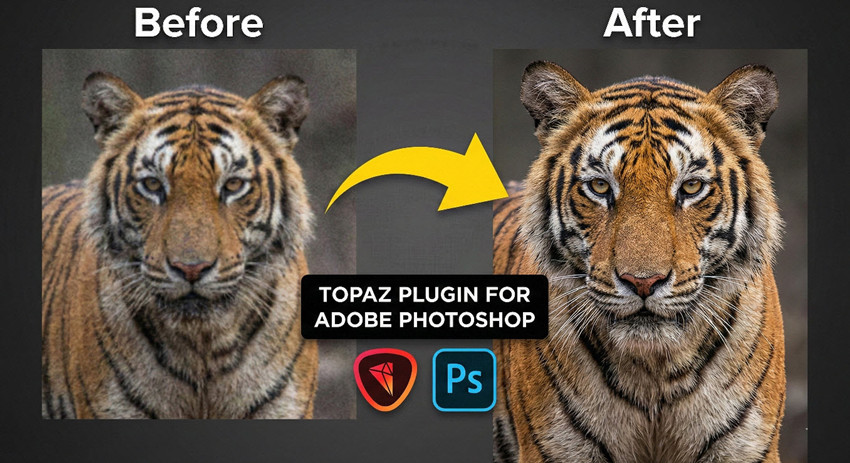
If you want to improve noise, sharpness, or image detail directly inside Photoshop, the easiest way is to use Topaz with Photoshop through its built-in plugin. The Topaz plugin for Photoshop lets you send a layer to Topaz Photo AI, Sharpen AI, Gigapixel, or DeNoise with one click and return the enhanced result back into your Photoshop document. So how to add and use Topaz plugins with Photoshop?
In this guide, you’ll learn exactly how to install Topaz plugin in Photoshop, where to find it in Photoshop, and the best workflows to use Topaz for Photoshop for denoising, sharpening, and upscaling.
Quick Takeaways
- Topaz Photo AI and Gigapixel can be used directly in Photoshop via the Topaz plugin for Photoshop.
- ⚠️ Critical Limitations: Photoshop Smart Objects are not supported (must flatten/merge layers first), and editing RAW files via plugins disables RAW Denoise (standalone DNG workflow recommended).
- Pricing & Hardware: Topaz Photo: $252/yr, Topaz Gigapixel: $204/yr, plus Photoshop subscription fee.
- Recommended GPU: NVIDIA/AMD with 4–8GB VRAM; CPU: recent multi-core processor; RAM: 16GB+; macOS users: M1/M2/M3 or Intel with Rosetta for older versions
- Budget Alternative Recommended: If you're looking for fast AI enhancement without Photoshop plugins, lower hardware requirements, and a more affordable option, try Aiarty Image Enhancer. It offers high-quality results at a significantly lower one-time price.
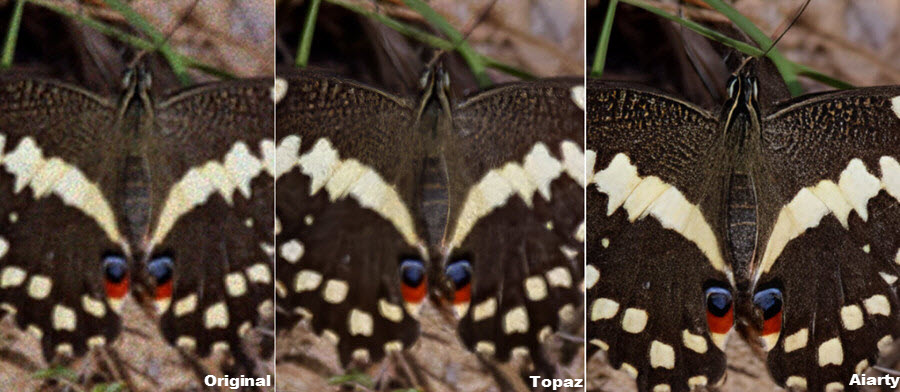
How to Install and Add Topaz Plugin to Adobe Photoshop?
Topaz plugins usually install automatically alongside the main app. However, manual setup may be required for older Photoshop versions, legacy installers, or macOS systems with strict security. So below we share both ways to install Topaz plugins for Photoshop.
Method 1. How to Add Topaz Plugin to Photoshop Automatically
Step 1. Before installing any Topaz plugin, make sure Adobe Photoshop is already installed on your computer.
Step 2. Go to the official website and download the app you want to use, typically Topaz Photo AI or Topaz Gigapixel. (Older tools like DeNoise AI and Sharpen AI are now integrated into Topaz Photo AI. If you're using an older version of Photoshop, you may need a legacy Topaz installer.)
Step 3. Run the installer. In most cases, Topaz will automatically detect your Photoshop installation and prompt you to install the plugin.
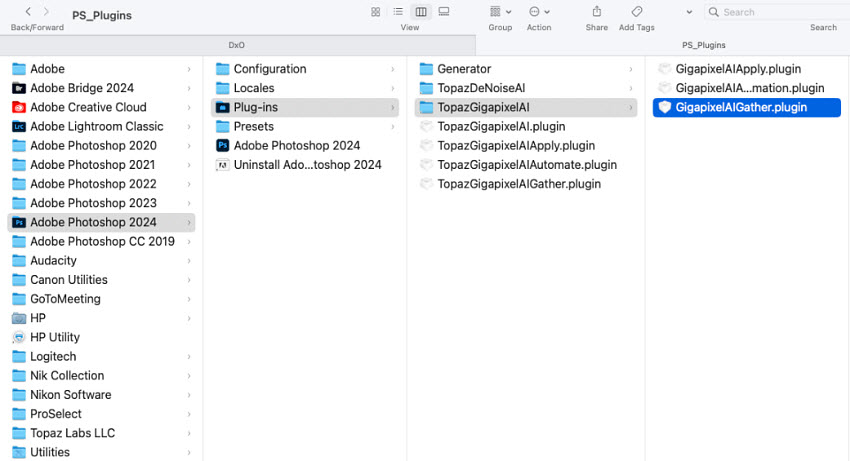
Method 2. How to Add Topaz Plugin to Photoshop Manually
If the plugin does not show up automatically, you can add a Topaz plugin to Photoshop manually.
Step 1. Locate the Topaz Plugin Files
On Windows, the Topaz plugin (.8bf) files are usually found in:
- C:\Program Files\Topaz Labs LLC\
- C:\Program Files (x86)\Topaz Labs\
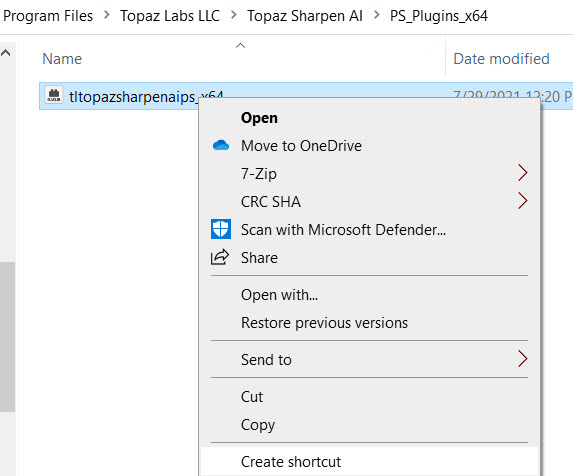
Inside those folders, look for: PS_Plugins_x64. For example, files like:
- tltopazphotoaips_x64.8bf
- tltopazgigaips_x64.8bf
On macOS, the Topaz plugin files are stored inside the application bundle:
/Applications/Topaz Photo AI.app/Contents/Resources/PlugIns/
You’ll find files ending in .plugin or .8bf.
Step 2. Add the Topaz Plugin to Photoshop (2 Methods)
There are two methods that you can use to add the Topaz plugin files into Photoshop.
Method 1. Add an Additional Plug-ins Folder in Photoshop
1. Close Photoshop completely and reopen it. Then go to Edit > Preferences > Plug-ins (On macOS: Photoshop > Settings > Plug-ins)
2. Enable “Additional Plug-ins Folder.” Then click Choose and select the folder containing the Topaz plugin file (as we located in the above step).
3. Click OK and restart Photoshop. After restarting, your Topaz plugin should appear under: Filter > Topaz Labs LLC
Method 2: Copy or Shortcut the Plugin File into Photoshop’s Plug-ins Folder
1. Close Photoshop and go to the Topaz plugin directory and find the .8bf plugin file.
2. Right-click the file and choose Create shortcut.
3. Then in the Photoshop Plug-ins directory at C:\Program Files\Adobe\Adobe Photoshop [Your Version]\Plug-ins\, Paste the shortcut into this folder.
On macOS, you need to go to /Applications/Topaz Photo AI.app/Contents/Resources/PlugIns/, then copy the .plugin or .8bf file and paste it into /Applications/Adobe Photoshop [Version]/Plug-ins/
4. Then relaunch Photoshop.
Related reading: Topaz or Photoshop, which is better for image enhancement?
Note: You may need to approve the plugin under System Settings > Privacy & Security if macOS blocks the extension. While Apple Silicon (M1/M2/M3) is fully supported, legacy versions may require Rosetta mode.
How to Use Topaz Plugin in Photoshop to Denoise, Sharpen, Upscale
Once the plugin is successfully installed, using Topaz with Photoshop is straightforward. Whether you're working with Topaz Photo AI, Topaz Gigapixel, or an older standalone plugin, the workflow is almost identical. This section shows you exactly how to use Topaz plugin with Photoshop to sharpen, denoise, and upscale your images using real-world editing steps.
You can use Topaz plugins in Photoshop for challenging shots, particularly for:
- Low-Light & High-ISO Photos: Eliminate grain and luminance noise without smoothing away fine textures.
- Soft or Blurry Shots: Reconstruct lost focus, recovering crisp edges, and correcting minor camera shake.
- Low-Resolution & Cropped Files: Enhance natural pixels for extreme crops or prints via AI upscaling.
- Detail-Critical Images: Upscale commercial product photography, tight portraiture, distant wildlife, and landscape details.
Step 1. Open Your Image in Photoshop
Launch Adobe Photoshop (Windows or macOS) and load the photo you want to enhance. Before launching the Topaz plugin, duplicate your layer using Ctrl + J (Windows) / Cmd + J (macOS)
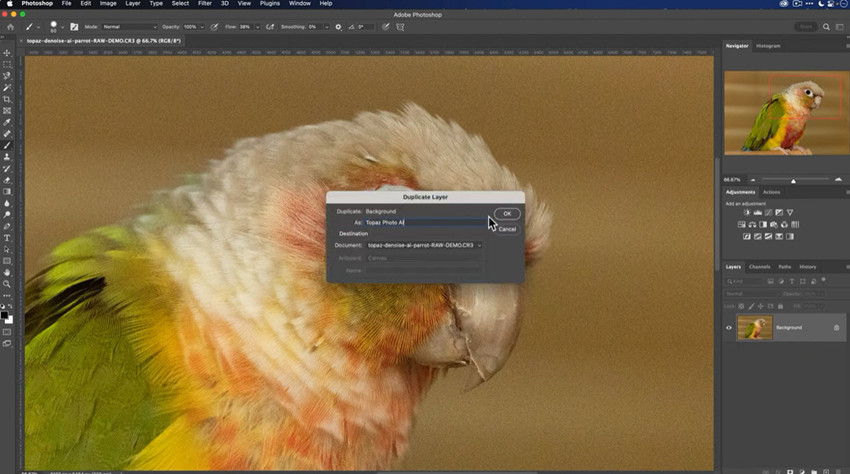
Step 2. Send the Image to Topaz from Photoshop via the Recommended Workflow
Topaz provides two ways to access the plugin inside Photoshop:
Method 1. (Recommended by Topaz)
Go to File > Automate > Topaz Photo AI. This automatically creates a new layer, supports resizing (upscaling), and allows cropping.
This automatically duplicates your active layer, supports canvas cropping, and allows full image upscaling/resizing directly within the plugin window. It works best for complete editing workflows where you want to upscale resolution, change dimensions, and keep your workspace organized without manually duplicating layers beforehand.
Method 2.
To access Topaz plugin in Photoshop, go to Filter > Topaz Labs > Topaz Photo AI / Gigapixel AI / DeNoise AI (Note: Ensure you duplicate your layer first using Ctrl + J or Cmd + J, as this method does not automatically create a new layer or support scaling.)
This method is compatible with legacy environments, smart objects, and older plugin builds. It works best for quick, non-resizing pixel adjustments (like standard denoising or sharpening) where you want to bake the effect directly onto a specific duplicate layer using Photoshop masks.
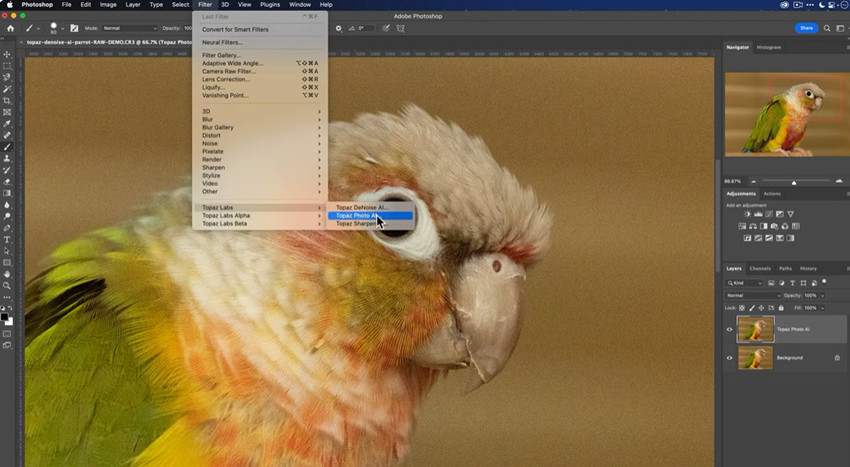
Step 3. Choose the Topaz Plugin
Click the Topaz plugin that you want to apply. For example, if you choose to enhance Images using Topaz Photo, it will open the Topaz Photo interface and apply noise reduction, unblur, and sharpening automatically. You can also adjust the strength, size, face recovery, etc. as you need.
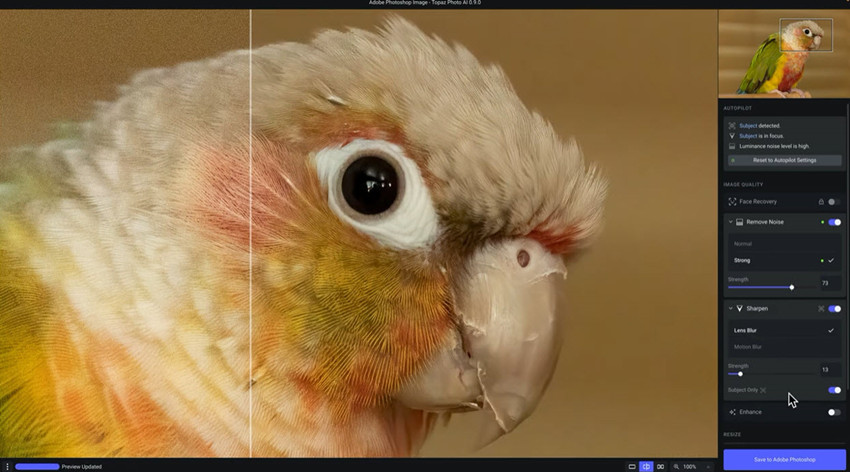
Step 4. Click Save to Adobe Photoshop
Topaz will render the image and automatically send the output back into Photoshop as an updated layer. Back in the Photoshop interface, you can continue editing using masks, curves, color grading, or retouching tools as needed.
Hot search: How to use Topaz Generative upscale in Photoshop
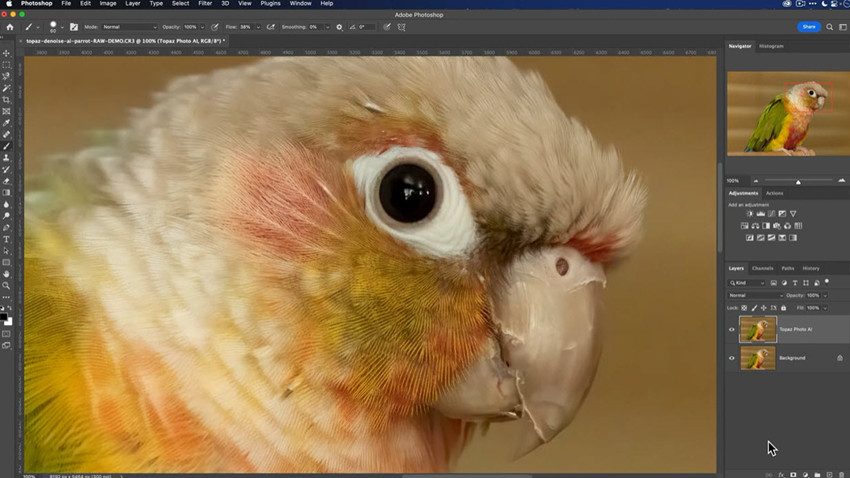
Important Limitations & Unsupported Workflows
To prevent unexpected crashes, rendering errors, or loss of image quality, keep these critical technical boundaries in mind before launching Topaz in Photoshop:
The RAW Format Trap: Do not send raw files directly from Photoshop into the plugin. Photoshop converts them into intermediate formats prior to transfer, which completely strips out sensor data and disables RAW Denoise. You need to process raw files in Topaz standalone first, export as DNG, then edit in Photoshop.
Smart Object Incompatibility: Smart Objects and Smart Filters frequently cause parameter glitches or blank previews inside the plugin. Always merge or flatten your layers (Ctrl + Shift + Alt + E / Cmd + Shift + Option + E) prior to invocation.
Double Plugin Overload (LRC → PS → Topaz): Nesting Topaz inside Photoshop after an import from Lightroom Classic creates a heavy memory bottleneck that often crashes the host application. Stick to a linear pipeline (e.g., Lightroom → Topaz standalone → Photoshop).
The "Last Filter" Crash Loop: Avoid using Photoshop's quick-launch "Last Filter Used" shortcut for Topaz. The history cache hook frequently breaks plugin parameters—always use the main menu paths (File > Automate or Filter > Topaz Labs).
Topaz Plugin Not Working in Photoshop? 7 Common Fixes
Even though the Topaz plugin for Photoshop works smoothly for most users, it’s not uncommon to encounter issues during installation, updates, or while running the plugin inside Adobe Photoshop. Below are the most frequently reported problems from Topaz Forums, Reddit, and user communities, along with reliable fixes.
1. Topaz Plugin Not Showing in Photoshop (Missing Under Filter Menu)
This issue occurs when the Topaz plugin does not appear in Photoshop’s Filter menu. The most common cause is updating to a new Photoshop version (such as Photoshop 2024), which creates a new Plug-ins folder and leaves the Topaz plugin for Photoshop unlinked. On macOS, moving the Topaz Photo AI or Gigapixel app manually can also break the plugin path. In other cases, antivirus, firewall, or VPN settings may block the plugin installation or model downloads. If you have multiple Photoshop versions installed, the Topaz plugin may have been added to the wrong version.
To fix this issue, you can:
- Run the Topaz installer again. Many users report that reinstalling instantly restores the plugin to the correct Photoshop Plugins folder.
- Ensure the Topaz app is inside the default Applications folder on macOS.
- Add Full Disk Access permissions to Photoshop and Topaz (macOS): System Settings > Privacy & Security > Full Disk Access
- Temporarily disable antivirus/firewall/VPN and reinstall the plugin.
- If multiple Photoshop versions are installed, make sure the plugin is added to the version you're actually using.
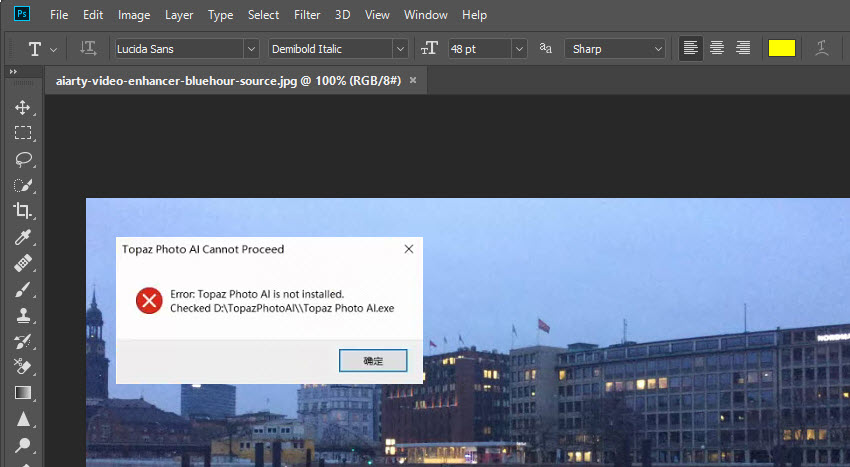
2. Error: Topaz Photo AI is not installed.
If you can see the Topaz plugin under Filters but get the error “Topaz Photo AI is not installed” when clicking it, this usually indicates a path or recognition issue rather than a missing installation. In most cases, the plugin should work as long as the main Topaz Photo AI application is installed in its default location. When Photoshop can see the plugin entry but cannot launch it, it suggests that Photoshop is pointing to an older or incorrect plugin file.
This behavior is uncommon. Under normal circumstances, updating Topaz Photo AI should not cause the plugin path to change, and most users do not experience the plugin suddenly disappearing. If the plugin breaks only after updates, you may consider updating Topaz Photo AI less frequently. While Topaz recommends weekly updates, this is not required. Updating less often will reduce the risk of interruptions to your workflow, especially if the plugin connection in Photoshop is unstable.
Hot Search: Is there a better alternative to Topaz Photo AI for image enhancement?
3. Topaz Plugin Opens But Does Freezes/Crashes Photoshop
This issue occurs when the Topaz plugin window opens in Photoshop but stays blank, freezes, or fails to send the processed image back to Photoshop. Sometimes Photoshop becomes unresponsive after running Topaz Photo AI, Sharpen, or Gigapixel as a Topaz plugin for Photoshop. Common causes include missing or corrupted AI model files, outdated or incomplete plugin files (.8bf / .plugin), or macOS security blocking plugin components with warnings like “cannot check for malicious software.” Older Topaz builds running on Apple Silicon may also experience Rosetta compatibility issues that prevent the Topaz for Photoshop plugin from loading correctly. To fix:
- Fully uninstall and reinstall the latest version of Topaz Photo AI / Gigapixel.
- Open Topaz as a standalone app first to let it download all AI models completely
- Ensure Full Disk Access and Gatekeeper permissions are enabled on macOS.
- Close and relaunch Photoshop after model downloads are complete.
4. AI Models Stuck on “Downloading…” or Missing Models
Sometimes Topaz Photo AI or the Topaz plugin for Photoshop gets stuck on “Downloading models…,” shows errors like “Missing Models,” or fails to run AI processing inside Photoshop. This usually happens when a firewall, VPN, proxy, or antivirus blocks the model download, or when the installation was interrupted and the model files were never fully saved. On macOS, a corrupted CoreML cache can also prevent Topaz from loading required AI models. To fix this, disable VPN or firewall restrictions temporarily and relaunch Topaz, then open the standalone version to allow all models to finish downloading. macOS users may also need to reset the CoreML cache and re-enable Full Disk Access for both the Topaz app and Photoshop.
5. Photoshop Layers Not Updating
Another common issue occurs when Topaz does not return the enhanced image back to Photoshop. Users may see Smart Object edits failing, incomplete layer updates, or crashes during “Saving back to host application.” These problems are often linked to insufficient GPU memory, outdated drivers, permission restrictions, or duplicated/wrong plugin files in the Photoshop Plug-ins folder.
Updating your GPU drivers, ensuring Photoshop and Topaz both have Full Disk Access on macOS, and removing outdated plugin duplicates typically resolves the issue. Converting layers into Smart Objects before sending them to Topaz can also improve stability.
6. Photoshop Topaz Slow Processing
Some users experience slow performance, a black or flickering preview window, or find that Topaz for Photoshop uses only the CPU instead of the GPU. These issues are usually caused by GPU acceleration being disabled in Photoshop, the OS blocking GPU access, or the plugin selecting the wrong GPU on systems with both integrated and discrete graphics.
Enabling “Use Graphics Processor” in Photoshop’s Performance settings and manually selecting the correct GPU in Topaz Preferences generally fixes the problem. Closing other GPU-intensive apps and reducing preview resolution for very large images (such as 8K or RAW files) can also help.
A Cheaper & Lightweighter Topaz Alternative for Photoshop Users
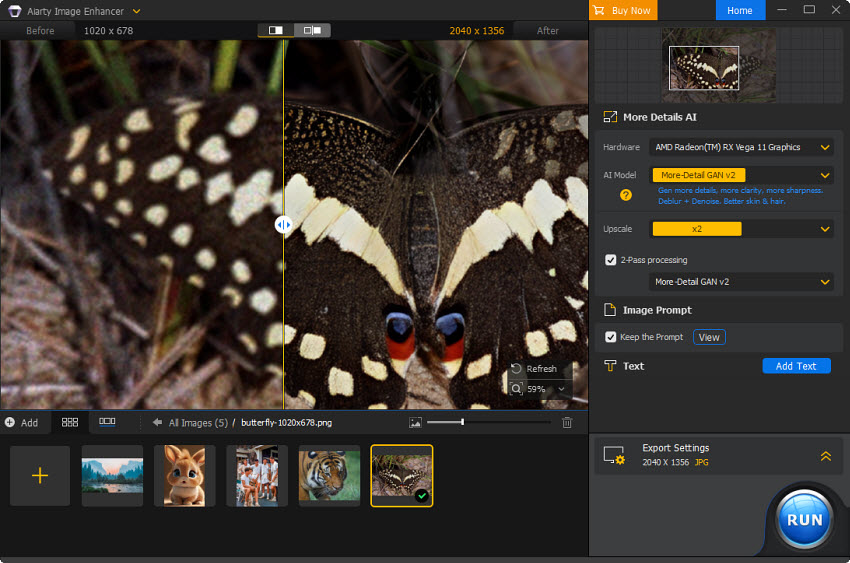
For users who find Topaz Photo AI too resource-intensive, too expensive, or struggle with plugin issues in Photoshop, Aiarty Image Enhancer offers a simpler and more efficient solution. It users advanced AI to upscale, denoise, deblur, and restore low-quality images to 4K/8K and higher, without a plugin installation. You don’t have to worry about Photoshop version compatibility, plugin folders, or system requirements. It provides clean details, sharper textures, and natural-looking enhancement with only one click. Tons of images can be enhanced in minutes.
Compared to Topaz Photo AI ($252/year) plus Photoshop ($264/year), which can cost nearly $500 annually, Aiarty Image Enhancer is only a fraction of that price with a one-time lifetime purchase. You can enhance photos quickly and efficiently without recurring fees, heavy hardware requirements, or plugin hassles, making it a much more affordable and accessible choice for everyday users.
 Free download Aiarty Image Enhancer for Windows
Free download Aiarty Image Enhancer for macOS
Final Words
Using Topaz plugins for Photoshop can significantly enhance your images, but installation issues, plugin errors, and high system requirements can slow down your workflow. By following this guide, you can install, troubleshoot, and effectively use Topaz Photo AI, Gigapixel, and other Topaz tools within Photoshop.
For users seeking a faster, lighter, and more affordable solution, Aiarty Image Enhancer provides an excellent alternative—delivering high-quality denoising, upscaling, and sharpening without plugin headaches or recurring costs. Whether you stick with Topaz or try Aiarty, understanding these tools and their best practices will help you get professional results with minimal hassle.
 FAQ
FAQ
Yes. Topaz Photo AI, Gigapixel, and other Topaz tools can be used as plugins within Photoshop. Once installed, you can access them under Filter > Topaz Labs to denoise, sharpen, or upscale images directly in Photoshop.
You can add Topaz automatically by running the installer, which usually detects Photoshop. If it doesn’t appear, manually add it by pointing Photoshop to the Topaz plugin folder (.8bf / .plugin) via Edit > Preferences > Plug-ins (Windows) or Photoshop > Settings > Plug-ins (macOS).
Topaz Labs plugins are paid software; there is no official free version. You can download trial versions from the Topaz Labs official website to test before purchasing. Avoid unofficial sources, as they may be unsafe.
You May Also Like


This post was written by Brenda Peng who is a seasoned editor at Digiarty Software who loves turning ordinary photos into extraordinary works of art. With AI assistance for brainstorming and drafting, the post is reviewed for accuracy by our expert Abby Poole for her expertise in this field.
