


Photoshop has evolved rapidly in the AI era. Features like Generative Fill and Neural Filters, along with popular AI plugins such as Topaz Gigapixel, DxO PureRAW, Retouch4me, Nik Collection and ON1 Resize AI, have made photo editing faster and more automated than ever.
Modern Photoshop AI plugins can help users upscale low-resolution images, reduce noise, automate portrait retouching, recover detail, and speed up repetitive editing tasks directly inside Photoshop. For photographers, designers, and content creators, these tools can significantly improve editing workflow efficiency.
In this guide, we’ll explore the most popular types of Photoshop AI plugins, what they do best, where they still struggle, and why many creators are starting to combine Photoshop with dedicated AI enhancement workflows for better speed, consistency, and batch processing.
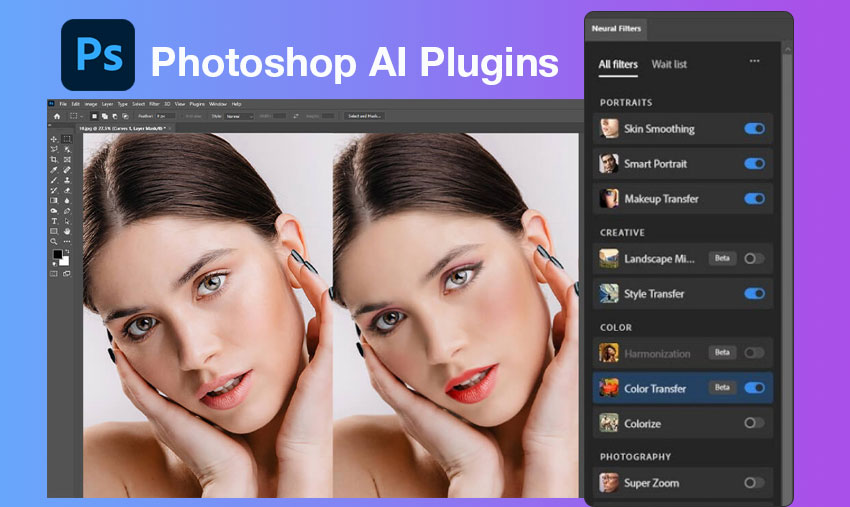
What Is a Photoshop AI Plugin?
A Photoshop AI plugin is an AI-powered extension that adds automated editing or enhancement features inside Adobe Photoshop, ranging from simple retouch tools to advanced image reconstruction systems.
Most AI photoshop plugins fall into three categories: retouching tools for cleanup and object removal, upscaling tools for increasing resolution, and denoise tools for noise and low-light correction.
In most workflows, these plugins act as editing assistants rather than full AI enhancement systems.
Best Photoshop AI Plugins in 2026: Retouching, Upscaling & Editing Tools
What’s the best Photoshop AI plugin in 2026? The best Photoshop AI plugins in 2026 include Topaz Photo AI, Retouch4me, Portraiture, DxO PureRAW, Luminar Neo, and Photoshop Neural Filters for retouching, upscaling, denoising, and creative editing, with the best choice depending on whether you prioritize speed, automation, or creative control.
DxO PureRAW – RAW Optimization and Optical Correction Before Photoshop Editing
DxO PureRAW is typically used at the very beginning of a workflow, especially when photographers want to clean and correct RAW files before importing them into Photoshop.
It focuses on optical imperfections and noise issues that often appear in high ISO or low-light photography.
- advanced RAW noise reduction
- lens distortion and optical correction
- detail preservation in difficult lighting
- pre-processing for professional workflows
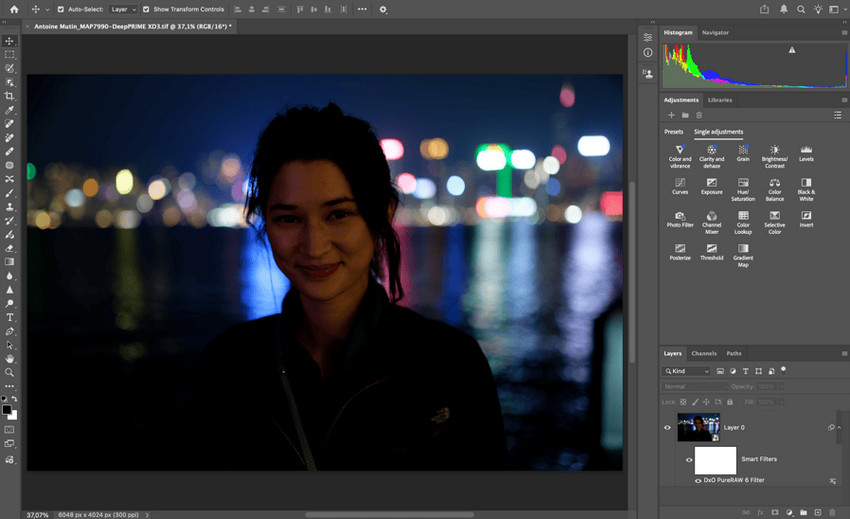
Among best Photoshop plugins for photographers, it is less about editing inside Photoshop and more about improving source quality before any Photoshop add ons are applied.
Topaz Photo AI – Unified AI System for Upscaling, Denoising & Sharpening
Topaz Photo AI is widely used when the goal is not just editing, but restoring or improving overall image quality. It combines multiple enhancement functions into a single workflow, reducing the need for separate photoshop filters plugins.
Instead of manual parameter tuning, it analyzes image issues such as blur, noise, and resolution loss, then applies corrections automatically before Photoshop editing begins.
- AI upscaling for low-resolution images
- noise reduction in high ISO photography
- deblurring and detail recovery
- pre-Photoshop image enhancement workflow
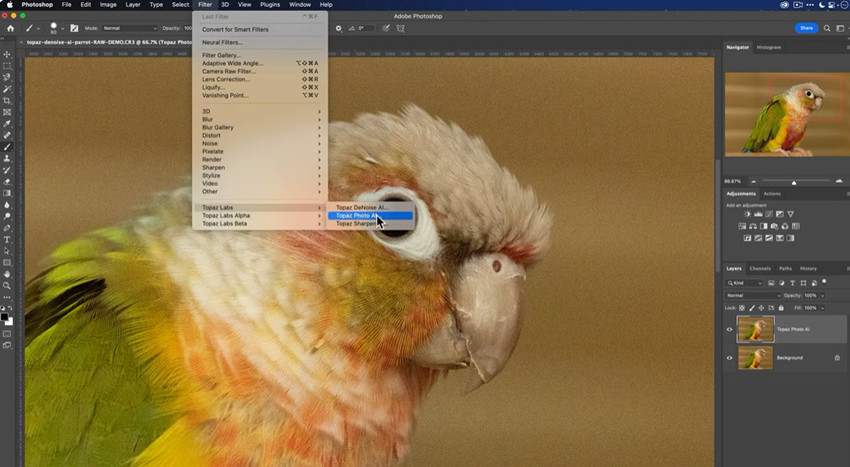
This makes it one of the most widely used ai plugins for Photoshop in technical workflows, especially for photographers working with imperfect source material. In addition, tools like Topaz DeNoise and Topaz Gigapixel are often used as dedicated Photoshop plugins for specific tasks such as noise reduction and high-quality upscaling.
Retouch4me – Modular AI Retouching System for Professional Portrait Workflows
Retouch4me approaches editing differently from most AI plugins for Photoshop. Instead of a single tool, it breaks retouching into separate AI modules that replicate individual steps of professional post-production.
This structure makes it especially popular in commercial workflows where editors prefer control over each stage rather than applying a single global effect.
- automated dodge and burn simulation
- AI-driven blemish and skin cleanup
- eye enhancement and facial balancing tools
- clothing and detail correction modules
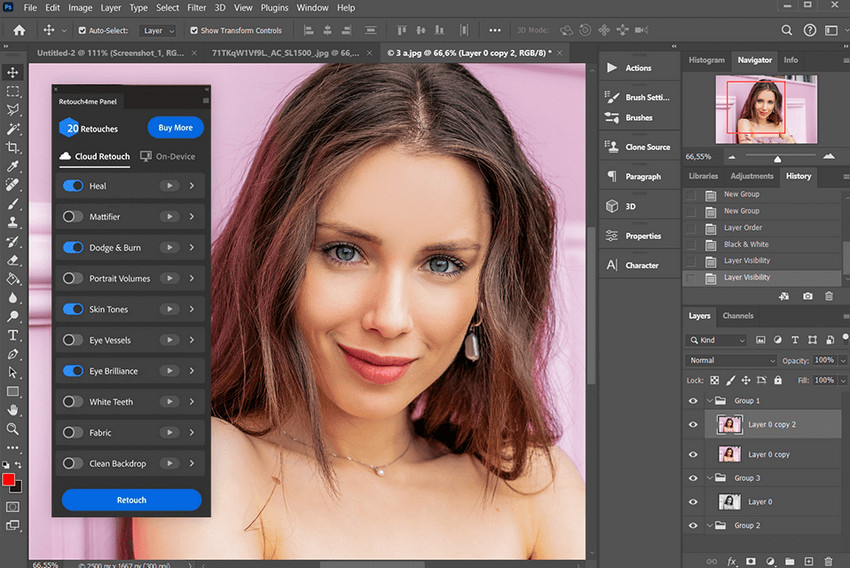
Among modern best plugins for Photoshop, Retouch4me stands out for its “task-based design philosophy,” but it also means users often combine multiple modules instead of relying on a single AI plugin for Photoshop.
Portraiture – Fast Skin Retouching Inside Traditional Photoshop Workflows
Portraiture is often considered a “time-saver tool” in portrait studios, where editors need consistent skin smoothing without spending hours on manual brushing. It fits into classic Photoshop plugins for artists who prioritize efficiency over granular control.
Instead of behaving like modern AI systems, this AI portrait tool applies predefined smoothing logic that works well when processing large batches of portraits such as school photos, events, or studio sessions.
- rapid skin softening for studio portraits
- uniform retouching across large photo sets
- reducing texture inconsistencies in faces
- batch-based workflow for commercial editing
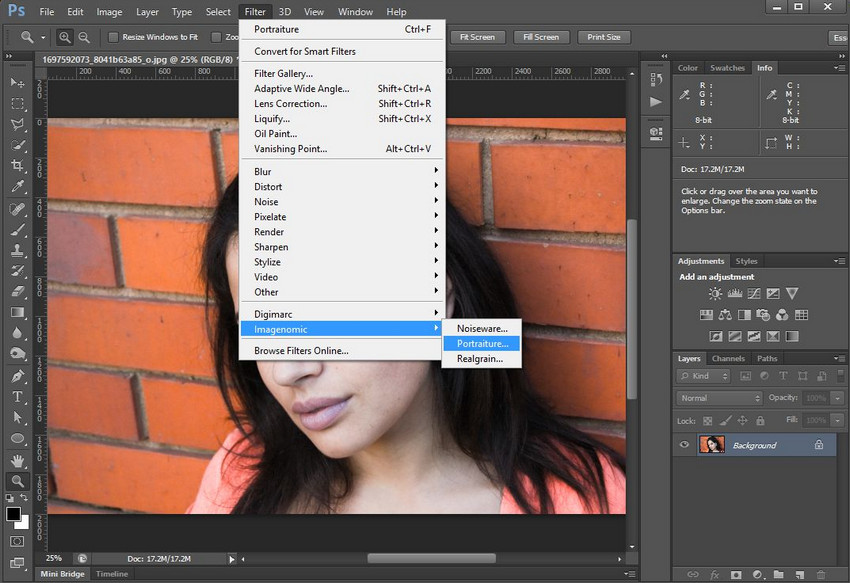
While it remains a classic among Photoshop plugins, newer AI Photoshop plugins offer more adaptive control, especially when lighting or skin conditions vary significantly across images.
Luminar Neo – All-in-One AI Photo Editing Platform for Creative Workflows
Luminar Neo combines multiple AI editing tools into a single environment, making it a practical choice for users who want fewer dependencies on multiple Photoshop add ons.
It is often used for both enhancement and creative transformation, especially in portrait and landscape photography workflows.
- AI portrait enhancement and relighting
- sky replacement and scene reconstruction
- image cleanup and noise reduction
- creative effects and stylization tools
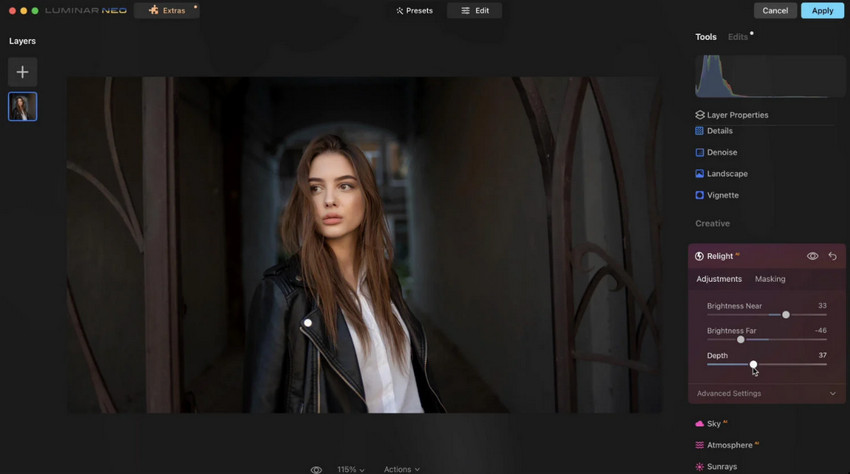
While it competes with other top Photoshop plugins, its strength lies in versatility rather than extreme specialization in a single editing category.
Nik Collection – Creative Color Grading and Stylized Photo Enhancement Suite
Nik Collection is widely used in editorial and artistic workflows where color grading and stylistic control matter more than automation.
Rather than relying on AI automation, it provides a hands-on approach to tonal shaping, contrast control, and creative looks.
- selective color grading and tonal control
- local contrast and detail enhancement
- creative filters for stylized photography
- precision-based image adjustments
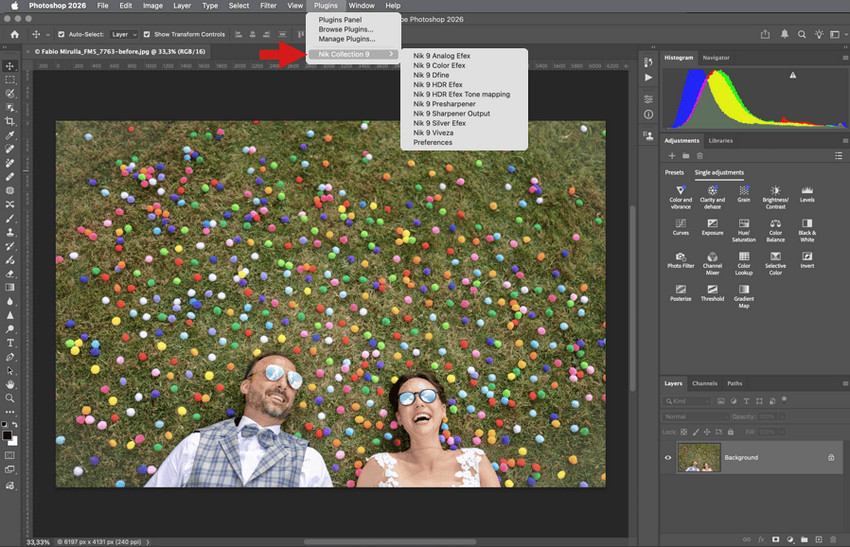
It remains one of the most respected Photoshop plugins for photographers who prefer manual creative control over fully automated AI Photoshop plugins.
Photoshop Neural Filters – Built-in AI Tools for Quick Image Adjustments
Unlike third-party Adobe Photoshop plugins, Neural Filters are integrated directly into Photoshop, making them accessible without installation or external workflows.
They are typically used for fast experimentation—especially when testing facial adjustments, stylization, or quick enhancements before moving into deeper editing stages.
- face-aware portrait adjustments
- AI-based skin smoothing and expression control
- style transfer effects for creative exploration
- fast prototyping inside Photoshop
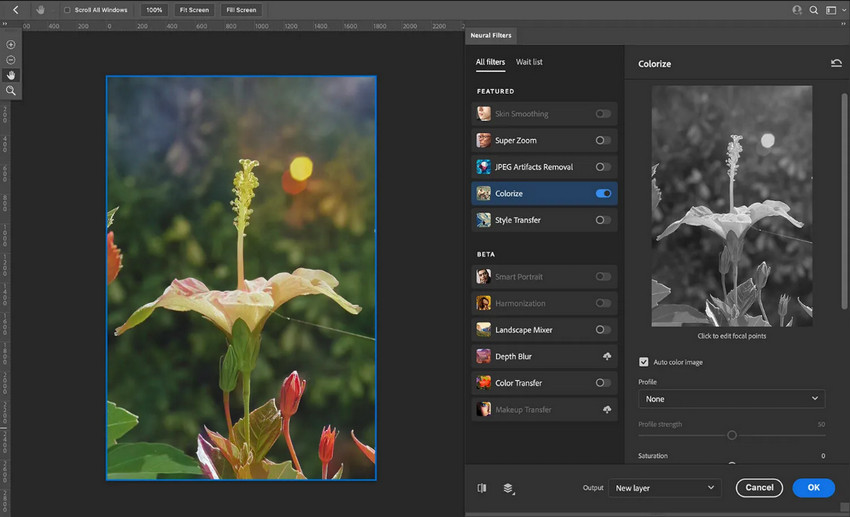
Although convenient, Neural Filters are not designed to replace dedicated Photoshop AI plugins used in production workflows, especially for batch processing or high-resolution restoration tasks.
Photoshop Generative Fill – AI Content Creation for Image Expansion & Editing
Generative Fill represents a shift from enhancement to creation. Instead of improving existing pixels, it generates new image content based on text prompts inside Photoshop.
This feature is often used in creative workflows where composition changes are needed without manual masking or cloning techniques.
- background extension and scene expansion
- object removal with AI-generated fill
- conceptual image modification
- rapid compositing for design work
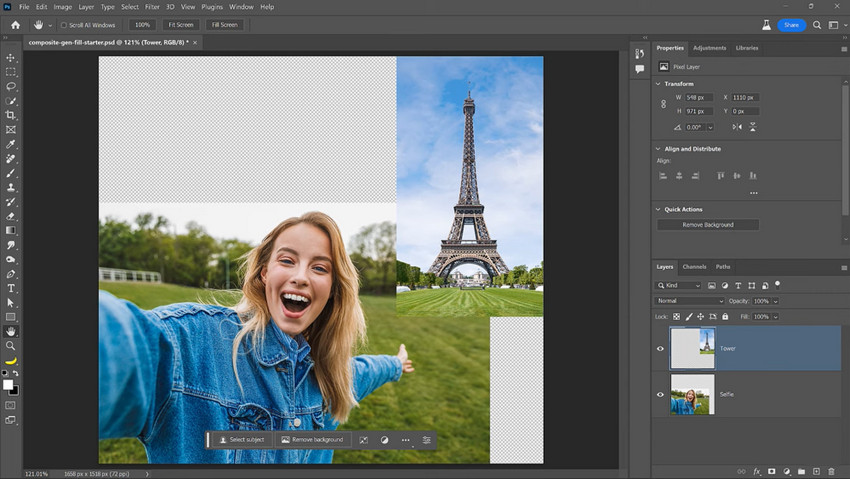
Unlike traditional Photoshop plugins, Generative Fill is not a plugin in the classic sense but a built-in AI engine that changes how Photoshop handles creative editing tasks.
Related Read: How to Use Photoshop Generative Upscale: Models, Credits & Troubleshooting
The Real Problem With Most Photoshop AI Plugins
For many users, the biggest challenge with Photoshop AI plugins is not image quality — it’s workflow efficiency.
Most AI plugins for Photoshop still depend heavily on Photoshop itself. Users often need to switch between layers, panels, previews, and exports multiple times during a single edit. While manageable for small projects, the process becomes much slower in enhancement-heavy workflows. This is especially noticeable with AI upscaling and denoise tasks, where large files can increase GPU load, render times, and workflow complexity.
Batch processing is another limitation. Although some Photoshop plugins support automation, many workflows still feel designed around editing one image at a time rather than handling large photo sets efficiently.
As a result, many creators eventually realize that Photoshop AI plugins are excellent for specific tasks — but not always ideal for a complete AI editing workflow.
Why Creators Now Separate AI Enhancement From Photoshop Editing
This is one of the biggest shifts happening in modern photo editing.
More photographers, ecommerce sellers, and content creators now handle AI photo enhancement separately from traditional Photoshop editing. Instead of doing everything inside Photoshop, they often improve image quality first using dedicated AI tools, then move the files into Photoshop for compositing, retouching, text design, or final creative adjustments.
A typical process starts with denoising, upscaling, restoration, or image cleanup before any manual editing begins. Cleaner source files usually lead to better masks, smoother retouching, more stable sharpening, and fewer compression-related problems later in the process.
For many users, this approach is simply faster and easier to scale, especially when working with large photo batches or enhancement-heavy projects.
As a result, Photoshop increasingly functions as the creative control center of the workflow rather than the primary AI enhancement engine.
A Better Alternative for AI Enhancement Workflows
Instead of adding more plugins into Photoshop, many creators now prefer standalone AI enhancement software for reconstruction-heavy tasks. This includes workflows like AI image upscaling, low-light denoise, old photo restoration, compressed image cleanup, detail recovery and batch enhancement.
Tools like Aiarty Image Enhancer are designed specifically for these workflows rather than for layer-based editing.
Unlike traditional Photoshop plugins, standalone AI enhancement tools do not require users to stay inside the Photoshop environment during processing. This often results in a faster and more streamlined workflow, especially when handling large image sets. A typical example of this new workflow is Aiarty Image Enhancer.
Aiarty Image Enhancer focuses heavily on AI enhancement tasks such as denoising, image upscaling, detail reconstruction, and low-light image cleanup. Because the software is optimized specifically for enhancement workflows, many users find it more efficient for preprocessing images before moving into Photoshop.
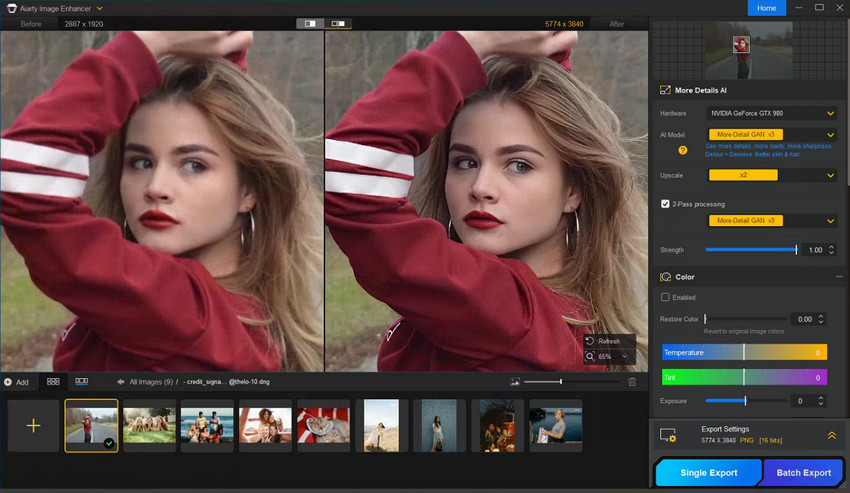
This workflow is particularly useful for creators working with old or blurry photos, low-light images, compressed social media images, ecommerce product photos, and large photo libraries.
Instead of replacing Photoshop, the goal is to reduce the amount of manual correction Photoshop requires afterward.
Photoshop AI Plugin Workflow vs Standalone AI Workflow
The difference between these workflows becomes more obvious as image volume increases.
Photoshop remains one of the best creative editing platforms available today. For compositing, local retouching, graphic design, and advanced layer work, it is still extremely powerful.
But dedicated AI enhancement tools are often better suited for high-volume enhancement tasks where speed, consistency, and automation matter more.
Are Photoshop AI Plugins Still Worth Using?
Absolutely.
Photoshop AI plugins are still valuable for many workflows, especially if your editing style depends heavily on layers, compositing, or selective adjustments. For light retouching and creative edits, they can dramatically reduce repetitive manual work.
However, users who regularly process large image sets or low-quality photos often benefit from moving enhancement tasks outside Photoshop entirely. That’s why more modern workflows now combine both approaches: AI enhancement software handles reconstruction and cleanup, while Photoshop focuses on creative finishing.
Final Thoughts
Photoshop AI plugins are useful, but they are not always the most efficient solution for modern AI image enhancement.
If your workflow focuses mainly on creative editing, Photoshop remains an excellent platform. But if your priority is faster enhancement, cleaner denoise, consistent upscaling, or batch image processing, standalone AI enhancement tools often provide a more practical long-term workflow.
Many creators are no longer asking Photoshop to do everything. Instead, they use AI enhancement tools to improve image quality first, then use Photoshop for final creative control.
Try Aiarty Image Enhancer to build a faster AI photo enhancement workflow before Photoshop editing.
 FAQs
FAQs
They are worth using if your workflow involves repetitive tasks like retouching, denoising, or upscaling. However, they are less effective as a complete replacement for editing workflows because many still depend heavily on Photoshop’s manual layer-based system.
Yes, some ai photoshop plugins can slow down Photoshop, especially when processing high-resolution images or running GPU-intensive tasks like AI upscaling and noise reduction. Performance depends heavily on hardware and plugin optimization.
Photoshop plugins run inside Adobe Photoshop and rely on a layer-based workflow, while standalone AI tools process images outside Photoshop. Standalone tools are usually faster for batch enhancement, while plugins offer more direct creative control.
Beginners often start with tools like Photoshop Neural Filters, Luminar Neo, or Topaz Photo AI because they require minimal manual setup and deliver more automated results compared to advanced retouching plugins.
Some ai plugins for Photoshop support batch processing, but many are still optimized for single-image workflows. For large photo sets, standalone AI enhancement tools are usually more efficient and stable.
Yes. Professionals still rely on Photoshop plugins for tasks like color grading, portrait retouching, and compositing. However, many now combine them with standalone AI tools to speed up preprocessing and image enhancement.
You May Also Like


This post was written by Brenda Peng who is a seasoned editor at Digiarty Software who loves turning ordinary photos into extraordinary works of art. With AI assistance for brainstorming and drafting, the post is reviewed for accuracy by our expert Abby Poole for her expertise in this field.
