


Photoshop has long been the go-to tool for professional photo editing, but its powerful features can also feel overwhelming for beginners. Even simple tasks like removing unwanted objects, changing backgrounds, or adjusting image styles often require time and editing skills.
Now, Adobe Photoshop is available directly inside ChatGPT, bringing a new way to edit images with simple text instructions. Instead of navigating through complex menus, users can describe what they want to change and let AI help complete the edits.
With Photoshop in ChatGPT, you can quickly make creative adjustments, retouch photos, and explore new editing ideas through natural language prompts. However, this new AI-powered workflow is not designed to replace every Photoshop feature, and it has its own limitations.
In this guide, we’ll explain how to use Adobe Photoshop in ChatGPT, whether it’s free, what you can do with it, its differences from the desktop Photoshop app, and share 50 practical prompts to help you get better results.
Can I Use Photoshop in ChatGPT for Free?
Yes. The official Adobe Photoshop integration in ChatGPT is available for free, and you do not need a paid ChatGPT subscription or a paid Adobe Creative Cloud plan to try its basic image editing features.
By connecting the Photoshop app in ChatGPT, you can make quick edits directly in your chat.
Do I Need an Adobe Account to Use Photoshop in ChatGPT?
Not necessarily. You can access basic Photoshop editing features in ChatGPT without signing in to an Adobe account. However, signing in with a free account unlocks advanced generative AI tools, cloud asset storage, and the ability to continue your editing sessions across different chat threads.
A paid Adobe subscription is only needed when you want to move your project to the full Photoshop environment, where you can access advanced tools such as complex layer editing, custom brushes, precise selections, and other professional features.
Are There Any Differences Between ChatGPT Free and Paid Plans?
The Photoshop integration itself is free and works the same way across ChatGPT plans. However, your overall ChatGPT plan determines how often you can use the feature.
| Feature / Limit | ChatGPT Free | ChatGPT Plus / Pro |
|---|---|---|
| Photoshop Integration Cost | Completely Free | Completely Free |
| Tool Access | All basic in-chat sliders and effects | All basic in-chat sliders and effects |
| Image Upload Caps | Heavily restricted; standard free-tier file upload limits apply. | Much higher; up to 80 uploads per 3 hours on Plus plans. |
| Message/Prompt Limits | Lower cap; if you hit the message limit, the chat downgrades to a mini model that cannot run the Photoshop tool. | Higher caps (e.g., up to 160 main model messages every 3 hours). |
In other words, the main difference is not the availability of Photoshop in ChatGPT, but how much you can use ChatGPT’s overall features before reaching your plan limits.
What Can You Do with Photoshop in ChatGPT?
Photoshop in ChatGPT brings a simpler way to edit images through natural language. Instead of manually searching through menus and adjustment panels, you can describe the changes you want, and the AI can help apply edits directly within your conversation.
While it does not include every professional feature found in the desktop Photoshop app, it works well for quick edits, creative adjustments, and everyday photo improvements.
Here are some common things you can do with Photoshop in ChatGPT.
1. Remove Unwanted Objects from Photos
One of the most useful features is removing distracting elements from an image. You can ask Photoshop in ChatGPT to erase unwanted objects, clean up backgrounds, or remove people from photos while keeping the surrounding area natural.
Example prompt:
Remove the person in the background and fill the area naturally to match the surrounding scenery.
This can be helpful for travel photos, product images, and everyday snapshots where unwanted objects affect the composition.
2. Change or Replace Image Backgrounds
Photoshop in ChatGPT can help you quickly replace backgrounds without manually creating selections or masks.
For example, you can:
- Replace a busy background with a clean studio backdrop
- Change a daytime scene into a sunset environment
- Create a more professional background for portraits or product photos
Example prompt:
Replace the background with a modern office setting while keeping the person unchanged.
This makes it easier for beginners to create polished-looking images with minimal editing experience.
3. Adjust Brightness, Colors, and Image Style
You can use conversational prompts to make common photo adjustments, including:
- Increasing brightness or exposure
- Improving contrast
- Enhancing colors
- Adjusting shadows and highlights
- Creating specific visual styles
Example prompt:
Make this photo brighter, increase contrast slightly, and enhance the colors while keeping the result natural.
These quick adjustments are useful when you want to improve the overall look of a photo without fine-tuning every setting manually.
4. Retouch Portraits and Improve Appearance
Photoshop in ChatGPT can assist with basic portrait edits, such as:
- Smoothing minor skin imperfections
- Improving lighting
- Adjusting facial tones
- Creating a more polished portrait style
Example prompt:
Enhance this portrait with natural skin tones and better lighting while keeping the person’s appearance realistic.
However, it is important to note that AI editing is different from true photo restoration. If a face is heavily blurred, pixelated, or missing details, simple adjustments may not be enough to recover the original quality.
5. Create Creative Effects and Image Variations
Beyond corrections, Photoshop in ChatGPT can also help explore creative ideas. You can ask it to apply different moods, styles, or visual changes.
Examples:
- Add a cinematic color style
- Create a vintage photo look
- Apply a soft background blur
- Make an image look more dramatic or artistic
Example prompt:
Give this photo a cinematic look with deeper shadows and a warm color tone.
This makes Photoshop in ChatGPT useful for quickly experimenting with different creative directions.
6. Create Social Media and Promotional Graphics
When you need to turn a photo into a marketing asset, the chat interface seamlessly transitions your project to Adobe Express automation features. This allows you to combine your edited photo with clean graphic design elements.
Example prompt:
"Overlay the text 'Summer Sale' in a clean white font at the bottom of this product photo and make it look ready for Instagram."
Best used for: Small business marketing, content creation templates, and quick promotional flyers.
What Can't Photoshop in ChatGPT Do?
Photoshop in ChatGPT makes image editing easier, especially for quick adjustments and creative changes. However, it is not a complete replacement for the desktop Photoshop application or specialized AI image enhancement tools.
Understanding its limitations can help you choose the right tool for different editing tasks.
1. It Cannot Replace the Full Photoshop Editing Workflow
The ChatGPT integration is designed for conversational editing, not advanced professional workflows. While it can handle many common adjustments, it does not provide the same level of control as the desktop Photoshop app.
For example, Photoshop in ChatGPT does not offer the full range of professional features, such as:
- Advanced layer management
- Complex masking and selection workflows
- Custom brush tools
- Detailed vector editing
- Precise color grading controls
- Professional RAW editing workflows
For photographers, designers, and creative professionals who need pixel-level control, desktop Photoshop remains the more powerful option.
2. It Does Not Fully Restore Lost Image Details
Photoshop in ChatGPT can improve the appearance of an image through adjustments, but it is not specifically designed for recovering missing details from low-quality photos.
For example, if an image has:
- Heavy blur
- Strong compression artifacts
- Severe noise
- Low resolution
- Missing facial details
AI editing may improve the overall appearance, but it cannot always recover the original information that was never captured. This is especially noticeable with old photos, wildlife images, and heavily cropped pictures where important details, such as fur texture, feathers, or facial features, have been lost.
For these cases, dedicated AI image enhancement tools focus on tasks such as AI upscaling, noise reduction, detail recovery, and face restoration.
Free download Aiarty Image Enhancer to upscale, sharpen, or denoise your photos.
3. It Is Not Designed for Large-Scale Batch Processing
Photoshop in ChatGPT works well for editing individual images, but it is not built around high-volume workflows.
Photographers and content creators who need to process many images at once may still prefer tools that support:
- Batch enhancement
- Preset-based workflows
- Consistent processing across multiple files
How to Use Adobe Photoshop in ChatGPT Step by Step
Using Photoshop in ChatGPT is relatively simple. Instead of opening the traditional Photoshop interface and manually selecting editing tools, you can edit images through a conversation by describing what you want to change.
Follow these steps to start editing with Photoshop in ChatGPT.
Step 1: Open ChatGPT and Access Apps
First, open ChatGPT on your desktop browser or mobile app and sign in to your account.
Click your profile icon and go to Settings. Then find the Plugins section, where you can browse available integrations.
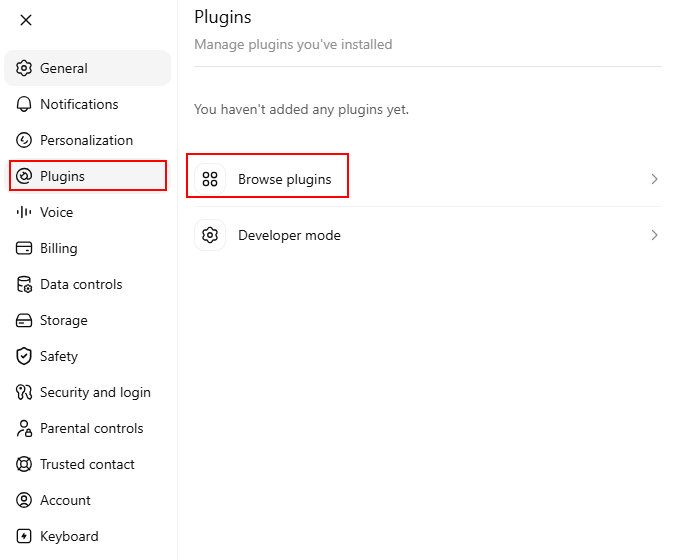
Search for Adobe and select it.
Note: Instead of a standalone "Photoshop" plugin entry, Photoshop capabilities are housed directly under the Adobe integration. So you can’t find Photoshop plugin.
Step 2: Connect Adobe Photoshop in ChatGPT
Click + next to Adobe.
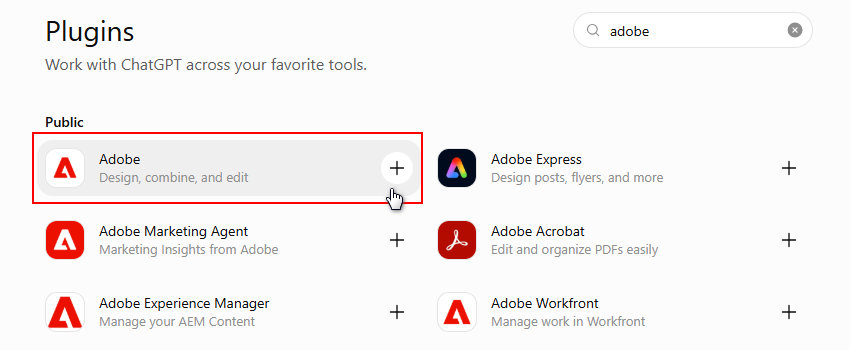
Once connected, Photoshop will be available as an editing tool inside your ChatGPT conversations.
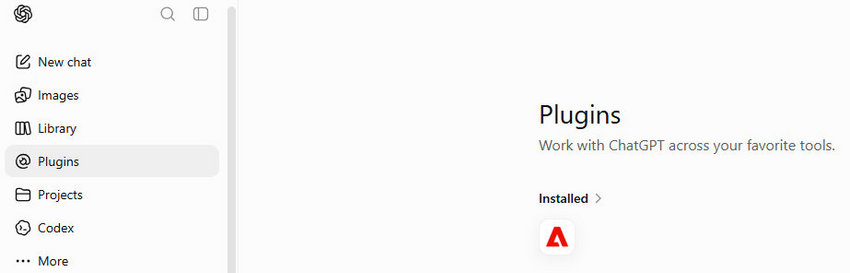
Step 3: Start a New Chat and Select Adobe
Open a new chat window.
Click the + button near the message box, then select Adobe from the available apps.
You can also type @Adobe in the chat to activate the Photoshop integration.
After selecting Adobe Photoshop, the tool will be ready to process your uploaded images.
Step 4: Upload an Image
Upload the image you want to edit.
Photoshop in ChatGPT works best with common image formats such as JPEG and PNG. After uploading, describe the changes you want to make.
For example:
Remove the person in the background and keep the scenery natural.
or:
Make this portrait brighter and improve the lighting while keeping natural skin tones.
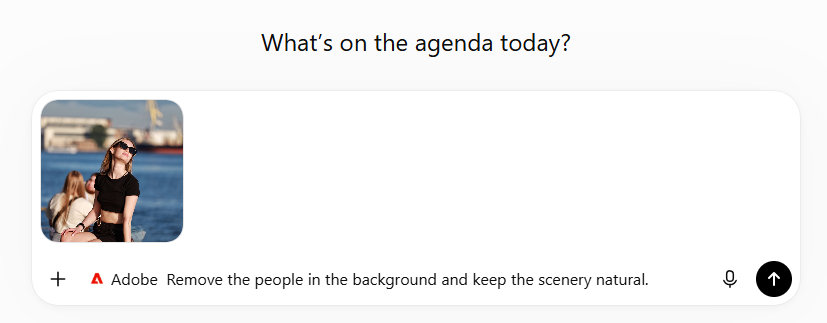
The more specific your instructions are, the easier it is for the AI to understand your editing goal.
Step 5: Describe Your Editing Request with a Prompt
Unlike traditional Photoshop workflows, you do not need to manually search for tools or adjust multiple settings.
Simply tell Photoshop what you want to change.
You can include details such as:
- What should be removed or changed
- Which area of the image needs adjustment
- The style or mood you want
- What elements should remain unchanged
For example:
Basic edit:
Increase brightness and contrast slightly while keeping the colors natural.
Background change:
Replace the background with a clean studio environment while keeping the subject unchanged.
Creative edit:
Turn this image into a cinematic-style photo with warm tones and deeper shadows.
Step 6: Review the Result and Refine the Edit
After Photoshop in ChatGPT generates the edit, review the result.
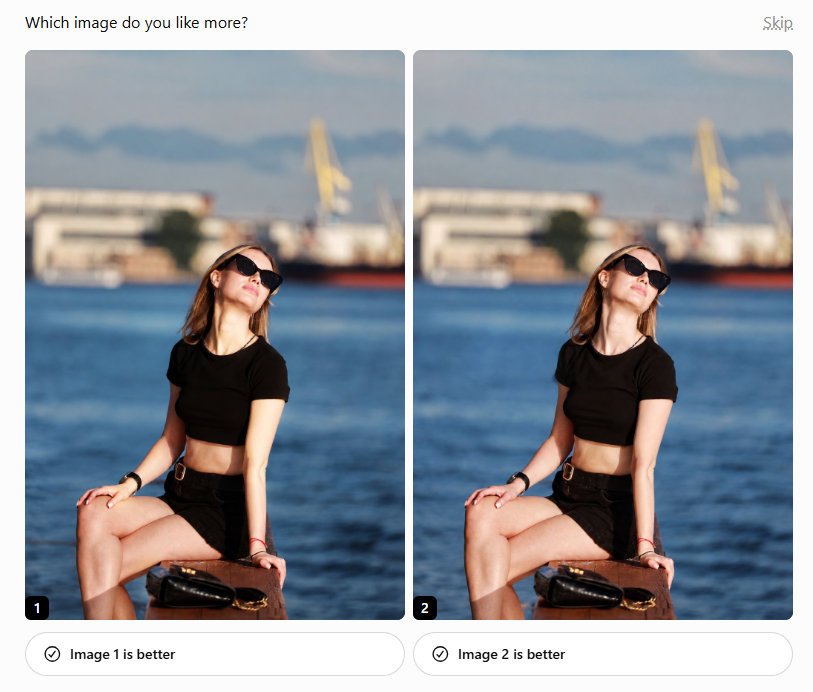
If the image is not exactly what you want, continue the conversation and provide additional instructions.
For example:
Make the background less blurry.
Restore more details on the face.
Keep the original colors but make the image sharper.
AI editing usually works best through multiple adjustments rather than relying on a single prompt.
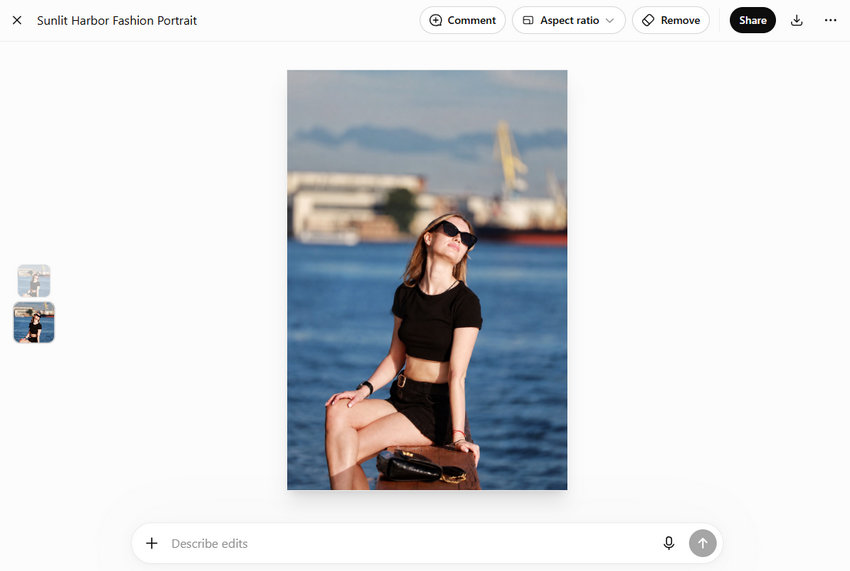
Step 7: Open the Image in Photoshop for Advanced Editing (Optional)
If you need more control, you can continue editing the image in Photoshop’s web environment.
This allows you to access more advanced editing features beyond the ChatGPT integration, such as professional selections, layers, masks, and detailed adjustments.
Keep in mind that some advanced Photoshop features may require an Adobe account or subscription.
50 Best Prompts for Using Photoshop in ChatGPT
One of the easiest ways to get better results with Photoshop in ChatGPT is to write clear and specific prompts. To achieve better edits, keep these tips in mind:
Be Specific About Your Goal
Instead of:
Make this photo better.
Try:
Improve the lighting, reduce harsh shadows, and make the colors look more natural.
Describe What Should Stay the Same
AI may unintentionally change important elements. Add instructions such as:
Keep the person's facial features unchanged.
Preserve the original composition.
Maintain natural colors.
Make One Change at a Time
For complex edits, avoid combining too many requests in one prompt. Editing step by step usually produces more predictable results.
Below are 50 practical Photoshop prompts for ChatGPT, covering everyday edits, portraits, products, social media content, and creative transformations.
Remove Unwanted Objects and Clean Up Photos
Photoshop in ChatGPT is especially useful for removing distracting elements and making images cleaner.
1. Remove an unwanted object
Remove the unwanted object from this image and fill the area naturally to match the surrounding details.
2. Remove people from the background
Remove the people in the background while keeping the main subject and scenery unchanged.
3. Clean up a travel photo
Remove tourists, signs, and distracting elements from this travel photo while preserving the original architecture and atmosphere.
4. Remove unwanted text
Remove the text from the image while keeping the background natural and realistic.
5. Repair a damaged area
Repair the damaged area of this image and blend it naturally with the surrounding details.
Replace and Modify Backgrounds
Use these prompts to quickly create cleaner or more suitable backgrounds.
6. Create a professional studio background
Replace the background with a clean professional studio setting while keeping the person's face, pose, and clothing unchanged.
7. Replace a busy background
Replace the busy background with a simple and elegant environment while keeping the subject realistic.
8. Create a sunset scene
Change the background to a sunset landscape while keeping the person and lighting natural.
9. Add background blur
Add a realistic depth-of-field blur effect to the background while keeping the subject sharp.
10. Create a product photography background
Replace the background with a premium studio setup suitable for commercial product photography.
Edit Specific Objects in an Image
One of the advantages of Photoshop in ChatGPT is that you can ask it to modify specific elements without changing the entire image.
11. Change clothing
Change the person's shirt into a formal jacket while keeping their face, hairstyle, pose, and identity unchanged.
12. Change an object's color
Change the color of the car to black while keeping the lighting, reflections, and background unchanged.
13. Add an object naturally
Add a coffee cup on the table and make it match the original lighting, perspective, and shadows.
14. Remove an object and keep the composition
Remove the chair from the image while keeping the original composition balanced.
15. Replace an object
Replace the old phone with a modern smartphone while keeping the person's hand position and perspective unchanged.
Portrait Enhancement Prompts
These prompts help improve portraits while maintaining a natural appearance.
16. Improve portrait lighting
Improve the lighting on this portrait and create a professional look while keeping the person's facial features unchanged.
17. Enhance skin tones
Improve skin tones while preserving natural skin texture and avoiding an overly smooth appearance.
18. Create a professional headshot
Turn this photo into a professional headshot with balanced lighting and a clean background.
19. Improve portrait clarity
Make this portrait clearer and more polished while keeping the person's identity unchanged.
20. Create a natural beauty enhancement
Enhance this portrait with subtle improvements to lighting, colors, and skin tone while maintaining a natural look.
Lighting, Color, and Photo Adjustment Prompts
Use these prompts for quick image improvements.
21. Improve overall image quality
Improve the overall appearance of this image by adjusting brightness, contrast, colors, and exposure while keeping it natural.
22. Fix an underexposed photo
Brighten this underexposed photo and recover details in darker areas while preserving the original colors.
23. Enhance colors
Enhance the colors of this photo while keeping the result realistic and balanced.
24. Create a cinematic color style
Apply a cinematic color grade with warm highlights, deeper shadows, and a professional photography look.
25. Make the image look more natural
Correct the colors and lighting to make this image look more realistic and visually balanced.
Product Photo Editing Prompts
These prompts are useful for e-commerce sellers and marketers.
26. Create a clean product image
Make this product photo cleaner and more professional while keeping the product shape and details unchanged.
27. Remove product background
Remove the background and create a clean product image suitable for an online store.
28. Improve product lighting
Improve the lighting and shadows to make this product look more attractive and realistic.
29. Create a premium commercial style
Make this product photo look like a professional commercial advertisement.
30. Add realistic shadows
Add a natural shadow beneath the product while matching the original lighting direction.
Social Media and Content Creation Prompts
Create better visuals for online content.
31. Optimize for Instagram
Optimize this image for Instagram by improving composition, colors, and visual impact.
32. Create a social media banner
Turn this image into a clean social media banner with enough space for text.
33. Improve a thumbnail image
Make this image more eye-catching and suitable for a YouTube thumbnail while keeping the main subject clear.
34. Create a profile photo
Adjust this image into a professional profile photo with balanced lighting and a clean background.
35. Make the image more engaging
Improve this image to make it more visually appealing for online audiences while keeping it realistic.
Creative Style and Artistic Effects
Use these prompts to explore different visual styles.
36. Create a vintage film look
Apply a vintage film style with natural colors, subtle grain, and a classic photography feel.
37. Create a black-and-white portrait
Convert this portrait into a high-contrast black-and-white photograph while preserving facial details.
38. Add a cinematic atmosphere
Create a cinematic atmosphere with dramatic lighting and realistic colors.
39. Create a magazine-style photo
Make this image look like a professional magazine photograph.
40. Create a dramatic mood
Change the mood of this image to feel more dramatic and emotional while keeping the original subject unchanged.
Old Photo Restoration and Quality Improvement Prompts
Photoshop in ChatGPT can help clean up older images, although heavily damaged or low-resolution photos may require specialized enhancement tools.
41. Restore an old photo
Restore this old photo by removing scratches, improving contrast, and preserving its original appearance.
42. Repair faded colors
Restore the faded colors in this old photo while keeping it realistic.
43. Improve a scanned photo
Improve this scanned photo by making it cleaner and adjusting brightness and contrast.
44. Reduce visible noise
Reduce visible noise in this image while keeping important details natural.
45. Improve an old portrait
Enhance this old portrait while preserving the person's identity and original character.
Refinement and Follow-Up Editing Prompts
AI editing often works best through multiple rounds of adjustments. Use these prompts to refine results.
46. Make the edit more natural
Make the previous edit look more natural and reduce any unrealistic changes.
47. Preserve original details
Keep the original composition, subject, and important details while improving the overall image.
48. Adjust the intensity
Reduce the editing effect and make the result look more subtle and realistic.
49. Try another version
Create another version with a different style while keeping the main subject unchanged.
50. Improve the final result
Refine the image further by improving lighting, colors, and details while maintaining a realistic appearance.
 FAQs about Photoshop in ChatGPT
Currently, Photoshop in ChatGPT only supports English.
Adobe Photoshop in ChatGPT is available globally, except in regions restricted by Adobe’s trade compliance requirements.
Availability may also depend on the ChatGPT and Adobe services available in your location.
Yes. Photoshop, Adobe Express, and Acrobat integrations are available on ChatGPT desktop, web, and iOS. Adobe Express is also available on Android, while Photoshop and Acrobat support for ChatGPT on Android is expected to become available in the future.
No. You do not need a paid Photoshop subscription or an Adobe Creative Cloud membership to use the basic Photoshop integration in ChatGPT.
Free users can access Photoshop editing features through ChatGPT, while advanced editing workflows that require the full Photoshop environment may need an Adobe account or subscription.
No, you cannot directly upload and edit raw camera files (like CR2, NEF, or ARW) using the Adobe Photoshop integration in ChatGPT. The chat interface only accepts standard compressed image formats like JPEG and PNG, and raw files will generally be blocked or unsupported by the tool.
Photoshop in ChatGPT is designed for quick AI-assisted edits through natural language prompts, while the desktop Photoshop application provides a complete professional editing workflow.
Photoshop desktop offers advanced features such as:
- Layers and masks
- Precise selections
- Advanced brushes
- Professional retouching tools
- Detailed color adjustments
For quick edits, Photoshop in ChatGPT is more convenient. For complex creative work, professional editing, or detailed image restoration, desktop Photoshop and specialized AI tools may be more suitable.
You May Also Like


This post was written by Brenda Peng who is a seasoned editor at Digiarty Software who loves turning ordinary photos into extraordinary works of art. With AI assistance for brainstorming and drafting, the post is reviewed for accuracy by our expert Abby Poole for her expertise in this field.
