


Blurry, low-resolution, or poorly lit images are still one of the most common problems in digital content creation. With the release of OpenAI’s latest multimodal models, creators are increasingly asking: Can you use a ChatGPT prompt to enhance photo quality?
The short answer is yes, you can enhance images in ChatGPT, though the process might not work exactly how you think. While you can technically ask ChatGPT to enhance image quality, its core mechanism relies on generative reconstruction rather than true pixel upscaling.
Here we break down how to use ChatGPT to enhance image, provide copy-paste prompts, evaluate the results, and show you what to do when you need 100% data fidelity.
How Does ChatGPT Enhance Image Quality?
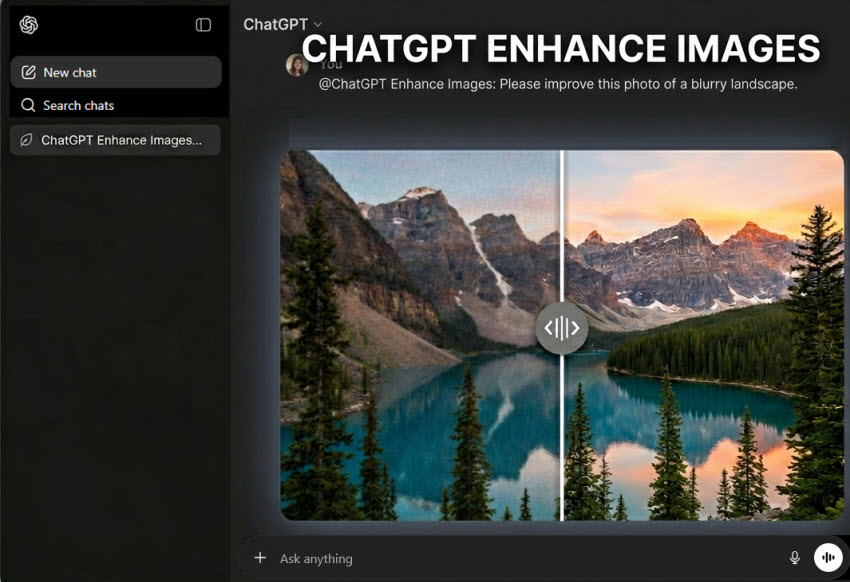
When you ask ChatGPT to improve a photo, it does not directly increase image resolution or perform pixel-level upscaling. Instead, it uses its advanced vision-language models to interpret the contents of the file, analyze lighting, texture, and context, and then generate a semantically reconstructed version.
This process is excellent for:
- Visual Cleanup: Removing background clutter or scratches.
- Creative Reimaginings: Turning a rough sketch or low-res mobile shot into a cinematic scene.
- Lighting Correction: Balancing harsh shadows or overexposed highlights using natural language.
However, because it generates new visual data based on your prompt, it can introduce "generative drift", meaning fine details like facial features, text labels, or product branding might change slightly from the original.
Learn More: How to Use ChatGPT to Create Fujifilm Recipes (AI Film Simulation Guide)
How to Enhance Photos in ChatGPT Step by Step?
To use ChatGPT to enhance photo layouts effectively, follow this structured workflow:
Step 1.Upload Your Source Image
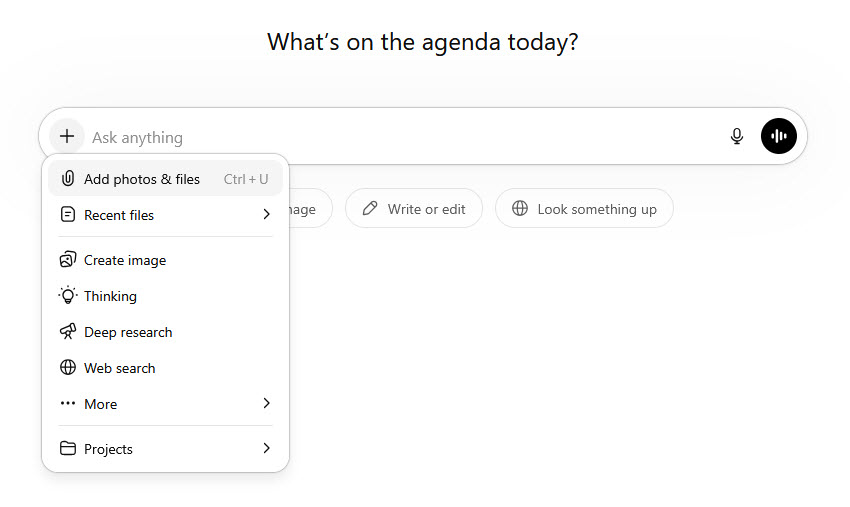
Open a new chat session in ChatGPT. Then click the "+" icon and choose "Add photos & files". Then upload your blurry, low-resolution, or poorly lit photograph. You can also drag the image into ChatGPT.
Step 2. Use a Precise ChatGPT Prompt to Enhance Photo Quality
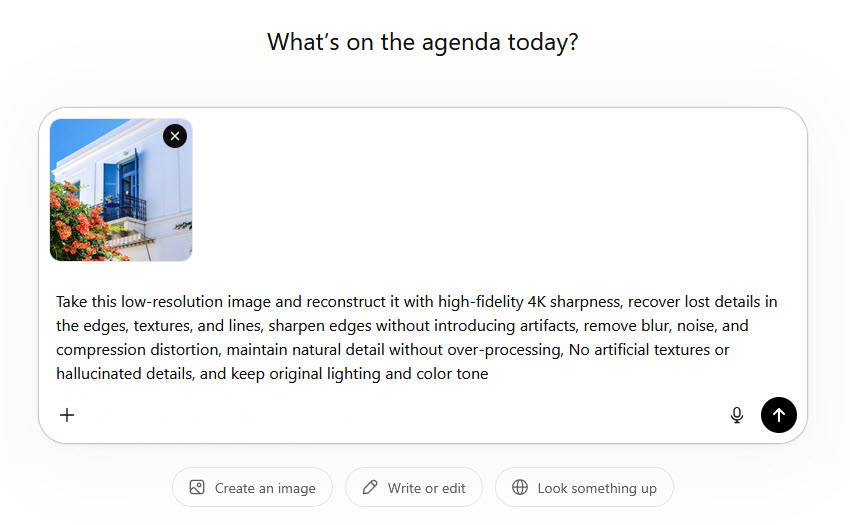
Once the source photo is loaded, use a prompt to let ChatGPT enhance the image, for example:
"Take this low-resolution image and reconstruct it with high-fidelity 4K sharpness, recover lost details in the edges, textures, and lines, sharpen edges without introducing artifacts, remove blur, noise, and compression distortion, maintain natural detail without over-processing, No artificial textures or hallucinated details, and keep original lighting and color tone."
Step 3. Execute and Download the Output
Review the enhanced image. If any area looks overly stylized or modified, use an iterative follow-up prompt such as "Blend the edges more naturally and reduce the smoothing on the skin texture" before saving the final file.
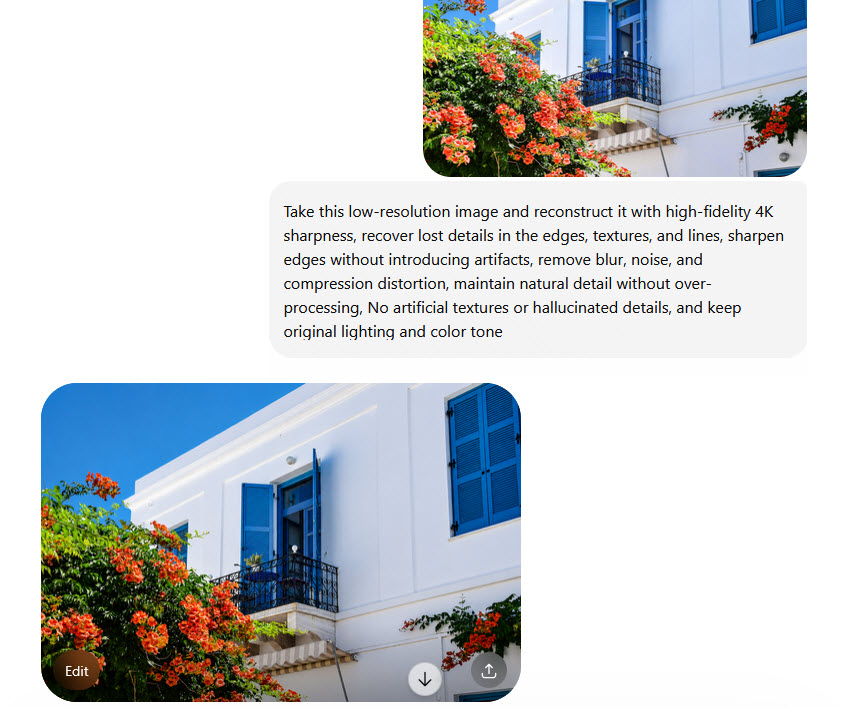
Then click the download button to save the enhanced image from ChatGPT to your local computer.
Top Copy-Paste ChatGPT Prompts to Enhance Photos
To achieve optimal results, your prompt needs to explicitly restrict the AI from hallucinating new objects while focusing heavily on clarity. Below are industry-tested templates you can copy and paste directly into your workflow:
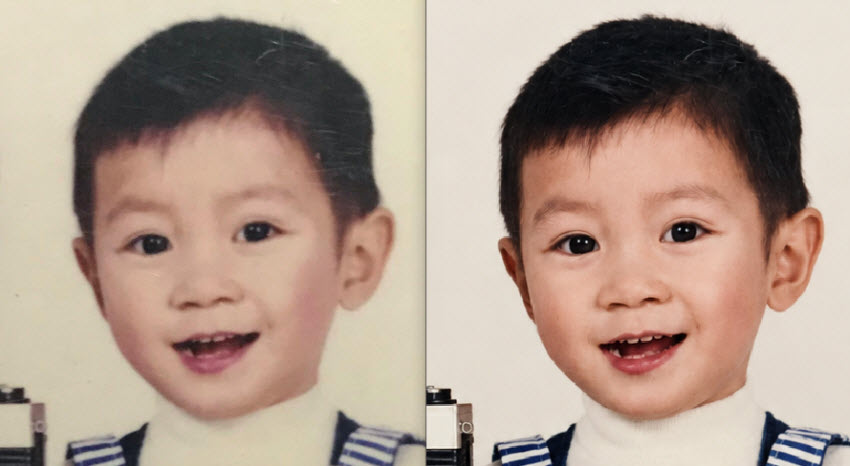
1. ChatGPT Prompts to Enhance Ultra-Realistic Portrait
Enhance and restore this image while strictly preserving the subject’s identity and original composition.
Enhancement Tasks:
- Remove scratches, stains, folds, dust, and physical damage
- Restore and reconstruct missing or distorted details
- Improve sharpness, micro-contrast, and fine textures
- Reduce noise and compression artifacts
- Maintain original facial geometry, proportions, and expression
Portrait Constraints: Do NOT alter identity, face shape, or expression, Preserve natural skin texture (no over-smoothing), Enhance eyes, hair, and subtle facial details realisticall
Background Rules: Keep the exact same background, No replacements, no additions, no layout changes
Lighting & Color: Match original lighting direction and mood, upgrade to soft cinematic lighting (balanced highlights and shadows), natural skin tones, neutral color grading, preserve vintage feel if applicable
Output Quality: Ultra-detailed, realistic, high dynamic range, Clean edges, no halos or artifacts, Professional editorial finish
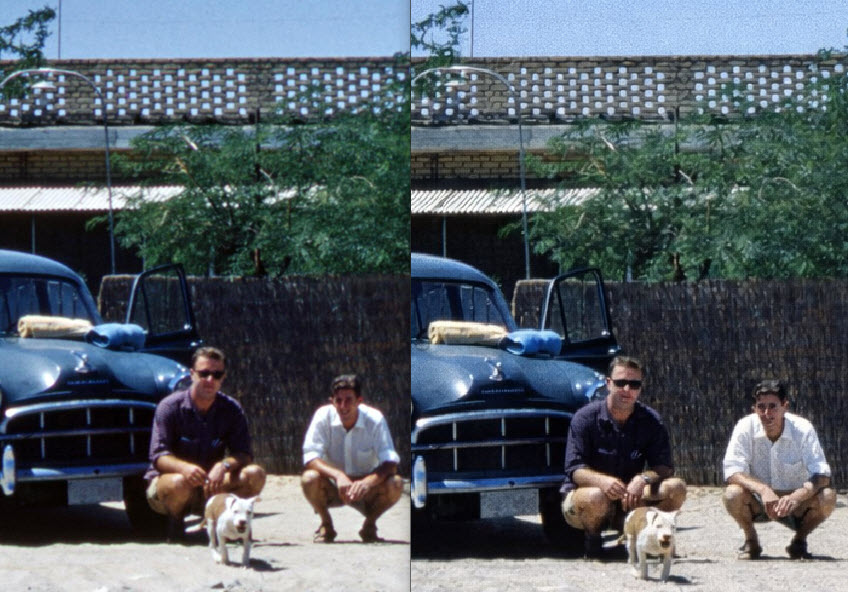
2. ChatGPT Prompts to Restore Old Photos
Restore this old or damaged photo to a clean, high-quality version while preserving its authenticity.
Restoration Tasks:
- Remove scratches, dust, stains, and fold marks
- Repair damaged or missing areas
- Reconstruct facial features accurately without altering identity
- Improve clarity and contrast
Colorization: Apply realistic, historically appropriate colors, Natural skin tones and balanced color grading, Preserve subtle vintage characteristics
Constraints: Do NOT change facial structure, expression, or identity, Do NOT modify background or composition
Output: Clean, sharp, naturally restored image with authentic detail
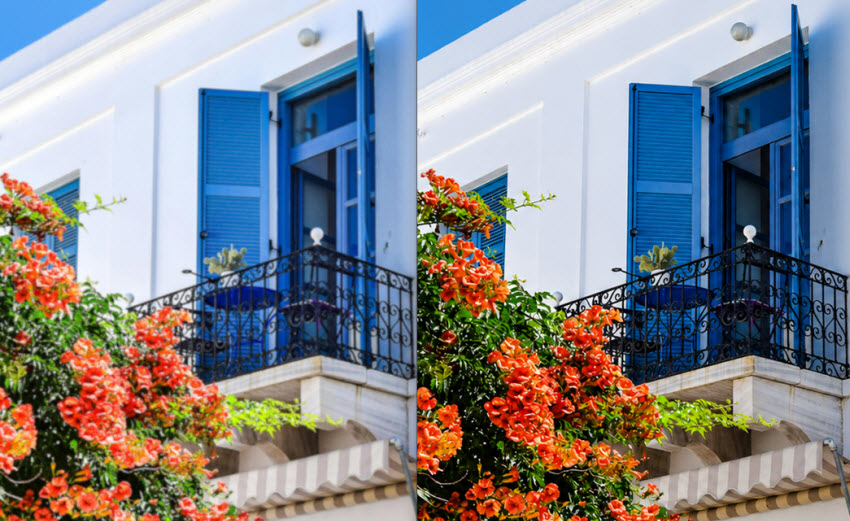
3. Prompts to Upscale image Chatgpt
Upscale this image to high resolution (4K or higher) while preserving all original details and proportions.
Upscaling prompts :
- Take this low-resolution image and reconstruct it with high-fidelity 4K sharpness
- Recover lost details in the edges, textures, and lines
- Sharpen edges without introducing artifacts
- Remove blur, noise, and compression distortion
- Maintain natural detail without over-processing
Constraints: No change to subject identity or compositio, No artificial textures or hallucinated details, Keep original lighting and color tone
Output: Ultra-clean, high-resolution image, Realistic detail reproduction suitable for print and professional use
Limitations of ChatGPT Enhance Image (Important to Know)
While ChatGPT enhance image workflows are powerful for generating prompts and guiding AI editing tools, they come with several important limitations that users often overlook.
1. Risk of identity or detail changes
When you ask ChatGPT to enhance image files, it does not directly edit the original file. Instead, it uses generative reconstruction, where the AI analyzes the scene and generates a visually similar new image. Even with strict negative prompts, this can introduce generative drift, meaning fine textures, facial features, clothing patterns, or logos may subtly change from the original image.
2. Limited true high-resolution upscaling capability
A typical upscale image ChatGPT workflow cannot perform true 2×, 4×, or 8× pixel-level upscaling like dedicated AI image upscalers. In most cases, uploaded images are compressed in cloud processing. ChatGPT then generates a new high-resolution version based on this compressed input rather than preserving original raw pixel data, which limits true super-resolution accuracy.
3. Output is non-deterministic (inconsistent results)
Because ChatGPT relies on probabilistic AI models, it is inherently non-deterministic. This means using the same ChatGPT prompt to enhance photo across different sessions can produce different results, making it difficult to achieve fully repeatable image enhancement outcomes.
4. Prompt ambiguity and learning curve
The quality of ChatGPT enhance image results heavily depends on prompt structure.
Common issues include:
- Overly detailed prompts causing conflicts
- Missing constraints leading to unwanted changes
- Vague instructions producing inconsistent outputs
As a result, beginners often face a learning curve when designing effective enhancement prompts.
Stable, High-Fidelity Image Enhancement with ChatGPT Alternative
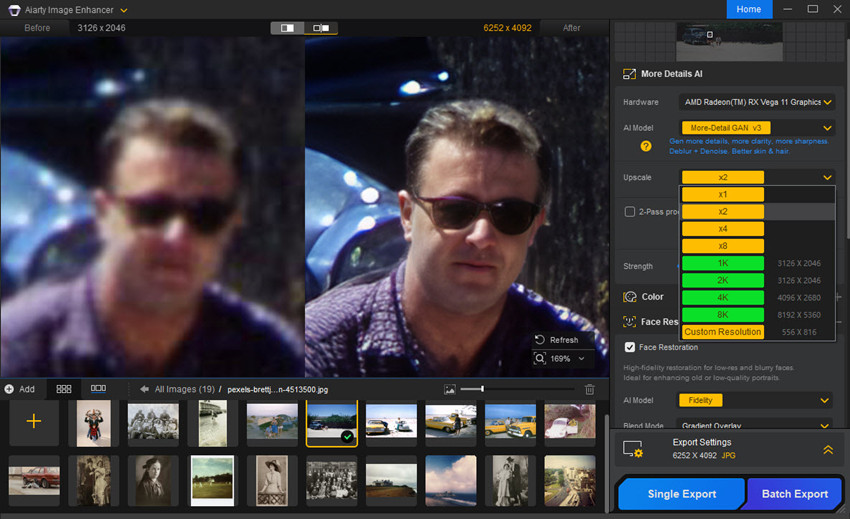
To overcome the limitations of ChatGPT image enhancement workflows, a more reliable approach is to use a dedicated AI upscaling tool such as Aiarty Image Enhancer.
Unlike prompt-based enhancement, Aiarty directly processes the image using advanced AI models designed for super-resolution and detail recovery. It can enhance and upscale images up to ultra-high resolutions while preserving natural textures and avoiding over-smoothing or artificial distortions.
- True pixel-level upscaling: Increases real image resolution by 2x, 4x, 8x to 32K while preserving original structure and fine details.
- High-fidelity Detail Reconstruction: Restores natural textures and details without the artificial “plastic” or over-smoothed look common in generative AI outputs.
- No generative drift: Facial features, textures, logos, and fine details remain faithful to the original image.
- Consistent Results: Produces stable output every time, without the randomness seen in prompt-based AI workflows.
- No Prompt Engineering Required: No need for complex prompts, Aiarty uses specialized deep-learning models for one-click denoise, deblur, and upscaling.
- Local Hardware Performance: Runs directly on your device for fast, private batch processing without relying on cloud subscriptions.
ChatGPT vs Aiarty Image Enhancer (Quick Insight)
| Feature | ChatGPT Enhance Image | Aiarty Image Enhancer |
|---|---|---|
| Consistency | ❌ Variable | ✅ Stable |
| Performance Metric | Generative Reconstruction | Deep Learning Upscaling |
| Pixel Fidelity | Moderate: Re-draws details; may alter faces or branding | Maximum: Preserves original pixels with accurate detail restoration |
| Max Resolution | Limited by chat generation output | Supports true upscaling up to 4K, 8K, or higher |
| Privacy & Security | Processed via cloud servers | 100% secure local processing (no uploads) |
| Ease of Use | ⚠️ Prompt-dependent | ✅ One-click |
Critical Takeaway: If you want to transform a casual photo into a completely new, stylized piece of digital art, ChatGPT is an incredibly flexible tool. But if your goal is to unblur an authentic photograph, prepare a product listing for e-commerce, or upscale a high-end photography file without losing real details, generative AI may also introduce unwanted artifacts.
Final Verdict
In conclusion, ChatGPT can be a surprisingly creative tool for photo enhancement and image restoration, offering innovative workarounds like text-driven DALL·E 3 reconstruction and Python-based interpolation to adjust image sizes. However, significant limits remain. Its enhancement methods either rely on "hallucinating" entirely new details that alter the original identity of the photo, or standard digital stretching that fails to add true sharpness or recover micro-textures.
To get the best results, it is important to use the right tool for the right task.
- Use ChatGPT when you want to experiment with creative storytelling, dynamically change backgrounds, adjust lighting styles, or explore different visual aesthetics using natural language prompts.
- Use Aiarty Image Enhancer when you need reliable, high-fidelity 4K upscaling, accurate detail reconstruction, ultra-sharp text rendering, and professional-grade noise reduction—while keeping your original image fully authentic.
For real-world scenarios such as restoring old photos, enhancing product images, or preparing high-resolution visuals for print and e-commerce, a dedicated AI upscaling tool delivers far more consistent and stable results than prompt-based workflows alone.
 FAQ
FAQ
Yes, but not like standard upscalers. If you ask ChatGPT to enhance a photo, it analyzes your image and generates a brand-new, high-res version. It looks sharper, but it will change and hallucinate details (faces, text, and textures will shift).
No, ChatGPT cannot directly increase image resolution in a true pixel-level sense. ChatGPT itself cannot resize or upscale images, generate additional pixel detail or perform super-resolution reconstruction. To increase image resolutions(such as 2×, 4×, or 8× upscaling), you must use dedicated AI image upscaling tools.
You can use ChatGPT to generate precise AI enhancement prompts that instruct external tools to preserve the original composition. However, the actual processing happens outside ChatGPT. To avoid cropping or compression, the key is to use prompts that clearly specify:
- preserve original aspect ratio
- no cropping or resizing of composition
- no compression artifacts
You can improve results by using structured prompts that clearly define enhancement goals. A good prompt should include:
- noise reduction and clarity improvement
- texture restoration
- sharpness enhancement
- identity and background preservation constraints
ChatGPT is a language model, not a pixel processor. For perfect, distortion-free AI enhancement, use dedicated tools:
- Free & Open-Source (Local): Upscayl (uses local AI models to upscale up to $400\%$ without altering faces or original details).
- Professional Desktop: Aiarty Image Enhancer or Topaz Gigapixel AI. They are among the best tools for restoring raw architectural and facial textures locally).
You May Also Like


This post was written by Brenda Peng who is a seasoned editor at Digiarty Software who loves turning ordinary photos into extraordinary works of art. With AI assistance for brainstorming and drafting, the post is reviewed for accuracy by our expert Abby Poole for her expertise in this field.
