


Quick Answer: Affinity Photo AI upscaling uses Super Resolution to enlarge images with machine learning, improving sharpness and reconstructing details. It works well for social media images, product photos, and moderate enlargements. For blurry photos, old scans, or heavy JPEG compression, dedicated AI image enhancers like Aiarty Image Enhancer deliver better restoration and detail recovery.
Upscaling an image isn’t just about making it larger—it’s about whether the details can actually survive the process. If you’ve ever enlarged a photo only to see soft edges, blurry textures, or visible pixelation, you already know the limits of traditional resizing.
Affinity Photo introduces an AI-powered feature called Super Resolution, designed to enlarge images while reconstructing missing details and improving perceived sharpness. In theory, it helps address many of the common issues in image upscaling.
But how well does it actually perform in real-world scenarios like low-resolution photos, old scans, or heavily compressed JPEGs—and is it enough on its own, or do dedicated AI image enhancers still deliver better results? In this guide, we’ll break down how Affinity Photo AI upscaling works, test its strengths and limitations, and compare it with dedicated AI tools.
Does Affinity Photo Have AI Upscaling?
Yes. Affinity Photo includes an AI-powered feature called Super Resolution for image upscaling.
This feature belongs to the AI enhancement tools inside Affinity Photo and is used specifically for improving image quality when increasing resolution, especially for photos that need better sharpness and detail. It is sometimes confused with the Super Resolve filter, but they serve different purposes.
In practice, Super Resolution is the main option users rely on when looking for AI image upscaling within Affinity Photo.
How to Upscale an Image in Affinity Photo Using Super Resolution
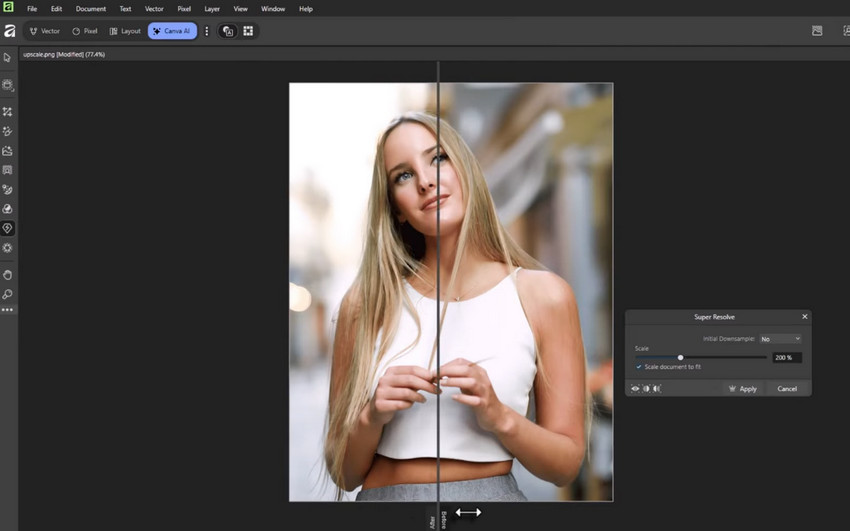
Once you understand what Super Resolution does, applying it inside Affinity Photo is straightforward. The tool works through an “Enhance” process where the AI analyzes your image, generates a preview, and then creates a higher-resolution version with reconstructed details.
Step 1: Open Affinity Photo and load the image you want to upscale. For best results, start with the highest-quality source file available.
Step 2: Install the Super Resolution model. The Super-resolution model must be downloaded prior to using the feature. The model is available in Settings > Machine Learning Models section. To use it, you need to be subscribed to the Canva Pro plan.
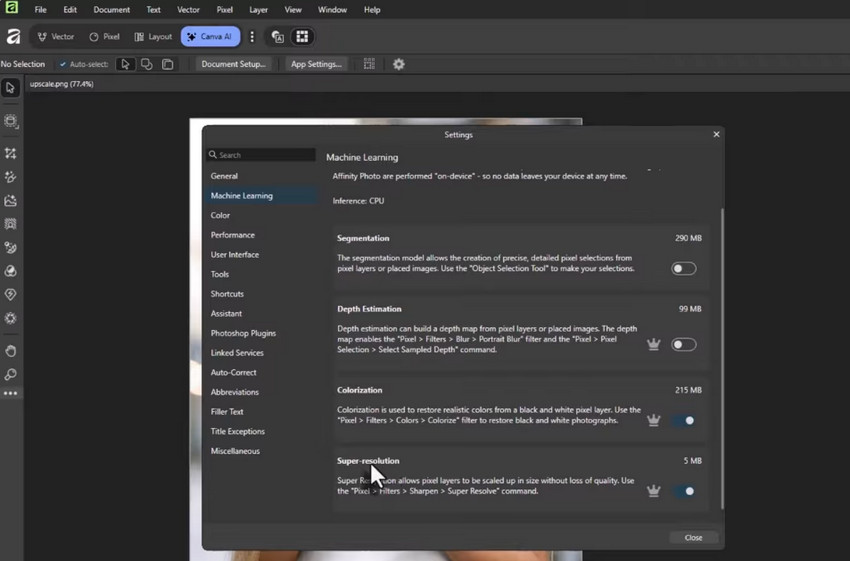
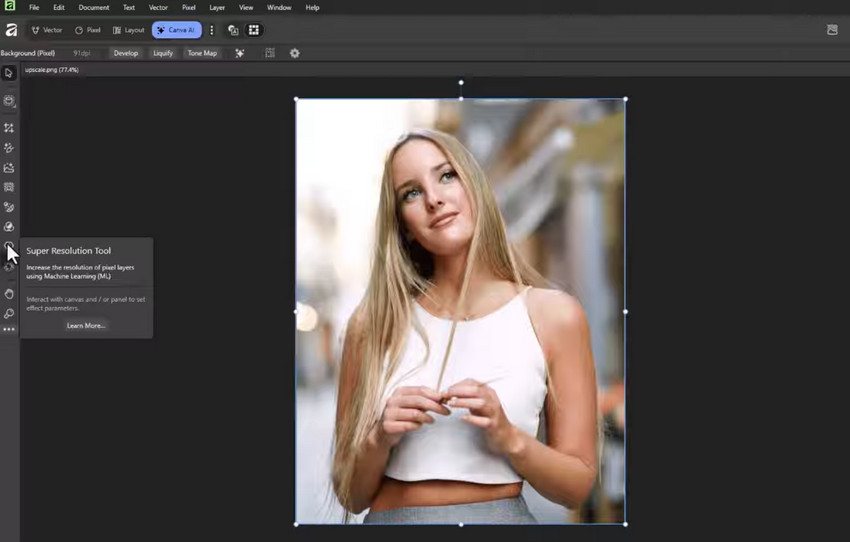
Step 3: Choose on your source image and click Super Resolution on the left side bar. The moment you click it, Affinity Photo starts analyzing the image and processing the picture.
Step 4: Review the preview carefully. The preview may take a little time especially for large files. After then, Affinity generates an AI-enhanced preview showing a side-by-side comparison of the original and upscaled version. You can compare fine details such as edges, textures, hair, and text clarity before applying the result.
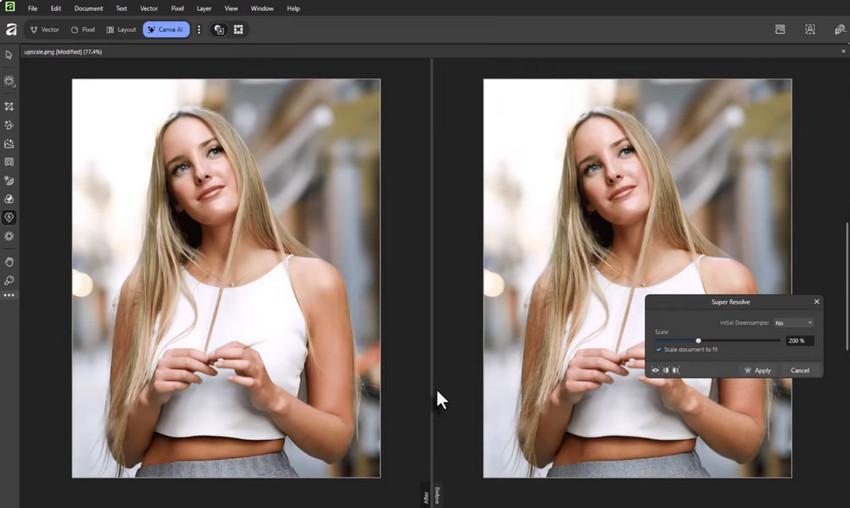
Step 5: Click “Apply” to generate the final upscaled image. Affinity Photo will create a new, higher-resolution version while keeping the original image unchanged.
How Well Does Affinity Photo Super Resolution Work?
For everyday image enlargement, Super Resolution performs surprisingly well. Compared with standard resizing methods, images generally appear cleaner and sharper after processing.
Best Results for Low-to-Moderate Enlargements
Super Resolution works particularly well when:
- Enlarging social media images
- Improving product photos
- Upscaling digital artwork
- Preparing images for small prints
- Enhancing moderately compressed photos
In these situations, the AI can often recover enough detail to produce visibly better results than traditional resizing.

Why Super Resolution Looks Better Than Traditional Resizing
Traditional enlargement methods such as Bicubic or Lanczos interpolation simply create new pixels based on surrounding pixel values. While this increases image dimensions, it cannot restore details that were never captured in the original file.
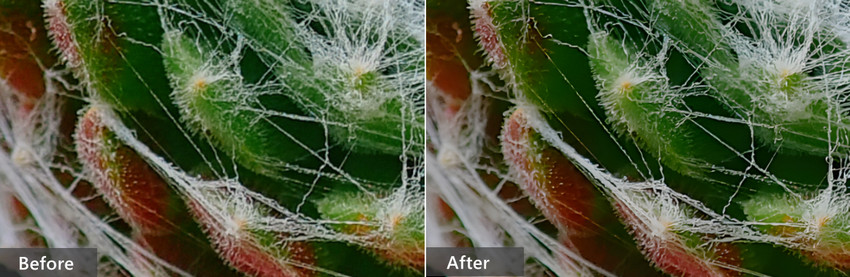
Super Resolution takes a different approach. Instead of only stretching existing pixels, it uses machine learning to analyze image content and reconstruct missing details. As a result, enlarged images often appear sharper, cleaner, and more natural than those resized with traditional methods.
Pros and Cons of Affinity Photo Super Resolution
Pros
- Uses AI to reconstruct image details during upscaling.
- Produces sharper results than traditional resizing methods.
- Easy to use within the Affinity Photo workflow.
- Works well for moderate image enlargement tasks.
- Suitable for social media graphics, design projects, and print preparation.
- A convenient built-in solution for existing Affinity Photo users.
Cons
- Results depend heavily on the quality of the source image.
- Limited ability to recover severe motion blur or focus issues.
- May struggle with heavily compressed JPEG files.
- Not specifically designed for old photo restoration.
- Face detail recovery can be inconsistent in challenging images.
- Offers fewer restoration tools than dedicated AI image enhancers.
Affinity Photo Super Resolution is a valuable addition for users who already work within the Affinity ecosystem. It can noticeably improve image quality when enlarging photos and often delivers cleaner results than standard interpolation methods. That said, it performs best as an enhancement tool rather than a full restoration solution. If you're working with low-quality source material, old photographs, noisy images, or blurry portraits, dedicated AI restoration software can often recover more detail and produce more natural-looking results.
Where Affinity Photo AI Upscaling Falls Short
Although Super Resolution can improve image quality, no AI model can completely recover information that doesn't exist in the original file. As image quality decreases, the limitations become more noticeable.
1. Extremely Low-Resolution Images
When an image contains very few pixels, there simply isn't enough information available for accurate reconstruction. The AI may generate plausible details, but results can appear artificial or inconsistent.
2. Blurry or Out-of-Focus Photos
Super Resolution can improve perceived sharpness, but it isn't primarily designed for severe blur correction. Motion blur and focus errors often remain visible after processing.
3. Old Photo Scans
Historic photographs often suffer from grain, fading, scratches, dust, or scanning artifacts. While Super Resolution can increase resolution, restoration quality may remain limited.
4. Heavily Compressed JPEG Images
Compression artifacts present another challenge. Blocky textures, ringing, and color distortions may become less noticeable, but they are not always completely removed.
When Affinity Photo Super Resolution Isn't Enough
Affinity Photo's Super Resolution works well for everyday image enlargement and moderate quality improvements. However, some images require more than simple upscaling, especially when the original file suffers from blur, noise, compression artifacts, or missing details.
For these challenging cases, a dedicated AI image enhancer can often produce better results. Aiarty Image Enhancer is designed specifically for AI-powered restoration and upscaling, combining detail reconstruction, denoising, deblurring, and face enhancement in a single workflow.
Key Features of Aiarty Image Enhancer
- Upscale photos up to 32K resolution with AI detail reconstruction.
- Reduce noise and JPEG compression artifacts while preserving textures.
- Recover sharper details from blurry or low-quality images.
- Restore faces and fine features in portraits.
- Enhance old photo scans with dedicated AI restoration models.
- Batch process up to 3,000 images for large projects.
While Affinity Photo is primarily a photo editor with AI upscaling capabilities, Aiarty focuses entirely on image enhancement and restoration. This makes it particularly useful for old photos, noisy images, heavily compressed JPEGs, and large-scale upscaling projects where preserving detail is critical.
Real Test Results
To better understand how Affinity Photo Super Resolution compares with a dedicated AI image enhancer, we tested both tools using several common real-world images.
Test 1: Low-Resolution Portrait
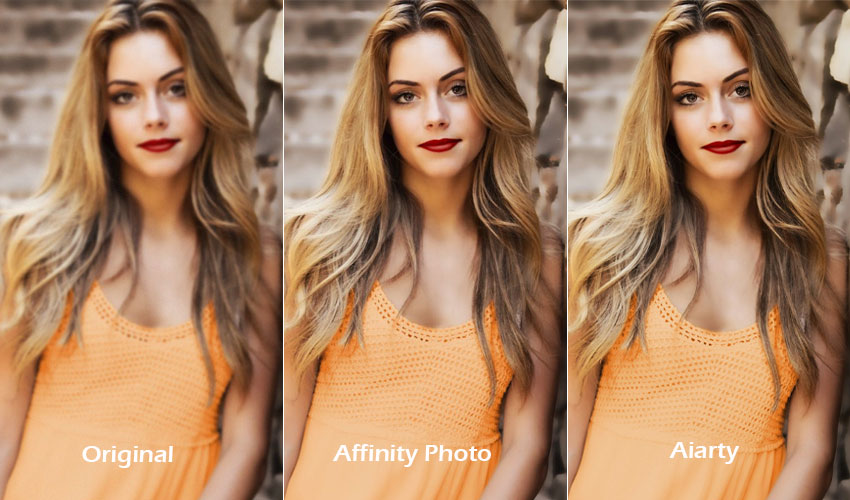
Original image: The photo was very small in resolution, with soft facial details that lacked clarity. The eyes and hair edges appeared slightly blurred and lacked definition.
After Affinity Photo Super Resolution: The image looked noticeably sharper, especially around edges and facial contours. However, some fine details such as eyes and hair texture still appeared slightly limited.
After Aiarty Image Enhancer: The portrait showed clearer eye detail, more natural-looking skin texture, and improved hair structure. Overall, the image felt more realistic and better reconstructed.
Test 2: Old Photo Scan
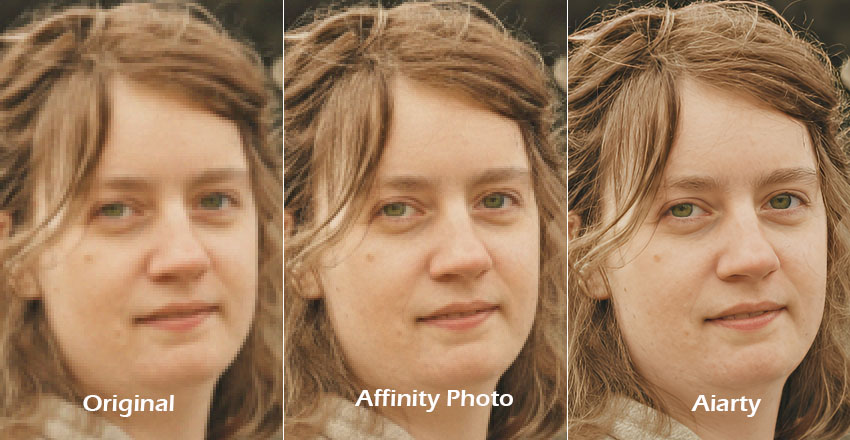
Original image: The scanned photo showed visible grain, faded tones, and loss of fine facial details due to age and low scan quality.
After Affinity Photo Super Resolution: The image became higher in resolution with slightly improved clarity, but some noise and aging artifacts were still noticeable.
After Aiarty Image Enhancer: The restored image showed cleaner facial details, reduced aging artifacts, and better overall texture recovery, making the photo look significantly more restored and natural.
Combine Affinity Photo Editing with AI Enhancement
For many photographers, designers, and content creators, the best results come from using Affinity Photo and AI enhancement tools together rather than relying on a single application.
Affinity Photo is well suited for tasks such as color correction, retouching, layer-based editing, and creative adjustments. Once editing is complete, the image can be exported and further enhanced with AI tools to recover details, reduce noise, remove blur, and upscale resolution.
This workflow is especially useful when preparing images for printing, restoring old photos, improving e-commerce product images, enhancing social media content, or creating large-format outputs where detail preservation matters.
If your final image still looks soft, noisy, or lacks fine detail after editing, running it through Aiarty Image Enhancer as the final step can often produce a cleaner and sharper result.
 FAQ about Affinity Photo AI Upscaling
No. Super Resolution is powered by Canva AI and typically requires a Canva Pro subscription. You'll also need to download the required AI model before using the feature for the first time.
Yes. Super Resolution can significantly increase image resolution, making it suitable for many 4K workflows depending on the quality and size of the original image.
Super Resolution is an AI-powered image enhancement feature designed to enlarge photos while reconstructing details. Super Resolve, by contrast, primarily increases the resolution of the entire document or canvas rather than focusing on photo restoration and enhancement.
Affinity Photo can improve perceived sharpness when using Super Resolution, but severe motion blur or out-of-focus images often require dedicated AI deblurring tools for the best results.
In most cases, yes. Super Resolution uses machine learning to reconstruct image details, often producing cleaner and sharper results than traditional resizing methods such as Bicubic or Lanczos interpolation.
Dedicated AI image enhancement tools such as Aiarty Image Enhancer can provide stronger restoration, denoising, deblurring, face enhancement, and large-scale upscaling capabilities, especially for challenging images.
You May Also Like
- Canon Neural Network Upscaling Tool: What It Can and Can’t Do

- How to Edit Bird Photos: A Complete Workflow for Sharper, Cleaner Bird Photography Results
- How to Edit Portraits in Lightroom: From Skin Tones to Fine Details
- Capture One Denoise Guide: Enhanced Denoise, Noise Reduction & Real-World Results

This post was written by Brenda Peng who is a seasoned editor at Digiarty Software who loves turning ordinary photos into extraordinary works of art. With AI assistance for brainstorming and drafting, the post is reviewed for accuracy by our expert Abby Poole for her expertise in this field.
