


Affinity Photo has long been known as a professional photo editor and one of the strongest alternatives to Adobe Photoshop. But as modern photo editing increasingly emphasizes speed, automation, and AI-assisted tools, it’s worth asking: is Affinity Photo still a good choice for today’s photo editing workflows?
This review focuses on real-world use. We look at Affinity Photo’s editing capabilities, AI-assisted features, performance, and limitations, especially in areas where modern creators increasingly rely on automation.
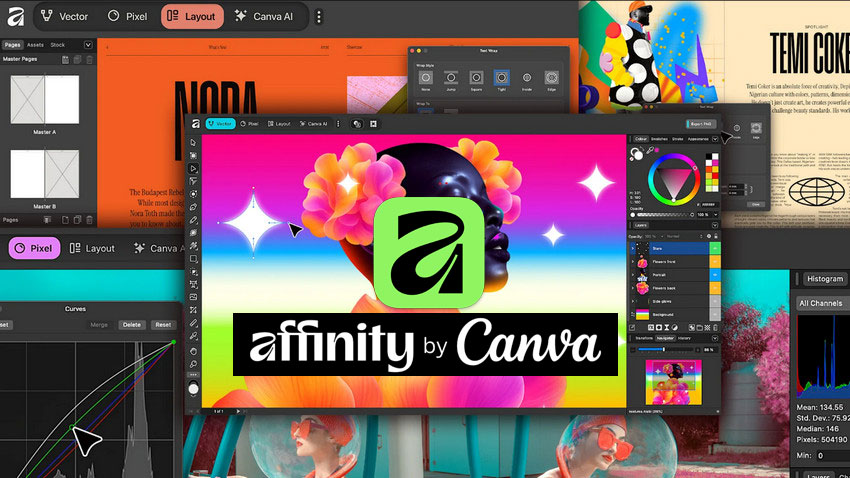
Does Affinity Photo Have AI?
Yes, Affinity Photo does include AI-assisted features, but its approach to AI is noticeably more conservative than that of many modern editing tools.
Rather than offering fully automated, one-click solutions, Affinity Photo uses AI primarily to assist with specific tasks:
- Super Resolution for AI-assisted image upscaling
- Automatic subject and object selection
- Content-aware fill for removing unwanted elements
- Assisted masking and refinement tools
In practice, these features can reduce manual effort and help speed up common editing tasks. For example, Super Resolution can enlarge images while improving sharpness and preserving detail, making it useful for social media content, product photos, and digital artwork. However, Affinity Photo's AI tools remain largely assistive rather than fully automated. Users still need to refine selections, adjust masks, and manually optimize results, especially when working with complex subjects, low-quality images, or large batches of files.
Affinity Photo Review: What Has Changed in 2026?
Affinity Photo remains one of the strongest Photoshop alternatives, but the software has changed significantly since Canva acquired Serif. The traditional one-time purchase model has evolved, AI features have expanded, and the overall ecosystem is becoming more integrated with Canva's platform.
After testing Affinity Photo in real-world workflows including RAW editing, image upscaling, portrait retouching, and background removal, here's where it still excels—and where newer AI-powered tools may offer a faster workflow.
Affinity Photo Core Editing Features (Hands-On Review)
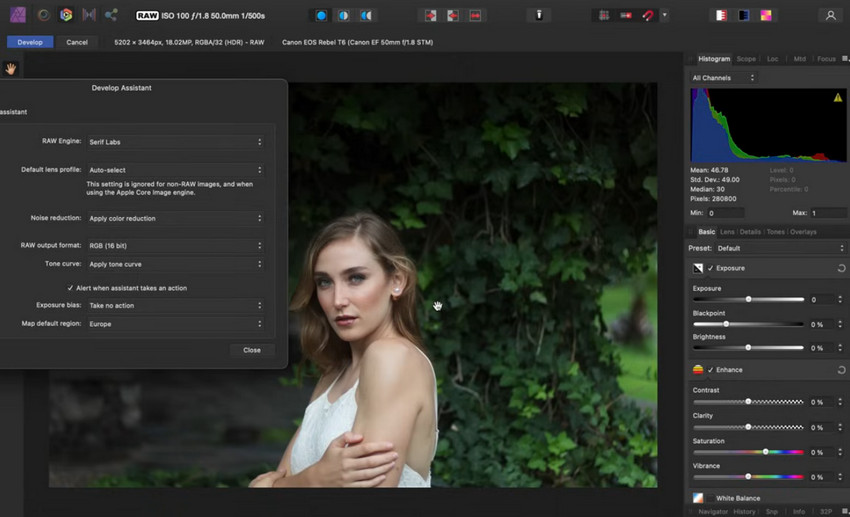
RAW Processing
Affinity Photo includes a capable RAW processing engine that gives photographers detailed control over exposure, highlights, shadows, white balance, and tonal range. It performs well when recovering detail from underexposed or high-contrast images, and lens corrections help address common issues such as distortion and vignetting.
While the results are solid and professional, the workflow remains largely manual. Unlike newer AI-driven editors that automate enhancements, Affinity Photo expects users to fine-tune settings themselves, rewarding experience and precision, but requiring more time per image.
AI Image Upscaling
Affinity Photo's Super Resolution feature uses machine learning to enlarge images while improving sharpness and reconstructing fine details. It performs well for increasing the resolution of social media images, product photos, digital artwork, and other moderately sized files where traditional resizing would often produce soft or pixelated results.
While the quality improvement is noticeable, the feature is primarily designed for image enlargement rather than full restoration. Images affected by severe blur, heavy compression, or age-related degradation may still require additional enhancement tools to achieve the best possible results.
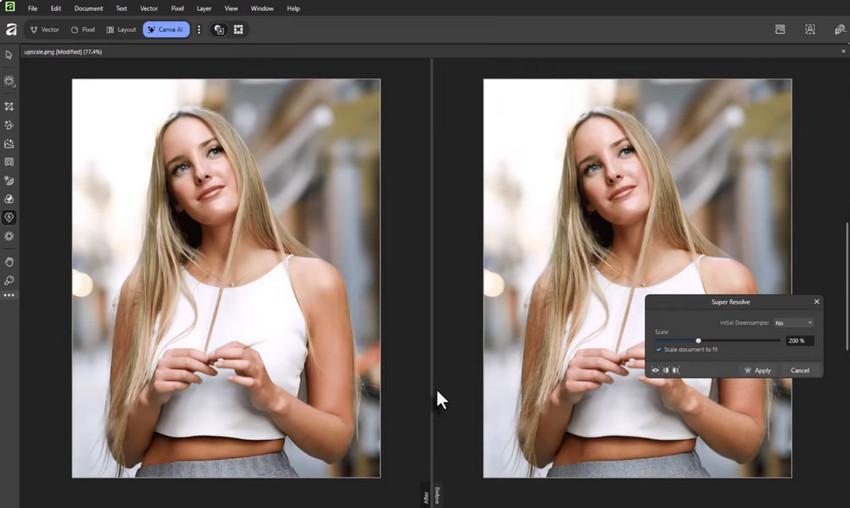
Super Resolution works well for enlarging reasonably clean images, but it is not designed as a full image restoration tool. When source files suffer from motion blur, focus issues, aggressive compression, noise, or aging artifacts, simply increasing resolution often cannot recover the missing detail.
For these more challenging cases, dedicated AI enhancement tools such as Aiarty Image Enhancer can provide a more complete restoration workflow. In addition to upscaling, it can remove noise, reduce blur, restore facial features, and reconstruct textures that traditional resizing algorithms cannot recover.
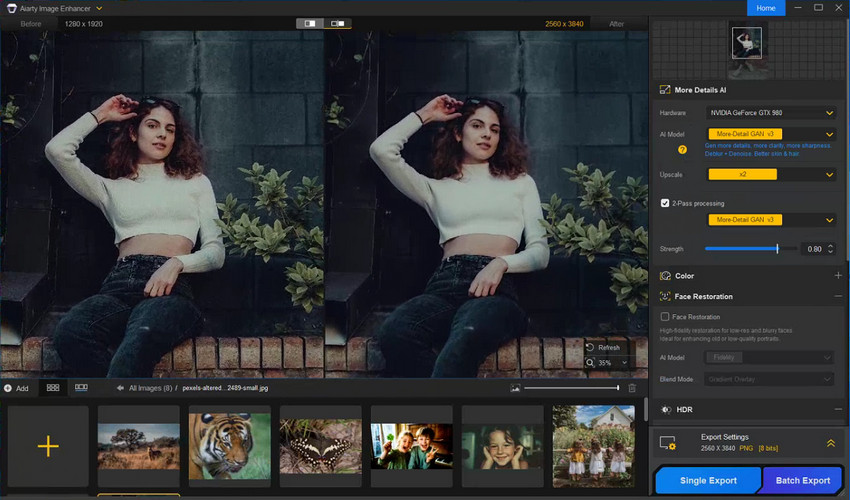
Need more than Affinity AI upscaling? Try Aiarty Image Enhancer!
Layers, Masks & Blend Modes
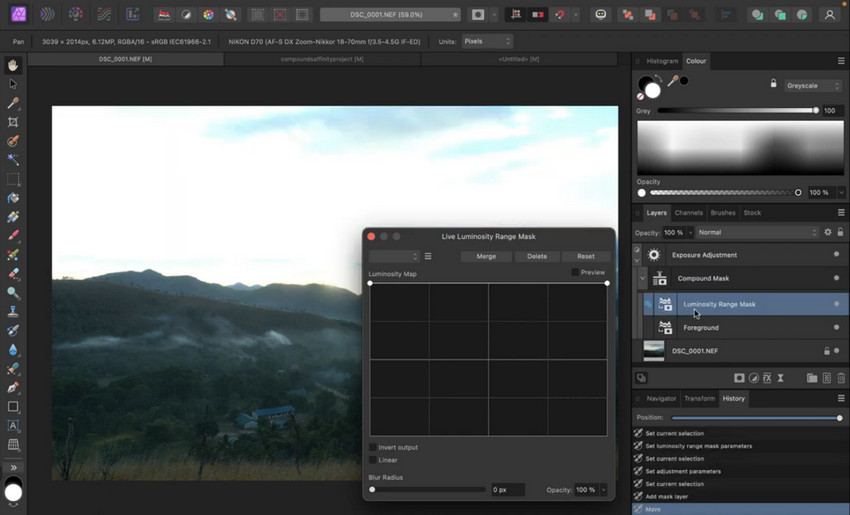
Layer-based editing is one of Affinity Photo’s strongest areas. Users have access to an extensive range of blend modes, adjustment layers, and masking options, allowing for complex, non-destructive edits and detailed compositing.
This flexibility makes Affinity Photo well suited for advanced creative work, but it also contributes to a steeper learning curve. Achieving clean results, especially with complex subjects, often depends on careful manual masking rather than automated assistance.
Retouching Tools & Portrait Editing
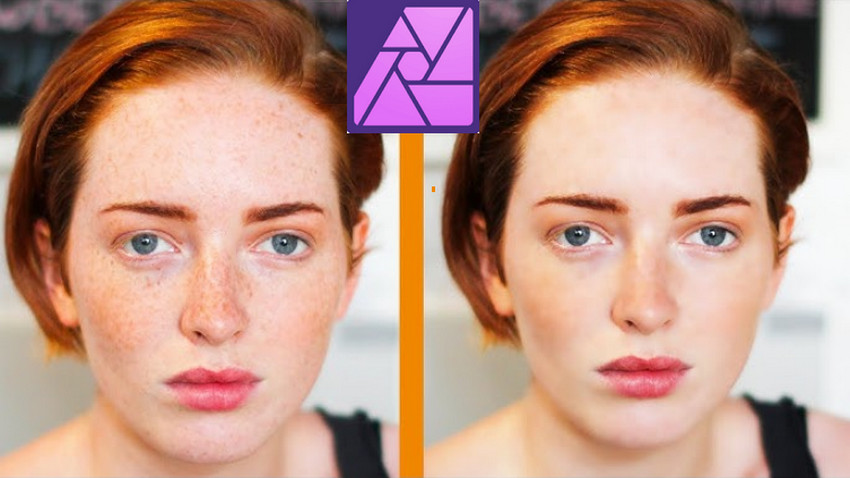
Affinity Photo offers a full set of retouching tools, including healing, clone, and patch brushes. These tools are powerful and precise, making them suitable for detailed skin retouching, object cleanup, and portrait work. However, most retouching tasks require manual input. While this allows for fine control, it also means that repetitive tasks, such as cleaning multiple images or removing backgrounds consistently, can become time-consuming without additional AI support.
Color & Tone Adjustment Tools
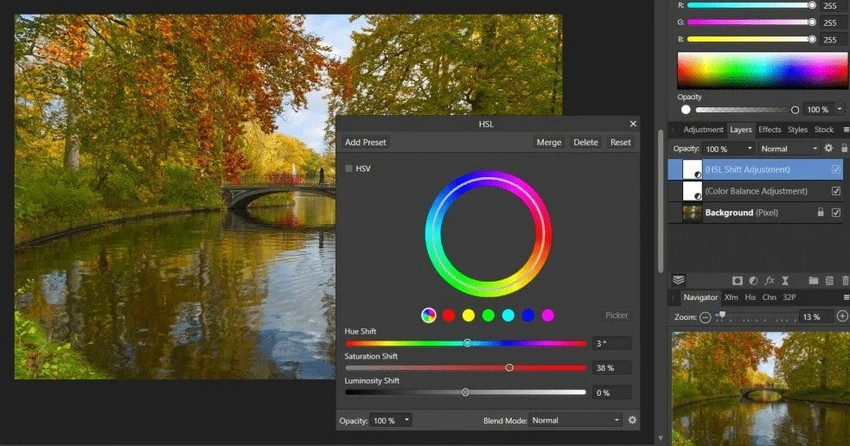
Color correction is another area where Affinity Photo excels. Curves, Levels, HSL adjustments, and LUT support provide professional-grade control over tone and color balance. For photographers and designers who care deeply about color accuracy, this level of control is a major advantage.
That said, color adjustments rely heavily on user judgment. There is little automation beyond basic presets, which can slow down workflows when processing large image sets or aiming for consistent results across multiple files.
Advanced Selections & Edge Refinement
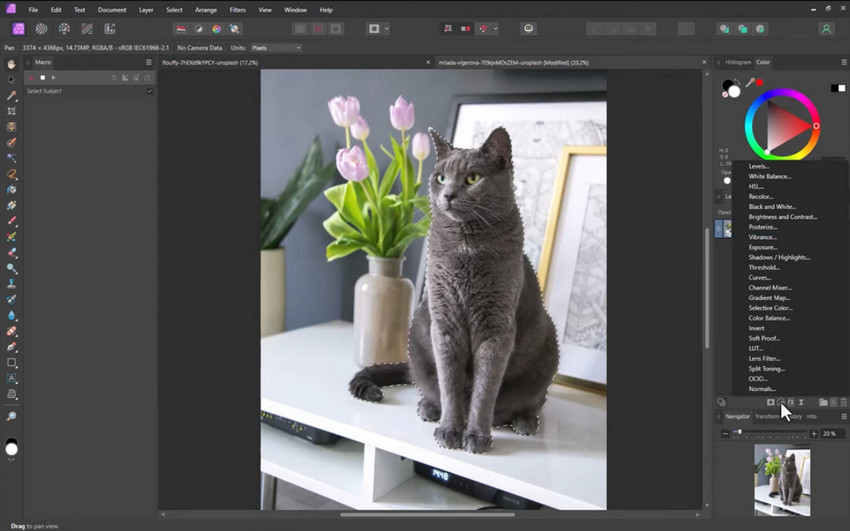
Affinity Photo includes advanced selection tools designed to isolate subjects and refine edges. These tools work well on simple images and offer decent control for more complex selections when refined manually.
Compared to Photoshop, selection accuracy is competitive in straightforward cases, but struggles become more noticeable with hair, fur, or intricate edges. Users often need to spend additional time refining masks to achieve clean cutouts, highlighting a key area where dedicated AI matting tools can significantly improve efficiency.
Performance and User Experience
On modern hardware, Affinity Photo performs very well. It is stable, responsive, and capable of handling large files with many layers.
Where performance becomes a concern is workflow efficiency rather than speed. When editing a single image, Affinity Photo feels fast and capable. When editing dozens or hundreds of images, especially those requiring background removal, the manual nature of the tools becomes a bottleneck.
Affinity Photo Download and Pricing
Affinity Photo’s pricing model has evolved in recent years. Affinity Photo is now included in the free “Affinity by Canva” app, giving users access to core pixel, vector, and layout tools without an upfront cost.
- Free access to essential photo editing features
- No mandatory monthly subscription for core tools
- Optional paid Canva plans for advanced AI features
It’s important to note that some newer AI-driven features, such as Generative Fill, require a Canva premium subscription. As a result, Affinity Photo’s original one-time purchase model has effectively shifted toward a freemium structure with optional paid AI add-ons.
For users who dislike subscriptions, the free core tools still make Affinity Photo appealing. However, pricing should be evaluated alongside time cost and workflow efficiency, not just the price tag, especially when background removal or batch processing is involved.
Where Affinity Photo Excels and Struggles with Background Removal?
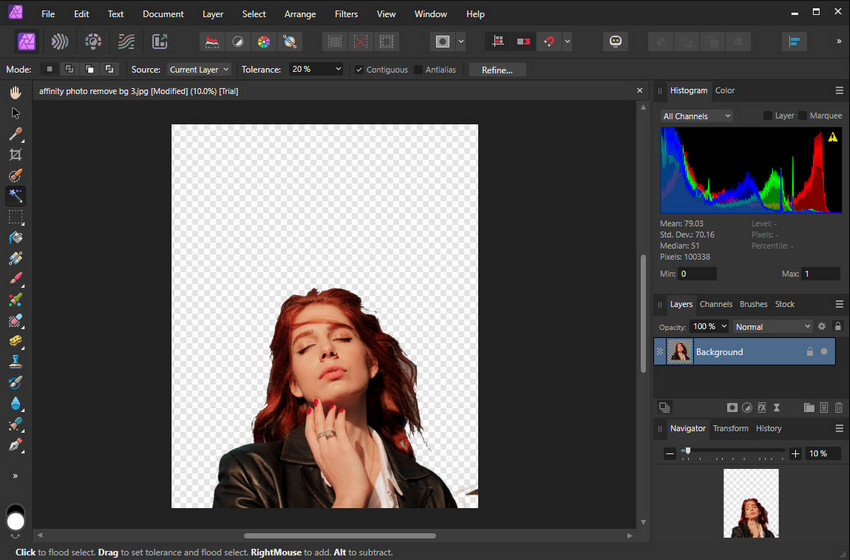
While Affinity Photo is widely recognized for its professional-grade editing tools, background removal clearly exposes its limitations in modern workflows. The software offers excellent manual control and precision, but achieving clean cutouts relies heavily on time-consuming, skill-dependent masking techniques.
This manual-first approach works well for detailed retouching and color correction, yet it becomes difficult to scale when handling product photos, marketing assets, or eCommerce listings, especially when dealing with complex edges such as hair, fur, or transparent objects.
- Professional-grade editing tools with precise manual control
- No subscription fees
- Excellent color correction and tonal accuracy
- Stable performance for detailed, single-image edits
- Steep learning curve for beginners
- Manual-heavy workflows for selections and masking
- Limited AI automation compared to modern AI tools
- Inefficient for high-volume or repetitive background removal tasks
In real-world scenarios, such as product photography or content production at scale, these limitations can significantly slow down workflows. This is where dedicated AI background removal tools become a practical complement to Affinity Photo.
A Practical Alternative for AI Background Removal: Aiarty Image Matting
For users who frequently need accurate background removal, Aiarty Image Matting offers a more practical solution.
Aiarty Image Matting is a dedicated AI-powered tool designed specifically for:
- Clean background removal with smooth edges and minimal color bleed.
- Accurate edge detection for fine details like hair, fur, and transparent objects.
- One-click background replacement for quick swaps with solid or custom backgrounds.
- Batch processing to handle multiple images efficiently and maintain consistency.
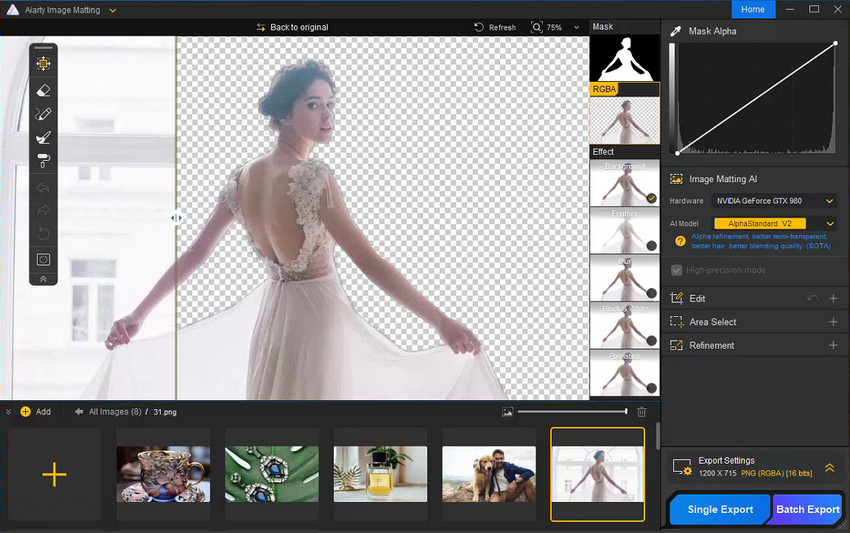
Compared to Affinity Photo’s manual masking, Aiarty Image Matting delivers faster and more consistent results, especially when working with large numbers of images. Rather than replacing Affinity Photo, it works best as a complementary tool.
Recommended Workflow
For professionals seeking both precision and efficiency, the ideal workflow in 2026 combines Affinity Photo with Aiarty Image Matting.
- Start by using Aiarty Image Matting to automatically remove or replace backgrounds.
- Export clean cutouts with accurate edges.
- Complete color grading, retouching, and final adjustments in Affinity Photo.
This approach leverages AI speed while retaining full manual control, saving time without compromising quality.
Final Verdict
Affinity Photo remains a strong choice for professionals who value control, precision, and a subscription-free model. It excels at detailed editing and color work, but its AI capabilities lag behind dedicated AI tools.
If your workflow relies heavily on background removal or high-volume image processing, Affinity Photo alone may feel slow. In those cases, pairing it with Aiarty Image Matting creates a far more efficient and modern editing setup.
Affinity Photo is worth buying, but it works best when combined with the right AI tools.
 FAQ about Affinity Photo
Not entirely. Following Canva's acquisition of Serif, Affinity Photo is now part of the Affinity by Canva platform. Core editing tools remain available without a subscription, but some newer AI-powered features may require a Canva Pro plan.
Yes. Affinity Photo's core editing features are now available through the Affinity by Canva app at no cost. However, certain advanced AI features and Canva services may require a paid subscription.
Yes. Affinity Photo provides powerful tools for color correction, retouching, RAW processing, and image compositing. However, tasks such as background removal and batch image processing often require more manual work compared to dedicated AI-powered solutions.
Yes. Affinity Photo includes AI-assisted tools such as automatic subject selection, content-aware fill, assisted masking, and Super Resolution image upscaling. However, its AI capabilities are generally more limited and less automated than those found in many dedicated AI photo editors.
Generative Fill is available through Canva's AI ecosystem rather than as a traditional built-in Affinity Photo feature. Access to generative AI tools may depend on your Canva plan and account.
Photoshop offers a broader ecosystem, more advanced AI tools, and deeper integration with Adobe Creative Cloud. Affinity Photo remains an excellent alternative for users who prioritize affordability, professional editing tools, and freedom from mandatory subscriptions.
Yes, Affinity Photo remains a capable professional photo editor with strong RAW processing, layer-based editing, and color grading tools. For photographers and designers who value precision and control, it is still a worthwhile choice. However, users who rely heavily on automation may benefit from pairing it with specialized AI tools for image enhancement or background removal.
You May Also Like


This post was written by Brenda Peng who is a seasoned editor at Digiarty Software who loves turning ordinary photos into extraordinary works of art. With AI assistance for brainstorming and drafting, the post is reviewed for accuracy by our expert Abby Poole for her expertise in this field.
