


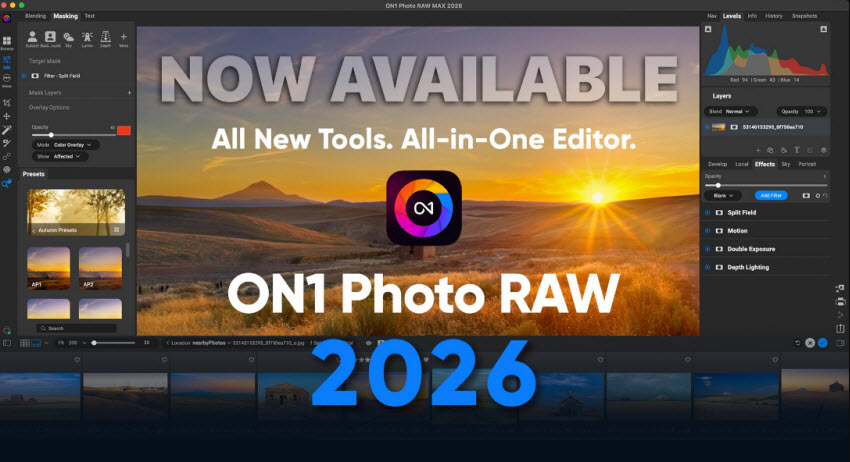
ON1 Photo RAW has positioned itself as a true all-in-one photo editor that can manage your library, process RAW files, apply creative effects, use AI enhancements, and even handle layers and compositing without switching apps. With built-in modules like NoNoise AI, Resize AI, Sky Swap AI, Brilliance AI, and modern generative tools, it aims to replace multiple programs in a single, unified workflow.
But how well does it actually perform in real-world editing? How does the Resize AI upscale photos or ON1 reduce noise? This review takes a practical look at ON1 Photo RAW 2026, covering its main features, workflow, performance, and hands-on test results, so you can decide whether it fits your editing style and expectations.
Quick Takeaways
ON1 Photo RAW 2026 is a powerful all-in-one photo editor that combines RAW processing, AI tools, layers, effects, and photo management in a single workflow. It performs well for creative workflows and image enhancement, though some AI results can appear slightly over-processed, and its RAW quality still falls slightly behind Lightroom in color accuracy and highlight recovery.
- Best for: Photographers who want an all-in-one editing platform and looking to avoid subscription-only software.
- Less ideal for: Users prioritizing the absolute best RAW image quality, seeking the simplest editing workflow, or wanting heavy AI upscaling production pipelines.
What is ON1 Photo Raw 2026?
ON1 Photo RAW is a full-featured photo organization and editing application, designed to combine many of the functions of a catalog-based RAW editor (like Adobe Lightroom) with some of the creative and compositing capabilities of layer-based editors (like Adobe Photoshop). Rather than splitting cataloging, RAW editing, effects, compositing, noise reduction, resizing, etc. into multiple tools, ON1 attempts to give you an “all-in-one” digital darkroom.
If you want a single program to manage large photo libraries, develop RAW files, apply creative effects, perform composite operations, retouch portraits, and even expand or repair images, and if you dislike subscription-only software, ON1 Photo RAW positions itself as a compelling option.
ON1 Photo Raw Pricing & Licensing
A key competitive advantage of ON1 Photo RAW is its flexible pricing model.
- Perpetual License (one-time purchase): Typically around US $99.99 for the regular edition. For “Max” with plugins (Effects, HDR, NoNoise AI, etc.), the price is about $169.99 (depending on bundle).
- Subscription plan: Provides complete software suite, future updates, cloud sync, mobile app, extras. According to some pricing sources, around US $7.99/month (or $89.99/year) when billed annually.
- Free Trial: ON1 offers a 14-day trial with full functionality.
ON1 Photo Raw 2026 Main Features
Here are the core features that define what ON1 Photo RAW can do:
Photo Management & Non-Destructive Workflow
- ON1 provides folder-based browsing (you don’t have to “import” into a catalog) — meaning you can manage photos directly from your existing file structure.
- Supports rating, tagging/keywording, metadata editing, and other organization tools you’d expect in a Lightroom-like catalog.
- NON-DESTRUCTIVE editing: edits are kept separate from the original files, so you can always revert or re-edit.
RAW Processing + Camera & Lens Support
- A full RAW development engine: exposure, white balance, tone, color, noise/sharpening, lens corrections, transform/crop, etc.
- Broad support for many cameras and lenses, increasing compatibility and reducing the likelihood of missing lens correction profiles.
Layers, Local Adjustments & Compositing
ON1 offers a “Layers” module where you can stack images (for composites, double exposures), use blend modes, apply masks, overlay text, etc. It allows local adjustments (brushes, gradients, masks), giving fine control over parts of an image rather than only global adjustments.
Presets, Effects, Creative Filters & Styles
A large library of presets, LUTs, filters, textures, and creative effects, from subtle color grading to stylized looks, to speed up editing or provide starting points. Ability to create and save custom presets, then apply them to batches for consistency across photos.
AI-Powered Tools (Increasingly Emphasized in Recent Versions)
Especially in 2026, ON1 has expanded its AI toolkit significantly. Some of the notable AI-driven capabilities:
- AI Masking / Super Select AI / Quick Mask AI — automatic subject/sky/background/ depth-based masking to speed up selections and local adjustments.
- Sky Swap AI — automatic sky detection and replacement, with horizon adjustment and edge blending, useful for landscapes, real estate, travel photography.
- AI Noise Reduction & Sharpening (NoNoise AI & Tack Sharp AI) — helps recover detail and reduce noise from high-ISO or low-light RAW files.
- AI-based Generative Tools (in 2025): generative erase (remove unwanted objects), generative crop/extension (expand canvas), image extension / fill, dust removal, depth-based selective adjustments, even color or tone auto adjustments.
- Portrait AI — automated retouching: skin smoothing, eye enhancement, face sculpting, blemish removal — helpful for quick portrait retouch or batch processing.
How to Use ON1 Photo RAW Basic Steps
As ON1 Photo Raw is a comprehensive editing tool, below we offer the basic step-by-step workflows that match user search intent such as “ON1 Photo RAW import photo,” “how to use Resize AI,” and “basic editing.”
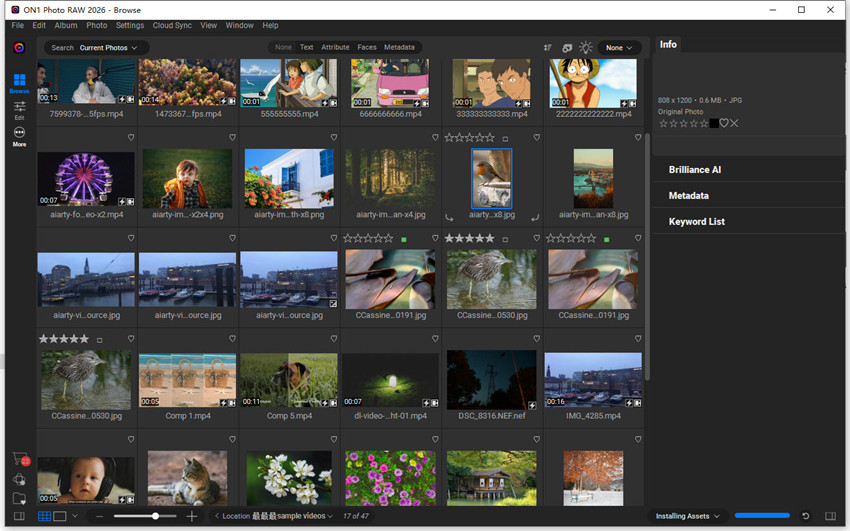
Step 1. How to Import Photos into ON1 Photo RAW
Importing in ON1 is simpler than Lightroom because it doesn’t require a catalog import. Open ON1 Photo RAW and click Browse on the left menu bar. Navigate to the folder that contain the images, then you can double-click on the image to load it instantly.
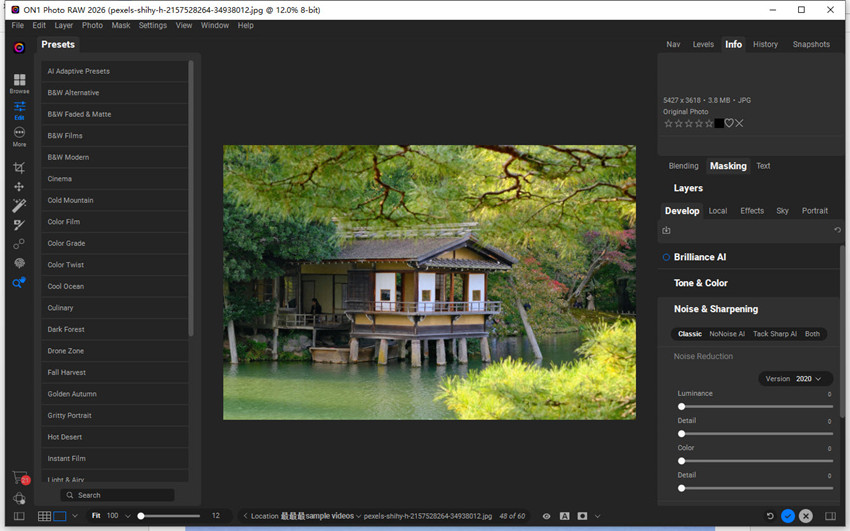
Step 2. Basic Editing Workflow
Once the photo is imported, click the Edit button on the left menu. On the right panel, start in Develop. Then you can adjust Exposure, Contrast, Highlights, and Shadows. You can also use the Brilliance AI to adjust the color automatically. Next, open Effects to add filters like Dynamic Contrast, Color Enhancer, and Vignette as you need.
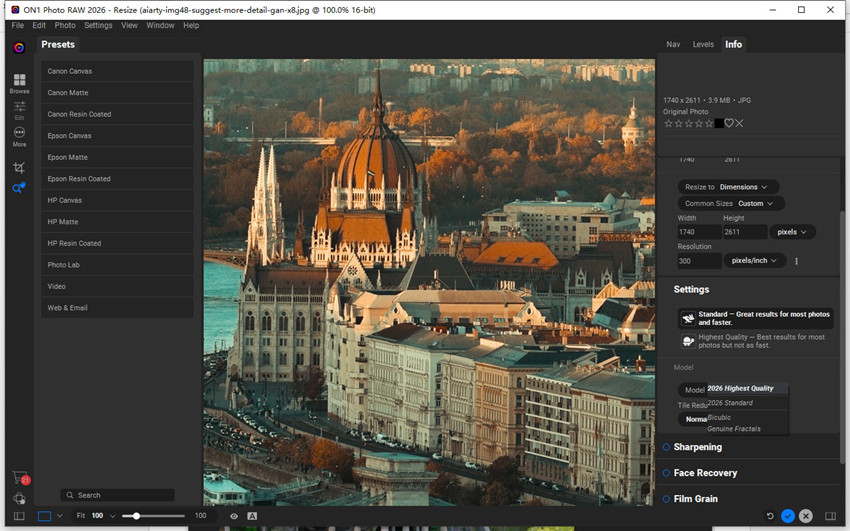
Step 3. How to Use ON1 Resize AI to Enhance Images
With the image loaded, click on the More icon on the left menu bar, and choose Resize AI. On the right-hand panel, you can choose to upscale your image by 2x, 4x, or 5x. Select an AI mode from Standard, High Detail, and Compressed Source. You can also adjust sharpening or output grain and apply face recovery.
Step 4. How to Use ON1 Photo Raw to Denoise
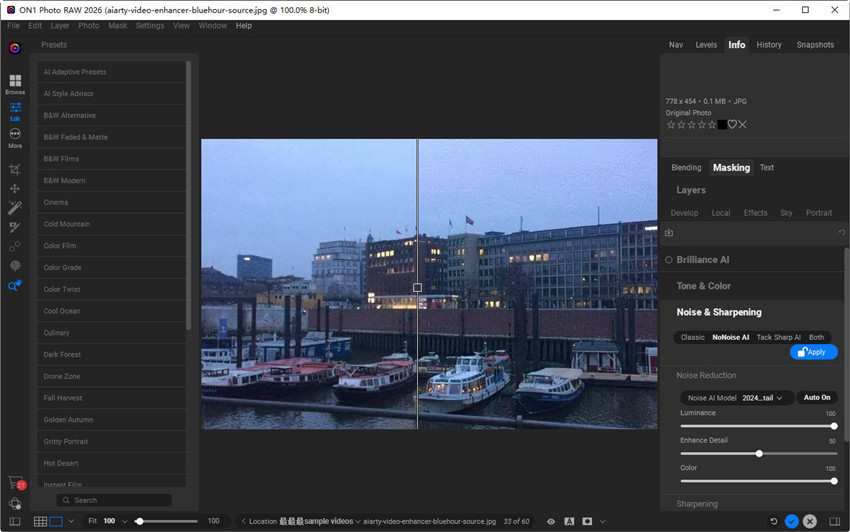
Click Edit on the left menu bar, and under Brilliance AI, find Noise & Sharpening. Click on it, choose NoNoise AI, and then Apply. ON1 will automatically analyze the image and apply noise reduction based on its AI model. Check the real-time preview and fine-tune the detail retention, and color noise settings if needed. You can also add Tack Sharp AI as a separate filter.
ON1 Photo RAW Real-World Performance & Tests
After completing the basic editing workflow, many users are particularly interested in ON1 Photo RAW’s advanced AI-powered tools. Next, we will demonstrate how Resize AI performs for high-quality upscaling and how NoNoise AI handles noise reduction on high-ISO or low-light images. These tests highlight the software’s real-world capabilities beyond standard edits, giving you a clear idea of what to expect when enlarging images or cleaning up noisy shots.
You may be interested in: ON1 vs Topaz vs Photoshop real-world tests
1. ON1 Photo RAW Denoise Test
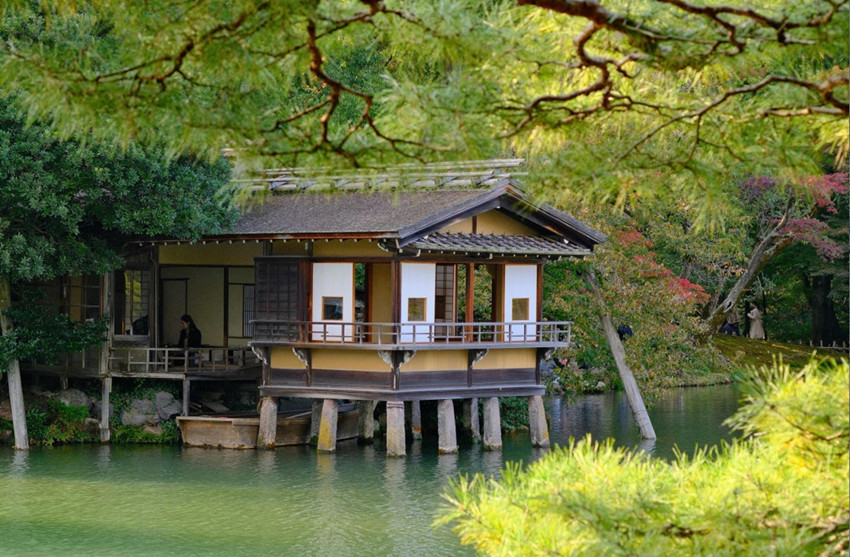
Test Image 1: High-Resolution Photo (5427 × 3618 px)
The first sample is a very high-resolution image shot indoors. When viewed at full size, it contains a noticeable amount of noise, especially in the darker interior areas, while the brighter regions and foliage contain moderate noise.
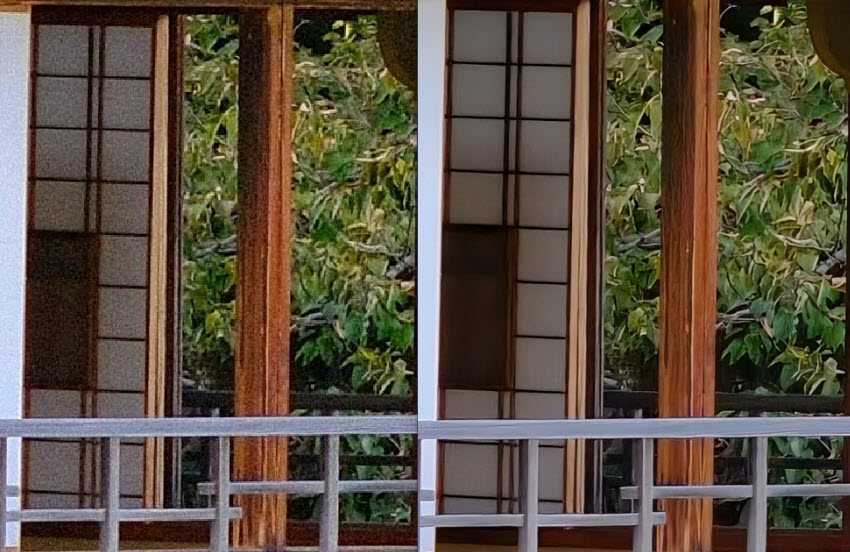
100% Crop Test Results:
Moderate-Noise Areas:
ON1 NoNoise AI performed impressively. Noise in the midtones and outdoor areas was cleaned almost completely, and the fine details, such as leaves, texture transitions, and soft edges, were well preserved without causing smudging.
Heavy-Noise Dark Indoor Areas:
In the deeper shadows and low-light indoor sections, noise was also significantly reduced. While the noise removal was strong, these areas naturally retained less micro-detail due to the severe grain in the source file. Even so, the final result looked clean and natural, free from blotchy artifacts.
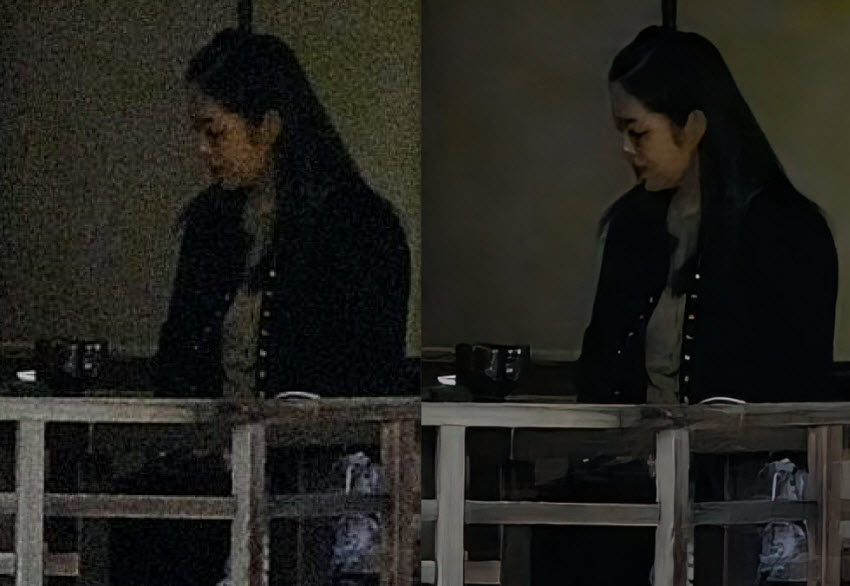
ON1 NoNoise AI performs very well on high-resolution images with moderate to heavy noise. It removes grain effectively while preserving most fine details and natural textures. Minor softness may appear in extremely dark areas, but overall image quality remains clean and balanced.
Test Image 2: Low-Resolution Night Photo (778 × 454 px)
The second image is a small, low-resolution photo captured under low-light nighttime conditions. This type of image typically loses edge definition and suffers from chroma noise.
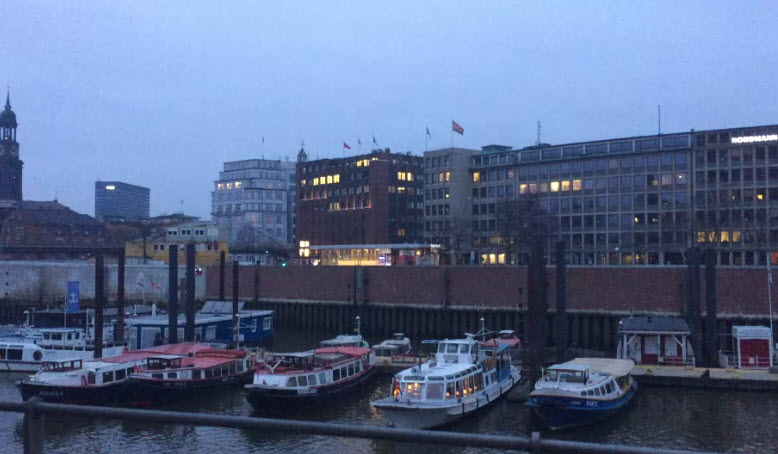
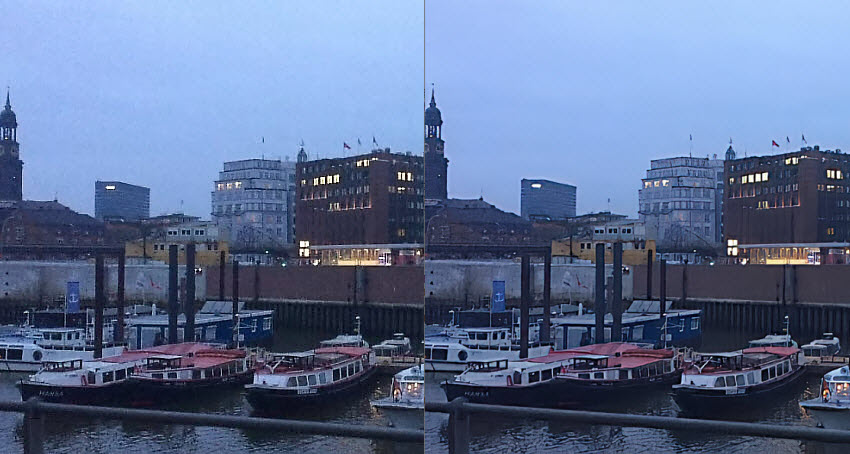
Test Results:
However, this particular image did not perform as well with ON1 NoNoise AI. After processing, the photo became slightly unnaturally clean.
In comparison, the Noise & Sharpening applied within Resize AI produced noticeably better results. The image appeared cleaner overall, with clearer lines and more natural detail retention. The balance between noise removal and sharpness looked more refined, making the output visually more pleasing than the result from NoNoise AI in this case.
ON1 NoNoise AI is less consistent on small low-resolution images. While noise reduction is strong, the final result can look slightly over-smoothed or artificial. In this case, Resize AI’s built-in sharpening and denoise workflow produced more natural-looking detail.
2. ON1 Photo RAW Upscale Test
Test Image 3: 200% Upscale (808 × 1200 px → 1616 × 2400 px)
The source image is a small 808 × 1200 px photo featuring a bird with fine feather detail.
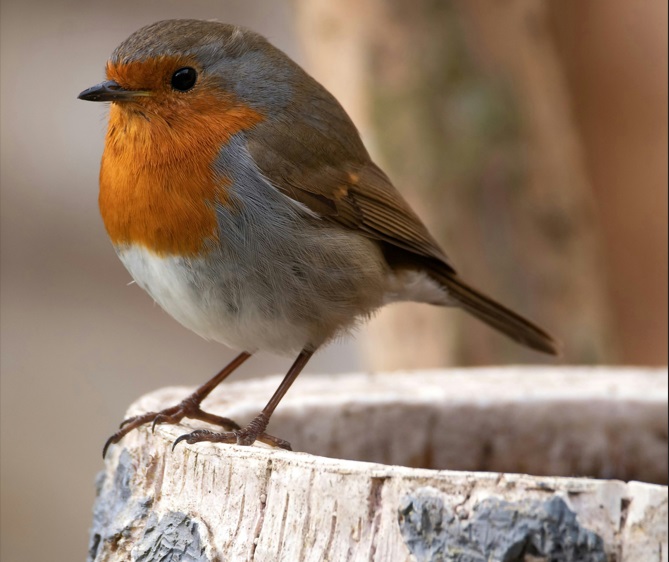
Upscale Results:
After enlarging by 200%, ON1 Resize AI produced a noticeably sharper and more detailed version. Individual feathers appear more defined, and the overall structure holds up well at larger display sizes.
However, the upscaled image looks slightly less natural compared to the original, with a faint sense of AI-generated crispness, typical for AI enlargements that reconstruct missing texture. Still, the result is highly usable, especially for printing or social media export.
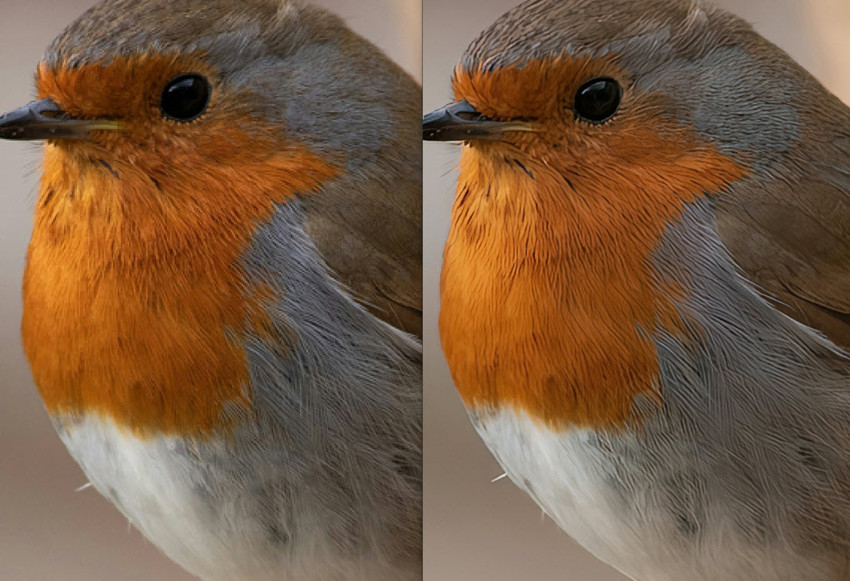
Test Image 4: 400% Upscale (1740 × 2611 px → 6960 × 10444 px)
Because of layout limitations, the comparison below shows only a 100% crop from the original-size image and the 400% upscaled version.
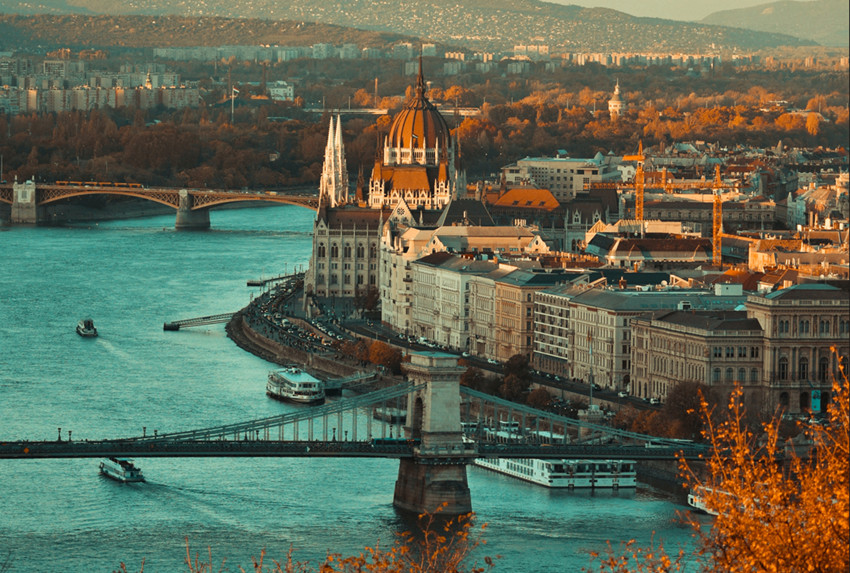
Upscale Test Results:
At 4× enlargement, ON1 Resize AI produced a very clear image with strong edge reproduction. Lines remain sharp and structures stay well-defined.
There is a slight tendency toward oversharpening, which becomes noticeable when examining fine textures closely. This is not uncommon for large-scale AI upscaling, especially at 400%. Even so, the output retains excellent clarity and remains suitable for large-format printing or detailed presentation work.
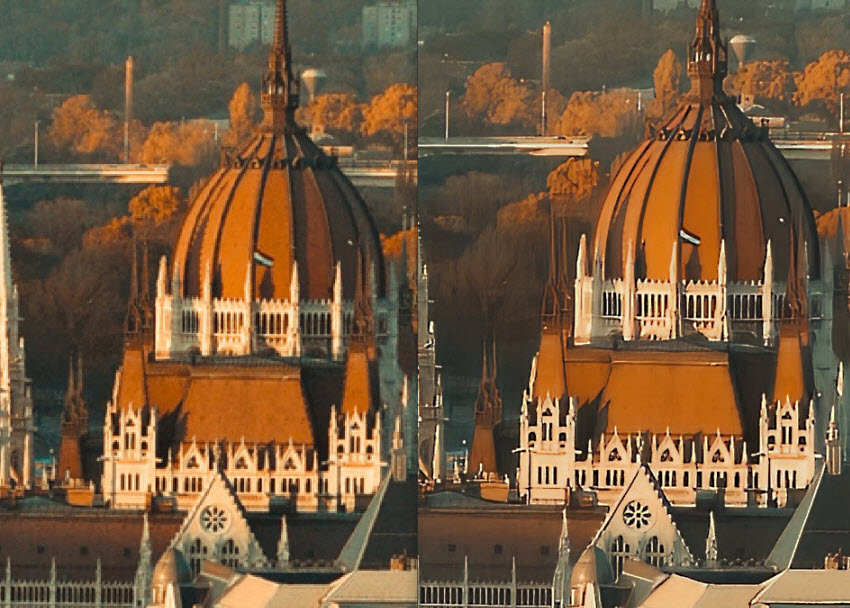
ON1 Photo RAW Strengths & Weaknesses
Based on multiple reviewers and real-world user feedback (from both professional testers and hobbyists), here’s how ON1 Photo RAW performs today — and where it still struggles:
✅ What ON1 Does Well
- True all-in-one workflow: Handles cataloging, RAW editing, effects, layers, and AI tools in one place—many photographers can use it as a full replacement for multiple apps.
- Strong creative toolkit: Filters, presets, effects, HDR, panorama, focus stacking, textures, and LUTs offer great flexibility for landscape, architecture, commercial, and creative work.
- AI features that save time: AI noise reduction, masking, sky replacement, portrait tools, and generative features speed up many common tasks.
- No subscription required: The one-time purchase option keeps costs predictable.
- Great for batch and non-destructive editing: Efficient for large libraries and high-volume workflows.
❌ Where ON1 Still Has Limitations
- RAW processing still behind top competitors: ON1’s RAW engine lags behind in highlight recovery, dynamic range, color accuracy, and lens/perspective correction.
- Resize AI is slow at highest quality settings: The Highest Quality mode can take several minutes to process and may even crash on less powerful machines.
- Slow first-time AI asset downloads: Opening tools like Resize AI, NoNoise AI, or Sky Swap requires downloading large AI assets, which can be very slow for first-time users.
- Complex UI with a learning curve: With so many tools combined into one app, some controls aren’t immediately obvious, making the interface overwhelming for beginners.
- Feature overlap causing confusion: Similar adjustments appear in both Develop and Effects, leading to redundancy and uncertainty about which panel to use.
- AI tools can produce unnatural results: One-click AI features can look over-processed or artificial unless carefully adjusted.
Best ON1 Photo RAW Alternative for AI Enhancement
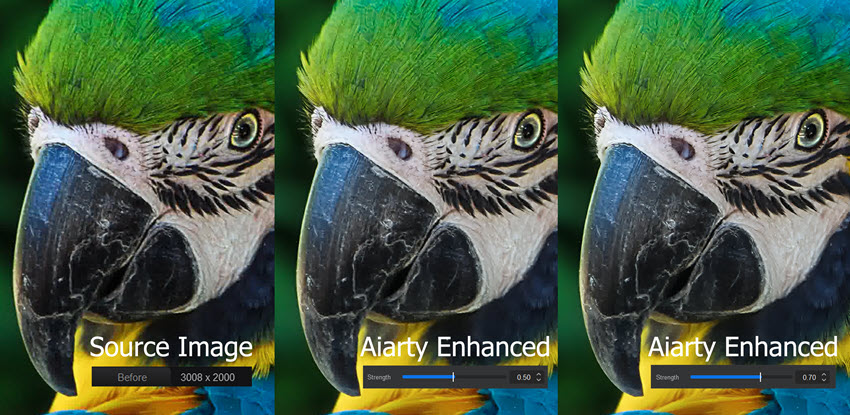
ON1 Photo RAW offers a broad range of editing and AI tools, but some photographers find its AI modules slow, occasionally over-sharpened, or less precise in fine texture recovery. For those looking for a faster, cleaner, and more natural upscaling solution, Aiarty Image Enhancer emerges as a standout alternative.
Aiarty doesn’t just enlarge images, it reconstructs fine details, reduces noise, deblurs, and removes compression artifacts in one workflow. It supports upscaling images by up to 800% to 4K and very high resolutions. Unlike some AI upscalers that simply interpolate pixels, Aiarty’s generative AI carefully analyzes textures and structures, producing results that maintain a natural, realistic look even at high enlargement ratios.
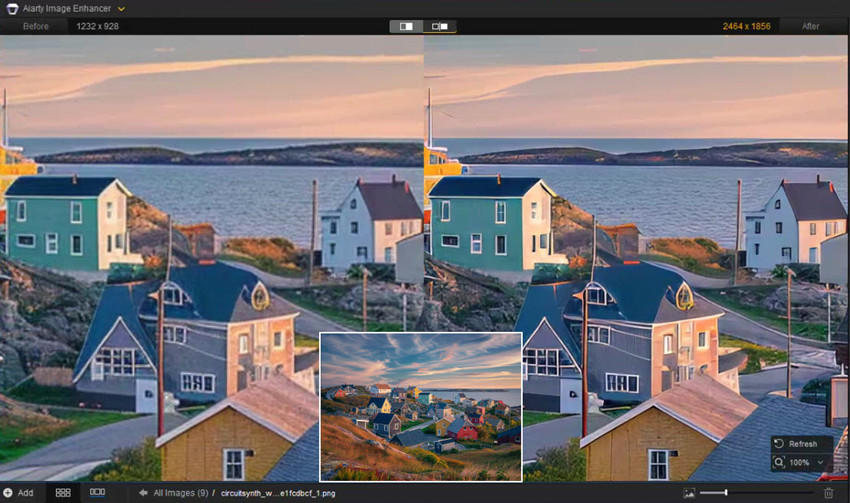
It also denoises, deblurs, and removes compression artifacts in a single pass. This makes it especially effective for photographers who find ON1’s NoNoise AI or Resize AI a bit soft or over-processed. Fine textures such as hair, fabric, feathers, foliage, and architectural edges are reconstructed with a more natural look, avoiding the harsh “AI-sharpened” feel that some tools can introduce.
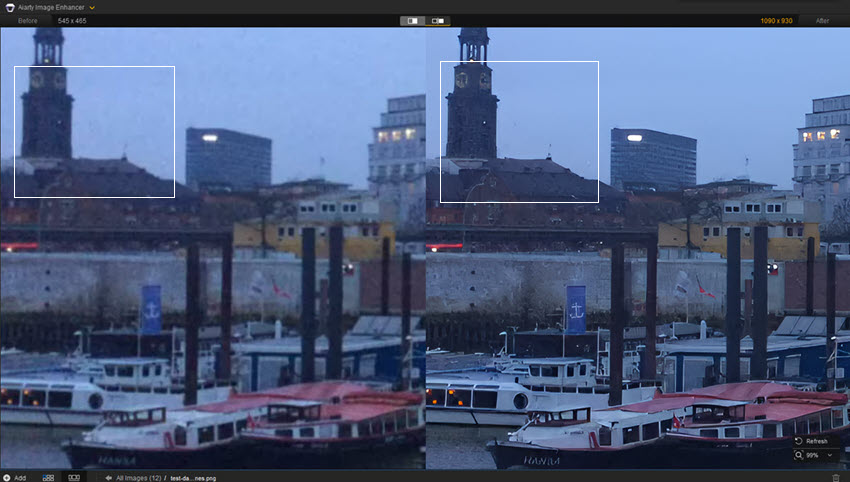
Photographers can control how strong these refinements appear. By adjusting the enhancement strength, it’s easy to strike a balance between detail recovery and a natural, film-like texture. Subtle settings work well for preserving grain and realism, while stronger adjustments can be applied when working with high-ISO or low-light images, all with immediate visual feedback for precise fine-tuning.
Final Verdict: Is ON1 Photo RAW Worth It?
ON1 Photo RAW 2026 is a powerful and flexible all-in-one photo editing platform that successfully combines RAW processing, AI tools, and layer-based editing in a single workflow.
It is especially suitable for photographers who want:
- A Lightroom alternative without subscription
- Built-in creative effects and layer
- All-in-one editing workflow
However, it is not perfect. Its AI tools are improving but still not fully consistent. For photographers seeking faster, cleaner, and more natural upscaling or denoising, alternatives like Aiarty Image Enhancer provide excellent results with more control, stability, and realistic detail reconstruction. In addition, its RAW processing is slightly behind Lightroom in color accuracy and refinement.
You May Also Like


This post was written by Brenda Peng who is a seasoned editor at Digiarty Software who loves turning ordinary photos into extraordinary works of art. With AI assistance for brainstorming and drafting, the post is reviewed for accuracy by our expert Abby Poole for her expertise in this field.
