


When seeking for AI image-upscaling tools, you may find yourself repeatedly returning to the same three names: ON1 Resize AI, Topaz Gigapixel AI, and Adobe Photoshop Super Resolution. They are used in different workflows over the years, from enlarging old scans and low-resolution photos to preparing images for print and high-detail product shots. Many users are curious to see how they compare when handling real-world images.
In this comparison, I’ll break down how ON1 Resize, Gigapixel, and Photoshop Super Resolution actually perform when pushed beyond their comfort zones, especially with challenging subjects like faces, wildlife, soft-focus images, and highly-compressed files.
Quick Takeaways
- Topaz Gigapixel: Super sharp and detailed enlargements, not the best for noise reduction.
- ON1 Resize: Crisp lines and clean results overall, yet sometimes oversharpening.
- Photoshop Super Resolution: Lightning fast, but details get soft when you push it.
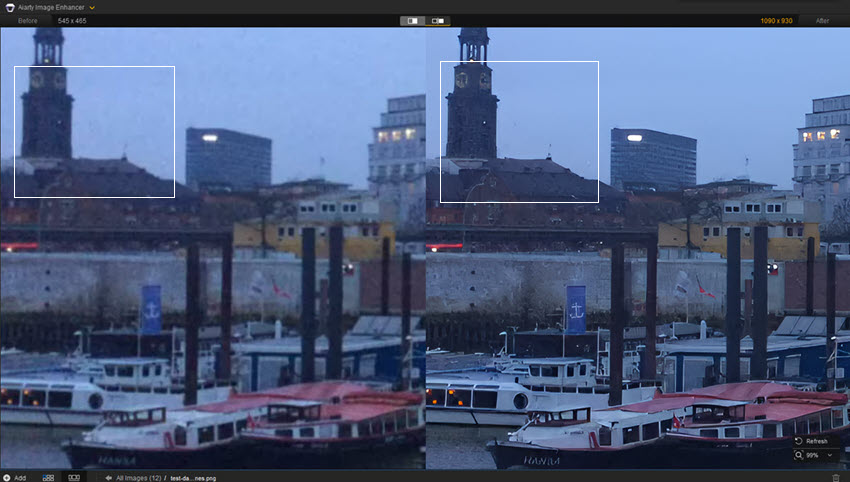
Extra tips: Professionals will love Topaz, ON1, and Photoshop. But for everyday users who just want to fix noise, blur, or low-res photos in one click, Aiarty Image Enhancer makes it simple and effective.
ON1 Resize vs Topaz Gigapixel vs Photoshop Tests Setup
This comparison focuses on how ON1 Resize AI, Topaz Gigapixel AI, and Adobe Photoshop Super Resolution handle real-world image enlargement tasks. These three tools were selected not only because they are popular among photographers, designers, and print professionals, but also because they represent three different approaches to AI upscaling: a dedicated enlarger (Gigapixel), an upscaler integrated into a broader editing ecosystem (ON1 Resize), and a built-in enhancement feature inside a mainstream editing application (Photoshop Super Resolution). The goal of this test is not to compare interfaces or feature sets, but to evaluate the visible enlargement results each tool produces when applied to the same source images.
All tests were performed in a controlled and repeatable environment, using identical input files and consistent output parameters whenever possible. The focus was placed on challenging but realistic scenarios, such as portraits with fine hair detail, wildlife and fur textures, older low-resolution digital photos, compressed web images, and product shots containing typography, logos, or straight edges.
To avoid skewing results toward either extreme hardware performance, the tests were run on a mid-range workstation, powerful enough to handle AI processing smoothly, but representative of what many photographers and content creators use in day-to-day workflows:
- CPU: Intel Core i7 (12th-gen equivalent)
- RAM: 16 GB
- GPU: NVIDIA RTX 3060 (8 GB VRAM)
- Storage: NVMe SSD
- Display: 27-inch 1440p monitor, calibrated
This configuration ensures that processing speed differences are noticeable but not exaggerated by underpowered or ultra-high-end hardware.
ON1 Resize vs Topaz Gigapixel vs Photoshop Interface and Workflow
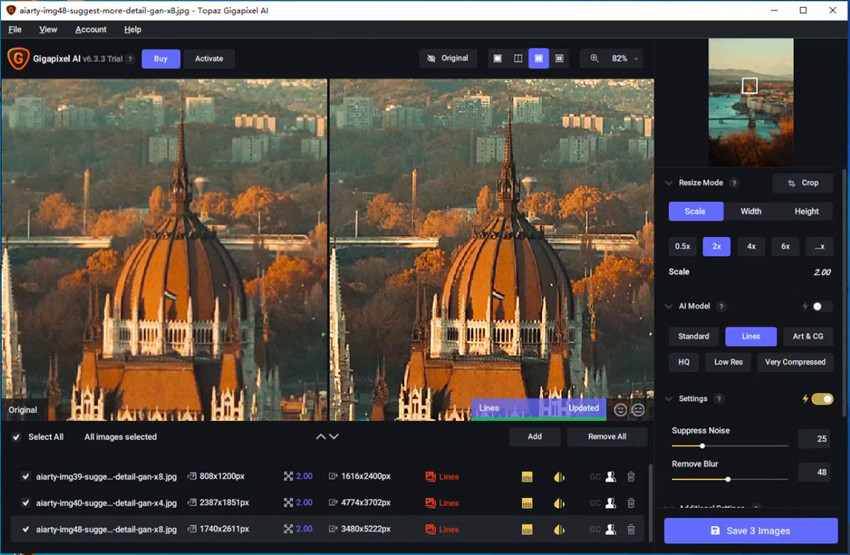
Topaz Gigapixel AI adopts the most focused and task-oriented interface of the group. The layout concentrates key controls like scale, preview, and AI model selection within a single, clearly structured panel, minimizing the need to navigate secondary menus. In practice, the main point of user interaction is selecting an appropriate model for the subject matter, with only a small number of refinement sliders beyond that. This design lends the application a streamlined, “single-purpose” feel, and is frequently cited as the reason Gigapixel is comparatively easy to operate, even for less experienced users.
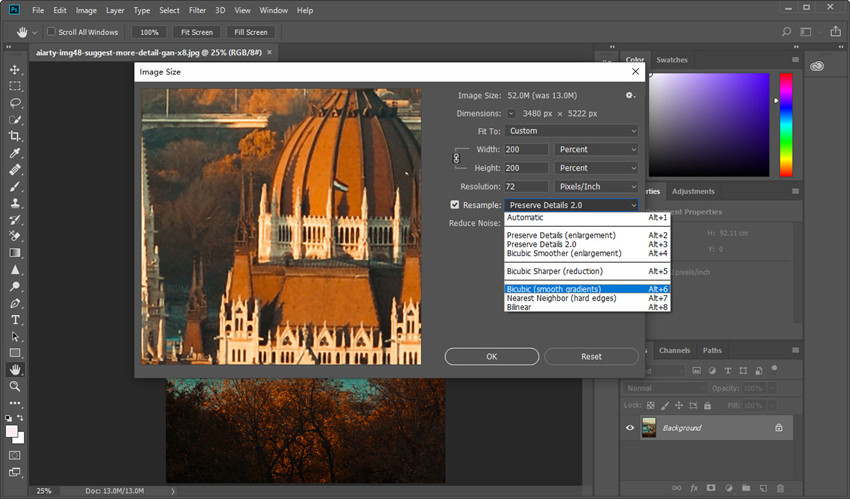
Photoshop Super Resolution takes an opposite approach, embedding its upscaling capability within Adobe Camera Raw rather than presenting it as a standalone module. This makes it efficient for existing Adobe users, but also means the feature is less immediately discoverable. Because activation resides inside the Enhance dialog within Camera Raw, some users note that Super Resolution can initially feel “hidden” within the workflow. Once accessed, however, its operation is intentionally minimal, with very few parameters exposed and little manual configuration required.
In newer versions of Photoshop, Adobe has introduced Generative Upscale as a more advanced, standalone alternative. Unlike Super Resolution, it offers dedicated controls, multiple AI models, and greater flexibility for enhancing image detail and scaling results.
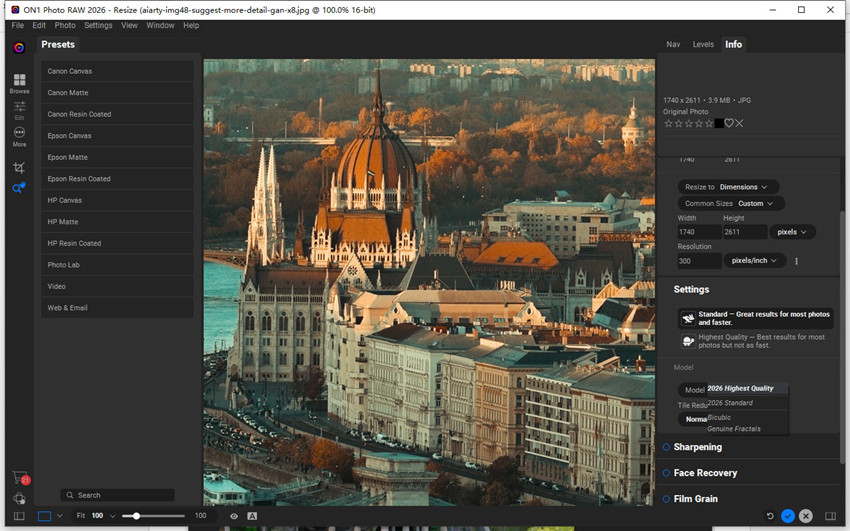
ON1 Resize AI positions itself closer to a full workflow component than a dedicated enlarger, and its interface reflects that broader scope. Output sizing, AI quality modes, and export configurations are spread across multiple panels, giving users substantial control but also increasing the cognitive load of initial setup. Feedback from ON1 users commonly highlights that certain options feel more buried compared with Gigapixel’s centralized control structure. For those already working inside the ON1 ecosystem this design provides flexibility, but for enlargement-only use cases it presents a slightly steeper discovery curve.
Hands-on Upscaling Tests: ON1 Resize vs Topaz Gigapixel vs Photoshop
Below, I ran the same source files through ON1 Resize, Topaz Gigapixel, and Photoshop at matching output sizes and similar processing conditions. I made my best effort to fine-tune each tool’s settings to ensure I was getting the best possible output from all three, so the differences you’ll see below reflect how they perform in practical use.
Test 1. Night City Shot (5184×3456)
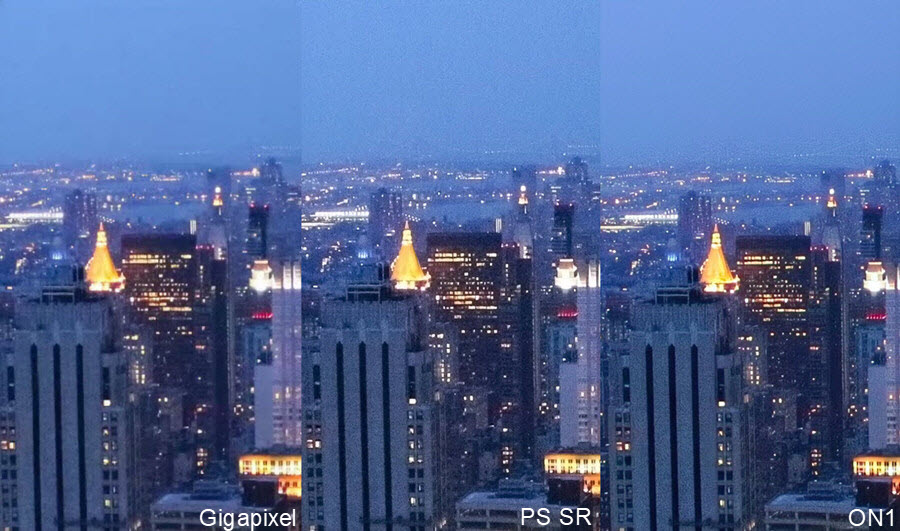
First is a night city skyline captured using a Canon EOS R6, handheld, ISO 6400, f/2.8, 1/30s. Zooming in revealed significant noise, especially in shadowed areas and the night sky. I ran denoising using Topaz Gigapixel (Standard model), Photoshop Super Resolution (and Noise Reduction filter), and ON1 NoNoise AI to see how each handled it.

As you can see, all the three tools don’t remove the grain very well. Photoshop Super Resolution + Noise Reduction filter deliver the grainiest output, with noticeable noise in the sky. Topaz Gigapixel cleaned it up a bit better, but the image looked slightly blurred overall, which softened some fine details. ON1 NoNoise AI produced a sharper image, but noise was still clearly visible in the darker areas.
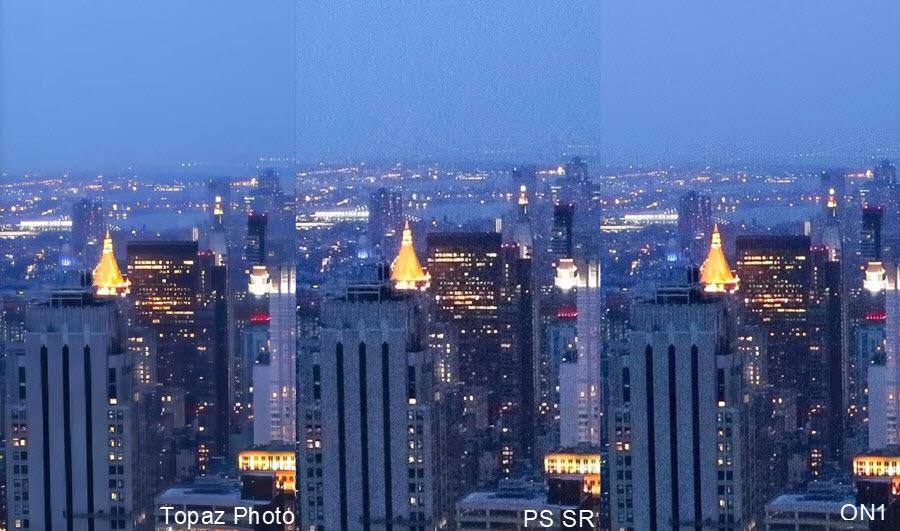
I also tried Topaz Photo AI, and it made a noticeable difference: the noise was mostly gone across the entire frame, while the details remained natural and crisp. Compared with the other three, it felt like a more complete and balanced solution for night shots with heavy noise.
Test 2: City Skyline (1740×2611)
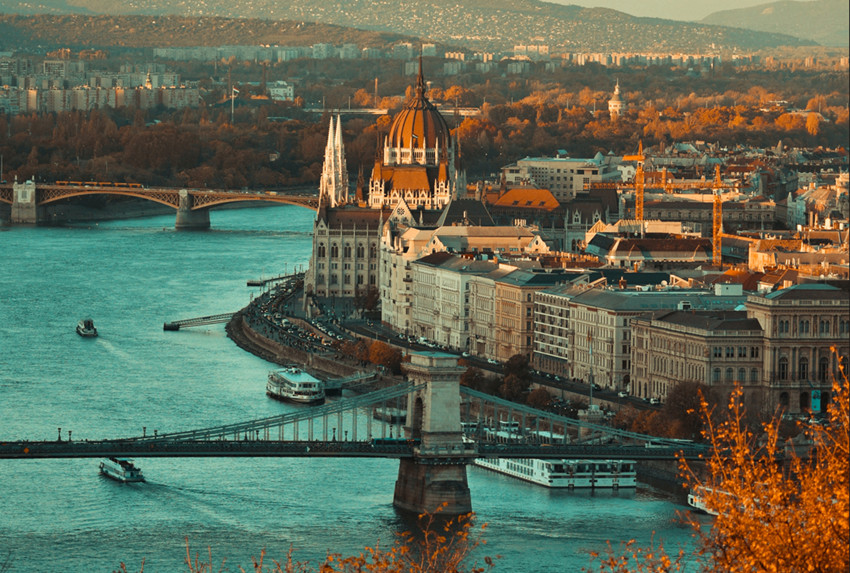
Next, I used a Sony A7 III with a 70-200mm lens at 135mm, ISO 400, f/5.6, 1/125s, capturing a distant city skyline. The original image was 1740×2611 px. Due to layout constraints, the comparison below focuses on 100% crops from key areas, highlighting building edges and rooftop details.
200% Upscaling
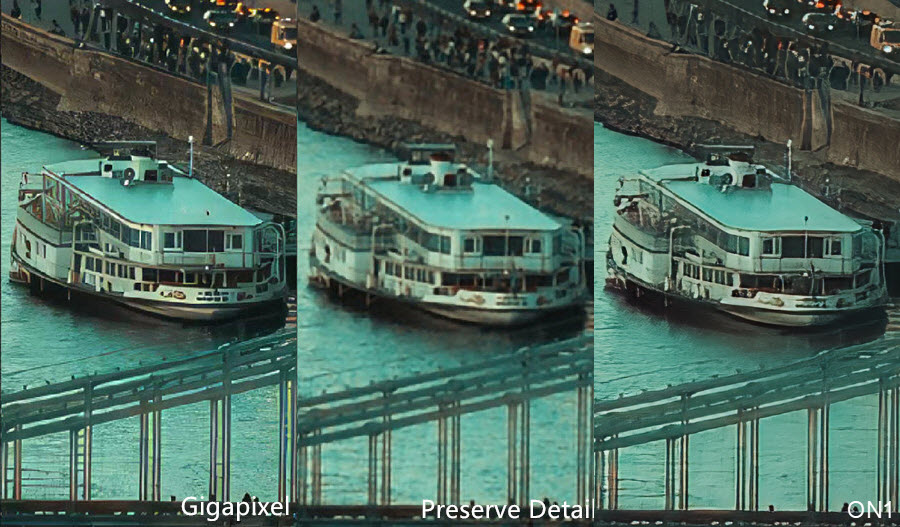
When upscaled 2x, Photoshop Super Resolution produced the blurriest result at this scale; fine edges were softened noticeably. ON1 Resize AI kept lines crisp and clean, but some areas appeared slightly oversharpened. In contrast, Topaz Gigapixel delivered a more natural-looking upscale, with clean lines and preserved architectural detail.
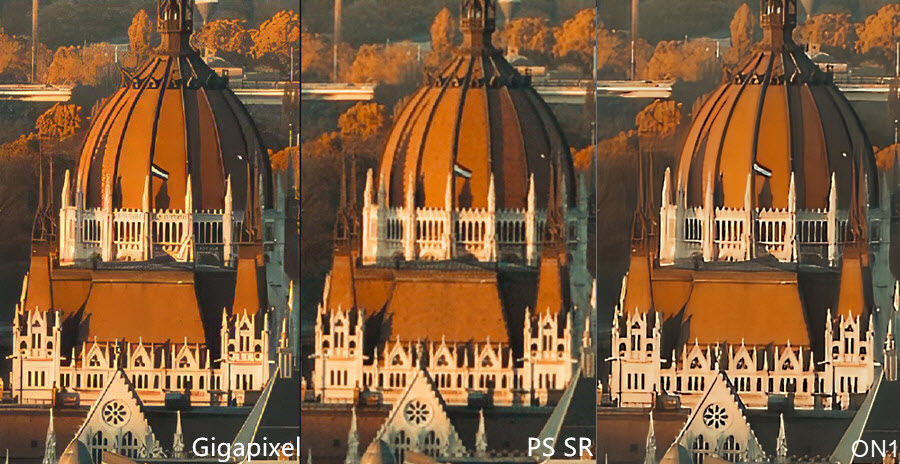
400% Upscaling
At 4x uspcaling, both ON1 Resize and Topaz Gigapixel outperformed Photoshop’s Preserve Details 2.0. The subject becomes blurry. At the first sight, both On1 Resize and Topaz Gigapixel upscale with clear image. When taking a closer look, Topaz maintained smoother lines with fewer artifacts, while ON1 stayed crisp but showed minor over-sharpening in some window edges.
600% Upscaling
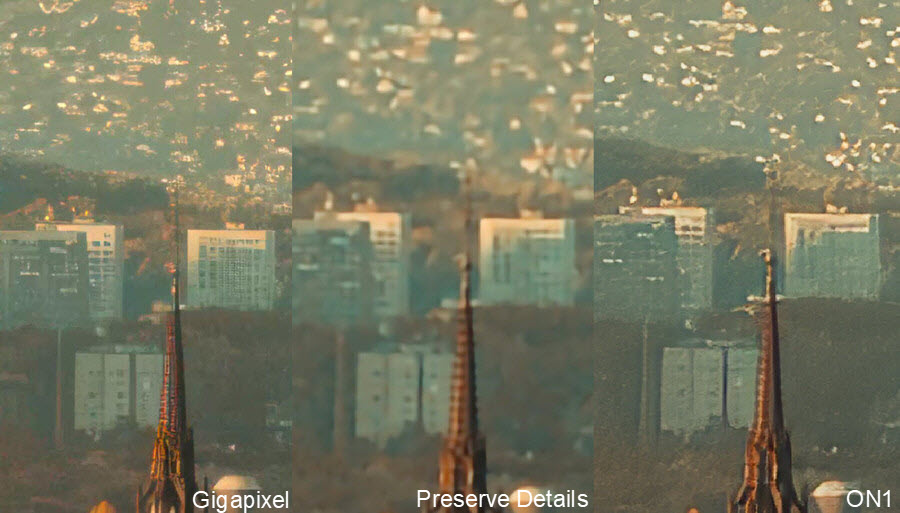
When goes higher scaling, Topaz Gigapixel gave the clearest result, followed by ON1, then Photoshop, as you can see from the showcase below. Using the Standard AI model, Gigapixel occasionally exaggerated details, for example, some building floors turned into extra line patterns. Switching to the Lines model removed this issue, but textures looked slightly less natural.
Topaz Photo AI produces a more accurate and natural restoration of details, but the lines aren’t as crisp as Gigapixel’s output. The image also shows slightly more artifacts and doesn’t look as smooth as Gigapixel overall.
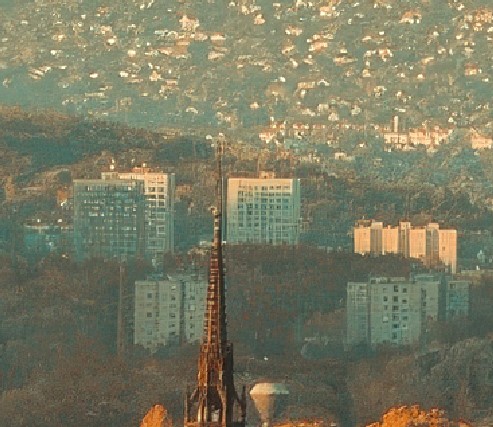
My Takeaway: Overall, for extreme upscaling, Topaz Gigapixel offers the sharpest lines, ON1 Resize delivers crispness with minor over-sharpening, Photoshop struggles at higher scales, and Topaz Photo AI gives accurate, natural detail with smoother edges, offering a compromise between clarity and realism.
Related reading: Topaz or Photoshop Detailed Tests and Comparison
Test 3: Park Shot (5427×3618)
Next is a park scene shot with Nikon Z7 with a 35mm lens, shot handheld at ISO 200, f/5.6, 1/200s. The source photo was already very high-resolution at 5427×3618, and I upscaled it by 200%.
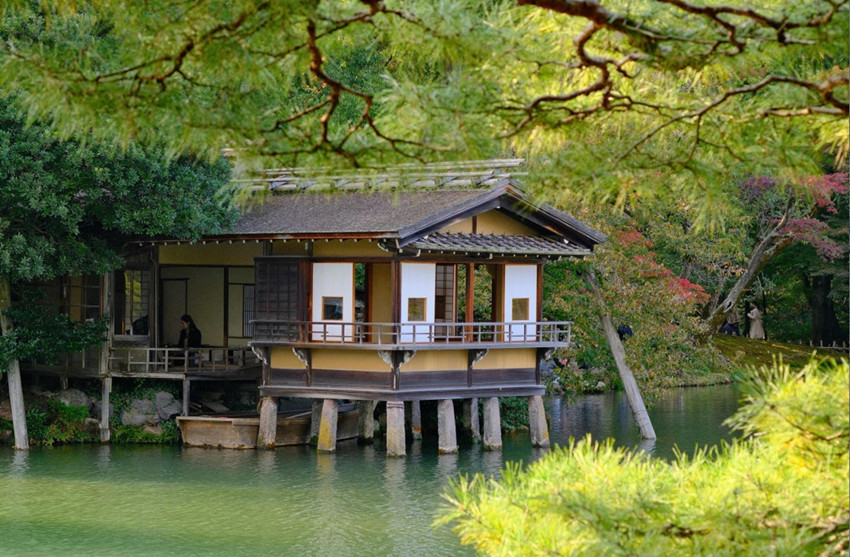
At 200% upscaling, my observations were:
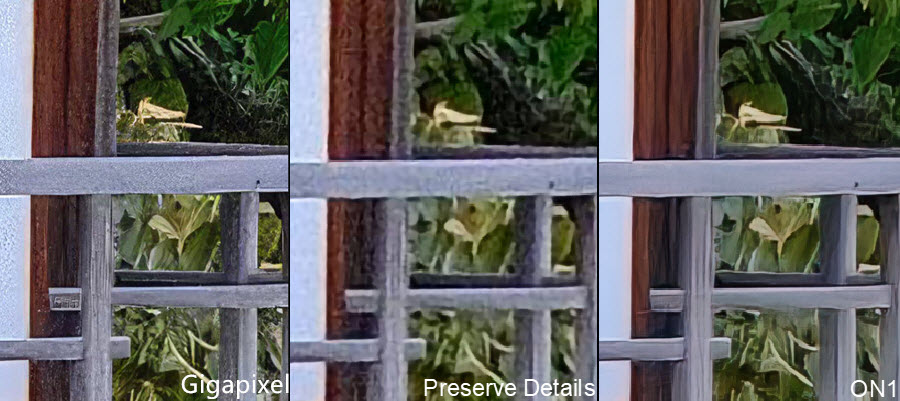
- ON1 Resize AI handled noise and small imperfections quite cleanly. The image looked neat and well-processed, especially in areas like the pavilion roof and shaded tree branches.
- Topaz Gigapixel retained more micro-detail and texture, wood grain, stone edges, and foliage patterns looked more defined, but it didn’t smooth out imperfections as aggressively as ON1.
- Photoshop Preserve Details 2.0 and Super Resolution looked very similar in this case — both outputs appeared noticeably softer than the other two, and a lot of fine texture was simply not visible at this scale.
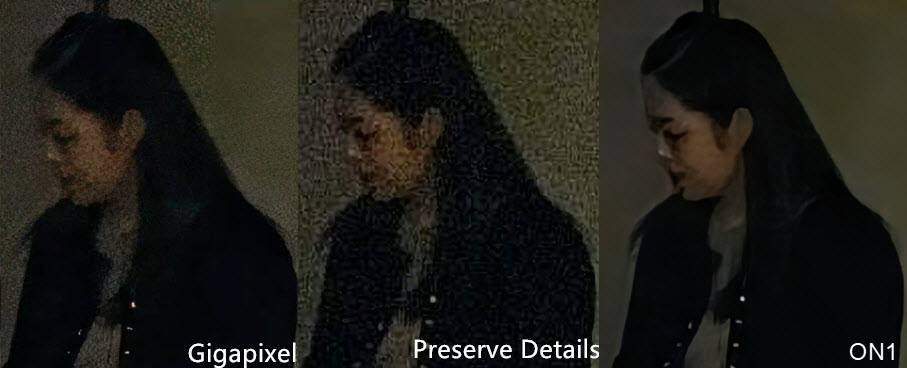
In the darker areas of the scene, like under the pavilion roof and in tree shadows: ON1 again produced a very clean result, with noise and small artifacts handled smoothly. Gigapixel preserved more texture and tonal variation, but was less effective than ON1 at suppressing noise in shadow regions.
From this test, my takeaway is that:
- Gigapixel is stronger when the goal is maximizing fine detail and texture after enlargement, especially in surfaces and natural elements.
- ON1 feels better when you want a cleaner, tidier upscale with fewer imperfections, particularly in darker or lower-contrast regions.
- Photoshop, in this scenario, trails behind both. Its output looked soft and less detailed, even at only 2× enlargement.
The differences here are subtle compared with the earlier tests, but they become noticeable once you zoom into foliage, roof tiles, and reflective water textures.
ON1 Resize vs Topaz Gigapixel vs Photoshop Performance & Speed
When it comes to processing speed, the three tools behave quite differently in real-world use. Photoshop Super Resolution is easily the fastest option. Upscaling is almost instant in most cases, even with large RAW files. In my testing, Photoshop completed tasks in seconds where the AI upscalers often took much longer, making it the most practical choice when speed matters more than absolute detail quality.
Topaz Gigapixel is slower, but its processing time scales with quality. It tends to run noticeably longer, especially at 4× and 6× enlargements, but the results benefit from GPU acceleration. On a reasonably powerful graphics card, the wait time feels acceptable given the level of detail retention.
ON1 Resize sits somewhere in between, but with one caveat. ON1 Resize sits in between, although user reports sometimes describe slower batch performance than Gigapixel.
A Tool Better Suited for Everyday Image Enhancement Needs
While Topaz Gigapixel, ON1 Resize, and Photoshop excel in extreme enlargement scenarios and technical resolution testing, but for most users, that level of power is often overkill. When the real job is restoring compressed images, cleaning noisy files, or improving low-res photos, Aiarty Image Enhancer hits a much more realistic sweet spot.
Aiarty Image Enhancer prioritizes natural-looking detail recovery rather than aggressively inventing texture. Compared with Gigapixel’s sharper, model-driven output and ON1’s occasionally oversharpened edges, Aiarty delivers a more balanced and less “AI-generated” look, particularly in portraits, night scenes, and areas with soft tonal transitions.
It also effectively enhances low-quality or compressed sources, such as web images, screenshots, or older smartphone photos, where artifact reduction and noise cleanup matter just as much as resolution. Instead of exaggerating detail, Aiarty smooths compression blocks and restores structure in a way that feels visually consistent, even when upscaling to 4K, 8K, or higher.
With fewer technical parameters to adjust and more predictable enhancement behavior, it’s a practical option for users who prefer reliable one-click improvements rather than tuning multiple AI models or profiles.
 Free download Aiarty Image Enhancer for Windows
Free download Aiarty Image Enhancer for macOS
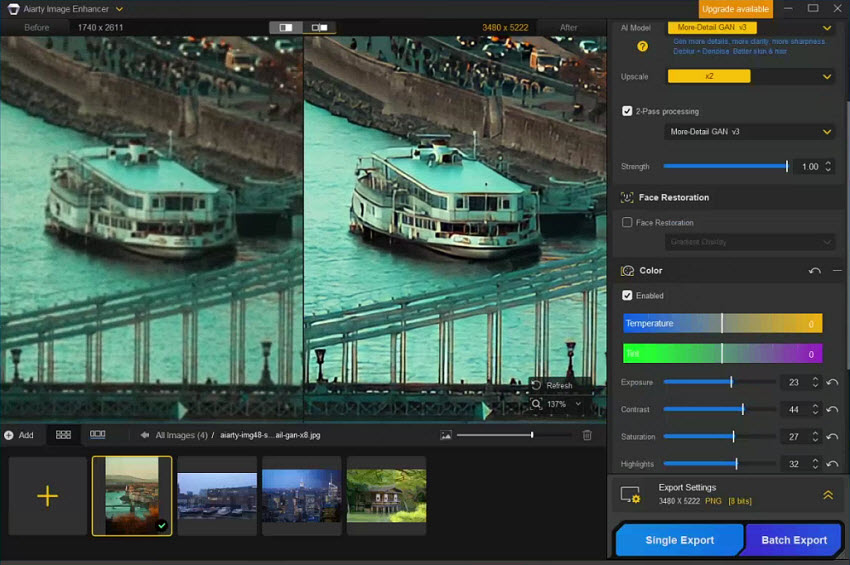
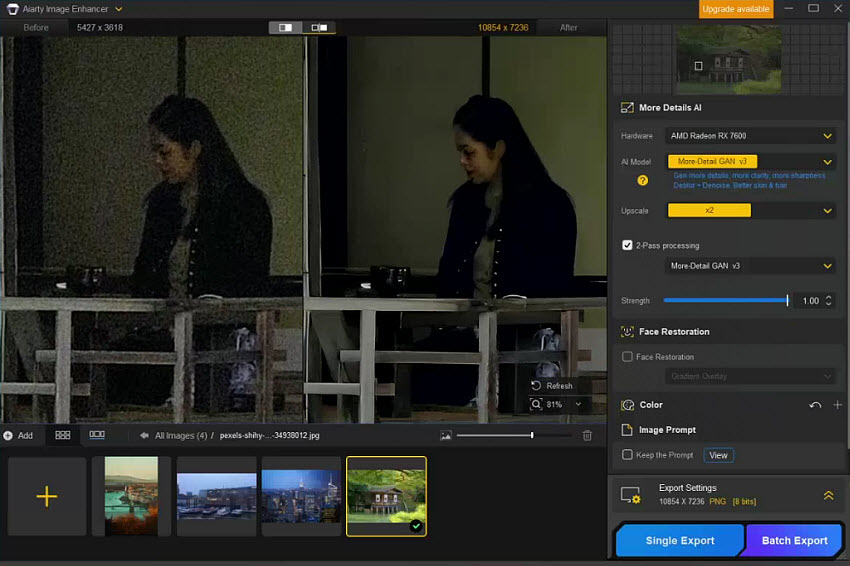
In the sample tests, Aiarty’s upscale and denoise performance proves comparable to Topaz, ON1, and Photoshop, not necessarily sharper, but competitive in real-world image repair scenarios.
In short, if your priority is natural detail restoration, cleaner output on imperfect images, and a simpler enhancement workflow, Aiarty Image Enhancer makes a compelling alternative to the more technically focused upscaling tools in this comparison.
Verdict
Through our hands-on testing, it’s clear that Topaz Gigapixel, ON1 Resize, and Photoshop Super Resolution each has its own strengths and limitations. Gigapixel excels in preserving fine detail at extreme enlargements, ON1 offers crisp lines and clean noise handling, and Photoshop delivers the fastest results with minimal setup, though it tends to soften textures at higher scales.
However, real-world photography often involves more than just pure resolution enhancement. Low-quality images, compressed files, and imperfect lighting conditions present a different set of challenges. In these scenarios, Aiarty Image Enhancer offers a more balanced approach: natural-looking detail recovery, predictable results, and simpler workflow, making it well-suited for everyday use when extreme upscaling is not the primary goal.
Ultimately, the choice of tool depends on the specific task. For technical upscaling and large-format prints, Gigapixel or ON1 remain strong options. For fast, casual improvements or working with lower-quality sources, Photoshop or Aiarty Image Enhancer provide practical, reliable solutions. By understanding the strengths and weaknesses highlighted in these tests, photographers and content creators can make more informed decisions tailored to their workflow and image types.
You May Also Like


This post was written by Brenda Peng who is a seasoned editor at Digiarty Software who loves turning ordinary photos into extraordinary works of art. With AI assistance for brainstorming and drafting, the post is reviewed for accuracy by our expert Abby Poole for her expertise in this field.
