


Noise reduction is one of the most demanding tasks in digital photography, especially for photographers working in low light, high ISO, wildlife, astrophotography, or any scenario where preserving detail is as important as suppressing noise. In today’s market, Topaz Denoise AI and Adobe Lightroom Classic are two of the most widely used AI-driven noise-reduction tools.
But how is Topaz denoise AI vs Lightroom’s noise reduction tool? Which delivers cleaner files and preserves more detail? In this comprehensive comparison, we test Topaz Denoise AI (now Topaz Photo) and Lightroom Classic’s Denoise AI, covering noise reduction quality, RAW processing, detail preservation, speed, features, workflow, and overall value.
Note: Topaz has officially merged DeNoise AI into Topaz Photo AI. There is no longer a standalone DeNoise AI receiving updates. All future noise-reduction improvements are now delivered only inside Topaz Photo AI.
Inside Photo AI, you’ll find two denoise engines: RAW Denoise for RAW noisy files and Denoise (Processed) for JPEGs, TIFFs, and other non-RAW formats. So we will compare Topaz RAW Denoise with Lightroom’s AI Denoise, as it supports RAW and DNG photos only.
Quick Takeaways
- Lightroom Denoise AI excels at simplicity and natural results, while Topaz Denoise AI offers deeper control.
- Topaz handles JPEG, RAW, TIFF and more; Lightroom Denoise AI supports RAW only.
- Lightroom comes with Adobe’s $120/year Photography Plan (with Photoshop), while Topaz Photo AI costs $21/month or $252/year.
- For heavily noisy images, Topaz wins. For everyday editing, Lightroom wins.
- For budget users, Aiarty Image Enhancer emerges as a strong alternative, delivering clean results with zero setup.
Topaz Denoise AI vs Lightroom Denoise AI Workflow
Below we will use two examples to provide a clear basis for comparing how Topaz Denoise AI and Lightroom handle high-ISO RAW images.
Topaz Denoise AI for Precision Control
- Supported image formats: Topaz Photo supports RAW files (CR2, NEF, ARW, etc.), TIFF, JPEG, PNG, and most standard formats, giving flexibility for both professional and compressed images.
- Pricing: Topaz Denoise AI is integrated into the all-in-one Topaz Photo, priced at $21/month or $252/year (annual commitment, non-cancellable during the period).
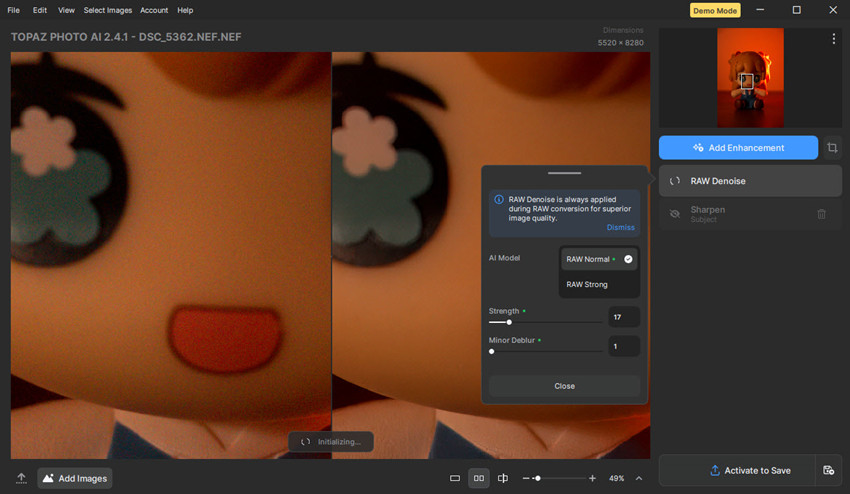
When compared with Lightroom, Topaz Denoise AI provides photographers with advanced control over the denoise process. When using the software, you can choose between different AI models depending on your shooting conditions and noise severity. Each model allows adjustment of noise reduction strength, detail recovery, and sharpening, giving users the flexibility to fine-tune results for both subtle textures and extreme high-ISO scenarios.
Basic Topaz AI denoise steps:
- Select RAW Denoise from the enhancement panel and it will apply noise reduction automatically.
- Adjust sliders for AI model, strength, deblur as well as sharpening, and recovery as needed.
- Preview changes in real-time and apply the changes.
This level of granular control makes Topaz particularly useful for rescuing heavily underexposed or very noisy RAW files, while the real-time preview ensures you can maintain fine details and minimize artifacts.
Lightroom Denoise AI for Speed and Simplicity
- Supported image formats: Lightroom AI Denoise works on RAW files, Linear DNGs, Smart Previews, and mobile RAWs, and does not work directly on JPEGs, TIFFs, PSDs, or standard lossy DNGs.
- Pricing: Lightroom Classic is available through Adobe Creative Cloud at $9.99/month for the Photography Plan, which also includes Photoshop.
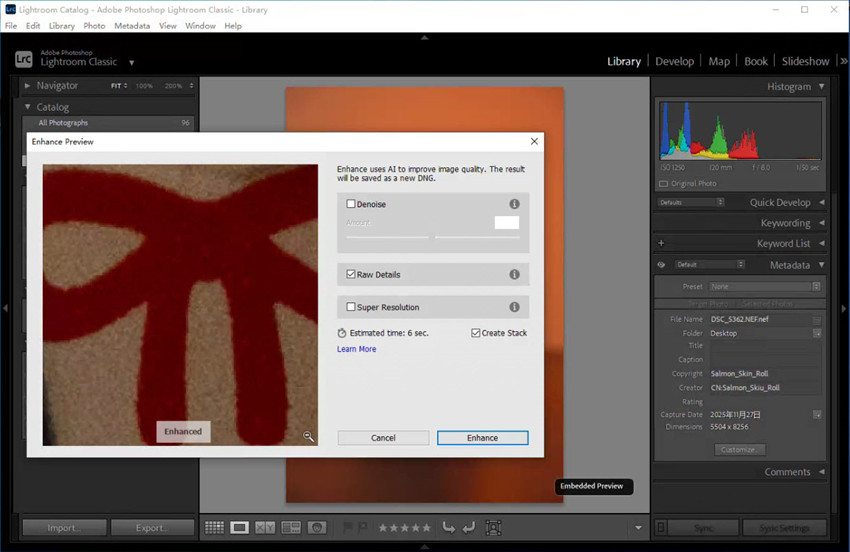
Lightroom Classic emphasizes speed and simplicity while still offering effective denoise control. To apply Lightroom Denoise AI, follow these steps:
- Go to Photo on the top menu > choose Enhance > enable the Denoise box. A preview window appears, showing the noise reduction effect. Press and hold the image to toggle between before and after.
- Adjust Intensity: Use the Amount slider (default 50) to control the strength of noise reduction. Higher values remove more noise but may slightly soften details.
- Apply: Click the Enhance button to finalize the effect.
This workflow allows photographers to quickly see results and make adjustments in real-time previews. While there are fewer model options in Lightroom than Topaz Denoise AI, it excels at maintaining natural textures, realistic skin tones, and color fidelity, making it ideal for portraits, landscapes, and moderate ISO images. Its one-click convenience and seamless integration into the Develop module make it highly efficient for batch editing and high-volume workflows.
Topaz Denoise AI vs Lightroom Denoise AI Tests
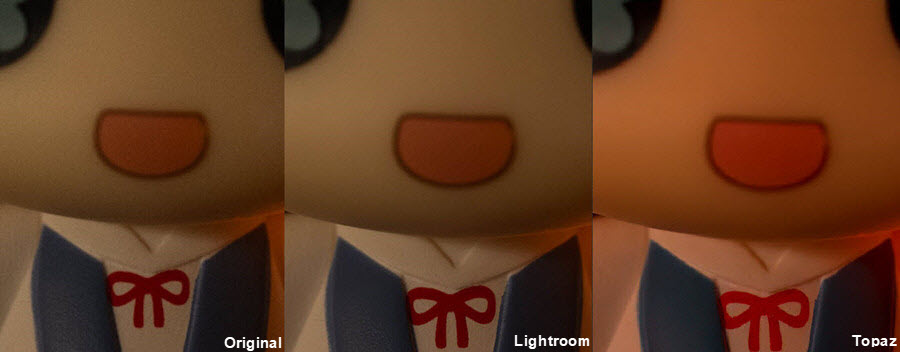
Here’s one example, a high-resolution RAW image captured with a Nikon Z7 in a dimly lit indoor environment. The file measures 5504 × 8256 pixels, and because the ambient light was quite low, I shot it at ISO 6400. The shadows show visible noise.
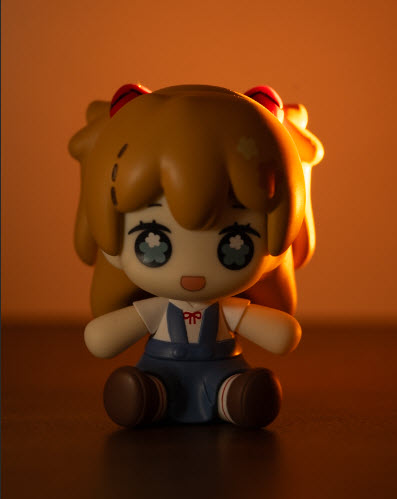
After zooming in, the image reveals a significant amount of noise in the fine details. Applying Lightroom Denoise AI at 50% strength and my best efforts with Topaz Denoise AI produced the following comparison.
With Topaz Denoise AI, the noise is almost completely removed, but there is a slight shift in color tones. Despite this, Topaz remains an excellent noise reduction tool.
Compared to Topaz Photo, Lightroom Denoise AI at 50% preserves some of the natural grain in the image. The result is less smooth than Topaz, but it maintains a more natural texture and realistic appearance. It can be very suitable for scenarios where preserving subtle details and authenticity is important.
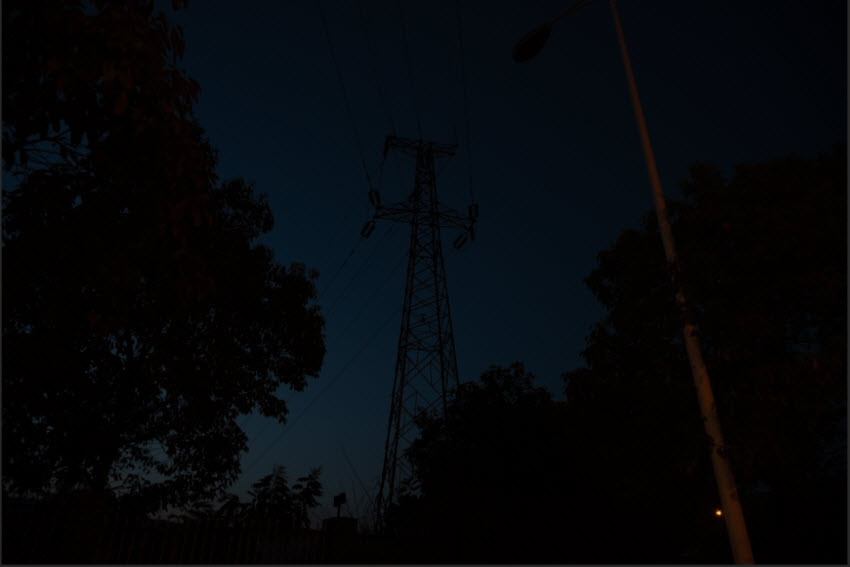
Next is a screenshot of part of a high-resolution RAW image captured with a Nikon Z8 outdoors at night in extremely low light. The file measures 5504 × 8256 pixels, and because the scene was almost completely dark, I shot it at ISO 12800. The shadows and dark areas show strong visible noise.
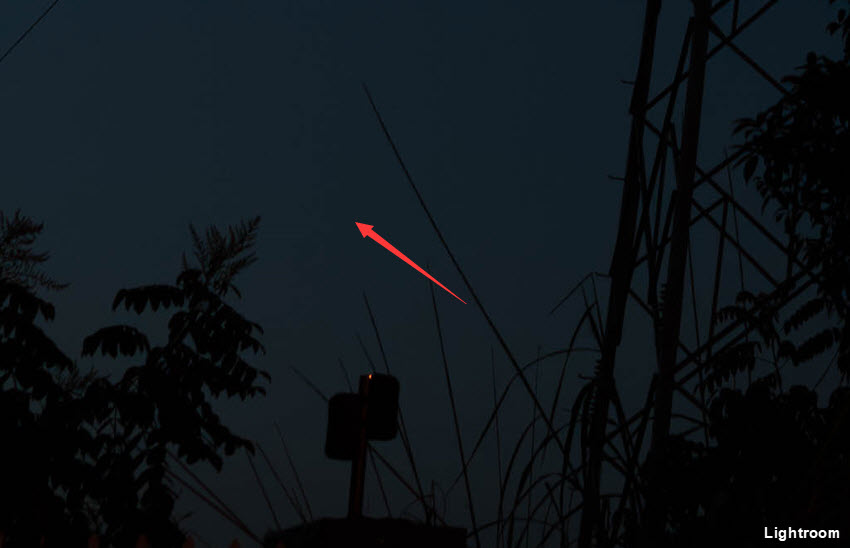
Below is the image processed with Lightroom Denoise AI at 50% strength. Since the original photo was extremely dark, the overall noise is largely eliminated at first glance. However, because higher denoise intensity can introduce artifacts, a closer inspection, like in smoother areas like the sky, reveals some minor artifacts in the fine details.
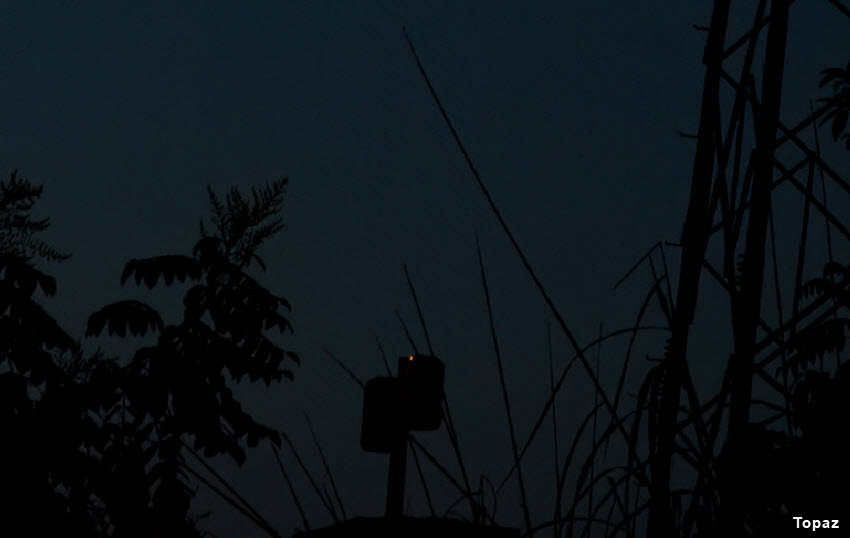
Compared with Lightroom’s result, Topaz Denoise AI removes grain far more aggressively, producing a much cleaner and smoother image. In this particular test, it eliminates noise almost completely without introducing visible artifacts, giving the file a polished, high-clarity look.
Which Delivers Better Noise Reduction? Lightroom or Topaz?
Based on my own testing and widely reported user experiences, the question of Lightroom vs Topaz Denoise AI: which is best largely depends on the type of image and the intended use. Both tools excel in their respective areas, but their strengths and trade-offs are different.
Lightroom Denoise AI is perfect for RAW images with moderate noise or for general-purpose editing, where a natural, film-like texture is preferred. Users consistently report that Lightroom’s denoise is highly reliable, rarely introduces artifacts, and preserves realistic skin tones and subtle grain. Its workflow is also extremely simple, just a few slider adjustments provide excellent results with little effort.
For images intended for online display or batch editing, Lightroom is often the preferred choice due to its speed, consistency, and minimal risk of unwanted artifacts.
Topaz Denoise AI shines in extreme noise situations, such as high-ISO RAW files, severely underexposed shots, or wildlife and astrophotography. It removes grain more aggressively and allows users much more control over the final outcome, including model selection, strength, detail recovery, and sharpening.
Many users note that Topaz can sometimes introduce unnatural textures or "fake" details, particularly in smooth areas or crowded backgrounds, which requires careful application. However, for print-quality images or heavily noisy files, Topaz remains unmatched in restoring fine details and producing a polished, high-clarity result.
When to use Topaz or Lightroom Denoise AI?
If you're also looking to install or connect Topaz tools inside Lightroom Classic, this guide may help: How to Add Topaz to Lightroom.
One-Click AI for High-ISO and Low-Light Raw & Compressed Photos
Tired of spending hours adjusting sliders in Lightroom or Topaz just to clean up noisy or underexposed shots? Aiarty Image Enhancer offers a fast, one-click solution to improve high-ISO RAW photos, low-light captures, or even compressed JPEGs without compromising details.
Aiarty Image Enhancer not only removes luminance and color noise, grain, and compression artifacts, but also restores fine details and enhances overall image clarity, with support for upscaling up to 32K resolution. Its algorithms can accurately distinguish between actual photo detail and unwanted noise, making it a highly effective denoise tool for photographers who need quick, professional-quality results without complex adjustments.
For those looking for a more affordable alternative to Topaz Denoise AI, Aiarty delivers comparable denoising performance, handling RAW and JPEG formats alike, while saving time and simplifying the workflow. It’s ideal for photographers, content creators, and social media users who want high-quality noise reduction and detail enhancement in one click.
 Free download Aiarty Image Enhancer for Windows
Free download Aiarty Image Enhancer for macOS
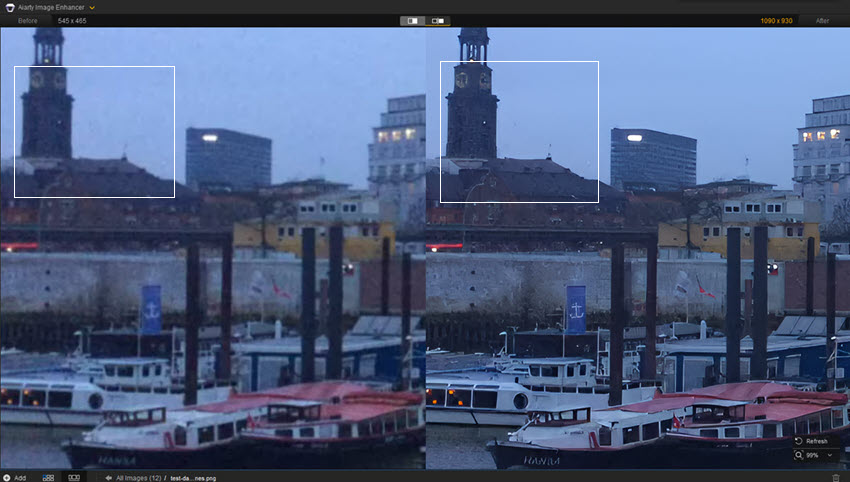
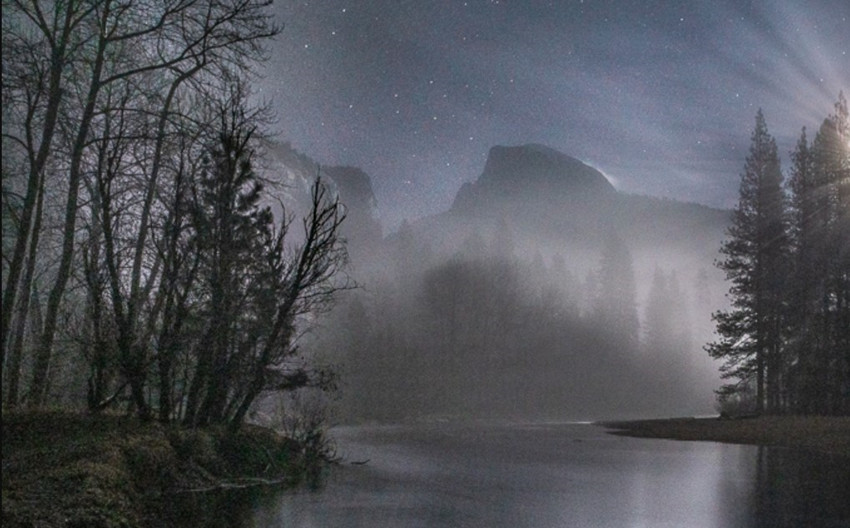
We will show you how Aiarty Image Enhancer could be a nice alternative to both Lightroom and Topaz Photo denoise. Below we take a raw file shared on michaelfrye as the source example.
Based on our tests, Topaz Denoise AI and Lightroom Denoise AI both deliver solid noise reduction, with Lightroom leaving slightly more visible grain, while Topaz produces smoother results.
Aiarty Image Enhancer delivers a remarkably clean image while preserving fine details, making it an excellent alternative for photographers who want high-quality denoise without extensive manual adjustments.
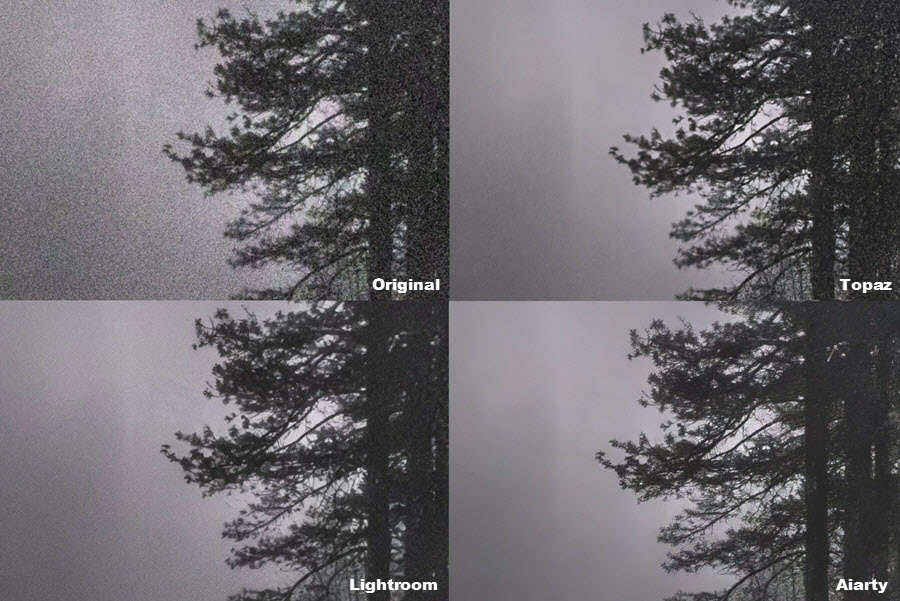
The original image shows noticeable noise and soft details in low-light areas, while the Aiarty output delivers a clean, crisp result with well-preserved textures.
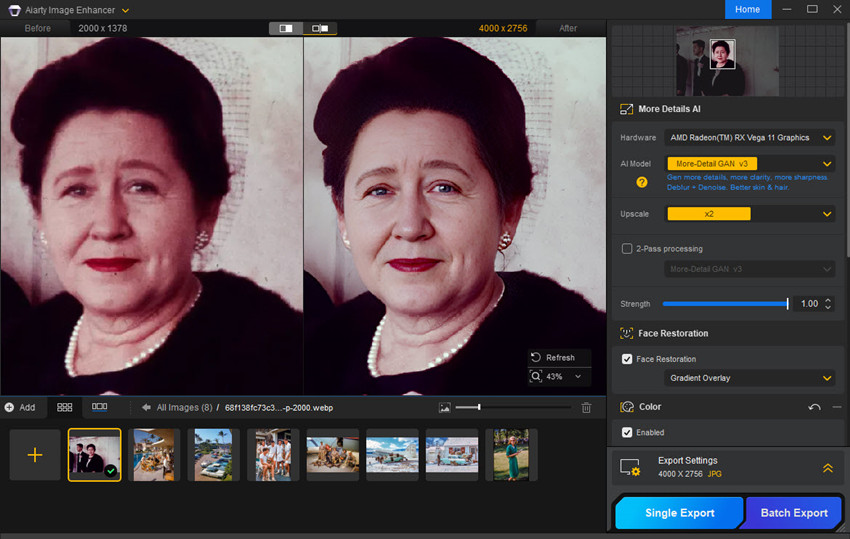
Hot Search: Aiarty Image Enhancer vs Topaz Photo AI – real-world results and quality differences
Verdict
Both Topaz Denoise AI and Lightroom Denoise AI are powerful tools for noise reduction, each excelling in different scenarios. Lightroom is ideal for quick, natural-looking results, moderate ISO images, and high-volume batch workflows. Topaz shines when tackling extremely noisy, underexposed, or high-ISO RAW files, offering advanced controls for fine-tuning detail and sharpening.
For photographers seeking a one-click AI solution that balances speed, simplicity, and high-quality noise removal, even for low-light or compressed images, Aiarty Image Enhancer provides an attractive alternative, delivering clean, crisp results without manual slider adjustments
You May Also Like


This post was written by Brenda Peng who is a seasoned editor at Digiarty Software who loves turning ordinary photos into extraordinary works of art. With AI assistance for brainstorming and drafting, the post is reviewed for accuracy by our expert Abby Poole for her expertise in this field.
