


Capture One offers powerful tools for RAW processing, color grading, and photo organization, but specialized tasks such as film emulation, focus stacking, image search, and file optimization may require additional tools. The right Capture One plugins and integrations can extend your workflow without requiring you to switch photo editors.
This guide covers popular Capture One plugins and integrations, including Dehancer, Helicon Focus, ON1 Effects, Glass, Peakto Search, and JPEGmini. It also explains how to install and manage plugins, how third-party tools differ from native integrations, and when to add a dedicated image enhancement tool like Aiarty Image Enhancer to your existing workflow.
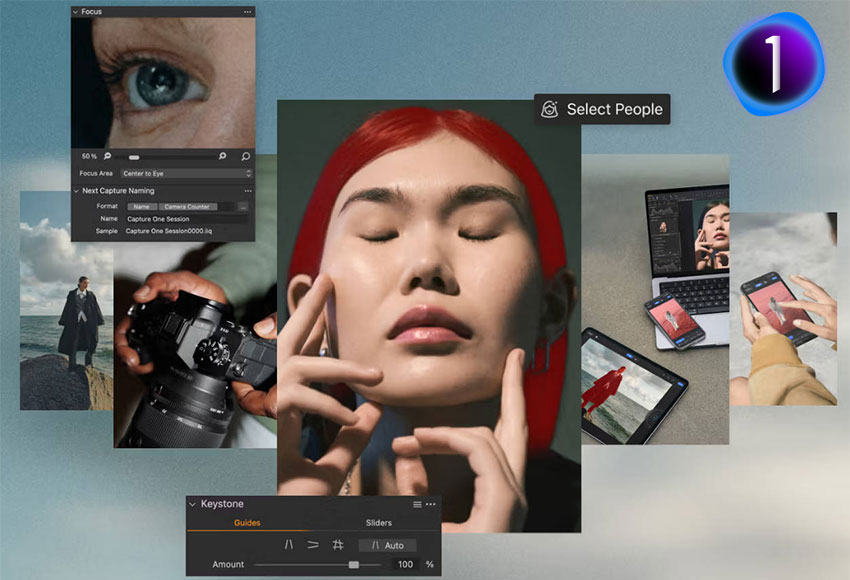
What Are Capture One Plugins?
Capture One plugins and integrations extend its workflow with tools for creative effects, focus stacking, photo publishing, image search, and file optimization. However, not every tool that works with Capture One is a native plugin.
Official Capture One Plugins vs. Third-Party Integrations
Capture One supports various plugins and third-party integrations, including tools such as Glass, JPEGmini, Peakto Search, and Helicon Focus. Others, such as Dehancer and ON1 Effects, use different integration methods. Check each developer's compatibility requirements and setup instructions before installing.
Plugins vs. External Editors: What's the Difference?
Plugins connect to Capture One through a supported integration, while external editors are separate applications that process images outside Capture One. Commands such as Edit With can send an adjusted, rendered copy, often as a TIFF, to another application. The edited file can then be imported back into Capture One.
For example, Aiarty Image Enhancer is a standalone tool for tasks such as noise reduction, detail enhancement, and upscaling. It complements Capture One through an external editing workflow rather than acting as a native plugin.
Best Capture One Plugins and Integrations
The best Capture One plugins depend on the tasks you want to accomplish beyond your regular RAW development and color adjustments. Some add creative effects, while others help you combine images for greater depth of field, publish your work, search large photo libraries, or optimize exported files. Here are six tools worth considering for different photography workflows.
1. Best for Creative Effects: ON1 Effects
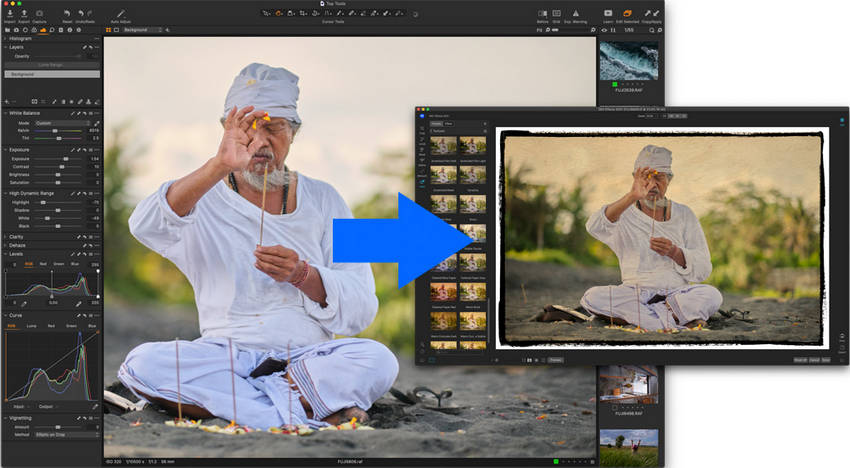
ON1 Effects adds a broad collection of creative filters and styling tools to a photo editing workflow. It can be used to build custom looks, combine effects, adjust the mood of a scene, and apply finishing touches that go beyond basic exposure and color correction.
With its Capture One workflow, you can send an image to the ON1 Effects standalone application for further editing and bring the processed result back into Capture One. This makes it possible to keep your RAW adjustments in Capture One while using ON1 for more stylized treatments.
Best for: Photographers who want more creative control over image styling, including dramatic landscapes, artistic portraits, and images that benefit from layered effects.
2. Best for Focus Stacking: Helicon Focus
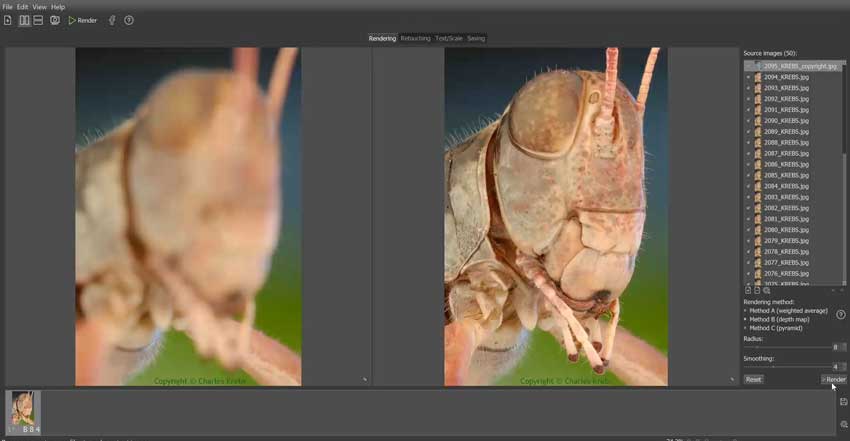
Helicon Focus combines multiple photos taken at different focus distances into a single image with greater depth of field. It is particularly useful for macro photography, product shots, and other subjects where a single exposure cannot keep the entire scene in focus.
Its Capture One integration provides a round-trip workflow. Select a sequence of images and use Image > Edit With > Stack with Helicon Focus to send them for focus stacking. After processing and saving the composite, close Helicon Focus to return the result to Capture One.
Best for: Macro, still-life, and product photographers who need more depth of field than a single image can provide. Helicon Focus is a standalone application with a Capture One plugin included.
3. Best for Film Emulation: Dehancer
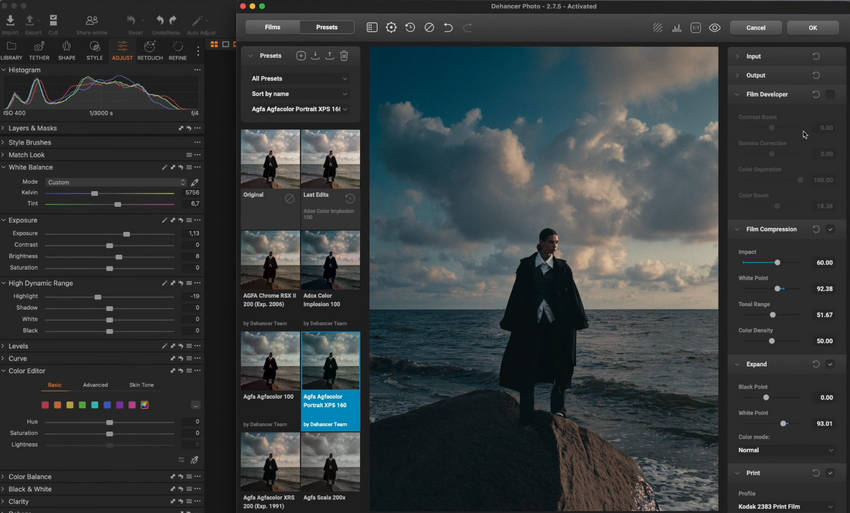
Dehancer for Capture One is designed for photographers who want to give digital photos an analog film look. It offers film profiles, film grain, halation, bloom, and other effects that help recreate the appearance of traditional film photography.
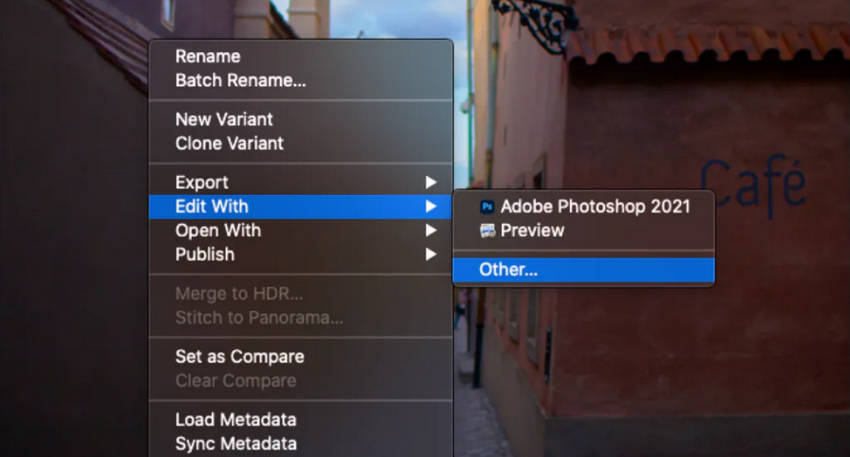
Dehancer works with Capture One through an external editing workflow. After installing the appropriate software, select a photo in Capture One, choose Edit With > Other…, and open Dehancer. The workflow uses a rendered image, such as a 16-bit TIFF in a supported color space, rather than sending the original RAW sensor data directly to Dehancer.
Best for: Portrait, wedding, travel, and editorial photographers who want film-inspired colors, grain, and highlights without changing their main RAW editing workflow.
4. Best for Photo Publishing: Glass
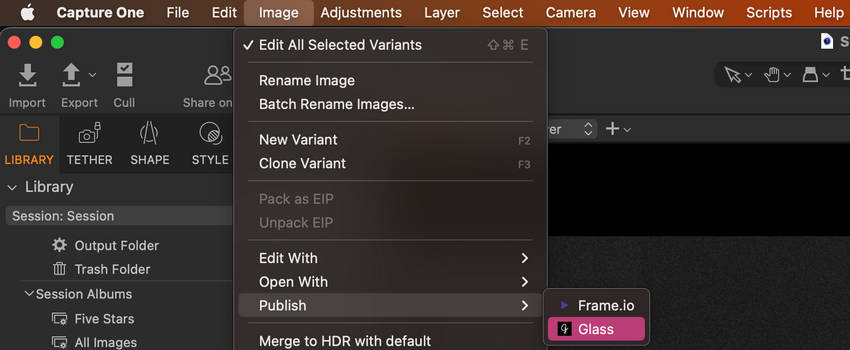
Glass is a photography-focused platform for sharing and presenting your work. Its Capture One plugin lets you publish images directly to Glass, reducing the need to export photos separately and upload them through a browser.
Glass is useful when you want a dedicated space for your photography portfolio or a community built around viewing and sharing images. Unlike creative editing plugins, it focuses on the publishing stage rather than changing pixels or enhancing image quality. The Capture One integration is available on macOS.
Best for: Photographers who regularly share finished work and want a more direct publishing workflow from Capture One.
5. Best for Photo Search: Peakto Search
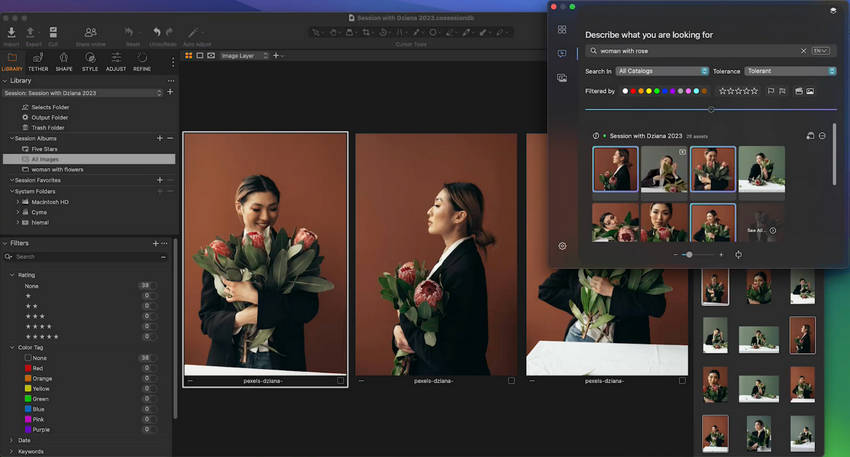
Peakto Search for Capture One helps photographers locate images across multiple catalogs and sessions. It supports searches using natural-language prompts, similar images, and metadata, making it easier to find a specific shot in a large photo collection.
Peakto Search is particularly useful when you remember what a photo looks like or what it contains but cannot recall its filename or which catalog it belongs to. Its search functionality can access images across multiple catalogs and sessions, even when Capture One Pro is closed.
Best for: Professional photographers, studios, and anyone managing large photo libraries who needs to retrieve images more efficiently.
6. Best for Image File Optimization: JPEGmini
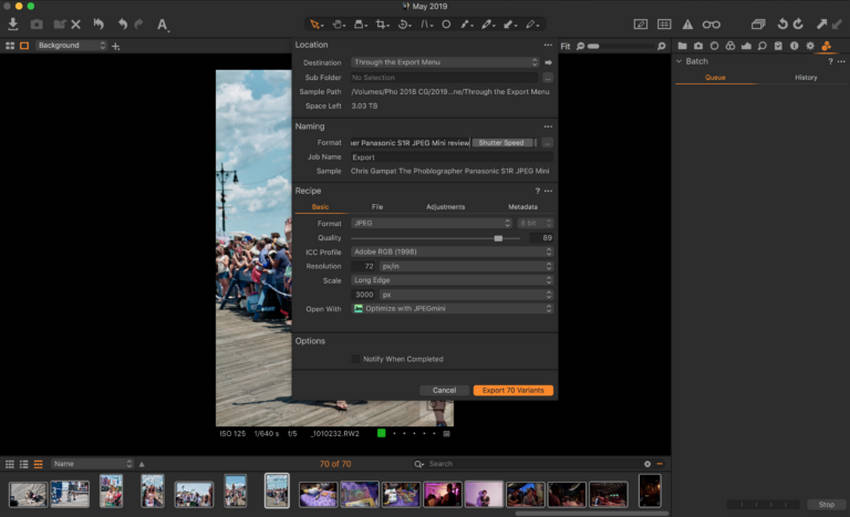
JPEGmini reduces the file size of exported images while aiming to preserve their visible quality. This is useful when delivering large batches of photos to clients, uploading galleries, sending images online, or meeting file-size limits.
Unlike an upscaler or image enhancement tool, JPEGmini focuses on file optimization rather than increasing resolution, reducing blur, or reconstructing fine details. Integrating it into the export workflow can help reduce storage and transfer requirements without adding a separate manual compression step for every image.
Best for: Wedding and event photographers, portrait studios, and other professionals who deliver large numbers of JPEG images and need smaller files for online sharing or client delivery.
Other Capture One Integrations to Know
Beyond dedicated editing plugins, several other tools can complement Capture One by improving hardware control or expanding creative options. Their integration methods and compatibility vary, so check the developer's current requirements before installing them.
Logi Marketplace Plugin
The Logi Marketplace Capture One plugin connects compatible Logitech MX devices to Capture One, allowing photographers to control exposure, white balance, cropping, brushes, layers, masks, and other editing actions through customizable physical controls. It is designed for macOS and requires compatible hardware and Logi software, making it a useful option for photographers who want faster, more tactile control over repetitive editing tasks.
Nik Collection by DxO
Nik Collection includes creative tools such as Color Efex for color effects and Silver Efex for black-and-white processing. It is worth considering if you want more specialized filters and local adjustments, but there is an important compatibility limitation: DxO does not officially support Capture One as a host application. Although some photographers use Nik tools through standalone or external-editor workflows, these setups are not officially supported by DxO.
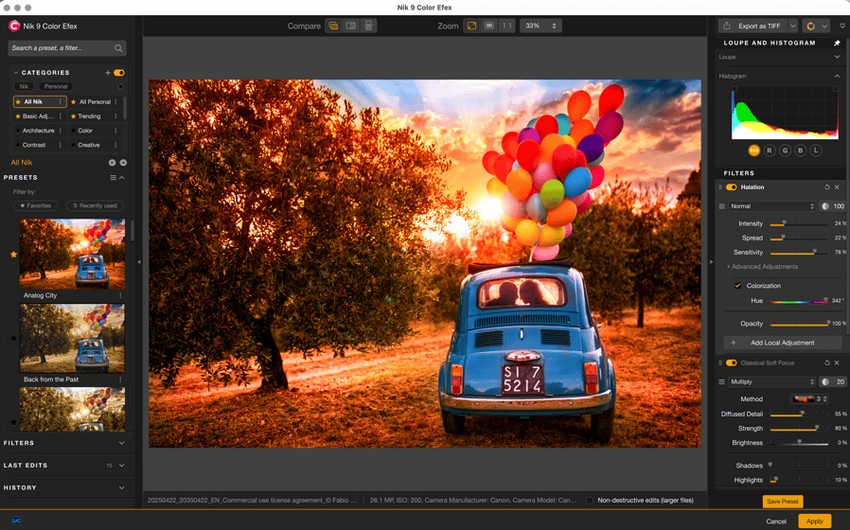
If you already use Capture One, check the current Nik Collection compatibility information before purchasing it specifically for use with Capture One.
Other ON1 Plugins
Beyond ON1 Effects, the ON1 plugin lineup for Capture One includes specialized tools such as Resize AI for image enlargement, Portrait AI for portrait enhancement, and HDR for combining multiple exposures. These options may suit photographers with specific editing needs, but you do not need the entire suite if you only require one particular function.
How to Install and Manage Capture One Plugins
Capture One integrations use different setup methods. Some are managed through Capture One, while others require a separate installer or work as external editors. Always check the developer's instructions and compatibility requirements.
How to Install a Capture One Plugin
For plugins supported by Capture One's plugin manager:
- Download the plugin and follow the developer's installation instructions.
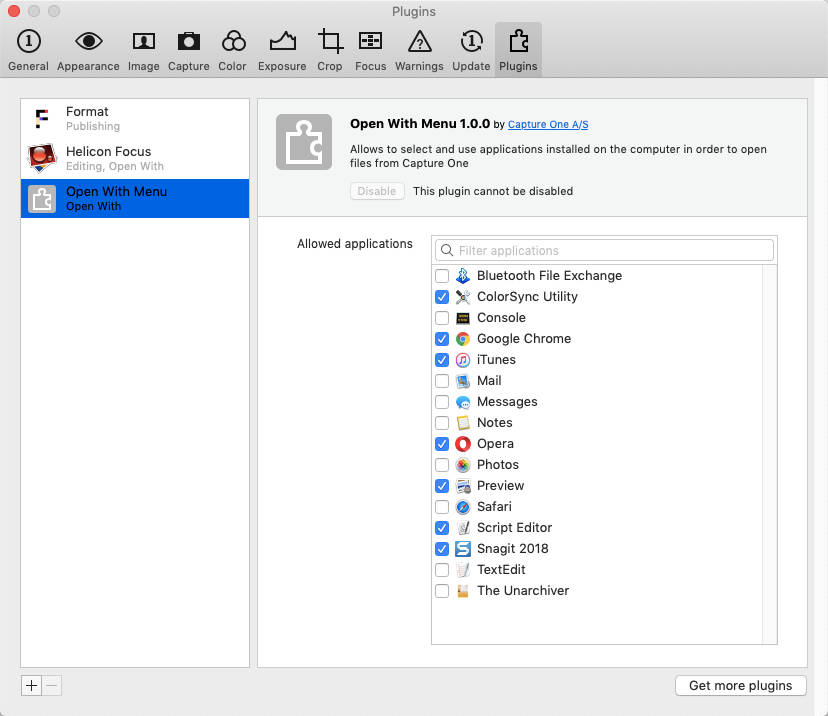
- Open Capture One's plugin settings and check whether the plugin is installed and enabled.
- If the plugin does not appear, consult the developer's setup guide. Some tools, such as Dehancer, are added through Image > Edit With > Other… rather than the plugin manager.
How to Enable, Disable, or Remove Plugins
- Enable or disable: Open Capture One's plugin settings and use the available controls. Options vary by plugin and version.
- Remove: Follow the plugin developer's uninstall instructions or use the plugin manager if removal is supported.
- Check external editors: If an application is missing from the Edit With list, confirm that it is installed and that Capture One can locate it.
Removing an entry from Capture One does not necessarily uninstall the associated application.
How to Use External Editors with Capture One
When a tool is not a native Capture One plugin, you may still be able to use it through an external editing workflow:
- Edit With: Select an image, choose Edit With, and select an application and file format. Capture One renders a copy with your current adjustments, often as a TIFF or PSD, for editing in the external application. Save the result to bring it back into your workflow.
- Open With: Open an existing file directly in another application. Capture One does not first render a new copy with its current adjustments, so this is generally more suitable for files that have already been processed.
A 16-bit TIFF can be a practical choice for further editing when the external application supports it. The key limitation is that the external editor receives a rendered image, not the original RAW data with Capture One's adjustments still independently editable.
Dehancer can be added to the external editing list using its documented setup process. Nik Collection supports standalone use, but DxO does not officially support Capture One as a host application. Aiarty Image Enhancer is also a separate application, not a native Capture One plugin; enhance a compatible exported image in Aiarty, then import the result back into Capture One if needed.
For version-specific instructions, see Capture One's guides to using plugins for external editing and external editing.
How to Add AI Image Enhancement to Your Capture One Workflow
Capture One handles RAW development, color correction, and photo organization. For images that still need stronger noise reduction, detail recovery, face restoration, or upscaling, Aiarty Image Enhancer can serve as a dedicated enhancement step. It runs as a separate application, so you can add it to your workflow without replacing Capture One or treating Aiarty as a native plugin.
When to Use Aiarty Image Enhancer
Not every photo needs additional AI processing. Consider using Aiarty Image Enhancer when a particular image has problems that remain after your usual RAW and color adjustments:
- High-ISO or low-light photos: Reduce distracting noise while retaining visible texture in hair, fabric, and other fine details.
- Soft or low-resolution portraits: Refine facial details when ordinary sharpening is insufficient. Face restoration can be useful for blurry or low-quality faces.
- Heavily cropped wildlife or travel shots: Upscale an image when you need more pixels for a tighter crop, a larger display, or a print.
- Compressed or previously resized images: Reduce visible compression artifacts and improve clarity before sharing or repurposing the image.
AI enhancement cannot recover every detail lost to severe blur, missed focus, or clipping. Use it selectively for images that need extra work rather than automatically processing every photo in a Capture One session.
How to Use Aiarty Image Enhancer with Capture One
A practical approach is to finish your RAW development in Capture One, enhance a rendered copy in Aiarty, and bring the result back for final review and output.
- Adjust the photo in Capture One. Set exposure, white balance, color, and tonal adjustments first. Choose the image that needs additional enhancement.
- Export a working copy. Use Export or Edit With if the workflow is configured for the application. A 16-bit TIFF with ProPhoto RGB is a useful starting point for preserving editing latitude, provided your software and output settings support it.
- Open the rendered file in Aiarty. Import the TIFF into Aiarty Image Enhancer. Choose an appropriate model and preview the result. Start with 1x if you mainly need denoising or detail refinement; use 2x or 4x when you also need a larger image.
- Export and return to Capture One. Save the enhanced image as a new file, then import it into your catalog or session. Keep the original and enhanced versions so you can compare them and choose the better result.
- Finish and export. Check the enhanced image in Capture One, make any necessary final adjustments, and export the version suited to your intended use.
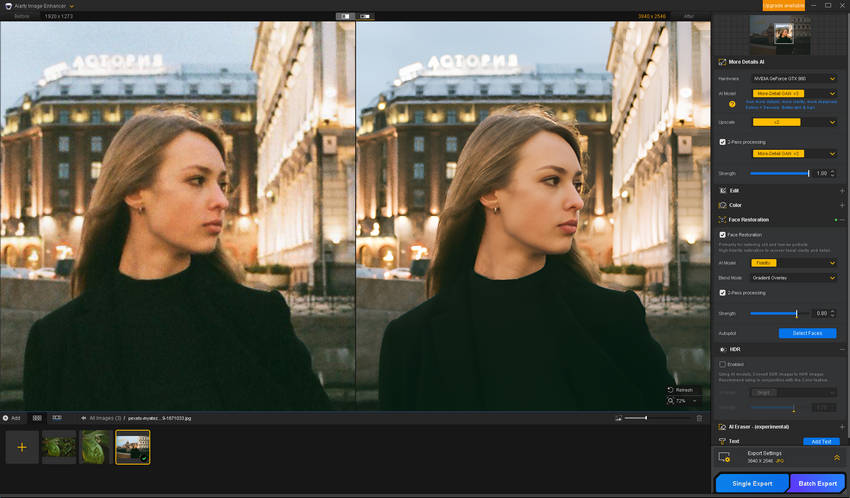
Note: Capture One's Edit With workflow can render an adjusted copy and re-import the edited result automatically when the external application is configured and supported. If Aiarty is not available in that list, export the image first and import the enhanced result manually. See Capture One's external editing guide for details.
What to Check After AI Enhancement
AI-generated detail can improve perceived clarity, but it may also change textures or facial features. Before accepting the result, compare it with the original at 100% zoom and check:
- Texture and sharpness: Look for halos, oversharpening, waxy skin, or unnatural fur, hair, and foliage.
- Faces and fine features: Make sure eyes, teeth, skin texture, and facial proportions still look plausible. Treat reconstructed details as estimates, not guaranteed recovery of the original information.
- Color and tonal consistency: Check skin tones, shadows, highlights, and saturation against your Capture One version.
- Resolution and file quality: Confirm the exported dimensions, color profile, and bit depth meet your delivery requirements.
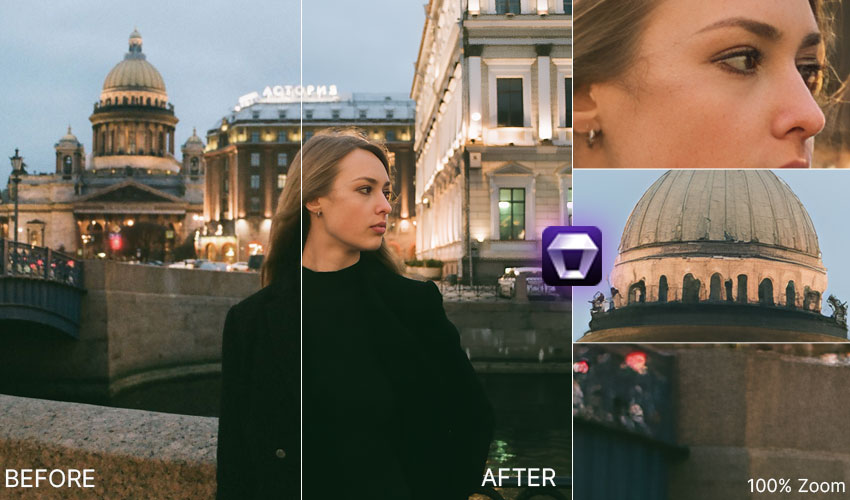
Keep the original file and use the enhanced version only when it genuinely improves the image. For important portraits, wildlife shots, and commercial work, review the result at both full size and normal viewing size before delivery.
 FAQ
The best choice depends on your needs. Dehancer is useful for film emulation, Helicon Focus for focus stacking, ON1 Effects for creative filters, Glass for photo sharing, Peakto for image search, and JPEGmini for file-size optimization. Check each tool's current compatibility and integration method before installing it.
Yes, Capture One supports certain third-party plugins and integrations, but not every compatible tool is a native plugin. Some applications work through Capture One's external editing commands, while others use separate workflows. Check the developer's documentation to confirm the integration method and supported versions.
Download the plugin and follow the developer's installation instructions. If it is supported by Capture One's plugin manager, check the plugin settings to confirm that it is enabled. For external editors, you may need to install the application separately and add it through Image > Edit With > Other…. The exact steps depend on the tool and Capture One version.
Nik Collection can be used as a standalone application or through certain external editing workflows, but DxO does not officially support Capture One as a host application. Compatibility and workflow limitations may apply, so check the official compatibility information before purchasing it specifically for Capture One.
Yes. Export a compatible image from Capture One, open it in an AI upscaling application such as Aiarty Image Enhancer, and upscale it before importing the result back into Capture One. This is an external workflow, not a native Capture One plugin integration. Review fine details after upscaling to check for artificial textures or reconstructed features.
Yes. Use Edit With to send a rendered copy with your current Capture One adjustments to a compatible external editor, typically in a format such as TIFF or PSD. Alternatively, Open With opens an existing file without first rendering a new copy through Capture One. After editing, import the saved result if it does not return to your catalog or session automatically.
You May Also Like


This post was written by Brenda Peng who is a seasoned editor at Digiarty Software who loves turning ordinary photos into extraordinary works of art. With AI assistance for brainstorming and drafting, the post is reviewed for accuracy by our expert Abby Poole for her expertise in this field.
