


DaVinci Resolve has evolved into one of the most capable video editors available today. Between its professional color grading tools, Fusion visual effects, Fairlight audio suite, and built-in editing features, many creators can complete an entire project without ever leaving the software.
So why are so many DaVinci Resolve users still installing plugins?
The answer isn't because Resolve lacks features. It's because some tasks remain unnecessarily time-consuming, require complex node setups, or simply aren't handled as efficiently as dedicated tools. Whether it's removing noise from footage, creating cinematic film looks, generating animated captions, or speeding up repetitive editing work, the right plugin can save hours while producing more polished results.
Of course, not every plugin is worth your money. Some offer genuinely unique capabilities, while others duplicate tools that Resolve already includes. Choosing the right ones depends on your workflow, budget, and the type of videos you create.
In this guide, we've rounded up the best DaVinci Resolve plugins for 2026, including both free and paid options. We've also organized them by category so you can quickly find the tools that fit your editing style, whether you're a filmmaker, YouTuber, wedding videographer, content creator, or colorist.
Quick Picks: Best DaVinci Resolve Plugins at a Glance
Below, we'll break down each category, explain what every plugin does, and help you decide which ones are actually worth installing.
Best Noise Reduction Plugins for DaVinci Resolve
Noise reduction is one of the few areas where many DaVinci Resolve users still rely on third-party tools. While DaVinci Resolve Studio includes excellent built-in Temporal and Spatial Noise Reduction, dedicated plugins can offer better results for difficult footage, more flexible controls, or specialized restoration features. Below are three of the most popular options, along with an alternative workflow for footage that needs more than noise removal.
1. Neat Video
Best for: Professional-quality noise reduction
Price: Starts at US$99.90 (Home license)
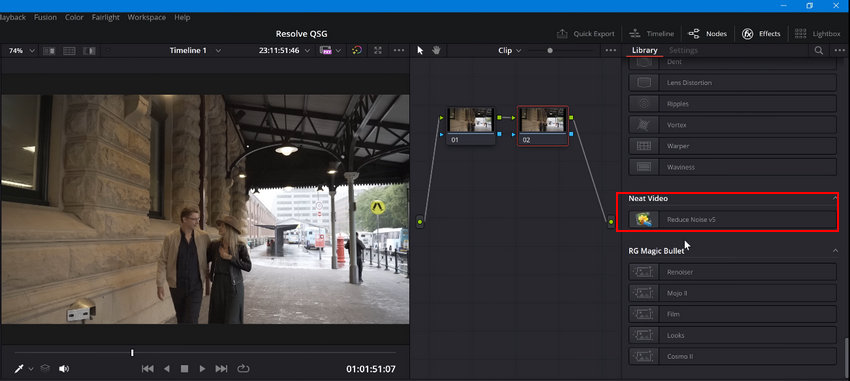
Neat Video is widely regarded as the gold standard for video noise reduction. Instead of simply smoothing away grain, it analyzes each clip to build a custom noise profile, helping preserve fine textures and edge detail while removing sensor noise. It also performs well on compressed footage and can reduce certain types of flicker and digital artifacts.
- Industry-leading noise reduction quality
- Excellent detail preservation
- Custom noise profiling for different cameras
- Compatible with both DaVinci Resolve Free and Studio
- Relatively expensive
- Rendering can be slower on less powerful hardware
2. Digital Anarchy Flicker Free
Best for: LED flicker, time-lapse, drone, and high-speed footage
Price:US$199/year
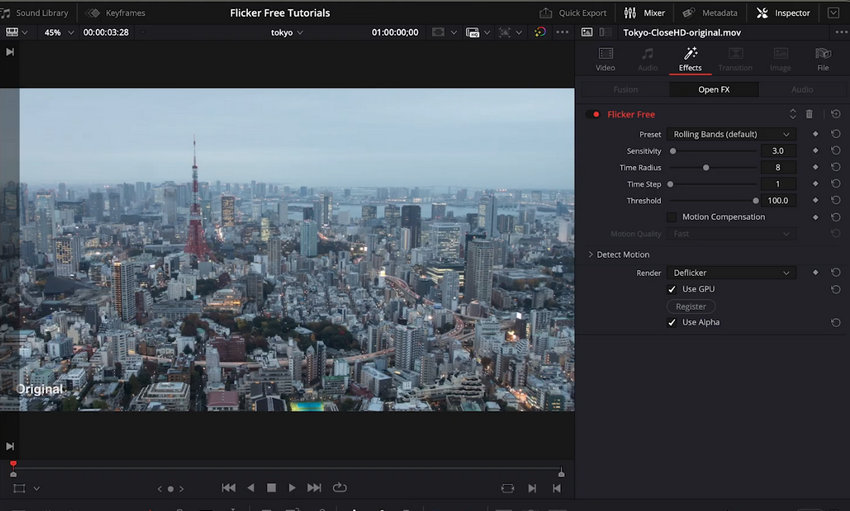
Although Flicker Free is primarily designed to eliminate flickering caused by LED lights, monitors, fluorescent lighting, and time-lapse photography, it's frequently used alongside traditional denoising tools when footage suffers from multiple quality issues. For event videographers and filmmakers shooting under challenging lighting conditions, it can be an invaluable addition to the editing workflow.
- Excellent at removing flicker from difficult footage
- Supports a wide range of shooting scenarios
- Integrates directly into DaVinci Resolve
- Not a dedicated noise reduction plugin
- Premium pricing
Looking Beyond Plugins: Enhance Footage Before Editing
Plugins work well when the main issue is image noise. But if your footage is also low-resolution, heavily compressed, or lacking fine detail, denoising alone can only do so much.
In these situations, improving the source footage before importing it into DaVinci Resolve can often produce better results. AI-powered enhancement tools combine noise reduction with detail restoration and upscaling, giving you cleaner clips to edit and color grade.
One option is Aiarty Video Enhancer. While it's not a DaVinci Resolve plugin, it fits naturally into a pre-edit workflow by reducing noise, restoring lost detail, and upscaling videos before they're brought into Resolve. This approach can be particularly useful for smartphone footage, old videos, screen recordings, and highly compressed clips that require more comprehensive restoration than traditional denoising alone.
Best Color Grading Plugins for DaVinci Resolve
DaVinci Resolve is widely regarded as one of the best color grading applications available, but plugins can further expand its capabilities with film stock emulation, AI-assisted grading, and creative looks that would otherwise take much longer to achieve. Here are three of the most popular options.
1. Dehancer
Best for: Film emulation and cinematic color grading
Price: Starts at US$29/month (DaVinci Resolve OFX license)
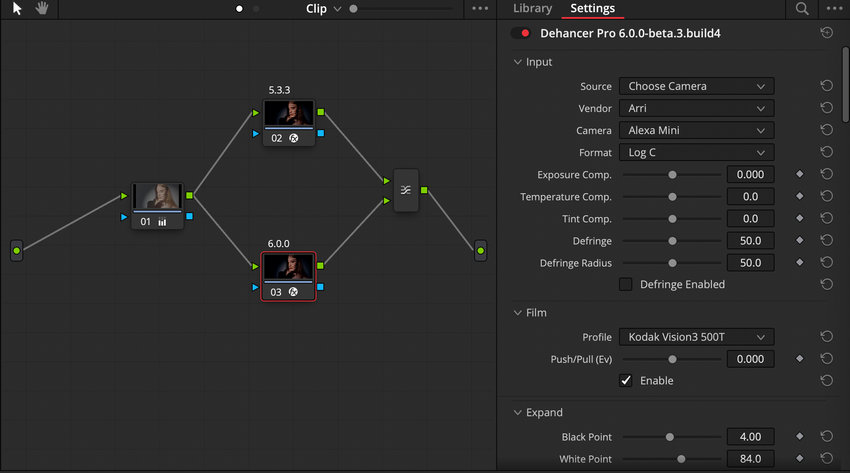
Dehancer is one of the most respected color grading plugins among filmmakers and professional colorists. It goes beyond LUTs by simulating the characteristics of analog film, including film grain, halation, bloom, color compression, and print emulation. The result is a more natural, organic look that many users prefer over standard film LUTs.
- Exceptional film stock emulation
- Extensive controls for creative grading
- Highly realistic halation and film grain
- Frequently used in commercial and narrative filmmaking
- Premium price
- Can feel overwhelming for beginners
2. FilmConvert Nitrate
Best for: Fast, camera-specific film looks
Price: Starts at US$119
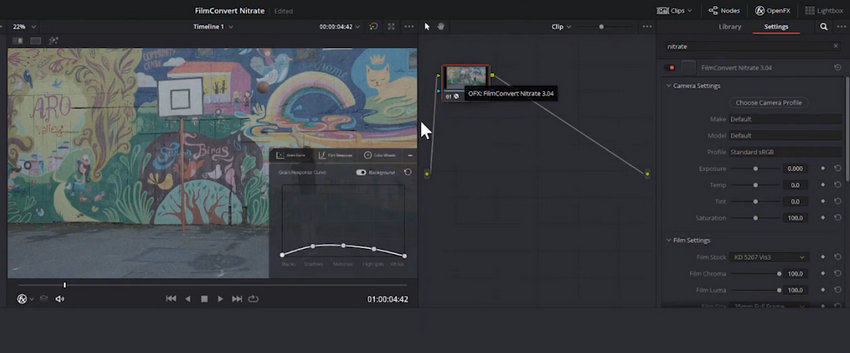
FilmConvert Nitrate makes it easy to give digital footage a cinematic appearance without building complex grading nodes. It includes camera-specific profiles for many popular cameras, allowing color and grain to be tailored to your footage for more consistent results.
- Camera-specific color profiles
- High-quality film grain
- Beginner-friendly workflow
- Faster than building a film look manually
- Fewer creative controls than Dehancer
- Focused primarily on film emulation
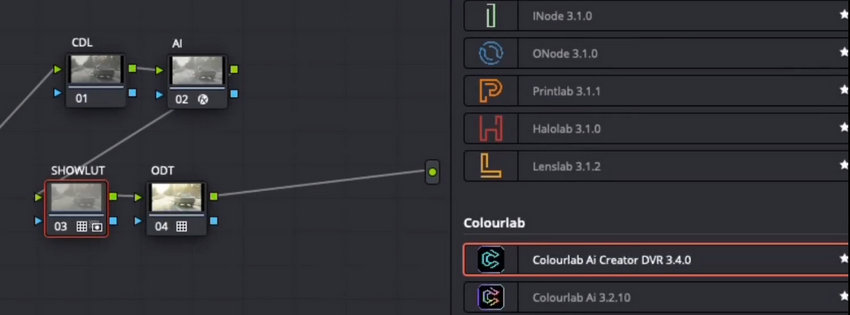
3. Colourlab AI
Best for: AI-assisted color matching and balancing
Price: Starts at US$29/month (subscription)
Colourlab AI uses artificial intelligence to speed up color correction and shot matching. Instead of adjusting clips individually, it can automatically balance colors across multiple shots and provide a solid starting point for further grading. This makes it especially useful for interviews, documentaries, weddings, and multicamera productions where maintaining consistency is essential.
- AI-powered shot matching
- Speeds up color correction
- Supports multicamera workflows
- Integrates well with DaVinci Resolve
- Subscription-based pricing
- Final grading often still requires manual refinement
Best AI Plugins for DaVinci Resolve
Artificial intelligence is becoming a bigger part of modern video editing, helping creators automate repetitive tasks like generating captions, transcribing dialogue, cleaning up audio, and matching colors. While DaVinci Resolve has introduced its own AI-powered features, third-party tools often provide more specialized capabilities and faster workflows.
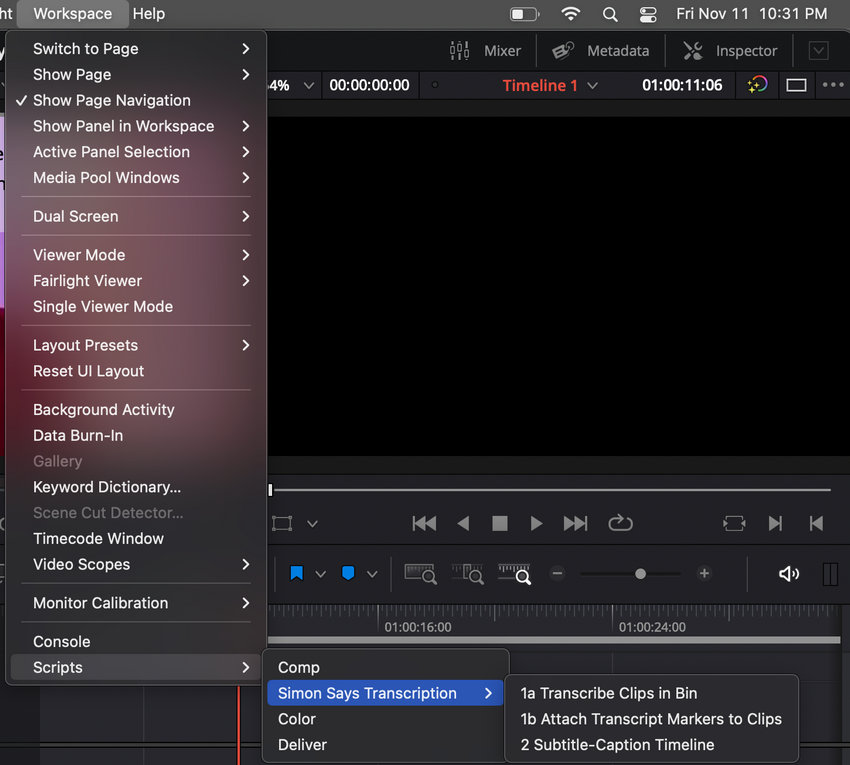
1. Simon Says
Best for: AI transcription, subtitles, and translations
Price:US$15/hour
Simon Says is a popular AI transcription platform used by filmmakers, documentary editors, and production teams. It can automatically transcribe interviews, generate subtitles, and translate content into multiple languages. Projects can then be exported back to DaVinci Resolve as subtitle or timeline files, making it easy to integrate into existing workflows.
- Accurate speech-to-text transcription
- Supports multiple languages
- Fast subtitle generation
- Ideal for interviews and documentaries
- Subscription required for regular use
- Cloud-based processing
2. Snap Captions
Best for: Social media captions and short-form videos
Price: offers a free tier (with word-by-word animation and templates), an $8/month subscription, and a $150 lifetime license.
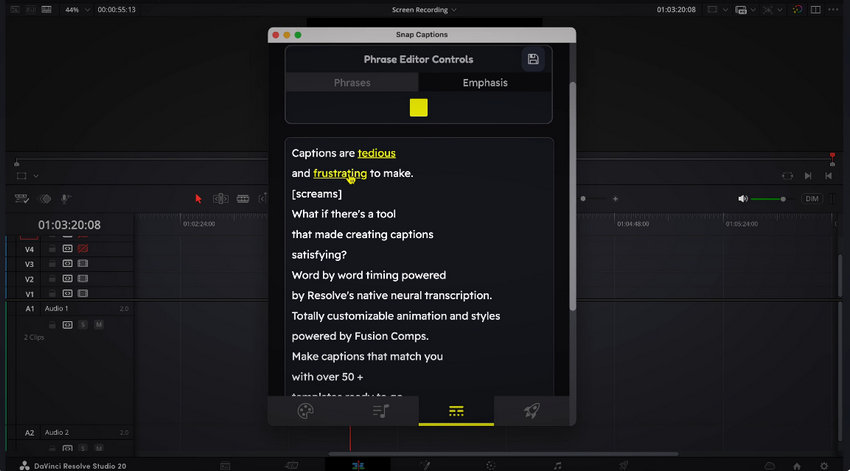
Snap Captions helps creators produce animated subtitles designed for platforms like YouTube Shorts, TikTok, and Instagram Reels. Instead of manually designing captions inside Resolve, users can quickly generate modern, customizable subtitle styles that improve viewer engagement.
- Stylish animated captions
- Easy to customize
- Great for short-form content
- Saves significant editing time
- Focused primarily on captions
- Less suitable for traditional filmmaking projects
3. Colourlab AI
Best for: AI-assisted color matching
Price: Starts at US$29/month
While Colourlab AI is well known as a color grading tool, its AI-powered shot matching is what makes it stand out. It automatically analyzes clips and balances color between shots, reducing the time spent on manual corrections. This is especially valuable for multicamera productions, interviews, and event videos where maintaining visual consistency can be challenging.
- AI-powered color matching
- Speeds up repetitive grading tasks
- Excellent for multicamera projects
- Integrates smoothly with DaVinci Resolve
- Subscription-based pricing
- Doesn't replace creative grading decisions
Best Motion Graphics Plugins for DaVinci Resolve
Motion graphics can add a polished, professional feel to your videos, but creating animations from scratch in Fusion often takes time and experience. Motion graphics plugins and template packs make it much easier to build engaging titles, transitions, callouts, and social media animations without starting from zero.
1. MotionVFX
Best for: Professional motion graphics and title packs
Price: Varies by product (typically US$29–149)
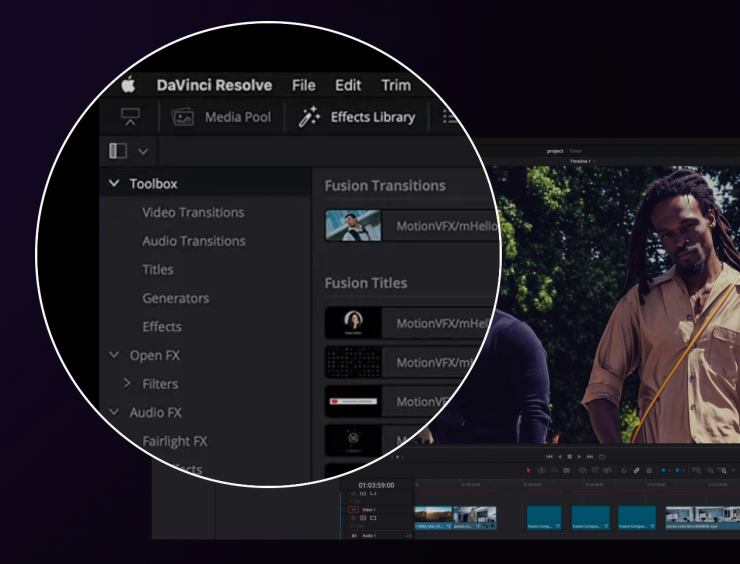
MotionVFX is one of the most popular plugin developers for DaVinci Resolve, offering an extensive collection of professionally designed templates, transitions, titles, lower thirds, and visual effects. Its plugins are widely used by YouTubers, commercial editors, and filmmakers looking to speed up production while maintaining a polished look.
- Huge library of professionally designed assets
- Easy drag-and-drop workflow
- High production quality
- Regularly updated with new templates
- Most products are sold separately
- Can become expensive if purchasing multiple packs
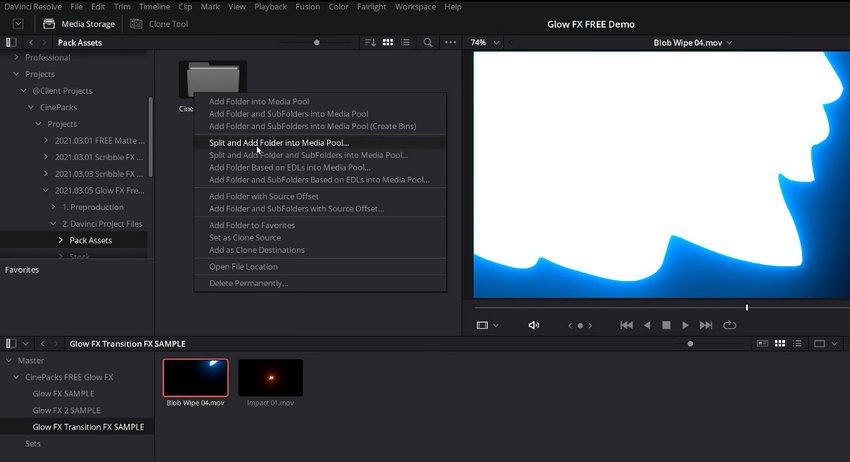
2. CinePacks
Best for: Cinematic effects, transitions, and editing assets
Price: Individual CinePacks for DaVinci Resolve range from $39 to $49. Prices vary by specific product.
CinePacks offers a wide range of creative assets for DaVinci Resolve, including transitions, overlays, film burns, light leaks, title animations, and sound effects. Many creators appreciate the variety of free resources available, while professionals often build their own collections from its premium packs.
- Wide variety of creative assets
- Suitable for social media and cinematic projects
- Free packs available
- Easy to integrate into existing workflows
- Product quality varies between packs
- Finding the right pack may take some browsing
Best Fusion Plugins for DaVinci Resolve
Fusion is one of DaVinci Resolve's most powerful features, enabling everything from motion graphics and compositing to advanced visual effects. However, building every effect from scratch can be time-consuming. Fusion plugins and tool collections expand what's possible by adding new nodes, utilities, and workflow enhancements that save both time and effort.
1. Reactor
Best for: Expanding Fusion with free community-built tools
Price: Free
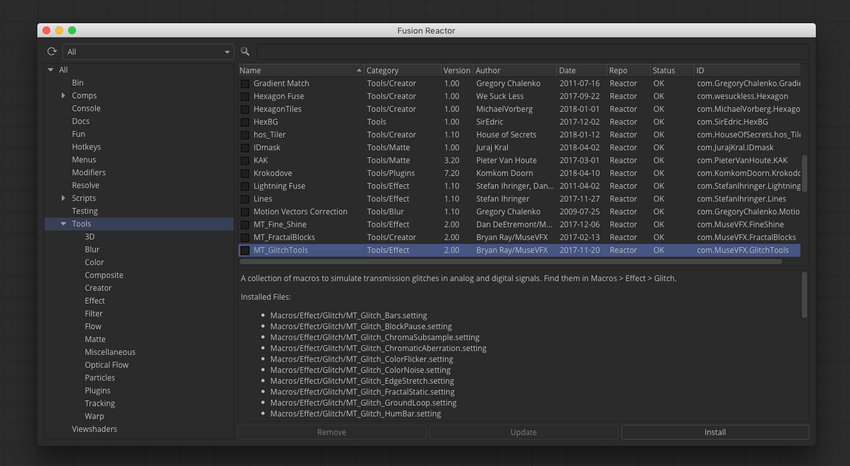
If there's one Fusion add-on almost every experienced Resolve user recommends, it's Reactor. Rather than being a single plugin, Reactor is a package manager that gives you access to hundreds of community-developed tools, macros, scripts, and Fuse plugins—all installable from one interface.
Many popular Fusion tools, including utility nodes and workflow enhancements, are distributed through Reactor, making it an essential download for anyone who regularly works in Fusion.
- Completely free
- Hundreds of tools available
- Easy installation and updates
- Strong community support
- Some tools require Fusion knowledge
- Quality varies between community contributions
2. Krokodove
Best for: Advanced particle effects and procedural animations
Price: Free
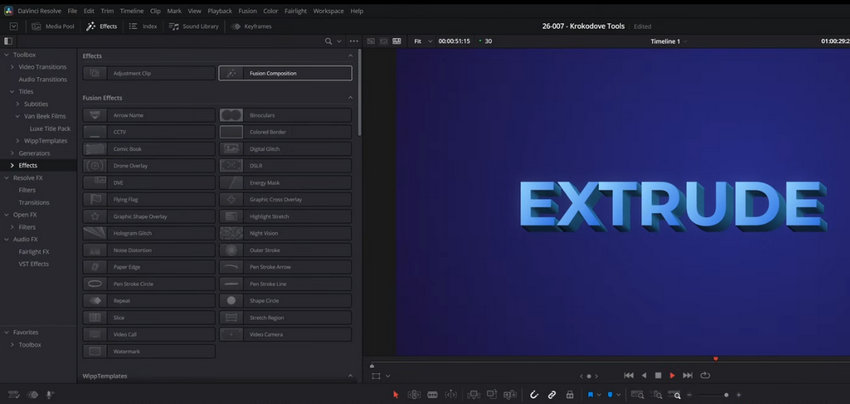
Krokodove is one of the best-known collections of custom Fusion nodes. It adds dozens of specialized tools for creating particle systems, procedural effects, distortions, glows, and other visual effects that aren't available in Resolve by default.
Although it has a steeper learning curve, it's a favorite among VFX artists who want greater creative flexibility inside Fusion.
- Powerful procedural effects
- Large collection of specialized nodes
- Free to use
- Excellent for advanced VFX work
- Not beginner-friendly
- Some effects require a solid understanding of Fusion
Do You Need Fusion Plugins?
If you mainly edit interviews, YouTube videos, or social media content, you may rarely need Fusion plugins.
However, if you create motion graphics, visual effects, title animations, or compositing work on a regular basis, tools like Reactor and Krokodove can significantly expand what Fusion can do while reducing the amount of repetitive setup required for complex projects. They have become staples in many professional Resolve workflows for exactly that reason.
Best Audio Plugins for DaVinci Resolve
Great visuals deserve equally polished audio. While DaVinci Resolve's Fairlight page includes a capable set of built-in audio tools, dedicated plugins can further improve dialogue clarity, reduce background noise, repair recordings, and streamline mixing. Here are three popular options trusted by content creators and professional editors alike.
1. iZotope RX
Best for: Audio repair and dialogue cleanup
Price: Starts at US$99 (RX Elements)
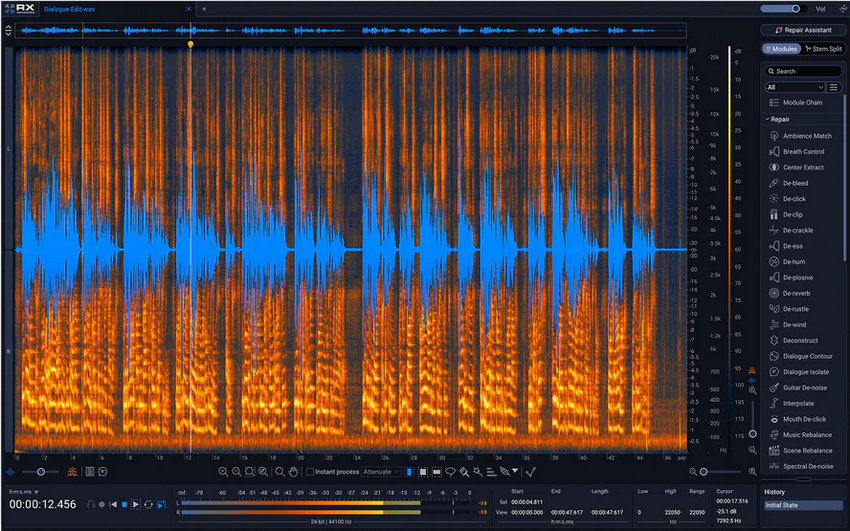
iZotope RX is widely considered the industry standard for audio restoration. It can remove background noise, hum, clicks, mouth noises, clipping, and other common recording issues with impressive precision. Whether you're editing interviews, podcasts, documentaries, or narrative films, RX can rescue recordings that would otherwise be difficult to use.
- Industry-leading audio restoration
- Excellent dialogue cleanup
- Wide range of repair modules
- Suitable for both beginners and professionals
- Advanced editions can be expensive
- Some tools require a standalone workflow
2. Supertone Clear
Best for: AI-powered voice enhancement
Price: US$69
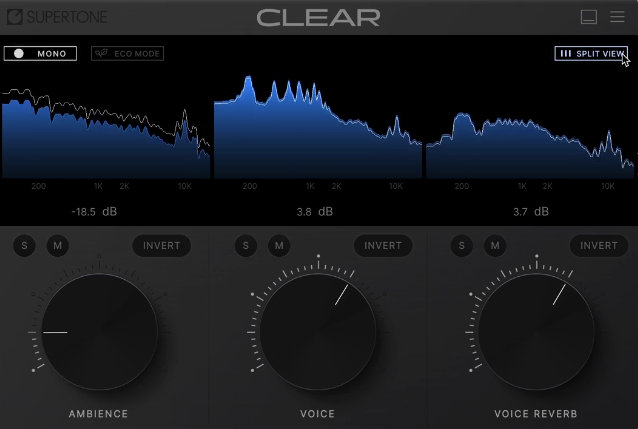
Supertone Clear uses AI to isolate speech and reduce unwanted background noise while maintaining a natural-sounding voice. It's particularly useful for creators working with interviews, online meetings, YouTube videos, and content recorded in less-than-ideal environments.
- Fast AI-powered processing
- Natural voice enhancement
- Simple, easy-to-use interface
- Great for spoken-word content
- Focused primarily on dialogue
- Less flexible than full restoration suites
3. Waves Clarity VX
Best for: Removing background noise from dialogue
Price: Starts at US$49.99 (frequent discounts available)
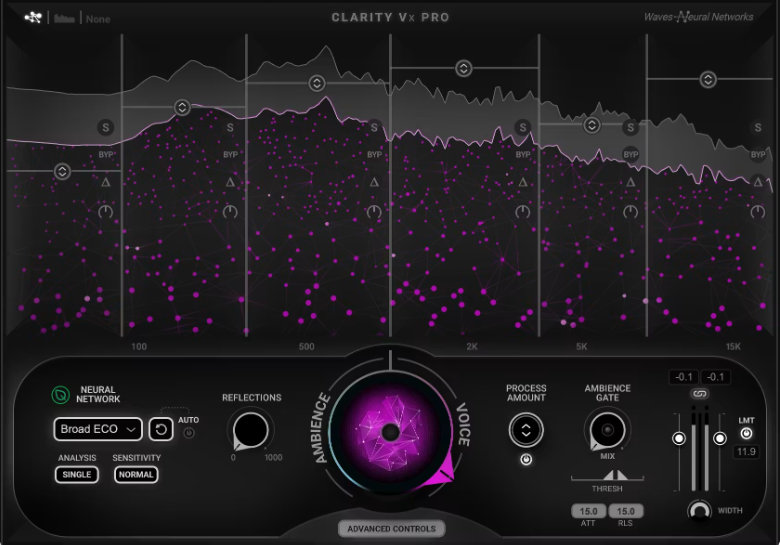
Waves Clarity VX is designed to separate voices from unwanted ambient noise with minimal manual adjustment. Powered by AI, it works particularly well for interviews, voiceovers, livestreams, and documentary footage where environmental noise can't be completely avoided during recording.
- Excellent speech isolation
- Quick one-knob workflow
- Affordable compared to many professional solutions
- Works well for podcasts and video production
- Primarily designed for dialogue
- May introduce artifacts on extremely noisy recordings
Which Audio Plugin Is Right for You?
If you're restoring damaged recordings or need the most comprehensive repair tools, iZotope RX remains the benchmark.
If your work centers on interviews, YouTube videos, or online content, Supertone Clear and Waves Clarity VX offer fast AI-powered solutions that require very little manual adjustment.
For many editors, pairing DaVinci Resolve's built-in Fairlight tools with one of these dedicated plugins provides the best balance between flexibility, sound quality, and editing efficiency.
Free DaVinci Resolve Plugins Worth Installing
Not every useful DaVinci Resolve plugin requires a paid license. In fact, some of the most recommended tools in the Resolve community are completely free. These plugins can improve Fusion workflows, speed up editing, and add useful features without increasing your production costs.
Here are some free plugins and tools worth trying.
1. Reactor
Best for: Expanding Fusion with free tools
Price: Free
Reactor is often considered a must-have installation for Fusion users. Instead of being a single effect, it works as a package manager that gives you access to hundreds of community-created Fusion tools, macros, scripts, and plugins.
For beginners, Reactor provides an easier way to discover useful Fusion extensions. For advanced users, it serves as a central hub for expanding Resolve's visual effects capabilities.
Why install it
- Access hundreds of free Fusion tools
- Simplifies plugin installation and updates
- Supported by a large Resolve community
2. Magic Zoom
Best for: Creating smooth zoom and camera movement effects
Price: Free
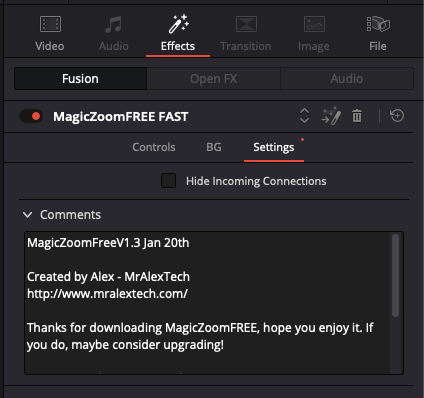
Magic Zoom is a popular Fusion tool for adding dynamic zoom effects without manually building complex node setups. It can be useful for documentary-style edits, photo animations, presentations, and social media videos.
Why install it
- Creates professional-looking zoom animations quickly
- Saves time compared with manual keyframing
- Beginner-friendly
3. Magic Animate
Best for: Quick text and object animations
Price: Free version available
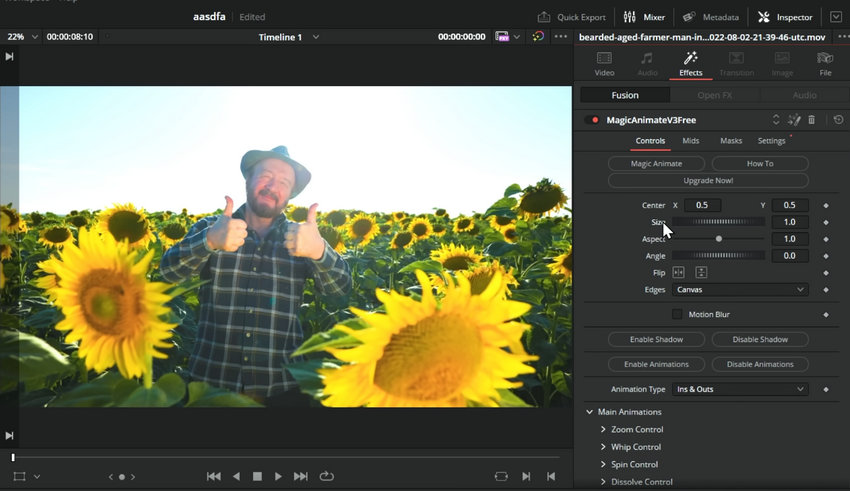
Magic Animate helps editors create animated titles and motion effects without spending a lot of time inside Fusion. It's a practical option for creators who want more movement in their videos but don't need a full motion graphics toolkit.
Why install it
- Faster than creating animations manually
- Useful for titles and social content
- Easy learning curve
4. Snap Captions
Best for: Animated subtitles for social media videos
Price: Free version available; paid features available
Snap Captions is designed for creators who produce short-form content, YouTube videos, and social media clips. It helps generate and style captions quickly, making it easier to create the bold subtitle styles commonly seen on platforms like TikTok and Instagram.
Why install it
- Speeds up subtitle creation
- Designed for modern social media formats
- Reduces manual caption work
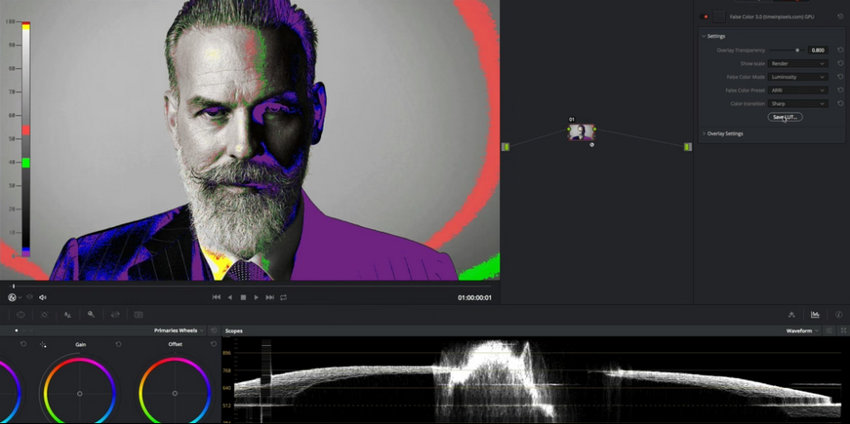
5. False Color
Best for: Exposure monitoring and cinematography
Price: Free
False Color tools help filmmakers and cinematographers evaluate exposure levels more accurately. Instead of relying only on the waveform or histogram, false color visualization makes it easier to identify overexposed highlights, underexposed shadows, and properly exposed skin tones.
Why install it
- Useful for camera monitoring and color workflows
- Helps achieve consistent exposure
- Valuable for filmmakers and advanced users
How to Install DaVinci Resolve Plugins
Installing plugins in DaVinci Resolve is usually straightforward, but the process depends on the type of plugin you're adding. Most effects use the OpenFX (OFX) format, while Fusion tools, templates, and scripts may require different installation locations.
Before installing any plugin, make sure it supports your version of DaVinci Resolve and your operating system.
1. Install OFX Plugins
Most DaVinci Resolve effects plugins, including noise reduction, color grading, and visual effects tools, are installed as OFX plugins.
Windows
- Download the plugin installer from the developer's website.
- Run the installer and select DaVinci Resolve if prompted.
- Restart DaVinci Resolve.
- Open the Effects Library and look for the new plugin under OpenFX.
Common OFX plugin location: C:\Program Files\Common Files\OFX\Plugins
macOS
- Download the plugin installer.
- Follow the installation instructions.
- Restart DaVinci Resolve.
- Find the plugin under Effects Library → OpenFX.
Common OFX plugin location: /Library/OFX/Plugins
2. Install Fusion Plugins and Tools
Fusion plugins are usually installed differently from OFX effects. They may include:
- Fusion macros
- Fuses
- Scripts
- Templates
- Custom nodes
Common Fusion installation folders include:
Windows
C:\ProgramData\Blackmagic Design\DaVinci Resolve\Fusion
macOS
/Library/Application Support/Blackmagic Design/DaVinci Resolve/Fusion
After installation:
- Restart DaVinci Resolve.
- Open the Fusion page.
- Search for the installed tool in the Effects Library or node menu.
3. Install Templates, Transitions, and Presets
Motion graphics packs and creative assets often use different installation methods.
Depending on the developer, you may need to:
- Import a template file manually
- Copy files into Resolve's template folder
- Use an included installer
- Install through a plugin manager
Always follow the developer's instructions, as template locations can vary between versions of DaVinci Resolve.
4. Restart Resolve and Check the Plugin
After installation:
- Close and reopen DaVinci Resolve.
- Create a new project.
- Check the appropriate area:
- Edit page → Effects Library → OpenFX for OFX plugins
- Fusion page for Fusion tools
- Fairlight page for audio plugins
Tips Before Installing Too Many Plugins
Although plugins can greatly improve your workflow, installing too many can make projects harder to manage and may affect stability. A better approach is to build a small collection of reliable tools that match your editing needs.
For most users, a practical starting setup might include:
- One professional noise reduction tool
- One color grading plugin
- One motion graphics solution
- One Fusion extension package
- One audio cleanup tool
The best plugin setup is not the one with the most effects, but the one that helps you finish projects faster.
 FAQs about DaVinci Resolve Plugins
Yes. DaVinci Resolve supports third-party plugins, including OpenFX (OFX) plugins, Fusion tools, audio plugins, and other extensions. Many popular plugins can be installed directly into Resolve to add new effects, improve workflows, or provide specialized features such as noise reduction, color grading, motion graphics, and audio restoration.
However, plugin compatibility depends on the plugin type, DaVinci Resolve version, operating system, and whether you are using the Free or Studio version.
Many DaVinci Resolve plugins work with the Free version, especially basic OFX effects and Fusion tools. However, some advanced plugins require DaVinci Resolve Studio because they rely on Studio-only features or GPU acceleration.
Before purchasing a plugin, check the developer's compatibility information to confirm whether it supports your version of Resolve.
If a plugin does not appear after installation, check the following:
- Restart DaVinci Resolve after installing the plugin.
- Make sure the plugin was installed in the correct OFX or Fusion folder.
- Confirm that the plugin supports your Resolve version and operating system.
- Check whether the plugin requires DaVinci Resolve Studio.
- Verify that the plugin license or activation process has been completed.
Plugin-related crashes are usually caused by compatibility issues, outdated drivers, insufficient GPU resources, or conflicts between multiple plugins.
Try disabling recently installed plugins, updating your graphics driver, checking the plugin's system requirements, or removing unused extensions. Keeping only the tools you regularly use can also improve Resolve's stability.
Some plugins can significantly increase rendering time, especially effects that require heavy processing, such as AI enhancement, noise reduction, particle effects, and advanced color calculations.
If playback becomes slow, consider using optimized media, render cache, or applying demanding effects after completing the main editing process.
Beginners usually benefit most from plugins that save time rather than add complex effects. Popular choices include Reactor for expanding Fusion, Snap Captions for faster subtitles, MotionVFX for ready-made graphics, and simple color or audio tools that reduce manual adjustments.
It is better to build a small collection of reliable plugins than install dozens of effects you rarely use.
It depends on your workflow. Professional editors often invest in plugins that solve time-consuming tasks, such as high-quality noise reduction, film emulation, audio restoration, and motion graphics creation.
If a plugin saves hours of manual work or improves results that are difficult to achieve with built-in tools, it can be a worthwhile investment.
Not all Premiere Pro plugins are compatible with DaVinci Resolve. Resolve mainly supports OFX plugins, while Adobe Premiere Pro uses different plugin formats. Some developers offer versions for multiple editing applications, but compatibility should always be checked before installation.
There is no ideal number of plugins. Most editors only need a few tools that match their workflow, such as one noise reduction plugin, one color grading solution, one motion graphics tool, and one audio cleanup plugin.
Installing too many plugins can make your workflow harder to manage and may increase the chance of compatibility problems.
You May Also Like


This post was written by Ashley Brown, a videographer turned AI explorer. As an associate writer at Digiarty Software, she dives into the latest AI-powered tools for video enhancement and content creation, offering practical insights and unbiased commentary. Accuracy confirmed by Abby Poole.
