



8 Best AI Image Upscalers Tested with Real Images (2026 Review)



Blurry, pixelated images are a common issue when enlarging photos or zooming into images. Whether you're preparing images for printing, social media, or professional use, low resolution can significantly reduce visual quality.
In such cases, an AI image upscaler is the most effective solution to enlarge low image resolution while preserving natural detail. We tested today's leading piad & free AI image upscalers using the same set of low-resolution, blurry, and pixelated images to see which ones actually improve image quality, not just enlarge pixels. Some delivered surprisingly natural details, while others introduced obvious artifacts or oversharpening.
Aiarty Image Enhancer is one of the best AI image upscalers for enlarging low-resolution images without losing quality. It can upscale images to 4K, 8K, or even 32K(or a custom reolution), restore natural textures, fine details, and sharp edges, and fix blur, noise, and JPEG artifacts in one click.
Now the AI image upspcaler is free with 7-day free license, full features, no limits.
The industry standard for photographers and print professionals. It focuses on faithful restoration, meaning it enlarges your photos by up to 16x while keeping the original textures 100% realistic.
Upscayl is an open-source and free AI image enlarger that can increase image size by up to 4X, with different AI models to handle different image types.
Quick Look: Best AI Image Upscalers for Enlarging Images in 2026
Before diving into detailed reviews, here is a quick comparison of the best AI image upscaling software and online tools in 2026. This table highlights key factors such as pricing, maximum upscaling capability, AI models, and supported features to help you quickly find the right tool for your needs.
Check for how we test the AI image upscalers in the list.
| Tool | Price | Platform | Max Upscale | Best For |
|---|---|---|---|---|
| Aiarty Image Enhancer | Free trial / $59 yearly / $109 lifetime | Desktop | 8x / 32K | Natural detail restoration, low-res photo upscaling, batch processing |
| Topaz Gigapixel | $29/month (subscription) | Desktop | 6x | Professional photo upscaling and precise detail enhancement |
| Upscayl | Free | Desktop | Up to 4x AI | Free offline upscaling, casual and technical users |
| Let's Enhance | Free credits / Paid plans (from ~$9/month) | Online | 1x–16x | Quick cloud-based image upscaling & enhancement |
| Photoshop Firefly | From $22.99/month (Photoshop plan) | Desktop | 4x | AI upscaling within an Adobe workflow |
| Magnific | From $39/month | Online | Up to 16x | Creative AI upscaling and generative detail enhancement |
| Upscale.media | Free credits / Paid plans (from $9.99) | Online | 4x | Simple online image upscaling for beginners |
| Img.Upscaler | Free credits / Paid plans (from ~$9/month) | Online | 4x | Easy online image upscaling for quick results |
Best AI Image Upscalers: Detailed Tests and Reviews
To compare these AI image upscalers on a consistent basis, we used the same test images, enlargement levels, and viewing conditions whenever supported:
- Upscaling targets: 2x, 4x, and maximum supported enlargement levels where available.
- Hardware environment: Windows 10 desktop, NVIDIA GeForce GTX 980, 32GB RAM.
- Output comparison: All results were exported at the same resolution and reviewed side-by-side at 100% zoom.
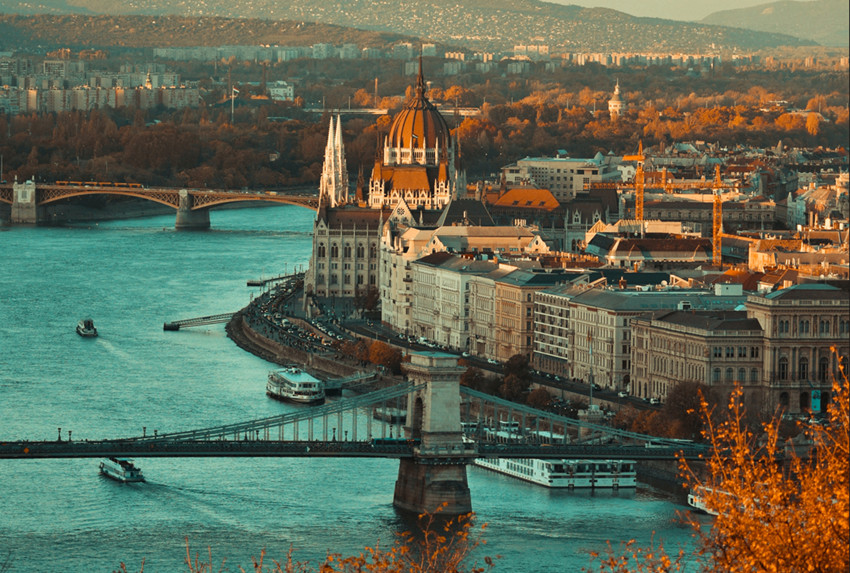
We first used the following 1740 × 2611 real-world image as a common test image for all the paid and free AI image upscalers reviewed in this guide. Using the same source image helps us make a more direct comparison of how each tool handles fine details and textures during upscaling.
We upscaled the image 2x using the above piad & free image upscalers and compared the results side by side at 100% zoom.
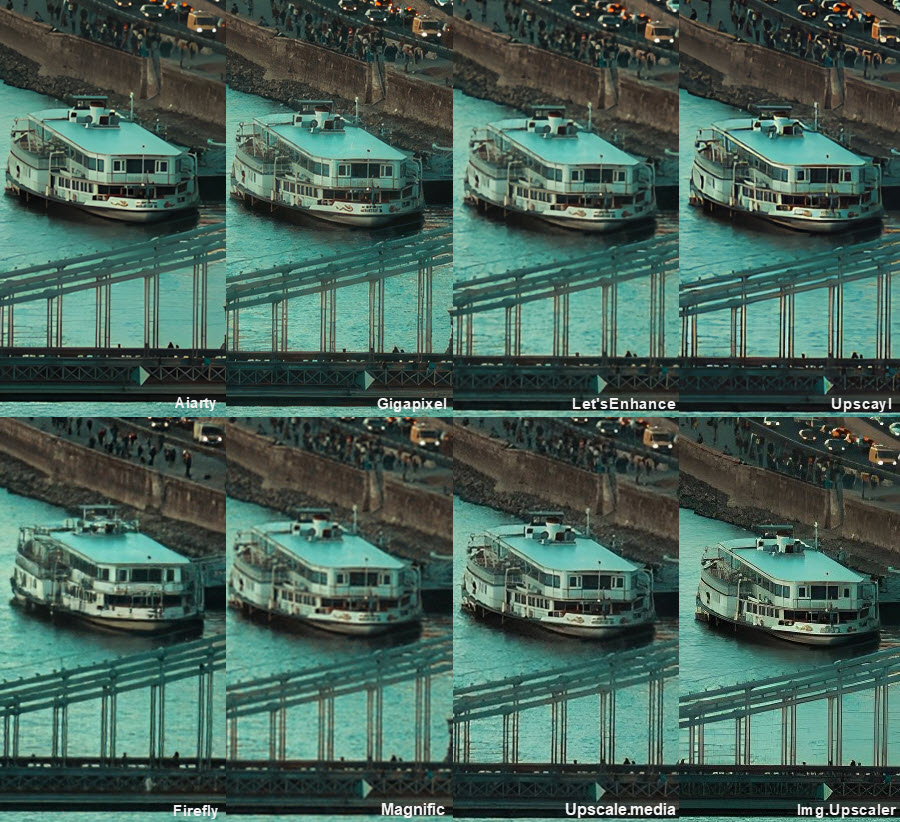
To make the differences easier to see, we also zoomed in on selected areas of each result and compared fine details side by side.
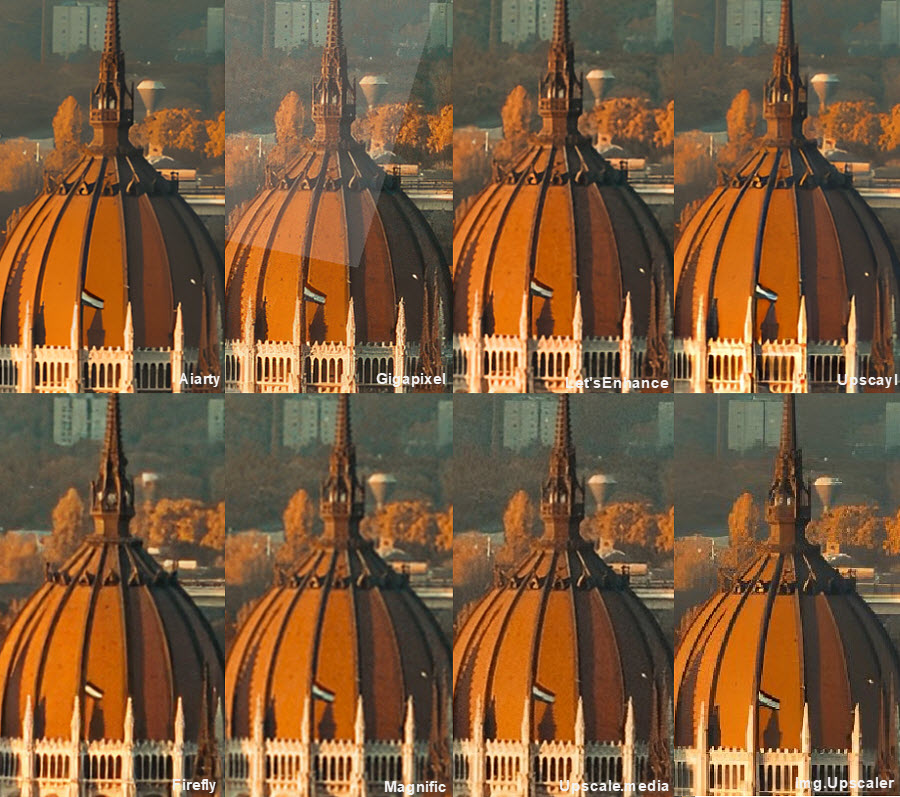
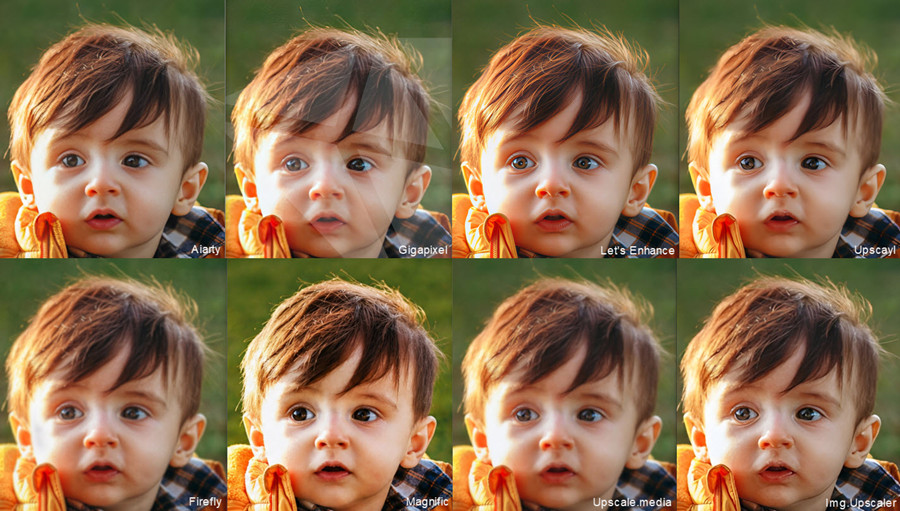
Overall, the comparison showed noticeable differences in how the AI image upscalers handled fine details. Some results remained relatively soft and blurry, with limited improvement in visible detail. Others produced very sharp lines and textures, but appeared to reconstruct or introduce details that were not clearly present in the original image. Some outputs struck a more natural balance between sharpness and detail, while others showed signs of over-processing, such as excessive sharpening or artificial-looking textures.
Below we ake a closer look at how each AI image upscaler performances using a 1920 × 1280 blurry portrait photo upscaled to 3840 × 2560.
Aiarty Image Enhancer- Enlarging Low-Res Images Without Losing Quality
Price: Free trial / $59 yearly / $109 lifetime
Aiarty Image Enhancer is a desktop AI image upscaler designed to make low-resolution images larger while keeping them sharp and natural-looking. Instead of simply stretching pixels, its AI models analyze the existing image and reconstruct missing details during upscaling, helping reduce the blur, softness, and pixelation that often appear when a small image is enlarged.
You can upscale low-resolution photos by up to 8× to 4K and higher, easily turn small images into larger versions for printing, social media, e-commerce listings, or other high-resolution uses. It also includes deblur, denoise, and face restoration tools that fix blurry, noisy, or detail loss during image upscaling.
For users who need to enlarge many images, Aiarty supports batch processing and local desktop processing, so images can be enhanced without uploading them to a cloud server.
🔥 Aiarty is offering the image upscaling free with a 7-day free license, full access to its features, no watermarks or limits.
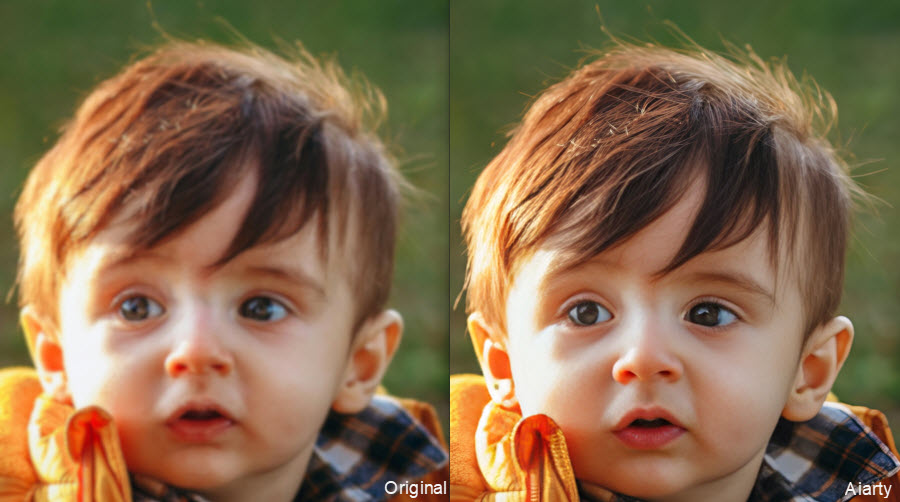
In hands-on testing, Aiarty performs particularly well on portraits and slightly blurry low-resolution images. Facial textures, eyelashes, and hair strands remain natural after upscaling, without the overly crunchy or over-sharpened appearance sometimes seen in tools like certain online AI upscalers.
Noise reduction is another strong area. Compressed JPG artifacts and grain are cleaned effectively while keeping edge transitions relatively smooth. On difficult images, the results may appear slightly softer than more aggressive AI image upscaling software, but the tradeoff is fewer halos and more realistic texture retention.
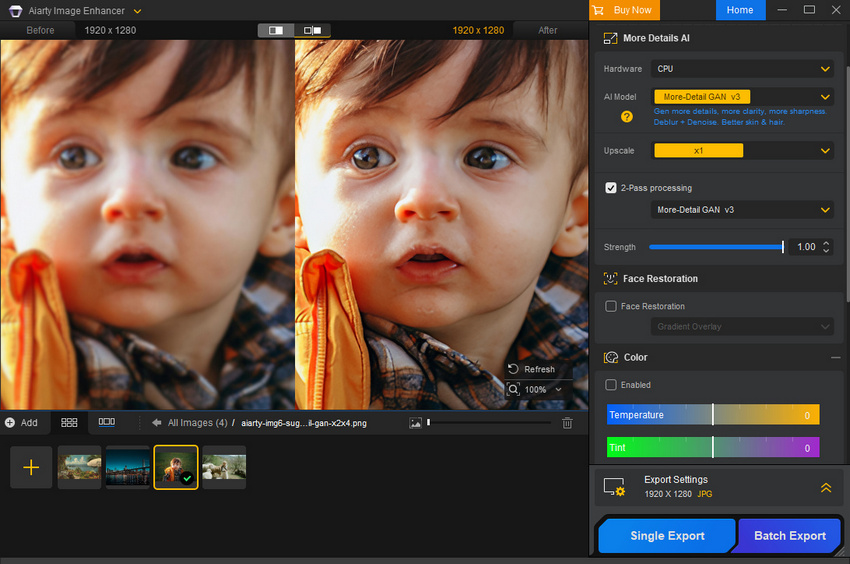
The workflow is straightforward. Users can drag and drop images, choose an AI model, select upscale ratios like 2×, 4×, or 8× (up to 32K resolution), or a specific resolution for flexible upscaling factor like 1.5x, 2.5x, then preview the result and export.
Tips:
- For most upscaling tasks, the More-Detail V3 model delivers the best overall results. You can also experiment with different AI models depending on the image type.
- Use the strength control to fine-tune the output, balancing between natural-looking enhancement and more aggressive detail reconstruction.
- For the highest-quality results, enabling 2-Pass processing can further improve clarity and detail consistency, especially on challenging low-resolution images.
Besides AI image upscaling, Aiarty also offers a range of built-in enhancement tools, including old photo restoration with facial detail reconstruction, color correction with HDR-style enhancement, and object or background removal for image cleanup before or after upscaling.
Performance depends heavily on GPU acceleration. With modern GPUs, processing is fast even for large images, while CPU-only processing can feel noticeably slower during high-resolution exports.
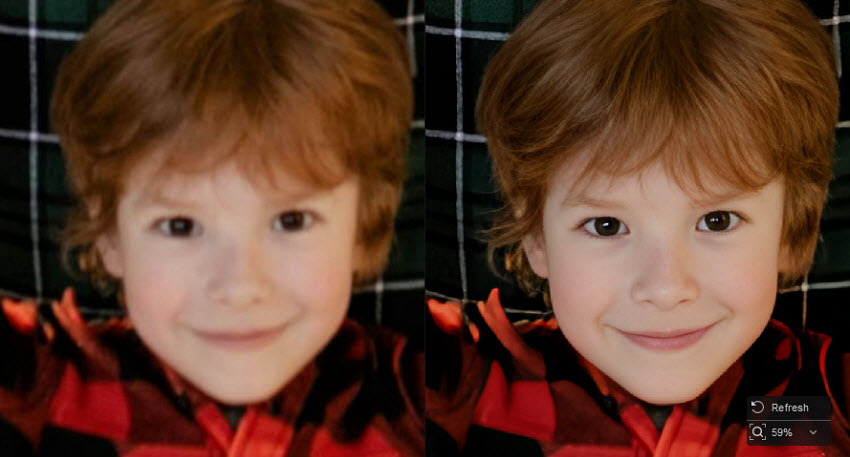
Best for: Aiarty Image Enhancer is best for users who want realistic, natural-looking AI image upscaling with strong detail preservation and integrated restoration tools, especially when enlarging old photos, slightly blurry images, portraits, etc. that need clean high-resolution output rather than heavily stylized enhancement.
- Reserve and create the maximum real details.
- Upscale images to up to 32K and different resolutions.
- Support for up to 3000+ image upscaling in a batch at fast speed.
- Fix various image issues.
- It's available for desktop only.
- The speed on CPU only is not as fast as on CPU.
Topaz Gigapixel - Professional AI Upscaler for Sharp Detail
Price: $29/month, or $19/month with an annual plan
Topaz Gigapixel is a powerful software for upscaling images without any noticeable loss in quality. It uses multiple AI models trained for different image types, including Standard, High Fidelity, Art & CG, and Low Resolution, allowing users to adapt the processing based on the content.
Unlike simpler AI image upscaling software, Gigapixel provides a high level of manual control. Users can upscale images from 2× to 6× and fine-tune parameters such as noise reduction, blur removal, and compression artifact correction. This makes it particularly suitable for high-resolution outputs, print workflows, and AI-generated artwork from tools like Midjourney.
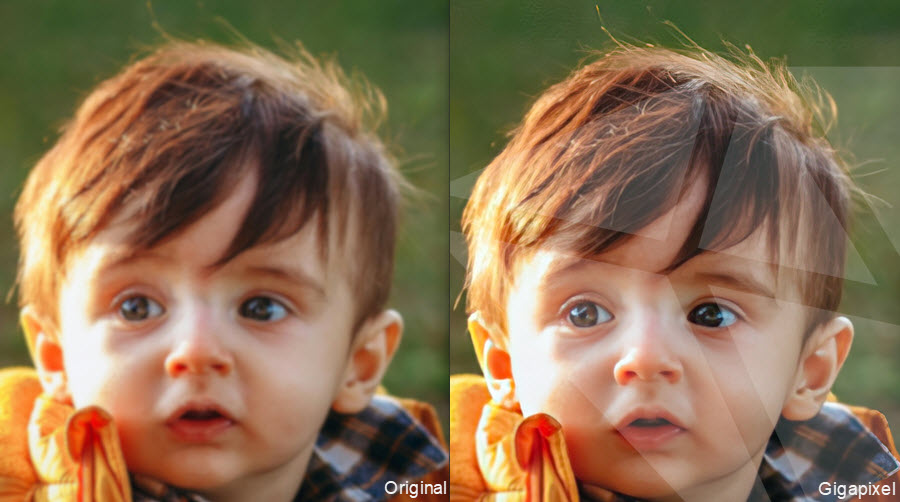
In testing, Gigapixel produces extremely sharp results and often recovers micro-details better than most online AI upscalers. However, its aggressive sharpening can sometimes make skin textures look overprocessed or introduce artificial textures at higher enlargement levels.
Gigapixel offers one of the most customizable workflows among AI upscalers. Users can manually switch between models and fine-tune denoise and sharpening sliders, which gives strong control but requires some experimentation to get optimal results.
As desktop image upscaling software, its performance depends heavily on hardware. With a modern GPU, processing can be relatively fast, but large images or 4×–6× upscaling can become resource-intensive and noticeably slower on mid-range systems.
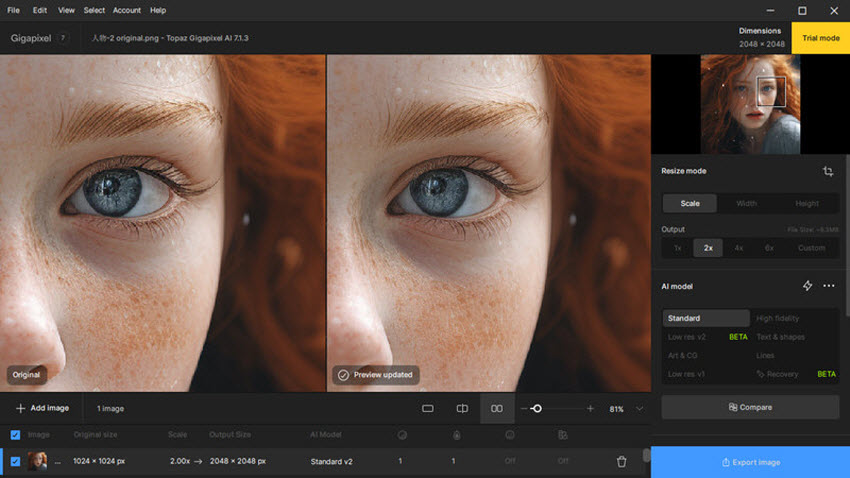
Best for: Topaz Gigapixel is best for users who want maximum sharpness and control over the AI image upscaling process.
- It’s excellent for image enlargements.
- It offers multiple AI models and adjustment controls.
- It retains more detail and handles compression artifacts better than many other AI image upscalers such as Upscayl.
- It’s prone to over-smoothing.
- It can be slow and resource-intensive on larger images.
- It’s expensive, without a one-off payment.
Let's Enhance - Online AI Image Upscaler for Clean, Polished Results
Price: Starts from $9/month for 100 credits
Let’s Enhance is a cloud-based AI image upscaler that offers a free online image upscaling option for users who want to enhance images without installing software or using local GPU hardware. It uses preset-based AI models (such as Prime, Old photo, Digital Art, Balanced, Ultra, etc.) to upscale images up to 4×–16× while simultaneously improving brightness, color balance, and compression artifacts.
Unlike desktop image upscaling software that focus on manual control, Let’s Enhance prioritizes speed and simplicity. This makes it especially popular for e-commerce product images, social media content, and marketing visuals where quick turnaround and visual polish matter more than fine-tuned adjustments.
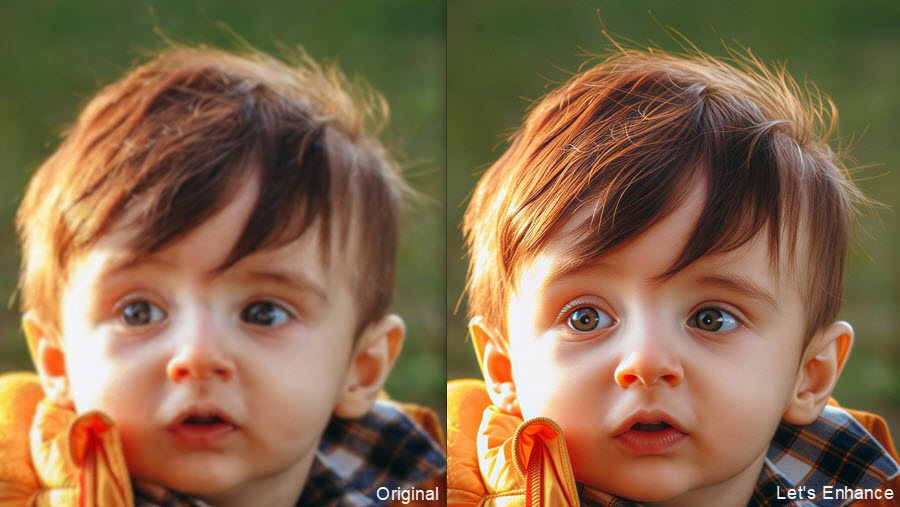
In testing, Let’s Enhance produces very clean and visually sharp results. Images appear noticeably clearer after upscaling, with improved contrast and reduced compression artifacts. Note that the overall rendering can feel somewhat AI-heavy depending on the selected model and settings. Some presets tend to smooth textures and refine edges more aggressively, which can reduce natural detail variation. With more balanced or gentle modes, the results look closer to the original image, but still lean toward a slightly processed aesthetic compared to desktop upscalers like Topaz Gigapixel or Aiarty.
Its cloud-based workflow requires no installation or GPU, and batch processing is available for handling multiple images.
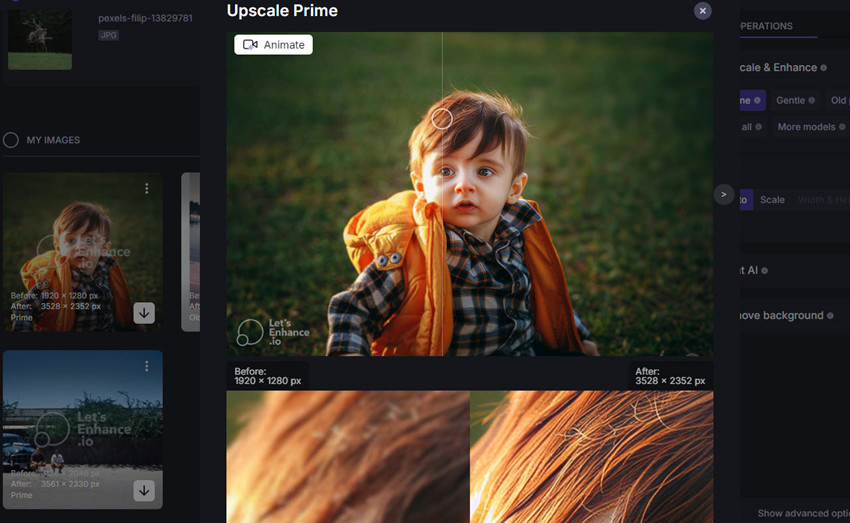
Best for: Let’s Enhance is best for quick online image upscaling when simplicity and speed matter more than fine control.
- Easy-to-use online AI image upscaler (no installation required)
- Fast cloud processing and batch support
- Clean, sharp results suitable for web and e-commerce
- Free version is limited in credits and output resolution
- Less detailed control compared to desktop AI image upscaling tools
- Output may look slightly over-processed or "AI-heavy" in some cases
Upscayl - Free Open-Source AI Upscaler for Simple Use
Price: Free
Upscayl stands out as a open-source and free AI image upscaling software. It’s powered by the NCNN framework and Real-ESRGAN architecture to significantly enlarge images while preserving some level of detail. It focuses on accessibility and simplicity, offering a lightweight, quick and free image upscaling solution without paid subscriptions or complex setup.
You can choose between a convenient online tool and downloadable desktop upscaling software, both offering up to 4x AI upscaling. Upscayl allows resizing up to 16x without AI, perfect for basic enlargements (except the Double Upscayl model). It offers 10 AI models specifically trained to enhance different image types, such as General Photo (Real-Esrgan), General Photo (Ultra-sharp), and Digital Art, with the desktop upscaler offers 5 models only.
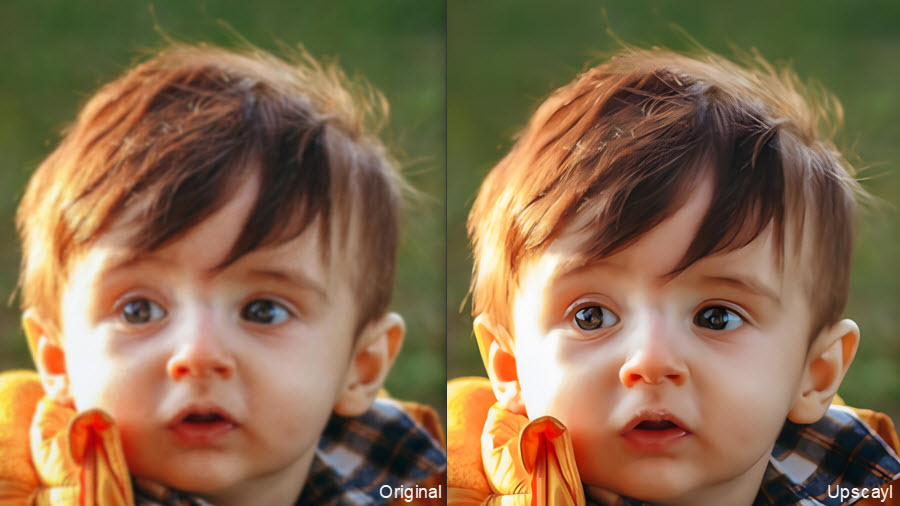
Overall, Upscayl produces fairly clean and sharp results. The upscaled images look noticeably clearer, with a generally smooth and artifact-free appearance. However, its fine-detail reconstruction is not as strong as more advanced paid image upscalers. Small details such as eyelashes and hair strands can become soft or disappear, particularly with more challenging low-resolution images.
Since the free AI image upscaler runs locally, there’s no need for internet upload, which can be an advantage for privacy and batch workflows. Processing speed is relatively fast, especially on modern GPUs, though performance depends on local hardware.
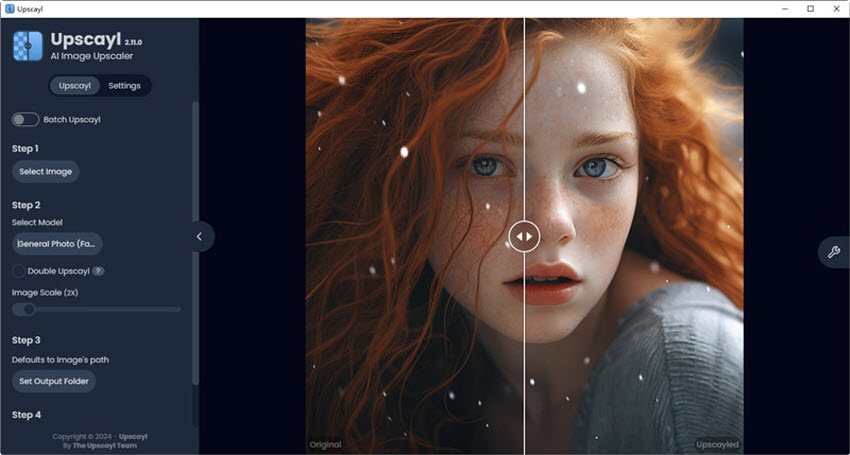
Best for: Upscayl is best for users who want an offline, free AI image upscaler for basic image enlargement.
- Completely open-source free AI image upscaling software.
- Accessible even for beginners with no prior experience in image editing.
- Compared to some AI image upscalers, Upscayl offers relatively fast processing times.
- Decent results for basic image upscaling.
- Limited detail reconstruction compared to paid image upscaling tools.
- Focused solely on AI image upscaling and lacks additional enhancement features.
- No built-in tools for denoise, deblur, or restoration.
- Aggressive upscaling can introduce artifacts like noise or blurry halos.
Photoshop Generative Upscale– Built-in AI Upscaling for Basic Enhancement
Price: $22.99/mo
Photoshop Generative Upscale (powered by Adobe Firefly) is a built-in AI upscaling feature designed for quick image enlargement within the Adobe ecosystem. It supports up to 4× upscaling and is primarily aimed at improving usability for editing workflows rather than delivering advanced detail reconstruction.
Instead of being dedicated AI image upscalers, Firefly-based upscaling is tightly integrated into Photoshop and Lightroom, with no additional models, sliders, or fine-tuning options. The process is fully automated, making it simple to use but limited in terms of control and customization.
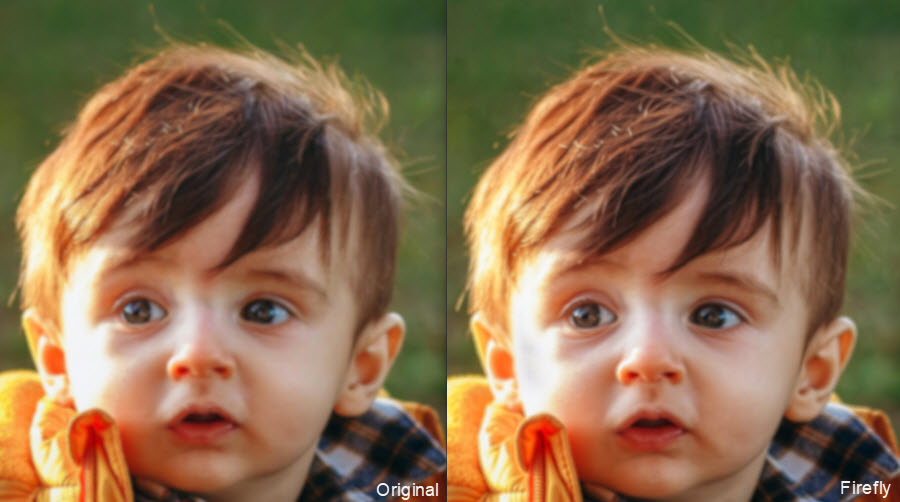
In testing, Photoshop Generative Upscale provides only a modest improvement in image clarity. When starting from a slightly blurry or low-resolution image, the upscaled result becomes a bit sharper and more usable, but the level of detail recovery is limited. Compared to dedicated AI image upscaling software like Topaz Gigapixel, the output appears softer and less detailed.
The main advantage is convenience: users can upscale images directly during their normal Photoshop or Lightroom workflow without switching to another application. However, there are no adjustable settings, model choices, or enhancement controls. Upscaling is generally fast, but limited functionality makes it unsuitable for large-scale or quality-critical upscaling tasks.
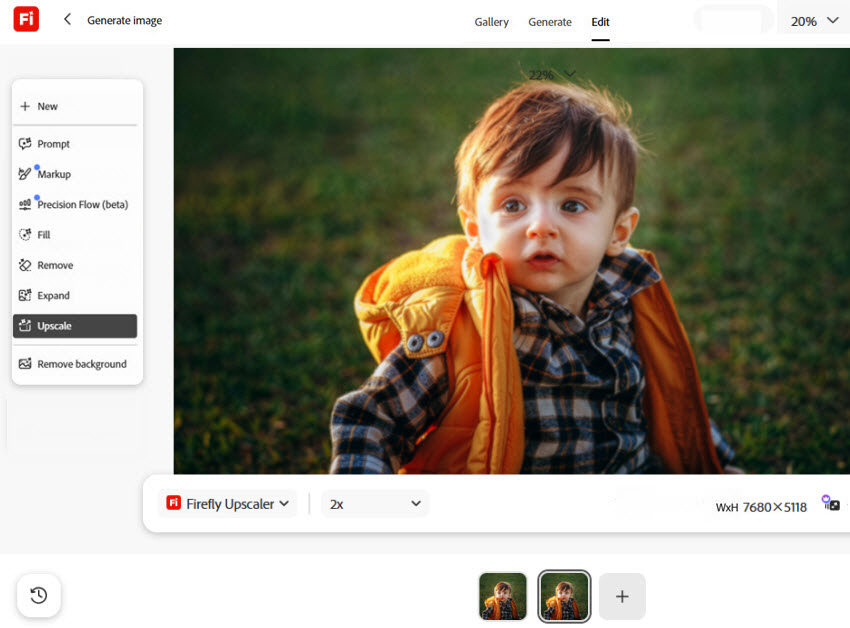
Best for: Photoshop Generative Upscale is best suited for quick, in-workflow AI image upscaling when convenience matters more than quality, as the overall performance is weaker compared to dedicated image upscaling software and is not ideal for high-quality print or detail-critical work.
- Seamless integration with Photoshop and Lightroom.
- Very easy one-click workflow.
- Good for quick image upscaling in editing pipelines.
- Limited to 4× maximum upscaling.
- Few customization or model control.
- Weak detail reconstruction than dedicated image upscalers.
- Requires Adobe ecosystem (not standalone AI image upscaler).
Magnific AI - Best Generative AI Image Upscaler
Price: Starts from $174/yr(billed annually) for 240,000 credits/year, with different tiers available depending on AI usage and production needs.
Originally launched as an AI-powered creative upscaler, Magnific has rapidly evolved into one of the most influential AI creative platforms in the industry. Now its generative enhancement technology became deeply integrated into Freepik’s expanding AI ecosystem.
Unlike traditional AI image upscaling software desktop and online that mainly sharpen or enlarge photos, Magnific focuses heavily on generative reconstruction. It supports upscaling from 2× up to 16×, depending on settings, and offers two main modes: Precision mode for more faithful structure preservation, and Creative mode for more aggressive generative enhancement.
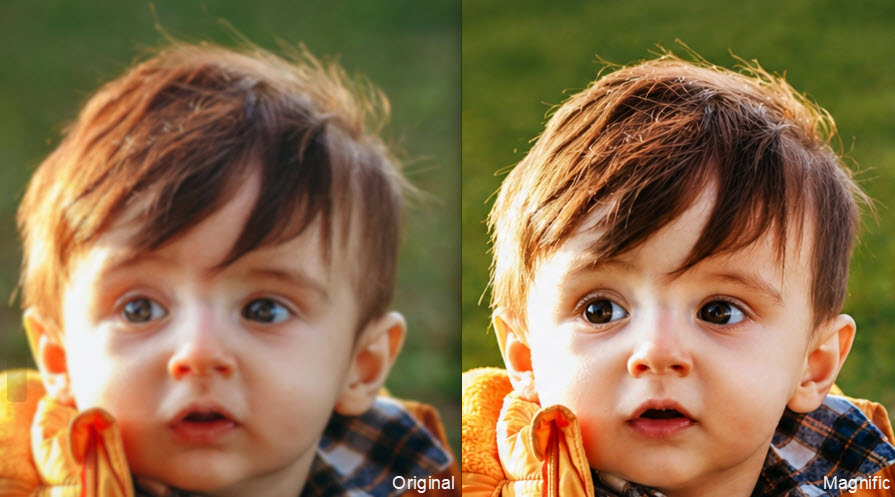
In testing, Magnific delivers highly detailed and visually striking results, especially in cinematic or stylized imagery. Surfaces gain richer textures, lighting becomes more dramatic, and the overall image often feels more “produced” or enhanced compared to the original.
However, the generative upscaling can significantly alter original image characteristics. In many cases, facial features, textures, or object structures are partially reinterpreted rather than strictly preserved. Even at lower creativity settings, subtle changes in identity and composition can still appear. So this AI image upscaler is less suitable for scenarios where fidelity is important, but extremely powerful for creative exploration and visual enhancement.
When upscaling images in Magifnic, users can adjust multiple parameters like creativity, resemblance, HDR, texture enhancement, and prompt guidance, but achieving consistent results often requires experimentation. More than a traditional AI image upscaler, it focuses on generative, creative detail reconstruction, producing more aggressive and stylized results than photo-focused upscalers like Topaz.
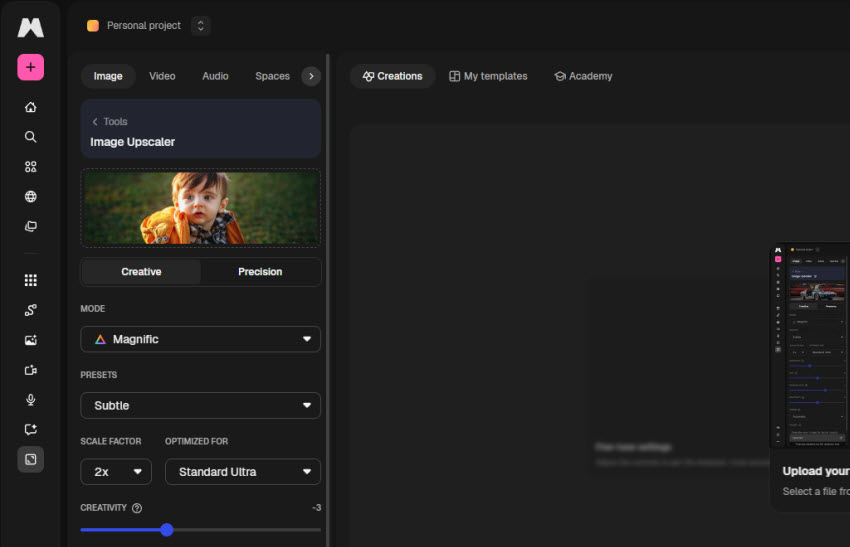
Best for: Magnific AI is best for creative users who want generative, highly detailed image upscaling. It excels at producing cinematic, high-impact visuals, but may significantly modify original image details.
- Industry-leading generative detail AI upscaling.
- Produces highly cinematic and visually striking results.
- Strong creative controls for stylization and enhancement intensity.
- Now part of a much larger AI creative ecosystem with image, video, and collaborative AI workflows.
- May alter original image details.
- Not suitable for strict photo restoration or forensic accuracy.
- Results may become overly stylized depending on settings.
- Subscription pricing remains higher than most traditional AI image upscalers.
Upscale.media - Web AI Upscaler for Noise and JPEG Fix
Price: Free with limits (starts from $0.10/credit)
Upscale.media is an online AI image upscaler. It helps enlarge your images by 2x, 4x, or 8x with just a few clicks. You can upload photos directly from your computer or provide a URL for online images. It supports popular image formats like JPG, PNG, WEBP, and HEIC, ensuring compatibility with most image files. It can also reduce noise, improve the image resolution, and remove JPEG artifacts.
This AI image enlarger is also available for Android and Apple mobiles. So it’s a good choice for those who want to AI upscale images on the go. However, you should know that the Upscale.media currently accepts images with a maximum size of 1500x1500 pixels and 25MB. If you want to enhance a large number of images at once, consider Upscale.media's sister service, Pixelbin.io, which offers bulk image processing capabilities.
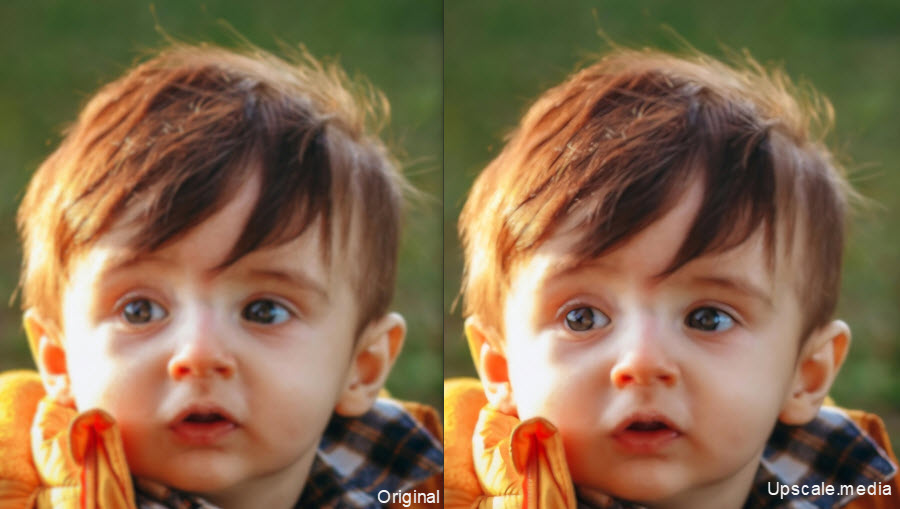
In testing, Upscale.media produces clean and visually stable images, especially for compressed or low-quality input. The AI effectively reduces noise and JPEG artifacts, resulting in a smoother and more polished appearance. However, fine details can appear slightly soft, and its reconstruction is less precise than more advanced desktop AI image upscalers.
Its web-based workflow requires no installation or dedicated hardware, making it convenient for quick image upscaling from a computer or mobile device.
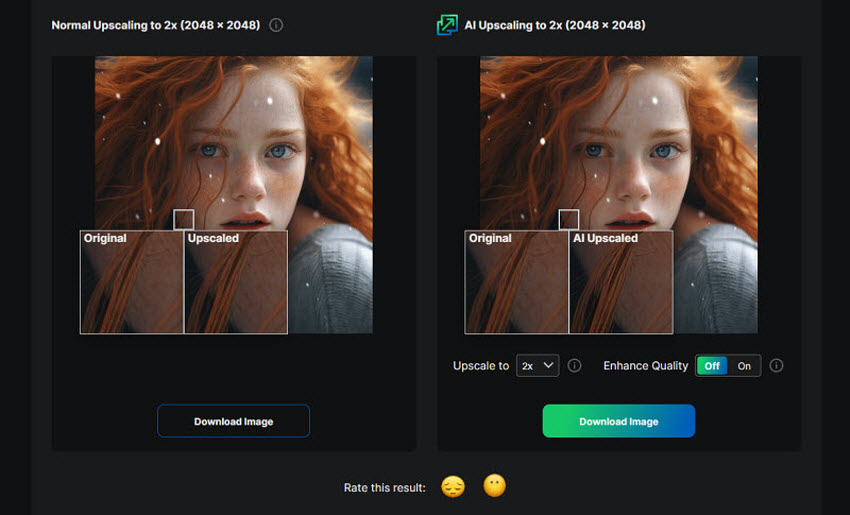
Best for: Upscale.media is best for users who want a simple online image upscaler with basic noise and JPEG artifact reduction.
- Supports multiple AI models (e.g., Topaz-style, SeedVR2-style).
- Offers 2×, 4×, and up to 8× AI image upscaling.
- Built-in sharpen, deblur, and enhancement tools.
- Output can appear slightly soft.
- Fine-detail reconstruction is limited.
- Less precise than local AI image upscaling software.
Img.Upscaler - Free AI Upscaler for Small Batch Enlargements
Price: Free with limits (starts from $3.9/ month for 100 credits)
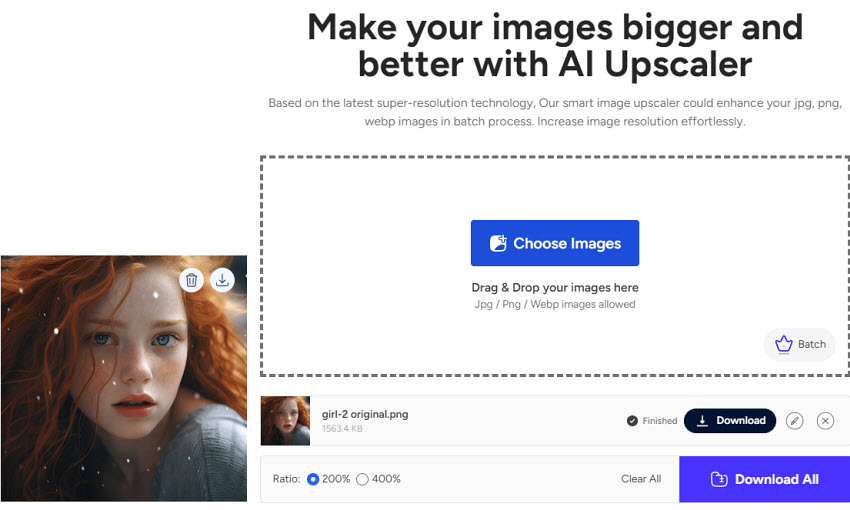
Img.Upscaler is an online AI image upscaler based on AI super resolution tech. It lets you to enlarge the images by 200% and 400% with high output quality. After you upload and upscale the image, there are options to let you crop, rotate, flip, add filters, fine-tune, decorate and more. Based on my experience, the image quality after upscaling is quite good, with small details like facial features and hair strands being preserved very well. If you have multiple images to upscale, you can upscale up to 5 images to process at the same time.
With this free AI image upscaler, you can enlarge 20 images for free per month. After that, you will need to subscribe to a plan, which starts from $3.9/ month for a yearly plan.
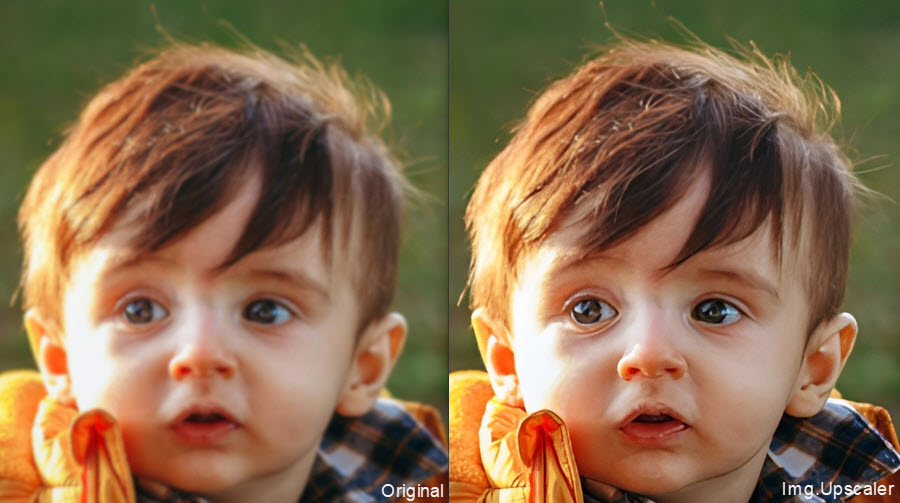
In testing, Img.Upscaler produces surprisingly clean and natural-looking results for a lightweight online image upscaler. Facial features and hair strands were generally preserved well, although fine-detail reconstruction is still limited compared with professional AI image upscaling software.
You can upload, select upscale factor, and process up to 5 images in batch mode. The free version of the online imag eupscaler allows users to upscale 20 images per month, making it a convenient option for occasional image enlargement without a paid plan.
Best for: Img.Upscaler is best for users who want a simple and affordable online AI image upscaler that delivers clean and natural results with minimal effort.
- It's based on AI super resolution to upscale images with high quality.
- It offers basic editing features.
- It supports bacth AI image upscaling.
- It allows free upscaling without watermark.
- It can only upscale images by 2x and 4x.
- There aren't specific AI models for different images.
- Less suitable for high-detail professional upscaling.
How to Test the Best AI Image Upscaler
Simply enlarging an image does not tell you how well an AI image upscaler performs. A useful comparison should look at what happens to fine details, textures, noise, and edges as the image is enlarged.
Based on our hands-on tests, we evaluated each AI image upscaler across the following areas:
- Detail preservation: Does the upscaled image retain small textures, facial details, hair, and other fine features, or do they become overly smooth?
- Clarity and sharpness: Are edges and important details clearly defined without excessive sharpening or halos?
- Noise and artifact handling: How well does the tool reduce noise, compression artifacts, and other unwanted elements without removing genuine image details?
- Natural appearance: Does the result remain visually consistent with the original, or does the AI introduce overly processed or unnatural-looking details?
- Upscaling flexibility: How does the tool perform at 2x, 4x, and higher enlargement levels, and how far can it reasonably upscale an image before quality starts to decline?
- Processing performance: How quickly can it process images under the same hardware conditions, and how well does it handle larger images or batch processing when supported?
A good AI image upscaler should recover or enhance useful visual detail while keeping textures, edges, and overall appearance natural.
Summary: Which AI Image Upscaler Should You Choose?
These 8 AI image upscalers cover a wide spectrum of use cases, from professional-grade detail reconstruction to lightweight web-based enhancement. The key differences come down to fidelity, creativity, control, and workflow simplicity.
High-Fidelity Professional Upscalers
Aiarty Image Enhancer and Topaz Gigapixel AI are the best image upscaling software for high-fidelity and realistic detail reconstruction. Aiarty focuses on natural-looking enhancement with strong preservation of textures and structure while Topaz Gigapixel AI offers more granular control and stronger sharpening, producing extremely detailed results but sometimes at the cost of slight over-processing.
Both are best suited for users who prioritize accuracy, print quality, and fine-detail recovery over speed or automation.
Creative / Generative Upscaling
Instead of strictly preserving the original image, Magnific AI upscaling uses generative enhancement to reinterpret and enrich visuals. It can dramatically improve cinematic quality by adding textures, lighting effects, and new micro-details, but it may also alter original structures and identity. It is best for AI creation rather than faithful image restoration.
Balanced Cloud-Based Upscalers
Let’s Enhance comes with balancing quality and convenience. It delivers clean, polished AI upscaling suitable for e-commerce, marketing, and general AI art workflows. Depending on the selected model, output can range from natural and faithful to slightly more processed and enhanced. It is ideal for users who want strong results with minimal manual control.
Lightweight Web Upscalers
Upscale.media and Img.Upscaler are best for quick, casual, or social-media-level upscaling, not professional workflows. Upscale.media offers more enhancement tools and model-based processing, but tends to produce slightly softer results. Img.Upscaler is simpler and more beginner-friendly, often producing slightly sharper and more natural-looking outputs, but with limited fine-detail reconstruction.
Workflow-Integrated Upscaling
Photoshop Firefly (Generative Upscale) is primarily designed for convenience inside the Adobe ecosystem. It provides a fast and simple way to upscale images up to 4×, but offers limited improvement in actual detail.
 FAQ about Image Upscaling
The best AI image upscaling software depends on your needs, but top tools typically combine high upscaling quality, detail preservation, and additional features like denoise and deblur. For example, advanced AI upscalers can enlarge images up to 4K or higher while maintaining natural textures and sharp edges. If you need batch processing, high-resolution output, and consistent detail reconstruction, desktop AI upscalers are often the best choice.
Yes, modern AI image upscalers can upscale images without significant quality loss by using deep learning to reconstruct missing details. Unlike traditional methods that stretch pixels, AI analyzes textures, edges, and patterns to improve clarity, reduce noise, and sharpen blurry areas. However, results may vary depending on the original image quality—extremely low-resolution images may still have limitations.
AI image upscaling works by training neural networks on millions of images to learn how details should look at higher resolutions. When you upscale an image, the AI predicts and reconstructs missing pixels, enhances edges, and refines textures. This process allows AI upscalers to increase image resolution while improving overall image quality instead of simply enlarging it.
Yes, AI image upscalers are widely used to upscale images for printing. They can increase resolution to 300 DPI or higher and enhance details, making images suitable for large prints such as posters, canvases, or product photos. For best results, start with the highest-quality source image and choose an appropriate upscale ratio.
platforms offer limited free credits or basic upscaling features, allowing you to increase image resolution without cost. Free tools are suitable for occasional use, while paid options often provide better quality, higher resolution output, and batch processing.
No, ChatGPT itself cannot directly upscale images. However, it can recommend AI image upscaling tools and guide you on how to improve image quality. To upscale images, you need to use a dedicated AI image upscaler or image enhancement software.
You May Also Like


This post was written by Brenda Peng who is a seasoned editor at Digiarty Software who loves turning ordinary photos into extraordinary works of art. With AI assistance for brainstorming and drafting, the post is reviewed for accuracy by our expert Abby Poole for her expertise in this field.
