How to Increase Image Resolution Without Losing Quality (And Why Some Tools Fail)
Updated on
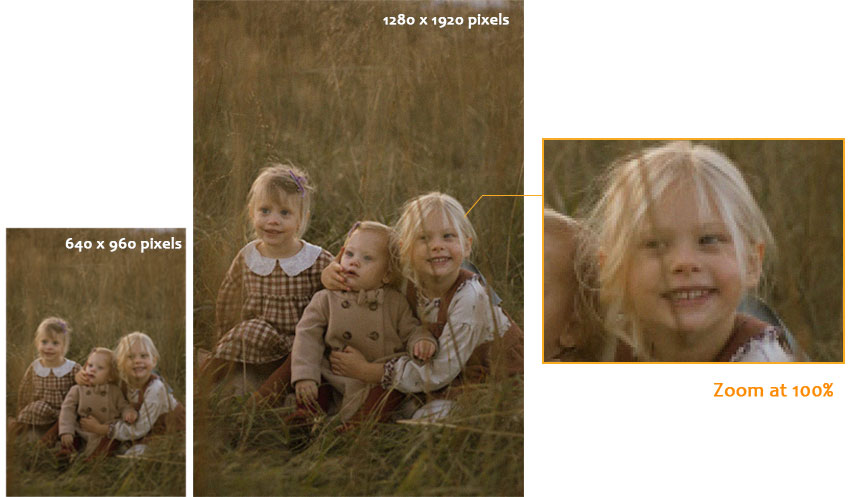
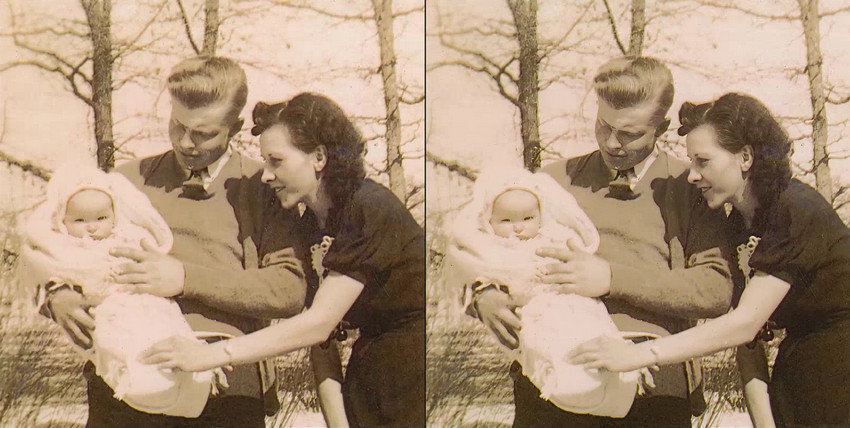
Increasing image resolution sounds simple: make the image bigger, and it should look better. But in reality, many people find the opposite happens. You increase the resolution, only to see blurry edges, amplified noise, strange textures, or an image that looks larger but not sharper at all.
This is a common frustration, especially if you’ve already tried popular online upscalers, Photoshop’s Super Resolution, or basic resizing tools. The problem isn’t that you’re doing something wrong — it’s that increasing resolution and improving image quality are not the same thing.
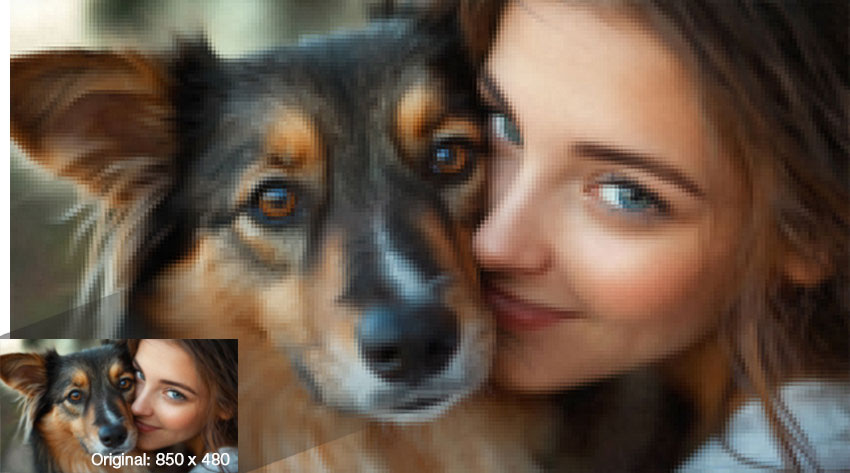
Resolution simply refers to pixel count. When you increase it, most tools have to guess what new pixels should look like. If the original image contains noise, compression artifacts, or missing details, those issues often get enlarged as well. That’s why some methods work well for clean images but fail badly on low-light photos, compressed images, portraits, or detailed textures.
In this guide, we’ll break down the most common ways to increase image resolution, including AI upscaling tools, traditional image editors, and online solutions — and explain when each method works, when it doesn’t, and how to choose the right approach to get better results without sacrificing quality.
Why Increasing Image Resolution Often Fails
Increasing image resolution does not automatically improve image quality. Most tools can only increase pixel count, not restore missing detail. As a result, the software must guess what new pixels should look like, rather than recover real information.
When the original image contains noise, blur, or compression artifacts, these issues are often magnified during upscaling. That’s why images can look larger but not clearer, and sometimes even worse, after increasing resolution.
Part 1. Increase Image Resolution and Quality via AI Upscaling
Because simple resizing often fails, AI upscaling tools were developed to generate new detail using neural networks, but not all produce real improvements. Below we break down how they work and when they succeed vs fail.
Aiarty Image Enhancer
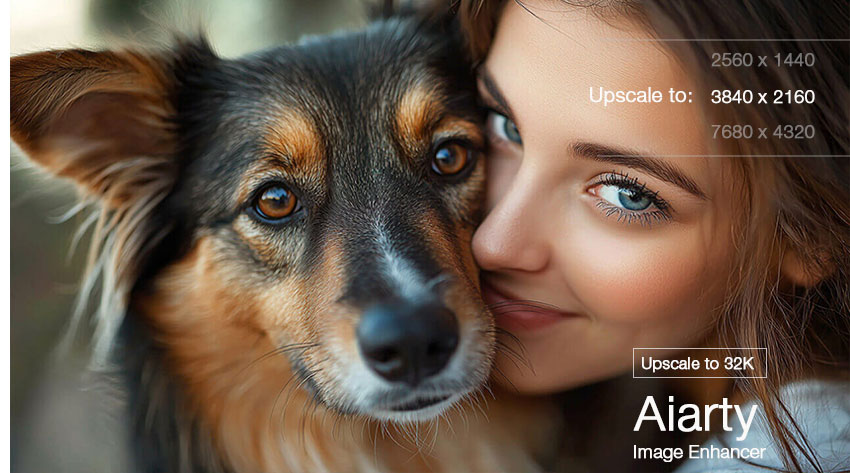
This AI-driven image enhancer & upscaler helps you (at any level of technical skill) enhance image quality via top AI models (More-detail, Smooth, Real-Photo) and improve image resolution up to 4X, 8X (highest to 32K in resolution) its original size for you automatically and instantly. Load your portrait photos, anime pictures, logos, digital art, Midjourney/Stable Diffusion generated images and make your photos bigger and better!
Meanwhile, Aiarty's cutting-edge artificial intelligence technology lets you increase resolution on a picture (JPEG/JPG/PNG/RAW/Webp…) without crisp and natural details. This means maintaining your images clarity and sharpness, no matter you're printing them for poster, flyer, using them on a website, personal sharing to SNS or anything else. You can trust Aiarty to keep your images looking their best.
- AI enhance image quality and increase image resolution up to 2X 4X 8X its original size.
- Easy to use, no technical skill needed, 1 click to complete image upscale.
- Upscale, enhance, sharpen, unblur images, reduce noise, and improve colors to make your pictures more detailed and authentic in real time.
- Support improving images resolution in batch.
- No independent face mode yet.
How to Increase Resolution of an Image using Aiarty Image Enhancer
Step 1. Load your picture. Tap the "Add" icon at the lower-left corner of the interface to import your text-to-image AI generated image or your camera captured photo. Bulk images upscale is supported, as well. No limits on picture quality or quantity.
Step 2. Choose mode. There are 3 major AI models available currently, More-detail, Smooth and Real-Photo. More-detail mode is more suitable for you to increase resolution on pictures like skin, hair, fur, texture by adding more details to make your picture more clarity and sharpness.
Smooth model is designed to improve image quality and make your 2D cartoon, anime image, self-portrait, etc. more clear and bright. Real-Photo model focuses on processing photo realistic, restoring photos, and noisy photos. Thus, pick up the one based on your specific photo style.
Step 3. Choose Upscale value. This image enhancer software enables you to make an image high resolution up to 8X, 32K in resolution, well-balanced between image size and image quality.
Step 4. Tap Run to begin upscaling image resolution after you select output image format (PNG or JPG).
Topaz Photo AI
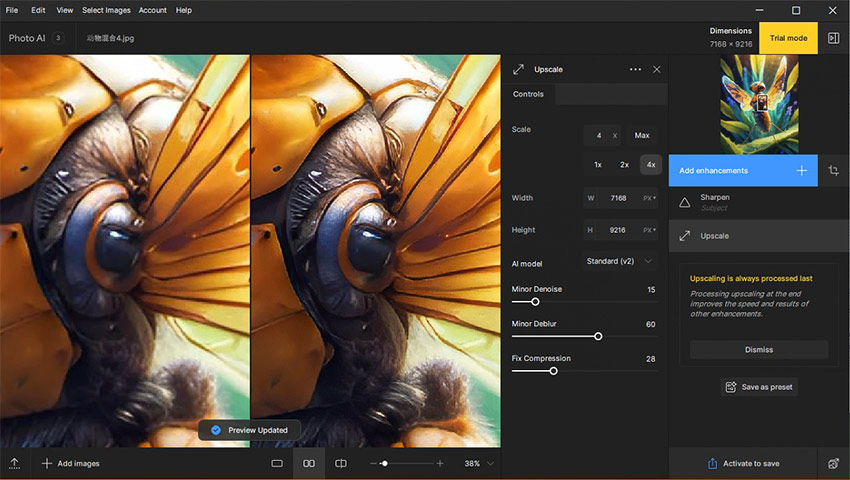
Unlike Aiarty Image Enhancer supporting increasing image resolution up to 8X, this top image enhancement toolkit only enables you to convert low-resolution image to high resolution up to 6X original size. Yet, as a tradeoff, it comes loaded with more AI image modes, including upscale, denoise, sharpen, recover faces, remove objects, etc. to help you improve image resolution & quality, remove noise from low light, sharpen pixelated faces, feathers and fur, recover the details in faces.
Certainly, one thing to be noted is that Topaz is vulnerable to software crash when it comes to batch increase resolution on pictures in Photoshop or Lightroom as an add-on. You'd better control your batch process image quantity or just use the independent Photo AI program.
- Simplicity. The interface is refreshingly uncluttered. Even editing novices can get great results with the intuitive sliders and the handy "Autopilot" mode.
- The AI algorithms deliver impressive image upscale, noise reduction and sharpening, often surpassing what's possible with traditional editing tools.
- Image upscaling speed is much faster than the one in the previous version.
- Too expensive. The lifetime price goes to $199, no monthly or yearly plans.
- Focus on the basics. While Topaz boasts new color and lighting adjustments, they feel underdeveloped compared to the core features.
- Batch image resolution increase would encounter crash as a Photoshop or Lightroom plug-in.
- Auto export image as Tiff format, not the DNG format users want.
How to AI Enhance Image Quality and Resolution with Topaz Photo AI
Step 1. Load your photo. Drag and drop your image into the software or use the file browser.
Step 2. Choose your weapon. Select the tool you need: Denoise, Sharpen, or Upscale. Choose Upscale here of course. This AI image upscaler software supports you to enlarge an image resolution up to 4X only, no 8X option currently.
Step 3. Slide for success. Adjust the sliders to control the level of noise reduction, sharpening, or upscaling.
Step 4. Autopilot option. Feeling overwhelmed? Let the AI take the wheel with "Autopilot" for automatic adjustments.
Fine-Tune (Optional): For more control, use the masking and adjustment tools to refine specific areas of the photo.
Step 5. Save your masterpiece. Export your edited photo in your desired format and quality.
Fotor Image Upscaler
Fotor Image Upscaler is a decent free option for anyone who wants to make an image high resolution up to 4X (16K resolution) without breaking the bank. It's easy to use, fast, and lets you reclaim some dignity for those less-than-stellar photos. However, if you need precise control or are working with seriously low-res images, you might be better off with a paid upscaler with more features.
Generally, Fotor Image Upscaler is a good tool to have in your back pocket, especially for casual users. Just remember, it's not a miracle worker, and free often comes with limitations. To be specific, you're only allowed to access to its limited package of AI & editing tools, download pictures in JPG/PNG/PDF format only in normal resolution instead of high resolution, and have to endure the annoying watermark, ads.
- Free. Perfect for budget-conscious shutterbugs or anyone who just wants to test the waters of AI upscaling.
- Easy to use.
- Fotor processes your photos surprisingly quickly, especially compared to some other online free image upscalers.
- Garbage In, Garbage Out. Super blurry or low-res photos might still look rough after upscaling. Don't expect miracles from pixel dust.
- Limited access to Fotor AI & editing features, JPG/PNG/PDF download and other effects.
- Online service is full of annoying ads and watermark on picture in free plan.
- A stable yet strong network connection is needed for online image resolution improvement.
How to Online free Convert Low-resolution images to High Resolution with Fotor
Step 1. Drag and Drop your image. Simply drag or upload your low-res photo from your desktop straight into the Fotor interface.
Step 2. Click 2X on the left side of the screen to increase resolution on a picture. Then it will auto improve image resolution to 200% original size, alongside with denoise and AI quality enhancement.
Step 3. The results comparison image will show up after the AI image enlargement is completed. And the final image size will list on the left side. Certainly, there is an obvious watermark on the lower-left corner of your image. Upgrade to its pro plan to remove the watermark if needed.
Step 4. Untick "Results Comparison" if you just want the output image, rather than the comparison one. Then click the Download button to download your increased image to your computer. You can choose the final format as JPG or PNG and select quality (default High) as you desire.
Part 2. Increase Image Resolution and Quality via Image Editors
Traditional image editors such as Photoshop and GIMP can increase pixel count and apply AI-assisted enhancements, but they still have limitations when upscaling low-quality images. Below, we’ll explore how these tools improve image resolution, along with their strengths and constraints in real-world use.
Adobe Photoshop
Adobe Photoshop is the highly-acclaimed image editor software that is almost used by everyone, newbies and experts. In the past, you might take advantage of Photoshop to trim photo, remove background from image, blur image, adjust picture saturation/brightness, or add text or special effects to picture, etc.
Now, with Super Resolution in Photoshop, you can make an image higher resolution (up to 4X pixels) while keeping image quality in good shape. They use advanced artificial intelligence (AI) and machine learning (ML) to intelligently select the best possible pixels for each specific image, ensuring superior quality. Then, you can use the higher resolution images for printing, E-commerce presentation, anime posters, art creation or social sharing.
Since both Photoshop and Lightroom have adopted the same AI tech - Super Resolution to improve image quality and upscale photo size, we just select one of them to show you the detailed guide. Here we use Photoshop for instance.
How to Increase Pixels of Image with Photoshop
Step 1. Click File at the top menu > Open > choose your image to load into Photoshop.
Step 2. Select Image > Image Size.
Step 3. Deselect Resample. This will automatically lock the current ratio of Width and Height.
Step 4. To improve picture Resolution, enter new values as you want. Photoshop will automatically change the Document Size to match.
Step 5. To adjust Document Size, add new values under Height and Width. Photoshop will again auto change the resolution to match.
Optionally, use Neural Filters to equally create a high-resolution image in your Photoshop app. Go to Filters at the top bar > pick up Neural Filters > tick Super Zoom > apply the slider to adjust the image to your liking > tap OK and that's it. Your Photoshop then will auto increase resolution on a picture.
Step 6. Now export your final image and save it as JPG or PNG.
GIMP
GIMP is a remarkable achievement in free and open-source software capable of improving image resolution up to 4X or 6X as you want. It offers a staggering array of features that rival paid editing programs like Adobe Photoshop. The customization options and vibrant community are a big plus. However, the steep learning curve and potential performance issues can be hurdles for beginners.
This image resolution enhancer is a powerhouse to free your creativity and free your wallet at the same time. But it's not for casual users or those who prioritize a user-friendly experience. For those who crave extensive features and customization without breaking the bank, GIMP is a free image upscaling toolkit waiting to be explored.
How to Free Make Image Higher Resolution with GIMP
Step 1. Open your image in GIMP. Go to Image > Scale Image.
Step 2. In the Scale Image dialog box, you'll see the current image size in pixels under Width and Height.
Step 3. Decide how much you want to increase the resolution. You can either enter a specific width and height in pixels or a percentage increase.
Step 4. Under Interpolation, choose an appropriate resampling method. Here's a breakdown of common options:
Nearest Neighbor: This is the fastest but least accurate method. It simply replicates the nearest existing pixel to fill in the new space, resulting in a blocky appearance.
Linear: This is a better option for most cases. It blends the colors of surrounding pixels to create new ones, resulting in a smoother image.
Cubic: This is the most accurate method but also the slowest. It considers a wider range of surrounding pixels to create new ones, resulting in the sharpest possible upscale.
Step 5. Click Scale to apply the changes.
Part 3. Online Create a High-resolution Image with Let's Enhance
Online image upscalers deliver fast and convenient results, but their one-click approach offers limited control over noise reduction and detail recovery. For users who only need to enhance a few everyday images, these online services provide a simple, no-installation solution. Below, we’ll introduce several popular online image upscaling tools and their key features.
Letsenhance.io
Letsenhance.io is highly recommended. Originally aiming at AI-powered text-to-image generation, Let's Enhance later extends its features to image quality enhancement like increase photo resolution, correct colors, and remove JPEG artifacts from images, Midjourney/Stable Diffusion generated images.
Only one simple click and you can hassle-free fix pixelated, blurry photos and convert low-resolution photos to high resolution up to 4X (16K resolution) instantly for posters flyers printing, social media sharing, marketing campaigns, presentations, art creation and more.
How to Online Increase Resolution on a Picture with Let's Enhance
Step 1. Head over to its official website: https://letsenhance.io/. Please register first. Previously it allows you to log into with your Google account or Facebook account. But right now, these options are grey and unavailable. You have to follow its instruction to register.
Step 2. Drag and drop your image file directly onto the center of the page. Or click the "Upload Image" button and select your image from your computer's file explorer.
Step 3. Find the "Upscale" section on the right side of the webpage and then choose upscale type and size:
Upscale Type:
Photo (Recommended for most cases): This option offers the highest upscaling factor (up to 16x) and prioritizes maintaining detail and sharpness.
Smart Resize: This option allows you to choose a specific custom size for your image. It's good for situations where you need a precise output size.
Upscale Size:
Auto (Recommended for beginners): LetsEnhance automatically determines the best upscale factor based on your image.
Custom: If you choose "Photo" as the Upscale Type, you can enter a specific upscaling factor (up to 16x).
Custom Width & Height: If you choose "Smart Resize" as the Upscale Type, you can enter the desired width and height in pixels for your output image.
Step 4. Once you've chosen your settings, click the blue "Start processing" button at the bottom of the page. LetsEnhance will upload your image and process it according to your selections.
Step 5. Once processing is complete, you'll see a preview of your upscaled image. Click the download arrow button to save the image to your computer.
Notes:
• LetsEnhance offers a free trial with limited processing credits. You can use this to test the service before committing to a paid plan.
• Free users can upscale images up to 64 megapixels. Paid plans offer higher megapixel limits.
• Remember, upscaling has limitations. Heavily upscaled images will likely lose some sharpness and detail. It's best to start with a high-quality image for optimal results.
Pixelcut
Pixelcut is a lightweight, user-friendly online tool that offers many AI-based tools. There is also a free AI upscaler that is able to increase image resolution by 2x and 4x. You can use it to increase picture resolutions to up to 4K without artifacts. The enlarged pictures look sharp and natural in most case. If you're increasing image resolutions for regular uses, Pixelcut's free upscaler is a good option to try. For professional cases that requires more details, you may need pro tools like Topaz Gigapixel.
How to Increase Resolution of Pictures Free Online with Pixelcut?
Step 1. Go to the Pixel's free AI image upscaler. Click the Upscale Image button to upload your JPG, PNG, or HEIC file. If you’re on a desktop, you can also drag and drop your image directly into the workspace.
Step 2. Decide how much you want to enlarge the image — Pixelcut supports upscaling up to 4x the original resolution using AI-powered enhancement.
Step 3. The tool will automatically process your image, increasing resolution and improving clarity in the background. No manual tweaking needed — just let the AI run.
Step 4. Once it finishes improving the picture's resolution, you can download the high-res version instantly. Want to tweak it further? Use Pixelcut’s built-in editor to add text, backgrounds, or effects.
Canva
Canva isn’t just for designing social posts and presentations — it now also offers an AI-powered image upscaler (available with Canva Pro). While it’s not as advanced as some dedicated tools like Topaz or Aiarty, it’s incredibly convenient for quick enhancements directly in your design workflow.
How to Increase Resolution of Pictures Free Online with Canva?
Step 1. Go to canva.com and create a design. Then drag and drop the image into it.
Step 2. If available (Canva Pro), select your image, go to the Effects tab, and look for Image Enhance or Upscale.
Step 3. Adjust the slider to Canva’s AI will automatically improve sharpness and clarity.
Step 4. When downloading, choose PDF Print or PNG format and set it to the highest resolution. Canva will export an enhanced version optimized for printing or sharing.
How to Choose the Right Method to Increase Image Resolution
Not sure which method to pick? Use an online tool if you want something fast and simple. For sharper, high-resolution results with noise reduction, color control, and detail enhancement, Aiarty is your go-to AI Upscaler. And if you need precise, manual adjustments for professional-level edits, a traditional image editor is still the best choice.
- Quick & simple: Use an online tool for fast results with minimal effort.
- High quality: Choose an AI Upscaler like Aiarty to enhance resolution, reduce noise, and improve details automatically.
- Professional editing: Opt for a traditional image editor for precise, manual adjustments and full creative control.
Final Words
Increasing resolution is not just about making an image bigger, it’s about choosing the right tool for the situation. A quick online tool works for simple, everyday needs; an AI Upscaler like Aiarty Image Enhancer delivers high-quality results with enhanced detail, reduced noise, and color control; and traditional image editors give you full control for professional-level adjustments. By matching your method to your goal, you can get the sharpest, most polished images with minimal effort.