


Have you ever taken a great photo only to realize someone in the background ruins the composition? Whether it’s a stranger walking into your shot or an unwanted person in a group photo, knowing how to remove a person from a photo in Photoshop can save an otherwise perfect image.
Photoshop offers several ways to remove people from photos, from classic manual tools to newer AI-powered features like Generative Fill. However, not every method works equally well in every situation. Some are fast but less precise, while others offer more control at the cost of time and effort.
In this guide, you’ll learn how to photoshop someone out of a picture using AI, Generative Fill, and classic Photoshop tools, along with clear guidance on which method works best for different types of images.
Before jumping into step-by-step tutorials, it’s important to choose the right approach. The best way to remove a person in Photoshop depends on the background, image complexity, and how natural you want the final result to look.
Here’s a quick breakdown to help you decide:
- Clean or simple backgrounds: Remove Tool or Generative Fill
- Crowded scenes or textured backgrounds: Patch Tool or manual refinement
- Large subjects or multiple people: Generative Fill (fast, but results may vary)
For cases where speed and consistency matter, an AI eraser can be a useful alternative. Tools like Aiarty Image Enhancer can automatically remove people and keep backgrounds looking natural, especially when Photoshop requires repeated manual fixes.
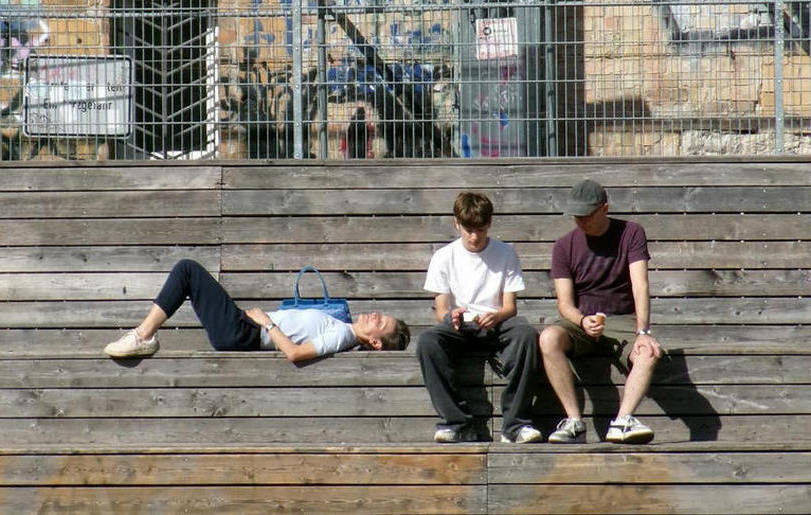
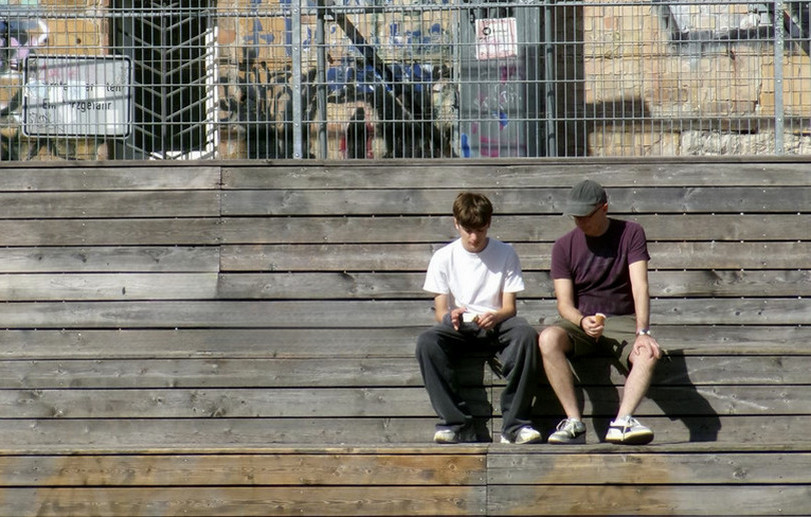

Remove a Person with Photoshop Generative Fill (AI Method)
Generative Fill is one of Photoshop’s newest AI-powered features and has quickly become a popular way to remove people from photos. Instead of manually sampling nearby pixels, Photoshop uses AI to generate new content that blends with the surrounding area.
This method works especially well when:
- The person is clearly separated from the background
- The background has enough visual information for AI to recreate
- You want fast results with minimal manual work
How to Remove a Person in Photoshop Using Generative Fill
Step 1. Open your image in Photoshop.
Make sure you’re using a recent version of Photoshop that supports Generative Fill.
Step 2. Select the person you want to remove using the Lasso Tool or Object Selection Tool.
Aim to include the entire person, and slightly expand the selection beyond the edges to help the AI blend the background more naturally.
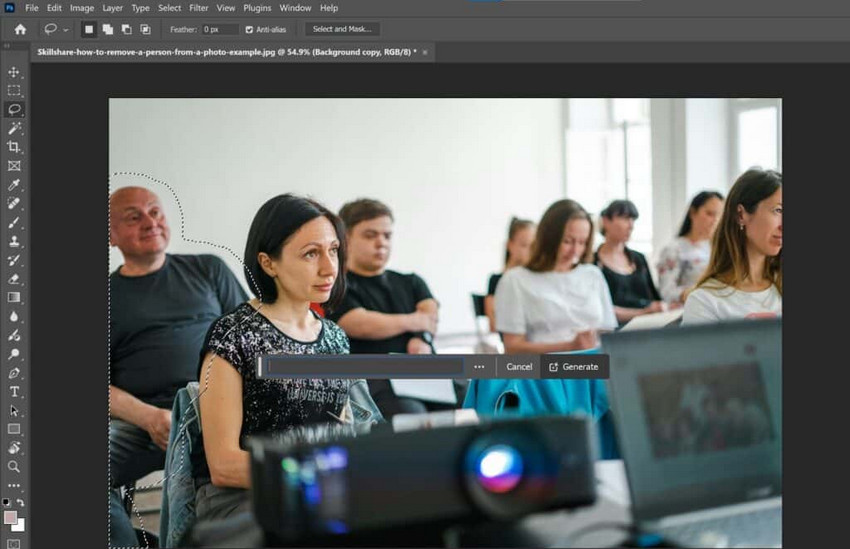
Step 3. Click Generative Fill in the contextual task bar.
If the bar isn’t visible, you can also access Generative Fill from the Edit menu.
Step 4. Leave the prompt empty and click Generate.
This tells Photoshop to automatically fill the selected area based on the surrounding content without adding new objects.
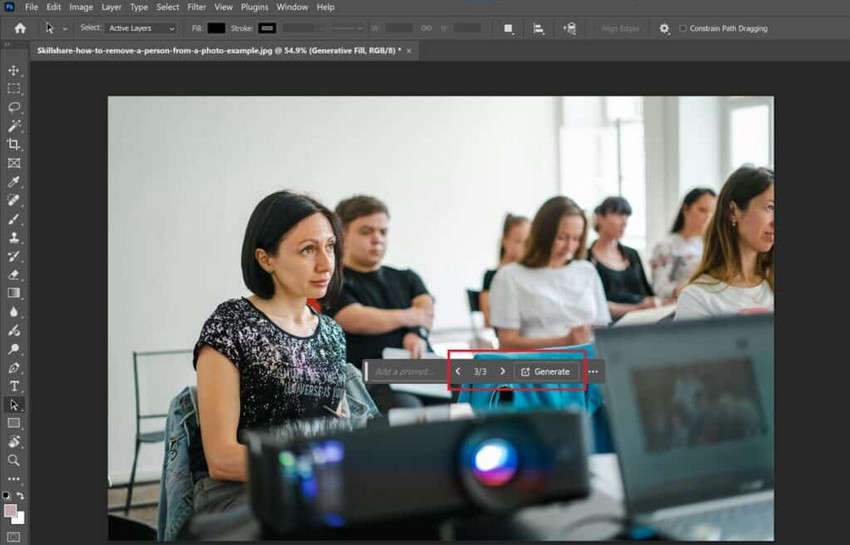
Step 5. Review the generated variations and choose the most natural-looking result.
Toggle between the options, zoom in to check details, and regenerate if the background looks inconsistent or repetitive.
While Generative Fill is fast and convenient, it isn’t perfect. In complex scenes, such as busy streets, repeating patterns, or detailed textures, the AI may produce inconsistent results or visible artifacts. In those cases, classic tools or more controlled methods can deliver cleaner outcomes.
How to Photoshop Someone Out of a Picture Manually
#1. Object Selection Tool & Content-Aware Fill
When dealing with photos where the background is relatively simple, and the subject you want to remove stands out clearly, the Object Selection Tool is a great starting point. This tool quickly isolates the subject, while Content-Aware Fill blends the removed area seamlessly with the surroundings.
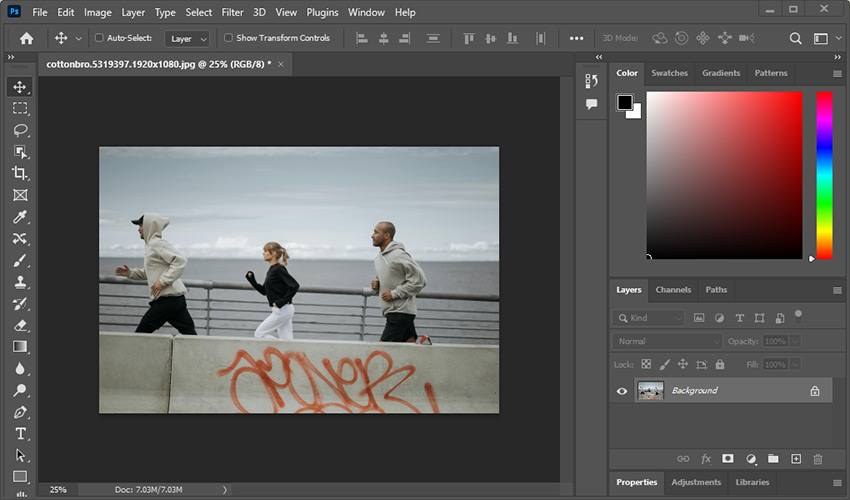
For instance, I'm editing this photo of three people running side by side. I want to remove the person on the far left to focus on the other two. Here's how to remove a person from a photo in Photoshop with the Object Selection Tool.
Step 1. Open the image in Photoshop.
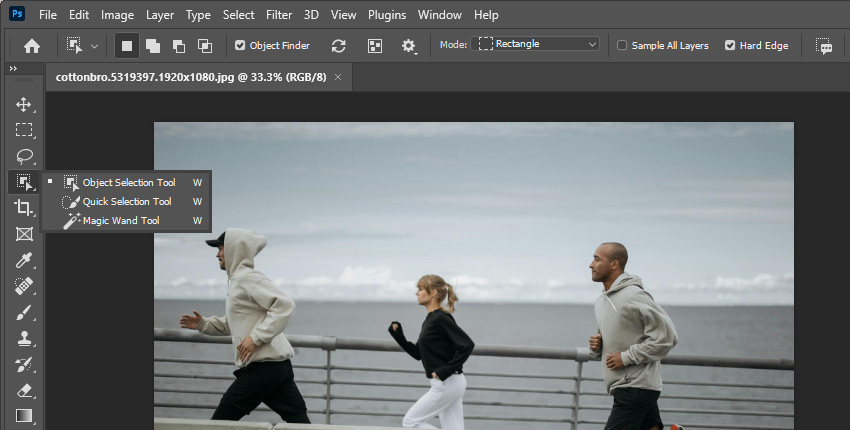
Step 2. Choose the Object Selection Tool on the left toolbar. If you don't see it, hold down the Quick Selection Tool to reveal it.
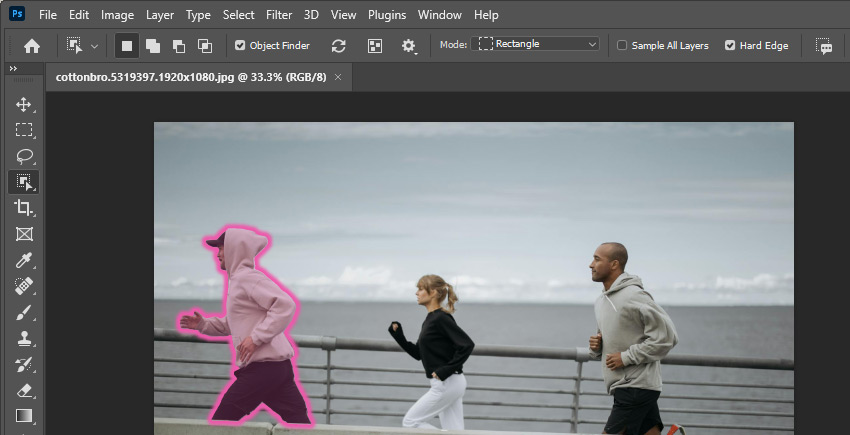
Step 3. Click to select the person you want to remove. Photoshop will automatically detect and select the subject.
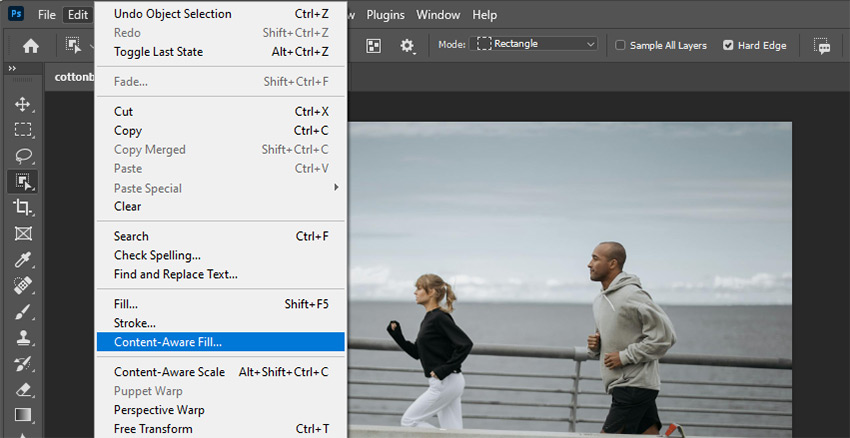
Step 4. Go to Edit > Content-Aware Fill from the top menu bar. In the workspace that appears, Photoshop will automatically generate a fill based on surrounding content.
Step 5. Use the Sampling Brush Tool to modify the green overlay if the fill isn't satisfactory.
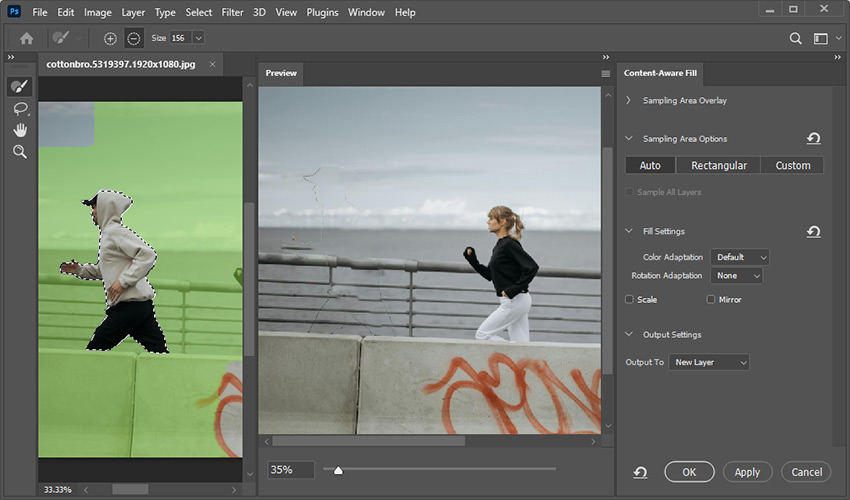
Step 6. Select Output To New Layer and click OK to apply the fill.
Note:
The Object Selection Tool and Content-Aware Fill work by quickly identifying and selecting well-defined subjects based on clear edges and contrasts. It's excellent for simple edits because the selection process is fast and largely automated. However, it may struggle with more intricate backgrounds where the subject blends into its surroundings.
#2. Patch Tool & Content-Aware Fill
When dealing with complex backgrounds or when you need more control over the area to be filled, the Patch Tool combined with Content-Aware Fill is highly effective. This method allows you to manually select the area to remove and choose a source area for the fill, providing greater precision.
Here's how to remove a person from a photo in Photoshop with the Patch Tool.
Step 1. Open the image you want to edit and create a new layer.
Step 2. Find and select the Patch Tool in the toolbar on the left. If it's not visible, click and hold the Spot Healing Brush Tool to reveal it.
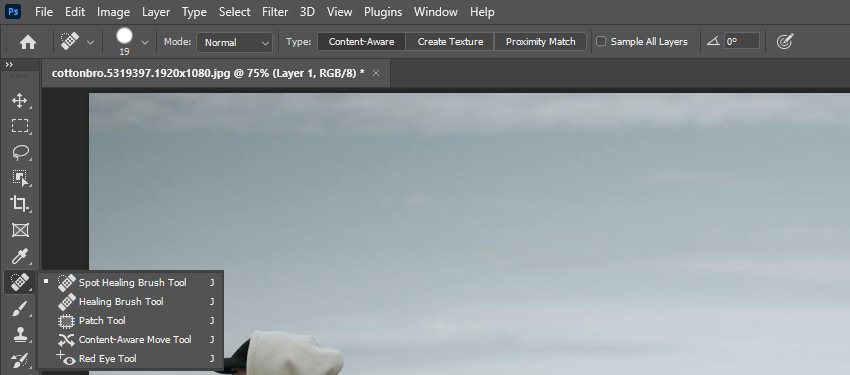
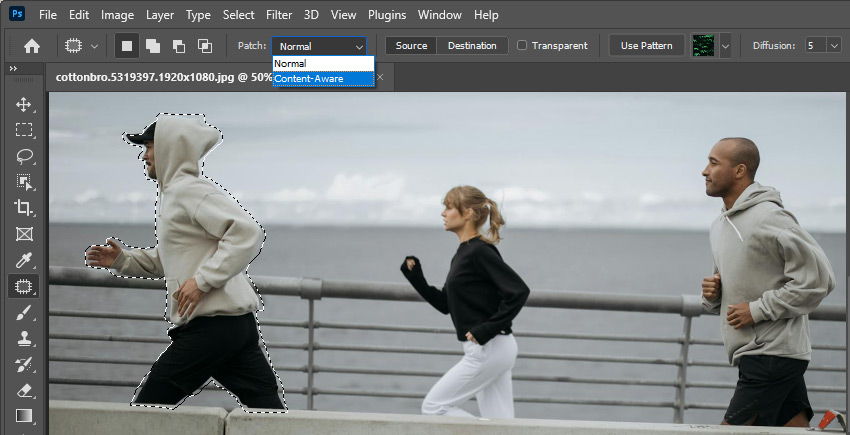
Step 3. Draw a selection around the person you want to remove, and set the Patch option to Content-Aware.
Step 4. Check the Sample All Layers box.
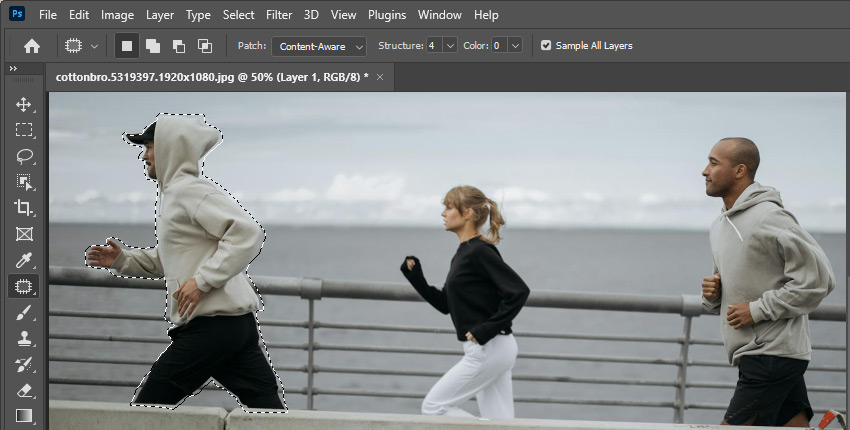
Step 5. Click inside the selection and drag it to an area that resembles the background behind the person. Photoshop will use this area to fill the selection.
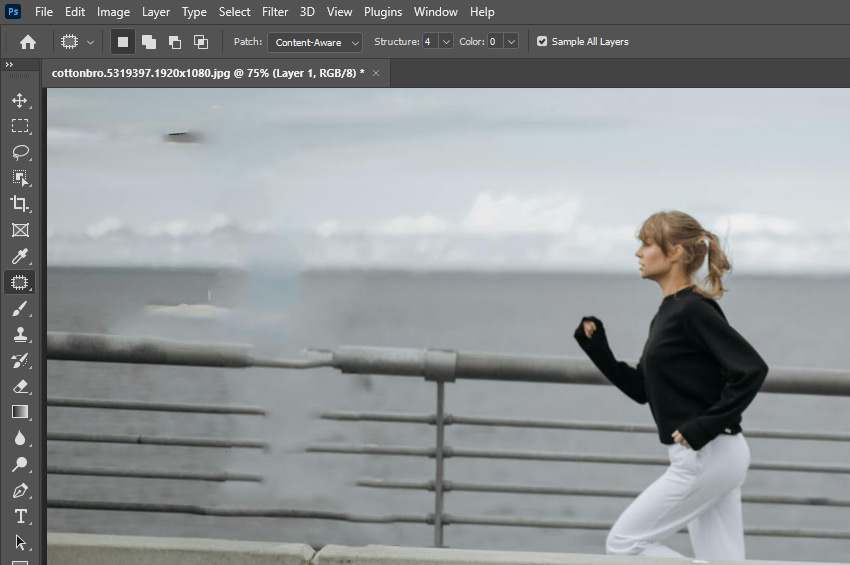
Note:
The Patch Tool is more hands-on, allowing you to manually select the area you want to replace and choose a sample area for the fill. This gives greater control over texture and blending, making it ideal for complex or textured backgrounds where automation might not yield natural results.
#3. Remove Tool & Content-Aware Fill
Photoshop offers a straightforward way—Remove Tool—to eliminate unwanted elements from your photos. The Remove Tool is one of Photoshop's latest and smartest features, powered by advanced AI technology. It uses Content-Aware Fill to analyze the surrounding area and intelligently replace the content where an object or person is removed.
Related reading: how to remove passport background
Here's how to remove a person from a photo in Photoshop with the Remove Tool.
Step 1. Select Remove tool from the toolbar under the Spot Healing Brush Tool group.
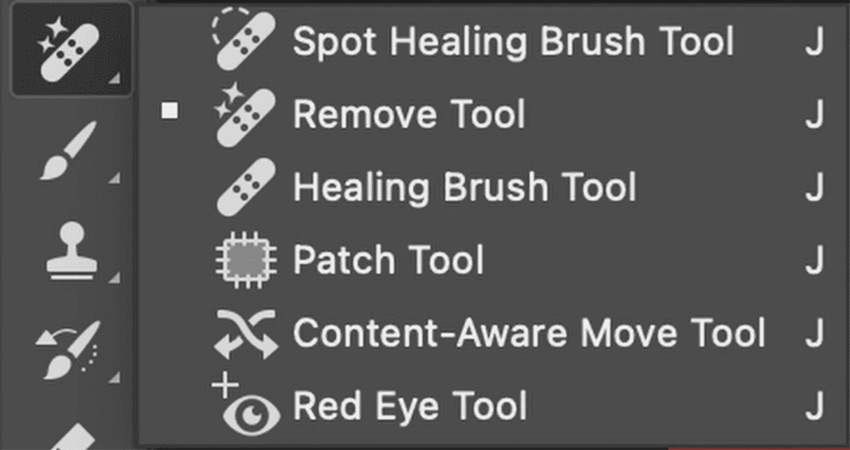
Step 2. Adjust the brush size to make it slightly larger than the area you want to fix. Turn on Sample all layers to sample data from all visible layers. Turn off Remove after each stroke to allow for multiple strokes of the brush before applying the fill. You can also select your preferred setting (Auto, Generative AI on, or Generative AI off) from the Mode dropdown menu when removing the object.

Step 3. Draw a loop or brush over the person you want to remove. Photoshop will automatically analyze the surrounding area and fill in the selection.

Step 4. Save the edited photo once satisfied.
Note:
The Remove Tool is fast and efficient with advanced AI. It doesn't require complex workflows. AI ensures the intelligent blending of the removed area with the surrounding content. Please note that you'll need the latest version of Adobe Photoshop to use the Remove Tool, as it was introduced in recent updates. Additionally, it can be more demanding on your hardware. Users with older computers or limited system resources might experience slower performance and even app crashes.
When Photoshop Isn’t Enough: Using an AI Eraser for Cleaner Results
Photoshop works well for many scenarios, but removing people can become time-consuming in crowded scenes or images with complex textures. Even with Generative Fill, results may vary, often requiring multiple selections and regenerations to look natural.
In these cases, a dedicated AI eraser can be a practical alternative. Instead of manual selections, AI eraser tools automatically detect people and remove them in a single step, making them useful when speed and consistency matter.
For example, Aiarty Image Enhancer includes an AI-powered eraser designed specifically for removing people while preserving background details. It can be helpful when working with multiple photos or scenes that produce inconsistent results in Photoshop.
Key features of Aiarty Image Enhancer’s AI eraser include:
- Automatic detection and removal of people .
- Cleaner background reconstruction in busy or textured scenes.
- Minimal manual input compared to Photoshop tools.
- More consistent results across multiple images.
AI erasers aren’t meant to replace Photoshop, but they can complement it well—handling fast, repetitive removals while Photoshop remains better suited for precise, manual edits.
How to Remove a Person Using Aiarty's AI Eraser
Step 1. Open the image in the AI eraser tool. Import the photo you want to edit. No manual selection is required in most cases.
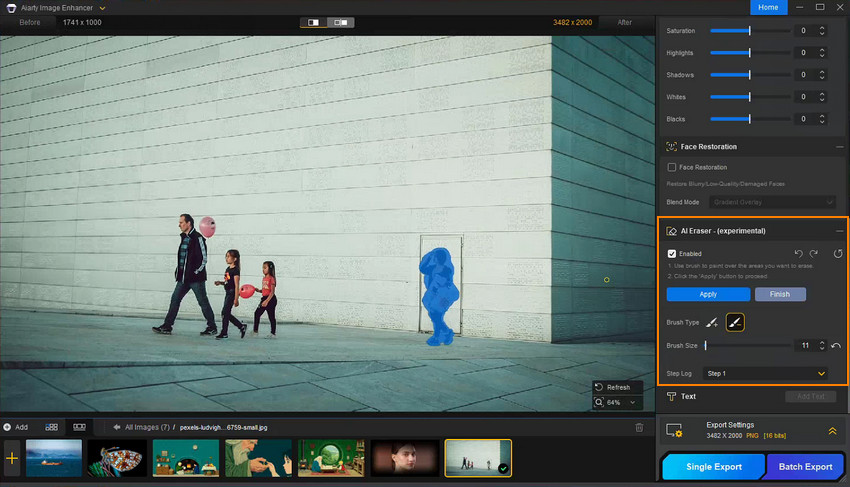
Step 2. Enable the AI eraser option. Click on the "Editing Mask" button, then use the "Brush+" tool to select a size, then apply the brush stroke until the entire object and its shadow are covered. Be careful not to select too much of the background.
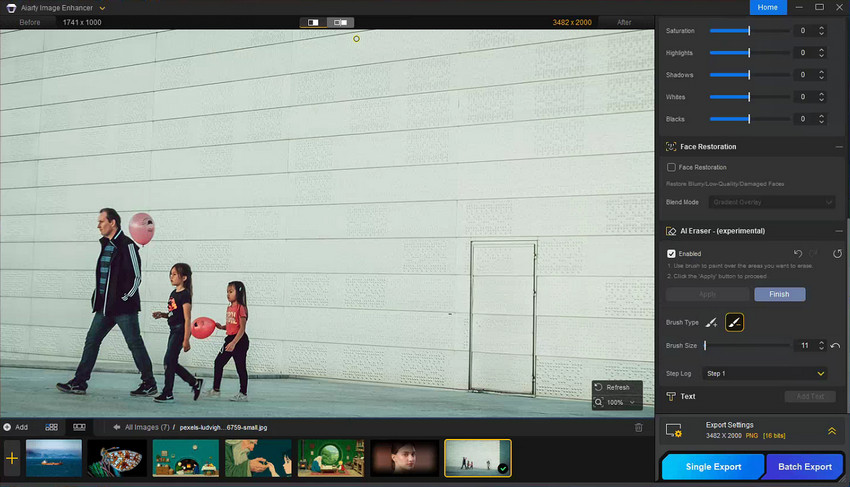
Step 3. Click "Apply" button, the AI will automatically detect and remove people in the image. You can repeat this step until the final result is perfect. Then click the "Finish" button
Step 4. Optionally, you can also upscale your photo by 2x, 4x, 8x, or directly to 4K/8K/32K with natural details. When you're done, tap the "Single Export" to save the erased person photo with quality enhanced.
Tips for Natural-Looking Results
When removing people from photos, the goal isn’t just to erase the subject—it’s to make the image look as if no one was ever there. No matter whether you’re using Photoshop tools or an AI-based enhancer, these tips help keep your results natural, realistic, and visually consistent:
- Enhance image quality with realistic details: After removal, background areas often lose sharpness or texture. Restoring fine details in surfaces like grass, walls, or pavement helps the edited area blend seamlessly with the rest of the image.
- Keep perspective and geometry consistent: Pay close attention to lines, angles, and depth. Distorted floors, walls, or horizons can make even clean edits look unnatural.
- Match lighting and color tones: Ensure brightness, contrast, and color temperature remain consistent across the image, especially in the area where the person was removed.
- Watch for repeating patterns: Tools that fill backgrounds automatically may duplicate textures or objects. Repetitions in clouds, bricks, or foliage are often the first signs of editing.
- Refine edges and transition areas: Focus on the boundary where the subject was removed. Soft, gradual transitions look far more realistic than sharp or uneven edges.
- Avoid over-processing: Over-sharpening or excessive smoothing can introduce an artificial look. Leaving subtle imperfections often makes the final image feel more authentic.
Conclusion
Removing a person from a photo in Photoshop can be simple or complex, depending on your background and tools. For straightforward edits, the built-in Remove Tool or Generative Fill works well. For more intricate scenes, combining Photoshop tools with patience or even AI-powered erasers, yields the cleanest results. Remember, attention to texture, color, and edges is key to keeping your image natural and believable. With these tips, anyone can confidently remove unwanted subjects and create polished, professional-looking photos.
 FAQs: Removing People from Photos in Photoshop
It depends on the background. Photos with simple or uniform backgrounds are much easier to cleanly edit. Complex scenes with patterns, shadows, or overlapping objects may require extra manual retouching or AI-assisted tools to achieve natural-looking results.
Photoshop’s Generative Fill and the Remove Tool are the most beginner-friendly options. They work well for quick removals on simple backgrounds and require minimal manual adjustment.
Photoshop Express and mobile apps offer basic object removal, but their capabilities are limited. For precise control, cleaner edges, and professional-quality results, the desktop version of Photoshop is strongly recommended.
In challenging scenes, Photoshop’s content-aware tools may struggle with detail reconstruction. In these cases, AI-powered erasers or image enhancers can better restore textures, patterns, and missing details, producing more realistic results.
Minor edits usually have little impact on image quality. However, heavy cloning or stretching can reduce sharpness and detail. Working with high-resolution images and refining the edited area carefully helps preserve overall image quality.
You May Also Like


This post was written by Brenda Peng who is a seasoned editor at Digiarty Software who loves turning ordinary photos into extraordinary works of art. With AI assistance for brainstorming and drafting, the post is reviewed for accuracy by our expert Abby Poole for her expertise in this field.
