


If you’re searching for how to remove text in picture, chances are you’re dealing with unwanted words, labels, signs, or printed text that distract from the image itself. The real challenge isn’t just deleting the text, it’s restoring the background naturally so the image still looks clean and realistic. In this guide, you’ll learn how to remove text from pictures without affecting background using different methods.
Why Removing Text from Pictures Is So Difficult
Text is rarely placed on a flat, single-color background. In real-world images, text often overlaps with:
- Textured surfaces such as walls, fabric, paper, or concrete
- Complex patterns like wood grain, bricks, grass, or tiles
- Background elements including wires, fences, signs, or urban details
When you try to remove text from a picture using traditional tools, these overlapping elements make the task much harder. Simple erasing or cloning often results in blurry patches, visible smudges, or repeated textures that clearly reveal the edit.
This is why many people struggle with how to remove words from a picture or how to erase writing on a photo without damaging the background. As a result, AI-based text removers have become the preferred solution. Instead of simply deleting pixels, they analyze surrounding textures and patterns, then intelligently rebuild the background, making the image look natural, as if the text was never there.
How to Remove Text in Picture without Removing Background?
Aiarty Image Enhancer is an AI-powered tool that can denoise, deblur, enhance and upscale images to 4K, 8K, and 32K with natural details. It contains an AI Eraser designed specifically for object removal and background reconstruction, including texts, symbols, vehicles, people, wires, fences, acne, freckles, and more.
Unlike traditional erasers, this AI text remover doesn’t just delete pixels. It intelligently fills in the missing area so it blends naturally with surrounding textures. It’s able to:
- Remove text, words, printed labels, signs, icons, and symbols
- Clean up printed or overlaid text on regular textures
- Reconstruct complex backgrounds realistically
- Preserve original textures and lighting
- Avoid blurry or “patched” areas
- Work fully offline for better privacy and stability
Steps to Remove Text from Images Easily
Step 1. Load Your Image
Open the AI text remover and import the image you want to clean up. This can be a photo with printed words, labels, or unwanted writing that distracts from the main subject.
Step 2. Set the Upsaling Factor
If you also want to enhance image quality, go to Upscale on the right panel and choose a factor such as x2 or x4 to improve resolution and clarity. If your only goal is to remove words from pictures, simply select x1 to keep the original size unchanged. This step is optional, but it’s useful when you want the final image to look sharper after you erase writing on a photo.

Step 3. Enable AI Eraser
Scroll down the tool panel and check the box for AI Eraser. During the first use, the required AI models will be downloaded locally to your device. Once ready, click Edit Mask to start selecting the text you want to remove.

Step 4. Brush Over the Text
Now, you need to use the Brush to fully cover the text and any visible shadows that you want to remove.
- Adjust the brush size to match the text area
- For multiple text elements, erase the words one by one
- Each erase action is saved automatically, allowing you to review or undo steps
- Avoid selecting unnecessary background
Note: Covering the entire text area in one pass usually produces better results.

Step 5. Check and Adjust
Once all the texts are covered, click Apply and the AI text remover will remove all the selected texts in the image. You can go back to a previous step, refine the selection, and re-apply the erasing process if needed.
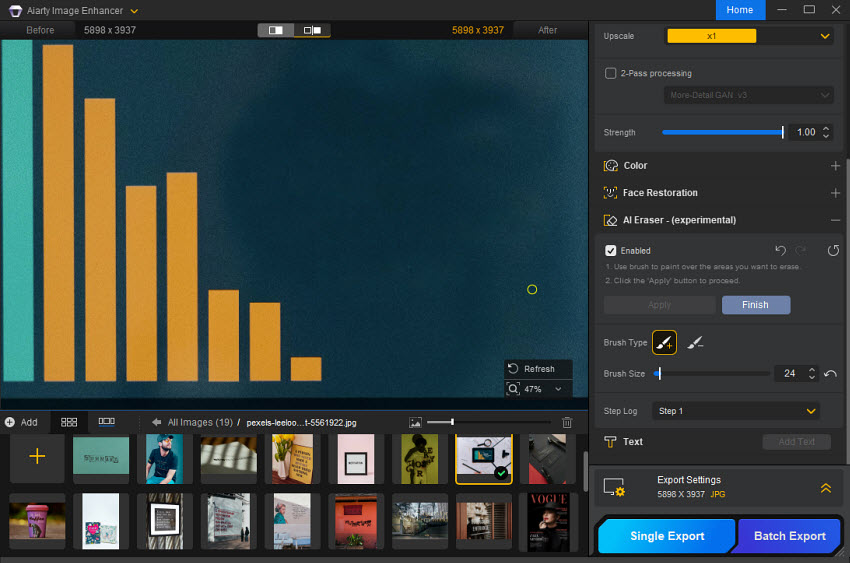
Step 5. Export the Image
When you’re satisfied with the result, click Finish to finally render the image, free of unwanted text and visually consistent. Then click Single Export to save output to your local computer.

Real-World Text Removal Results with Aiarty Image Enhancer
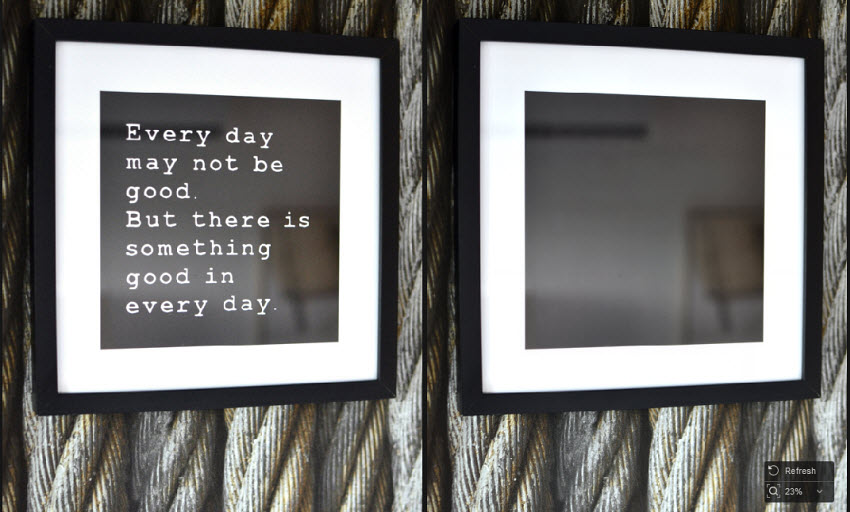
Now that we’ve explained how to remove writing from pictures without removing backgrounds using Aiarty Image Enhancer. Below are several before-and-after examples showing how Aiarty removes text from different types of images, ranging from textured surfaces and products to mockups and outdoor scenes.
Empty Billboards for Design Placement
The billboard is cleared of all writing, leaving a perfectly blank surface. The scene looks natural, with no signs of editing, and is ready for placing your client’s design convincingly.
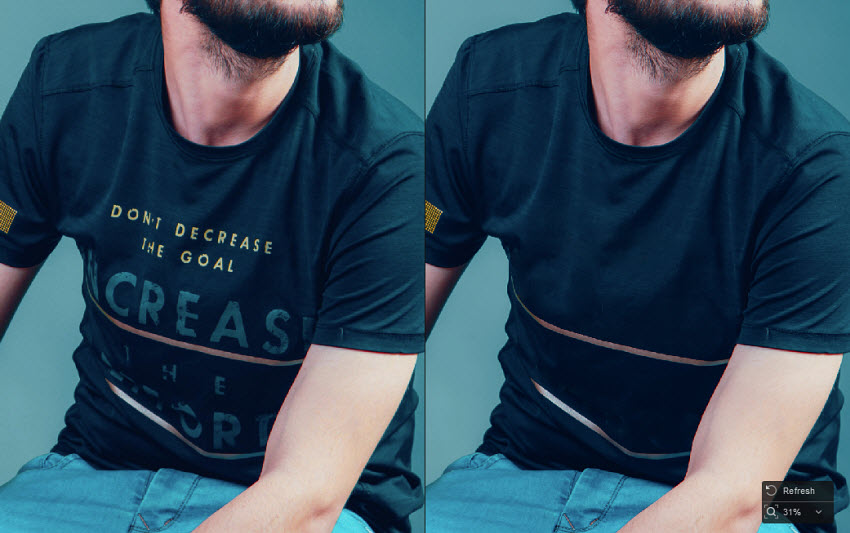
Remove Brand Names on Products
The texts have been erased flawlessly. The t-shirts appear plain and clean, making the products neutral and ready for presentation on your ecommerce site. The texture and fabric details remain intact.
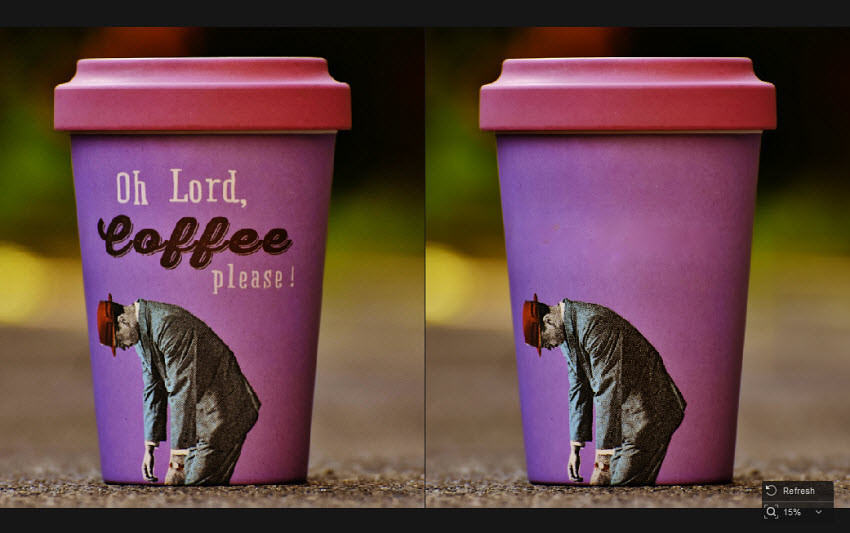
Clean Text on Objects
It removes the text from the cup in the picture completely, leaving a smooth, distraction-free surface. Designers can now easily place their own artwork or branding, while the cup maintains realistic shadows and highlights.
Clean Walls and Signs
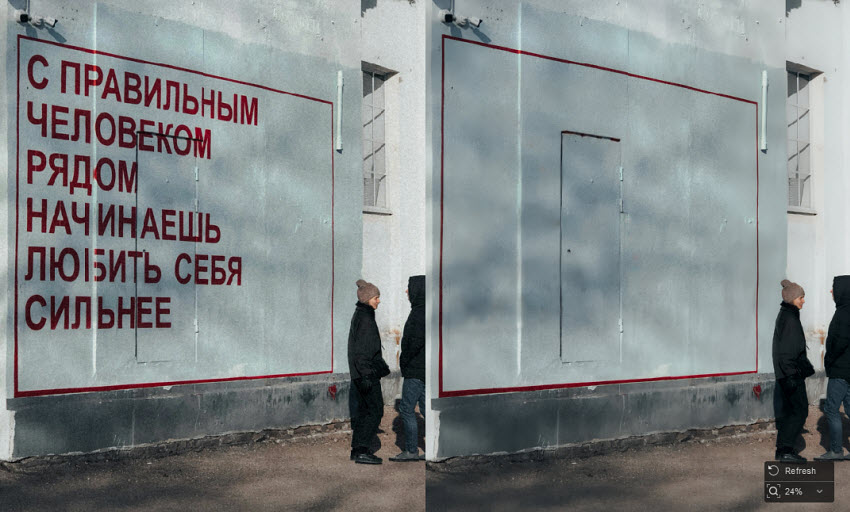
The walls and outdoor signage show visible text that distracts from the property, making the photo look cluttered. The texts o nthe wa has been removed seamlessly. The surfaces look clean and natural, highlighting the property itself without any distractions.
Portrait Text Removal
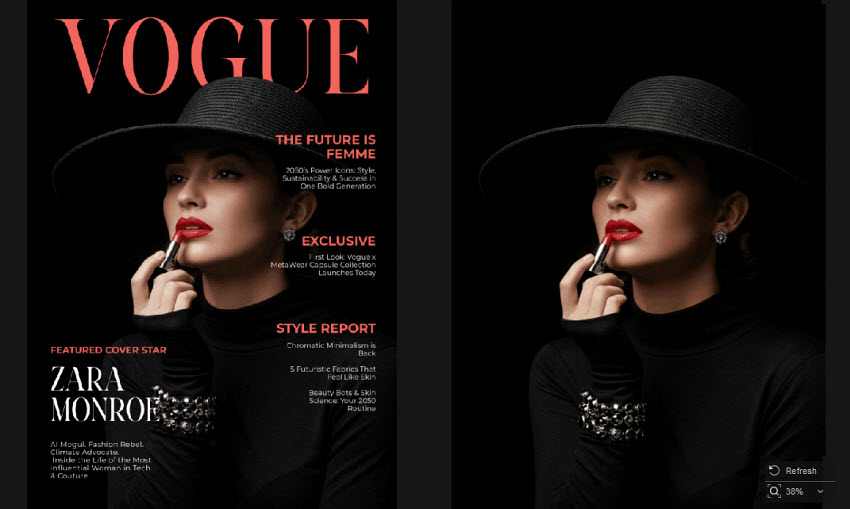
All text has been removed cleanly, revealing the portrait underneath with natural skin tones, facial details, and lighting fully preserved. The image looks balanced and authentic, with no visible editing artifacts, making it suitable for reuse in editorial layouts, creative concepts, or marketing visuals.
Free download Aiarty Image Enhancer to remove texts without affecting background now!
Other Ways to Remove Text from Images
While AI text remover like Aiarty Image Enhancer offer a more accurate and texture-preserving way to remove text from images, they are not the only option available. Depending on your workflow, skill level, or the complexity of the image, you may also consider other methods, from design platforms and professional photo editors to free AI text removers online. Below is a quick overview of alternative ways to remove text from pictures, along with when each approach works best.
Photoshop
Photoshop is a professional-grade photo editor and one of the most powerful tools for removing text from images. With features like Content-Aware Fill, Spot Healing Brush, and Clone Stamp, it can erase text from images without removing backgrounds with high accuracy, especially on complex textures.
However, removing texts in pictures using Photoshop requires manual selection and some editing experience. While the results can be excellent, the process is more time-consuming compared to modern AI text removers, and the quality depends heavily on user skill.
Steps to remove writing from picture using Photoshop
There are different methods to remove words in images using Photoshop. Here we will show the most useful method: Content-Aware Fill.
Step 1. Launch Photoshop and open the image that contains the text you want to remove.
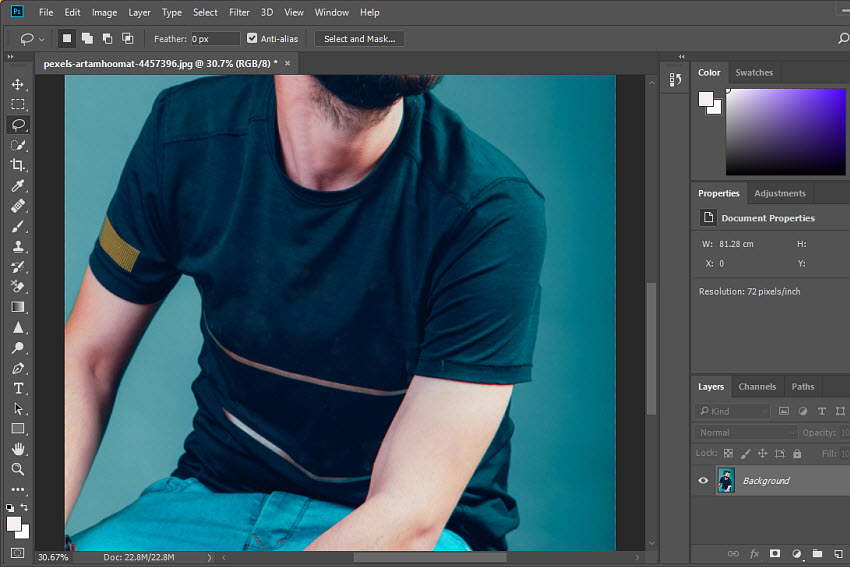
Step 2. Use the Lasso Tool or Marquee Tool to carefully select the text and a small surrounding area (hold Shift to select multiple letters). If there are multiple texts to remove, it may take some time.
Step 3. With all the texts selected, go to the top menu bar, choose Edit and select Content-Aware Fill from the list.
Step 4. Photoshop will analyze nearby pixels and generate a background preview. If the texts are removed with natural background, click OK to apply the fill. You can also use the Spot Healing Brush or Clone Stamp Tool to clean up edges or fix small artifacts.
Canva
Canva’s AI features like Grab Text and Magic Grab make it easier to extract, edit, or remove text from images without advanced editing skills. Grab Text lets you pull text out of an image and turn it into an editable layer, so you can replace or remove the texts without recreating the entire design. Magic Grab can isolate subjects, objects, or embedded elements including text, allowing you to reposition or remove them.
Both tools are part of Canva’s Magic Studio AI features, but note that they work best with relatively clear text and shapes, and are not available for free.
Steps to remove writing from picture using Canva
Step 1. Open Canva and upload the image that contains the text you want to remove.
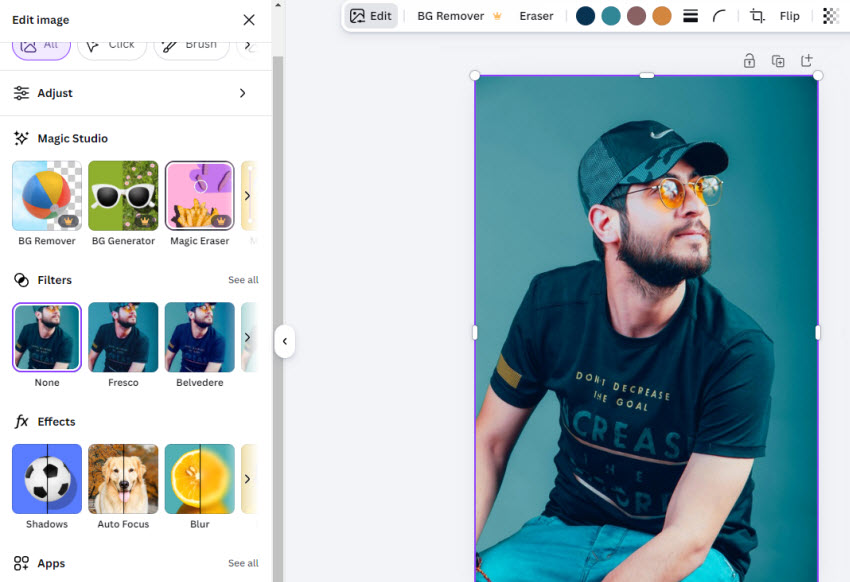
Step 2. Click on the image in your design and select Edit on the top menu bar above the photo.
Step 3. Under the Magic Studio tools, choose Grab Text. Canva will scan the image and extract visible text into an editable text box. Once the text appears as an editable layer, delete the text from the image.
Step 4. Make any other adjustments as needed, then download your edited image.
Nano Banana Pro
Nano Banana Pro is Google’s next-generation AI image editor built on advanced reasoning and visual understanding. While it’s best known for AI-driven creative editing, it also supports precise image modifications such as removing words from images when guided with clear prompts. It understands semantics, meaning it can attempt to remove text without breaking surrounding geometry or visual flow. In addition, Nano Banana Pro typically processes edits quickly, producing results often in seconds.
Steps to remove text from an image using Nano Banana Pro
Step 1. Open Gemini in your browser. Then click the + button and choose Upload File. Then upload the image that contains the words you want to remove. The free credits of Nano Banana Pro can remove texts from 2 images per day for free.
Step 2. In the model selector (bottom right), choose Pro. Then input the text prompts "remove texts in this picture".
Step 3. It will then start to process the image and give a picture without texts.
While Nano Banana Pro delivers fast and visually smooth results, its text removal is not always fully precise. In some cases, it may remove surrounding details along with the text. For example, while erasing text on a T-shirt, it can also smooth out fabric stripes, and fine background details like wall cracks may be partially lost.

Photopea
Photopea is a browser-based photo editor that closely resembles Photoshop in layout and tools. It supports Content-Aware Fill, Healing Brush, and Clone Stamp, making it a capable option for removing text from images free online without installing any software.
That said, Photopea relies on manual editing, not AI-based text removal. While it performs well on simple or moderately complex backgrounds, results can be inconsistent when dealing with textured surfaces like fabric, brick walls, or detailed patterns.
How to remove text in a picture free online using Photopea?
Step 1. Go to photopea.com and open your image via File > Open or drag and drop.
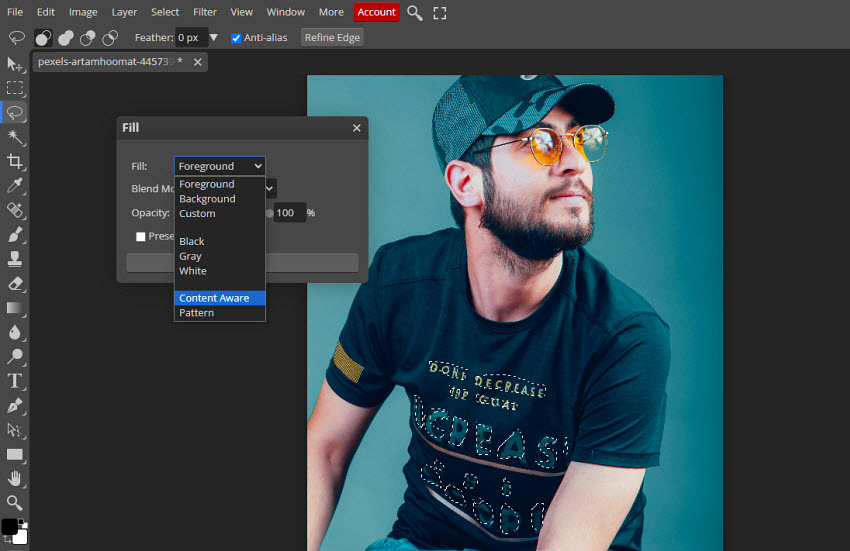
Step 2. Similar to Photoshop, use the Lasso Tool or Magic Wand Tool to select the texts that you want to remove.
Step 3. With all the texts selected, click Edit on the top menu bar and choose Fill. In the Fill setting window, choose Content Aware in the Fill dropdown menu. It will then remove texts from image without affecting the background.
Pixelbin
Pixelbin is an AI-powered online image editing platform designed for fast, automated image cleanup. Its object removal feature can be used to remove text from pictures online for free (with usage limits), making it appealing for users who don’t want to install software or manually edit images.
Unlike traditional tools that rely on cloning or healing, Pixelbin uses AI to analyze surrounding pixels and remove writing, words, or unwanted elements automatically. This works especially well for simple backgrounds, product photos, and marketing visuals.
As a free AI text remover online, Pixelbin offers less manual control. On complex texture, such as fabric patterns, cracked walls, or layered backgrounds, the AI may occasionally oversmooth details or produce inconsistent fills.
How to remove text from image free online using Pixelbin?
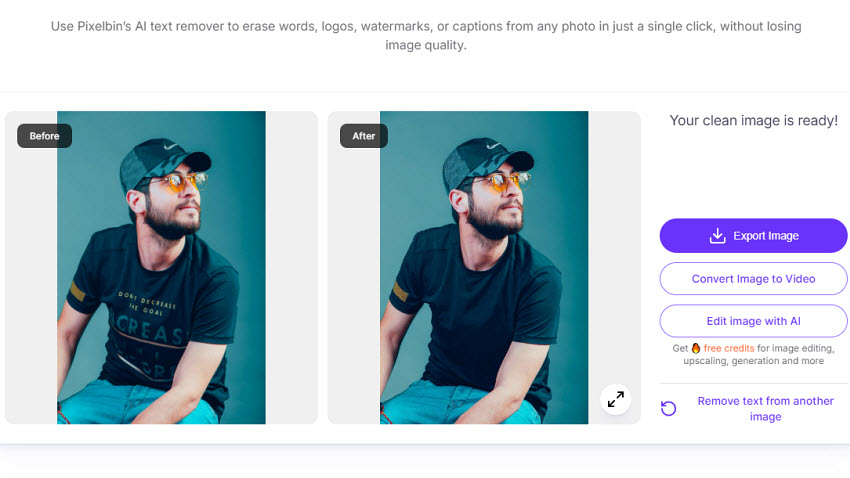
Step 1. Go to Pixelbin’s online editor and upload the image that contains unwanted text, words, or writing. You can erase words from 10 images for free in a month.
Step 2. It will then automatically remove words from the image and output an preview. Then click Export Image to save it to your local computer.
Clipdrop
Clipdrop offers an online AI-powered text remover that lets you remove text from pictures directly in your browser without installing software. The tool automatically detects and deletes words or writing embedded in images, then reconstructs the background based on surrounding pixels, so you don’t have to manually retouch each area. This free AI text remover online allows you to remove texts from up to 50 images a day and also supports batch process 10 images.
How to remove texts in pictures free online with Clipdrop?
Step 1. Visit the Clipdrop Text Remover page in your browser and upload the images to it. However, free version doesn't allow HD images.
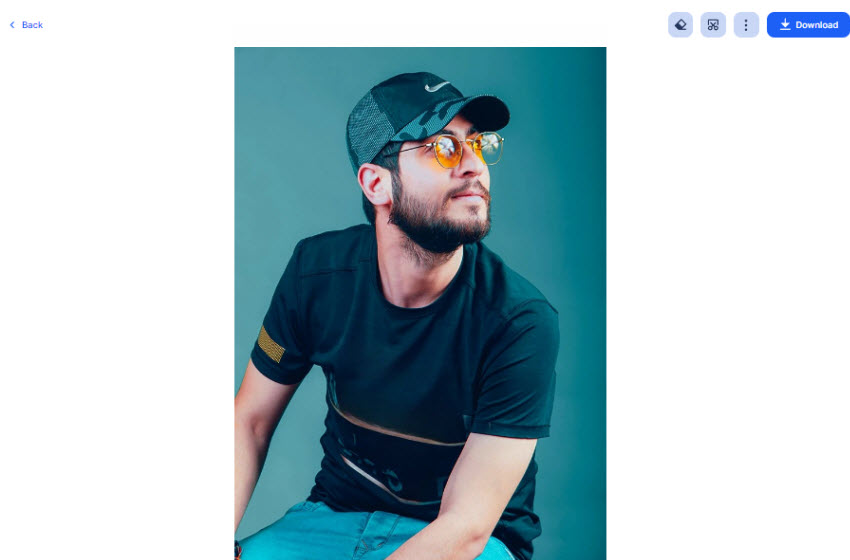
Step 2. Then click Remove Text and it will automatically remove words from the images. Then just click Download to save. As you can see from the result, because the process is fully automatic, not all text is removed completely, and there are no options for further fine-tuning or manual adjustments.
EzRemove
EzRemove provides an AI-powered online free tool that helps you remove text from pictures and other unwanted elements like logos, people, or objects with minimal effort. Its free Text Eraser feature lets you automatically erase words, or manually brush over texts or writing in your image and delete them, while the AI intelligently fills the area so the background looks natural. EzRemove does not require registration or Photoshop skills, and it works completely online free with no watermarks, making it a convenient option for everyday edits.
How to remove texts in pictures free online with EzRemove ?
Step 1. Go to the EzRemove website and choose the Text Remover tool. Auto Mode and upload your photo or drag and drop the file that contains the text you want to remove. It allows you to remove texts from 20 images a day.
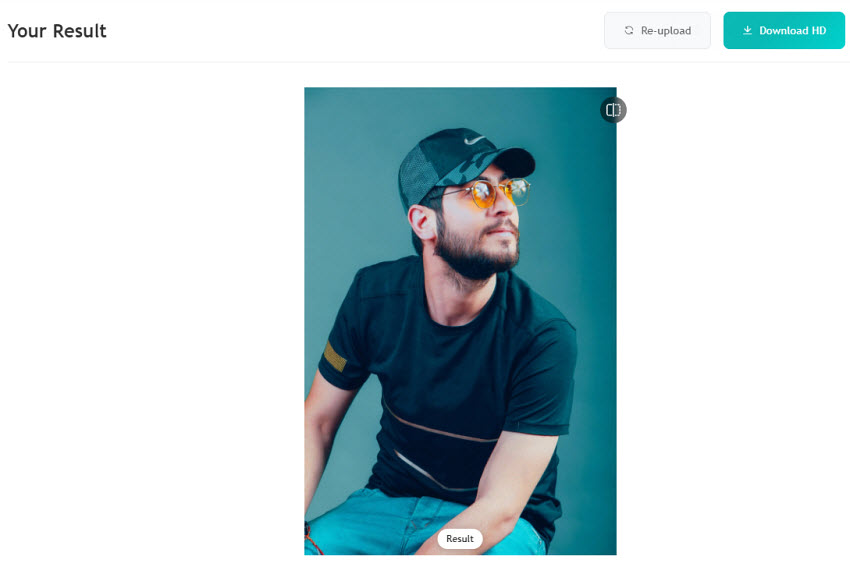
Step 2. It will automatically remove texts from the picture for free. If any text remnants remain, you can switch to Manual Erase mode to manually select and remove the leftover text for a cleaner result.
Conclusion
Removing text from pictures is more challenging than it looks, especially when words overlap with textured surfaces, complex backgrounds, or important visual details. Thanks to AI-powered solutions, it’s now much easier to remove text from images without removing the background. Tools like Aiarty Image Enhancer combine text removal with image enhancement, helping preserve textures, colors, and overall image quality while cleaning up unwanted words. Whether you’re editing product photos, real estate images, mockups, or creative visuals, choosing the right tool depends on how much control, accuracy, and quality you need.
While online editors and manual tools can work for simple cases, AI-based text removal delivers the most consistent and natural-looking results, especially for real-world images. By understanding your image type and workflow, you can confidently remove text from pictures and keep your visuals clean, professional, and ready for use.
 FAQ
FAQ
You can clear up text in a picture using AI-powered text removal tools. Apps like Aiarty Image Enhancer, Photoshop, and online tools let you remove writing, words, or text from a picture. For complex backgrounds, AI tools preserve textures and shadows while erasing the text, keeping your image natural and clean.
On iPhone, you can use apps like Snapix Retouch, Remove Objects & Photo Eraser, or SnapEdit to remove text from pictures directly. These apps allow you to brush over words or writing and delete them. For simple backgrounds, they work instantly, while AI tools handle more complex textures with better results.
Yes! There are several free online tools that let you remove text from pictures online for free. For example, Photopea will help you remove texts totally free online. Other options like Clipdrop, EzRemove, Pixelbin, etc. all offers free versions to let you erase words from images with usage limits.
To edit text in an image, you usually need to remove the existing text first, then add new text on top. Tools like Photoshop, Photopea, or Aiarty Image Enhancer let you remove writing from a picture and then insert your own text while keeping the background intact. Online editors like Canva can also help you add replacement text after removal.
You May Also Like


This post was written by Brenda Peng who is a seasoned editor at Digiarty Software who loves turning ordinary photos into extraordinary works of art. With AI assistance for brainstorming and drafting, the post is reviewed for accuracy by our expert Abby Poole for her expertise in this field.
