


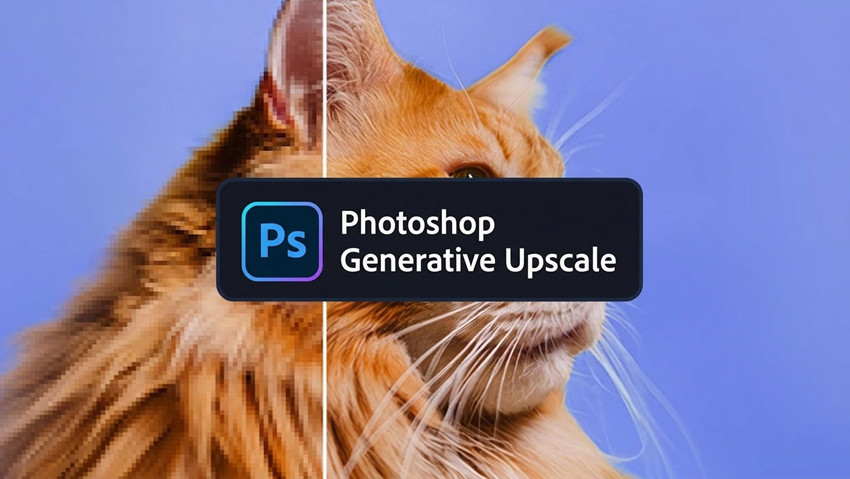
Adobe Photoshop’s Generative Upscale feature has emerged as a powerful way to boost image resolution while improving clarity, texture, and detail. Unlike traditional resizing methods, Photoshop’s generative AI upscaling unlocks new possibilities for enhancing low‑resolution photos, enlarging graphics for print, or rescuing old scans, all without tedious manual edits.
In this guide, we’ll walk through the key features of Generative Upscale in Photoshop, how to use it step‑by‑step to get the best results, important settings & limitations, and how to fix some common Photoshop generative upscaling not working issues.
What Is Photoshop Generative Upscale?
Generative Upscale in Photoshop is a next‑generation AI image upscaler that enlarges images by intelligently recreating and enhancing visual detail using generative models, rather than simply stretching pixels. It integrates AI upscaling models like Firefly Upscaler, plus partner models such as Topaz Gigapixel and Topaz Bloom, to offer tailored results depending on your image type and quality goals.
This feature was introduced in Photoshop 2026 (version 27.0), released in October 2025, so you’ll need an updated version of Photoshop to access it.
Unlike older methods like Super Resolution or standard Bicubic resizing, Generative Upscale truly “imagines” extra detail at larger sizes, dramatically reducing blur and soft edges while retaining a natural look.
Key Features of Photoshop Generative Upscale
Photoshop Generative Upscale leverages AI to intelligently enhance and enlarge images. Understanding these key features helps you choose the right model, optimize quality, and avoid common upscaling issues.
1. AI‑Driven Detail Generation
Instead of stretching pixels, Generative Upscale regenerates fine textures, improves edge definition, and enhances clarity using trained AI models. This ensures low-resolution images gain realistic depth and detail, making enlarged images appear natural rather than artificially smooth.
2. Multiple AI Upscale Models
Inside Photoshop’s Generative Upscale dialog, you can choose between models:
- Firefly Upscaler – Restores low-resolution images up to 6144 × 6144 px, providing a natural, balanced look. It works well for portraits, landscapes, and general photography, enhancing details without over-sharpening.
- Topaz Gigapixel – Preserves existing detail and sharpness, ideal for high-frequency textures like hair, fur, fabrics, or architecture. Available for premium subscribers, it supports upscales up to 56 megapixels, making it perfect for product photography, wildlife, and precision-heavy images.
- Topaz Bloom – Adds creative detail while maintaining overall image integrity. Also premium-only, it supports upscales up to 9 megapixels, suitable for concept art, stylized portraits, or creative projects where artistic enhancement is desired.
3. Higher Effective Resolution
Photoshop Generative Upscale goes beyond the limitations of older upscaling methods. Traditional Super Resolution only allows 2x enlargement, while Preserve Details 2.0 can scale higher but with limited detail retention. In contrast, Generative Upscale intelligently reconstructs textures and sharpens edges, enabling images to reach up to ~56 megapixels with Topaz Gigapixel, delivering both higher resolution and realistic details that older methods cannot achieve.
4. Layer‑Based Upscale Output
Upscaled images are generated into a new layer or document, preserving your original file. This non-destructive workflow allows easy comparison and further editing without altering the original image.Generative Upscale Credits & Limits
While Photoshop’s Generative Upscale is powerful, it’s helpful to know its constraints:
1. Maximum Output & Model Limits
Firefly Upscaler generally supports outputs up to ~6144 × 6144 px. Topaz Gigapixel supports larger outputs (~56 MP) but consumes generative credits. If your requested size exceeds a model’s limit, Photoshop will prompt you to adjust (e.g., choose a lower scale).
2. Generative Credits
Using Topaz Gigapixel or Topaz Bloom in Photoshop consumes Generative Credits from your Adobe plan. Gigapixel uses 10 credits for images up to 25 MP and 20 credits for 25–56 MP, while Bloom consumes 35 credits for images between 1 MP and 9 MP. For smaller or less critical images, consider using Firefly Upscaler, which doesn’t consume credits.
3. Keep Expectations Realistic
Even though Generative Upscale enhances detail, it is effectively reconstructing or imagining detail instead of retrieving original data. For subtle texture / ultra‑realistic large upscales, some users pair it with external AI upscalers.
How to Use Photoshop Generative Upscale (Step-by-Step)
The process of Photoshop Generative Upscale is surprisingly straightforward. Below is a step-by-step guide to help you upscale images efficiently while maintaining the best possible quality.
Also see: All tools to upscale images in Photoshop
Step 1. Open Photoshop and import the image that you want to upscale.
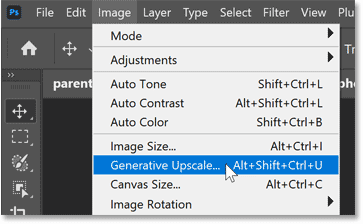
Step 2. Once your image is loaded, click Image on the top menu and choose Generative Upscale from the window. This will open the Generative Upscale dialog box, where you can control model selection and scaling options.
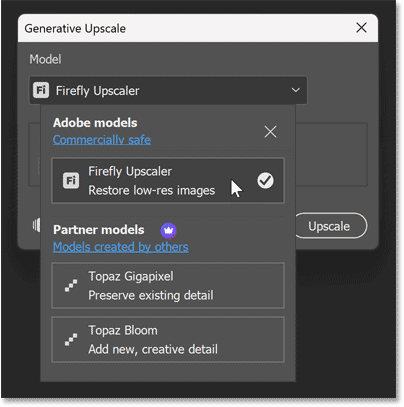
Step 3. Select a generative AI model and scaling options. In the Generative Upscale panel, choose from:
- Firefly Upscaler (balanced, natural results)
- Topaz Gigapixel (detail-focused, high resolution), you can also enable the Face Recovery when upscaling or restoring portrait photos.
- Topaz Bloom (creative enhancement), you can then move the Creativity slider to control the level of stylistic enhancement.
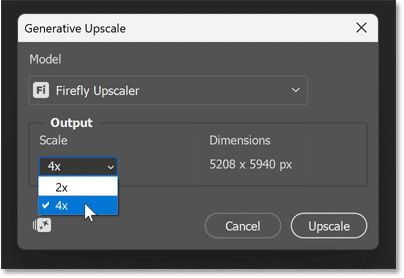
Then select an upscaling factor like 2x or 4x based on your needs. Start with a lower scale if you're unsure, then increase gradually. Choosing the right model and scale is crucial, as it directly impacts detail quality, sharpness, and realism.
Step 4. After setting your options, click Upscale to begin processing. Photoshop will generate a new upscaled version of your image (usually in a new layer or document). Then you can zoom in to inspect fine details or compare with the original to evaluate improvements. If the result looks too soft or overly processed, try a different model or scale.
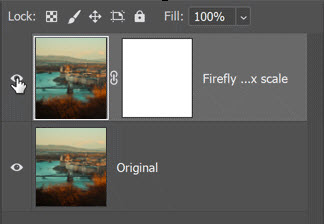
Step 5. After generative upscaling the photo in Photoshop, you can further refine the image using tools (e.g., Sharpen, Camera Raw Filter, or Noise Reduction) to refine the final look. Then just export the upscaled image.
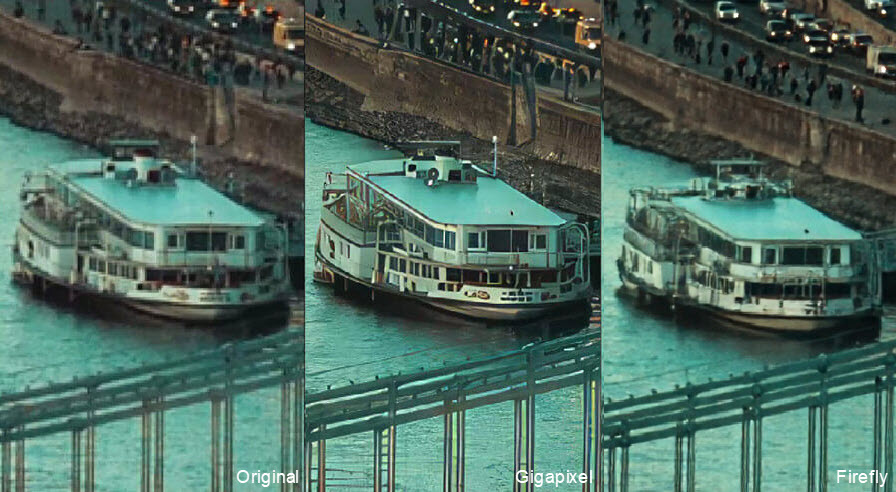
Below I cropped the same area of the original image to compare the results side by side. I focused on a detailed section of the scene to clearly see how each AI upscaler in Photoshop generative upscale handled textures and edges (Bloom’s creative upscale wasn’t included in this comparison).
The Topaz Gigapixel 2x upscale shows significantly sharper detail, with crisp textures and well-preserved fine elements, making the image look almost like a higher-resolution original. The Firefly Upscaler 2x, while still improving the image over the original, produces a softer result with slightly less clarity and edge definition. Overall, Gigapixel clearly outperforms Firefly for this type of high-detail enhancement.
Photoshop Generative Upscale Not Working? Common Issues and Fixes
While Photoshop Generative Upscale is powerful, it doesn’t always work perfectly. Many users report issues like the generative upscale not showing, being greyed out, not working properly, or generating unexpected results. Below are the most common problems, along with practical fixes to help you get things working smoothly again.
Also see: How to upscale photos in Davinci Resolve Photo
1. Photoshop Generative Upscale Not Showing
If Photoshop Generative Upscale is greyed out or not available, it’s usually due to incompatible image settings. This often happens when the document is not in RGB mode or uses an unsupported bit depth. To fix this, go to Image > Mode > RGB Color and make sure the image is set to 8-bit or 16-bit. Also, ensure that your layer is unlocked, as locked layers can prevent the feature from being enabled.
2. Generative Upscale We Have Encountered an Issue…
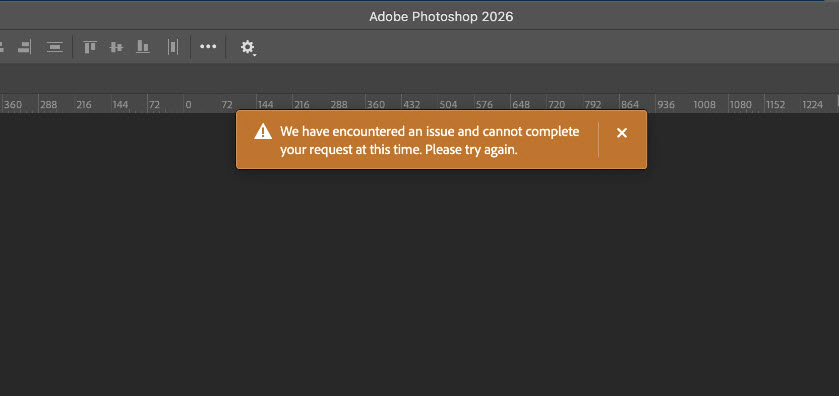
If you see “We’ve encountered an issue and can’t complete your request at this time. Please try again.” when using Photoshop Generative Upscale, you’re not alone, this is a commonly reported issue in forums. In most cases, this error is caused by server-side issues, unstable internet connection, or temporary glitches in Adobe’s generative AI system. Since Generative Upscale relies on cloud-based processing, interruptions can cause the request to fail.
Try again after a few minutes, ensure a stable internet connection, and avoid running heavy tasks. If needed, restart Photoshop, re-login to Creative Cloud, or switch to a different model or lower upscale factor. Updating Photoshop or switching between desktop and web versions may also help.
3. Generative Upscale Producing a Black Layer
In some cases, Photoshop Generative Upscale may produce a black preview or a completely black output image. This can happen either during processing or after the upscale is complete. This is usually caused by GPU rendering issues, limited system resources, or exceeding model limits.
To fix it, try reducing the upscale factor (e.g., 4x to 2x) or splitting the image into smaller sections. You can also check Preferences > Performance to ensure the graphics processor is enabled. If the problem persists, disable “Use Graphics Processor” temporarily, increase your scratch disk allocation, or update your GPU drivers.
4. Generative Upscale not Working on Photoshop Web
If you’re using Generative Upscale on Photoshop Web and the feature isn’t working, for example, showing errors like “Error 0” or failing to process your image, the issue is usually related to account access or browser settings.
Make sure you’re signed into the correct Creative Cloud account. Enable Hardware Acceleration in your browser (toggle it off/on if needed), and use a supported browser like Chrome or Edge, as compatibility issues can prevent the feature from working properly.
5. Photoshop Generative Upscale Output Too Large
When you encounter an “output too large” error, it usually means the image exceeds the maximum resolution supported by the selected AI model. A practical solution is to slightly reduce the image size before applying Generative Upscale.
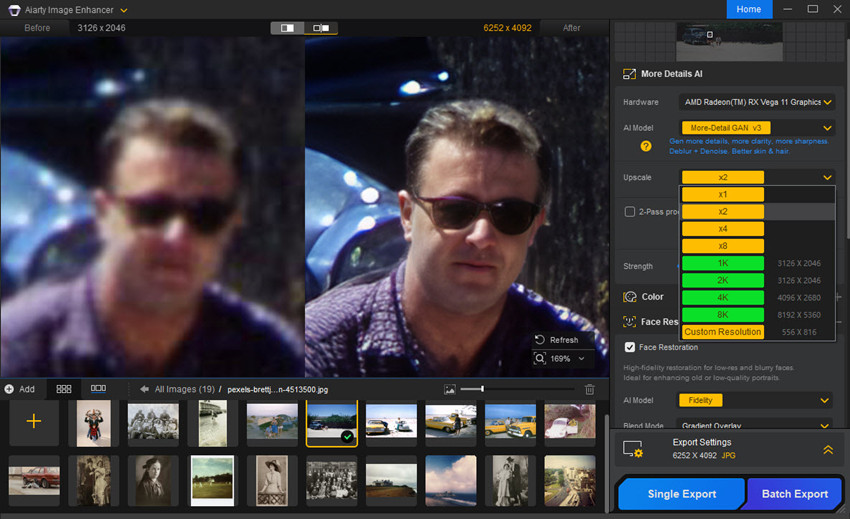
Bonus Tips: Enhance Large or Difficult Images with Aiarty Image Enhancer
While Photoshop Generative Upscale is powerful for many images, some scenarios, such as extremely large files, batch processing needs, or images hitting GPU/processing limits, can be challenging. Aiarty Image Enhancer serves as a complementary tool without these restrictions.
It supports upscaling up to 4K, 8K, and ultra-high resolutions up to 32K, processes batch images efficiently, and works offline, reducing dependency on GPU performance or cloud-based credits. Its AI-driven algorithms preserve fine textures, reduce noise, and maintain natural detail, making it ideal for product photography, wildlife, and high-resolution creative projects.
For users who frequently encounter black layers, output too large, or slow processing in Photoshop, or want to avoid consuming generative credits on every image, Aiarty provides a smooth, reliable workflow with consistent results. .

It also denoises, deblurs, and removes compression artifacts in a single pass, making it especially useful for users who find some generative upscalers produce soft or over-processed results. Fine textures like hair, fabrics, foliage, or architectural edges are preserved and reconstructed naturally, avoiding the harsh or artificial sharpening that can sometimes appear in AI upscales.
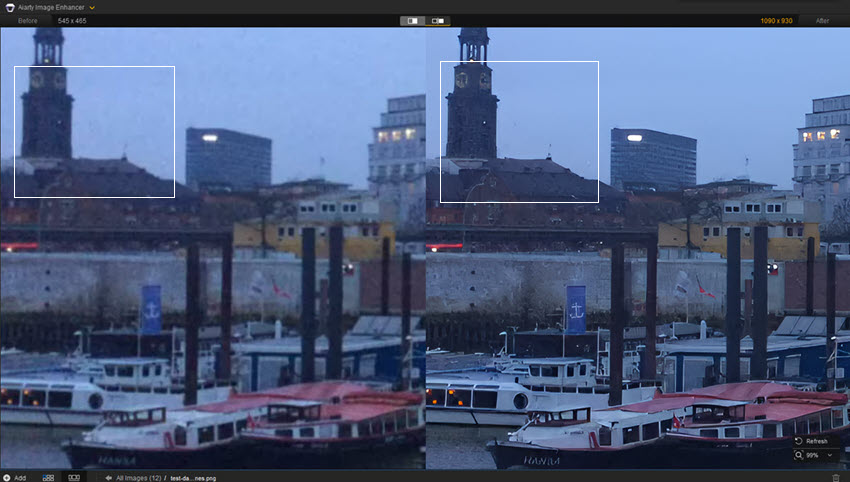
When it comes to enlarging old photos, Aiarty Image Enhancer delivers results that stand out from Photoshop Generative Upscale models. Compared with Firefly, it recovers fine details more clearly; compared with Topaz Bloom, it maintains higher fidelity to the original image; and compared with Topaz Gigapixel, it produces a more realistic, natural look without over-sharpening. Facial features, textures, and subtle tones are intelligently reconstructed, making old portraits, historical images, and low-quality scans appear crisp, lifelike, and true to the original scene.
Conclusion
Photoshop Generative Upscale is a powerful AI tool that makes it easier than ever to enlarge images while preserving detail and realism. With multiple AI models like Firefly, Topaz Gigapixel, and Bloom, it offers flexible options for different image types and creative needs.
However, as we’ve seen, it also comes with certain limitations, including generative credits, resolution caps, performance issues, and occasional errors like black layers or processing failures. Understanding how these models work, when to use them, and how to troubleshoot common problems is key to getting the best results.
For everyday upscaling and creative workflows, Photoshop does an excellent job. But for ultra-high-resolution images, batch processing, or more consistent detail enhancement, combining it with tools like Aiarty Image Enhancer can help you achieve faster, more reliable, and higher-quality results. By choosing the right tool for the right scenario, you can take full advantage of AI upscaling and consistently produce sharp, natural, and professional-looking images.
 FAQs
FAQs
Generative Upscale is available starting from Photoshop 2026 (version 27.0), released in October 2025. You need this version or newer to access the feature.
In Photoshop 2026, Generative Upscale is located in the top menu under Image > Generative Upscale. If you don’t see it, make sure your Photoshop is updated to version 27.0 or later and that your image meets the required format (RGB, 8/16-bit).
Yes, using partner models like Topaz Gigapixel or Topaz Bloom consumes Generative Credits. Based on Adobe’s system, larger images require more credits, so many users recommend saving these models for high-value images and using Firefly for general tasks.
Generative Upscale generally produces more natural and detailed results because it uses AI to recreate textures, not just interpolate pixels. However, some users still prefer older methods for faster processing or predictable results, especially on less powerful systems.
You May Also Like


This post was written by Brenda Peng who is a seasoned editor at Digiarty Software who loves turning ordinary photos into extraordinary works of art. With AI assistance for brainstorming and drafting, the post is reviewed for accuracy by our expert Abby Poole for her expertise in this field.
