


DaVinci Resolve is widely known as a powerful tool for professional video editing and post-production. But beyond video workflows, it also offers advanced AI-powered features that can help photographers and content creators enhance image quality, upscale low-resolution photos, and restore lost details.
With tools like Super Scale AI for resolution enhancement and AI-powered sharpening features for detail reconstruction, DaVinci Resolve provides a new way to improve still images without relying on traditional editing methods. In this guide, we’ll show you how to upscale photos in DaVinci Resolve and explore whether its AI tools can deliver professional-quality results.
Can I upscale an image in DaVinci Resolve?
Yes, you can upscale images in DaVinci Resolve Photo using AI tools like AI SuperScale(only available in the paid version 21 and later). Traditional upscaling often leads to "pixelation" or a "painterly" look. In contrast, DaVinci Resolve Photo’s upscaling workflow leverages the DaVinci Neural Engine to deliver AI-powered image enhancement that goes beyond basic resizing.
Here’s what makes DaVinci Resolve a powerful choice for image upscaling:
- Super Scale AI: AI SuperScale is the core AI image upscaler in DaVinci Resolve, designed to increase image resolution while preserving and reconstructing fine visual detail. It supports 2x, 3x, and 4x scaling, using the DaVinci Neural Engine to analyze image structure, rebuild textures, and reduce compression artifacts and digital noise. You need to upgrade to $295 paid version to use this feature.
- AI UltraSharpen: The newest 2026 feature designed to improve clarity after upscaling. Instead of applying simple edge sharpening, it enhances micro-contrast and refines structural detail in areas such as skin, fabric, and foliage.
- Node-Based Workflow: Unlike the linear sliders in Lightroom, Resolve allows you to layer upscaling with professional noise reduction and color grading.
How to Upscale Images in DaVinci Resolve Photo?
Follow the guide below to upscale images in DaVinci Resolve Photo efficiently while maintaining the best possible image quality.
Step 1. Import Photos and Set Up Your Project for High-Res Stills
Before you upscale images, make sure your project is configured for high-resolution still output rather than standard video editing.
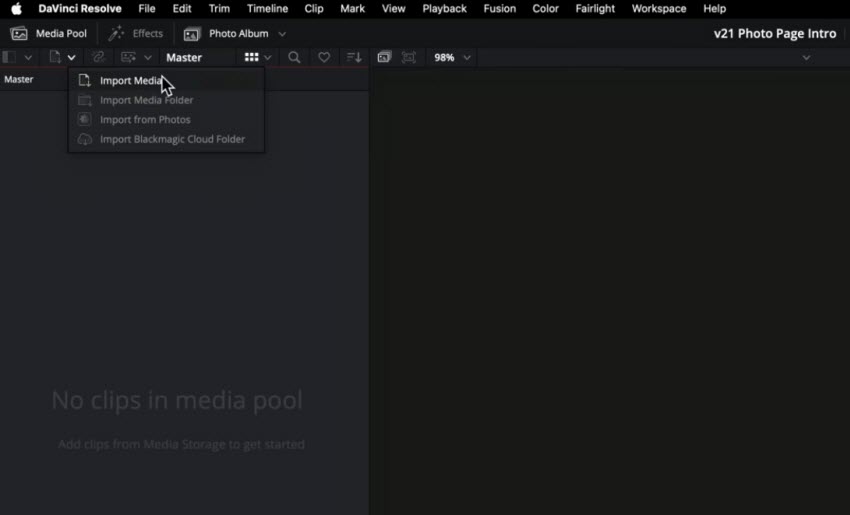
- Import Your Images: Open the Media Pool and import your RAW or JPEG files. DaVinci Resolve 21 supports formats like Sony ARW, Nikon NEF, and Canon CR3 with improved decoding performance.
- Set Timeline Resolution: Go to Project Settings > Master Settings and set your resolution based on your target output:
6000×4000 for high-quality prints
7680×4320 (8K) for ultra-high-resolution delivery
Note: Timeline resolution defines your export size, but actual detail enhancement comes from AI SuperScale.
Step 2. Using "Super Scale" for Massive Enlargements
If you have a tiny crop or an old web-quality image, Super Scale is your best friend. Super Scale is the core technology used to upscale images in DaVinci Resolve. It uses the DaVinci Neural Engine to predict missing pixels.
1. Right-click your image in the Media Pool and select Clip Attributes.
2. Navigate to the Video/Photo tab.
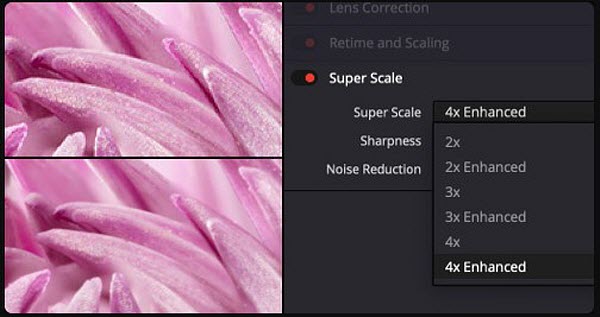
3. Find the Super Scale dropdown. You have three main image upscaling options:
- 2x Enhanced: Best for upscaling images from 1080p to 4K.
- 3x / 4x: Ideal for extreme crops or printing large-scale posters. For example, if you want to upscale an 8MP old digital photo into a 128MP masterpiece.
4. Set Sharpness to "Medium" and Noise Reduction to "Auto" for balanced results. Davinci Resolve’s AI SuperScale will intelligently fill in missing data based on the surrounding pixels and prevent the "plastic" look common in lower-end AI tools.
Step 3. Enhance Upscaled Image Details (Optional)
If your photo appears slightly soft after upscaling, AI UltraSharpen (DaVinci Resolve 21) can help improve perceived detail more effectively than traditional sharpening tools. Unlike basic sharpening, AI UltraSharpen uses a neural network to analyze image structure and enhance fine textures and edges like skin pores, fabric weaves, and distant foliage.
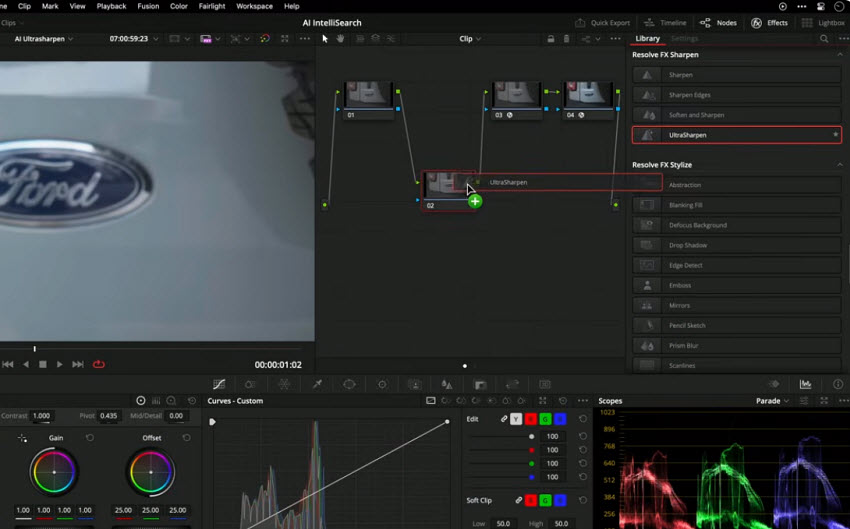
1. Open the Effects Library on the right corner of the top menu bar and find AI UltraSharpen. If it’s not there, import AI UltraSharpen in the search box.
2. Enable AI UltraSharpen or drag the effect onto the node. It will apply the effect to the image automatically.
3. You can then adjust the Sharpen amount to get the best result.
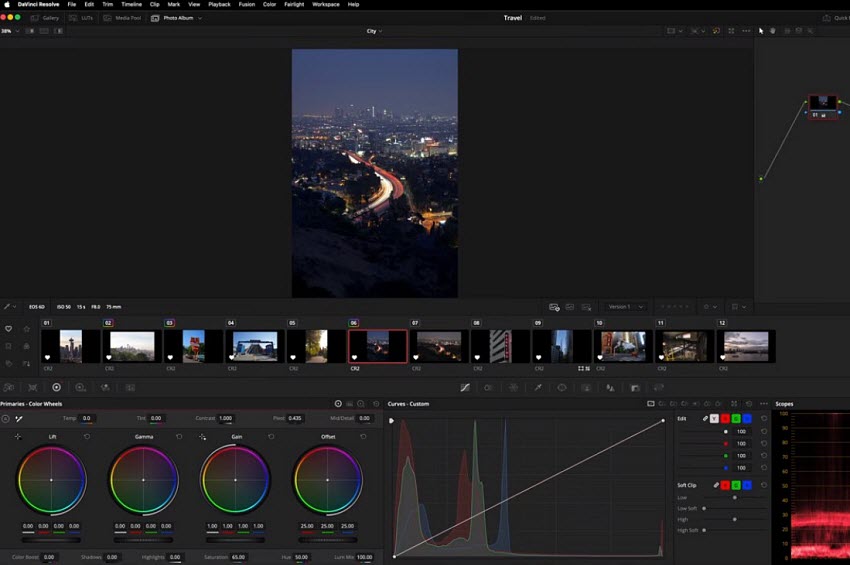
In addition to sharpening, DaVinci Resolve Photo’s advanced color tools can further enhance perceived detail. You can increase contrast, adjust midtone detail, fine-tune color balance, etc. These adjustments do not increase actual resolution, but they significantly improve how sharp and detailed the upscaled image appears. And you can also remove noise using Davinci Resolve Spatial NR and more.
Step 5. Export Upscaled Images
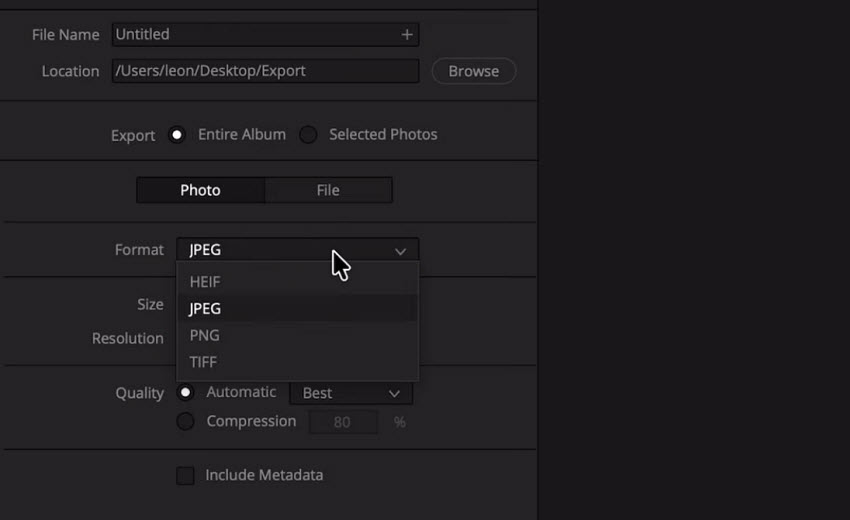
After you adjust the upscaled photo in Davinci Resolve, now go to the Deliver Page. In the format drop-down menu, select the TIFF or JPEG High Quality preset to ensure the best possible output quality. Then hit Render All.
Hot Search: How to Enhance Faces in DaVinci Resolve (Face Refinement & New AI Tools)
Best Settings for AI SuperScale in DaVinci Resolve
To get the best results when you upscale images in DaVinci Resolve Photo workflow, choosing the right AI SuperScale settings is essential. While the default configuration works well in most cases, adjusting a few parameters can significantly improve output quality.
- For moderate upscaling (such as HD to 4K), 2x Enhanced is usually the most balanced option, preserving detail without introducing unnecessary artifacts.
- For low-resolution or heavily compressed images, 3x or 4x SuperScale is more suitable, especially when preparing images for large prints or high-resolution displays.
In terms of fine-tuning, it is generally recommended to keep Sharpness at Medium and use Noise Reduction set to Auto. This helps maintain a natural look while avoiding over-processed or artificial textures. In most cases, it is better to start with conservative settings and refine based on the image content rather than applying maximum enhancement immediately.
Limitations of AI Upscaling in DaVinci Resolve
While AI SuperScale is powerful, it is important to understand its limitations when upscaling images in DaVinci Resolve.
AI SuperScale can intelligently reconstruct patterns and enhance details, but it cannot fully recover information that was never captured in the original image. Extremely low-resolution or heavily blurred photos may still appear soft even after upscaling.
In addition, the quality of the result depends heavily on the original image. Clean, well-exposed images produce significantly better results than heavily compressed or noisy files. Users should also be aware that higher scaling levels (such as 4x) require more processing power and may introduce slight smoothing if overused.
How to Use AI Image Upscaling without Paying for Davinci Resolve Studio
Although DaVinci Resolve offers strong AI SuperScale capabilities, it is primarily designed for integrated editing workflows rather than dedicated image upscaling. In addition, AI SuperScale is part of DaVinci Resolve Studio (the $295 paid version), which may limit access for users relying on the free version.
For users who require more aggressive enhancement and higher flexibility specifically for still images, Aiarty Image Enhancer can be a strong alternative.It is built specifically for AI-driven image upscaling and enhancement, offering advanced capabilities such as upscaling images up to 32K resolution, while maintaining natural-looking detail suitable for high-end printing and professional visual work.
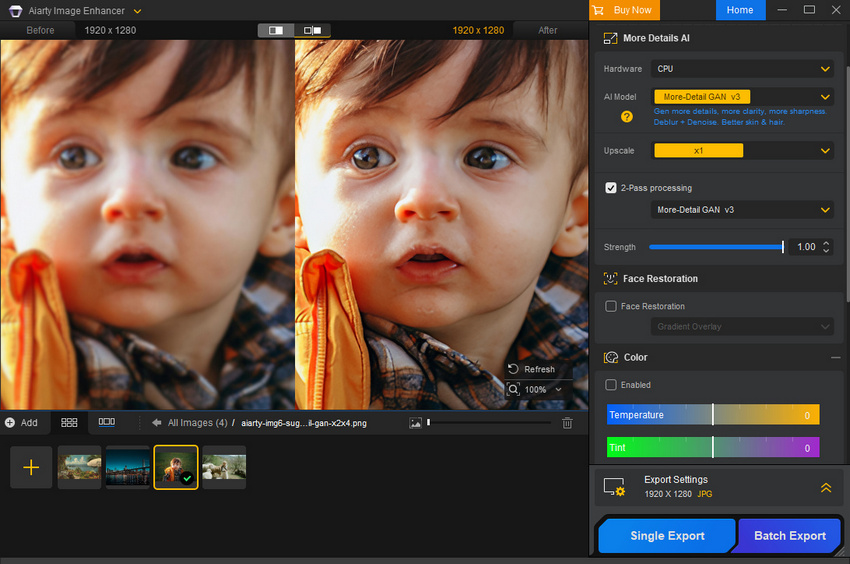
Aiarty also integrates AI models for noise reduction, blur correction, and artifact removal in one stop. It supports a wide range of RAW formats (such as Sony ARW, Nikon NEF, and Canon CR3), and includes batch processing capabilities, allowing users to enhance multiple images efficiently with minimal manual adjustment.
And you can adjust the enhancement strength to preserve the original image texture or achieve a smoother, more refined output depending on your needs.
Check DaVinci Resolve Photo vs Aiarty Image Enhancer Detailed Review
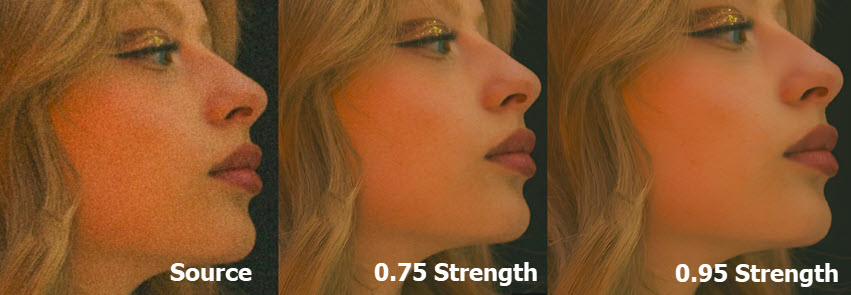
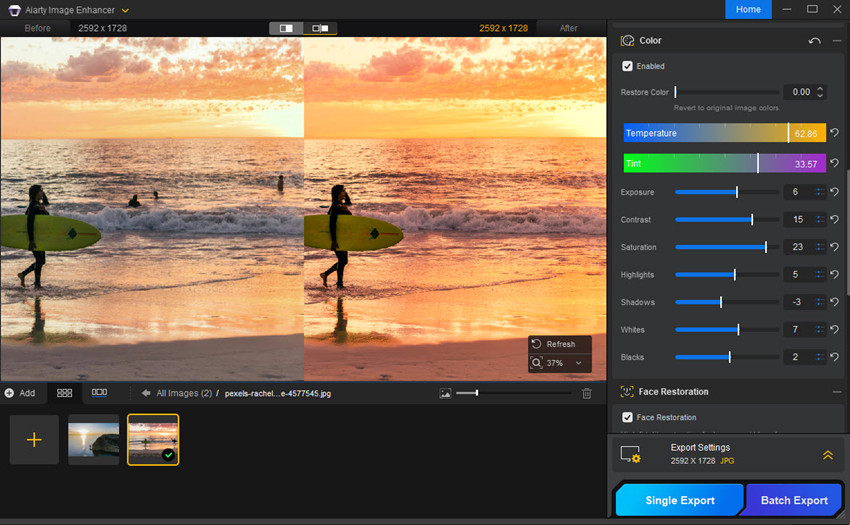
In addition to being an alternative to DaVinci Resolve Photo upscaling workflow, Aiarty Image Enhancer also provides a broader set of AI-powered image enhancement features designed for one-click editing. These include face restoration, color correction, object removal, and basic photo editing tools, allowing users to improve overall image quality beyond simple upscaling.
Final Thoughts
Upscaling an image in DaVinci Resolve Photo workflow is no longer limited to simple resizing. With AI SuperScale powered by the DaVinci Neural Engine, users can upscale images while reconstructing detail, reducing compression artifacts, and preserving natural image quality up to 2x, 3x, or even 4x resolution.
For creators looking to upscale a photo in DaVinci Resolve, this integrated workflow offers a reliable solution that combines AI enhancement with professional tools such as color grading, Spatial NR, and AI UltraSharpen. It is especially effective for users who already work within the Resolve ecosystem and want a unified editing pipeline.
However, for budget-tight users who prefer a dedicated AI image enhancement tool with greater flexibility and no dependency on a full editing suite, Aiarty Image Enhancer can be a more suitable alternative. It provides tools such as 32K upscaling, noise reduction, batch processing, and advanced restoration tools.
Overall, whether you are trying to upscale image in DaVinci Resolve, enhance a compressed photo, or explore more advanced AI upscaling workflows, choosing the right tool depends on your balance between workflow integration and maximum image enhancement quality.
 FAQ
FAQ
Yes. You can upscale images in DaVinci Resolve using its AI-powered SuperScale feature since Version 21. It allows users to increase image resolution while preserving structure, edges, and texture. Unlike basic resizing, it uses the DaVinci Neural Engine to reconstruct detail, making it suitable for low-resolution photos, cropped images, and compressed visuals.
No. AI SuperScale is part of DaVinci Resolve Studio (paid version). It relies on the DaVinci Neural Engine, which is only unlocked in the Studio edition. The free version does not include full AI upscaling capabilities, so users who want to upscale images in DaVinci Resolve with AI SuperScale need the paid version.
Improving image quality in DaVinci Resolve Photo involves combining several AI and post-processing tools rather than relying on a single feature. The first step is often using AI SuperScale, which increases image resolution while reconstructing fine detail and reducing compression artifacts.
After upscaling, users can further refine image clarity using tools such as AI UltraSharpen, which enhances perceived detail by improving micro-contrast and edge definition. For noisy or low-light images, Spatial Noise Reduction (Spatial NR) helps clean up grain and digital noise while preserving important textures.
Finally, color adjustments and grading tools can significantly improve overall image quality by enhancing contrast, correcting color balance, and improving tonal separation. When combined, these tools provide a complete workflow for improving both technical quality and visual appearance of images.
Yes, DaVinci Resolve can be used for photo editing within its Photo workflow, especially for users who need advanced control. While it is primarily a video editing tool, its node-based system allows precise adjustments such as color correction, sharpening, and AI upscaling. However, for dedicated photography workflows, tools like Lightroom may still be more streamlined for simple edits.
Both DaVinci Resolve and Adobe Lightroom offer AI-based enhancement, but they differ in approach. DaVinci Resolve uses AI SuperScale, which focuses on reconstructing image structure and supporting up to 4x upscaling with more granular control through a node-based workflow. Lightroom uses Enhance / Super Resolution, which is simpler and faster but offers less advanced control over the upscaling process.
In general, Lightroom is better for quick photo enhancement, while DaVinci Resolve is more suitable for advanced AI image upscaling and professional-grade workflows.
You May Also Like


This post was written by Brenda Peng who is a seasoned editor at Digiarty Software who loves turning ordinary photos into extraordinary works of art. With AI assistance for brainstorming and drafting, the post is reviewed for accuracy by our expert Abby Poole for her expertise in this field.
