


Not all face enhancement problems are the same. Skin imperfections and uneven facial details can often be improved with DaVinci Resolve's built-in refinement tools, while blurry footage may require sharpening or deblurring. Understanding which tool fits your footage can help you achieve a cleaner, more natural-looking result without over-smoothing skin or losing important details.
This guide covers how to use Face Refinement in DaVinci Resolve, which tools to choose for different facial issues, and what to try when the built-in options aren't enough.
Which Face Enhancement Tools Does DaVinci Resolve 21 Offer?
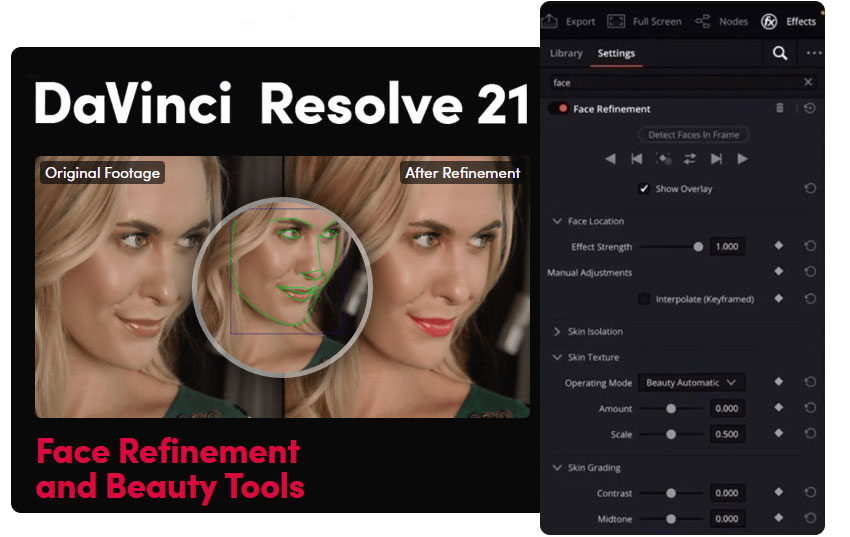
DaVinci Resolve 21 includes several tools for improving facial appearance, from skin retouching to AI-powered facial adjustments. The right choice depends on the issue you want to fix.
- Face Refinement: Detects and isolates facial areas for targeted adjustments, including skin smoothing, texture control, eye sharpening, dark circle reduction, and lip color enhancement. Best for portrait retouching while preserving a natural look.
- AI Blemish Removal: Removes acne, spots, and minor skin imperfections. Best for cleaning up visible blemishes without manually retouching each one.
- AI Face Age Transformer: Adjusts age-related facial features, such as wrinkles and facial fullness. Best for stylized effects or scenes that require an older or younger appearance.
- AI Face Reshaper: Adjusts facial feature shapes and positions. Best for subtle changes to facial proportions rather than fixing blur or lost detail.
These tools serve different purposes: Face Refinement and AI Blemish Removal focus on retouching, while the Age Transformer and Face Reshaper change facial appearance. If your main concern is a blurry face or missing detail, you'll need a different approach.
How to Use Face Refinement in DaVinci Resolve 21
Face Refinement in DaVinci Resolve Studio lets you make targeted adjustments to facial features, including skin texture, eyes, under-eye shadows, and lips. It works best for portrait retouching when the face is reasonably clear, rather than restoring details lost to severe blur or low resolution.
Step 1: Import Your Footage
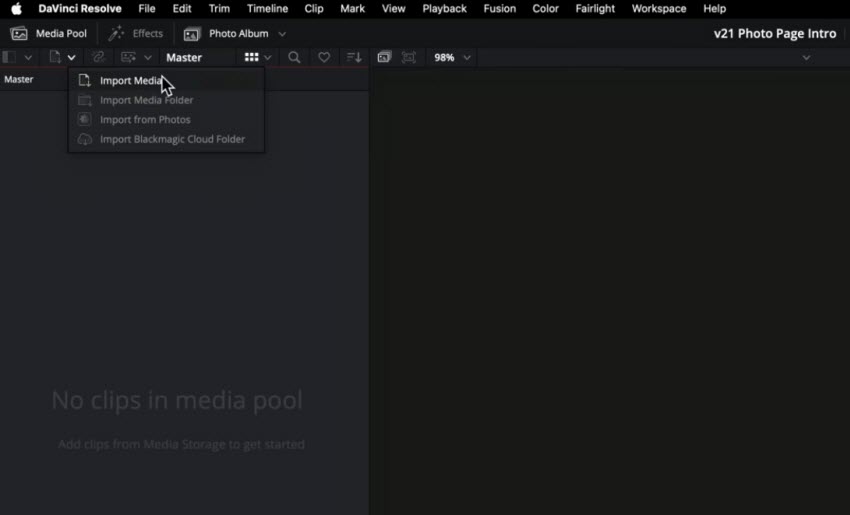
Open DaVinci Resolve, create a project, and import your video into the Media Pool. Drag the clip onto the timeline and select it before moving to the Color page. Choose footage where the subject's face is visible enough for reliable detection and tracking.
Step 2: Apply Face Refinement
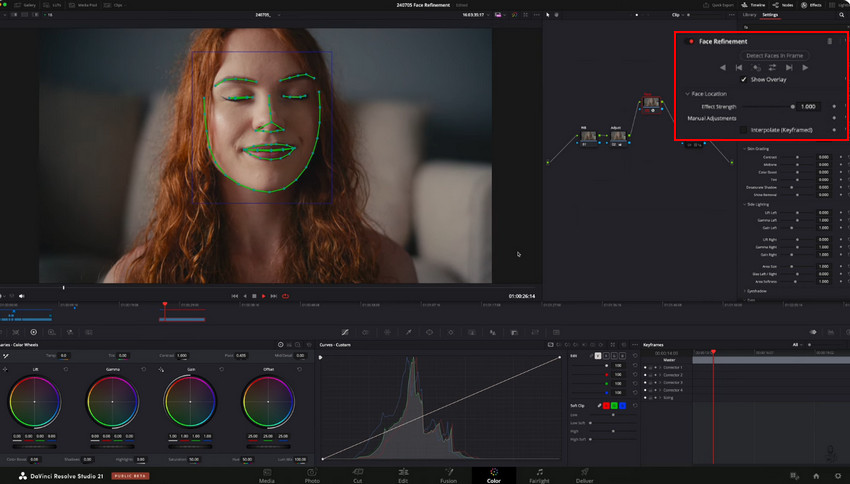
On the Color page, add a serial node in the node editor. Open the OpenFX panel, search for Face Refinement, and apply the effect to the node. Face Refinement is a DaVinci Resolve Studio feature.
Let the effect analyze the face. Once detection is complete, use the available controls to adjust individual facial areas. For video clips, review the analysis and tracking across the shot, especially when the subject turns, moves, or briefly leaves the frame.
Step 3: Adjust Skin, Eyes, and Other Facial Areas
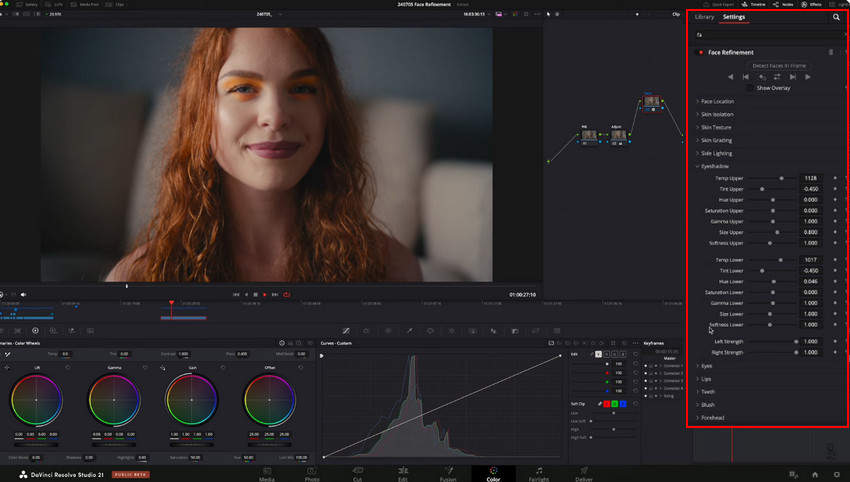
Make small adjustments and check the result at both the normal viewing size and a closer zoom. The goal is to improve the face without removing natural texture or making the subject look overly retouched.
- Skin: Reduce uneven texture or harshness carefully. Preserve natural pores and fine details instead of smoothing the skin completely.
- Eyes: Apply subtle sharpening or definition where needed. Avoid excessive contrast that makes the eyes look unnatural.
- Dark Circles / Under Eyes: Reduce distracting shadows gradually while retaining natural facial depth.
- Lips: Make small color or saturation adjustments if needed, keeping the result consistent with the original lighting.
Step 4: Use Additional Face Tools Only When Needed
Face Refinement is not designed to solve every facial issue. Depending on your version and available Studio features, other tools may help with specific tasks:
- AI Blemish Removal: Use it to address minor imperfections such as acne and spots. Keep corrections subtle to avoid a patchy or overly smooth appearance.
- AI Face Age Transformer: Use it for creative age-related changes, such as altering the appearance of wrinkles or facial fullness.
- AI Face Reshaper: Use it for deliberate adjustments to facial proportions or feature positioning, rather than for sharpening or restoring lost detail.
These tools address different problems, so you don't need to apply all of them to every clip. For straightforward portrait retouching, start with Face Refinement and add other effects only when the footage calls for them.
Step 5: Check the Result and Export
Toggle the effect on and off to compare the original and adjusted footage. Scrub through the entire clip to check for inconsistent tracking, flickering adjustments, or skin that looks unnaturally smooth. Reduce the effect strength if the retouching becomes too noticeable.
When the result looks consistent, open the Deliver page, choose an appropriate export format such as H.264 or ProRes, and render the clip.
Before and After: Check Texture and Consistency
Compare the original and enhanced footage at the same frame and viewing size. Look for smoother skin and more defined facial features without losing natural pores, fine lines, or the subject's original appearance. For video, check several frames rather than judging the result from a single still.
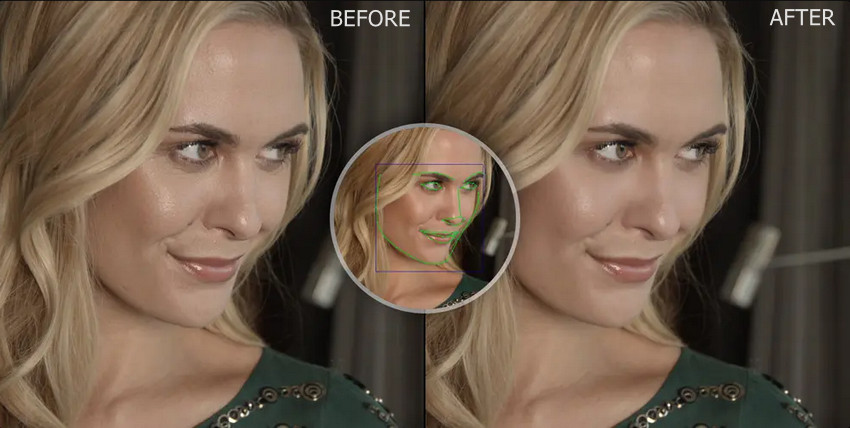
Before: The face may show uneven skin texture, minor blemishes, or distracting under-eye shadows.
After: Moderate adjustments can make facial features look more balanced while retaining natural skin texture. Results depend on the original footage, lighting, tracking quality, and effect settings.
How to Make a Blurry Face Clearer in DaVinci Resolve
Face Refinement mainly changes facial appearance; it does not fully restore image information lost through severe blur, missed focus, or low resolution. Before choosing a tool, identify what makes the face look unclear.
- Slight softness: Try restrained sharpening and check whether the eyes and facial edges become more defined without introducing halos or emphasizing noise.
- Motion blur: Look for a suitable deblurring workflow. Sharpening alone cannot reliably recover details lost to substantial movement during exposure.
- Low-resolution or heavily degraded footage: Upscaling may improve the viewing size, but it cannot guarantee recovery of the original facial details. AI restoration may reconstruct plausible detail, so inspect the result carefully.
- Skin imperfections rather than blur: Use Face Refinement or a suitable blemish-removal tool instead of increasing sharpness unnecessarily.
For a video workflow, start with the correction tools available in DaVinci Resolve and judge the result on moving footage. If you only need to restore a still portrait or an extracted video frame, learn how to fix a blurry face in a photo. You can also use DaVinci Resolve's image upscaling workflow when increasing image size is the main goal.
For a still image that needs additional denoising, detail enhancement, or upscaling, Aiarty Image Enhancer can be used as a separate image-processing step. Export a frame, enhance it, and review the result before using it in your project. This is a still-image workflow, not automatic enhancement of every frame in a video.
Enhance Blurry Faces with Aiarty Video Enhancer
DaVinci Resolve's sharpening and deblurring tools can improve some clarity issues, but they may not recover enough detail when faces remain soft, noisy, or difficult to see in low-resolution footage. If you need to improve facial clarity throughout a clip rather than retouch a single frame, Aiarty Video Enhancer offers a separate AI-powered video enhancement workflow.
Why Try Aiarty Video Enhancer?
Aiarty Video Enhancer is designed to improve overall video quality, including footage affected by blur, noise, or low resolution. It can be useful when a face still looks unclear after basic adjustments in DaVinci Resolve, especially in low-light recordings or older footage that needs upscaling.
- Reduce noise: Help clean up grain and noise that obscure facial details, particularly in low-light footage.
- Improve clarity: Use AI enhancement to address softness and make visible details more distinct.
- Upscale low-resolution footage: Increase video resolution when the source looks too small or lacks sufficient detail for the intended display.
- Enhance the whole clip: Process video footage rather than exporting and enhancing each frame individually.
Aiarty Video Enhancer focuses on improving overall video quality, helping make facial details clearer alongside other elements in the footage. Results depend on the source quality, and severe motion blur, missed focus, or insufficient original detail may limit how much clarity can be restored.
How to Enhance Blurry Face Footage with Aiarty Video Enhancer
Step 1: Import Your Video
Open Aiarty Video Enhancer and import the original clip or an exported version from DaVinci Resolve. If you have already completed your color grading, use an appropriate high-quality export to avoid introducing unnecessary compression before enhancement.
Step 2: Choose an Enhancement Model
Select an AI model based on the footage and the problem you want to address. For noisy or soft footage, start with a model suited to general video enhancement and preview how it handles facial details, hair, skin texture, and the surrounding scene. Avoid assuming that stronger enhancement will always produce a better result.
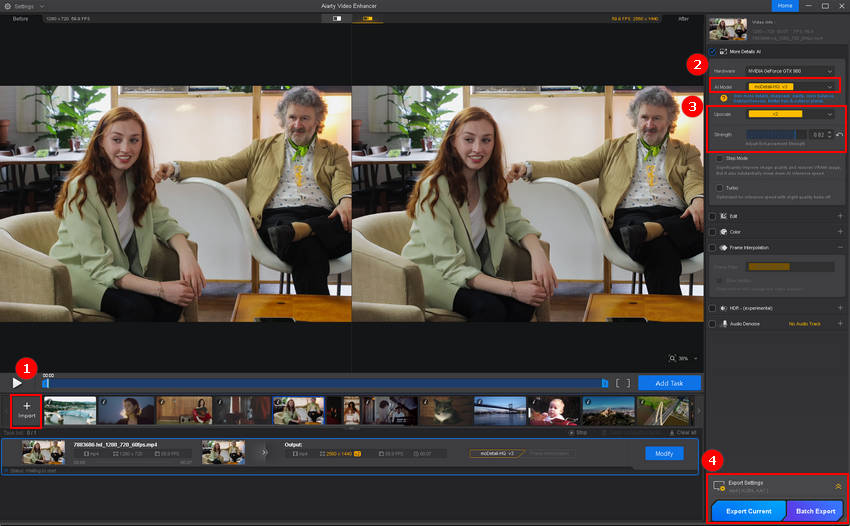
Step 3: Adjust the Enhancement and Upscale Settings
Choose an appropriate enhancement strength and upscale level for the source resolution and intended output. Start conservatively and compare the preview with the original. Watch for overly smooth skin, unnatural textures, or details that appear exaggerated rather than clearer.
Step 4: Export and Review the Enhanced Video
Export the processed clip and review it at normal playback speed. Check several frames, especially when the subject moves or turns, to see whether facial clarity remains consistent. If you plan to continue editing in DaVinci Resolve, import the enhanced video and check its color, sharpness, and timing against the rest of your project.
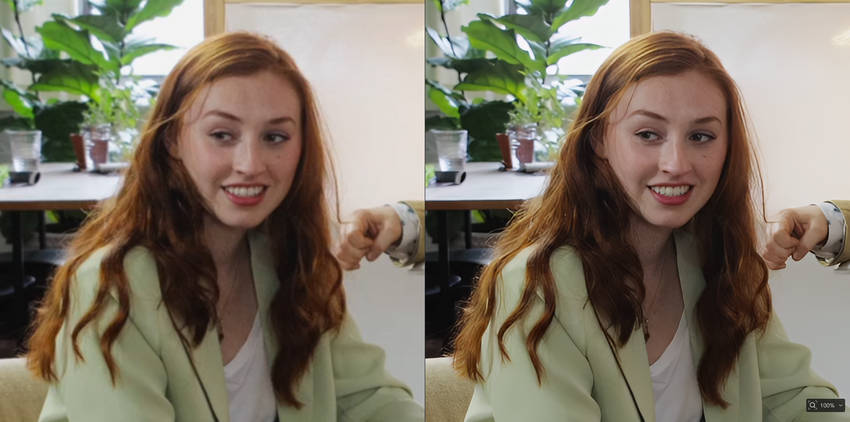
For footage with severe blur or very limited source detail, compare the enhanced result with the original before deciding whether it is suitable for your project. AI enhancement can improve the appearance of a clip, but it cannot guarantee an accurate reconstruction of the person's original facial features.
Need to Restore a Face in a Still Image?
If your goal is to improve a single portrait or a still frame exported from DaVinci Resolve, Aiarty Image Enhancer is another option. Unlike Video Enhancer, it includes a dedicated Face Restoration feature for refining facial details in still images.
This is useful for portraits, thumbnails, promotional stills, or selected video frames that need extra detail recovery. You can adjust restoration strength and select specific faces in group photos, but review the output carefully because AI may reconstruct plausible details rather than recover the exact original information. Image Enhancer processes still images, not an entire video timeline.
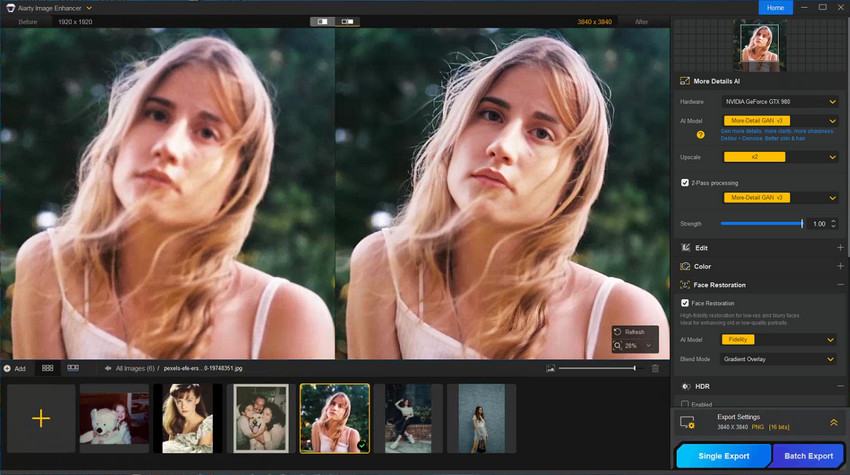
Which tool should you choose? Use DaVinci Resolve Face Refinement for facial retouching within your video-editing workflow. Try Aiarty Video Enhancer when the footage itself needs denoising, deblurring, or upscaling. Choose Aiarty Image Enhancer when you need dedicated face restoration for a still portrait or an exported video frame.
For a closer look at still-image enhancement, see DaVinci Resolve vs. Aiarty Image Enhancer for Face Enhancement.
 DaVinci Resolve Face Enhancement FAQs
In DaVinci Resolve Studio, open the Color page, add Face Refinement from the OpenFX library, and analyze the face in your clip. Adjust available controls for skin, eyes, and other facial details, then review the result across multiple frames to check tracking and keep the retouching natural.
DaVinci Resolve can improve mild softness with sharpening and other image adjustments, but it may not recover details lost through severe blur, missed focus, or low resolution. For video footage, AI video enhancement may help improve overall clarity. For a still portrait or an extracted video frame, a dedicated face restoration tool may help recover more visible facial detail.
DaVinci Resolve's free version includes color correction tools that can improve facial appearance. However, Face Refinement and some advanced AI features require DaVinci Resolve Studio. Available features may vary by version, so check the current feature list for your edition.
Use Face Refinement's skin controls or apply subtle manual adjustments to reduce unevenness. Avoid excessive smoothing, and check skin texture at normal viewing size. If the face starts to look waxy or loses fine detail, reduce the effect strength.
Face Refinement is primarily used to retouch faces in video, with controls for skin and other facial features. AI face restoration focuses on improving visible facial details in low-quality or blurry images by reconstructing plausible detail. For an entire video, use a video enhancement workflow; for a still portrait or extracted frame, use an image enhancement tool with Face Restoration.
Yes. You can use tools such as Power Windows, Qualifier, sharpening, noise reduction, and color adjustments to target facial areas and improve their appearance. These methods offer flexibility but usually require more manual work than Face Refinement.
You May Also Like


This post was written by Brenda Peng who is a seasoned editor at Digiarty Software who loves turning ordinary photos into extraordinary works of art. With AI assistance for brainstorming and drafting, the post is reviewed for accuracy by our expert Abby Poole for her expertise in this field.
