 Aiarty Image Enhancer
How to Remove Blemishes from Photos

Updated on
Summary: In this guide, we'll explore the most effective methods for removing blemishes from photos. For the best results with minimal effort, we recommend trying Aiarty Image Enhancer.
Looking to make your photos look flawless? Whether it's for social media, a professional headshot, or a cherished memory, blemishes like acne, scars, or stray marks can easily distract from the image's true beauty. Fortunately, removing blemishes from photos is simpler than ever, thanks to advanced AI tools. With just a few clicks, you can enhance your images and create stunning results that look completely natural. In this guide, we'll show you the best ways to remove blemishes from photos. Read on!
Hot search: How to fix lazy eye in pictures >>
While most blemish removers simply "blur" or "patch" imperfections, Aiarty Image Enhancer takes it to the next level. Powered by state-of-the-art Generative AI, it doesn't just hide acne or scars—it reconstructs skin textures and restores lost details, ensuring your photos look professional and natural even at 8K resolution.

- Removes blemishes while generating realistic skin textures and pores, avoiding a "plastic" look.
- Powered by the "More-Detail" model to automatically de-blur, de-noise, and restore facial clarity.
- Erases imperfections and boosts resolution up to 16K/32K—perfect for high-end prints and social media.
- Retouch hundreds of photos at once with hardware-accelerated processing, saving you hours of manual work.
Remove Blemishes from Photos with the 7 Best Blemish Remover
1. Fotor
Best For: Quick, casual photo touch-ups on the go.
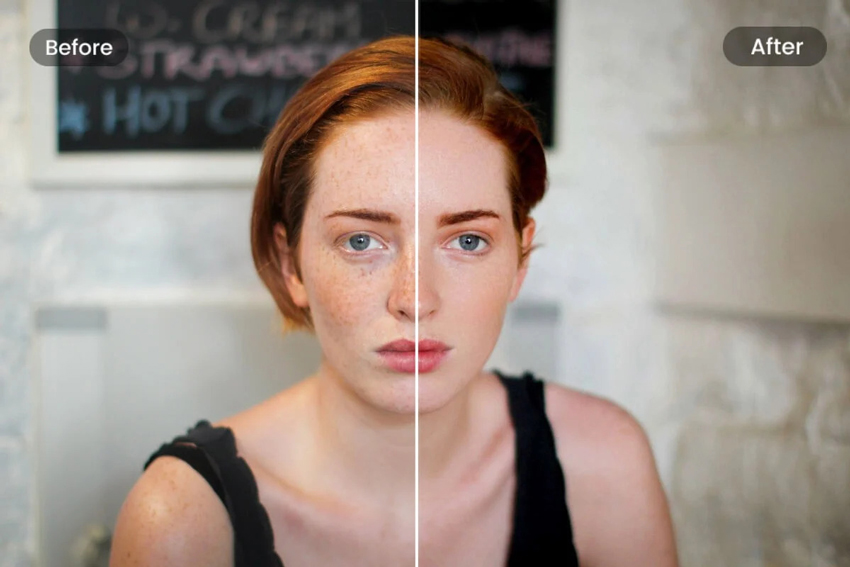
Fotor is a renowned web-based photo editor that offers a dedicated suite of portrait retouching tools. Its AI-powered blemish remover is designed to quickly eliminate skin imperfections like acne, scars, and spots. Using advanced algorithms, it blends blemished areas with the surrounding skin for a clean finish. While it provides an intuitive "tap-to-fix" experience for social media edits, please note that high-resolution downloads typically require a premium subscription.
How to Remove Blemishes from Photos
Step 1. Visit Fotor’s online editor and click "Open Image" or drag-and-drop your photo.
Step 2. Navigate to the "Beauty" tab in the left sidebar and select "Blemish Fix".
Step 3. Use the slider to set your brush size. Simply click on the blemishes to let the AI blend them with the surrounding skin tone.
Step 4. Use the "Smoothing" tool if you need a more uniform skin texture after spot removal.
Step 5. Click "Download" to save your work.
2. VanceAI Portrait Retoucher
Best For: Users with multiple photos who need fast, consistent portrait retouching.
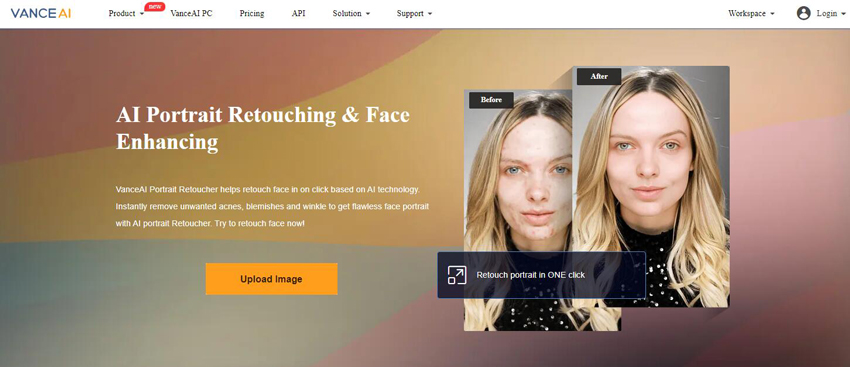
VanceAI Portrait Retoucher is a fully automated AI tool specifically engineered for portrait enhancement. Unlike manual editors, it uses deep learning to scan the entire face, automatically erasing acne, wrinkles, and dark spots while smoothing the skin in seconds. It is an ideal solution for users who want a "one-click" professional makeover without manually clicking on every imperfection.
How to Remove Blemishes from Photos
Step 1. Go to the VanceAI website and select the Portrait Retoucher from the AI tools menu.
Step 2. Click "Upload Image" to choose a file or drag-and-drop your photo into the workspace.
Step 3. Once uploaded, the AI will automatically detect facial flaws. You can choose different "Beauty" modes or adjustment levels if available.
Step 4. Compare the "Before" and "After" results in the preview window. If satisfied, click "Download".
3. Befunky
Best For: Users who prefer manual control over AI automation to ensure specific skin details are preserved.
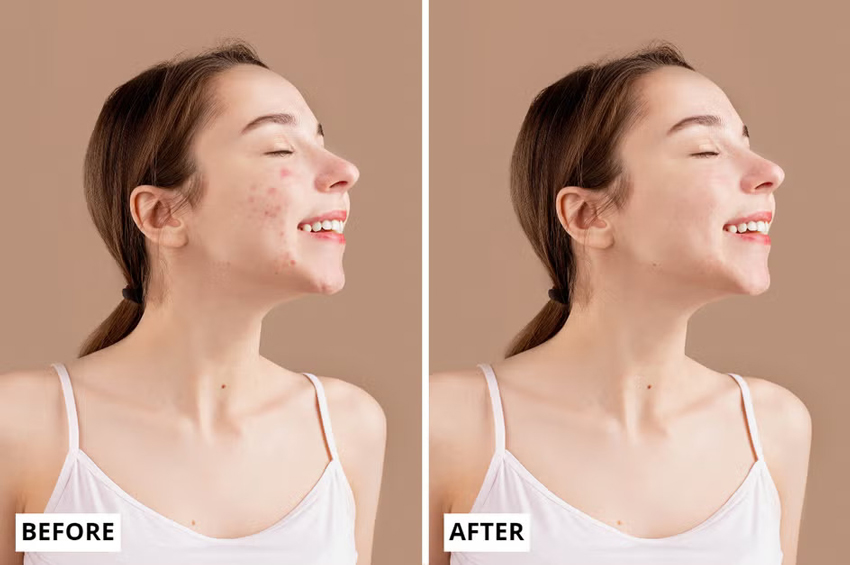
BeFunky is a versatile online photo editor known for its balance of simplicity and powerful "Touch Up" features. Its Blemish Fix tool provides a manual brush-based approach, allowing users to precisely target specific spots, scars, or stray marks. While it offers a professional-grade interface, the blemish removal tool is part of BeFunky’s Plus (Premium) subscription, making it best suited for users already invested in their ecosystem.
How to Remove Blemishes from Photos
Step 1. Visit BeFunky and launch the Photo Editor.
Step 2. Click "Open" at the top or drag your file directly into the workspace.
Step 3. Click the "Touch Up" icon (human silhouette) in the left menu and select "Blemish Fix".
Step 4. Adjust the Brush Size and Hardness. Click directly on the spots you want to erase; the tool will clone and blend the surrounding texture.
Step 5. Once finished, click "Save" to download your photo.
4. Media.io
Best For: Users who want a quick, "smart" facial cleanup without any manual brushing or complex settings.
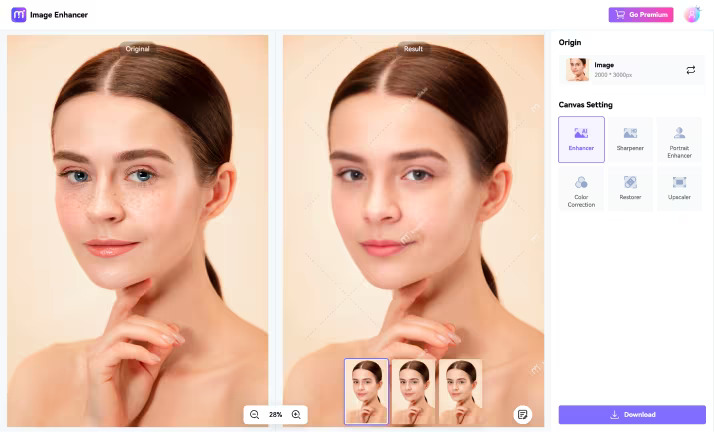
Media.io is a streamlined, AI-driven platform designed for rapid portrait enhancement. Its AI Blemish Remover stands out for its "zero-effort" approach—once you upload a photo, the AI automatically scans for pimples, wrinkles, and dark spots, smoothing the skin while attempting to maintain a natural tone. It is a cloud-based solution, making it accessible from any device without installation.
How to Remove Blemishes from Photos
Step 1. Visit the Media.io AI Portrait Retoucher page and click "Upload Image" to begin.
Step 2. The AI will automatically analyze the face and apply blemish removal and skin smoothing. You can often adjust the "intensity" of the retouching via a simple slider.
Step 3. Check the results using the side-by-side comparison tool to ensure the skin still looks natural.
Step 4. Click "Download" to save your image.
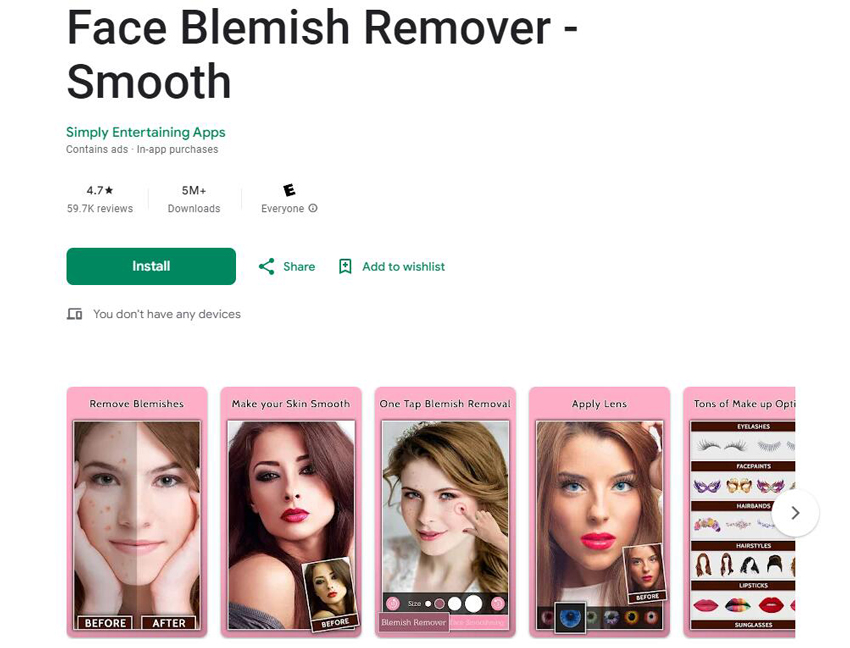
5. Face Blemish Remover
Best For: Quick, casual selfie touch-ups directly on your Android phone.
Face Blemish Remover is a lightweight, dedicated mobile app for Android users who need a quick fix on the go. It focuses on manual spot removal, allowing you to tap away pimples, scars, and dark spots directly on your touchscreen. While it lacks the advanced generative power of desktop AI, it is a convenient, free option for simple, everyday mobile edits.
How to Remove Blemishes from Photos
Step 1. Download and launch Face Blemish Remover from the Google Play Store.
Step 2. Tap the "Gallery" icon to select the portrait you wish to edit from your phone.
Step 3. Zoom in on the face, select the blemish tool, and simply tap on the spots or marks. The app will sample nearby pixels to cover the imperfection.
Step 4. Once satisfied, tap the "Save" icon to download the image to your phone or share it directly to social media.
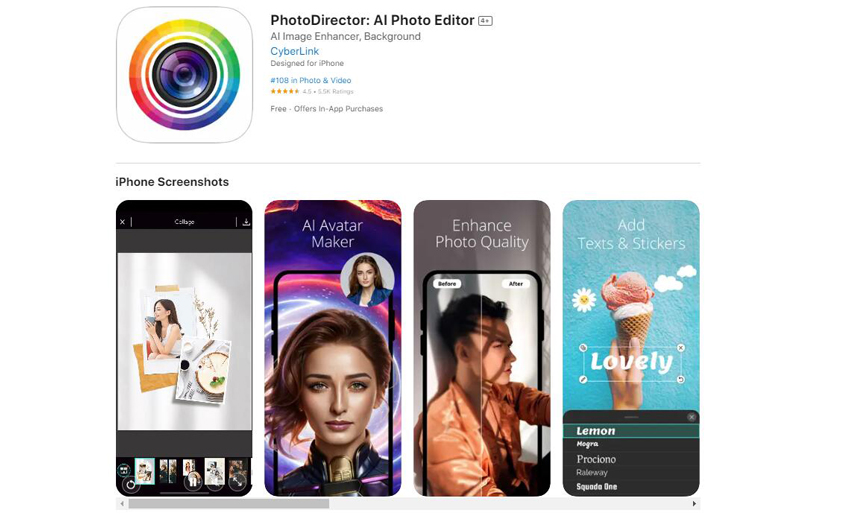
6. Photo Director
Best For: Users who want desktop-level editing power on a mobile device.
Photo Director is a comprehensive, multi-platform editor that brings professional-grade AI tools to your smartphone. It goes beyond simple spot fixing by utilizing advanced Content-Aware Fill technology. This allows the app to not only remove blemishes but also intelligently reconstruct the background texture behind them, ensuring a seamless and invisible edit. It is one of the most powerful mobile options for users who want granular control over their portrait retouching.
How to Remove Blemishes from Photos
Step 1. Open the PhotoDirector app and tap "Edit" to select a photo from your library.
Step 2. Navigate to the "Tools" menu and select "Removal".
Step 3. Carefully brush over the blemishes or acne. You can adjust the brush size for better precision. Once selected, tap "Remove".
Step 4. If the blend isn't perfect, use the "Clone" tool to manually adjust the skin texture.
Step 5. Tap the "Checkmark" and then the "Save" icon to export your high-resolution photo.
Also see: Remove Blemishes from Photos in One Click using Retouch4me
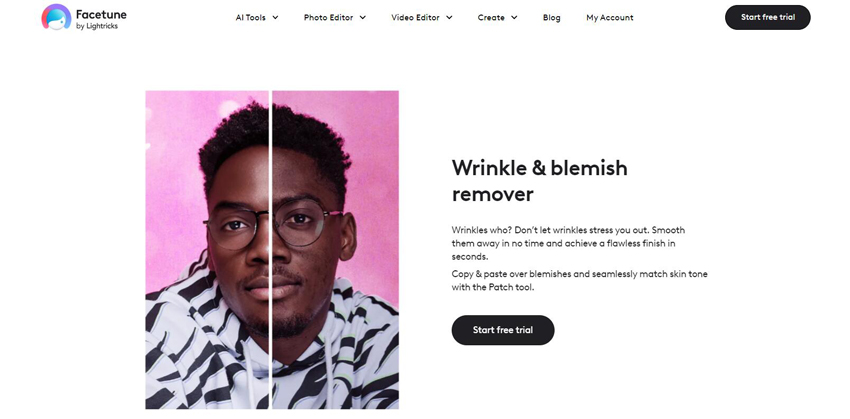
7. Facetune
Best For: High-end selfie retouching and social media creators who need flawless skin textures.
Facetune is the industry-leading app dedicated entirely to portrait and selfie perfection. Known for its sophisticated AI-driven tools, it offers a "surgical" level of precision for skin retouching. Beyond simply covering spots, Facetune uses AI to mimic natural skin lighting and texture, making edits virtually undetectable. It is the go-to choice for social media influencers and anyone looking for a high-end, magazine-quality finish on their mobile device.
How to Remove Blemishes from Photos
Step 1. Launch Facetune and tap the "Import" icon to load your portrait.
Step 2. Navigate to the "Retouch" tab and choose "Blemish" for automatic detection, or "Vanish" for manual removal.
Step 3. Simply tap on the pimples or marks. The AI will instantly replace the blemish with a matching skin patch from the surrounding area.
Step 4. Use the "Smooth" tool to subtly even out the skin tone around the corrected area for a more natural look.
Step 5. Tap the "Download" (arrow) icon at the top right to save your project.
 FAQs
FAQs
Yes, you can easily remove blemishes from photos using a variety of photo editing tools. Advanced apps and software like Facetune, Fotor, VanceAI, PhotoDirector, and Media.io feature blemish remover tools that allow you to eliminate imperfections such as acne, scars, or stray marks. These tools often use AI technology or manual retouching features to blend blemishes with the surrounding skin, creating a smooth and natural appearance.
To remove blemishes in Photoshop, follow these steps:
- Open Your Image: Launch Photoshop and load the photo you want to remove blemishes from.
- Duplicate the Background Layer: To keep the original intact, duplicate the background layer by right-clicking it and selecting Duplicate Layer.
- Select the Spot Healing Brush Tool: In the toolbar on the left, find and select the Spot Healing Brush Tool. Adjust the brush size if needed.
- Click on the Blemishes: Click on the blemishes or imperfections in the image to remove them.
- Save Your Image: Once you're satisfied with the results, save your edited photo.
Also see: How to Remove Blemish in Photoshop Step-by-Step Guide
To remove blemishes from a photo on an iPhone, you'll need to use a third-party app, as the default Photos app does not include a dedicated blemish removal tool. You can do it using popular blemish remover apps like FaceTune, Adobe Photoshop Express, or Fotor.
You May Also Like


Brenda Peng is a seasoned editor at Digiarty Software who loves turning ordinary photos into extraordinary works of art. With years of experience behind the lens and in front of the computer, Brenda shares her passion for photography, image enhancement, and editing through easy-to-follow tutorials.
