


Wrinkles can instantly make a portrait look tired or take the shine off an otherwise flawless outfit photo. Fortunately, you don’t need to be a high-end retoucher to restore a smooth, clean, and professional look. There are several Photoshop wrinkles brushes designed to remove or soften wrinkles while preserving natural skin textures and fabric weaves.
In this guide, you’ll learn how to remove wrinkles in Photoshop from both faces and clothing. We will cover quick fixes like the Spot Healing Brush, natural skin-softening with the Clone Stamp in Lighten mode, and advanced workflows like frequency separation for complex skin and fabric retouching.
 Need Faster Wrinkle Retouching Without the Photoshop Learning Curve?
For photographers, e-commerce sellers, and anyone who needs to retouch photos efficiently, removing wrinkles manually in Photoshop can take time and require careful editing.
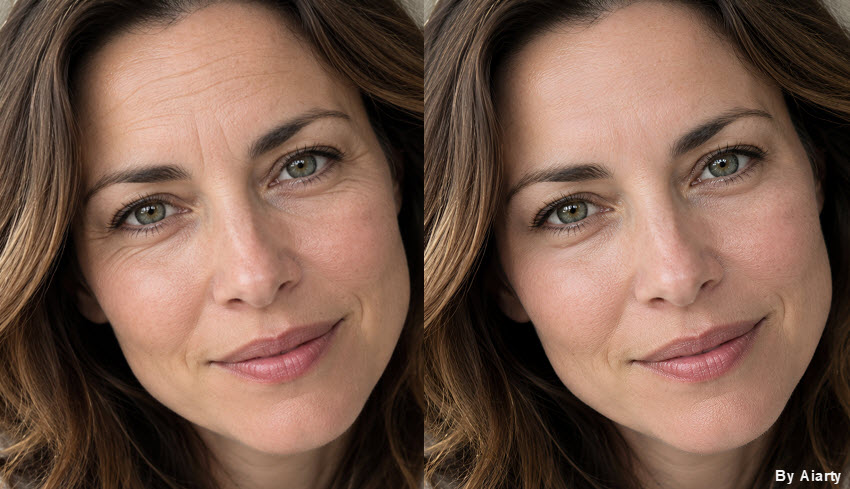
Aiarty Image Enhancer simplifies wrinkle removal with its AI Eraser, letting you brush over facial lines or clothing creases and reconstruct the selected areas with natural results. The Face Restoration can further enhance facial details, while detail enhancement and upscaling help refine overall image quality—all without complex selections, layers, or extensive manual retouching.
How to Choose the Right Photoshop Wrinkle Removal Brushes
Before you start, identify the kind of wrinkle you want to fix. Facial lines, deep creases in clothing, and small folds on a plain background require different wrinkle removal tools in Photoshop.
How to Remove Wrinkles in Photoshop Step by Step
To remove wrinkles in Photoshop, you can use several tools and techniques depending on whether you're retouching facial lines or removing wrinkles from clothes. The methods below cover everything from small creases to deeper wrinkles, helping you choose the right approach while preserving natural skin texture and fabric details.
1. Use Healing Tools to Remove Small Wrinkles
Photoshop's Spot Healing Brush and Healing Brush can both remove small blemishes and wrinkles by blending the edited area with its surroundings. The main difference is that the Spot Healing Brush automatically selects the pixels used for the repair, while the Healing Brush lets you choose a source area manually.
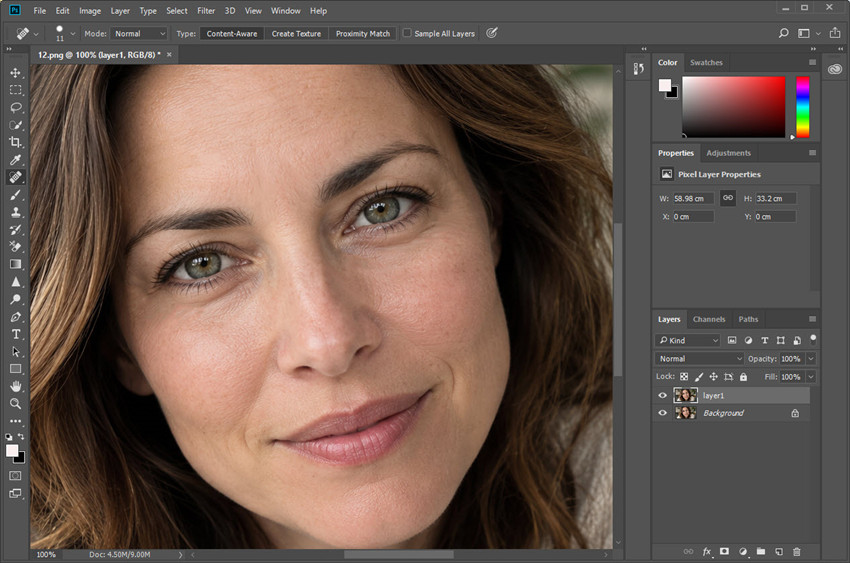
Step 1. Duplicate the original layer.
Open your image in Photoshop and press Ctrl + J on Windows or Cmd + J on Mac to create a duplicate layer. This lets you compare the edited image with the original and undo unwanted changes more easily.
Step 2. Choose a Healing Brush tool.
Select either the Spot Healing Brush or the regular Healing Brush from the toolbar. Start with the Spot Healing Brush for small, isolated wrinkles. Switch to the Healing Brush when you need more control over the replacement texture.
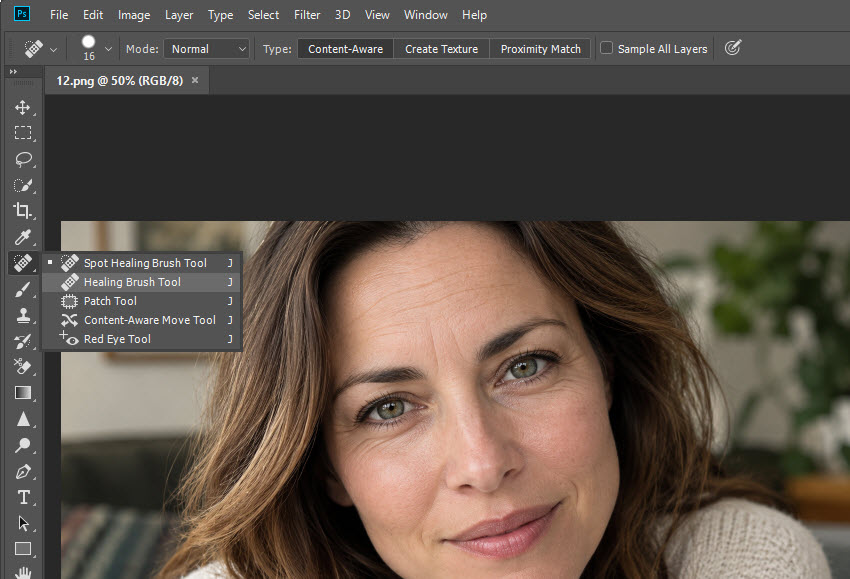
Step 3. Adjust the brush size.
Choose a brush slightly wider than the wrinkle you want to remove. A brush that is too large may affect nearby details, while one that is too small can make the correction uneven. For natural-looking wrinkle removal in Photoshop, keep the brush close to the size of the crease and work in short strokes.
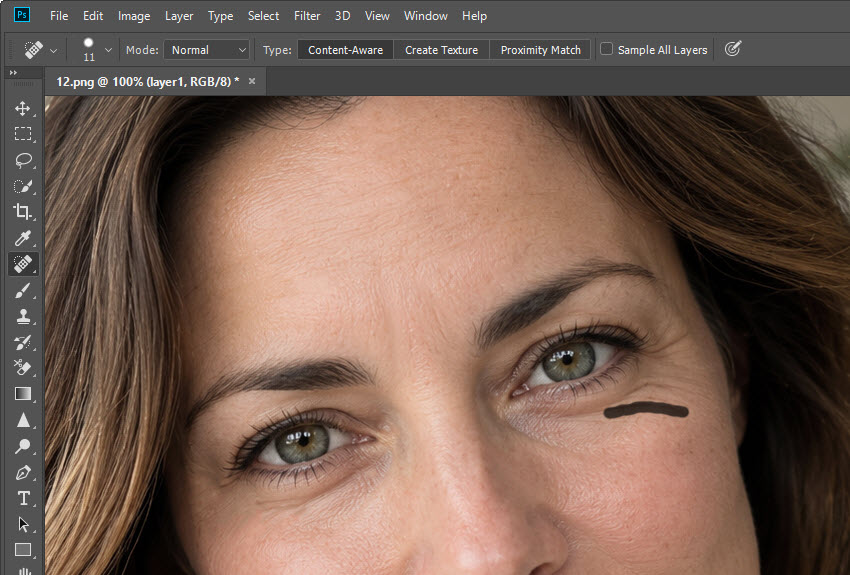
Step 4. Repair the wrinkle.
- With the Spot Healing Brush: Paint directly over the wrinkle. Photoshop automatically analyzes nearby pixels to create the repair. If the result looks smudged or inconsistent, undo it and try the Healing Brush instead.
- With the Healing Brush: Hold Alt on Windows or Option on Mac and click a clean source area. Then paint over the wrinkle in short strokes. Resample when the surrounding texture or lighting changes.
Step 5. Check the result.
Toggle the edited layer's visibility to compare the before-and-after results. If you notice blurry patches, repeated textures, or uneven transitions, undo the correction and try a different brush size or source area.
These healing tools work best for small, localized wrinkles. If you need to remove deeper facial creases in Photoshop, the Clone Stamp may offer better control over dark lines. For larger clothing wrinkles, consider Content-Aware Fill or frequency separation to correct broader folds while preserving fabric texture.
2. Use the Clone Stamp to Reduce Wrinkles or Repair Fabric
The Clone Stamp Tool is useful when the Healing Brush leaves smudges or changes the surrounding texture too much. It copies pixels directly from one area to another, so you can use it to soften dark facial creases or remove wrinkles from clothes in Photoshop while keeping fabric patterns more consistent.
Unlike the Healing Brush, the Clone Stamp doesn't automatically blend the sampled pixels with the surrounding area. That gives you more control, but you may need to adjust the brush softness and opacity to avoid obvious patches.
Step 1. Select the Clone Stamp Tool.
Select the Clone Stamp from the toolbar or press S. Keep your edits on the duplicate layer so you can adjust the result later.
Step 2. Choose the appropriate blending mode.
The best settings depend on the type of wrinkle you are correcting.
- For facial wrinkles: Try setting the Clone Stamp's Mode to Lighten. This allows the tool to target darker pixels with lighter sampled pixels, helping reduce the shadows that make some wrinkles stand out. Use a soft brush and low opacity for gradual corrections.
- For clothing wrinkles: Normal mode is a useful starting point when you need to replace a crease with matching fabric texture. Lighten mode may help with a dark crease, but it will not remove every wrinkle naturally because folds often contain both bright and dark areas.
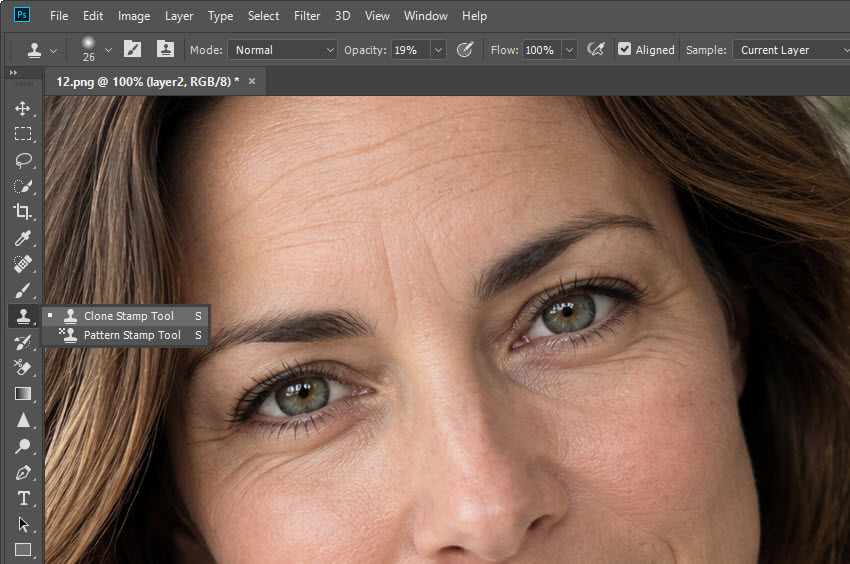
Step 3. Sample a suitable source area.
Hold Alt on Windows or Option on Mac and click a clean area to set your source point. For skin, choose a nearby patch with similar tone and lighting. For clothes, sample from the same garment and match the fabric's color, weave, and pattern direction. Avoid sampling too far away if the lighting or texture changes noticeably.
Step 4. Apply the correction gradually.
Move the brush along the distracting crease rather than covering a large area at once. Resample frequently to prevent repeated textures or obvious copy-and-paste marks.
For facial retouching, focus on the dark shadow that makes the wrinkle stand out instead of painting over the entire line. For clothing, follow the direction of the fabric and work around seams, buttons, and garment edges. If the repair looks patchy, undo the stroke and try a different source area or a softer brush.
Step 5. Adjust the strength if necessary.
If the wrinkle looks too dark or too obvious, reduce the opacity of the retouching layer or lower the Clone Stamp's opacity and make another pass. Toggle the layer's visibility to compare the result with the original.
The Clone Stamp works best when you need precise control over wrinkle removal in Photoshop. It's especially helpful for dark facial creases and patterned fabric, where preserving the original texture matters as much as reducing the wrinkle itself.
3. Use Content-Aware Fill for Larger Wrinkles
If you're trying to remove a broad crease from clothing, fixing it with the Healing Brush or Clone Stamp one stroke at a time can be tedious. Photoshop's Content-Aware Fill can replace a selected area using information from the surrounding image, making it a useful option for larger wrinkles on relatively uniform fabric.
It works best when the area around the wrinkle provides enough clean texture to fill the gap. It's less predictable on patterned clothing, complex folds, or facial areas where subtle changes in skin tone and contours matter.
Step 1. Select the unwanted wrinkle.
Choose the Lasso Tool and draw a selection around the distracting crease. Include a small margin around the wrinkle so Photoshop has room to blend the replacement into the surrounding area, but keep the selection as tight as practical. Avoid including buttons, seams, garment edges, or background details that should remain unchanged.
Step 2. Open Content-Aware Fill.
Go to Edit > Content-Aware Fill. In the workspace, Photoshop displays a sampling area that determines which parts of the image it can use to generate the replacement.
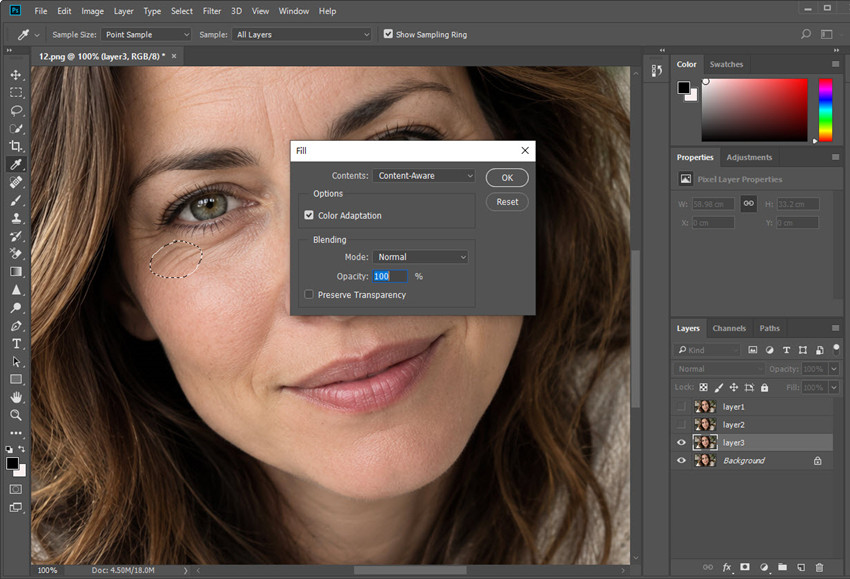
Step 3. Review the sampling area.
Exclude unrelated details and areas with different textures or lighting from the sampling region. For example, when removing a crease from a plain shirt, use nearby fabric rather than skin, the background, or a shadowed part of another object. If your Photoshop version offers the option, set the result to a new layer so you can refine the correction independently.
Step 4. Apply the fill and inspect the result.
Apply the fill and inspect the repaired area at 100% zoom. Check for blurry patches, repeated fabric patterns, mismatched lighting, or edges that look pasted on. If the result isn't convincing, undo it and adjust the selection or sampling area. You can also use the Healing Brush or Clone Stamp to repair small imperfections along the edges.
For removing wrinkles from clothes in Photoshop, Content-Aware Fill is most useful on broad creases in plain or lightly textured fabric. It may struggle with stripes, checks, intricate patterns, or folds that define the garment's shape. For those areas, use the Clone Stamp or Healing Brush to preserve the original fabric details.
For facial wrinkles, use Content-Aware Fill more selectively. It may help repair a larger isolated area, but filling an entire crease can remove natural skin detail or distort facial contours. For fine lines and deeper facial wrinkles, the Healing Brush, Clone Stamp, or Dodge and Burn usually offers more precise control.
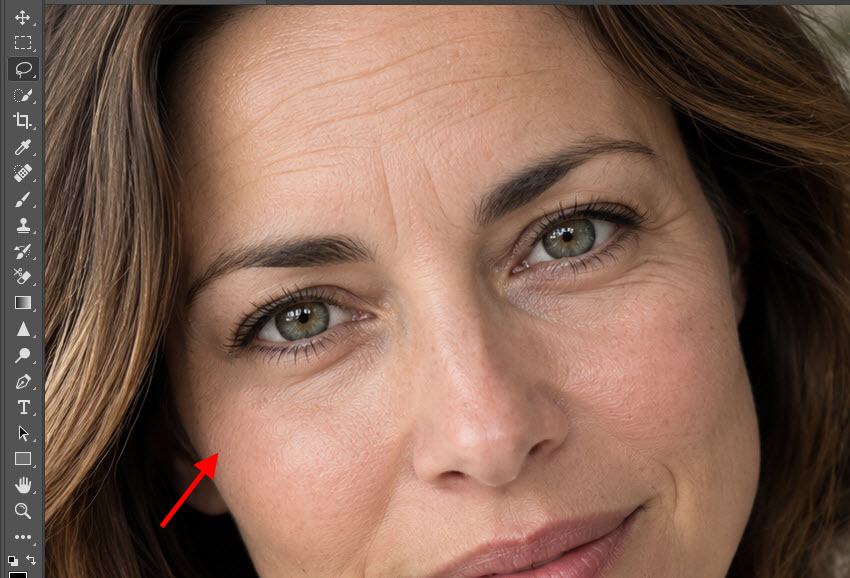
5. Use Frequency Separation for Advanced Retouching
If the Healing Brush or Clone Stamp leaves uneven patches, frequency separation gives you more control over wrinkle removal in Photoshop. This advanced retouching technique separates an image's broad colors and tones from its fine texture, allowing you to correct each independently.
It's commonly used for detailed portrait retouching and fashion photography, where you want to reduce facial wrinkles or smooth clothing creases without losing natural skin texture or fabric detail. The key is to soften distracting wrinkles without removing the details that make the skin or fabric look real.
Step 1. Create the frequency-separation layers.
Duplicate your image and create two working layers: a low-frequency layer for color and tonal transitions and a high-frequency layer for fine texture and detail. The setup involves blurring the low-frequency layer and using the appropriate Apply Image settings on the high-frequency layer. The exact values depend on the image resolution and your Photoshop workflow.
Step 2. Correct broad tonal variations on the low-frequency layer.
Select the low-frequency layer to work on broad changes in brightness and color. Use a soft brush or a controlled blending technique to even out distracting transitions without erasing the underlying shape.
- For facial wrinkles: Reduce the contrast of unwanted creases without flattening the natural shape of the face.
- For clothing wrinkles: Soften unwanted light and dark transitions while retaining folds that define the garment's shape and volume.
Step 3. Repair texture on the high-frequency layer.
Switch to the high-frequency layer to correct uneven or damaged texture independently of the broader tones. Use the Clone Stamp or another suitable retouching tool to repair small problem areas, sampling from nearby regions with matching details.
Step 4. Review both layers together.
Turn both working layers on and off to compare the retouched image with the original. Inspect the result at 100% zoom for uneven texture or visible patches, then zoom out to check the overall appearance.
Frequency separation offers more control than basic healing tools, but it takes longer to set up and requires careful adjustments. For a few small wrinkles, the Healing Brush or Clone Stamp is usually faster. For stubborn facial creases, uneven skin tones, or detailed clothing retouching, frequency separation can be worth the extra effort.
For a broader portrait retouching workflow, see our guide on how to edit portraits in Photoshop, including skin retouching, Dodge and Burn, and frequency separation.
How to Make Wrinkle Removal Look Natural in Photoshop
When you remove wrinkles in Photoshop, the goal isn't to erase every line or fold. It's to make distracting wrinkles less noticeable while preserving natural skin texture, fabric details, and the original lighting. Over-retouching can leave skin looking blurry or plastic and make clothing appear unnaturally flat.
Keep these points in mind when retouching either type of image:
- Work in small sections. Short strokes and localized corrections are easier to control than large, aggressive edits.
- Sample from nearby areas. Similar tones, lighting, and textures help corrections blend naturally.
- Preserve important details. For faces, retain pores and natural contours. For clothing, keep the seams, patterns, and folds that define the garment.
- Avoid excessive smoothing. Skin that has no texture or fabric without any natural variation can look artificial.
- Compare the original and edited images. Inspect the result at 100% zoom, then step back to check whether the overall image still looks believable.
- Combine different tools. You can combine the Healing Brush, Clone Stamp, and Dodge and Burn to remove wrinkles in Photoshop more naturally, using each tool where it works best.
If you're retouching several photos, a consistent workflow can save time, but brush size, sampling points, and correction strength may need to change for each image. The best way to get rid of wrinkles in Photoshop is to reduce the distracting lines without making the retouched area look noticeably different from its surroundings.
An Easier Alternative to Removing Wrinkles in Photoshop
Photoshop gives you precise control over wrinkle removal, but retouching every crease manually can take time. If you want a faster way to clean up photos and improve overall image quality, Aiarty Image Enhancer combines AI Eraser, detail enhancement, and AI upscaling in one desktop tool.
- Remove wrinkles and blemishes: Use AI Eraser to target unwanted facial lines, clothing creases, spots, and other distractions with natural details.
- Enhance image details: Improve the clarity of skin, hair, fabric, and other textures while aiming to preserve a natural appearance.
- Upscale images: Enlarge photos by 2×, 4×, or 8×, or use custom output resolutions when you need more pixels for printing, sharing, or further editing.
- Process photos in batches: Enhance multiple images locally on your computer instead of editing each photo individually or uploading files to a cloud service.
Step 1. Import your photo.
Open Aiarty Image Enhancer and import the portrait or clothing photo you want to retouch.
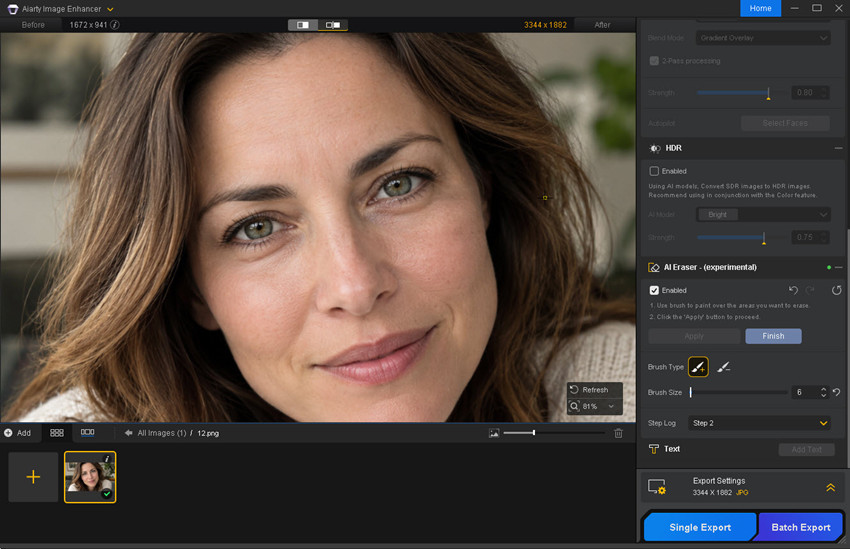
Step 2. Select the wrinkles with AI Eraser.
On the right panel, scroll down and enalbe AI Eraser. Then click Editing Mask. Choose the Brush+ tool, adjust the brush size, and paint over the facial wrinkles or clothing creases you want to remove. Keep the selection focused on the unwanted lines while avoiding nearby facial features, seams, and other details you want to preserve.
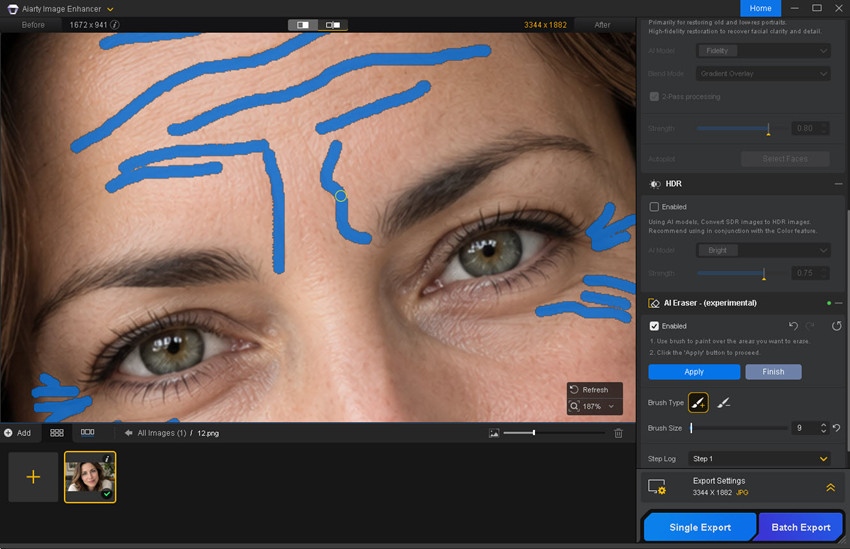
Step 3. Apply the AI Eraser.
Click Apply to let the AI reconstruct the selected areas using the surrounding image content. Inspect the result and adjust the mask or repeat the process if necessary. For deep facial creases or complex fabric patterns, check carefully for unnatural textures or transitions.
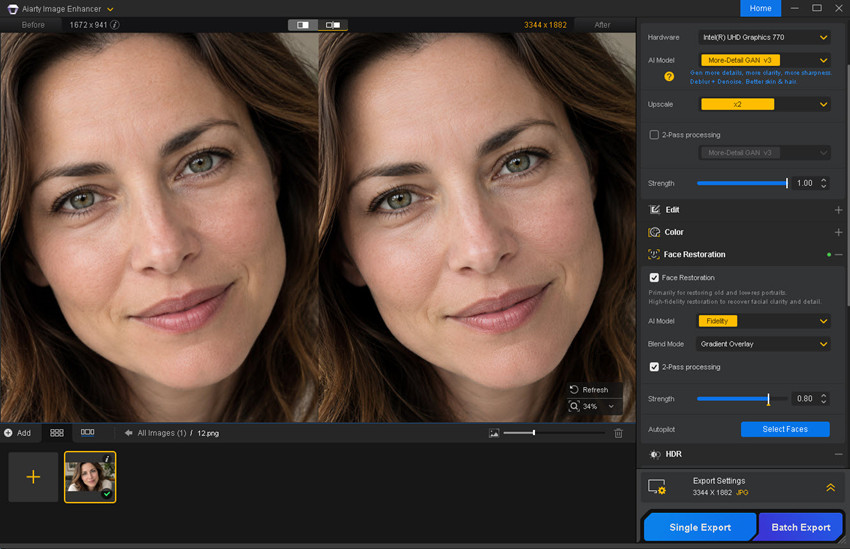
Step 4. Enhance details and upscale the photo.
If the image needs further improvement, use Aiarty Image Enhancer's detail enhancement and upscaling features to refine image quality and enlarge the photo by 2×, 4×, or 8×, or to a custom resolution. For portraits, you can also enable Face Restoration to further enhance facial details. When you're satisfied with the result, export the edited image.
 Frequently Asked Questions
For small wrinkles and fine lines, the Spot Healing Brush or Healing Brush is a good starting point. Use the Clone Stamp for more precise control over texture and shadows, and Frequency Separation when you need to adjust skin tone or fabric shading without losing fine details. The best tool depends on the size of the wrinkles and the surrounding texture.
Work on small areas at a time and avoid smoothing the entire face. Use the Healing Brush to correct individual lines, then reduce the visibility of remaining crease shadows if needed. Preserve pores, fine lines, and natural skin texture rather than removing every wrinkle completely. Working on a separate layer also lets you reduce the strength of your edits.
For small creases, try the Healing Brush or Clone Stamp. For larger wrinkles, use Frequency Separation to even out uneven tones and shadows while preserving fabric texture. Content-Aware Fill can also help with wrinkles on relatively uniform areas. Check the result carefully around seams, folds, and garment edges to avoid making the fabric look flat or distorted.
Deep wrinkles often involve both a visible crease and a change in light and shadow, so a single healing stroke may not be enough. Use the Healing Brush or Clone Stamp to repair distracting lines, then use Dodge and Burn or tone adjustments to soften harsh shadows and highlights. Work gradually to preserve the natural contours of the face or fabric.
Use Frequency Separation to adjust uneven color and shading separately from fine texture, then repair broken stripes, checks, or other patterns with the Clone Stamp, Patch Tool, or careful manual retouching. Sample from a matching part of the fabric and align the pattern before blending the edges. Complex patterns may require detailed manual work to look natural.
You May Also Like


This post was written by Brenda Peng who is a seasoned editor at Digiarty Software who loves turning ordinary photos into extraordinary works of art. With AI assistance for brainstorming and drafting, the post is reviewed for accuracy by our expert Abby Poole for her expertise in this field.
