


If you had told a photographer five years ago that their photo editor would eventually "watch" them edit to learn their style, or automatically reject photos where a subject's eyes were closed, they might have called it science fiction. Today, in 2026, that is simply a Tuesday in Lightroom Classic.
With the latest Version 15 updates, Adobe has leaned heavily into the AI era. We now have Assisted Culling to help us sort through thousands of shots in seconds and Generative Upscale (powered by Topaz) built right into the interface. It raises a valid question: In a world where Lightroom is becoming so powerful, do we still need third-party plugins?
The short answer is a resounding yes. While Lightroom has become a formidable "jack-of-all-trades," third-party developers are the masters of specialization.
Whether it's the surgical precision of DxO's lens corrections, the industry-standard film emulations of the Nik Collection, or the sheer batch-processing horsepower of Imagen, plugins remain the secret sauce for pros. They don't just add "filters"; they provide the deep technical architecture that Adobe hasn't quite reached yet.
In this guide, we're going to look at the essential plugins that every photographer should have in their 2026 toolkit to bridge that gap between a good edit and a gallery-ready masterpiece.
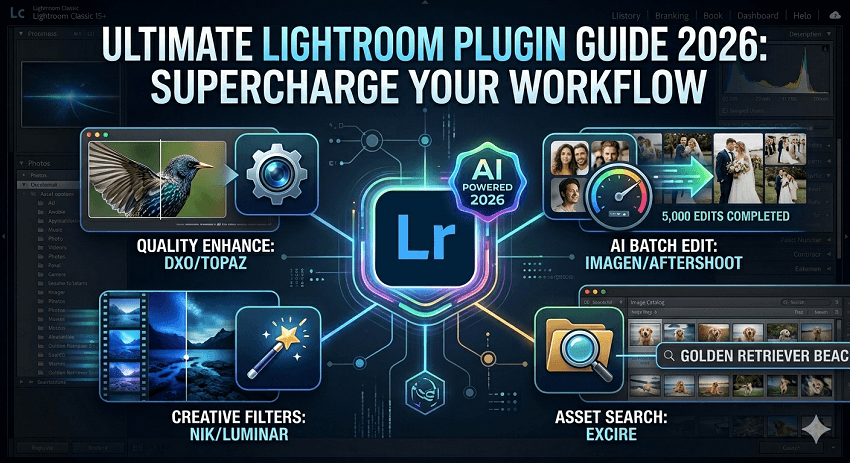
Category 1: The AI Speed Demons (Batch Editing)
Focus: For photographers handling 500+ images per shoot.
1.Imagen
If the goal is to reclaim your weekends from the glow of a computer screen, Imagen is the closest thing to having a professional editing assistant sitting at your desk. While Adobe's native tools are powerful for individual adjustments, Imagen is designed for the volume-heavy photographer who needs a consistent "look" across thousands of files.
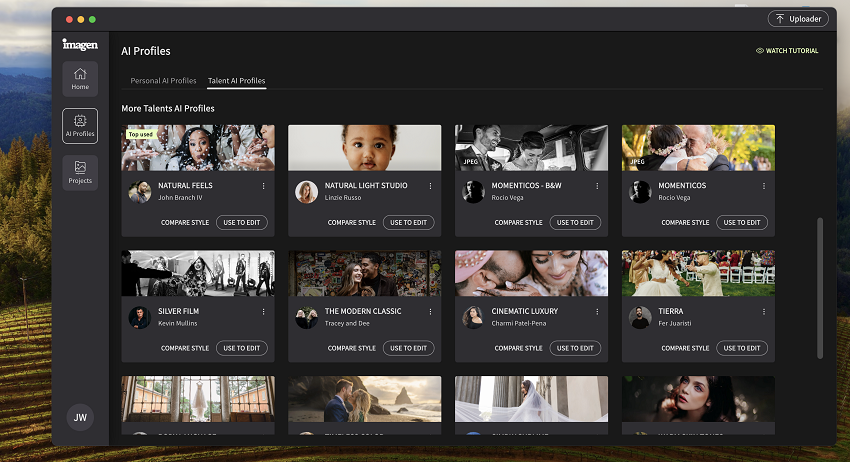
Unlike generic filter packs or "one-size-fits-all" AI presets, Imagen is built on the concept of a Personal AI Profile. It learns your specific editing style by analyzing your past work (your previously edited Lightroom catalogs). It isn't trying to impose its taste on your photos; it is trying to replicate yours. Whether you prefer deep, moody shadows or a bright, airy aesthetic, the AI adjusts white balance, exposure, and color grading to match the way you have historically edited your own work.
Key Features
- Personal AI Profiles: The engine trains itself on your past 3,000+ edits to mirror your signature style across new sessions.
- Talent AI Profiles: If you're just starting out and haven't built a large enough catalog to train the AI, you can leverage professional "Talent Profiles"—presets built by renowned photographers that apply a high-end look instantly.
- Consistent Batch Processing: Imagen ensures that lighting variations across a single shoot (e.g., moving from a dimly lit indoor ceremony to bright outdoor sunlight) are balanced automatically, providing a level of uniformity that is notoriously difficult to achieve manually.
- Workflow Integration: It works seamlessly with your existing Lightroom Classic workflow. You don't have to change your file management system; you simply let the Imagen app handle the heavy lifting while you focus on the creative finishing touches.
2. Aftershoot
If Imagen is your specialized editing assistant, Aftershoot is the full-service studio manager. While many plugins focus solely on color correction, Aftershoot tackles the most mentally draining part of photography: the "first pass." It is designed to take you from a raw memory card to a curated, edited gallery with almost zero manual labor.
What makes Aftershoot a 2026 standout is its offline-first architecture. Unlike many AI tools that require you to upload high-res RAW files to the cloud, Aftershoot performs its magic locally on your machine. This is a game-changer for travel photographers or those working with limited bandwidth.
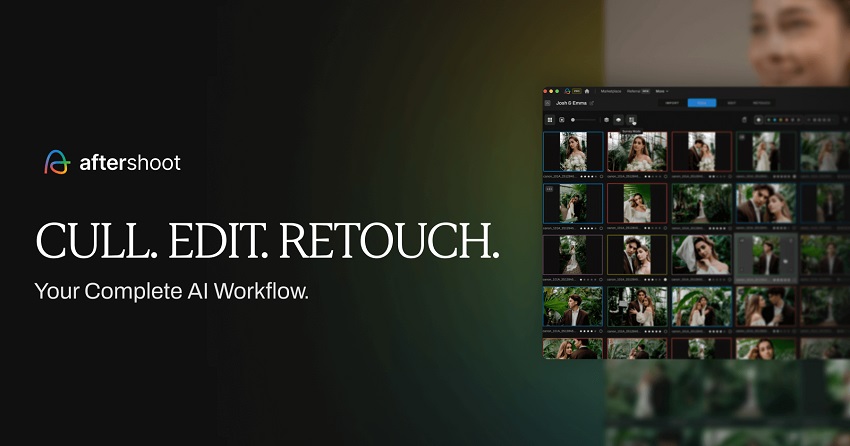
Furthermore, it distinguishes itself by combining Culling, Editing, and Retouching into a single interface. While Lightroom has introduced basic "eye detection," Aftershoot's AI is built for volume, capable of grouping thousands of photos by "key faces" and technical quality in a fraction of the time it takes to do so natively.
Key Features
- AI-Assisted Culling: It automatically flags blurry shots, blinks, and "missed moments." It doesn't just look for technical perfection; it uses "Key Face Detection" to ensure the main subjects are looking their best.
- Instant & Personal AI Profiles: Much like Imagen, it can learn your editing style. However, it also offers "Marketplace Styles" that allow you to jumpstart your look using profiles from top-tier professional photographers.
- AI Retouching (New for 2026): Beyond just color, the 2026 version includes one-click skin smoothing, flyaway hair removal, and glass glare reduction—tasks that used to require a round-trip to Photoshop plugins.
- Genre-Specific Logic: You can set the AI to "Wedding," "Portrait," or "Event" mode. This prevents the AI from accidentally rejecting a "moody" shot (like a prayer with closed eyes) that it might otherwise flag as a mistake in a standard portrait session.
- Flat-Rate Pricing: Unlike "pay-per-image" models, Aftershoot offers unlimited culling and editing for a flat fee, making it the most cost-effective choice for high-volume pros.
Category 2: The Tech Saviors (Image Quality & Repair)
Focus: Fixing what went wrong in-camera or pushing the sensor's limits.
3. DxO PureRAW 6
While Lightroom's own "Denoise AI" has improved significantly, DxO PureRAW 6 remains the undisputed heavyweight champion of RAW pre-processing. It doesn't just clean up an image; it essentially "re-develops" the RAW data using millions of data points from DxO's own laboratory testing.
PureRAW 6 distinguishes itself by sitting between your camera and Lightroom. Instead of fixing a noisy photo after you've started editing, you run your RAW files through PureRAW first. It uses DeepPRIME XD3, a neural network that performs demosaicing and denoising simultaneously. By fixing the image at this fundamental level, it provides Lightroom with a "Linear DNG" that has the noise profile of a photo shot at a much lower ISO, all while preserving textures that other denoisers typically "smudge" away.
Key Features
- DeepPRIME XD3: The 2026 iteration of their AI engine, which introduces even better detail extraction for high-ISO shots and specific fixes for "residual chromatic shifts" (color fringing) at the pixel level.
- AI Sensor Dust Removal: New for Version 6, the software can now intelligently detect and remove sensor dust spots automatically during the RAW conversion, saving you from tedious spot-healing later.
- Optical Modules: PureRAW uses over 110,000 custom-built camera and lens profiles to correct for distortion, vignetting, and lens softness that generic profiles often miss.
- High-Fidelity DNG Compression: A 2026 breakthrough that allows the plugin to return processed DNG files to Lightroom that are up to 4x smaller in file size without any loss in perceptual image quality.
- Lightroom Plugin Extras Integration: You don't even have to leave Lightroom; just select your photos, go to `File > Plug-in Extras`, and PureRAW will process them and drop the cleaned versions right back into your collection.
4. Topaz Photo AI
While DxO PureRAW is like a laboratory for your RAW files, Topaz Photo AI is more like a world-class restorative surgeon. It is an all-in-one "autopilot" solution that combines the DNA of Topaz's legendary legacy apps—DeNoise AI, Sharpen AI, and Gigapixel AI—into a single, intelligent interface.
The standout feature of Topaz Photo AI in 2026 is its Autopilot 3.0. The moment you send a photo from Lightroom, the software "looks" at the image to diagnose its specific ailments. It doesn't just apply a blanket sharpen; it detects if the blur is caused by camera shake versus missed focus, identifies if the noise is luminance or chrominance, and even recognizes human faces to apply specialized reconstruction. It is uniquely capable of fixing images that would otherwise be destined for the trash bin.

Key Features
- Generative Upscale (up to 600%): A major 2026 upgrade allows you to enlarge images to massive proportions while using Generative AI to "fill in" realistic textures that weren't in the original file—perfect for extreme cropping on wildlife or sports shots.
- Face Recovery & Textile Enhancement: The AI identifies low-resolution faces and clothing textures, rebuilding eyes, skin, and fabric patterns to look sharp and natural rather than "plastic."
- Super Focus: New for this year, this tool uses advanced deconvolution to fix shots with a slight "missed focus," effectively moving the focal plane back onto your subject.
- Object Removal & Lighting Adjust: While these exist in Lightroom, Topaz's version uses a different AI model that often handles complex textures (like tree branches or patterned fabric) with fewer artifacts.
- Preserve Text: An incredibly niche but vital tool that prevents AI from "hallucinating" or smudging text found within a photo (like street signs or jersey numbers), keeping it legible even after heavy noise reduction.
Category 3: Creative & Artistic Powerhouses
Focus: Adding the "soul" and stylistic flair to a clean edit.
5. Nik Collection 8 (by DxO)
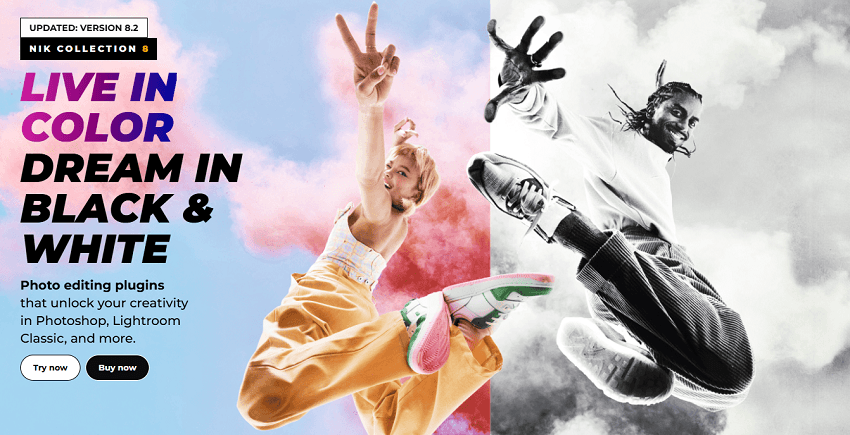
The Nik Collection has been a staple in professional darkrooms for decades, and the 2026 release of Version 8 solidifies its place as the gold standard for tactile, analog-inspired editing. While Lightroom provides the foundation, Nik provides the "vibe."
The Nik Collection's superpower is its U Point technology. While Lightroom's AI masking is great for selecting "Subject" or "Sky," U Point allows for surgical, color-based local adjustments without ever drawing a complicated mask. In Version 8, this has been expanded with Color Masks, allowing you to target specific hues (like the exact red of a sunset or the skin tones of a subject) with unprecedented accuracy. It is the most "organic" feeling editing suite on the market, favored by photographers who want their digital shots to look like they were developed in a physical darkroom.
Key Features
- Silver Efex Pro 8: Widely regarded as the world's best black-and-white converter. It features "Color Reference" thumbnails (new for 2026) that let you see the original colors while you work, and "ClearView" technology to cut through atmospheric haze.
- Color Efex Pro: A massive library of over 50 filters. The 2026 version includes a redesigned "stacking" workflow, making it easier to layer effects like Detail Extractor and Sunlight without cluttering your interface.
- Analog Efex: The go-to for vintage enthusiasts. It now includes 30 new Paper Textures and "Light Leak" engines that use randomized AI to ensure no two vintage effects look exactly the same.
- Cross-Plugin Masking: A major 2026 workflow boost. If you create a complex mask in Color Efex, you can now "carry" that mask directly over to Silver Efex or Viveza, maintaining perfect consistency across the suite.
- Non-Destructive Smart Objects: For those who round-trip to Photoshop, Nik 8 allows you to return your edits as Smart Objects, meaning you can double-click the layer later to tweak your Nik settings without starting over.
6. Luminar Neo (Spring 2026 Upgrade)
If the Nik Collection is about the "darkroom," Luminar Neo is about the "possibilities." It is the most forward-thinking creative plugin, utilizing Generative AI to change the very environment in which your photo was taken.
Luminar Neo stands out because it doesn't just edit pixels; it understands depth. In the 2026 Spring Upgrade, its Bokeh AI and Sky AI engines have reached a level of realism that makes it nearly impossible to tell where the original photo ends and the AI begins. It is the perfect tool for when you have a great subject but a boring environment—allowing you to swap a gray sky for a dramatic sunset or add realistic 3D fog that wraps around objects in your scene.
Key Features
- GenSwap & GenErase: Utilizing the latest 2026 Generative models, these tools allow you to replace elements (like turning a park bench into a rose bush) or remove distractions with contextually perfect textures.
- Twilight & Water Enhancer AI: Specifically designed for landscape photographers to harmonize the lighting between a replaced sky and its reflection in a body of water.
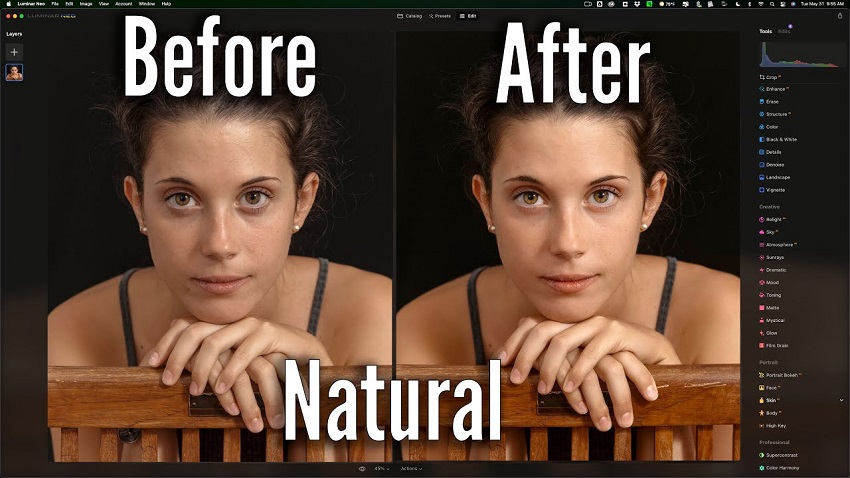
- Portrait Masterclass Tools: The 2026 update introduced Face AI 2.0, which includes sophisticated dark circle removal, iris enhancement, and "Body AI" for subtle contouring that looks natural rather than "Photoshopped."
- Advanced Masking (Feather & Edge Shift): New sliders that allow you to blend AI effects into your original shot with much softer, more realistic transitions.
- Relight AI: Maps your photo in 3D to allow you to "place" virtual lights in the scene, brightening a foreground subject while keeping the background dark, or vice versa.
Category 4: The Workflow & Org Architects
Focus: Managing massive catalogs and final delivery.
7. Excire Search 2026
If your Lightroom catalog feels like a "black hole" where great photos go to be forgotten, Excire Search 2026 is the essential antidote. While Adobe has introduced basic AI search, Excire has built a dedicated ecosystem for photographers who need to navigate tens (or hundreds) of thousands of images without spending weeks on manual keywording.
Excire Search 2026 stands out by making your entire archive searchable through natural language, much like searching the web. The 2026 version has significantly refined its Prompt-Based Search, allowing you to find specific moments—like "A child laughing at a birthday party" or "A red barn under a sunset"—even if you never added a single tag to those photos. It processes everything locally on your machine, ensuring your privacy while delivering results with a speed that Lightroom's native cloud-based search can't match.

Key Features
- X-Prompt AI: The core 2026 feature that understands complex descriptions, including moods and specific actions, rather than just simple object recognition.
- Aesthetic Scoring: Excire analyzes your photos and assigns an "Aesthetic Score" out of 100 based on composition, focus, and lighting. This is a massive shortcut for finding your "portfolio-worthy" shots in a sea of thousands.
- Intelligent Focus Detection: The new Search Panel provides instant close-up previews of faces and eyes, automatically flagging the sharpest frames in a sequence with green labels so you can cull for technical perfection instantly.
- AI Video Support: For the hybrid creator, Excire now keywords and organizes your video clips using the same content-recognition engine as your photos.
- Duplicate & Near-Duplicate Finder: A 2026 staple that identifies not just exact copies, but "burst-sequence" clusters, helping you clean up your storage and keep only the best frame from each moment.
8. LR/Mogrify 2
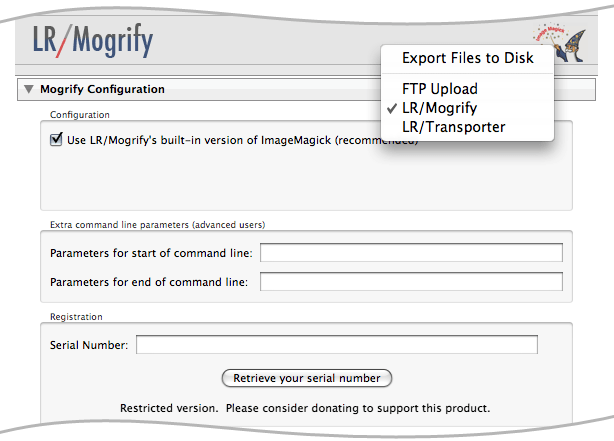
While many modern plugins rely on heavy AI, LR/Mogrify 2 remains a legendary utility because it solves the "last mile" problem of the professional workflow: the export process. It is a powerful post-processing engine that lives within your Export dialog, allowing you to automate complex tasks that would otherwise require a trip to Photoshop for every single image.
LR/Mogrify 2 is the only tool that gives you absolute, granular control over how your images look the moment they leave Lightroom. It stands out by allowing "batch-layering" of metadata, borders, and watermarks during the export phase. If you need to deliver 200 photos to a client with a specific frame, their name in the corner, and a custom ICC profile applied, this plugin does it in one click.
Key Features
- Advanced Graphical Watermarking: Unlike Lightroom's basic watermark tool, Mogrify allows for precise positioning, opacity, and even multiple watermarks per image.
- Inner & Outer Borders: Create sophisticated gallery-style borders or "Polaroid" frames automatically, with total control over thickness and color.
- Text Annotations from Metadata: You can automatically burn-in the EXIF data (like Camera, Lens, or Date) or even custom Lightroom metadata fields onto the image itself—ideal for technical documentation or student work.
- Image Overlay: Add a secondary image (like a logo or a QR code) to every photo as it exports.
- Color Space & Resizing Overrides: It uses the powerful ImageMagick engine to handle resizing and sharpening during export, often producing cleaner results for web-bound images than the native Lightroom export engine.
Bonus: The Best External Companion — Aiarty Image Enhancer
While not a traditional "plugin" that sits inside your File menu, Aiarty Image Enhancer is the external tool most 2026 photographers are using to handle the heavy lifting that Lightroom's native architecture isn't built for—specifically extreme upscaling and generative detail reconstruction.
How it fits into your Lightroom Workflow:
Even without a native plugin installer, Aiarty fits into a pro workflow via the "External Editor" method. You simply right-click your photo in Lightroom, select Edit In > Aiarty, and let it handle the technical restoration before the file automatically returns to your catalog as a high-quality TIFF or DNG.
Why use an external tool instead of a plugin?
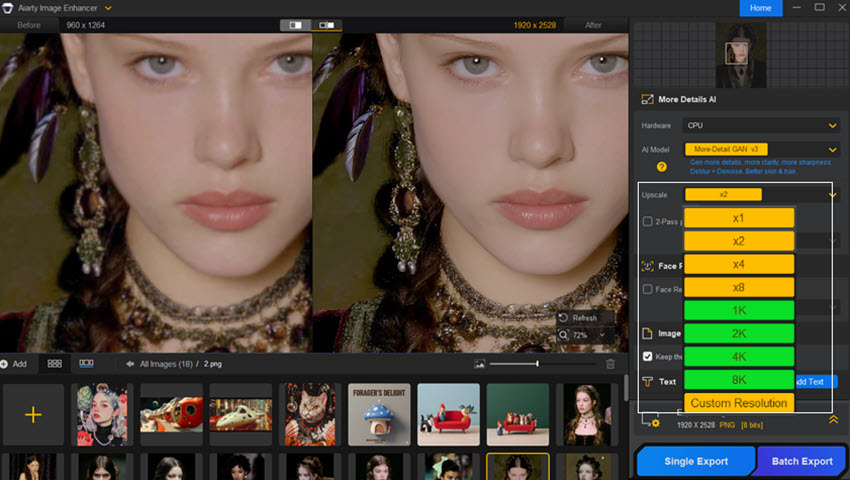
- The 32K Resolution Frontier: While native plugins often struggle with memory at massive scales, Aiarty is optimized for ultra-high resolutions (up to 32K). If you are preparing a small crop for a large gallery print, this is the tool you use after your Lightroom edit is done.
- More-Detail GAN V3: Unlike standard sharpening plugins, Aiarty's 2026 models actually "hallucinate" missing details—like skin pores and fabric textures—giving you a level of realism that built-in tools can't match.
- Hardware Speed: Because it runs as a standalone app, it can fully utilize your GPU/VRAM without being throttled by Lightroom's background processes.
Conclusion: Which Plugin Should You Buy First?
The "perfect" Lightroom setup is subjective, but in 2026, the strategy is simple: Identify your biggest bottleneck.
- If you spend too much time at the desk: Start with Aftershoot or Imagen. Reclaiming 80% of your editing time is the best ROI you can get. If you shoot in low light or crop heavily: Your first download should be DxO PureRAW or Topaz Photo AI. They are essentially a "hardware upgrade" for your current camera sensor. If your photos feel "sterile" or digital: The Nik Collection remains the king of adding character and soul to a RAW file.
Final Pro Tip
Don't install everything at once. Most of these tools offer a 14-day or 30-day free trial. Pick one category that frustrates you—whether it's noise, organization, or slow batching—and test that specific solution for a full week. You'll quickly find that while Lightroom is the heart of your workflow, these plugins are the muscles that do the heavy lifting.
You May Also Like


This post was written by Brenda Peng who is a seasoned editor at Digiarty Software who loves turning ordinary photos into extraordinary works of art. With AI assistance for brainstorming and drafting, the post is reviewed for accuracy by our expert Abby Poole for her expertise in this field.
