


When it comes to photo editing on a Mac, many people’s first thought is Adobe Photoshop. It’s powerful and widely used, but for most non-professional designers, Photoshop’s high subscription cost and complex interface can be overwhelming. If you only need basic photo adjustments, quick touch-ups, or simple design work, paying for a full professional suite often feels unnecessary.
Fortunately, macOS offers a wide range of free photo editors that cover many everyday editing needs. Some are built into the system, while others are free or open-source tools developed by active communities. These options allow Mac users to crop images, adjust colors, retouch photos, and even work with advanced formats like RAW, without spending any money.
That said, not all free photo editors are created equal. Each tool has its own strengths, limitations, and learning curve. In this guide, we’ll look at the best free photo editors for Mac, compare their features, and help you choose the right one based on how you actually edit photos on Mac.
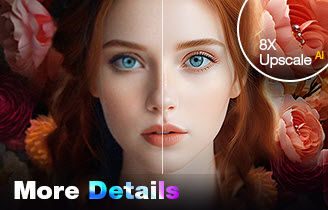
AI-powered. Restore image details.
- One-stop AI image enhancer, denoiser, deblurer, and upscaler.
- Fix image noise, blur, pixelation, compression artifacts, etc.
- Offer basic editing and color tools, SDR to HDR converter, & AI eraser.
- Support AI batch processing. No CPU or RAM overloads.
Best Free Photo Editors for Mac
If you’re looking for a free photo editor on Mac, the first tools you’ll encounter are often the ones already built into macOS. Beyond that, there are also several powerful third-party editors—many of them open-source—that offer more advanced control. Below is a practical breakdown of the best free options, starting with Apple’s own apps.
1. Preview – The Simplest Free Photo Editor on Mac
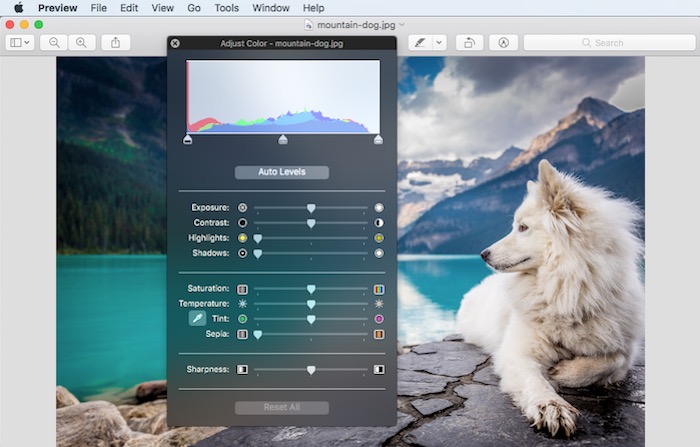
Preview is the most basic photo editing tool on macOS, and many users underestimate it. It allows you to crop, rotate, resize images, adjust colors, and add simple annotations without installing any additional software.
For very light edits, Preview is fast and convenient. However, it lacks precision and depth. There are no layers, no advanced color controls, and no real retouching tools. It’s useful for quick fixes, but not suitable for users who want more control over their photos.
Best for: Very basic edits and quick adjustments
Limitations: No advanced editing or image quality improvement
2. Photos – Best Built-in Free Photo Editor on Mac
Every Mac comes with the Photos app, which offers basic photo editing features such as cropping, color adjustments, filters, and simple retouching. For quick edits and casual use, it’s often more than enough.
That said, Photos is not meant for advanced editing. It lacks layers, precise masking, and detailed control over image adjustments. It’s best seen as a convenient starting point rather than a full editing solution.
Best for: Quick edits and beginners
Limitations: Limited features, no advanced controls

3. GIMP – Best Free Photoshop Alternative for Mac
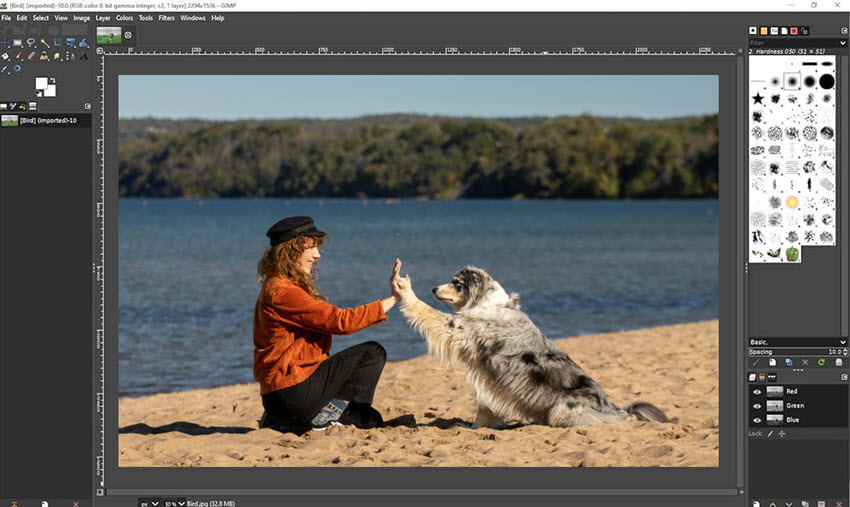
GIMP is one of the most well-known free photo editors and is often mentioned as a Photoshop alternative. It offers advanced tools such as layers, masks, selections, and a wide range of filters, making it suitable for users who need detailed control over their edits.
However, GIMP comes with a learning curve. Its interface may feel less intuitive for beginners, and performance can vary depending on image size and plugins used. Still, for users who want professional-level features without paying for software, GIMP remains a strong option on Mac. (Learn how to edit photos in GIMP step by step)
Best for: Advanced users and hobbyists who need powerful editing tools
Limitations: Steep learning curve, not beginner-friendly
4. Darktable – Best Free Photo Editor for RAW Files
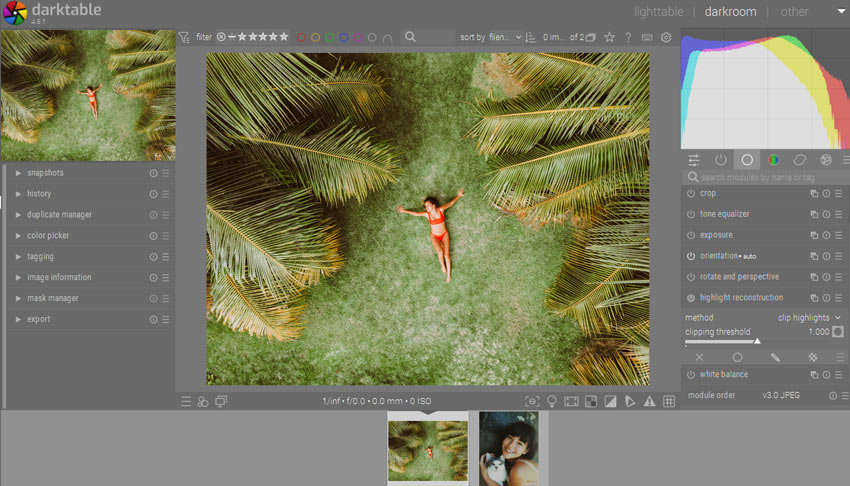
Darktable is a free, open-source RAW photo editor designed mainly for photographers working with RAW images. It focuses on non-destructive editing, allowing you to adjust exposure, color, and tone without altering the original file.
While Darktable is excellent for photo processing and color correction, it’s not designed for graphic design or retouching tasks like compositing or text overlays. The interface can also feel complex if you’re new to RAW editing.
Best for: Photographers editing RAW photos
Limitations: Complex interface, limited retouching tools
Also Read: 10 Best AI Photo Editors for Photographers in 2026
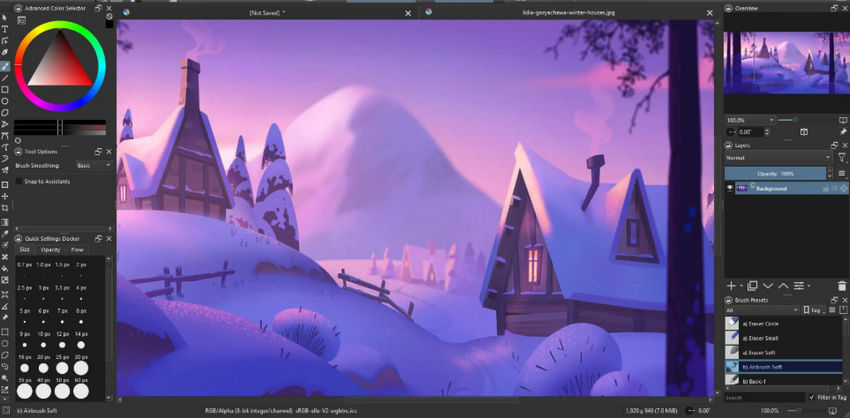
5. Krita – Best Free Photo Editor for Digital Art
Krita is a free, open-source application originally built for digital painting and illustration. It supports layers, brushes, and color management, making it popular among artists and illustrators.
For traditional photo editing, however, Krita can feel less focused. While it can handle basic edits, it’s not optimized for tasks like photo retouching or batch editing.
Best for: Digital artists and illustrators
Limitations: Not optimized for photo editing workflows
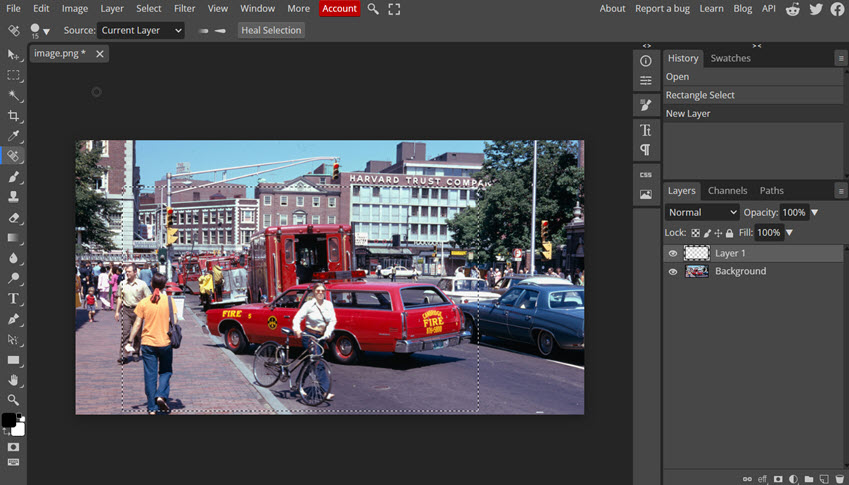
6. Photopea – Best Free Online Photo Editor for Mac
Photopea is a web-based photo editor that works directly in your browser, requiring no installation. It supports PSD files, layers, and many familiar Photoshop-style tools, which makes it convenient for quick edits on any Mac.
As an online tool, Photopea depends on your internet connection and browser performance. Large images or complex projects can feel slow, and privacy-conscious users may prefer desktop software.
Best for: Quick edits and Photoshop-like workflows online
Limitations: Performance depends on browser and internet
Limitations of Free Photo Editors on Mac
Free photo editors on Mac are great for basic adjustments like cropping, color correction, and simple retouching. However, they often reach their limits when dealing with more challenging images.
Common issues include blurry or low-resolution photos, noise in low-light shots, and loss of detail in compressed images. While tools like Preview, Photos, or GIMP can tweak colors and sharpness, they typically cannot restore missing detail or significantly enhance overall image quality.
If you have blurry or low-resolution photos, you can consider using an AI-powered solution such as Aiarty Image Enhancer. This tool can upscale low-resolution images, reduce noise, sharpen blurry areas, and enhance details easily. You don’t need to repeatedly adjust sliders as you would in traditional editing tools.
You can watch the YouTube video below to see how Aiarty Image Enhancer works on Mac, with clear before-and-after examples.
During the photo editing process, you can also use these best image enhancers for Mac to fix blurry photos, reduce high ISO noise, and restore realistic details with AI. Some of these programs can be integrated into your existing workflows or used as standalone apps for bulk processing.
You May Also Like


This post was written by Brenda Peng who is a seasoned editor at Digiarty Software who loves turning ordinary photos into extraordinary works of art. With AI assistance for brainstorming and drafting, the post is reviewed for accuracy by our expert Abby Poole for her expertise in this field.
