


Summary: The best AI batch photo editors combine intelligent image analysis with automation. Below we compare tools that support AI upscaling, AI denoise, and automated bulk photo editing workflows.
Editing photos one by one becomes time-consuming when you’re working with hundreds of images. Photographers after a shoot, e-commerce sellers updating product catalogs, and content creators managing media libraries often need a faster way to improve image quality at scale. Traditional workflows require manual adjustments, and even a typical bulk photo editor simply applies the same settings to every image without understanding differences in lighting, noise, or blur.
An AI photo editor powered by batch processing solves this problem by analyzing each image individually and applying intelligent enhancements automatically. With batch AI photo enhancement, tools can upscale resolution, reduce noise, sharpen details, and improve multiple photos at once. In this guide, we tested the best AI batch photo editors to find which ones handle large image collections efficiently while delivering consistent results.
If you need a quick recommendation before diving deeper into the comparison, these tools stood out during testing.
- Best Overall AI Batch Photo Editor: Aiarty Image Enhancer
- Best for Professional Photo Enhancement: Topaz Photo
- Best for Creative AI Editing: Luminar Neo
- Best Workflow Tool for Photographers: Adobe Lightroom
- Best Online AI Batch Editor: Fotor AI
- Best AI Portrait Enhancer: Remini
While each tool approaches automation differently, all of them support some form of batch AI photo enhancement designed to reduce repetitive editing work.
Best AI Batch Photo Editors Compared
Before exploring each tool individually, it helps to see how they compare at a glance. The following table highlights their strengths in AI image enhancement and batch processing workflows.
Now let’s look at how these tools perform in real AI batch editing scenarios.
How We Tested These AI Batch Photo Editors
To evaluate each AI batch photo editor, we ran practical tests using real photo collections instead of relying on marketing claims.
#1. Image Types Tested
To evaluate each AI batch photo editor realistically, we tested a diverse set of images representing common challenges in photo editing workflows. This ensured the results reflect typical use cases across different scenarios:
- Low-resolution photos requiring AI upscaling, to see how well details can be recovered.
- Noisy images taken in low light, testing the denoise capabilities of each tool.
- Slightly blurry photos with soft focus, to assess sharpening and deblur performance.
- High-resolution camera photos, ensuring tools handle large files without quality loss.
- Folders containing over 100 images, evaluating true batch processing efficiency.
#2. Evaluation Criteria
We measured each software using four key criteria that matter most for batch AI photo enhancement. These factors helped us compare tools objectively:
2.1 AI Enhancement Quality
We examined how well the software improves image quality while preserving natural details. Key aspects included:
- AI image upscaling to enlarge photos without introducing artifacts.
- Noise reduction, especially in low-light or high ISO images.
- Sharpening and deblur to correct slight focus or motion issues.
2.2 Batch Processing Capability
Since one of the main benefits of AI batch editors is handling large collections, we tested the tools’ batch workflows, including:
- Folder import support, for quickly loading multiple photos
- Batch size limits, to see how many images can be processed at once
- Automation features, such as applying AI models to all images without manual intervention
2.3 Processing Speed
Processing time is critical when working with hundreds of photos. We measured speed based on:
- GPU acceleration, for faster desktop processing
- Cloud processing performance, for web-based editors
2.4 Workflow Usability
Finally, we considered overall workflow efficiency, including how intuitive the interface is, whether users can easily configure batch tasks, and how smooth exporting multiple photos felt. This ensured that a tool isn’t just powerful but also practical for everyday use.
With these criteria in mind, the following tools stood out for batch AI photo enhancement.
9 AI Batch Photo Editors That Save You Hours of Work
1. Aiarty Image Enhancer – Best AI Batch Photo Editor for Large Photo Collections
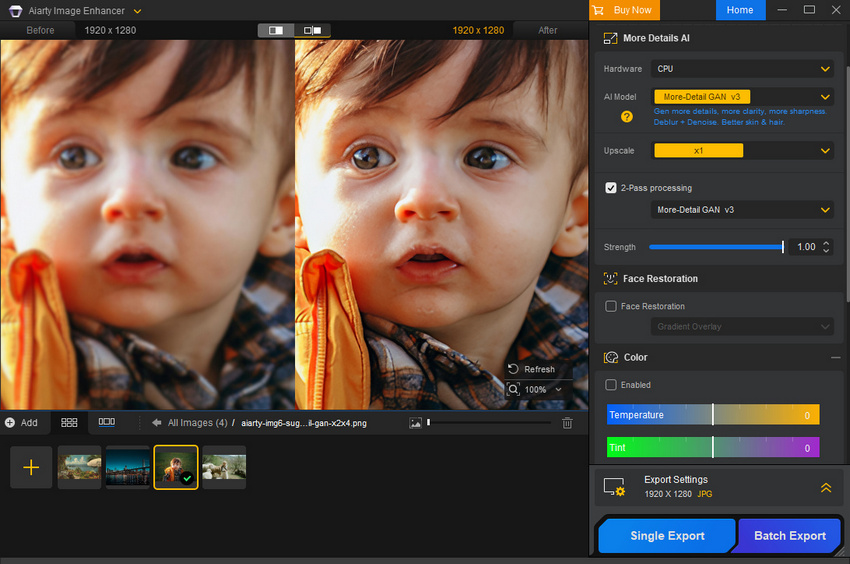
Before discussing more traditional photo software, it’s worth starting with a tool designed specifically for AI photo enhancement and batch workflows. Aiarty Image Enhancer offers a fast, intuitive interface with powerful batch AI capabilities, letting you upscale, denoise, and sharpen hundreds of photos automatically.
The latest version also integrates essential editing tools such as crop, rotate, and flip, allowing users to complete basic adjustments without switching to other software. Its simple workflow makes it ideal for photographers, e-commerce sellers, and content creators who need professional results without hours of manual editing.
Best for: Enhancing large batches of blurry, noisy, or low-resolution photos automatically.
Pros
- Excellent detail recovery to restore fine textures and sharpness even in low-res or slightly blurry images.
- Fast GPU batch processing of large photo collections without long waiting times.
- A refreshing alternative to endless monthly subscriptions.
- Integrated editing tools (crop, rotate, flip) for quick edits without switching software.
Cons
- Desktop software only, cloud processing isn't available yet.
- Performance can be noticeably slower when relying solely on CPU.
- Limited creative editing features.
Batch Workflow
During testing, the workflow was straightforward:
- Import multiple photos or a folder containing multiple photos .
- Select an AI enhancement model, more-Detail v3 is usually suggested.
- Adjust upscale scale as you need.
- Start batch processing.
- Export enhanced images automatically.
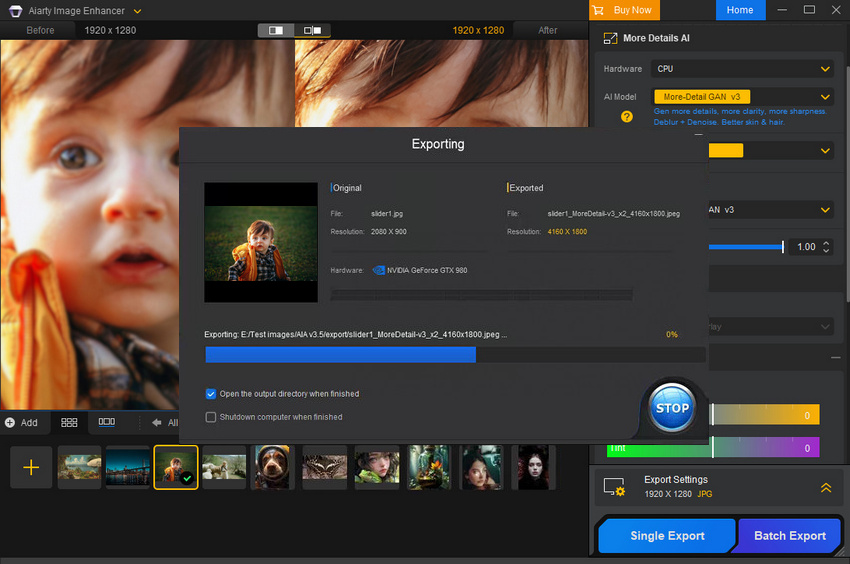
Unlike many traditional bulk photo editors, the AI model analyzes each image individually before applying improvements. You don't have to struggle with tweaks on kinds of parameters, Aiarty can upscale, denoise, deblur photos with natural skins and textures.
Pricing: $59/year for a standard license, or a one-time payment of $119 for a lifetime license covering 3 seats.
2. Topaz Photo – Professional AI Enhancement for Photographers
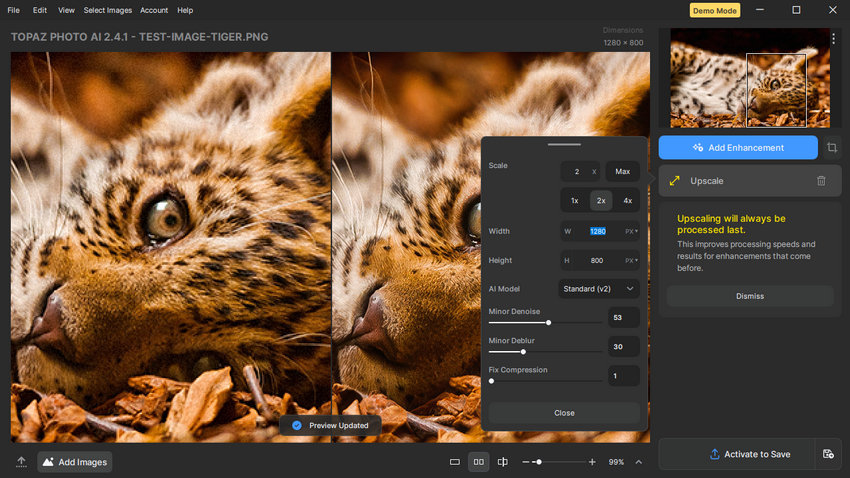
Topaz Photo is designed for photographers and professionals looking for precise, high-quality enhancements with AI-powered automation. Unlike standard bulk editors, Topaz analyzes each image in detail to intelligently sharpen, denoise, and refine your photos. Its desktop interface emphasizes control and accuracy, making it ideal for serious users who want professional-level results without manually adjusting every image.
Best for: Refining professional photos with advanced AI sharpening and noise reduction for medium to large batches.
Pros
- Highly accurate AI sharpening and denoise for professional-quality results.
- Customizable AI models allow fine-tuning for different types of images.
- Strong reputation among photographers.
Cons
- Expensive compared with many photo enhancement tools.
- Software crashes occur occasionally during batch processing, especially for RAW files.
- Slower batch processing speed.
Batch Workflow
Photos can be imported in groups, allowing the AI engine to analyze and enhance them sequentially. While it does function as a batch AI photo enhancement tool, its processing speed is slower when handling very large folders.
Pricing: $21/month for the Personal plan ($252/year). The subscription is billed annually and currently does not support refunds or mid-term cancellation.
3. Luminar Neo – Best Creative AI Batch Photo Editor
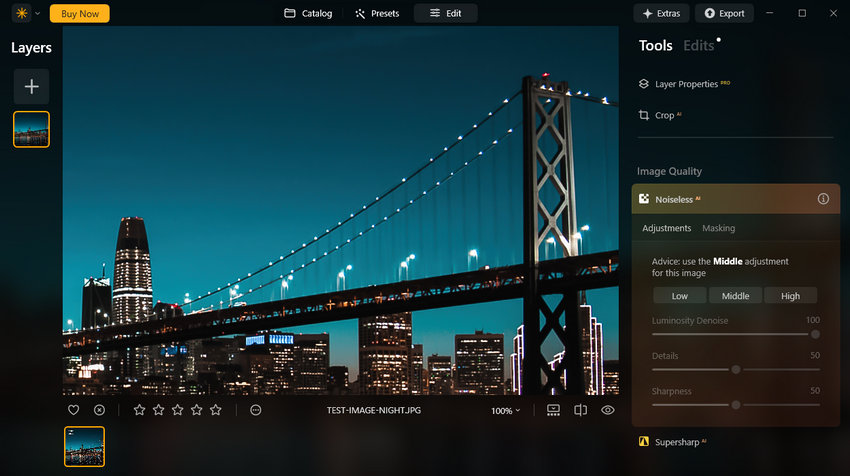
Luminar Neo focuses more on creative AI editing than pure technical enhancement. While many AI batch photo editors concentrate on sharpening or noise reduction, Luminar Neo provides artistic tools that can dramatically transform the look of an image. With features like AI sky replacement, portrait enhancement, and intelligent lighting adjustments, it’s designed for users who want visually striking results while still handling multiple photos in a workflow.
Best for: Users who want creative AI effects combined with preset-based batch editing.
Pros
- Powerful creative AI tools including sky replacement and relight technology.
- User-friendly interface suitable for beginners and hobby photographers.
- Large library of presets that can speed up editing workflows.
Cons
- Limited automated batch AI photo enhancement compared with dedicated AI upscaling tools.
- Batch workflows rely mainly on presets rather than image-by-image AI analysis.
Batch Workflow
Luminar Neo supports batch editing mainly through its preset system. Users can import a group of photos, apply the same preset, and export them together. While this works well for consistent lighting conditions or stylistic edits, it offers less automated adjustment compared with AI tools that analyze each image individually.
Pricing: Select from three perpetual tiers - Desktop ($119), Cross-Device ($159), or Max ($179).
Hot Search: Luminar Neo vs Topaz Photo AI: Which One Really Enhances Better?
4. Adobe Lightroom – Best Batch Photo Editor for Photography Workflows
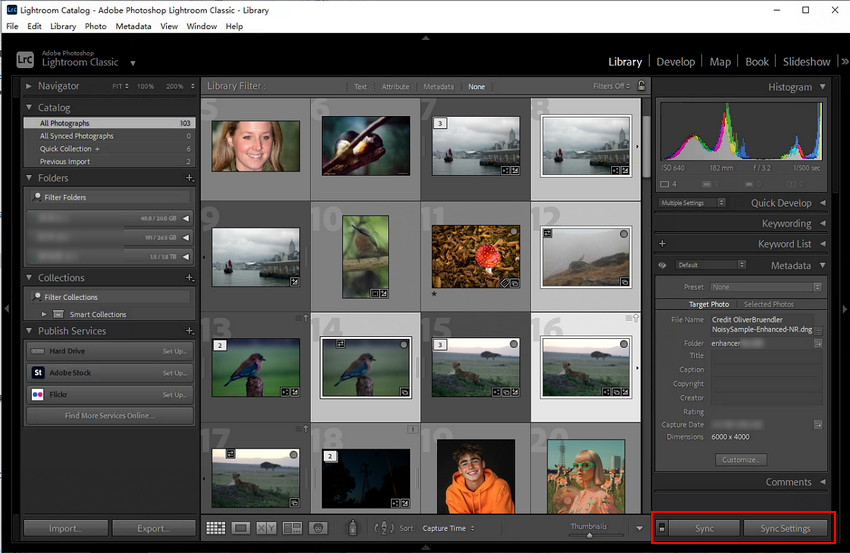
Adobe Lightroom has long been a standard tool for photographers who manage and edit large image libraries. Instead of focusing purely on AI enhancement, Lightroom emphasizes efficient workflows such as catalog management, synchronized edits, Denoise AI, and preset-based batch adjustments. Recent updates have introduced AI-powered masking and subject detection, helping photographers make precise adjustments while still processing multiple images quickly.
Best for: Photographers who need a reliable workflow for organizing and editing large photo collections.
Pros
- Industry-standard workflow for managing large photo libraries.
- Preset syncing allows fast adjustments across multiple photos.
- Advanced masking tools enable selective edits for subjects or backgrounds.
Cons
- Subscription-based pricing may not appeal to casual users.
- Steeper learning curve compared with simplified AI tools.
Batch Workflow
Lightroom handles batch editing mainly through presets and synchronized adjustments. Users can edit one image, then apply the same settings to an entire group. While this method is efficient for consistent lighting conditions, it requires more manual control compared with AI tools that automatically analyze each photo.
Pricing: Subscription-based, starting at $9.99–$11.99/mo for the Lightroom-only plan (1TB storage) and $19.99/mo for the Photography Plan (Lightroom + Photoshop).
5. Fotor – Best Online AI Batch Photo Editor
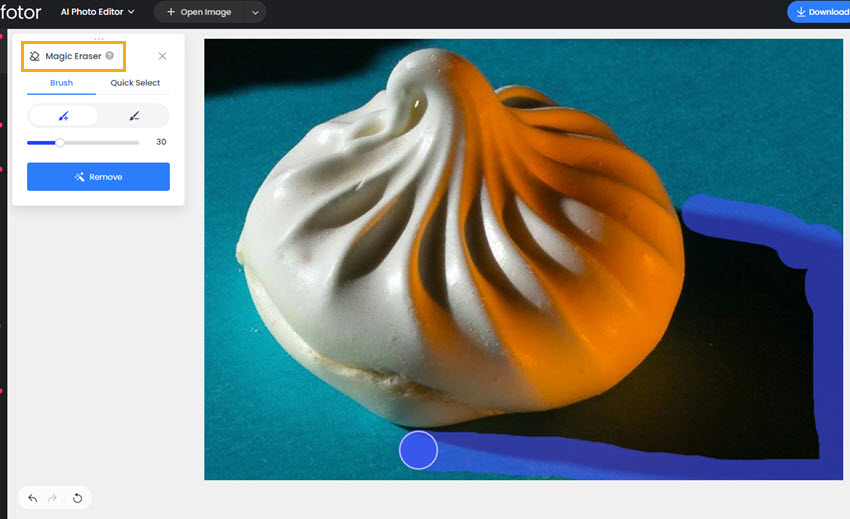
Fotor is a browser-based photo editor that offers simple AI-powered enhancements without requiring software installation. While it doesn’t provide the same level of control as professional desktop tools, it is convenient for users who want to quickly improve multiple photos online. Its AI upscaling and enhancement tools can handle moderate batch workloads, making it suitable for casual editing tasks.
Best for: Quick online batch photo enhancement without installing desktop software.
Pros
- Runs directly in the browser with no installation required.
- Simple interface suitable for beginners.
- AI enhancement and upscaling available for batch uploads.
Cons
- Limited control compared with desktop photo editors.
- Batch size may be restricted depending on the plan.
- Upload and processing speeds depend on internet connection.
Batch Workflow
Users can upload multiple images, apply AI enhancement or upscaling, and download the processed files together. The process is simple, although batch handling is less flexible than desktop software designed specifically for large photo collections.
Pricing: A free basic plan, and paid subscriptions for advanced AI features starting at $8.99/month (Pro) or $19.99/month (Pro+).
6. Remini – Best AI Batch Photo Editor for Portrait Restoration
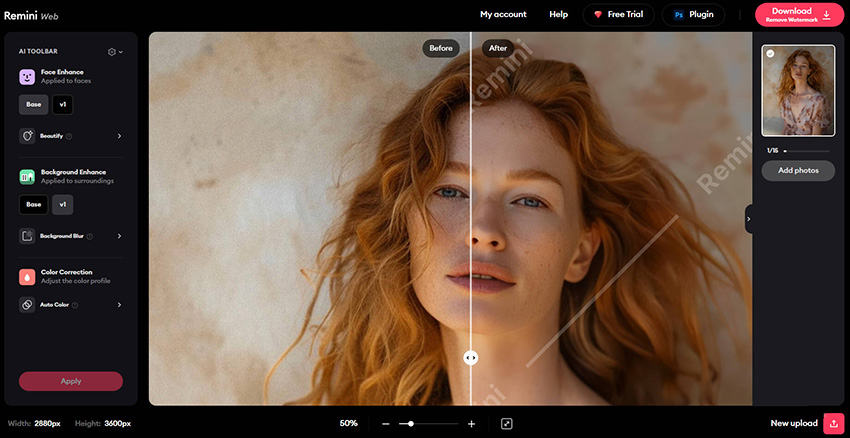
Remini is widely known for its portrait enhancement capabilities, especially for restoring old or low-quality photos. Its AI model focuses heavily on facial details, often sharpening eyes, skin texture, and hair in ways that general photo editors cannot. While the app is primarily designed for mobile use, it does support small batch processing for portrait-focused tasks.
Best for: Enhancing faces and restoring old portrait photos.
Pros
- Excellent facial detail enhancement.
- Works well for restoring old family photos.
- Easy mobile workflow.
Cons
- Batch processing is limited compared with desktop tools.
- Results can sometimes appear overly smooth or artificial.
- Primarily focused on portrait photos.
Batch Workflow
Remini allows users to upload several photos at once through the mobile interface. The app processes each image using its portrait enhancement model before exporting the results. However, it’s best suited for smaller groups of images rather than large-scale batch editing.
Pricing: subscription-based model, typically costing around $9.99 per week or roughly $10 per month for full, ad-free, and unlimited access.
7. Canva AI – Best Batch Photo Editor for Design Workflows
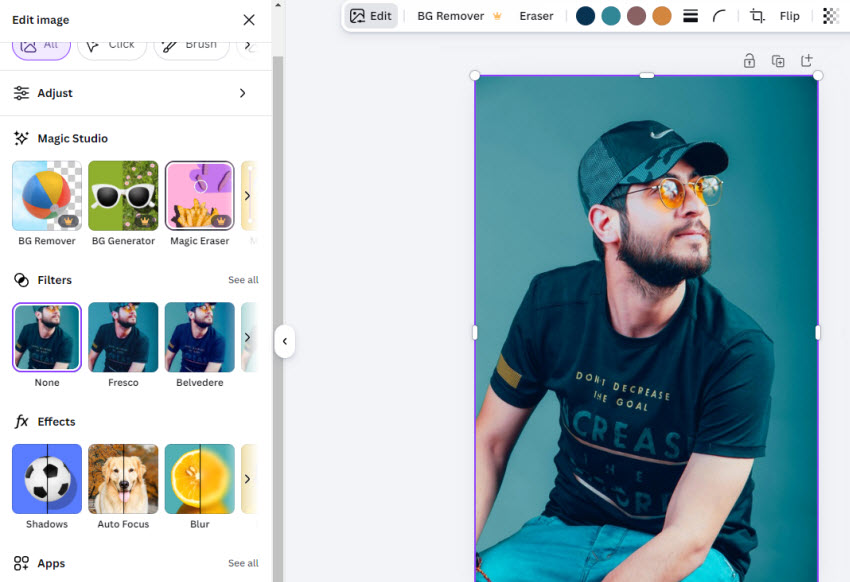
Canva is primarily a design platform, but its growing set of AI tools has made it useful for quick photo editing tasks as well. Features such as background removal, object selection, and image enhancement help streamline visual content creation. While it is not a dedicated photo enhancement tool, it supports batch-friendly workflows when working with multiple design assets.
Best for: Social media creators and marketers editing images within design projects.
Pros
- Integrated design platform with many templates and assets.
- Fast background removal and simple AI editing tools.
- Convenient for creating visual content in batches.
Cons
- Not specialized for AI photo enhancement.
- Limited control over technical improvements like noise reduction.
- Batch editing is tied mainly to design workflows.
Batch Workflow
Users typically duplicate designs or apply edits across multiple images inside a project. This approach works well for creating consistent marketing visuals, although it differs from traditional batch photo enhancement tools.
Pricing: Free plan available, Canva Pro starts at $15/month.
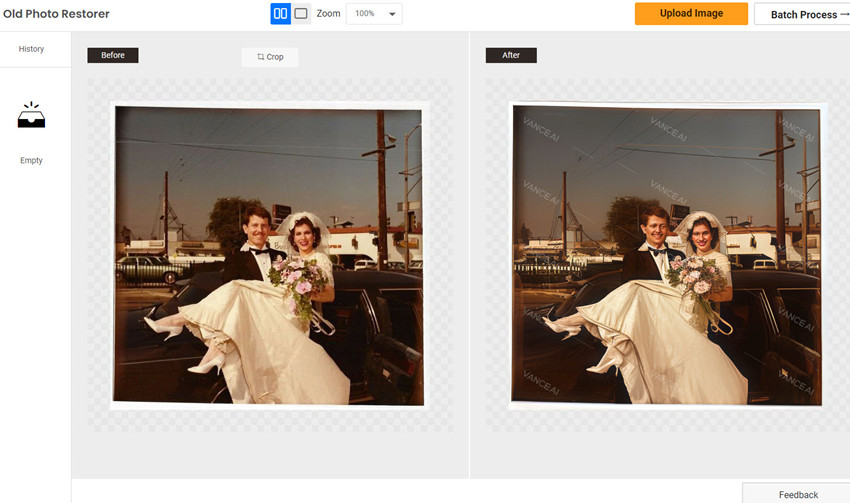
8. VanceAI – Online AI Upscaling and Enhancement Tool
VanceAI provides several web-based tools for improving image quality, including AI upscaling, noise reduction, and sharpening. Because everything runs in the browser, it’s accessible from almost any device. It can process small to medium batches of images, though performance depends on server availability.
Best for: Online AI image upscaling without installing software.
Pros
- Multiple AI tools including upscaling and denoising.
- Accessible from any browser.
- Supports moderate batch processing.
Cons
- Processing speed depends on server load.
- File size limits may apply.
- Requires uploading images to the cloud.
Batch Workflow
Users upload several images to the web interface, select the enhancement model, and download the processed results once completed. While convenient, the process is slower than local desktop tools when dealing with very large folders.
Pricing: Subscriptions starting at $4.95 for 100 credits/month, up to $17.95 for 1000 credits/month.
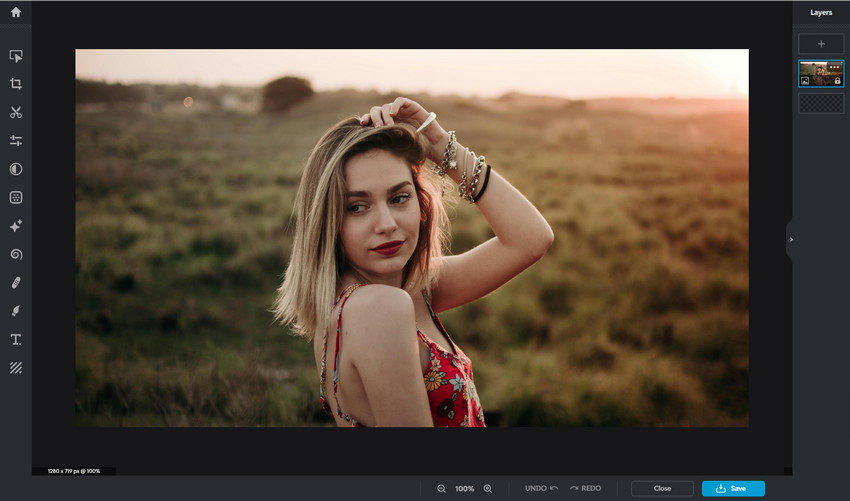
9. Pixlr – Lightweight Browser Photo Editor with AI Tools
Pixlr is a lightweight online editor that combines traditional editing features with newer AI-powered tools. It’s often used for quick adjustments such as retouching, background removal, or minor enhancements. Although it isn’t built specifically for large-scale batch photo enhancement, it works well for small groups of images edited directly in the browser.
Best for: Quick browser-based edits and simple AI retouching.
Pros
- Fast browser-based editing with no installation.
- A wide range of AI-powered tools that streamline common editing workflows.
- Lightweight and easy to learn.
Cons
- Limited support for large batch workflows.
- Lacks the precision required for high-end professional retouching or detail-heavy editing.
- Some features locked behind premium plans.
Batch Workflow
Pixlr focuses more on quick editing rather than full batch automation. Users typically edit photos individually or in small groups within the web interface.
Pricing: Free version available, premium plans start around $4.90/month.
How to Choose the Best AI Batch Photo Editor
With so many tools available, choosing the right AI batch photo editor depends largely on your workflow, the number of images you process, and the type of enhancements you need.
1. Batch Size Capability
Different tools are built for different workloads, ranging from small groups of photos to entire folders:
- Small batches (10–20 photos)
- Medium batches (50–200 photos)
- Large batches (500+ photos)
2. AI Enhancement Features
Look for tools that support true AI-based improvements rather than simple preset editing:
- AI image upscaling
- AI noise reduction
- AI deblur or sharpening
- Automatic color correction
3. Processing Speed
- GPU acceleration for faster local processing
- Cloud processing speed for online tools
In general, desktop software handles large image collections faster than browser-based editors.
4. Automation Workflow
- Folder import for large photo sets
- Automatic presets or AI models
- Batch export settings
These workflow features significantly reduce manual work when editing hundreds of photos.
 AI Batch Photo Editor FAQs
An AI batch photo editor is software that enhances multiple photos automatically using artificial intelligence. Instead of editing images one by one, the software analyzes each photo and applies improvements such as upscaling, noise reduction, sharpening, or color correction across an entire folder of images.
Yes. Many modern tools support batch AI photo enhancement, allowing users to process large collections of images automatically. Depending on the software, you can import entire folders and apply AI features like upscaling, denoising, or sharpening to hundreds of photos in a single workflow.
Yes, several platforms offer browser-based AI photo editing tools that support small to medium batch processing. However, desktop AI batch photo editors usually provide faster processing speeds, GPU acceleration, and higher batch limits for large photo collections.
Photographers often need tools that can process large image sets while maintaining consistent quality. Desktop software such as Aiarty Image Enhancer or Topaz Photo is commonly used for this purpose because they support GPU acceleration, advanced AI enhancement models, and batch workflows that can handle hundreds of photos at once.
Yes. Many modern AI photo editors include deblur and sharpening models that can automatically improve slightly blurry images. When used in batch mode, these tools analyze each photo individually and apply appropriate corrections, allowing users to enhance entire folders of images with minimal manual editing.
You May Also Like


This post was written by Brenda Peng who is a seasoned editor at Digiarty Software who loves turning ordinary photos into extraordinary works of art. With AI assistance for brainstorming and drafting, the post is reviewed for accuracy by our expert Abby Poole for her expertise in this field.
