


Canon Digital Photo Professional (DPP) remains a popular RAW processing for Canon photographers thanks to its accurate color rendering, camera-specific adjustments, and free access.
But with AI photo enhancement tools becoming more common, many users wonder whether DPP is still enough for modern editing workflows. This review covers DPP’s strengths, limitations, Lightroom comparison, and how AI enhancement can complement its capabilities.
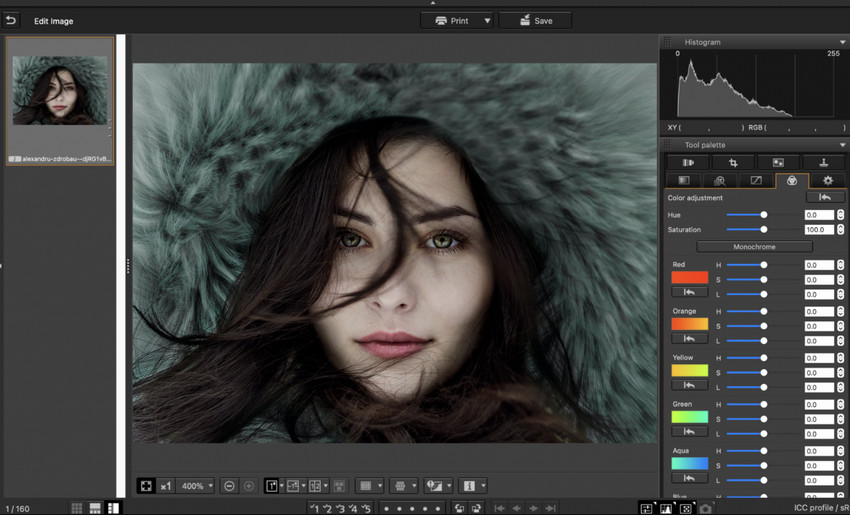
What Is Canon Digital Photo Professional?
Canon Digital Photo Professional (DPP) is Canon’s official RAW processing and image editing software designed for EOS digital cameras and PowerShot cameras with RAW capability. Developed specifically for Canon’s imaging system, DPP can read and process Canon RAW files, including CR3 and CR2 formats, while preserving camera-specific data such as Picture Style and lens correction information.
Unlike general-purpose photo editors, Canon Digital Photo Professional focuses on delivering accurate RAW conversion and a color output that closely matches Canon cameras. It provides essential tools for photographers to adjust exposure, colors, sharpness, and image details before exporting photos for sharing or printing.
DPP also supports professional color workflows with ICC profiles and multiple color spaces, making it suitable for photographers who need consistent color output for printing.
Recent versions of Canon Digital Photo Professional also include Neural Network Image Processing, which uses AI technology to improve image quality in areas such as noise reduction, sharpening, and detail processing. However, these features are designed to enhance RAW development rather than replace dedicated AI photo enhancement tools.
Hot search: How to Edit Raw Photos for Best Quality >>
Canon Digital Photo Professional Review: What Makes It Stand Out?
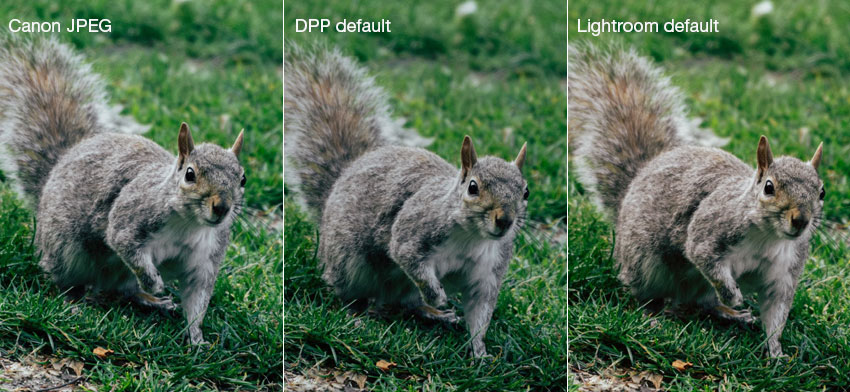
While many photographers use third-party RAW editors, Canon Digital Photo Professional (DPP) remains a popular choice among Canon users because it is designed specifically for Canon’s imaging system. By using Canon’s own RAW data, color profiles, and lens information, DPP can deliver a more authentic Canon look with minimal adjustment.
Here are the key reasons why many Canon photographers continue to rely on DPP for RAW processing.
1. Accurate Canon RAW Rendering and Natural Colors
One of the main reasons Canon photographers continue using Digital Photo Professional is its ability to deliver a RAW conversion that closely matches the look of Canon cameras.
Unlike many third-party RAW editors, DPP reads Canon-specific information such as:
- Picture Style settings
- White balance data
- Canon color profiles
This allows DPP to produce familiar Canon colors, natural skin tones, and a rendering style that is often closer to the in-camera JPEG output. Many Canon users consider this one of DPP’s biggest advantages, especially when processing portraits, landscapes, and images where accurate color reproduction matters more than extensive creative editing.
2. Digital Lens Optimizer Delivers Canon-Specific Lens Corrections
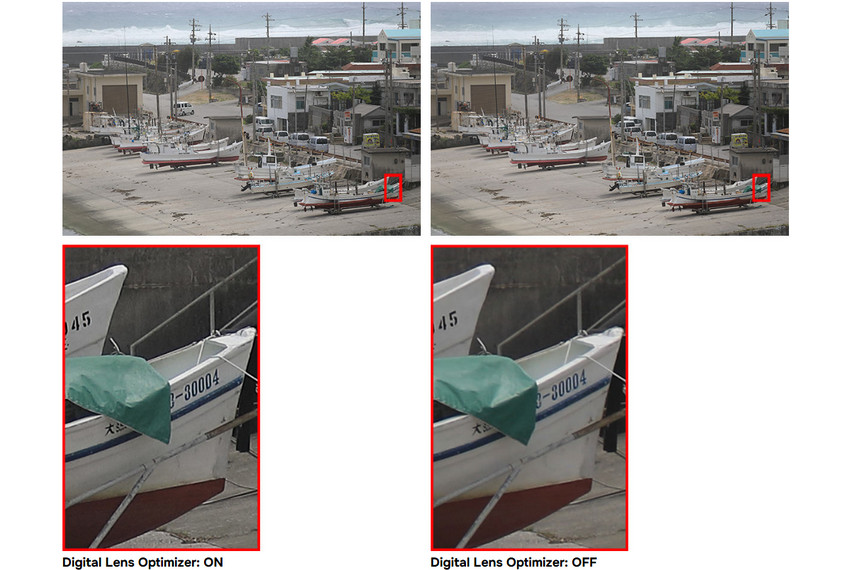
Another feature that sets DPP apart from general RAW editors is Digital Lens Optimizer (DLO), Canon’s proprietary lens correction technology.
DLO uses Canon lens data to correct:
- Lens aberrations
- Diffraction
- Peripheral illumination
- Loss of sharpness caused by optical limitations
This makes DLO particularly useful for photographers using Canon EF and RF lenses. However, some users notice that enabling DLO can sometimes make images appear slightly softer because the feature focuses on correcting optical issues rather than simply increasing sharpness.
For the best results, photographers often adjust sharpening settings after applying lens corrections.
3. Strong RAW Adjustment
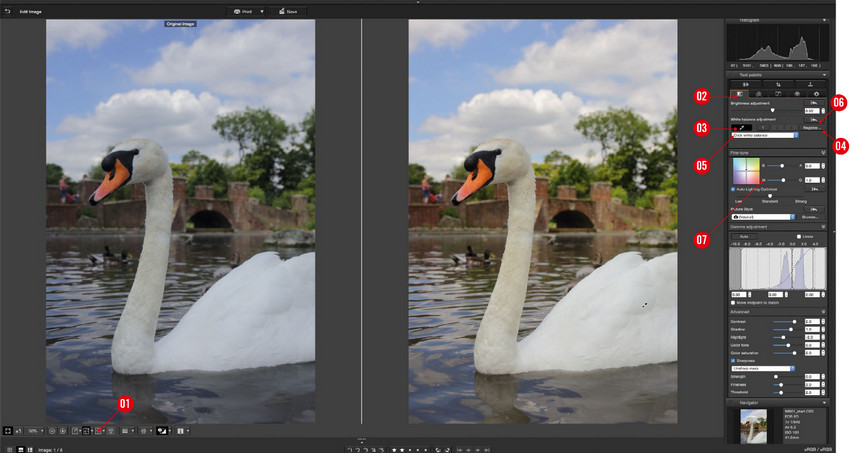
DPP provides essential RAW adjustment tools, including exposure, white balance, dynamic range, tone curve, and sharpness controls. However, noise reduction can be a limitation, as strong adjustments may soften fine details in high-ISO images.
DPP supports both luminance and chrominance noise reduction, but photographers working with demanding high-ISO images may still prefer AI-powered tools like Topaz Denoise, Lightroom, or Aiarty Image Enhancer for stronger noise reduction and detail preservation.
4. Free Official Software Without Subscription
Unlike many professional RAW editors that require a monthly subscription, Canon Digital Photo Professional is available free of charge for Canon camera users.
This makes DPP an attractive option for photographers who want reliable RAW processing without additional software costs.
Canon DPP: What We Like and What Could Improve
Digital Photo Professional remains a trusted choice among Canon photographers thanks to its accurate RAW rendering and camera-specific processing. At the same time, some workflow and performance limitations are worth considering before making it part of your editing process.
Pros
- Accurate Canon RAW rendering and colors
- Canon-specific lens correction with DLO
- Essential RAW editing tools
- Free for Canon users
Cons
- Slower processing with advanced corrections
- Limited organization compared with Lightroom
- Noise reduction may affect fine details
- Lacks advanced AI enhancement features
Canon Digital Photo Professional vs Lightroom: Which One Is Better?
When comparing Canon Digital Photo Professional (DPP) vs Lightroom, there is no single winner for every photographer. DPP is designed around Canon’s own RAW ecosystem, while Lightroom focuses on a complete photo management and editing workflow.
The biggest difference comes from how they interpret RAW files. DPP can read Canon-specific data, including Picture Style, camera settings, and in-camera noise reduction information, which often makes images look closer to Canon JPEG output straight away. Lightroom uses Adobe’s own RAW processing engine by default, giving photographers more neutral results and greater flexibility for further editing. >> Check How Lightroom Denoises RAW Photos
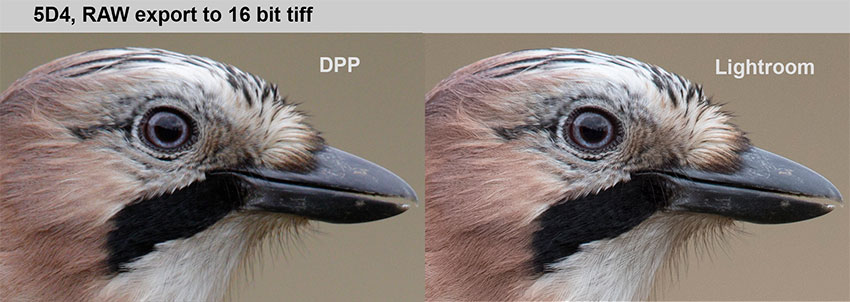
Choose Canon Digital Photo Professional if:
- You want authentic Canon colors with minimal adjustment.
- You mainly process Canon RAW files and want the closest match to camera JPEG output.
- You use Canon EF or RF lenses and want Canon-specific lens optimization.
Choose Lightroom if:
- You manage thousands of photos and need a powerful catalog system.
- You want advanced batch editing and a more complete photography workflow.
- You need more creative editing tools and broader third-party support.
Building a Complete Canon Photo Workflow with DPP and AI Enhancement
Canon DPP and Lightroom are both powerful RAW processing tools, but neither is designed to fully restore missing details or repair heavily degraded images. When photos suffer from low resolution, blur, noise, or compression artifacts, AI enhancement can provide an additional step beyond traditional RAW editing.
A practical Canon editing workflow is to use each tool for what it does best:
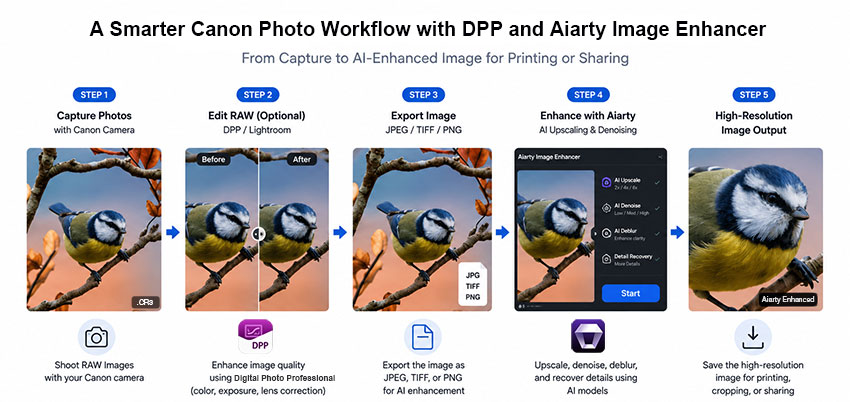
Step 1: Develop RAW Files in Canon DPP
Use DPP to process Canon RAW files while maintaining Canon’s original image characteristics.
- Adjust exposure, white balance, and colors.
- Apply Canon-specific lens corrections with Digital Lens Optimizer.
- Export the edited image as JPEG or TIFF.
Note: Canon’s Neural Network Upscaling Tool (NNUT) can upscale images by 2x with improved detail reproduction, but it focuses on enlargement rather than full image restoration. For photos affected by blur, heavy noise, or lost details, dedicated AI enhancement tools may provide more advanced recovery.
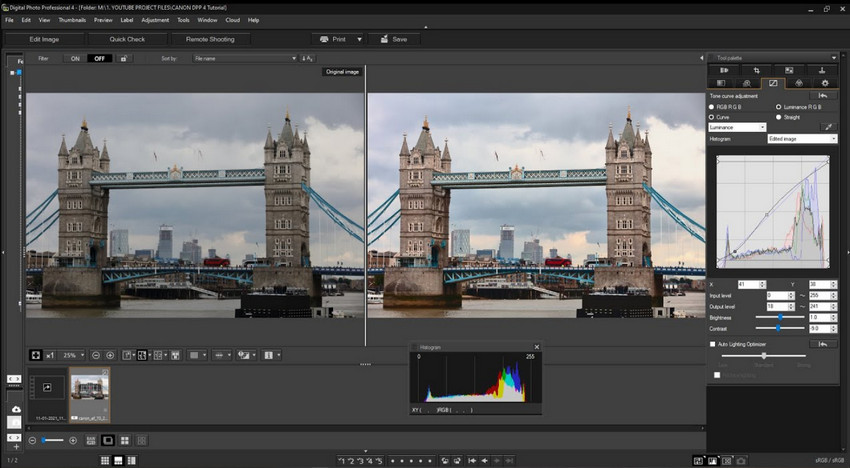
Step 2: Enhance Photos with Aiarty Image Enhancer
Use Aiarty after RAW processing when images need improvements beyond traditional editing. Aiarty Image Enhancer combines AI upscaling, denoising, deblurring, and detail reconstruction, helping Canon photographers enhance image quality beyond what RAW adjustments alone can achieve.
Ready to enhance your Canon photos with AI?
Aiarty Image Enhancer is especially useful for:
- Cropped photos: Increase resolution and recover details for larger views.
- High-ISO photos: Reduce noise while preserving textures.
- Soft or blurry photos: Improve clarity and fine details.
- Low-resolution images: Enhance compressed or older photos.
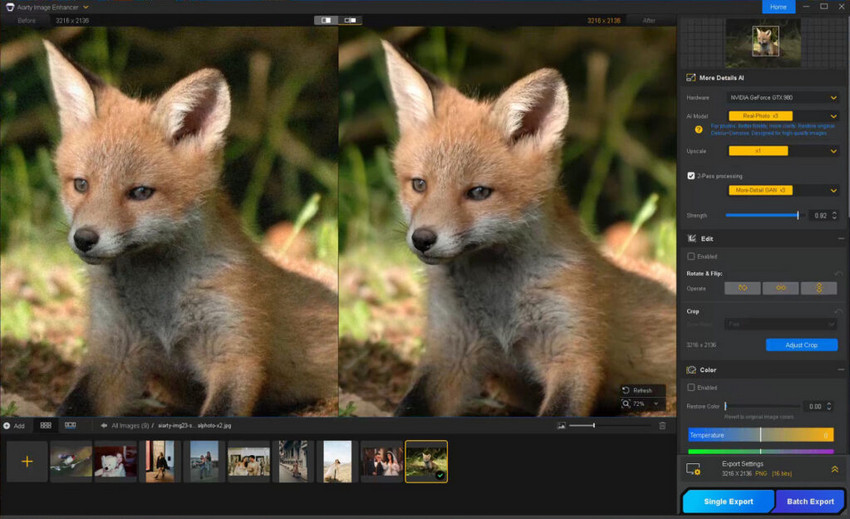
By combining Canon Digital Photo Professional with Aiarty Image Enhancer, photographers can maintain Canon’s natural rendering while adding AI-powered tools for resolution, clarity, and detail improvement.
Final Verdict: Is Canon Digital Photo Professional Still Worth Using in 2026?
Canon Digital Photo Professional remains a valuable RAW processor for Canon users who want accurate colors, camera-specific adjustments, and free access. However, it cannot fully solve issues such as low resolution, blur, or lost details.
Combining DPP with AI enhancement creates a more complete workflow: DPP preserves the Canon look, while AI tools help improve resolution, clarity, and detail recovery.
If you want to keep the Canon look while improving image quality beyond traditional RAW editing, try Aiarty Image Enhancer to enhance your finished photos with AI-powered upscaling, denoising, and detail recovery.
 FAQ about Canon Digital Photo Professional
Yes. Canon Digital Photo Professional (DPP) is free for Canon camera users. It is provided by Canon for processing and editing images captured with compatible Canon cameras. Users typically need to download it through Canon’s official support resources and verify their camera model compatibility.
It depends on your needs. Canon DPP is a good choice for Canon photographers who want accurate RAW processing and a workflow optimized for Canon cameras. Lightroom offers more advanced organization tools, editing features, and cross-camera support, making it better suited for photographers who manage images from multiple brands or need a complete photo management workflow.
Yes. Digital Photo Professional can edit JPEG files, but it performs best with Canon RAW files. RAW images provide more editing flexibility, allowing DPP to make deeper adjustments while preserving more original image data.
Canon DPP includes noise reduction features for improving image quality, but it does not offer the same type of advanced AI-powered noise reduction and detail recovery found in dedicated AI image enhancement tools. For heavily noisy, low-light, or high-ISO photos, Aiarty Image Enhancer can provide stronger AI denoising while preserving natural textures and details.
The Canon Digital Photo Professional manual PDF is available through Canon’s official support resources. The manual provides detailed instructions on the interface, RAW processing workflow, editing tools, and export settings for different versions of DPP.
Yes. Canon provides basic guides and tutorials to help beginners learn Digital Photo Professional. New users can start with simple tasks such as importing RAW files, adjusting brightness and color, applying noise reduction, and exporting edited images.
You May Also Like


This post was written by Brenda Peng who is a seasoned editor at Digiarty Software who loves turning ordinary photos into extraordinary works of art. With AI assistance for brainstorming and drafting, the post is reviewed for accuracy by our expert Abby Poole for her expertise in this field.
