


Lightroom's catalog is the brain of your photo library—storing edits, previews, and metadata while leaving originals untouched. Understand how non-destructive editing works, when changes apply on export, and how the catalog tracks file locations. You'll see what lives inside .lrcat, previews, and smart previews, and how folders differ from collections.
Next, learn to organize with keywords, ratings, and smart collections, plus when a single catalog beats multiple ones. We'll map a clean workflow: plan storage, import wisely, rename and move files safely, and choose Classic or cloud. Finally, keep performance sharp, back up confidently, fix missing files, and navigate upgrades.
1. What is a Lightroom Catalog
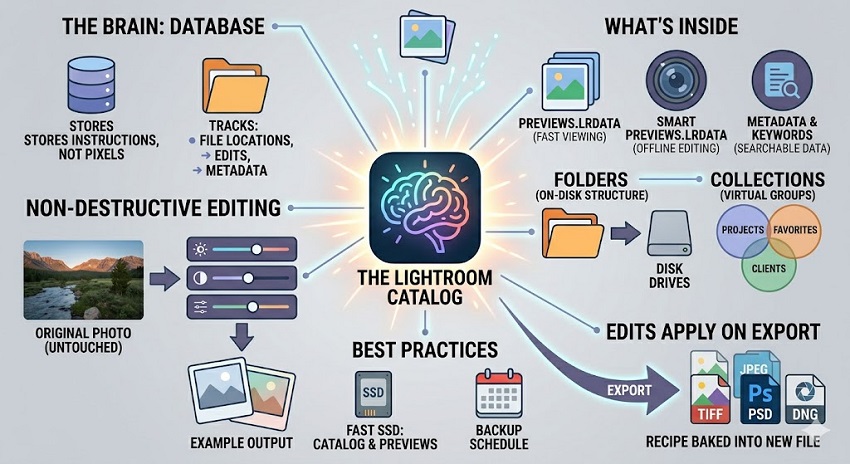
A Lightroom catalog is a database that tracks your photos, their locations, and every edit you make. It doesn't store the actual image pixels; it stores instructions, previews, and metadata. This design keeps your library organized and your editing history intact.
Think of it as the brain of your workflow. You import photos to register them in the catalog, then browse, rate, and edit without touching the originals. Because Lightroom records steps as text-based adjustments, you can revise or roll back at any time. The actual image changes appear when you export or print, using the catalog's instructions to render finished files.
1.1 Definition and Purpose
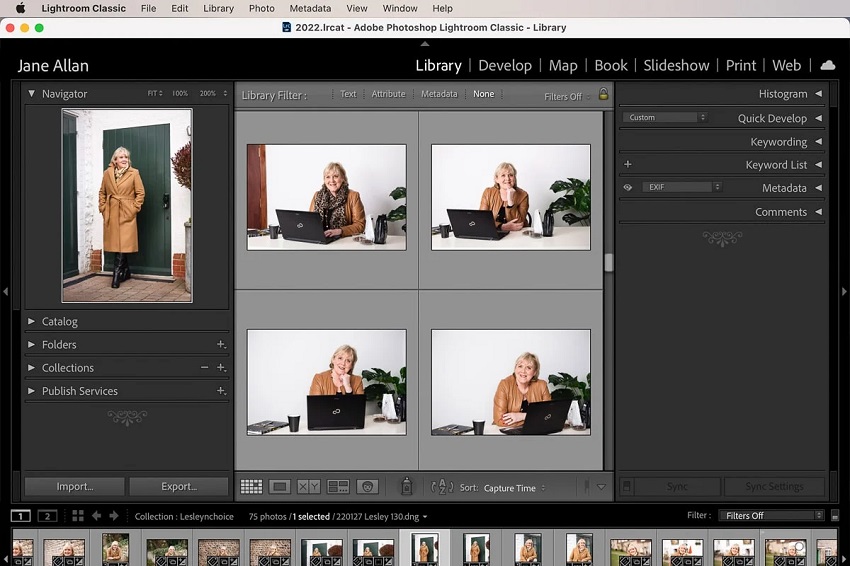
A Lightroom catalog functions as a searchable, relational database mapped to your photo files. It records file paths, EXIF and IPTC fields, keywords, flags, ratings, color labels, collections, and every slider move as non-destructive instructions. It also generates previews—standard, 1:1, and Smart Previews—to speed viewing and enable offline editing.
Photographers use a catalog to centralize organization and editing while keeping originals intact on any drive. It enables fast culling, batch adjustments, virtual copies, and consistent metadata across projects. It also supports backup strategies: you can back up the catalog frequently, rebuild previews when needed, and keep the master images on separate storage.
1.2 How Edits are Stored (Non Destructive)
Lightroom writes every change as text instructions in the catalog—parametric edits like exposure + , a radial mask at coordinates, or a crop rectangle. The raw or JPEG stays untouched on disk. When you view or export, the engine renders the original through this recipe to produce the preview or output file.
Virtual copies demonstrate the model: multiple looks reference the same source but store separate instruction sets, adding almost no disk overhead. Syncing settings across images pastes only parameters, not pixels. Smart Previews carry this further by letting you edit proxies while the drive is offline; the catalog queues instructions until the master reconnects.
1.3 Catalog vs Photo Files
The catalog is a database of references and instructions; your photos remain in their original folders as raw, JPEG, or TIFF files. The catalog records absolute or relative paths, metadata, previews, and every slider move. Break that link—by renaming or moving files outside Lightroom—and thumbnails turn into question marks until you relink.
Keep the relationship stable with a predictable folder structure and move files inside Lightroom so paths update. Back up both pieces on separate schedules: frequent catalog backups for edits and keywords, periodic photo backups for pixels. Lose the catalog and you lose work; lose the photos and the recipe has nothing to render.
1.4 When Edits Apply on Export
Edits in the catalog don't touch pixels until you create output. When you export, Lightroom reads the recipe—white balance, crops, masks, profiles—and bakes it into a new file (JPEG, TIFF, PSD, or DNG). The original stays intact; the export reflects the current history state and soft-proof settings.
Export settings determine color space, resolution, output sharpening, and watermarking. Virtual copies let you spin multiple looks from one source by exporting each variant. Smart Previews allow export even if the drive with originals is offline, up to their proxy size. If you need edits in other apps, use Export as DNG or send to an external editor.
2. How a Catalog Works
Lightroom uses a database to map photos on your drives to records that track edits, keywords, ratings, and versions. It never changes the source file; it writes instructions and shows the result through previews. When you browse, it pulls cached previews, so you can cull and adjust quickly without opening the raw each time.
Each edit updates a non-destructive recipe that stacks in history and syncs with previews and smart previews. The catalog also maintains folder paths, volume names, and missing-file flags to keep links stable. Move or rename photos inside Lightroom to preserve those links; move them in the OS and you'll need to relink.
2.1 Importing and File Location Tracking
Import adds records to the database, not files to your disk. You choose Add, Move, or Copy: Add references existing locations; Move shifts files to a new folder while keeping links; Copy duplicates to a destination, often with a date-based structure. During import, you can apply presets, keywords, and build previews to speed up culling.
The catalog tracks absolute paths and volume identifiers, so drive letters and mount points matter. Rename or relocate inside Lightroom to update paths automatically. If a drive goes offline, thumbnails still appear; smart previews let you edit. When paths break, the Missing icon prompts you to point Lightroom to the parent folder to relink everything.
2.2 What the Catalog Stores (Previews, Metadata, Edits)
Lightroom's database stores instructions, not pixels. Every slider move, crop, mask, and spot heal lives as parametric edits and history steps, including virtual copies and snapshots. It also records metadata: EXIF from the camera, IPTC you add, face tags, flags, stars, color labels, keywords, stacks, and collection membership.
Previews sit alongside the database in a previews file: minimal thumbnails, standard previews sized to your screen, and optional 1:1 previews for zooming. Smart previews are DNG-based proxies that enable offline editing and export up to moderate sizes. The catalog links each image to its absolute path and volume ID, keeping these assets synchronized.
2.3 Catalog Components and Files (.lrcat, Previews, Smart Previews)
A Lightroom catalog file (.lrcat) is a SQLite database that stores all edit instructions, metadata, and organizational state. It grows as you import, but never stores original pixels. Back up the .lrcat on a schedule; a corrupt database risks losing work history even if photos remain safe.
The Previews.lrdata bundle caches thumbnails, standard previews, and optional 1:1 previews for fast zooming. Deleting it frees space; Lightroom rebuilds previews on demand. The Smart Previews.lrdata bundle holds compressed DNG proxies (~2560 px). You can edit with originals offline, sync changes later, and export small files. Keep proxies on fast storage; place originals wherever your backup plan prefers.
2.4 Catalog and Image Locations
Lightroom records absolute paths to your photos, not the files themselves. If you move or rename folders outside Lightroom, those paths break and thumbnails show a question mark. Relink by right clicking the missing folder or file and pointing to the new location. Keep a consistent folder structure and volume names to avoid relinking marathons.
Place the .lrcat and preview caches on fast internal SSD for responsiveness. Store originals on large external storage or a NAS if needed, but test network reliability. Use volume labels that won't change across systems. When migrating drives, move folders within Lightroom's Library panel so the database updates paths automatically.
3. Organizing and Finding Photos
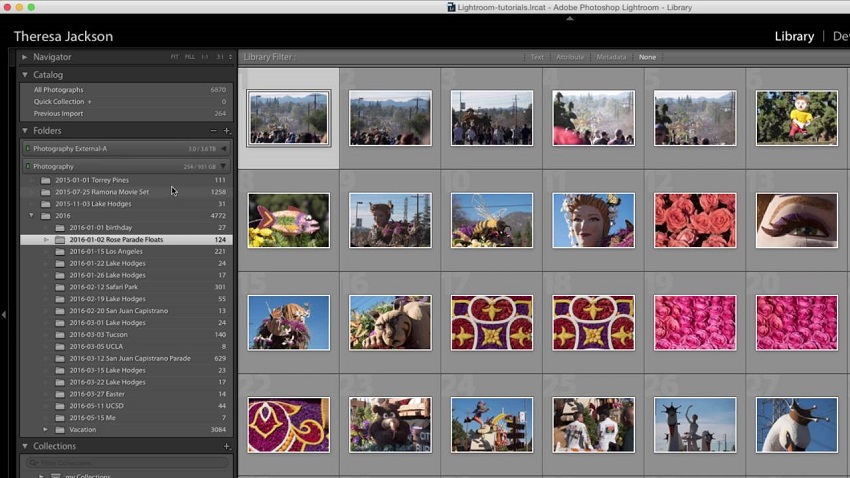
Folders mirror where files live on disk, so plan a simple hierarchy by date or job and move folders inside Lightroom to keep paths intact. Collections act like playlists that gather images from many folders without duplicating files, perfect for projects, clients, or themes. Add keywords, star ratings, color labels, and captions to power fast searches and filters across the catalog.
Use smart collections to auto group images by rules—flags, stars, keywords, camera, or date—so new matches appear instantly. Decide on one catalog for global search and consistent metadata, or multiple catalogs to separate clients, privacy needs, or travel work. Back up catalogs regularly.
3.1 Folders Manage Physical File Locations
Lightroom maps each folder to a real disk path, so your on disk structure dictates where the catalog expects files. Build a top level Photos directory, then nest by year/month or by client/job, and keep names short and descriptive. When you must reorganize, drag folders inside Lightroom so it updates paths and avoids dreaded question mark icons.
External moves break links. If that happens, right click a missing folder and choose Find Missing Folder to relink at the parent level. Store originals on a fast internal or dedicated external drive; avoid syncing apps that change paths. Use a consistent drive letter or volume name to keep cross computer setups stable.
3.2 Collections Curate Across Folders
Collections ignore disk paths and gather photos by meaning—portfolio, mood, or client brief—without moving originals. Create regular Collections for one off edits, Smart Collections that auto populate by metadata and flags, and Collection Sets to nest themes. Star ratings, color labels, keywords, and camera data become rules that constantly refresh your views.
Build a "Selects" Collection that pools picks from multiple shoots, then refine with virtual copies and different crops. Use Smart rules like keyword contains "backstage" AND lens = 35mm to surface consistent looks. Sync Collections to mobile for culling on the go, keeping folder storage intact and workflow fluid.
3.3 Keywords, Ratings, and Metadata Search
Tag images as you import, then refine later with hierarchical keywords like Travel > Japan > Kyoto. Use synonyms to catch varied searches, and enable keyword suggestions to speed consistent tagging across shoots. Add people tags and location info to feed face and map searches.
Lean on ratings and color labels to drive Smart Collections: 5-star + red = portfolio candidates, yellow + keyword "review" = needs feedback. Filter by EXIF and IPTC—camera, lens, aperture, copyright, usage rights—then combine with flags and dates. Type in the Library Filter bar or create Saved Searches so recurring queries—"backlit portraits, 85mm, ISO ≤ 800"—surface in a click.
3.4 Smart Collections (Rule based Sets)
Build dynamic sets that populate themselves as your library grows. Define rules by rating, label, keyword, date ranges, file type, camera, lens, or even Develop settings like Process Version or Presence. Stack rules with AND/OR logic, then nest groups to separate must haves from nice to haves.
Practical recipes: published 5 stars shot with the 85mm between f/ –f/2; unedited images from last week flagged for culling; people tagged "Ava" with keyword "Birthday" this year; images missing copyright info. Use "Match all" for tight curation or "Match any" to keep ideas broad. Smart Collections stay virtual, so nothing moves on disk, and you can duplicate sets to iterate fast.
3.5 Single Catalog vs Multiple Catalogs
One catalog keeps search, presets, and Smart Collections unified, speeding global searches and letting you build cross project views like "portfolio ready" across years. It simplifies backups: one .lrcat plus previews, with a single integrity check. The tradeoff is file size; a huge catalog can feel sluggish on older machines if you skip regular optimization.
Multiple catalogs segment work by client, genre, or year, reducing bloat and isolating risk. Corruption or sync conflicts affect only one slice. You lose global querying and have to open/close catalogs to switch contexts. If you collaborate, per job catalogs hand off cleanly, but shared assets and presets need careful standardization.
4. Best Practices and Workflow
Plan where originals live and where the catalog resides before importing. Keep photos on a fast, consistently mounted drive; keep the catalog on an SSD for quick writes and previews. Mirror that structure in backups with versioned snapshots.
Rename and move files inside Lightroom to preserve links. Use a clear folder scheme and consistent metadata on import. For existing libraries, consolidate into a staging folder, import with "Add" or "Move," and fix duplicates with keywords and stacks. Build previews after big imports; generate Smart Previews for travel or slower laptops. Choose Classic for desktop first, file based control; choose Lightroom (cloud) for anywhere access and automatic sync.
4.1 Plan Storage and Choose Catalog Location
Decide where originals live before you shoot the next job. A fast external NVMe or internal SSD keeps imports, 1:1 previews, and Library scrolling snappy; use a larger, slower volume for long term archives. Keep the catalog and previews on the fastest SSD you own, distinct from your photo volume, to reduce contention and I/O spikes.
Avoid network shares for catalogs; they corrupt easily. If you must use a NAS, store only originals there and cache Smart Previews locally. Name the catalog by year or client, not "Lightroom Catalog.lrcat," and keep it in a predictable path. Back up the catalog nightly and verify integrity weekly.
4.2 Rename and Move Photos within Lightroom
Rename and move only inside Lightroom to keep the catalog's path map intact. Use Library > Rename Photo with a token preset like YYYY/MM-DDClient#### to standardize sets and avoid collisions. Batch rename after culling to prevent gaps, and include a camera sequence token to maintain capture order across multi-body shoots.
Use the Folders panel to drag folders to new volumes or structures; Lightroom updates paths and preserves edits and stacks. When rehoming a large job, move by year or client to minimize risk and monitor the progress bar. If you moved files outside Lightroom, relink with Find Missing Folder, not by reimporting.
4.3 Import Strategy for Existing Libraries
Start by inspecting folder health: in Library, filter for Missing Photos and resolve every offline path before you import anything new. Bring legacy folders in via Add (not Copy) to keep current disk locations and avoid duplicates; use Copy only when consolidating to a new volume. Map your old hierarchy to the current scheme—year/client/shoot—using the Destination panel and a renaming preset that mirrors your existing token logic.
Split massive imports by year or client to reduce preview churn and speed checksum verification. Turn on Don't Import Suspected Duplicates, and enable Embedded & Sidecar for faster triage, then rebuild Standard previews overnight.
4.4 Using Previews and Smart Previews
Generate Standard previews sized to your display for smooth Loupe navigation, and build 1:1 previews before heavy culling to eliminate loading lag when checking focus. Use Embedded & Sidecar on ingest for instant speed, then trigger Standard or 1:1 overnight to offload CPU strain. Purge 1:1 after selection to reclaim disk without touching the catalog.
Create Smart Previews for portable editing: they're compressed DNGs stored with the catalog, letting you edit offline while preserving Develop parity. Keep originals on a NAS or RAID, travel with only the catalog and Smart Previews, and let Lightroom auto-sync edits when drives reconnect. Track size in Catalog Settings and rebuild selectively.
4.5 Lightroom Classic vs Lightroom (cloud) Overview
Lightroom Classic stores a single .lrcat on a local drive, references folders you control, and supports multiple catalogs for segmented jobs. It suits NAS/RAID originals, Smart Preview travel kits, and scripted backups. You manage preview sizes, cache, and scratch disks for predictable speed.
Lightroom (cloud) keeps one cloud catalog tied to your Adobe ID, auto-uploads originals or Smart Previews from desktop and mobile, and syncs edits everywhere. It trades granular file control for frictionless access and automatic versioning. Use Classic when you need custom folder hierarchies, plug-ins, tethering depth, and print modules; use cloud when mobility, collaboration links, and cross-device capture outrank storage micromanagement.
5. Maintenance, Performance, and Troubleshooting
Back up the .lrcat on a schedule that matches your editing volume; daily for active pros, weekly for hobbyists. Store rotating copies on a different drive and an offsite or cloud location. Include presets, templates, and a verified restore test. Keep performance snappy by using a fast SSD for catalog, previews, and Camera Raw cache. Build Standard or 1:1 previews strategically, purge bloated previews, and optimize the catalog. Give Lightroom adequate RAM and leave GPU on only if it helps.
Know how to find, move, or switch catalogs without breaking paths. Confirm version compatibility before upgrades, and migrate with backups. Troubleshoot by relinking missing files, locating moved catalogs, and clearing sync or cache hiccups.
5.1 Backup the Catalog (Frequency and Location)
Set Lightroom to prompt for a backup on exit and choose a cadence that matches risk: heavy shooters back up daily, lighter users weekly, long-term archives monthly. Use "Test integrity," "Optimize catalog," and "Check for catalog corruption" during backup to catch issues early. Keep at least three generations.
Save backups to a different physical drive than the working catalog, and mirror to offsite or cloud storage with versioning. Exclude the active catalog folder from system-level sync to prevent lock conflicts. Back up presets, templates, and profiles alongside the .lrcat. Schedule periodic restore drills: unzip a backup, open it, validate missing links, and note recovery time.
5.2 Optimize Catalog Performance
Keep the .lrcat on a fast SSD and store previews on the same drive to cut seek time. Split oversized catalogs only when teams, projects, or travel workflows demand it; otherwise, one catalog reduces cross-referencing overhead. Purge 1:1 previews on a schedule and regenerate only for active shoots.
Disable face detection and address lookup while editing, then run them overnight. Cull GPU settings to "Auto" and update drivers; watch the System Info panel for OpenGL/Metal stability. Create Smart Previews for laptop work to speed Develop and reduce disk I/O. Regularly run File > Optimize Catalog, clear the cache, and keep at least 20% free disk space.
5.3 Find, Move, or Switch Catalogs
Need to locate your .lrcat fast? On macOS, hold Option at launch to see recent catalogs or choose a new one; on Windows, hold Shift. Use Lightroom Classic > Catalog Settings to see the path, then reveal it in Finder/Explorer. Keep the .lrcat, Previews.lrdata, and Smart Previews.lrdata together.
To move a catalog, quit Lightroom, copy the .lrcat and its preview folders to the new drive, then open the .lrcat from there and verify folders show no question marks. To switch catalogs routinely, enable "Prompt me when starting Lightroom," or create per-catalog shortcuts that launch the target file directly.
5.4 Upgrading Versions and Compatibility Limits
Lightroom catalogs are not backward compatible: a Classic 13 catalog won't open in 12 or earlier. Upgrading prompts a one-time conversion that creates a new .lrcat with "-v13" (or similar) appended; keep the original for safety. Expect faster search and masking previews after upgrades, but plan downtime for large catalogs.
Plugins and GPU drivers may limit compatibility. Test upgrades on a duplicate catalog, confirm plug-in support, and update graphics drivers. Cloud syncing respects the upgraded catalog, yet older machines running prior versions won't connect to it. For team handoffs, standardize on a version, document build numbers, and archive pre-upgrade backups.
5.5 Common Issues: Missing Photos, Moved Catalogs, Sync/Cache Notes
Missing photos show as exclamation marks; use Find Missing Folder or Update Folder Location to relink whole directories, not single files. If you moved files outside Lightroom, match the new parent folder first, then let Lightroom cascade the fix. Avoid duplicates by reconnecting, not reimporting.
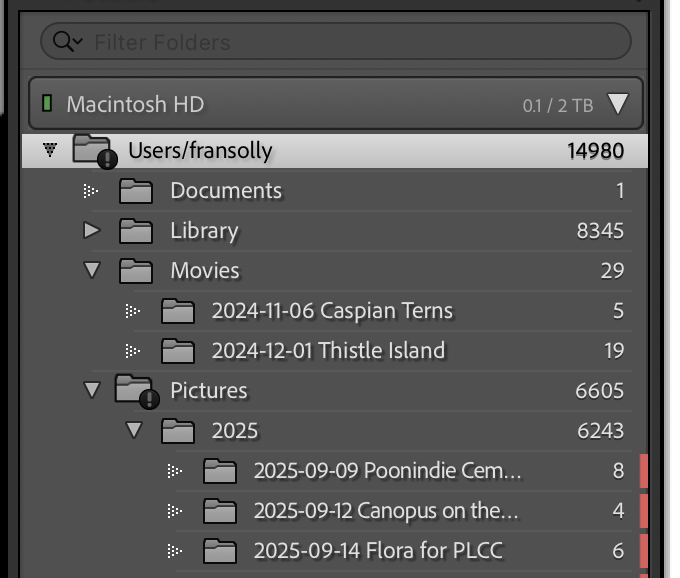
A moved or renamed catalog breaks previews and sync targets. Reopen the .lrcat from its new path, and keep the .lrdata previews beside it to prevent rebuilds. Clear the Camera Raw Cache only when artifacts or corrupted previews appear; then let it regenerate.
Cloud sync stalls from paused collections, bad timeouts, or mismatched accounts. Check the Sync Activity panel, resolve "stuck" assets, and reset sync only after a verified backup.
Bonus Tip: Elevating Your Workflow with AI-Driven Enhancement
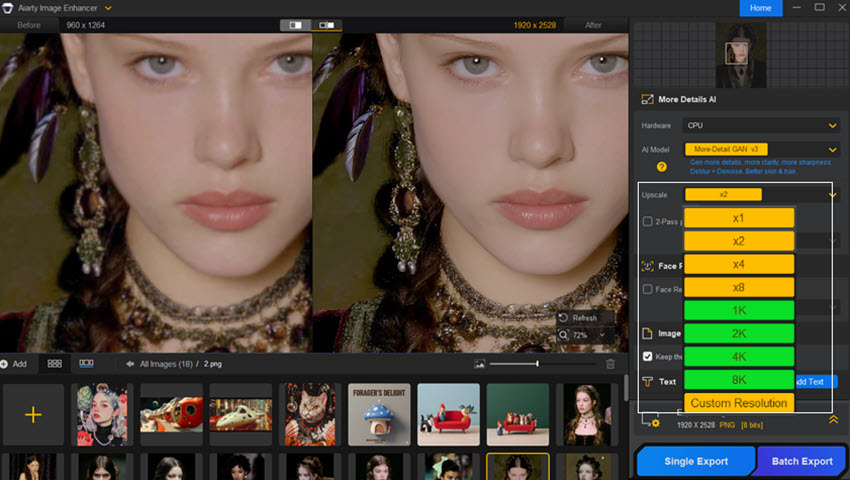
While the Lightroom catalog excels at managing and organizing your edits , sometimes your images require a level of restoration or detail that standard sliders cannot achieve. This is where Aiarty Image Enhancer becomes a natural extension of your professional post-processing workflow.
By integrating this standalone application into your routine, you can push the quality of your library even further:
- Superior Upscaling and Denoising: Before you export your final "recipe" from the catalog , Aiarty can be used to remove heavy noise and intelligently upscale low-resolution shots while preserving authentic textures.
- Generating High-Quality Previews: For older or heavily cropped images, enhancing them with Aiarty ensures that the 1:1 previews you generate in Lightroom remain crisp and clear.
- Professional Print Preparation: Since the catalog stores your metadata and print instructions , using Aiarty to sharpen and deblur your photos ensures that the final "baked" file is optimized for large-format professional printing.
By combining Lightroom's organizational "brain" with Aiarty's advanced AI enhancement, you ensure that every photo in your database—regardless of the camera or lighting conditions—meets a professional standard of excellence.
Conclusion: The Backbone of Your Creative
WorkflowUnderstanding the Lightroom catalog is the first step toward a more efficient and secure photography workflow. By acting as a central "brain" that tracks metadata, file locations, and non-destructive edits, the catalog allows you to maintain total creative control without ever altering your original image files.
To get the most out of your setup and avoid common pitfalls, keep these core principles in mind:
- Prioritize Stability: Always move or rename your photos from within Lightroom to keep the database links intact and avoid missing file icons.
- Optimize for Speed: Store your .lrcat file and preview caches on a fast SSD to ensure the interface remains snappy and responsive.
- Protect Your Work: Implement a consistent backup schedule for your catalog—ideally daily for active projects—to safeguard years of editing history and organizational effort.
- Enhance Your Results: For photos that need an extra boost beyond standard adjustments, tools like Aiarty Image Enhancer can be integrated into your workflow to sharpen and upscale images before they reach their final destination.
Whether you choose the granular control of Lightroom Classic or the mobile flexibility of Lightroom (cloud), mastering your catalog ensures that your focus remains where it belongs: on capturing and creating stunning imagery.
You May Also Like


This post was written by Brenda Peng who is a seasoned editor at Digiarty Software who loves turning ordinary photos into extraordinary works of art. With AI assistance for brainstorming and drafting, the post is reviewed for accuracy by our expert Abby Poole for her expertise in this field.
