


We've all been there: you come home from a breathtaking shoot with a memory card full of potential, only to feel a wave of "edit-block" the moment you sit at your desk. In 2026, the challenge isn't just taking a great photo—it's navigating a crowded market to find the best photography workflow software that doesn't feel like a second job.
Between the rise of generative AI, the demand for ultra-high resolution, and the sheer volume of images we capture, a "good enough" folder system isn't going to cut it anymore. You need a command center—a system that handles the heavy lifting of organizing, cleaning, and upscaling so you can get back to what you actually love: the art of the image.
In this deep dive, we're breaking down the top contenders for the best photography workflow software available today. Whether you're looking for a lifelong digital home, a studio-grade color specialist, or a specialized AI "secret weapon" to rescue your softest shots, this is your definitive guide to building a professional-grade pipeline in the modern era.
1. Adobe Lightroom Classic
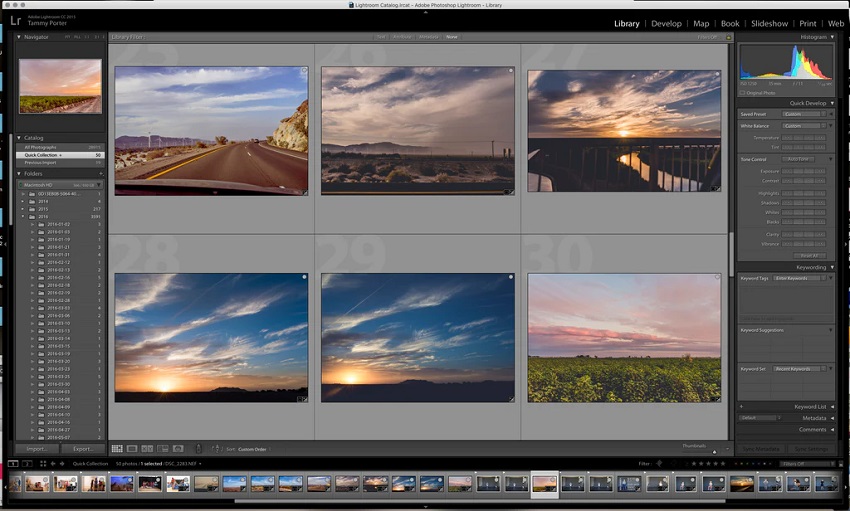
If photography software had a "Home Base," this would be it. Unlike a simple app where you open a photo, edit it, and save it, Lightroom Classic (LrC) is a database-driven ecosystem. It doesn't just "look" at your photos; it remembers them.
Lightroom Classic is built on the concept of the Catalog. Think of it like a giant library card-catalog system. Your actual image files stay safely tucked away on your hard drive, while Lightroom keeps a "preview" and a list of instructions for every edit you make. This is non-destructive editing at its finest: you can turn a photo black-and-white today and revert it to color ten years from now with a single click.
Features
- The "Culling" Machine: Professional photographers don't just take one photo; they take a thousand. Lightroom's Library module allows you to "flag" winners and "reject" losers at lightning speed.
- AI-Powered Masking: Gone are the days of carefully painting over a sky with a mouse. LrC's AI can instantly detect a person, a background, or even just the teeth of a subject, allowing you to brighten a smile in seconds.
- Generative Remove: Powered by Adobe Firefly, this tool is pure magic. If a stray power line or a photobomber ruins your shot, the AI doesn't just smudge it—it intelligently replaces it with a realistic background.
- Massive Batch Processing: Did you take 200 photos in the same sunset lighting? Edit one, hit "Sync," and Lightroom applies those exact settings to the other 199 instantly.
Pros
- The Ecosystem: Since it's the most popular tool on earth, almost every other software (like Aiarty or Topaz) builds "plugins" for it. It's the hub that everything else connects to.
- Organization Mastery: Use "Smart Collections" to automatically find every 5-star photo you took with a specific lens in 2023. It's the ultimate way to never "lose" a photo again.
- Print & Book Modules: It's one of the few programs that handles the end of the journey, helping you layout professional photo books or print high-res gallery wraps directly from the app.
Cons
- The "Forever" Subscription: You can't "buy" Lightroom. You rent it. If you stop paying your monthly Adobe Creative Cloud fee, you lose access to the Develop module.
- The Learning Curve: Because it's so deep, the interface can feel intimidating. It's divided into "Modules" (Library, Develop, Print), and beginners often get lost trying to find their tools.
- Hardware Hungry: As your library grows to 50,000+ images, Lightroom can start to feel "heavy." You'll need a solid computer with plenty of RAM to keep it snappy.
2. Capture One Pro
While Adobe targets the masses, Capture One Pro was built by a camera company (Phase One) specifically for the world's most demanding studio and commercial photographers. It doesn't just "edit" your photos; it renders them with a level of clarity and color accuracy that often feels like you've upgraded your lens.
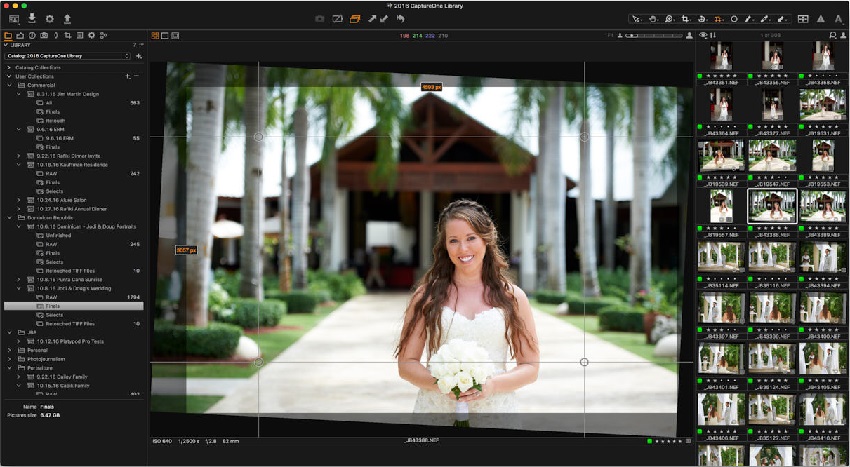
Capture One is famous for two distinct ways of working: Catalogs (for the long-term library lovers) and Sessions.
The Session way is Capture One's secret weapon. A Session is a self-contained folder for a specific project. It's perfect for a single client shoot: you shoot, you edit, you deliver, and then you can move that entire folder to an external drive without ever breaking a database link.
Features
- Industry-Leading Tethering: This is the gold standard. When you plug your camera into your computer, the connection is rock-solid and lightning-fast. In a professional studio, the client can sit at a monitor and see the high-res image pop up almost the instant the shutter clicks.
- The Advanced Color Editor: Lightroom gives you eight color sliders; Capture One gives you a 3D color wheel. You can isolate a specific shade of "cherry red" on a dress or a "pale olive" in a landscape and shift its hue, saturation, and lightness with surgical precision.
- Skin Tone Magic: There is a dedicated tool specifically for making skin look perfect. You can pick a "master" skin tone from a subject's forehead and automatically "uniform" the rest of their skin to match that exact hue and smoothness.
- True Layer-Based Editing: Unlike Lightroom's masking "lists," Capture One uses actual layers (like Photoshop). You can create a layer for the eyes, a layer for the sky, and a layer for the clothes—adjusting the Opacity of each edit independently.
Pros
- RAW Rendering: Many photographers swear that Capture One's "default" look is better than Adobe's. It tends to handle shadows and skin tones with more natural, "film-like" transitions right out of the box.
- Customizable Workspace: You can literally move every button and slider to wherever you want. If you only use five tools, you can hide everything else and build a "Zen" interface.
- The Perpetual License: Unlike Adobe, Capture One still offers a "Buy it Once" option. You can pay upfront and own that version forever, which is a breath of fresh air for those tired of monthly bills.
Cons
- The Learning Curve: It is significantly more complex than Lightroom. The interface can be overwhelming at first, and the logic of "Sessions" takes a moment to click for new users.
- High Cost: Whether you subscribe or buy the perpetual license, Capture One is notably more expensive than the Adobe Photography plan.
- Less "AI Magic": While they've added AI masking and subject detection in recent updates, they still lag slightly behind Adobe in "generative" features (like AI object removal).
3. DxO PhotoLab 9
While other software focuses on fancy interface tricks, DxO PhotoLab is obsessed with the physics of light and glass. For over 20 years, DxO has been testing thousands of camera and lens combinations in a literal laboratory to create "Optical Modules" that fix flaws most other programs don't even see.
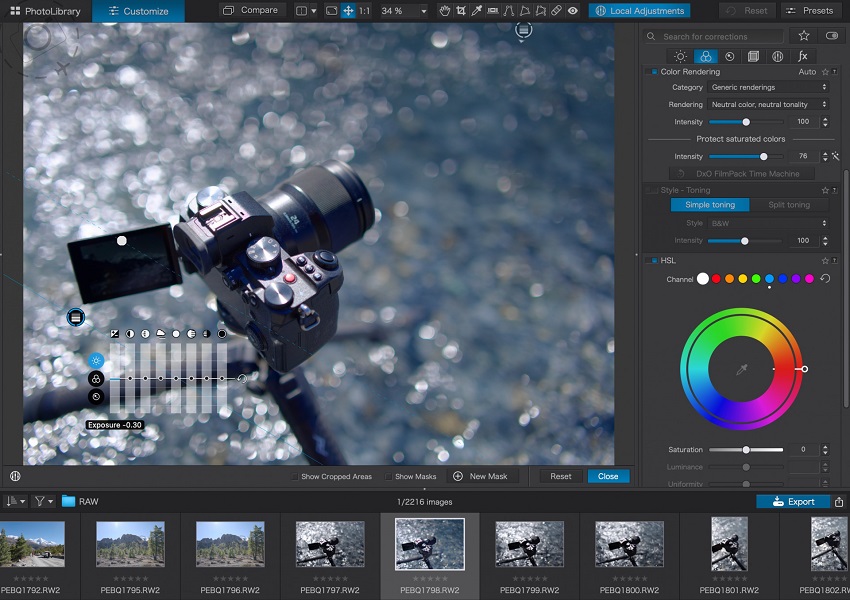
PhotoLab is a "no-import" workflow tool. You don't have to wait for a database to ingest your photos; you simply browse your hard drive, and the software is ready to work. It is widely considered the best RAW converter for extracting every ounce of detail from a file, especially if you're shooting with older gear or in extreme low-light conditions.
Features
- DeepPRIME XD3 (The Industry Leader): This is DxO's crown jewel. Using a massive neural network, it demosaics and denoises your images simultaneously. It doesn't just "blur" the noise away; it intelligently reconstructs the detail. It can take an ISO 12,800 shot and make it look as clean as ISO 800.
- Legendary Lens Corrections: Because DxO has mapped over 110,000 camera/lens combos, it knows exactly where your specific lens is "soft" or where it distorts. It applies a mathematical "fix" that makes your photos sharper at the edges and perfectly straight.
- U Point Technology: Instead of complex layers, DxO uses "Control Points." You click on a color (like a blue flower), and the software automatically creates a mask based on that specific hue and brightness. In version 9, this has been upgraded with AI Masks that let you hover and select subjects like "Sky" or "Human" in a split second.
- Local Denoising: New for the latest versions, you can now apply different levels of noise reduction to different parts of the photo. You can keep the background buttery smooth while ensuring your main subject stays razor-sharp.
Pros
- The "Cleanest" RAWs: Most pros agree that DxO produces the sharpest, most artifact-free starting point for a photo.
- No Subscription: You buy it once, you own it. For those who hate "renting" their software from Adobe, this is a massive relief.
- Optical Perfection: It fixes "Lens Softness" better than any other tool. It breathes new life into cheap kit lenses or older "heritage" glass.
- Fujifilm Support: After years of waiting, DxO now has world-class support for Fuji's X-Trans sensors, often producing better results than Lightroom's "wormy" textures.
Cons
- Basic Management: While it has "Projects" and "Keywords," its photo-organizing tools aren't as powerful as Lightroom's massive catalog system.
- No Mobile App: There is no iPad or phone version. This is a "sit at your desk and work" kind of software.
- Hardware Demand: Running the DeepPRIME XD3 engine is computationally heavy. If you don't have a modern GPU (graphics card), exporting a batch of photos can take a long time.
- Paid Add-ons: Features like film simulations (FilmPack) or perspective fixes (ViewPoint) are separate purchases, which can make the "full" experience expensive.
Read More: Nik Collection Review 2026: Is DxO Nik Collection Still Worth It
4. ON1 Photo RAW
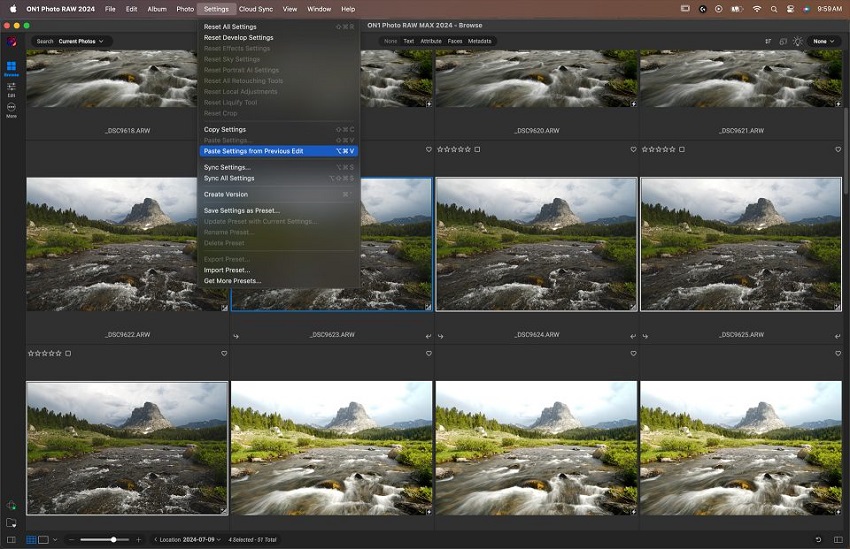
For years, photographers have lived a "divided" life: you organize and do basic edits in one program (like Lightroom), then "round-trip" to another (like Photoshop) for layers, masking, or creative effects. ON1 Photo RAW was built to end that back-and-forth. It's a single, unified environment where the browser, the RAW developer, and the layered compositor all live under one roof.
The most immediate difference with ON1 is its philosophy on files. While Lightroom makes you "Import" photos into a database (which can be slow), ON1 is a high-speed browser. You just point it at a folder on your hard drive, and you're instantly ready to edit. It's built for the photographer who wants to spend more time creating and less time watching progress bars.
Features
- Integrated Resize AI 2026: One of the most famous standalone upscaling tools is now baked directly into the core of the program. You can take a heavy crop of a bird or a distant landscape and use "Generative AI" models to reconstruct fine details, turning a tiny file into a massive, sharp print-ready masterpiece.
- Smarter "Masking Layers": New for the 2026 version, ON1 has introduced a revolutionary way to stack masks. You can use AI to select the "Subject," then "Subtract" a specific color, and then "Add" a gradient—all on a single layer. It's the most flexible masking system on the market right now.
- Cinematic Effects & Depth Lighting: ON1's "Effects" module is legendary. The 2026 update added "Depth Lighting," which uses AI to create a 3D map of your photo. This lets you move a "virtual light" around your scene after the shot was taken, casting realistic shadows and highlights as if you had brought a studio light to the forest.
- Negative Mode: For the film enthusiasts digitizing their archives, ON1 now features a dedicated "Negative Mode" that automatically inverts and color-corrects film scans with one click, bypassing the headache of manual curves.
Pros
- The "Everything" App: It replaces Lightroom (organization), Photoshop (layers), and Topaz (upscaling/noise) in one go.
- No Subscription Required: ON1 remains one of the strongest defenders of the "perpetual license." You can buy it once and own it forever, though they do offer a "MAX" subscription for those who want every update and cloud sync.
- Speed to Edit: Because it's a browser, you can start editing the second you plug in your SD card.
- Creative Freedom: The sheer number of built-in filters (Glow, Dynamic Contrast, Sun Flare) allows you to go from a "flat" RAW to a "finished" artistic look faster than almost any other tool.
Cons
- Interface Density: Because it does so much, the screen can feel cluttered. There are a lot of buttons, tabs, and sliders, which can be overwhelming for a minimalist.
- Stability vs. Features: Because ON1 pushes new AI features so rapidly, users sometimes report more "bugs" or crashes compared to the slower, more conservative Adobe updates.
- Database Weakness: While the "Browser" is fast, it isn't quite as powerful as Lightroom's "Catalog" for searching through 500,000 photos across 10 different hard drives.
5. Skylum Luminar Neo
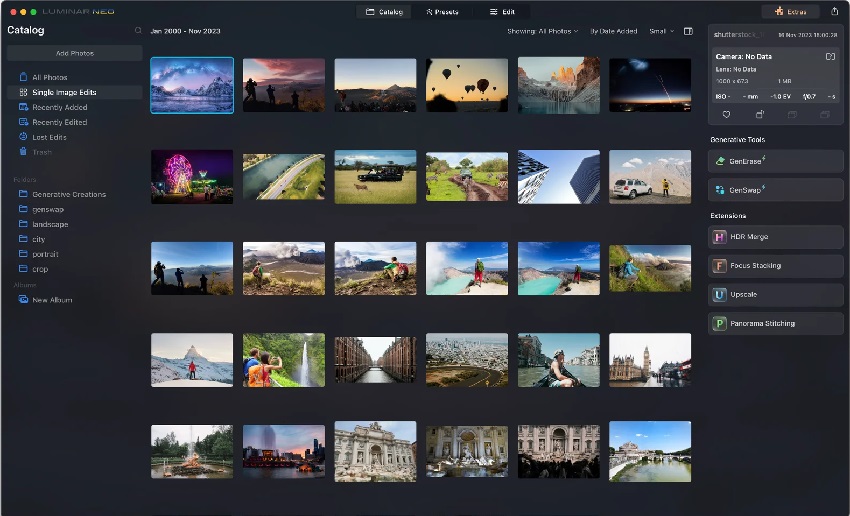
While traditional software asks you to move a hundred sliders to get a specific look, Luminar Neo asks you, "What do you want the photo to feel like?" It is the first major workflow tool built from the ground up to be AI-first, making complex professional techniques accessible to everyone with a single click.
Luminar Neo doesn't just see pixels; it understands 3D space. When you open a photo, the engine instantly calculates a "depth map," identifying what is a person, what is a mountain, and what is a stray power line. In 2026, it has matured into a stable "daily driver" that can either live as your main library or act as a powerful plugin for Lightroom.
Features
- Generative AI Suite (GenErase, GenExpand, GenSwap): This is Neo's "Big Three."
- GenErase doesn't just patch a hole; it intelligently replaces objects with a realistic background.
- GenExpand allows you to "un-crop" a photo, using AI to imagine what was outside the original frame.
- GenSwap lets you replace a boring object (like a flat rock) with something else entirely (like a blooming bush).
- Light Depth (The 3D Lighting Tool): Replacing the old Relight AI, this 2026 flagship tool allows you to move light through a 2D photo as if it were a 3D movie set. You can brighten a subject in the background while keeping the foreground dark, or vice versa, with perfect natural fall-off.
- The "One-Slider" Wonders: Tools like Accent AI analyze your photo and automatically balance exposure, contrast, and color in one move. Meanwhile, Sky AI remains the industry leader for swapping a gray sky for a sunset, including realistic water reflections and "relighting" the entire scene to match.
- AI Assistant: New for the latest version, you can now use text prompts to get editing suggestions. You can literally ask, "How do I make this look like a moody rainy day?" and the software will suggest the exact tools and settings to get you there.
Pros
- Instant Results: You can achieve a "professional" look in 30 seconds that would take 30 minutes in Photoshop.
- Low Learning Curve: It is the most intuitive interface on this list. If you can use a smartphone app, you can use Luminar Neo.
- Creative Inspiration: It's a "brainstorming" tool. Sometimes you don't know what a photo needs until you click a few AI presets and see the hidden potential.
- Device Flexibility: In 2026, Luminar's mobile app (for iPad/iPhone/Vision Pro) is remarkably well-synced, allowing you to start an edit on your couch and finish it at your desk.
Cons
- "Over-Cooked" Trap: Because the AI tools are so powerful, it's very easy to push them too far. Beginners often end up with photos that look "fake" or "hyper-real."
- Performance Heavy: All that AI math requires a lot of "brainpower." Even in 2026, users on older laptops may notice a lag when applying multiple heavy AI tools.
- Limited Organization: While it has a "Catalog," it is the weakest on this list for managing hundreds of thousands of files. It lacks the deep search and metadata tools of Lightroom.
- Sales Pressure: Skylum is known for aggressive marketing, often pushing new "Extensions" and "Asset Packs" that can make the software feel more expensive over time.
The Secret Weapon: Aiarty Image Enhancer
In the traditional world of photography, "fixing it in post" usually meant a compromise. If you sharpened a blurry shot, you got artifacts. If you removed noise, you lost texture. Aiarty Image Enhancer has flipped that script.
While it doesn't manage your library like Lightroom, it acts as a specialized AI utility that photographers use to "rescue" shots that would otherwise be destined for the trash bin.
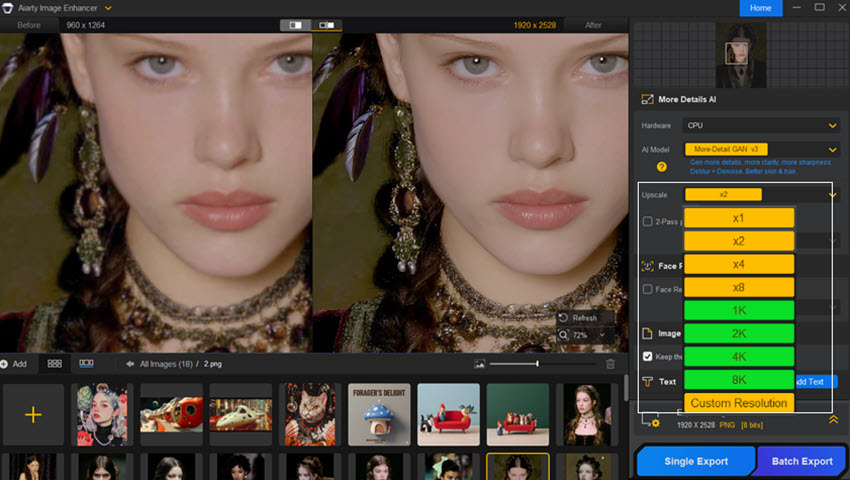
Aiarty is a desktop-native tool that uses generative deep learning to reconstruct what was lost. Instead of just stretching pixels, it intelligently "hallucinates" missing detail based on its training of millions of high-res images. In 2026, it has become the gold standard for turning a handheld phone snap or a heavy crop into a gallery-ready 32K masterpiece.
The Specialized Toolkit
- Generative Reconstruction (The V3 Models): More-Detail GAN v3: The "texture king." It's designed to rebuild complex patterns like skin pores, hair strands, and fabric fibers without that weird, plastic "AI look."
- Real-Photo v3: A diffusion-based model that prioritizes color fidelity and photorealism. This is the go-to for landscapes and portraits where you want the fix to be invisible.
- 4-in-1 Cleanup: In a single click, Aiarty handles Denoise, Deblur, De-JPEG (removing artifacts), and Upscale. It's essentially a car wash for your digital files.
- The "Safety" Sliders: New for 2026, the Strength Slider and 2-Pass Processing give you granular control. You can dial back the AI if it gets too aggressive, ensuring your subject still looks like a human and not a CGI character.
- Batch Performance: Because it's optimized for modern GPUs (NVIDIA, AMD, and Apple Silicon), it can process 100 photos in under 2 minutes. It's built for the "high-volume" pro who needs to clean up an entire event's worth of low-light shots.
The Pros: Why It's in My Bag
- The "Rescue" Factor: It is unmatched at fixing "soft" focus or heavy noise from wildlife and sports shots where you were forced to use a high ISO.
- One-Time Purchase: In a world of monthly fees, Aiarty offers a Lifetime License. Once you own it, it's yours forever.
- Privacy First: Unlike many new AI tools, Aiarty runs 100% offline. Your sensitive client photos never touch a cloud server.
- Print-Ready Resolution: It can upscale images to 32K (Windows) or 16K (Mac), making it possible to print a massive wall poster from a tiny smartphone crop.
The Cons: Know Before You Buy
- Hardware Hungry: To get those 2-minute batch speeds, you need a decent graphics card. It can run on a basic laptop CPU, but it'll feel like it's running through molasses.
- No Library Management: You can't organize your photos here. It is a "one-way trip": you drop a photo in, enhance it, and save it back to your main workflow software.
- Narrow Focus: It won't help you with color grading or creative filters. It's a technical tool for technical quality.
Think of Aiarty Image Enhancer as your "Insurance Policy." You might not use it on every photo, but when you have that one "once-in-a-lifetime" shot that came out slightly blurry or grainy, it's the only tool that can truly save it.
Final Verdict: Which Workflow Should You Choose?
We've traveled from the "Digital Libraries" of Adobe to the "AI Laboratories" of Aiarty. By now, you've likely realized that there is no single "perfect" software—only the perfect software for you.
To help you decide, here is the 2026 "Quick-Match" guide. Find the description that fits your shooting style:
1. The "Busy Professional" (Lightroom Classic)
Choose this if you shoot weddings, events, or thousands of family photos and need a way to organize them so you can find any shot in seconds.
2. The "Commercial Perfectionist" (Capture One Pro)
Choose this if you work in a studio, do high-end portraits, or are obsessed with tethering and getting the most accurate skin tones humanly possible.
3. The "Technical Rescuer" (DxO PhotoLab)
Choose this if you're a wildlife or sports photographer who often deals with grainy, low-light RAW files and wants the world's best lens corrections.
4. The "Creative Independent" (ON1 Photo RAW)
Choose this if you hate the Adobe subscription and want a single program that handles organization, RAW editing, and Photoshop-style layers in one window.
5. The "Visual Storyteller" (Luminar Neo)
Choose this if you want to spend more time on "Art" and less time on "Technical Sliders." It's for the creator who loves AI sky replacements and instant mood shifts.
Regardless of which main workflow you choose, the most successful photographers this year are using a hybrid approach. By pairing a manager (like Lightroom or Capture One) with a specialist (like Aiarty Image Enhancer), you get the best of both worlds. Use your manager to organize and color-grade, and keep Aiarty in your back pocket as your "insurance policy" for upscaling, denoising, and rescuing those once-in-a-lifetime shots that need a 2026-grade miracle.
The best part? Most of these tools offer free trials. My advice? Grab your most "problematic" photo—the one that's too blurry or too grainy—and run it through a trial of Aiarty and your favorite editor from this list. The results will speak for themselves.
You May Also Like


This post was written by Brenda Peng who is a seasoned editor at Digiarty Software who loves turning ordinary photos into extraordinary works of art. With AI assistance for brainstorming and drafting, the post is reviewed for accuracy by our expert Abby Poole for her expertise in this field.
