


If you edit photos, design graphics, or build illustrations for a living, you eventually run into the same question: do you keep paying for Photoshop, or can a free tool like Photopea cover enough of your work.
Adobe's subscription model pushes a lot of beginners and casual users to explore alternatives. Photopea is often the first one that shows up. It looks familiar, it opens PSD files, and it runs directly in a browser without installation.
I use Photoshop daily on my main machine and reach for Photopea when I am working on a borrowed laptop, a school computer, or simply need to tweak a PSD quickly without installing anything. After testing both side by side on real projects, my conclusion is not that one replaces the other. Instead, each tool fits specific scenarios, skill levels, and budgets.
This review walks through what each program offers, where they differ in practice, and how they behave in real tests, not just on paper.
What Photopea Offers
Photopea is a browser-based editor that mirrors the classic Photoshop layout. When you open it, you immediately see the standard arrangement: tools on the left, layers on the right, canvas in the center. For anyone who has touched Photoshop before, it feels surprisingly familiar.
Because it runs in the browser, accessibility is its biggest strength. I have used Photopea on old laptops, lab computers, and machines where I do not have administrator rights. You type in the URL, drop in a PSD or a JPEG, and you can start editing.
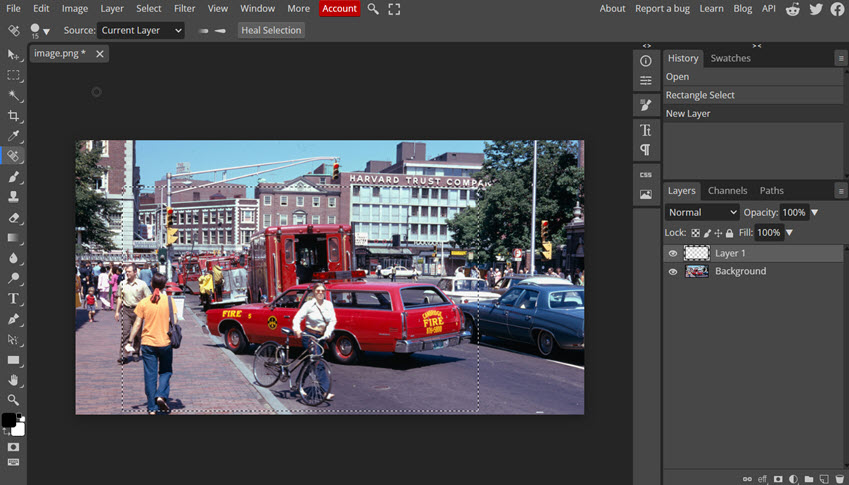
Highlighted features of Photopea
- Runs entirely in the browser, no installation required
- Opens PSD files with layers, masks, and blend modes intact
- Supports both raster and vector editing in the same workspace
- Compatible with many export formats, including JPG, PNG, PDF, SVG, and WebP
- Includes retouching tools such as Spot Healing, Healing Brush, Patch Tool, and Clone Stamp, powered by AI-assisted blending
On paper, that sounds like a list. In practice, it becomes interesting when you actually start editing.
What Photoshop Offers
Photoshop has been the standard in photo and design work for decades. It is a full desktop application, built for detailed retouching, compositing, digital painting, layout work, and simple animations. On top of that, the newer versions are leaning heavily into AI.
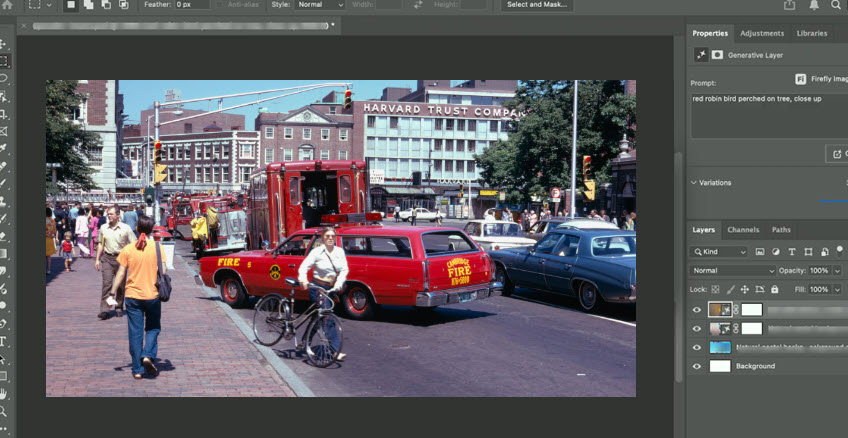
Highlighted features of Photoshop
- Full-featured desktop application for detailed editing and compositing
- Advanced raw editing with precise controls for tone, color, and texture
- AI-assisted features such as Generative Fill, AI Upscale, AI Denoise, AI Sharpen, and improved selections
- Smart filters, adjustment layers, and a deeply non-destructive workflow
- Tight integration with Lightroom, Illustrator, Premiere Pro, After Effects, and Adobe Firefly
Photoshop requires installation, a subscription, and hardware that can handle larger files. For quick social media edits, that might be overkill. For complex, paid projects, it often becomes necessary.
Ease of Use, Performance, and Price
Ease of use
Photopea is easier to approach if you are new. Fewer panels, fewer advanced options, and less that can overwhelm a beginner. You can learn core concepts like layers, masks, adjustment layers, and basic retouching without fighting the software.
Photoshop has a steeper learning curve, but once you understand the interface, you get more precise control. Its panels, tools, and options are built for depth, not simplicity.
Performance
Photopea loads quickly in a browser and does not require installation. That makes it ideal when you are on an unfamiliar machine or a device with limited storage. Its speed depends on your browser, RAM, and connection, and very large PSDs can lag.
Photoshop is heavier but more stable with large documents. It handles big, layered files, high resolution images, and print assets with more confidence. For long projects, the stability and performance of a local application still matter.
Price
Photopea is free with ads. A low-cost premium option removes ads and offers a smoother experience, but the free version keeps all core features available.
Photoshop requires a subscription:
- $22.99/month with an annual commitment for Photoshop
- $69.99/month for the full Creative Cloud suite, which includes Lightroom, Premiere Pro, After Effects, and more
For hobbyists, that recurring cost is often hard to justify. For professionals, it becomes part of the production budget.
How Photopea Behaves In Editing Scenarios
Basic navigation and cleanup
For beginners, you can start with the essentials: dragging images straight from a folder into the tab bar, zooming with the Zoom Tool, panning with the spacebar, and fitting the image to the screen with Ctrl + 0.
Tonal and color corrections
On a washed-out beach photo, I tested three common tonal tools: Brightness/Contrast, Levels, and Curves.
- Brightness/Contrast works fine for minor tweaks but feels too blunt for serious work.
- Levels give you the familiar histogram view. Dragging the black and white sliders inward deepens shadows and brightens highlights, making a flat image look more dimensional.
- The gray eyedropper inside Levels is useful. Photopea removes the color cast and pulls the image closer to a natural color balance.
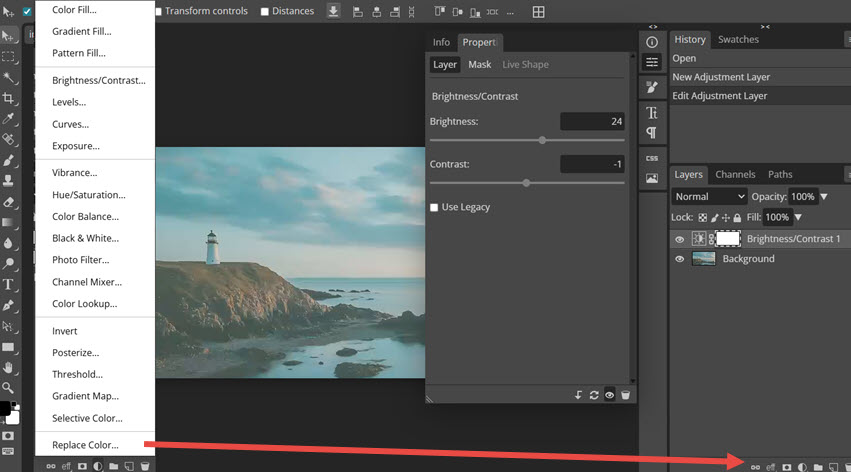
Just like in Photoshop, I can add multiple control points, lift the highlights, push down the shadows, and create a subtle S-curve. If I switch to individual RGB channels, I can warm up the image by adjusting red and blue separately. For a free, browser-based tool, having Curves with channel control is a serious advantage.
Liquify, masks, and non-destructive editing
Photopea also supports Liquify, which lets you push pixels to adjust jawlines, cheeks, or small shape issues. With a light touch, it works well for subtle corrections in non-destructive editing:
- Converting a layer to a Smart Object before transforming keeps the image sharp after multiple resizes.
- Using layer masks instead of the Eraser lets you reveal or hide areas without destroying the original pixels.
- Applying filters like Lens Blur to a Smart Object and then using the attached filter mask allows depth-of-field effects that can be fine-tuned later.
For example, I duplicated a car layer, converted it to a Smart Object, applied Lens Blur, and then used a gradient on the mask to keep the foreground sharp and gradually blur the background buildings. With a simple mask inversion on the car selection, I could keep the car crisp while the environment softened around it.
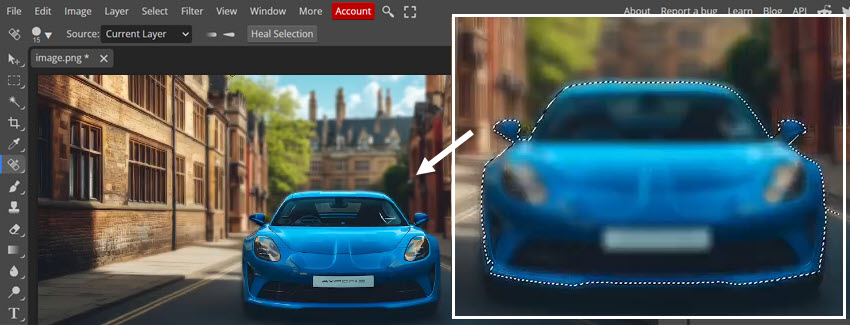
This is the same workflow I would expect in Photoshop, and it works almost the same way inside a browser window.
How Photoshop's AI Enhances Your Projects
For Photoshop, there are several AI features that Photopea simply does not have.
Generative Upscale with multiple models

Instead of just enlarging with bicubic interpolation, Photoshop now offers Generative Upscale with different AI models. You can choose Adobe Firefly or a partner model like Topaz.
On portraits, enabling Face Refinement helped preserve facial structure while cleaning up eyes, lips, and skin without making the subject look plastic. For print work or serious restoration, this kind of upscaling is hard to match elsewhere.
Generative Fill and camera angle changes
Generative Fill is not just for patching empty corners anymore. For instance, you can select the entire image and asked Photoshop to change the camera angle to a high angle view.
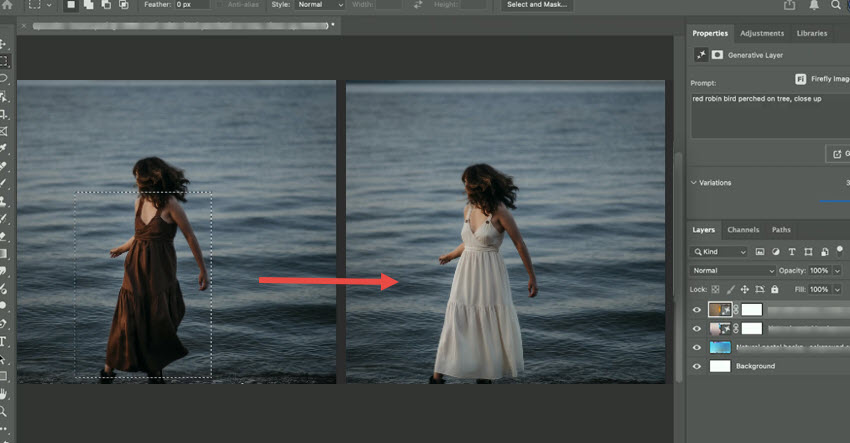
For outfit changes, a simple selection of the dress and a prompt like "turn the entire dress white" produced a version with correctly updated folds, highlights, and shadows. This is not just color replacement, but an understanding of material by the AI model.
Harmonize for realistic composites
Matching a person shot in soft window light with a sunset beach background used to be a careful, manual process: adjusting color balance, contrast, shadows, and maybe painting in some rim light.
In Photoshop 2026, Harmonize automates most of this. Once you placed a subject onto a new background, ran Harmonize, its AI will give you several preview variants. It was not perfect, but the amount of manual work removed from the process was significant.
Photopea can handle basic composites with masks and adjustment layers, but it does not have anything close to Harmonize.

AI Denoise, AI Sharpen, and selection upgrades
On a noisy high ISO night shot, AI Denoise removed grain while keeping texture in bricks and skin. Old noise reduction methods tend to flatten detail.
AI Sharpen revived a slightly blurred portrait to the point where eyelashes, fabric texture, and small details resurfaced. There are limits, especially with extremely blurred inputs, but the results are far ahead of ordinary sharpening filters.
Selection tools also saw improvement. The updated Remove Background and subject selection did a noticeably better job picking intricate edges of fur and hair.
Bonus Tips: Where A Dedicated AI Enhancer Fits In
If your main struggle is not layout, masking, or template design, but simply image quality. In those cases, both Photopea and Photoshop can help, but they are not designed as dedicated enhancement engines. This is where a tool like Aiarty Image Enhancer can slot into the workflow as a specialist rather than a replacement.
Aiarty Image Enhancer as a Companion to Photopea and Photoshop
Aiarty Image Enhancer is a desktop AI tool focused on image upscaling and quality enhancement. Instead of trying to be a full editor, it concentrates on a small set of tasks to enhance your workflow.
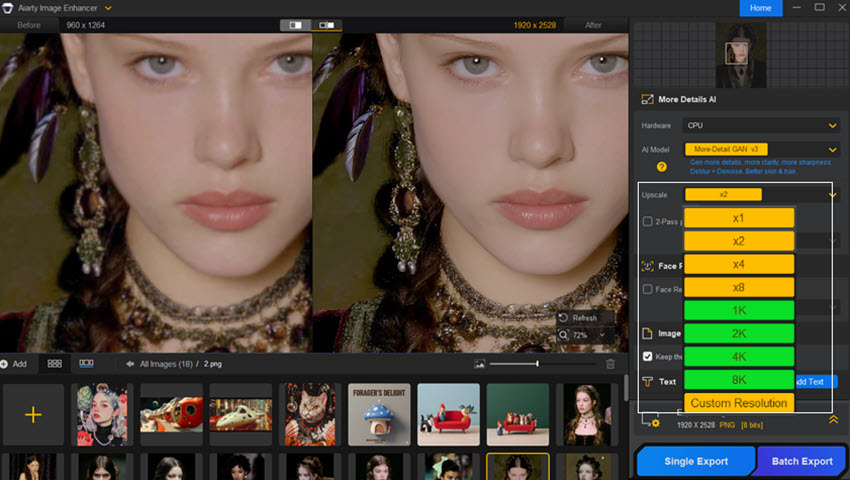
- Upscale images by 2x, 4x, 8x, up to 16k/32K
- AI Denoise to clean up high ISO or low-light photos with details
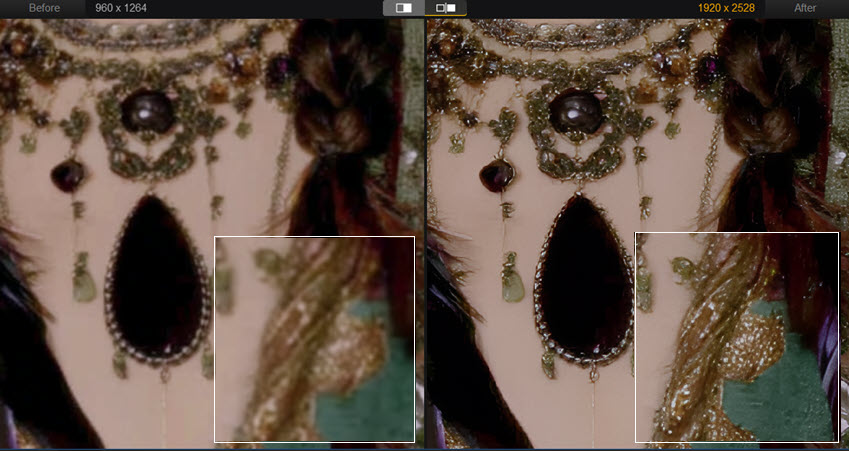
- AI Deblur and Sharpen to rescue soft images and improve edge clarity
- AI face enhancement for portraits and old photos
- Strength control that lets you balance natural grain and sharpness
Which One Should You Use
The right choice depends on your situation, not just a checklist of features.
Choose Photopea if:
- You want a free editor for basic or moderate editing.
- You are learning image editing concepts for the first time.
- You primarily create social media graphics, thumbnails, or simple composites.
- You often work on machines where you cannot install software.
- You sometimes need to open or lightly edit PSDs without committing to Adobe.
Choose Photoshop if:
- You work professionally or want to reach that level.
- You handle portraits, commercial work, print designs, or complex composites.
- You rely on accurate color workflows, non-destructive editing, and detailed masking.
- You want access to advanced AI tools like Generative Fill, AI Upscale, AI Denoise, Harmonize, and improved selection.
- You already use other Adobe apps and benefit from integration with Lightroom, Premiere Pro, or After Effects.
In many cases, the two tools actually complement each other. I use Photoshop on my main workstation for deep retouching, color work, and client projects. When I am traveling, on a different computer, or quickly checking a PSD someone sent, Photopea is the practical choice.
Final Thoughts
Photopea and Photoshop are not direct replacements for one another. Photopea is an accessible, flexible editor that lowers the barrier to entry and makes PSD-style editing possible on almost any machine. Photoshop is a full production environment that keeps evolving into an AI-driven creative platform.
If budget is your main concern, Photopea is an excellent starting point and, for many people, more than enough. If you want full creative control, need consistent results under deadline, and plan to work in photography or design long term, Photoshop remains the more complete and reliable option.
The useful way to think about it is simple: let Photopea teach you the concept of layers, masks, and non-destructive editing. When your projects grow in complexity and your expectations rise, you will know exactly what you gain by stepping into Photoshop.
You May Also Like


This post was written by Brenda Peng who is a seasoned editor at Digiarty Software who loves turning ordinary photos into extraordinary works of art. With AI assistance for brainstorming and drafting, the post is reviewed for accuracy by our expert Abby Poole for her expertise in this field.
