


Searching for Pixlr vs Photoshop usually means one thing: you want the fastest way to edit images without sacrificing quality. Pixlr and Photoshop take completely different approaches to photo editing. Pixlr is an online photo editor built for speed and accessibility—open your browser, edit, export. Photoshop is a desktop-based professional tool, designed for deep control, complex workflows, and industry-level precision.
That contrast is exactly why Pixlr vs Photoshop remains a high-volume search year after year. But the real question isn’t which tool is “better.” It’s which one fits the way people actually edit images today.
In practice, many users don’t choose just one. They mix lightweight online editors with professional software, and increasingly with AI tools, to get better results faster. This guide breaks down Pixlr and Photoshop not just by features, but by real-world use cases and modern editing workflows.
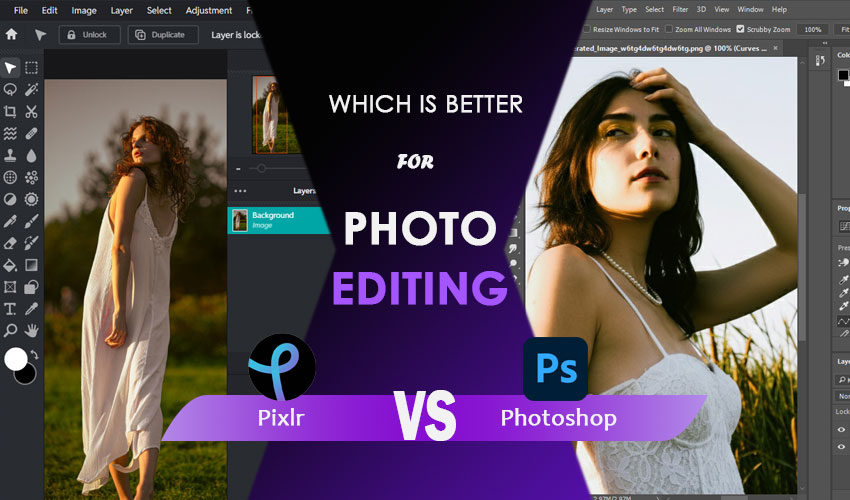
Pixlr and Photoshop: What Are They, Really?
Before diving into feature-by-feature comparisons, it helps to understand what Pixlr and Photoshop are designed to do at their core, because many of their differences start with intent, not tools.
What Is Pixlr?
Pixlr is a browser-based online photo editor built for speed, accessibility, and convenience. It runs directly in your web browser, meaning there’s no software to install and no hardware requirements beyond a modern device and an internet connection.
At its core, Pixlr focuses on quick image editing tasks, such as:
- Cropping, resizing, and rotating images.
- Basic color correction and exposure adjustments.
- Filters, overlays, and simple effects.
- Layer-based editing for lightweight compositions.
- One-click background removal and basic AI tools.
Because of its simplified interface, Pixlr is especially popular among beginners with little or no photo editing experience, content creators and bloggers working on social media visuals, and users who need fast edits without committing to complex software.
That said, Pixlr’s ease of use comes with trade-offs. Advanced controls, fine-grained adjustments, and professional color management are limited compared to desktop-based editors.
What Is Adobe Photoshop?
Photoshop is a professional desktop photo editing application and long-standing industry standard for image manipulation. It is part of the Adobe Creative Cloud ecosystem and is widely used in photography, graphic design, marketing, and digital art.
Photoshop is designed for maximum control and flexibility, offering tools such as:
- Advanced layer systems, masks, and blending modes.
- Precise selection tools and manual background removal.
- Non-destructive editing with adjustment layers and smart objects.
- Support for RAW files, Super Resolution, and professional color workflows.
- Generative Fill and Generative Expand powered by Adobe Firefly.
- Extensive plugin, automation, and scripting capabilities.
Because of this depth, Photoshop is commonly used by professional designers and photographers, agencies and commercial studios, and users working on complex compositions or print-ready assets.
However, that power comes at a cost. Photoshop has a steep learning curve, requires installation, and uses a subscription-based pricing model that may be excessive for casual or occasional editing.
Core Feature Comparison: Pixlr vs Photoshop
Now that we’ve outlined what Pixlr and Photoshop are designed for, it’s time to explore the core features that define their performance in real-world editing workflows. Understanding these differences will help you see not just which tool has more functions, but how they actually impact speed, quality, and flexibility.
Basic Editing Capabilities and Learning Curve
Pixlr:
- Offers essential tools such as cropping, rotating, resizing, and basic color adjustments.
- Layer support and simple masking are available, but advanced compositing is limited.
- The interface is intuitive, making it ideal for quick edits and users with little experience.
Photoshop:
- Provides a complete toolkit for professional-level edits, including advanced layer systems, masks, blending modes, precise selection tools, and manual background removal.
- Non-destructive editing with adjustment layers, smart objects, RAW support, and professional color workflows.
- Extensive plugin, automation, and scripting capabilities support complex workflows.
Key Takeaways: While Pixlr allows you to edit quickly with minimal learning, Photoshop is designed for precision, depth, and complex projects, making it more suitable for professional or long-term workflows.
AI Capabilities and Real-World Performance
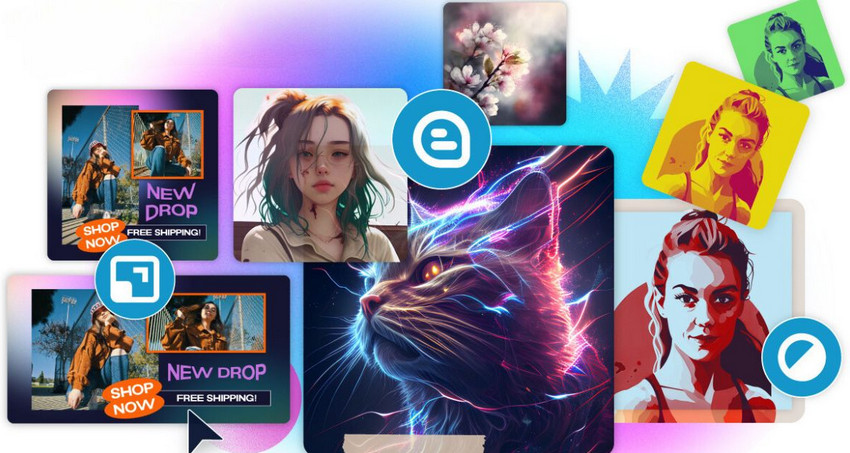
Both Pixlr and Photoshop have embraced AI in recent years, but the way they implement it reflects their different design philosophies. Pixlr offers basic AI-powered editing features that are largely geared toward one-click adjustments. This makes it quick and easy for users to enhance images without spending time on complex settings, but it also means the level of control is limited.
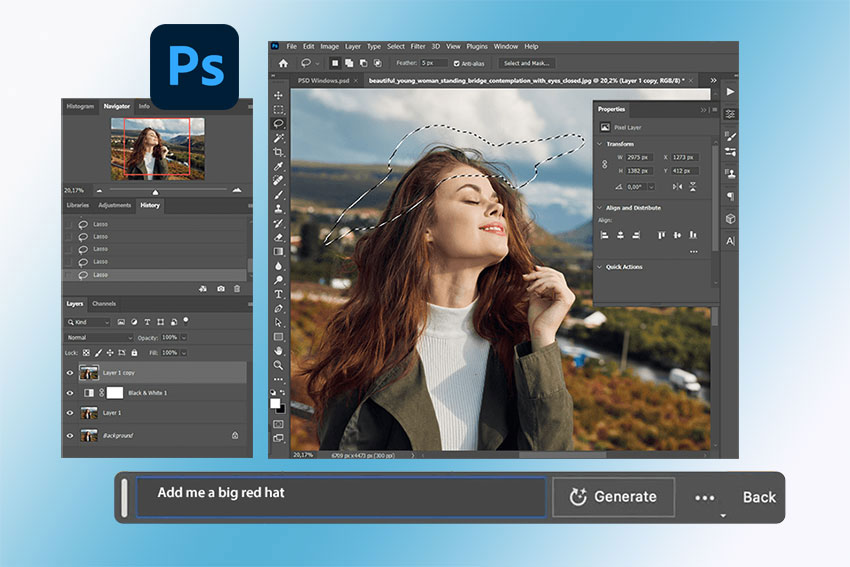
Photoshop, on the other hand, integrates Adobe Firefly to provide more advanced AI functionality. With features like Generative Fill, Generative Expand, and Generative Upscale, it can handle complex edits, fill missing areas intelligently, and extend canvases while preserving image consistency. However, these tools often require multiple steps and proper prompts to achieve the desired result. Also, users need both sufficient hardware and a certain learning curve to make the most of them.
Despite these advances, AI tools in both Pixlr and Photoshop share some limitations. They are rarely optimized for a single task, and their performance in areas such as image clarity, noise reduction, and edge detail can still fall short, particularly when working with low-quality or compressed images.
For this reason, many editors choose to separate the enhancement step from their main editing workflow. Tools like Aiarty Image Enhancer can be used first to improve image sharpness, reduce noise, and restore lost details. Once the image has been preprocessed in this way, it can be imported into Pixlr or Photoshop for further editing, ensuring more reliable results and smoother workflows.
3. Image Clarity, Detail Enhancement, and Low-Quality Image Handling
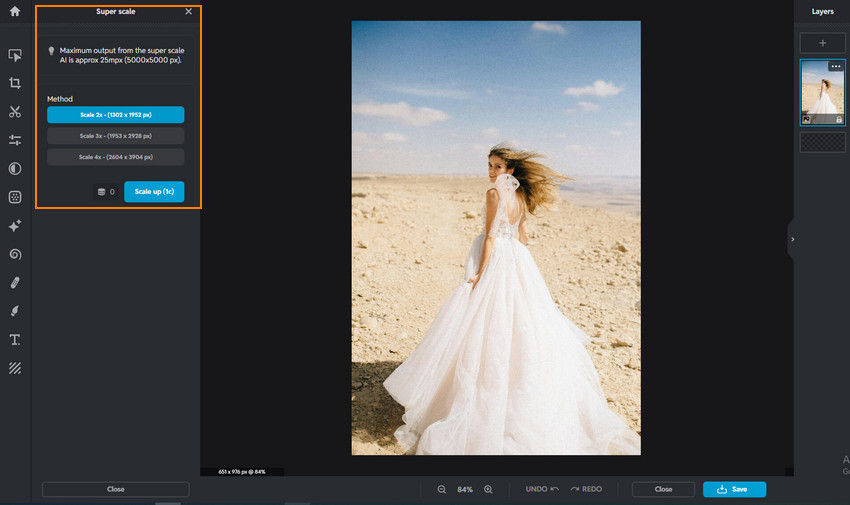
When it comes to improving image clarity and enhancing fine details, Pixlr and Photoshop again take different approaches. Pixlr offers basic sharpening and a Super Scale feature, which can upscale images up to 5000 × 5000 pixels. While this works well for images that are already reasonably clear, it can struggle with low-resolution or heavily compressed files.
Photoshop provides more advanced options, including high-level sharpening, noise reduction, adjustable parameters, and the Super Resolution feature via Camera RAW plugin. These features give users precise control over image quality, but they can be overwhelming for beginners and are easy to overuse, sometimes producing unnatural results.
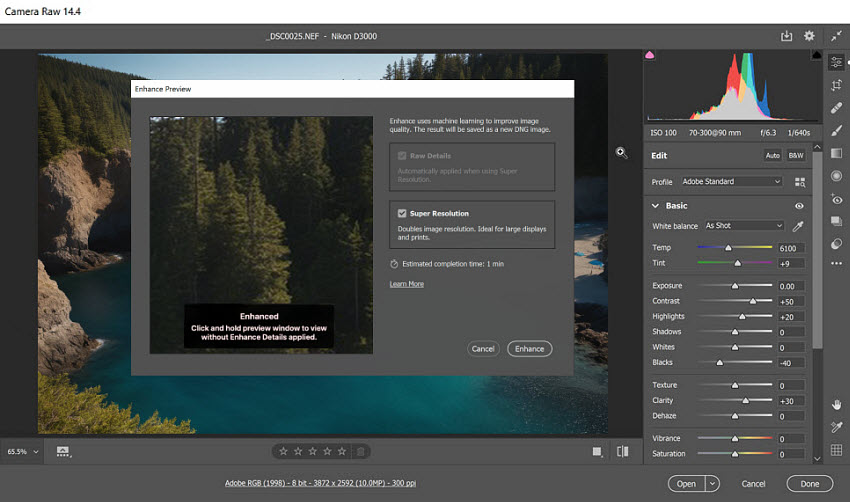
In practical scenarios, these differences become particularly evident. Editors often encounter images that are slightly blurry, severely compressed from online sources, or taken in low-light conditions on mobile devices. In such cases, many professionals and content creators prefer to preprocess images with delicated AI image enhancers like Aiarty Image Enhancer.
By restoring lost details, reducing noise, and sharpening the image, Aiarty creates a cleaner base, allowing Pixlr or Photoshop to handle color correction, compositing, and final adjustments more effectively and reliably.
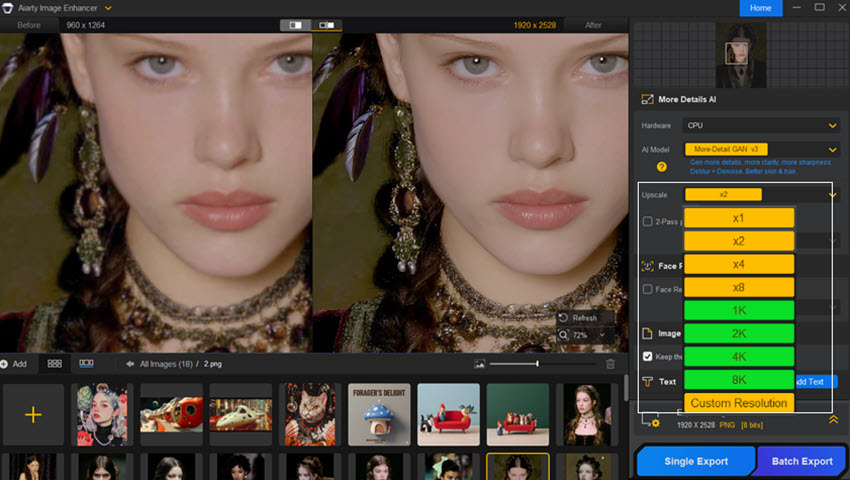
Start with Aiarty Image Enhancer and give Pixlr or Photoshop a cleaner, higher-quality image to work with.
4. Background Removal and Compositing
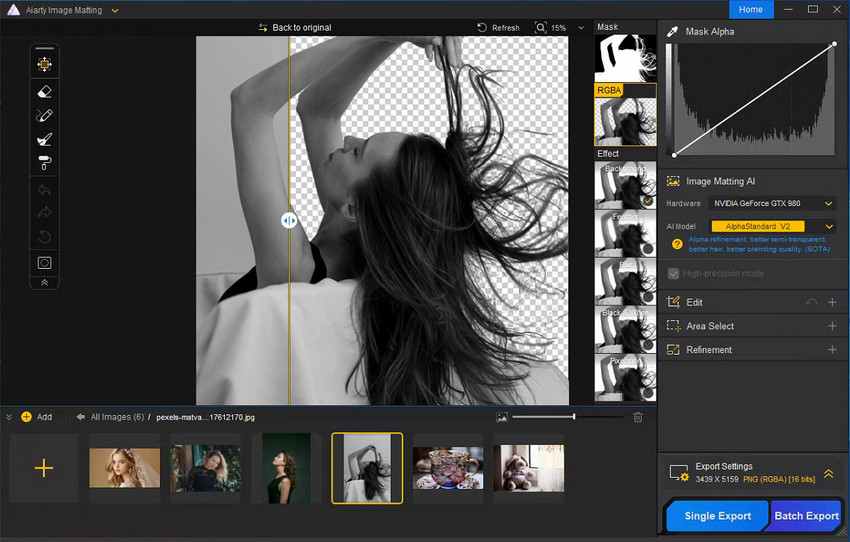
Background removal is another area where Pixlr and Photoshop diverge. Pixlr provides an automatic background removal feature that performs well on simple subjects and clean backgrounds. However, it can struggle with complex edges, hair, or semi-transparent objects, sometimes leaving artifacts or requiring additional touch-ups.
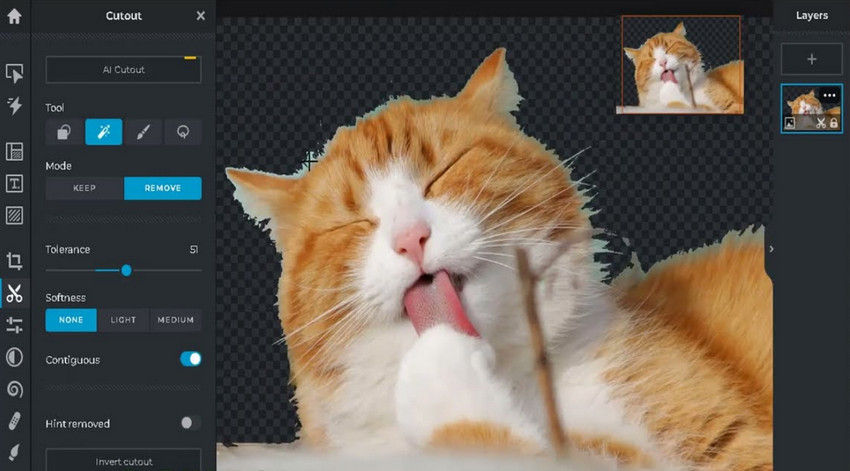
Photoshop offers precise background removal by tools like the Pen Tool, advanced selection methods, and masking capabilities. These allow for meticulous background removal and compositing, but they demand more time and skill. Editing hair, transparent objects, or intricate shapes can be particularly labor-intensive, making it less suitable for users who need fast results.
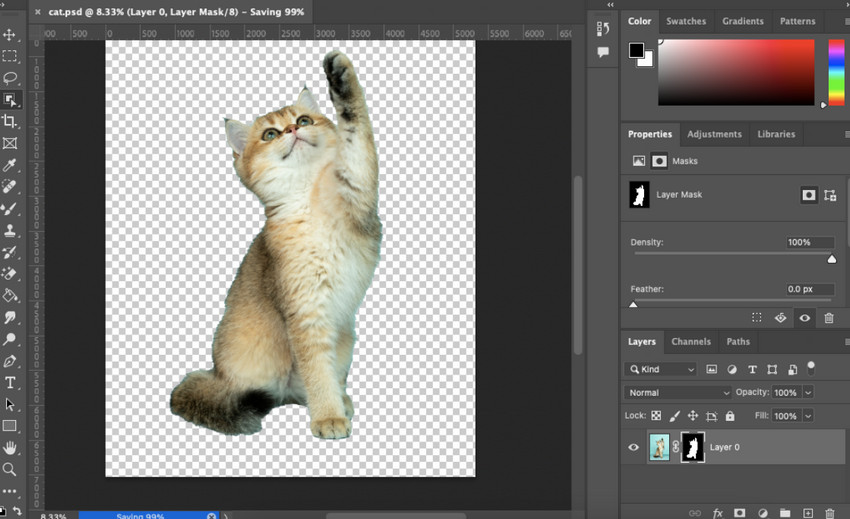
For projects like e-commerce listings, portraits, or product photography, many editors rely on a mix of AI and manual techniques. Aiarty Image Matting can automatically isolate the subject from the background with high precision, after which Photoshop is used to refine edges and create seamless, realistic composites. This workflow maximizes both speed and accuracy, saving time while maintaining professional-quality results.
Use Aiarty Image Matting to isolate subjects instantly and spend less time on manual background work.
5. Generative Fill and Generative Expand
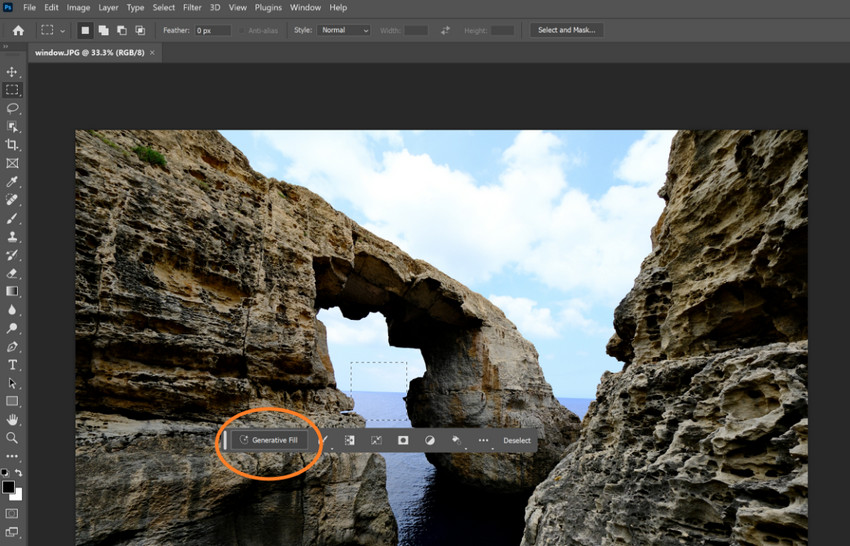
Generative editing is available in both Pixlr and Photoshop, though each handles it differently. Pixlr offers simple Generative Fill and Generative Expand tools that are fast and easy to use, making them ideal for quick edits or social media content. They don’t require complicated prompts, but their output can be inconsistent and they struggle with complex scenes.

Photoshop, using Adobe Firefly, takes generative capabilities further. Users can fill in missing areas, extend the edges of a canvas, or add and replace objects through text prompts. Its AI interprets context more intelligently and works closely with layers and masks, making it better suited for professional composites and creative projects.
Still, the results depend heavily on the quality of the original image, the prompts used, and sometimes multiple attempts are needed for more challenging edits.
6. Scalability and Ecosystem
Beyond individual features, the long-term value of an editing tool depends on its scalability and ecosystem.
Pixlr:
- Lightweight and easy to use
- Limited ecosystem and integrations
- Best suited for short-term or casual projects
Photoshop:
- Extensive plugin support and third-party extensions
- Fully integrated within the Adobe Creative Cloud ecosystem
- Ideal for long-term professional use and complex workflows
Editors who combine AI-assisted preprocessing with tools like Aiarty Image Enhancer and Aiarty Image Matting can maximize Photoshop’s ecosystem, allowing large-scale projects to maintain consistent quality and efficiency over time. This combination highlights how a professional-grade tool, when integrated with smart AI workflows, can provide lasting value beyond basic editing.
Output Quality, Formats, and Professional Support
Pixlr and Photoshop handle output in very different ways. Pixlr supports common web-friendly formats like PNG and JPEG, but it lacks full color management, making it best suited for online content and social media. Photoshop, in contrast, supports professional formats such as PSD, TIFF, and RAW, and includes CMYK and ICC color management, which makes it suitable for commercial printing and projects that demand precise color accuracy.
Many users also enhance images with Aiarty Image Enhancer before or afterwards, improving sharpness, reducing noise, and ensuring that final outputs look their best regardless of the editor used.
Pricing and Long-Term Cost
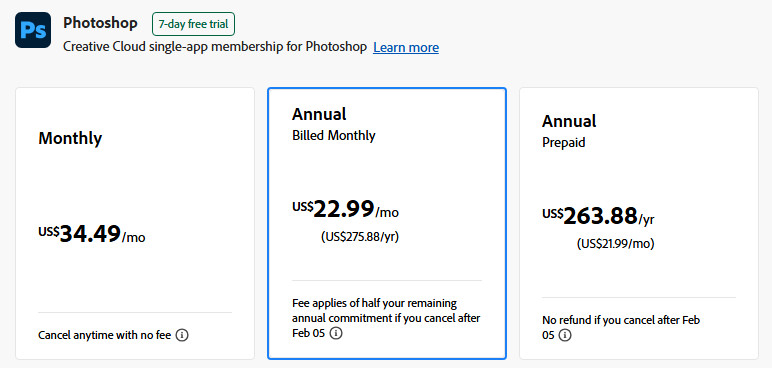
Pricing is another important factor when deciding which tool to use. Pixlr offers a free version for trial and Plus and Premium version for basic editing, higher resolution exports and extra features, making it ideal for casual users or light editing tasks.

Photoshop is subscription-based, with higher long-term costs, but it provides access to the full suite of professional tools and integrations, making it worthwhile for professionals and teams working on ongoing projects.
Pixlr vs Photoshop: Which One Should You Choose for Photo Editing?
Choosing the right editing tool often depends on your goals, skill level, and workflow needs.
Who should use Pixlr?
Pixlr is ideal for beginners, social media content creators, or anyone who needs to produce images quickly. Its intuitive interface and one-click AI tools make it easy to achieve good-looking results without a steep learning curve.
Who should use Photoshop?
Photoshop is best suited for designers, photographers, and professionals working on commercial projects. Its deep feature set, layer control, and advanced color management give users full creative flexibility and precision, which is essential for professional-grade work.
Who benefits from a “combined workflow”?
For users looking to boost efficiency, maintain consistent output quality, or avoid repetitive manual adjustments in Photoshop, a hybrid approach works best. Many editors start by enhancing image clarity and restoring details with Aiarty Image Enhancer, then remove backgrounds with Aiarty Image Matting, and finally complete creative edits in Pixlr or Photoshop. This combination leverages the strengths of each tool, saving time while ensuring polished, professional results.
In a nutshell, Pixlr is best for quick edits and beginners, Photoshop for professionals needing full control. Using Aiarty's image tool first ensures sharper, cleaner results and saves editing time.
 FAQs
FAQs
Not entirely. Pixlr works well for quick edits, simple designs, and online content, but it doesn’t replace Photoshop when you need advanced retouching, complex layers, or professional color control. In my experience, Pixlr is more of a lightweight alternative than a full replacement.
It depends on the project. Pixlr can handle basic photo edits and fast visual tasks, but for professional photography, commercial work, or print-ready images, Photoshop offers far more control and consistency.
I usually enhance images before editing, especially if they’re blurry, noisy, or compressed. Tools like Aiarty Image Enhancer help restore detail and clarity first, which makes both Pixlr and Photoshop easier to work with and improves final results.
For speed, AI-based tools are the fastest option. Pixlr’s automatic background removal works for simple images, while Aiarty Image Matting is often quicker and more accurate for complex edges like hair or products. Photoshop is better for manual refinement but takes more time.
For basic ecommerce listings, Pixlr is usually enough. But for consistent lighting, clean backgrounds, and print-ready quality, Photoshop is more reliable. Many sellers combine AI tools for enhancement and background removal, then finalize images in Photoshop for the best results.
You May Also Like


This post was written by Brenda Peng who is a seasoned editor at Digiarty Software who loves turning ordinary photos into extraordinary works of art. With AI assistance for brainstorming and drafting, the post is reviewed for accuracy by our expert Abby Poole for her expertise in this field.
