
12 Best AI Image Enhancers in 2026: Hands-On Tests



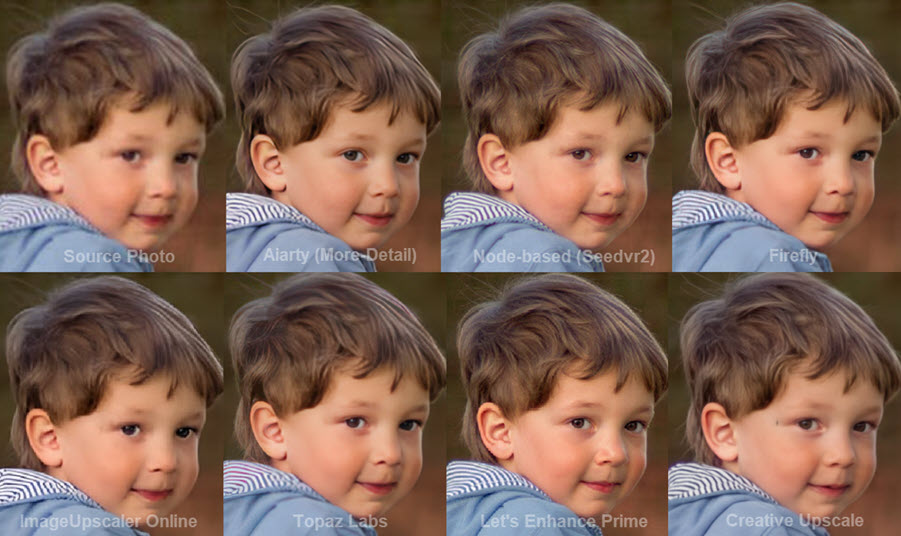
To help you find a suitable AI image enhancer that's best for your needs, we compared Topaz Photo, Aiarty Image Enhancer, Photoshop, Magnific AI, Upscayl, Let's Enhance, and other open source image enhancers and online apps.
AI image enhancement tools are built to fix softness, reduce noise, restore compression artifacts, upscale without detail loss, and enhance the overall clarity of an image. Depending on the specific tool, they may cover some or all of the following needs and scenarios:
- Denoise, deblur, and restore details from both RAW and non-RAW JPGs, PNGs, etc.
- Restore old photos, restore faces in portraits, upscale AI art, and enhance web archives.
- Enhance heavily cropped photos, upscale low-res to 4K, 8K for display and large prints.
- Balance quality and detail restoration for natural results, avoiding over-processing.
For image quality and performance, we make sure the image enhancers are evaluated against these benchmarks, covering particular quality problems, different scenarios, image types, workflow efficiency, batch processing ability, and more.
Here's our round up of the best free and paid AI image enhancers, with before and after comparisons using the same source image.
Hands-On: Comparing Best AI Image Enhancers (Free and Paid)
1. Aiarty Image Enhancer
Aiarty Image Enhancer is a dedicated photo quality enhancer and upscaler, with both deep-learning automation and manual control flexibilities. It works for real world photos and digital designs, such as old photo scans, web archives, family photos, anime stills, wallpapers, social media posts, etc.
Both professionals and casual users can resort to Aiarty to fix low-light photos, reduce high ISO noise, enhance RAW, upscale low-resolution images to 4K/8K/16K, and restore compression artifacts. With tailored deep-learning models, strength controls, color and quick editing tools, you can fine-tune the results for a natural output.
As noted by Michael Breitung, a freelance photographer and editor at Fstoppers, his has tested Aiarty "with around 50 photos, including cityscape, landscape, and wildlife", and found that in most cases, "the details and sharpness Aiarty adds to my photos look natural."
- Platforms: Windows 10 or later, Mac Apple Silicon/Intel CPU.
- Supported image formats: JPG, PNG, RAW, DNG, CR3, CR2, CRW, WebP, TIFF and more.
- Pricing: Free trials available to evaluate features and performance. Lifetime License with unlimited free updates for commercial and person use (49% OFF Holiday Offer).
- Best for: Anyone preferring non-subscription, standalone offline software to enhance image quality, upscale in batch, or fit this tool into existing photo editing workflows.
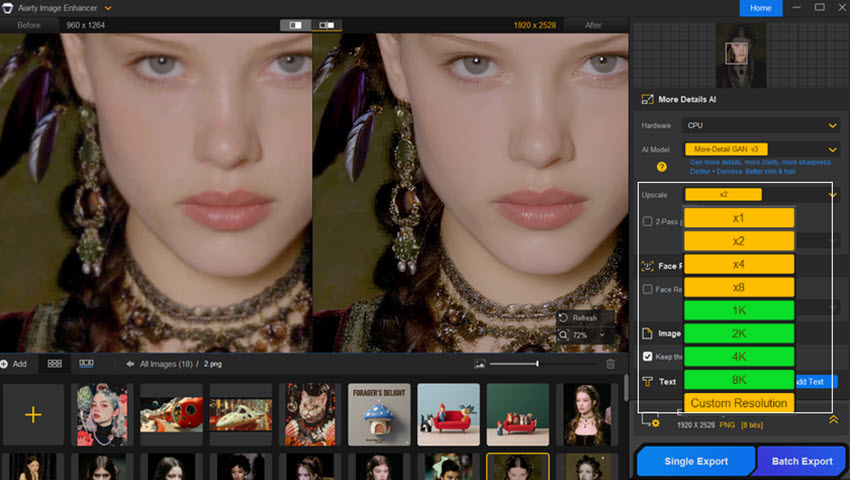
Download Aiarty Image Enhancer to upscale images, deblur, denoise, and restore natural details.
Test 1. Fix Softness and Enhance Heavily Cropped Photo
When you crop to bring the distant wildlife photo into the center, or changing a vertical image to horizontal, the image will look soft, blurry, and the noise will be more noticeable on 4K display or large prints. We tested Aiarty to enhance image quality. As shown below, it restores crisp clarity to the photo without over-sharpening.
Source: Woodpecker bird photo by Canon 90D (f6.3 1/250s ISO160), saved as 2130x2840 JPG.
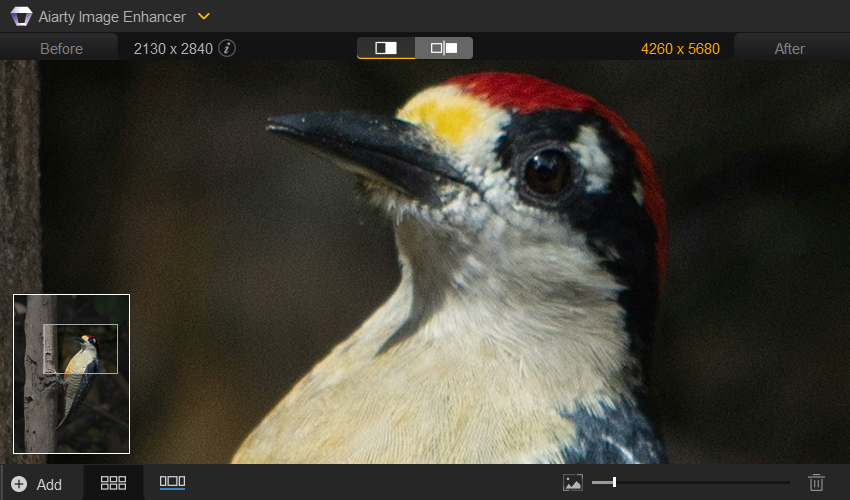
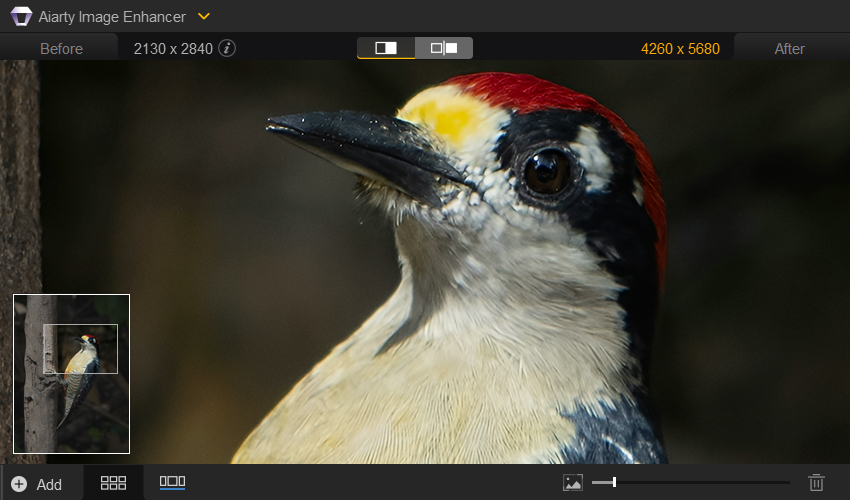

Settings in Aiarty: Real-Photo model, upscale x2, 2-Pass processing. Strength 0.66. Simple color editing.
Test 2. Denoise RAW and Restore Details
The source cat photo is taken under dim light. We tested how this image enhancer helps to restore clarity from RAW file. As shown in the comparison below, Aiarty removes high ISO noise, and restores cat's fur detail, making strands more defined.
Source: RAW file from Olympus EM10iv (.orf), captured at ISO 6400, f/4.9, 1/40s.
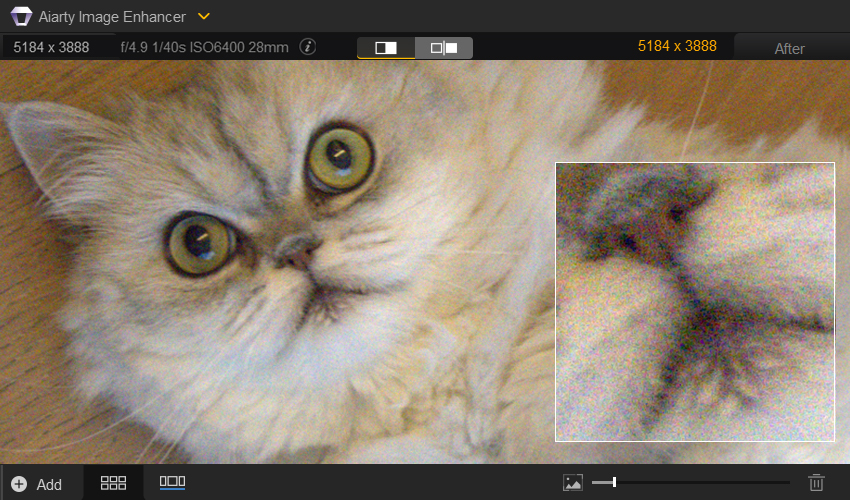
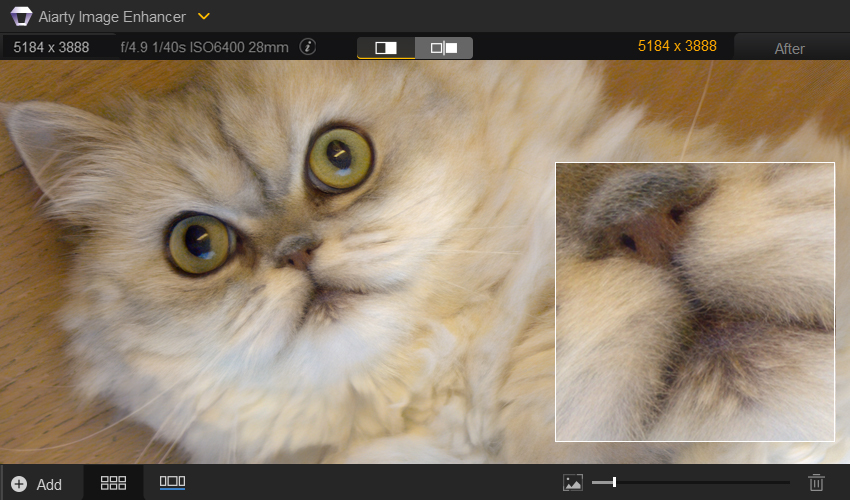
Settings in Aiarty: More-Detail model, scale x1, 2-Pass processing. Strength 0.95. Rotate, flip, and adjust lighting.
Test 3. Denoise Non-RAW without Smearing Details
For non-raw file such as JPGs or PNGs, will the noise reduction also work? We tested this night street photography, which has severe noise. Sliding the comparison below, we can see that Aiarty's deep-learning model removes unwanted image noise, while keeping architectural details, fine edges, and a proper sharpness. With the strength slider, you can fine-tune how strongly the AI enhancement is applied.
Source: Street in Warsaw at night. Canon 200D, ISO3200, 1/60s, f/5.0.
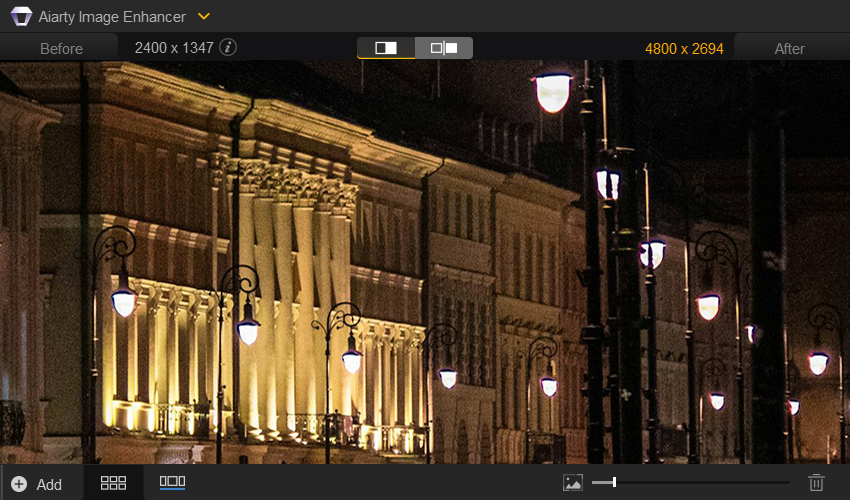
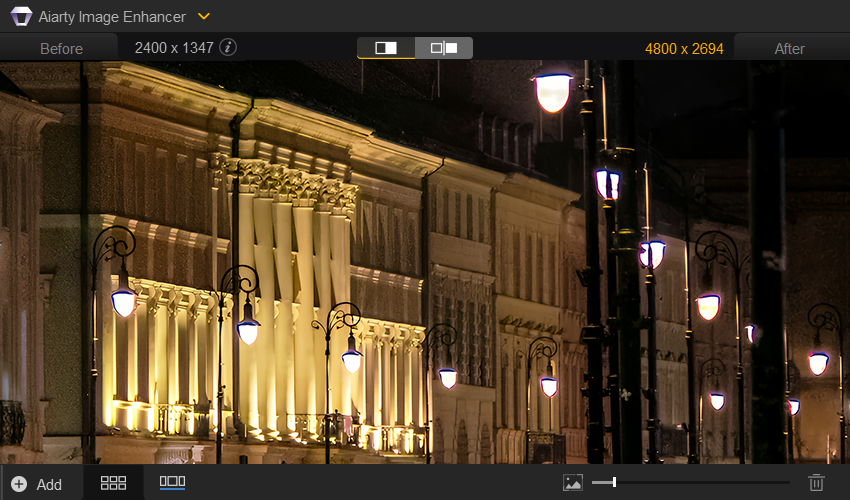
Settings in Aiarty: More-Detail model, upscale x2, 2-Pass processing. Strength 1.0. Adjust exposure, contrast, highlights and shadows.
Test 4. Upscale Image and Remove Artifacts
The source image below has compression artifacts, particularly mosquito noise along the power lines and building edges. After processing in the image enhancer, those artifacts are removed and cleaner edges are restored. 2X upscaling makes the final output 3840x2560, which is ideal for 4K wallpaper.
Source: Night scene of a Tokyo railway by Sony Alpha 7C, ISO 1600, 1/160s, f2.8. Web-compressed JPG at 1920x1280.
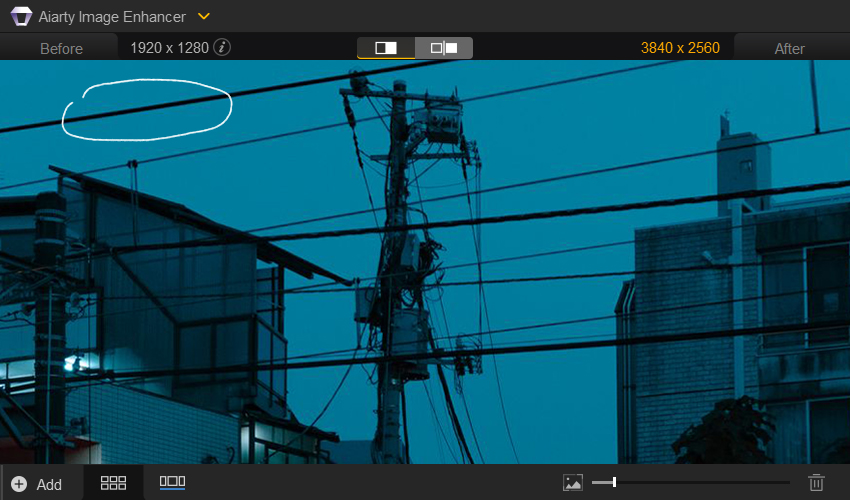
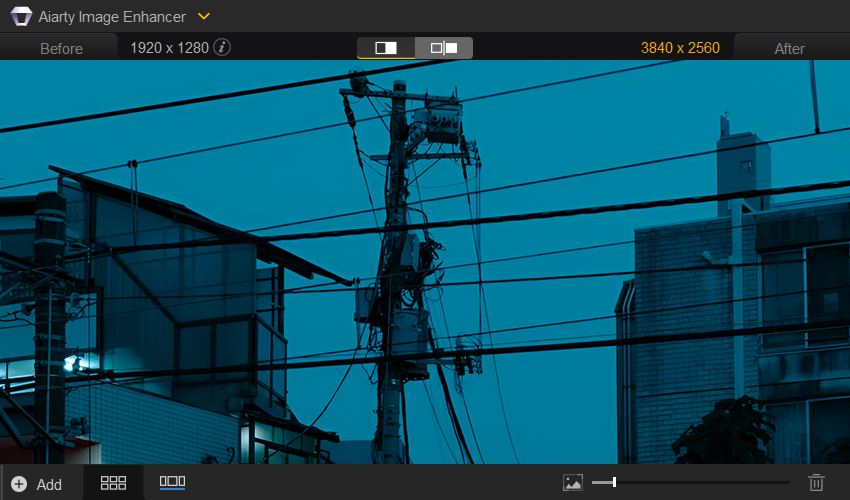
Settings in Aiarty: AIGSsmooth model, upscale x2, strength 0.88. No 2-Pass processing.
Test 5. Restore Old Photos and Group Portrait
For low-quality, blurry, or grainy portraits, we tested the AI image enhancer to restore multiple faces without waxy looks. As shown in the before-and-after comparison, Aiarty helps bring back natural clarity and maintain the faithful characteristic of the photo.
Source: Party photo, Nikon D3200 ISO 100, 1/100s, f4.8. Social media compressed as a 1366x908 JPG.
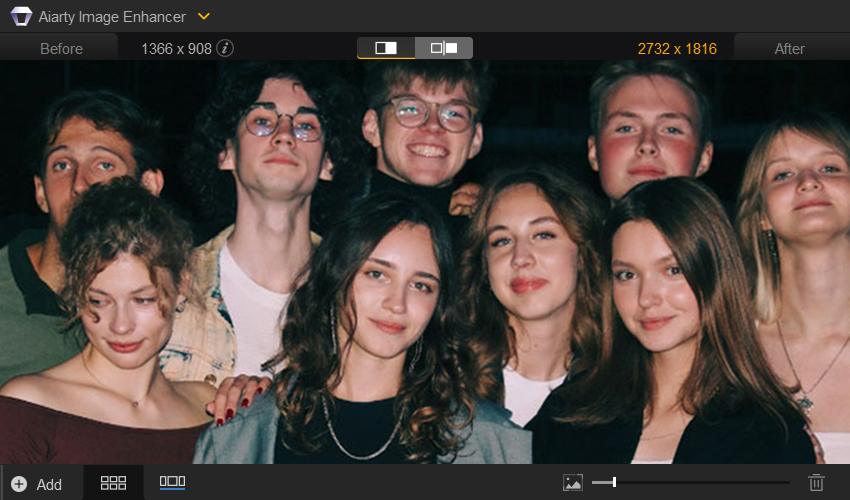
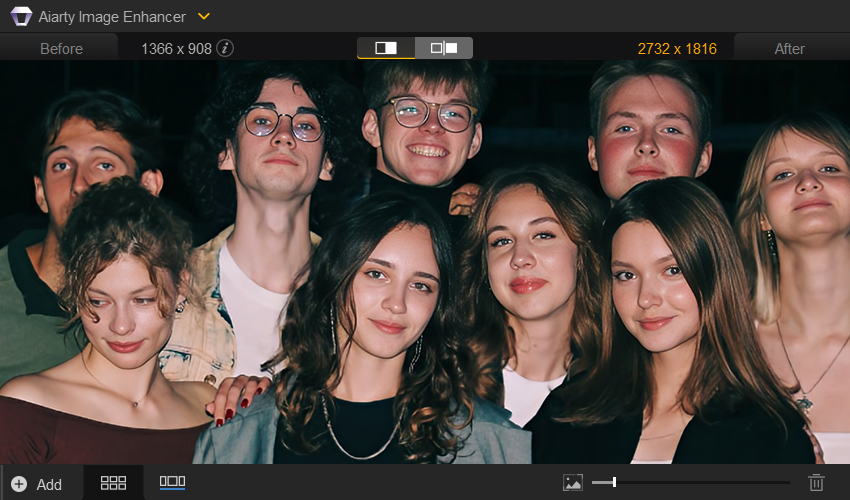
Settings in Aiarty: RealPhoto x2, 0.79 strength. Face Restoration-Fidelity model. Option to deselect some faces.
Test 6. Enhance Low-Resolution Portrait
For this kid riding tricycle photo, he face appears blurry and soft when zooming in for a large display. The base model enhances the overall quality, and the Face Restoration model is enabled to restore low-quality face.
Source: Nikon D3300, ISO 1100, f5.0, the boy was far from the camera, making the close-up look blurry.
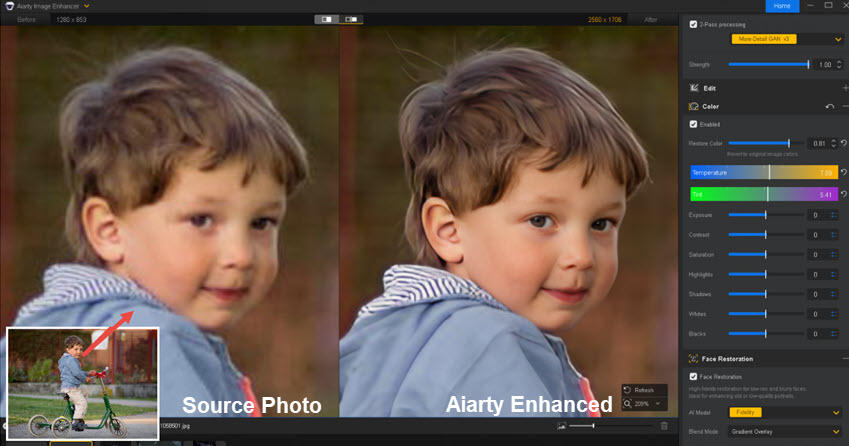
Settings in Aiarty: More-Detail model, upscaling x2, strength around 0.75-0.85. Face Restoration on.
Highlighted Features:
- Batch upscale images to 2K/4K/8K/16K, enhance quality, and control enhancement strength.
- Enhance RAW and Non-RAW. Restore natural details for skins, hair, fabrics, feather, plants, etc.
- Fix blurriness, restore compression artifacts, and enhance heavily cropped images.
- Face Restoration model to fix blurry, degraded, low-quality portrait, and restore old photos.
- Best for photos, old scans, AI art, web downloads, designs, and telephoto close-ups. Offline processing ensures data security and privacy.
You can follow the best practices and see more hands-on testing of Aiarty using different AI models.
Free download Aiarty Image Enhancer for Windows or Mac:
2. Topaz Photo
- Platform: Windows 10/11, macOS Big Sur and later, Online.
- Pricing: $199/year Personal plan, $599/year Pro plan for commercial use, $399/year Topaz Studio with limited commercial use.
- Max Resolution: 1x, 2x, 4x or Max.
- Best for: Photographers with powerful computers to restore and enlarge images without losing quality.
Topaz Photo is a no-brainer choice among photographers before it switched to a subscription-only mode. It offers various AI models for different image quality needs. The autopilot feature will analyze image quality and apply corresponding fix, though you may prefer to manually adjust parameters to sharpen, remove noise, recover faces, and enhance resolution.
For noise reduction, Topaz Photo handles RAW and non-RAW separately with different AI models, each with normal, strong, or extreme noise reduction. You can use the AI mask to separate subject and background, thus applying selective enhancement.
For features such as Super Focus, Denoise MAX, Recover 3, Wonder 4 (cloud rendering), a powerful GPU and large VRAM is preferred. Some of these models will also reconstruct and generate artificial details, which are suitable for AI art, and are not designed for real world photos, such as for wildlife.
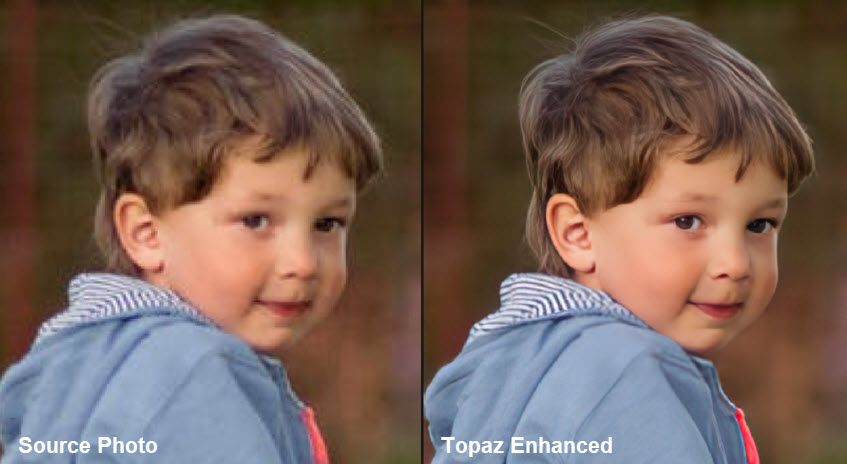
Testing Topaz: For the same kid portrait as the benchmark, Topaz works to bring back clarity to the blocky area, with a saturated look and hair details. You can adjust parameters to fix compression and remove blur.
Pros
- Upscale low-res images up to 600%, with outputs in DNG, JPEG, PNG, or TIFF.
- Autopilot feature to analyze defects in the image.
- Apply cloud rendering to generate AI details. Option to add grains.
Cons
- Demanding hardware requirements, especially for artificial detail generation.
- Change in saturation or occasional color cast may require additional color editing.
- The on-going subscription becomes pricier for years than other one-time purchase apps.
3. Adobe Photoshop
- Platform: Windows/Mac.
- Pricing: Annual commitment of $275.88/year, billed $22.99/month; Creative Cloud Pro: $419.88/year, billed $34.99/month.
- Max Resolution: 4X.
- Best for: Professional designers and photographers.
As a professional photo editor with Firefly integration, Camera RAW filter, Super Resolution and noise reduction, you can use Photoshop as an image enhancer. For designers, photographers, and advanced hobbyists, the workflow is seamless with round-trip editing and abundant AI-plugins for Photoshop.
For certain photos when you prioritize fidelity over artificial details, there are traditional ways to enhancing images in Photoshop using mathematical algorithms like Bicubic or Preserve Details. For illustrations and banners, the generative upscaling can restore texture and detail onto low-resolution images.
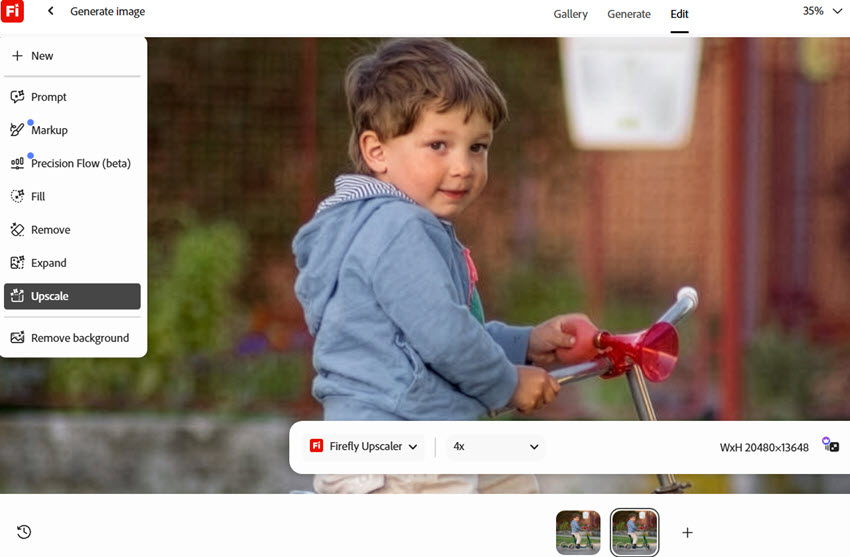
Photoshop also supports using partner models, such as Gemini, Flux, Topaz Gigapixel and Bloom to reconstruct details, enlarge images, and using AI denoise and sharpen filters for retouching.
For a pictorial guide to enabling generative upscaling or apply manul noise reduction, read about how to upscale image in Photoshop.
Pros
- Fix blemishes, remove red eyes, and retouch portrait for faithful enhancement.
- Integration with Topaz and Firefly for upscaling and generative fill.
- Denoise RAW with Camera RAW filter and denoise non-RAW with traditional algorithms.
Cons
- Not beginner-friendly, as intricate retouching and editing require a skilled hand.
- Subscription plan and AI credits can be a deal breaker for small studios and personal users.
4. Magnific AI
- Platform: Online.
- Pricing: Premium at $174/year or billed monthly at $20, Premium Plus at $405/year or billed monthly at $45.
- Max Resolution: 16K creative upscaling, 2X upscaling with photo models.
- Best for: Cloud-based, generative upscaling, photo editing, and image generation with MCP workflows. Also works for video content.
Magnific AI is widely known as one of the best creative image upscalers online, with generative models to hallucinate details for your images and upscale up to 10K. It also adds models to enhance real world photos, with a maximum of 2X upscaling.

If you prioritizes detail recreation over fidelity, such as generating textures while upscaling banners, posters, and Midjourney images, use the Magnific sublime model. When faithful restoration is required, such as for this boy photo, use the Portraits preset and switch to the photo model. To avoid halo around edges or a harsh look, dial the sharpness slider around 7%-12%.
Note: Founded by Javi López and Emilio Nicolás, Magnific AI was launched for creative upscaling and style transfer, mostly for AI art. Freepik acquired Magnific in 2024, and in April 2026, the company rebranded the entire platform under the name Magnific.
Pros
- Add details and textures for concept art and illustrations.
- 16K creative upscaling that holds up at large format printing.
Cons
- Not specifically built for RAW, DNG, and camera files.
- In the Freepik (Magnific) subscription, you may end up paying for a broad suite of tools that you don't fully use if your main need is photo enhancement.
5. Upscayl
- Platform: Windows, macOS, Linux, and cloud-based.
- Pricing: Free, open-source desktop app; or starting from $24.99 for 300 credits online.
- Max Resolution: 256MP or 512MP depending on your plans.
- Best for: Upscaling anime or photos without additional quality fix.
For non-commercial, low-resolution images, Upscayl is a decent choice as the best free image enhancement software. Its built-in models are free to use for personal images, with 2X and 4X scaling. For users familiar with Github or openDB model downloads, you can also import custom models for Upscayl.

During my tests, the boy portrait photo is run through both the native Upscayl model and the custom ones. As shown in the comparison below, the 2X enhanced image is noticeably sharper using the built-in High Fidelity model, though his skin and hair somehow look smoothed. The custom RealESRGAN_v3 model helps fix the blocky artifacts in the source photo.

Pros
- Free open source image enhancer for quick upscaling; no sign-up required.
- Handy for unifying the resolution of multiple images in batches.
Cons
- No dedicated models or manual adjustments for face restoration.
- Some models are not eligible for commercial use.
6. Let's Enhance
- Platform: Online.
- Pricing: $108-408/year, input 50MB image.
- Max Resolution: 16K/32K.
- Best for: Anyone who wishes to enhance and upscale AI art, photos, web images, digital creations and upscale for printing.
Let's Enhance is a popular online AI image enhancer, especially favored by beginners thanks to its simple, user-friendly interface. It's perfect for those who need to quickly enhance and upscale a few images without installing desktop software.
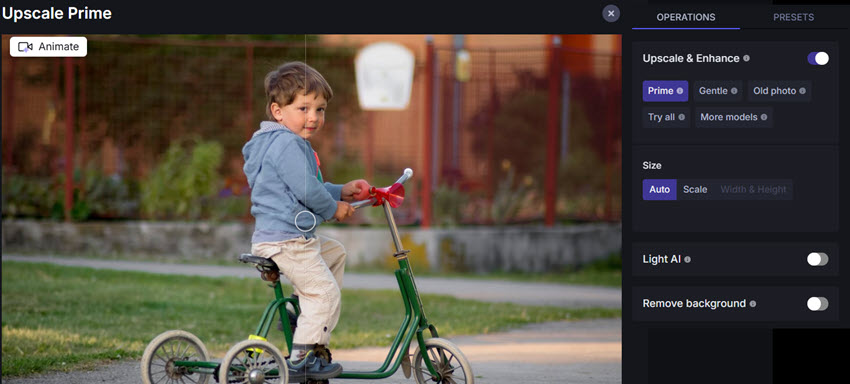
The tool comes with built-in models tailored for different types of images and scenarios, such as photos, digital art, smart enhancement, and smart resizing. You can use Prime model for realistic photos, Ultra for more aggressive reconstruction, and Digital Art for line works and AI-generated images. This online enhancer also includes features to restore old photos, enhance lighting and color, or remove backgrounds.
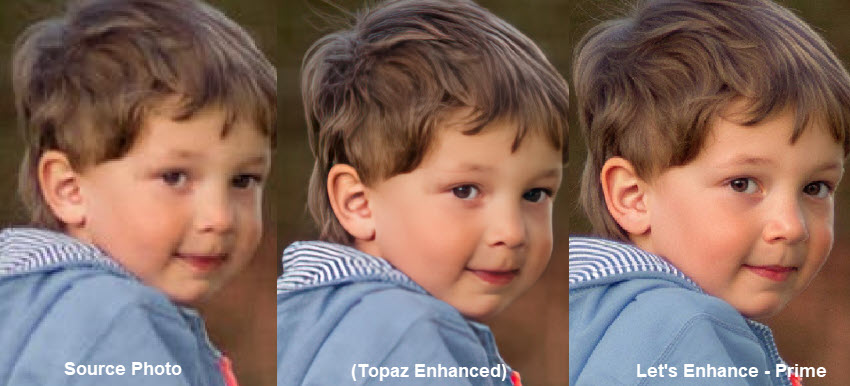
Testing: For realistic photo quality enhancement, we picked the Prime model. You can check the comparison above versus Topaz standard model. The Prime model prioritizes reconstruction, at least for this specific image. You can also switch among Gentle, Balanced, Magic and other models, as it comes down to personal preferences for fidelity or creative upscaling.
Pros
- Multiple models for digital art, photos, and AIGC assets.
- Light AI, tone AI, upscaler and background remover for further editing.
Cons
- For smaller faces that occupy only a tiny portion of the image, this online enhancer often fails to enhance them with sufficient detail.
- The enhanced images sometimes turn out less saturated than the original images.
- The free plan puts a watermark on enhanced images.
7. Luminar Neo
- Platform: Windows/Mac.
- Pricing: $159 One-Time Purchase for the Max plan (with 1-Year Generative AI Access in Luminar Prime), when Luminar Prime expires, users can subscribe to Prime for $69 per year.
- Best for: Hobbyist photographers and content creators to enhance photos.
- Max Resolution: 6X.
Luminar Neo is a comprehensive photo editing software developed by Skylum, designed for photographers of all levels. It leverages artificial intelligence to simplify complex editing tasks and enhance images with ease.
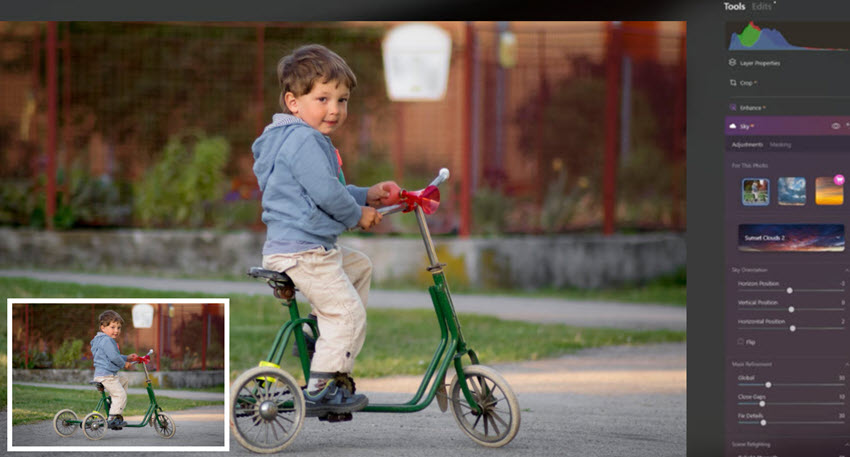
The Sky AI feature, for instance, allows users to replace the sky in their images with a variety of options, creating a more compelling and dramatic backdrop; the Magic Light AI tool introduces customizable starbursts around point light sources; and the AI masking feature can analyze and auto creates layers for fine tuning and editing.
There are GenErase to remove objects with deep learning, GenExpand to extend the image and change aspect ratio, Upscale AI for 6x upsizing, and Supersharp AI for picture sharpening. Luminar Neo is more like Jack of all trades, but the lack of focus may result in certain feature being less powerful.
While Luminar Neo is versatile, its broad focus can sometimes mean that certain features aren't as robust. For instance, when compared with Topaz, its noise reduction tool occasionally leaves colored blotches on images, especially those with high ISO settings.
Pros
- AI tools for noise reduction, upscaling, and background removal.
- AI-driven layer masking that automatically detects subjects and creates masks.
- AI powered editing scenarios: sky replacement, AI bokeh, AI lighting, etc.
Cons
- Some AI functions, such as the AI Crop Composition tool and Horizon Alignment, make questionable choices and need refinement.
- The Face Enhancer can produce unnatural results and struggle with smaller faces in the background.
- The realtime previews do not always accurately reflect Luminar Neo's own renderings.
- The perpetual license is pricey compared to more fully-fledged editing apps.
8. Remini AI Image Enhancer
- Platform: Online/iOS/Android.
- Pricing: $179.99/year personal license, no bulk uploads, no commercial usage, enhance up to 20 photos/week.
- Max Resolution: 2X, 4X, depending on your mobile chips.
- Best for: Beginners looking for on-the-go editing and image enhancement.
Remini is a top AI image enhancer, recently ranking high on the App Store. It offers four main improvements: face enhancement, face glow, auto color, and background enhancement, along with old photo restoration.
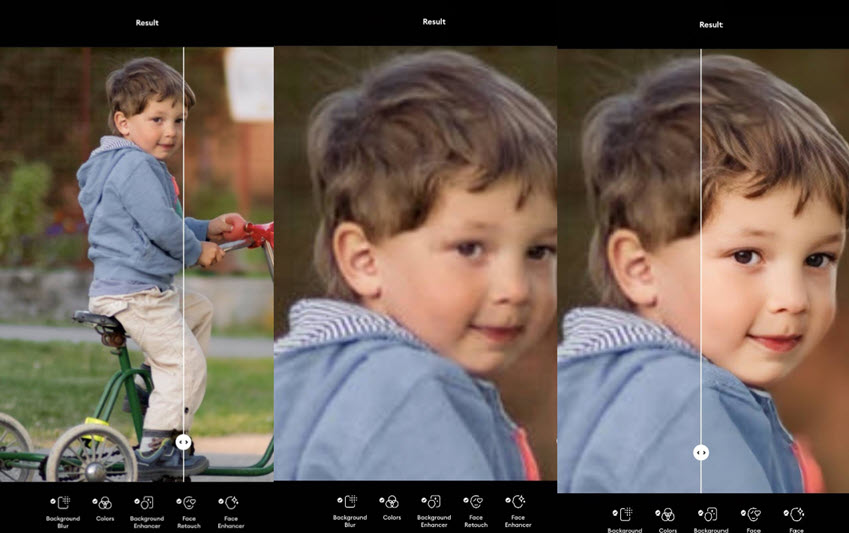
Remini's approach of photo enhancement also includes retouching, which may change skin tones, alter facial details, and brighten the overall look, as shown in the benchmark testing above.
While it can reconstruct vague shapes in portraits, the results can be hit-or-miss. The latest update allows users to adjust enhancement strength, fixing previous issues of overly strong effects like unnatural facial features.
Pros
- Fix grainy and blurry photos.
- Upscale images and videos.
Cons
- $9.99 weekly subscription is pricey for its features.
- Skin lightening may not suit all users due to ethnicity or personal preferences.
- New models may auto-apply unwanted enhancements.
9. Waifu2X Open-Source
- Platform: Online.
- Pricing: Free, open source.
- Max Resolution: 2X, 4X.
- Best for: Fix low-quality anime by upscaling with AI algorithms.
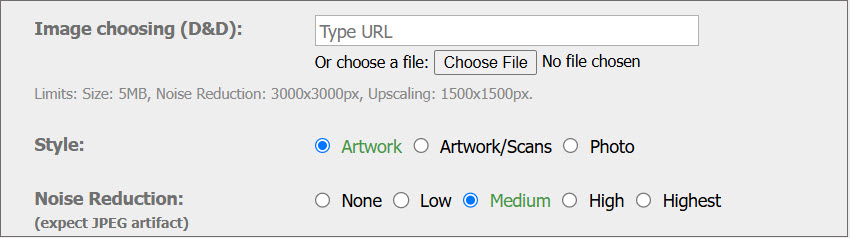
Waifu2X is a free online image enhancer specializing in 2X or 4X upscaling. It uses a CNN-based model to upscale images without adding extra details. Originally designed for anime upscaling, it also works for photos and digital images, as shown in the testing below.
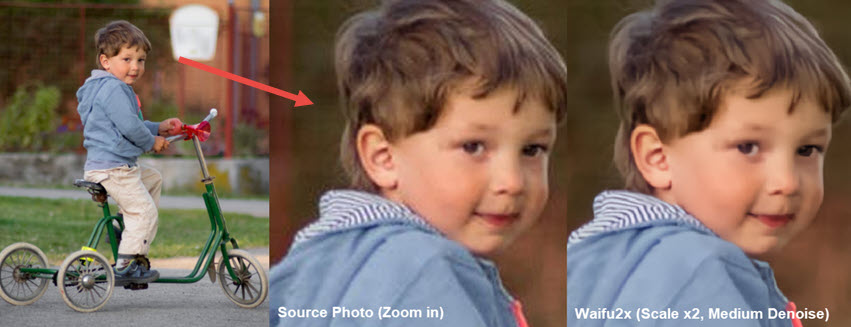
For this boy portrait, I tested with "medium denoise" in Waifu2X, scale x2. For higher resolutions, it also supports x4 with Tile, TTA and other custom settings. For the denoise option, you need to use it cautiously, as it may have counter effects on noise-free images.
As an online service, it is less stable than standalone software for large file sizes. Also, if you need to batch enhance hundreds of images, Waifu2X is not an ideal option.
Pros
- AI upscaling tech inspired by SRCNN (Image Super-Resolution Using Deep Convolutional Networks).
- Noise reduction to fix compression artifacts.
Cons
- It doesn't have more features to enhance the image except AI upscaling, but there is nothing to complain about since it is free.
- It is less capable of upscaling with details and texture being preserved.
10. Canva
- Platform: Online.
- Pricing: Free without premium AI features; Pro starting from $144/year for one person.
- Best for: Quick image enhancement directly within your designs, social media graphics and presentations.
Unlike the standalone photo enhancement software on this list, Canva works best when you're already accustomed to its template-based design workflow. For instance, when creating marketing materials or social media posts, you can easily enhance image quality, upscale images, and restore clarity to graphics directly within your project.

As shown in my tests below, the upscaling feature helps restore definition to facial features, the jacket, and the striped collar while avoiding an aggressively sharpened look. After upscaling, the Auto Adjust feature in Canva's Edit tool further applies color and tonal corrections.

Pros
- Automatic photo enhancement in your broad design workflows.
- Sync your edits across web and mobile app.
Cons
- Not built for low-light, grainy, or degraded old photos.
- No dedicated noise reduction models for camera RAW files.
11. chaiNNer Open-Source
- Platform: Windows, Mac, Linux.
- Pricing: Free open-source.
- Best for: Geeks familiar with node-based image processing workflow.
- Max Resolution: 16K/32K.
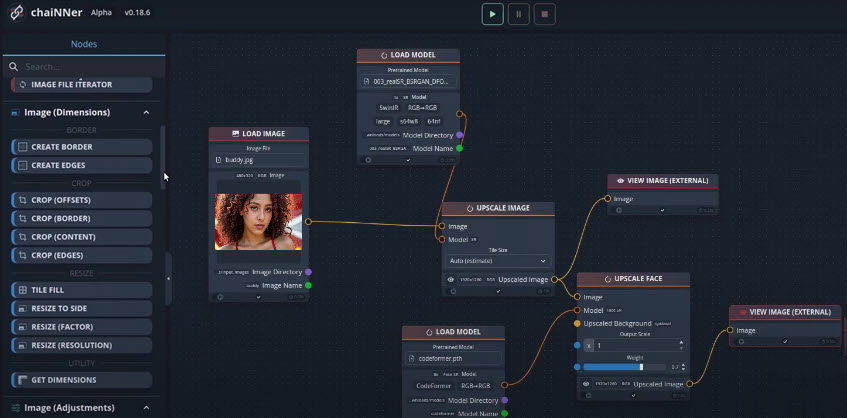
ChaiNNer is a GUI-based tool for image enhancement, upscaling, restoration, and processing. It requires technical setup, including installing dependencies like PyTorch (~2GB), NCNN, and ONNX, as well as photo enhancer models, before connecting nodes to build workflows.
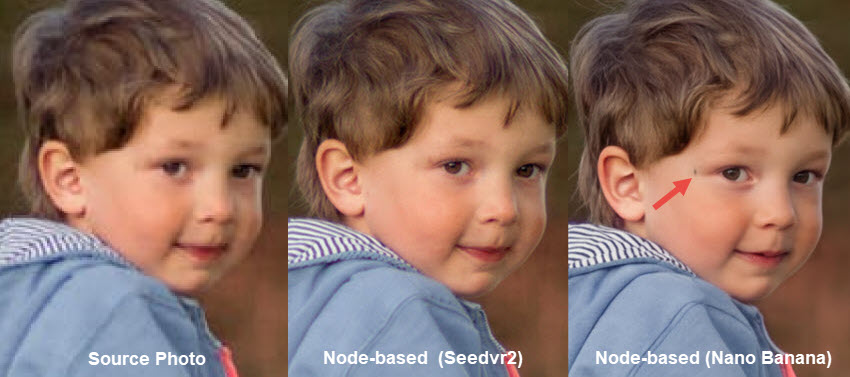
My Tests: As shown in the portrait photo, two models produce different results. While both reduce blockiness and enhance details, Seedvr2 reconstructs fabric textures, whereas Nano Banana interprets the tiny black spot as a mole on the face.
You can also find free open-source AI upscaling models on OpenModelDB and implement them into the ChaiNNer workflow. Such as:
- For image upscaling: SwinIR-L model at https://github.com/JingyunLiang/SwinIR
- For face restoration: CodeFormer model at https://github.com/sczhou/CodeFormer
Note: Since chaiNNer is only a GUI, not the models themselves, we won't list the pros and cons here. The output image quality depends on which model you installed and how you apply it in the workflow.
12. VanceAI
- Platform: Cloud AI processing: Windows/Mac/Web; Local processing: Window-only.
- Pricing: Starter Plan $180/year online; $99/year for the desktop app.
- Best for: Pay-as-you-go causal tasks to restore and colorize images.
VanceAI is a popular image enhancer with AI tools. It is designed for automatic image restoration, colorizing, and photo cleanup. For old photos with creases, scratched and spots, the AI algorithms will help fix those area. Optionally, you can colorize black and white photos, set a larger resolution, and sharpen the image.
It outputs decent quality, though the credit-based pricing can make trial and error costly. For example, higher upscaling levels consume additional credits, while using tools such as sharpening, denoising, or photo restoration also requires separate credits.

Pros
- Fix compressed image and generate textures for plants.
- Bonus background remover, colorizer, and photo-to-cartoon features.
Cons
- No free trials to preview the before and after effects.
- Credit costs can add up quickly using multiple enhancement tools.
Comparisons of the Best AI Image Enhancers
For detail restoration, we examine how the image enhancer handles faithful detail preservation and recovery. For creative upscaling that generates new textures or details, it can be either beneficial or undesirable depending on the image type, user needs, and intended use.
How We Picked the Best AI Image Enhancers
We identified some of the most frequently mentioned photo enhancers and image tools, tested them against a batch of images: a grainy low-light photo with high ISO noise and color speckles, an old family photo with a blurry face, a web-compressed photo, a Midjourney AI image needing 4K upscaling, and camera RAW files if the tool accepts formats such as .CR3, .ARW, .NEF, .ORF, etc.
During testing, we evaluated each tool across the following aspects:
- Output Image Quality: Perceptual quality, maximum upscaling resolution, how it handles detail restoration, and whether the image looks natural without over-sharpening or a waxy, cartoonish look.
- Auto enhancement vs. manual controls: Will the tool automatically process the image, or it also offers model selection, sliders, parameters, or other controls for fine-tuning the result.
- Efficiency: Batch processing capabilities, processing speed, and performance on average computers.
- Sustainability and support: Is it from a trusted developer, receives regular updates and incorporates new technologies, and offers technical support or an active user community? Does it clearly specify the terms for commercial and personal usage?
Based on these criteria, we selected the best AI image enhancement software and online tools that outshine others in all or most of the above aspects.
Tips: How to Choose the Most Suitable Tool for Yourself
If you prefer to avoid the subscription-mode while reaching image quality on par with Topaz, Aiarty Image Enhancer is the overall best-value choice. It offers professional AI models, flexible manual adjustments, and fits into your existing editing workflow.
For free and open source options, Upscayl and Waifu2X works nicely on anime upscaling and photos with custom models. For online processing without installation, use Let's Enhance or Canva if you are inside an editing workflow.
If you are already inside the Adobe eco system, and as Topaz is being acquired by Adobe, you can explore workflows of Topaz in Photoshop.
You May Also Like


This post was written by Brenda Peng who is a seasoned editor at Digiarty Software who loves turning ordinary photos into extraordinary works of art. With AI assistance for brainstorming and drafting, the post is reviewed for accuracy by our expert Abby Poole for her expertise in this field.
