


Photopea is a free, browser-based image editor that supports PSD files, layers, masks, and advanced image manipulation. However, its Photoshop-style interface may feel complex for beginners, and some users may find that it takes more time or effort than expected to complete everyday editing tasks.
If you're looking for the best Photopea alternatives, this guide compares popular options based on their features, ease of use, and pricing. Whether you're searching for tools or websites like Photopea that better fits your needs, you'll find options for different editing workflows and skill levels.
Quick Comparison: 9 Best Photopea Alternatives at a Glance
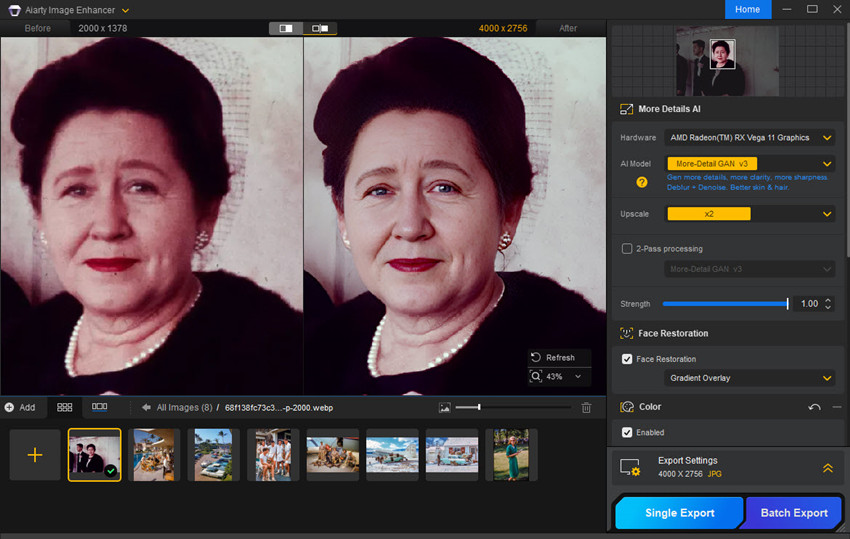
If you mainly use Photopea to sharpen soft photos, reduce noise, or upscale low-resolution images, Aiarty Image Enhancer offers a more focused workflow. It uses AI to reduce noise, improve clarity, and recover image details, with support for batch processing and local editing on Windows and Mac.
It isn't a full Photopea replacement for layers, text, or compositing, but it can be a useful addition to your photo-editing workflow.
9 Best Photopea Alternative Websites & Editors for Different Editing Needs
The best Photopea alternative depends on how you edit images. Some tools offer browser-based editing and layer controls, while others focus on digital painting, graphic design, professional retouching, or AI-powered background removal.
Below, we compare nine Photopea alternatives based on their key features, ease of use, platform availability, and pricing, so you can find the right tool for your workflow.
1. Pixlr — Best Online Sites like Photopea
- Pricing: Free access is available, with $9.99/month for Premium version
- Best for: Users who want an online editor with editing tools and additional AI features familiar to Photopea.
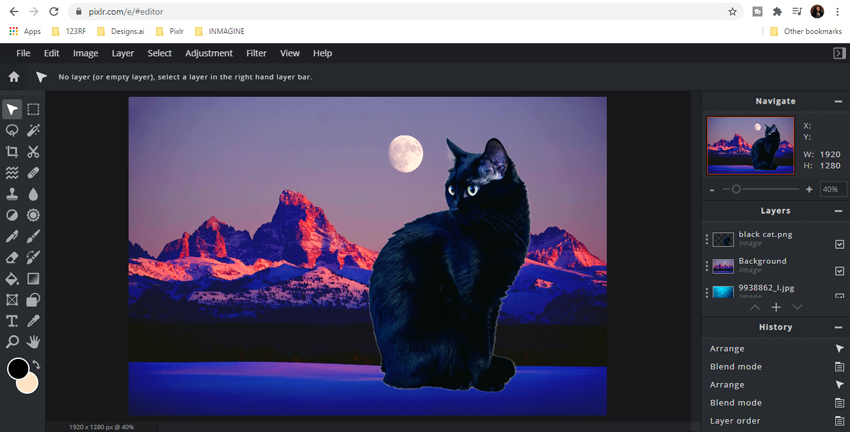
Pixlr is one of the first tools to consider if you're looking for free sites like Photopea that let you edit images online without installing desktop software. It offers two main editing experiences: Pixlr Editor for more detailed image editing and Pixlr Designer for creating graphics and visual content. Its interface may feel more approachable if you want to combine everyday editing with AI-assisted tasks.
Pixlr supports layers, selections, image adjustments, filters, and various AI-powered features, including background removal and generative editing tools. This makes it useful for tasks such as retouching photos, preparing images for social media, removing unwanted elements, and creating simple compositions. However, its AI features and usage allowances can depend on your plan.
Key features:
- Free website like Photopea with browser-based image editing
- Layers, selections, adjustments, and filters for everyday editing
- AI-powered tools for tasks such as background removal and object removal
- Design tools for creating graphics and visual content
- Browser-based Photopea alternative site with no installation required
- Combines photo editing with AI-powered tools
- Offers both photo editing and graphic design features
- Some AI features require a paid plan
- Editing workflow differs from Photopea
- Complex PSD files may not transfer perfectly
Pixlr vs. Photopea: Both offer browser-based image editing, but Pixlr combines traditional editing tools with AI-assisted features for everyday tasks and visual content creation. Photopea is more directly focused on Photoshop-style editing and layered PSD workflows. Choose Pixlr if its editing tools and AI features better fit your needs; stick with Photopea if PSD compatibility and familiar layer-based controls are your priorities.
2. GIMP - Best Free Desktop Alternative to Photopea
- Pricing: Free and open source.
- Best for: Users who need a capable desktop image editor alternative to Photopea free at no cost.
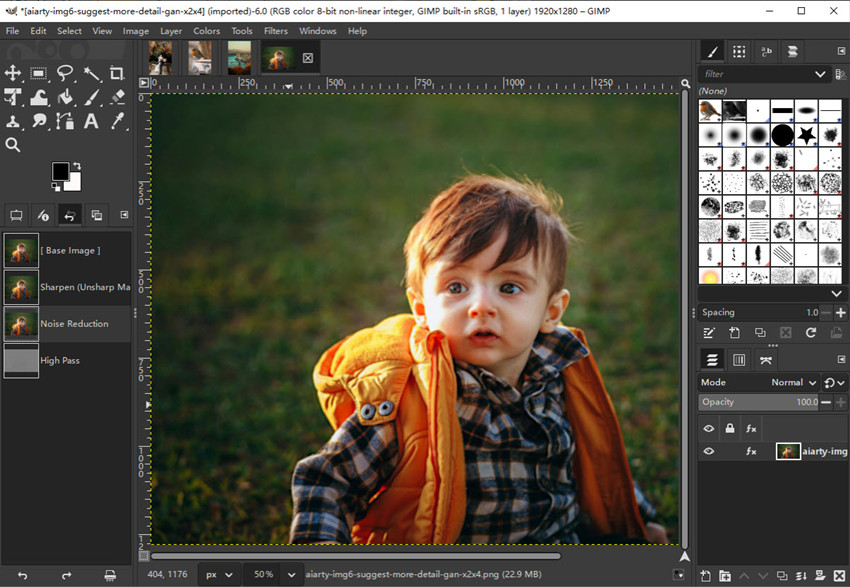
GIMP is an open-source free Photopea alternative for Windows, macOS, and Linux. It covers a wide range of image-editing tasks, from photo retouching and color correction to masking, layer-based compositing, and detailed selections. You can also extend its capabilities with plugins and customize the interface around the tools you use most.
GIMP runs as a free desktop alternative to Photopea, so you can edit images directly on your computer without opening a browser. It is a good option for users who regularly work on photo edits or complex image compositions and want to avoid subscription fees. However, GIMP has its own interface and workflow, which can take time to learn if you're accustomed to Photoshop-style controls.
Key Features:
- Layer-based image editing and compositing
- Selection, masking, retouching, and color adjustment tools
- Customizable interface and plugin support
- Cross-platform support and open-source development
- Completely free alternative to Photopea with no subscription
- Suitable for detailed editing and complex compositions
- Supports plugins and workflow customization
- Not a browser-based website like Photopea
- Has a learning curve for beginners
- PSD compatibility may vary for complex layers and effects
GIMP vs. Photopea: Choose GIMP if you prefer desktop software and want advanced editing tools without recurring costs. Photopea is more convenient for browser-based editing and workflows centered on PSD files. If you regularly exchange layered PSD projects, test file compatibility in GIMP before switching.
3. Affinity - Best Free Photopea Alternative for Professional Design
- Pricing: The core Affinity application is available free. Some Canva AI features may require a paid plan.
- Best for: A free Photopea alternative with advanced photo editing, vector design, and page layout tools in one desktop application.
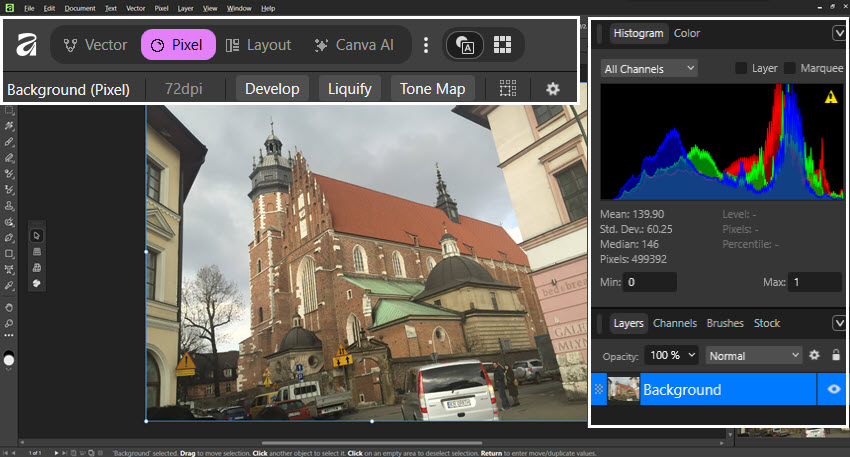
Affinity is a free desktop alternative to Photopea that brings photo editing, vector design, and page layout together. Compared with Photopea, it offers a more integrated workspace for projects that combine detailed image retouching with logos, illustrations, typography, and print layouts.
For photographers, Affinity offers tools for image adjustments, retouching, selections, masks, and compositing. Designers can also use its vector and layout tools to create logos, marketing graphics, and print materials within the same application. However, if your needs are strictly limited to quick browser-based photo touches, its deep professional suite may be more powerful than necessary.
Key Features:
- Pixel-based photo editing, retouching, and compositing
- Vector illustration and graphic design tools
- Page layout for multi-element design projects
- Non-destructive editing and detailed export controls
- Core professional application is 100% free to use
- Combines photo editing, vector graphics, and layout into one workspace
- Exceptional performance handling heavy, complex files compared to browser apps
- Not a browser-based website like Photopea
- Has a different interface and workflow from Photopea
- Some integrated AI features require a paid Canva plan
Affinity vs. Photopea: Choose Affinity if you want a heavy-duty, completely free desktop workspace combining photo editing, vector design, and layout. Photopea remains more convenient for instant browser-based editing, particularly when jumping straight into PSD files without installing software.
4. Krita - Best Free Photopea Alternative for Digital Painting
- Pricing: Free and open source.
- Best for: Users looking for a free Photopea alternative for digital painting, illustration, and concept art.
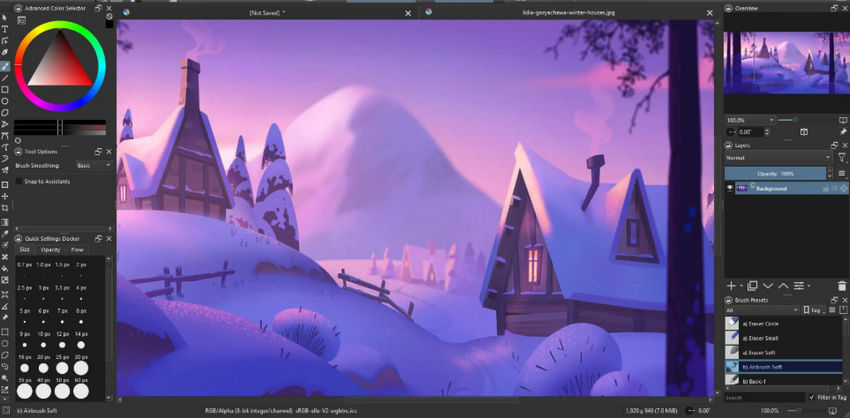
Krita is a free, open-source painting application built for illustrators and digital artists. Its customizable brush engines, drawing assistants, and tablet support make it a strong choice for creating original artwork, from sketches and character illustrations to textures and concept art. It also supports layers and compositing, so you can build up complex artwork in stages.
Krita doesn't cover a broader range of image-editing tasks like Photopea. Instead, it focuses on the drawing and painting process. If you're exploring free Photopea alternatives for illustration or tablet-based art, Krita offers specialized tools for the creative process. For routine photo retouching or marketing graphics, however, a general-purpose image editor may be a better fit.
Key Features:
- Customizable brushes and advanced painting tools
- Layer-based artwork and compositing
- Graphics tablet support, including pressure-sensitive input
- Drawing assistants and tools for illustration and concept art
- Completely free alternative to Photopea website
- Extensive brush customization for different painting styles
- Designed specifically for digital artists and illustrators
- Photo-editing and design workflows are not its main focus
- Lacks the broad range of ready-made templates found in design-focused tools
Krita vs. Photopea: Krita is a strong free alternative to Photopea for digital painting, while Photopea offers a broader set of tools for general image editing and browser-based PSD workflows. If your work centers on photo retouching or combines photography with graphic design, GIMP or Affinity may be a better match.
5. PhotoCraft — Best Emerging Free Photopea Alternative
- Pricing: Free and open source.
- Best for: Users looking for a free, open-source Photopea alternative with layered editing and PSD support.
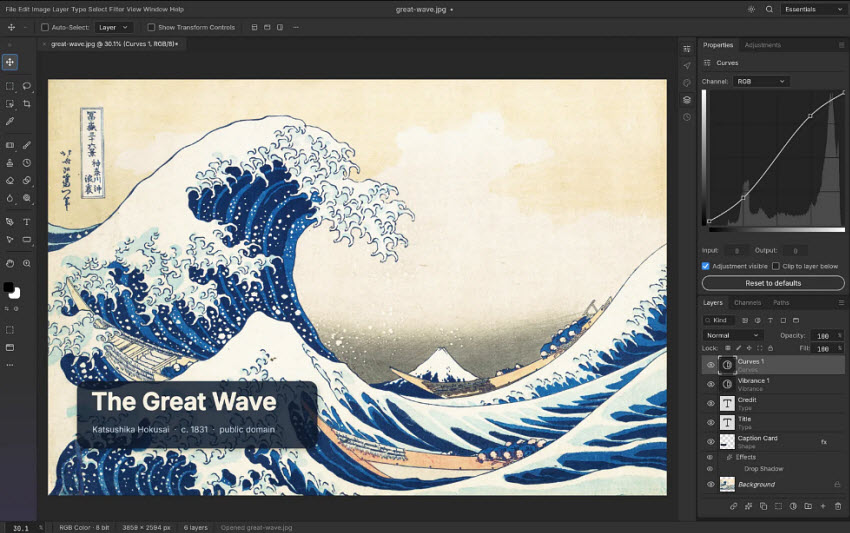
PhotoCraft is an open-source image editor designed around a familiar Photoshop-style workflow. It supports layers, masks, adjustment layers, layer styles, text, vector shapes, and layered PSD and PSB files, making it relevant to users who need more than basic photo adjustments.
Unlike Photopea, which runs in a browser, PhotoCraft offers a native desktop application for Windows, macOS, and Linux, along with a browser-based build. Its offline workflow and open-source licensing may appeal to users who want to edit images locally without a subscription.
Key Features:
- Layer-based editing, masks, and adjustment layers
- Support for layered PSD and PSB files
- Editable text, vector shapes, and layer styles
- Local image processing and open-source code
- Free and open source
- Supports complex layered editing and PSD workflows
- Offers desktop versions for multiple operating systems
- Still in early Alpha, so some features and workflows may be incomplete
- Does not yet match the full feature set of mature professional editors
PhotoCraft vs. Photopea: PhotoCraft is worth exploring if you want a free, open-source editor with desktop access and local processing. Photopea remains the more established browser-based option. Since PhotoCraft is still in early development, test it with your own PSD files and essential editing tasks before switching.
6. Canva - Best Photopea Alternatie Site for Social Media Graphics and Quick Designs
- Pricing: Free and paid plans start from US$144/year.
- Best for: easy-to-use website like Photopea for social media posts, marketing graphics, and everyday design projects.
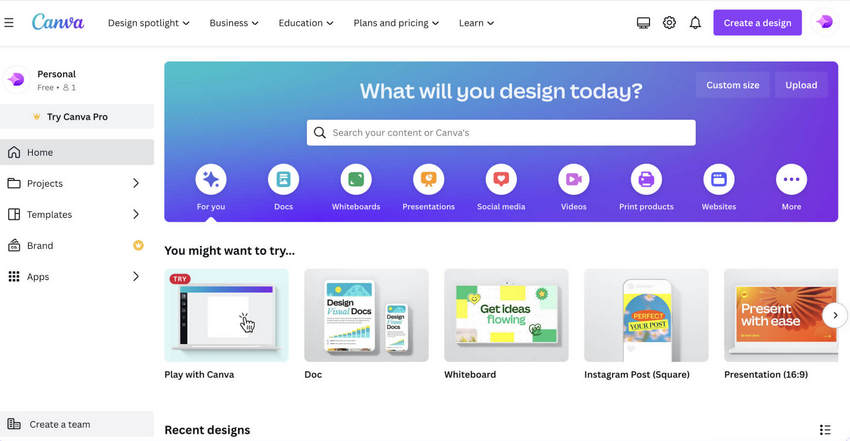
Canva takes a template-first approach to design, with ready-made layouts, typography, graphics, and stock assets. Instead of building every element from scratch, you can customize a template to create social media posts, presentations, advertisements, thumbnails, and other visual content in less time.
Canva stands out as a strong alternative site like Photopea for content creation with its drag-and-drop editor, brand tools, and team collaboration features. It is particularly useful when you need a consistent look across multiple designs rather than detailed control over individual pixels.
Key Features:
- Templates for social media, presentations, and marketing materials
- Drag-and-drop editing for text, images, shapes, and graphics
- Stock assets and design elements
- Brand management and team collaboration tools, depending on the plan
- Makes template-based design quick and accessible
- Helps maintain consistent branding across multiple assets
- Offers free access to a range of basic design tools
- Limited compared with dedicated editors for detailed photo retouching
- Less control over complex, layer-based image manipulation
- Some premium assets, features, and AI tools require a paid plan
Canva vs. Photopea: Canva is a practical Photopea alternative for graphic design when you need polished social posts, ads, or presentations without building layouts from scratch. Photopea is the stronger choice for detailed image manipulation, selections, masks, and complex layered projects.
7. Adobe Photoshop — Best Alternative to Photopea for Advanced Professional Editing
- Pricing: Subscription-based plans starting at US$19.99 per month.
- Best for: Professional Photopea alternative with advanced photo retouching, compositing, and image manipulation tools.
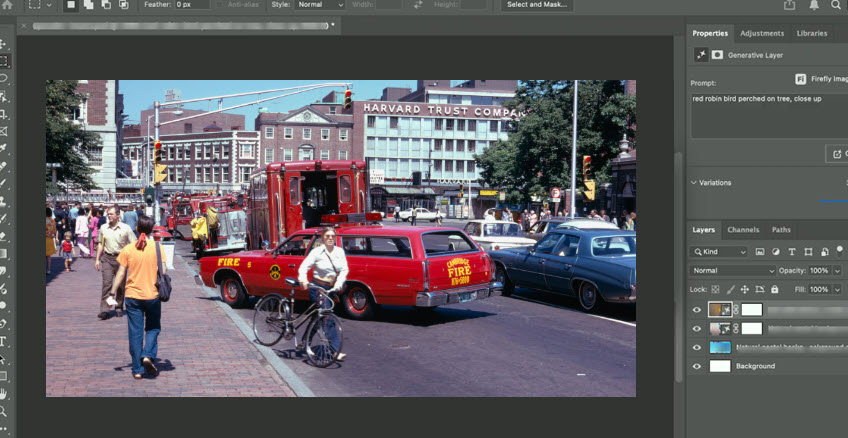
Adobe Photoshop is a powerful image editor for photographers, graphic designers, and creative teams working on demanding projects. Its advanced selections, masks, layer controls, retouching tools, and color adjustments support everything from detailed portrait editing to complex image composites. Photoshop also includes AI-assisted features for tasks such as removing distractions and modifying selected areas, with availability depending on the version and plan.
Among the many Photopea alternatives, Photoshop stands out for its depth of editing tools and established role in professional creative workflows. It can be particularly valuable when projects require precise control over image details or need to move between Photoshop and other Adobe applications.
Key Features:
- Advanced layers, masks, selections, and image compositing
- Detailed retouching and color adjustment tools
- AI-assisted features for selected editing tasks
- Integration with other Adobe creative applications
- Extensive tools for complex photo editing and compositing
- Fits established professional photography and design workflows
- Broad ecosystem of tutorials, plugins, and integrations
- Requires a paid subscription for ongoing use
- Offers more tools than many casual editing tasks require
- Access to some features depends on the plan and software version
Photoshop vs. Photopea: Photoshop is a strong Photopea alternative for professional image editing when you need its advanced tools or integration with Adobe's creative ecosystem. Photopea is appealing if you prefer browser-based editing without a recurring software subscription, especially for everyday edits and PSD-based projects.
8. Aiarty Image Matting - Best Photopea Alternative for Background Removal
- Pricing: $75.00 for liftime plan without subscription.
- Best for: Users looking for a Photopea alternative dedicated to AI background removal and clean subject cutouts.
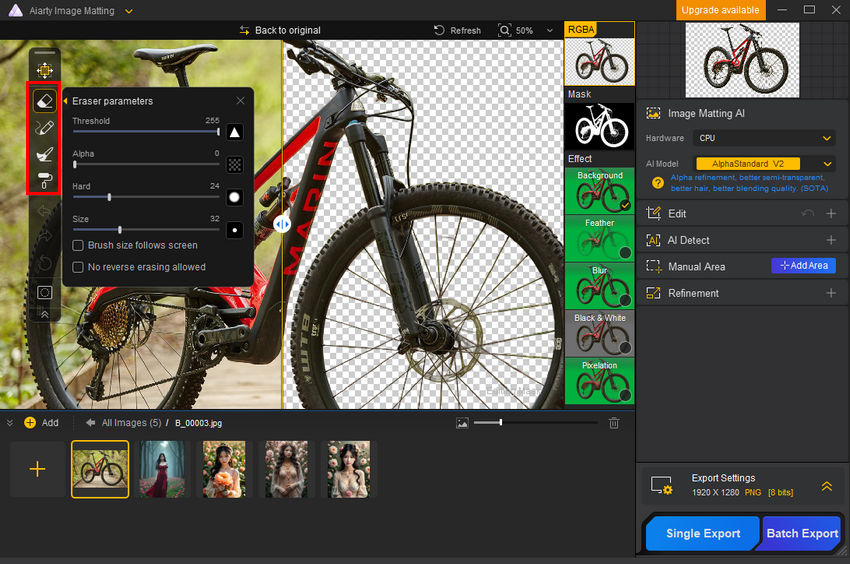
If you mainly open Photopea to remove image backgrounds, isolate subjects, or create transparent PNGs, Aiarty Image Matting offers a more focused workflow. Its AI matting technology separates foreground subjects from their backgrounds, reducing the need to manually refine selections and masks.
This Photopea alternative for background removal is useful for preparing product photos, portraits, pet images, and other cutouts for online stores, marketing materials, or design projects. Once the background is removed, you can export the result and continue editing it in Photopea or another graphics editor.
Key Features:
- AI-powered background removal and subject isolation
- Transparent PNG output for use in other design applications
- A dedicated workflow for preparing product images, portraits, and creative assets
- Focuses on background removal without the extra tools of a full image editor
- Helps prepare subject cutouts for use in other design applications
- Simplifies repetitive background-removal tasks
- Does not replace Photopea's broader editing tools, such as layers, text, color adjustments, and compositing
- Primarily useful when background removal or subject isolation is the main task
Aiarty Image Matting vs. Photopea: Choose Aiarty Image Matting if your main goal is to remove image backgrounds and create transparent cutouts. Photopea is the more versatile choice for editing those cutouts, adding text, adjusting colors, and combining multiple layers into a finished design.
9. Fotor - Best Photopea Alternative for Quick Photo Enhancements
- Pricing: Free basic tier available; paid Pro plans start from approximately $39.99 to $47.99/year (or around $8.99/month).
- Best for: Alternative website like Photopea for photo enhancement, portrait retouching, and quick image adjustments.
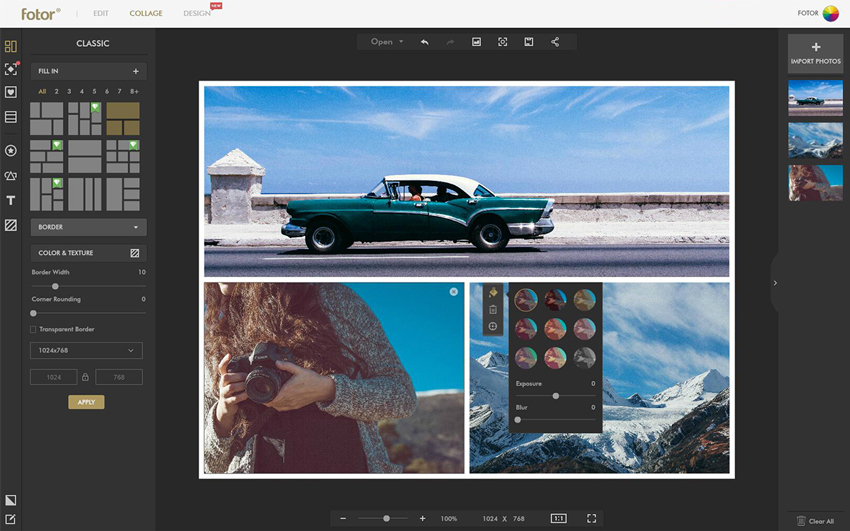
Fotor combines everyday photo-editing tools with AI-assisted features in a straightforward interface. You can adjust image appearance, apply effects, retouch portraits, and use selected AI tools to enhance photos or edit backgrounds without building a complex layer-based workflow.
For users comparing Photopea similar websites for routine photo improvements, Fotor offers a simpler route to common results. It can be useful for touching up portraits, improving images for online sharing, or making quick adjustments when detailed masking and compositing are unnecessary.
Key Features:
- Basic photo adjustments, filters, and effects
- Portrait retouching tools
- AI-assisted photo enhancement and background editing
- Tools for preparing images and visual content
- Straightforward interface for everyday photo editing
- Combines conventional adjustments with AI-assisted tools
- Helps streamline common portrait and photo-enhancement tasks
- Offers less flexibility for complex, layer-based image manipulation
- Feature availability varies by plan
- Some AI tools may have usage limits or require payment
Fotor vs. Photopea: Fotor is a practical Photopea alternative for quick photo editing when your main goals are enhancing images, retouching portraits, or applying effects. Photopea offers more control over layers, masks, selections, and complex image composites, making it a better fit for detailed editing projects.
Which Photopea Alternative Should You Choose?
The best alternative to Photopea depends on what you need to accomplish, not simply which editor has the longest feature list.
Final Thoughts
There is no single Photopea alternative that is best for everyone. Pixlr is a convenient online option, GIMP offers extensive desktop editing for free, Affinity provides a broader creative workspace, and Canva simplifies template-based design. Krita, Photoshop, and Fotor each serve more specific needs.
Start by identifying the tasks you perform most often in Photopea. If you regularly work with layered PSD files, prioritize compatibility. If you create illustrations, look for strong painting tools. If you mainly remove backgrounds or enhance photo quality, a specialized tool may save you time without requiring you to replace your entire editing workflow.
 FAQs
FAQs
Yes, in spirit and interface, but with key platform differences. Photopea is designed as a free, web-based clone of Photoshop. It mimics Photoshop’s tool placement, keyboard shortcuts, layer system, and native .PSD file compatibility. : Photopea runs entirely in your browser (with web ads unless paid) and lacks high-end, hardware-intensive features like Adobe’s Firefly AI tools, 3D rendering, complex script automation, or deep CMYK print support.
Neither is strictly "better"—it depends on your workflow and setup: You want zero setup, need to work instantly in a web browser, and prefer a Photoshop-identical UI and hassle-free .PSD file handling. You prefer traditional desktop software that runs 100% offline, handles massive image files without browser memory limits, and supports custom plugins without recurring ads.
Yes. Pixlr offers browser-based photo editing with layers, masks, adjustments, and AI-powered features. Other online tools may be suitable for simpler edits or specific tasks, but check their export limits, account requirements, and premium features before choosing one.
The best choice depends on how complex your PSD files are and how faithfully you need them to render. Adobe Photoshop is the natural option for workflows built around Photoshop documents. Other editors may support PSD import or export, but individual effects, smart objects, text layers, and other features may not transfer perfectly. Test representative files before switching.
Canva is a good choice for beginners who create graphics using templates and drag-and-drop layouts. Fotor is worth considering for quick photo enhancements, while Pixlr offers a balance of online accessibility and more traditional editing controls.
You May Also Like


This post was written by Brenda Peng who is a seasoned editor at Digiarty Software who loves turning ordinary photos into extraordinary works of art. With AI assistance for brainstorming and drafting, the post is reviewed for accuracy by our expert Abby Poole for her expertise in this field.
