


Why does your HDR video look great on your phone but washed out on your computer, TV, or social media platform?
This is one of the most common problems with iPhone HDR videos, drone footage, action camera recordings, and HDR movies. Because many devices and apps are designed around SDR, HDR content can appear overly bright, flat, or inaccurate when played back or exported incorrectly.
If you're looking for a way to convert HDR to SDR or simply want to convert HDR video to normal for easier editing, sharing, and playback, this guide covers the best methods. We'll show you how to convert HDR to SDR using Premiere Pro, CapCut, HandBrake, FFmpeg, and AI-powered tools while maintaining natural colors and detail.
Many HDR-to-SDR tools focus only on color space conversion. While the video becomes compatible with SDR displays, highlights may lose detail, shadows can look muddy, and noise or compression artifacts often become more noticeable.
For creators who want to convert HDR to SDR without sacrificing image quality, Aiarty Video Enhancer offers a more complete workflow.
In addition to HDR-to-SDR export, it can help improve footage with:
- AI Denoise & Deblur: reduce noise and improve soft or blurry footage after conversion.
- Upscale: upscale low-resolution video to 4K for a sharper and more detailed SDR output.
- Detail Recovery: preserve textures that may be lost during tone mapping.
- SDR-Compatible Output: create videos that display correctly on SDR screens and platforms.
Instead of simply making HDR footage compatible with SDR displays, the goal is to retain as much visual quality as possible throughout the conversion process.
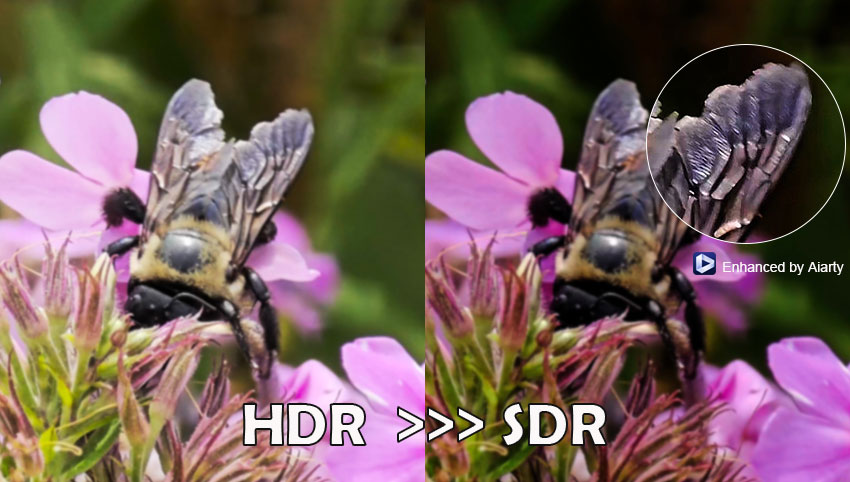
Why HDR Videos Look Washed Out on SDR Screens
HDR and SDR Use Different Brightness Ranges
HDR and SDR are based on different brightness and color standards. HDR is designed to preserve a much wider range of luminance and more detailed highlights. SDR, on the other hand, is limited to a narrower brightness range.
When HDR footage is played on an SDR screen, the display cannot reproduce the full dynamic range. As a result, highlights may look too bright, and the overall image can appear flatter or less detailed.
Missing Tone Mapping Causes Most Problems
The main reason HDR videos look washed out on SDR screens is improper or missing tone mapping during conversion.
HDR footage often uses wider color gamuts such as BT.2020 and higher brightness levels, while SDR is based on Rec.709 with a more limited range.
Without tone mapping, this difference is not correctly compressed. Bright areas may become overexposed, and mid-tones can lose depth and contrast.
Proper HDR-to-SDR conversion requires mapping HDR brightness into SDR space while preserving color balance and contrast. If this step is poorly handled or skipped, the result is a flat, desaturated, or inconsistent-looking video across different devices.
When Should You Convert HDR to SDR?
Converting HDR to SDR isn’t always necessary, but in many real-world workflows it’s essential for compatibility, editing efficiency, and consistent playback across platforms. Here are the key situations where conversion makes sense.
1. Better Device Compatibility
HDR content looks great on supported screens, but many devices still don’t display it correctly. Older monitors, standard laptops, budget smartphones, and some TVs may show HDR video as too dark, too bright, or with incorrect colors. Converting HDR to SDR ensures your video plays consistently across almost all devices without relying on HDR support.
2. Easier Editing in SDR Timelines
Most editing workflows are still SDR-first, and mixing HDR footage can introduce color and brightness issues. In video editors like Premiere Pro, CapCut, and Final Cut Pro, HDR clips may appear washed out or require manual tone mapping. Converting to SDR simplifies the timeline, reduces color management problems, and makes grading more predictable.
3. Uploading to Social Media
Social platforms like TikTok, Instagram, Facebook, or YouTube often compress and reinterpret HDR content, which can lead to unexpected results. Even when HDR upload is supported, playback varies depending on the viewer’s device. Converting to SDR helps maintain consistent brightness, contrast, and color across all viewers.
4. Fix Washed-Out or Overexposed Playback
Sometimes HDR footage simply doesn’t look right—even before editing. Common issues include washed-out highlights, crushed blacks, or overly bright scenes when viewed in SDR environments. In these cases, converting HDR video to SDR is often the quickest way to restore natural-looking contrast and avoid inconsistent playback. This is especially useful when you need to convert HDR video to normal for general distribution, previews, or fast turnaround workflows.
If you're also interested in the reverse workflow, you can learn more about SDR to HDR conversion.
How to Convert HDR Video to Normal Without Quality Loss
There are several ways to convert HDR footage into SDR, but using a professional editor like Premiere Pro gives you the most control over color, brightness, and final output quality. This is especially important if you want to avoid washed-out highlights or overly dark shadows during conversion.
How to Convert HDR to SDR in Premiere Pro
Premiere Pro offers built-in color management tools that make HDR-to-SDR conversion relatively straightforward, especially when properly configured at the sequence and export stages.
Step 1: Import HDR Footage
Import your HDR video into Premiere Pro and create a new sequence from the clip.
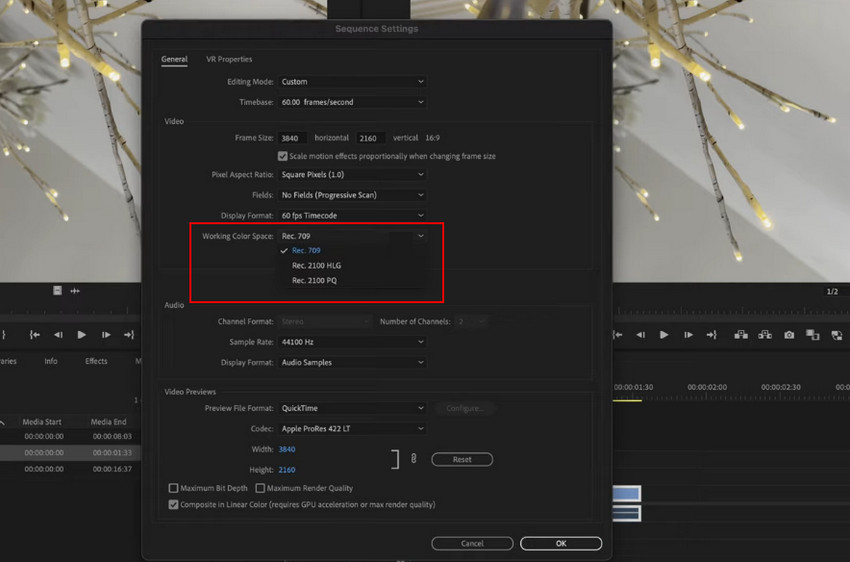
Step 2: Switch the Sequence to SDR
Open Sequence Settings and change the working color space from HDR (Rec.2100) to Rec.709, the standard SDR color space.
Step 3: Fine-Tune the Image (Optional)
If the video looks too bright or washed out, use the Lumetri Color panel to adjust highlights, shadows, and contrast.
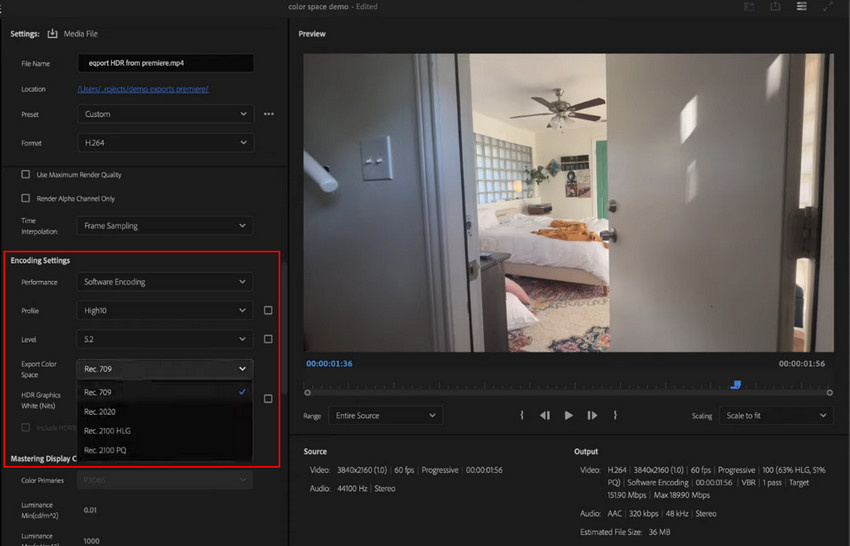
Step 4: Export in SDR
Open the Export window and make sure Rec.709 is selected as the output color space. Then export the video normally.
- Full control over color conversion and tone mapping
- High-quality output suitable for professional use
- Works well with complex editing workflows
- Compatible with industry-standard SDR delivery (Rec.709)
- Requires manual setup and understanding of color spaces
- Can be time-consuming for beginners, not ideal for quick one-click conversions
- Improper settings may still cause washed-out results
Overall, Premiere Pro is a powerful option for HDR to SDR conversion, especially when accuracy matters. However, for faster workflows, many users also look for simpler tools that can automatically handle tone mapping with fewer steps.
Related Reading: Still Struggling with Washed-Out Footage? Fix Overexposed Video in Premiere Pro
How to Convert HDR to SDR in CapCut
If you're looking for a quicker and more beginner-friendly solution, CapCut makes HDR-to-SDR conversion much easier than professional editors. The process only takes a few steps.
Step 1: Import Your HDR Clip
Open CapCut and add your HDR footage to a new project.
Step 2: Adjust HDR Settings
Select the clip and locate the HDR-related settings. Disable HDR or apply SDR conversion if available. You can also make minor brightness and contrast adjustments if the image appears too bright.
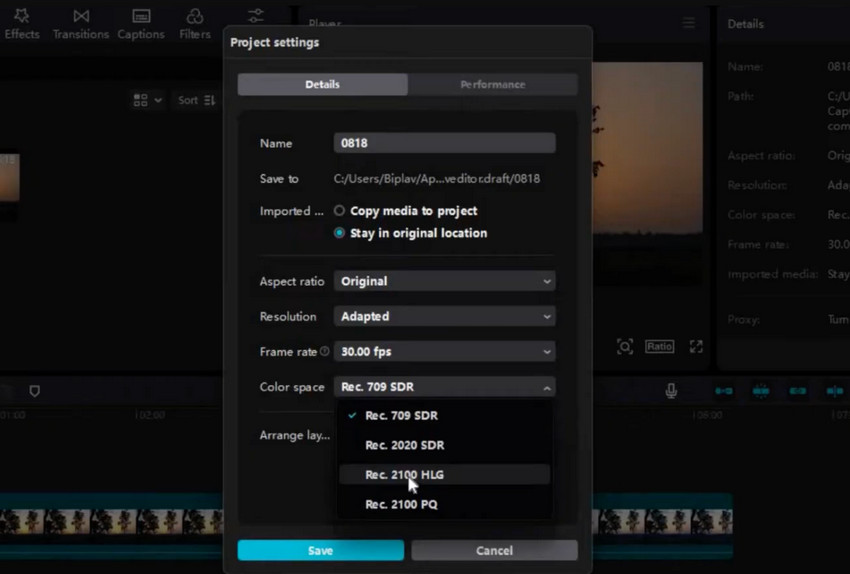
Step 3: Export as SDR
Export the video using standard SDR settings. The resulting file will be more compatible with non-HDR devices and social media platforms.
Further Reading: How to get better output quality in CapCut.
- Very easy to use, making it a good choice for beginners who need a quick HDR-to-SDR conversion.
- Available on both desktop and mobile, allowing you to convert videos almost anywhere.
- Lacks the advanced color management and tone-mapping controls found in professional software.
- May produce less consistent results when working with heavily graded or high-brightness HDR footage.
How to Convert HDR to SDR with HandBrake
If you need a free solution, HandBrake can convert HDR videos to SDR through its built-in color space conversion options. While it offers fewer editing features than Premiere Pro, it's a practical choice for straightforward HDR-to-SDR transcoding.
Step 1: Open Your HDR Video
Launch HandBrake and load your HDR footage as the source file.
Step 2: Enable Color Space Conversion
Go to the Filters tab and enable HDR-to-SDR color conversion. HandBrake will automatically tone-map the HDR brightness range to fit SDR displays for the best quality. >> Best quality settings in Handbrake
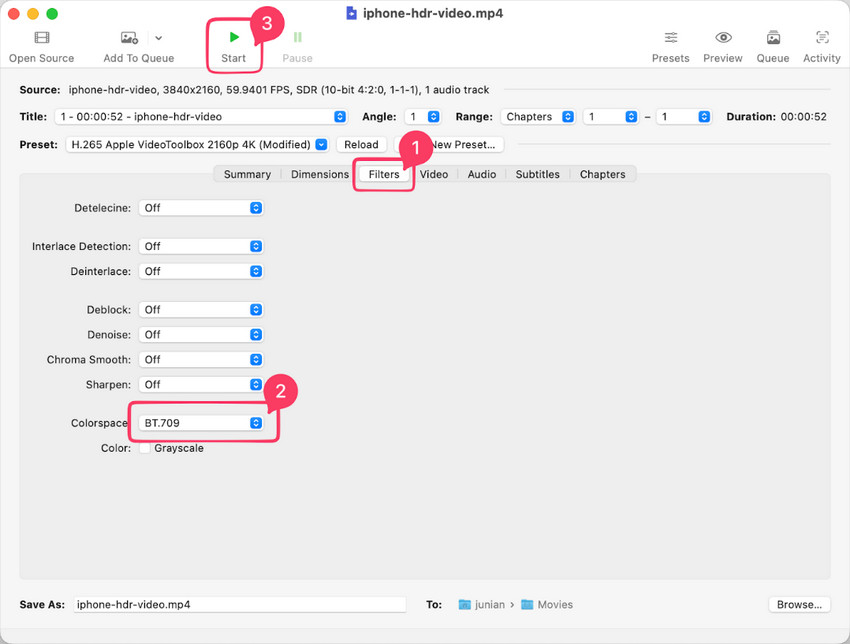
Step 3: Export the SDR Video
Choose your preferred output format and encoding settings, then start the export process. The resulting video will be SDR-compatible and easier to play on standard devices.
- Completely free and open-source, making it accessible to anyone for HDR-to-SDR conversion.
- Supports batch processing and efficient video encoding for large video libraries.
- Provides limited control over color grading and tone mapping compared to professional video editors.
- The interface can feel technical for beginners who are unfamiliar with encoding settings.
How to Convert HDR to SDR Using FFmpeg
FFmpeg is a powerful command-line tool that can convert HDR videos to SDR using tone mapping filters. It's a popular choice for advanced users who want a fast, scriptable workflow.
Step 1: Open a Terminal or Command Prompt: Navigate to the folder containing your HDR video.
Step 2: Run the HDR-to-SDR Conversion Command
bt709:r=tv" -c:v libx264 -crf 18 output_sdr.mp4
This command applies tone mapping and converts the video to the Rec.709 color space commonly used for SDR content.
Step 3: Review the Output Video
Once processing is complete, play the exported file to verify that brightness, contrast, and colors appear natural on SDR displays.
- Completely free and highly customizable, with support for automation, scripting, and batch conversion.
- Fast processing and excellent format compatibility across different operating systems.
- Requires command-line knowledge, making it less beginner-friendly than GUI-based tools.
- Finding the right tone-mapping settings may require experimentation for the best visual results.
How to Convert HDR to SDR with Aiarty Video Enhancer
If your goal is simply to convert HDR footage to SDR without dealing with color-space settings, timelines, or command lines, Aiarty Video Enhancer offers one of the easiest workflows. It automatically exports videos in the standard Rec.709 SDR color space, making them compatible with virtually all devices, editors, and social media platforms.
At the same time, you can optionally enhance the converted SDR footage with AI-powered upscaling, denoising, and deblurring tools if the original video suffers from noise, softness, or compression artifacts.
Step 1: Import HDR Footage
Launch Aiarty Video Enhancer and add your HDR video. The software supports HDR footage captured from a wide range of devices, including HDR videos from iPhone, drone, or camcorder.
Step 2: Uncheck All AI Enhancement Settings
For a pure HDR-to-SDR conversion, simply disable all enhancement options.
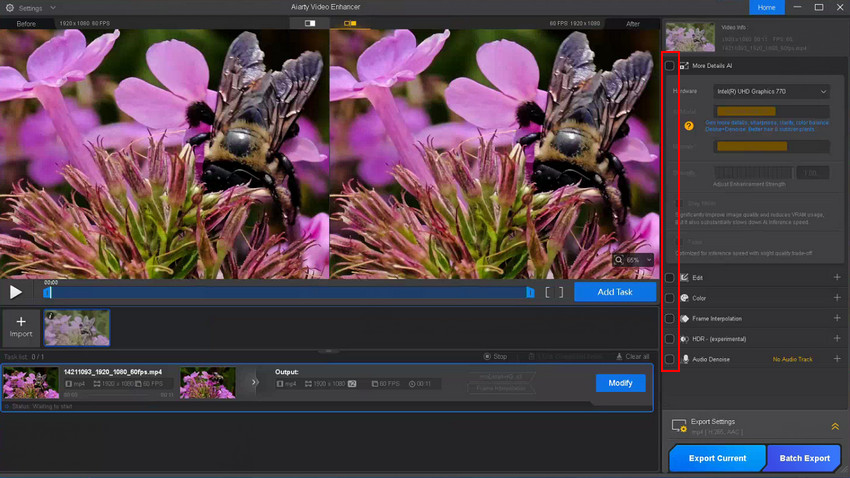
Step 3: Export the SDR Footage
Click the "Export Current" to export the SDR footage. Aiarty will automatically output the file in the standard Rec.709 SDR color space, eliminating HDR compatibility issues without requiring any manual color management.
After conversion, you can re-import the SDR file to see the video info.
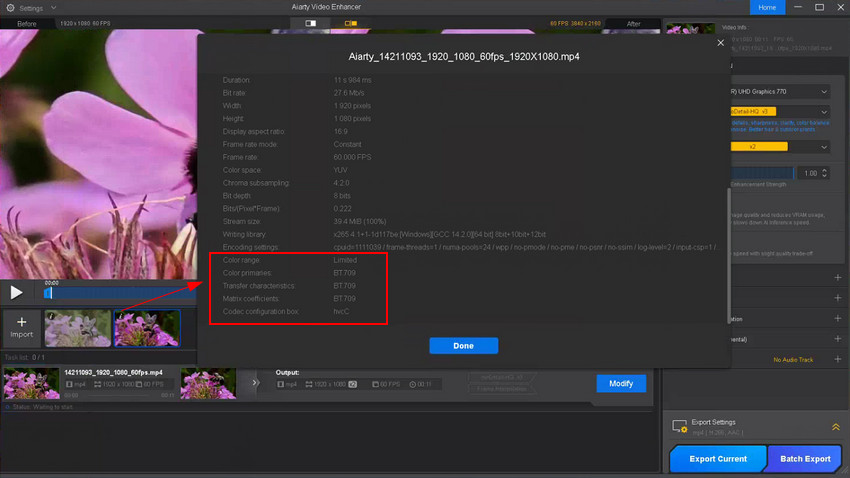
Step 4: Enhance the SDR Video If Needed
After converting the video to SDR, you can further enhance it with AI-powered upscaling, denoising, and deblurring features.
- Upscale low-resolution footage to higher resolutions.
- Denoise videos affected by low-light noise and grain.
- Deblur soft or slightly out-of-focus footage while preserving natural details.
This workflow is particularly useful when HDR footage also suffers from image quality issues beyond color-space compatibility.
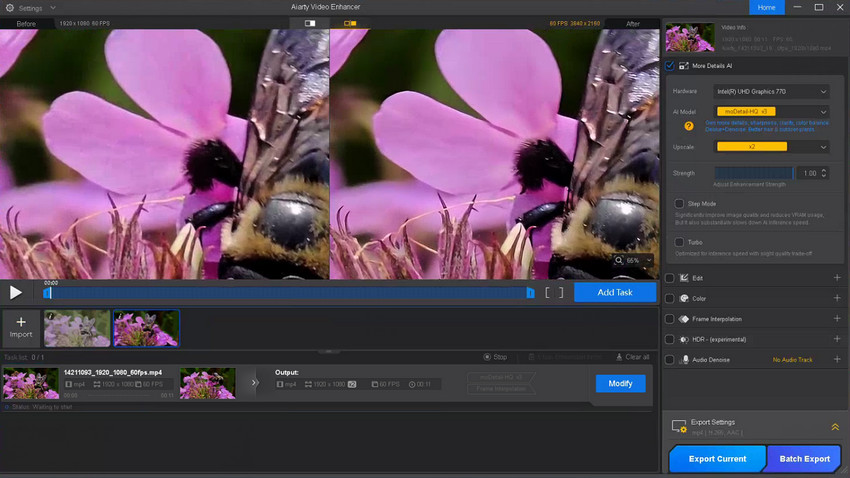
Case Study: In our test footage, HDR video that appeared overly bright and inconsistent on SDR displays was converted to Rec.709 SDR for more natural playback. After applying AI enhancement, fine details remained clear while noise and compression artifacts were noticeably reduced.
Which HDR-to-SDR Converter Is Best for You?
We've covered several ways to convert HDR video to SDR, but each tool serves a different type of user. Some prioritize professional color control, while others focus on speed, simplicity, or video quality enhancement.
The table below summarizes the key differences to help you choose the right HDR-to-SDR converter for your workflow.
All four tools support HDR-to-SDR conversion, but they target different workflows. Premiere Pro focuses on color control, CapCut on simplicity, HandBrake on free batch conversion, while Aiarty adds AI-based video enhancement after conversion.
Tools like DaVinci Resolve also supports HDR-to-SDR workflows through Color Space Transform nodes,and OBS can be configured for SDR recording. However, Premiere Pro, CapCut, HandBrake, and Aiarty remain the most practical options for most creators.
How to Convert iPhone HDR Videos to SDR
Modern iPhones record video in HDR by default, helping preserve brighter highlights and richer colors. However, HDR footage can sometimes appear overly bright, washed out, or inconsistent when viewed on non-HDR devices, edited in SDR projects, or uploaded to certain platforms.
If you're experiencing these issues, there are several ways to convert iPhone HDR videos to SDR depending on whether you're recording new footage or working with videos you've already captured.
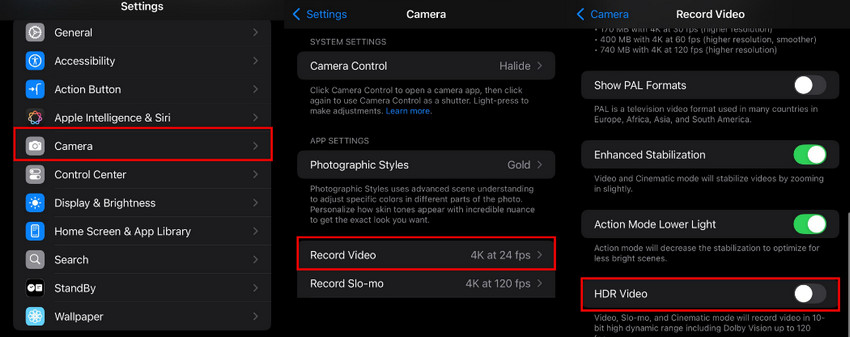
Option 1: Turn Off HDR Recording
If you don't need HDR, the simplest solution is to disable it before recording.
- Open Settings on your iPhone.
- Tap Camera.
- Select Record Video.
- Turn HDR Video off.
Future recordings will be saved in SDR, eliminating the need for HDR-to-SDR conversion later and improving compatibility with editing software and playback devices.
Option 2: Convert Existing HDR Videos
If you've already recorded HDR footage, you'll need to convert it to SDR before editing, sharing, or viewing on standard displays.
- Premiere Pro – Best for professional color control and editing workflows.
- CapCut – A quick and beginner-friendly option for basic HDR-to-SDR conversion.
- Aiarty Video Enhancer – Converts HDR footage to Rec.709 SDR and can further enhance video quality with AI.
- HandBrake – A free, open-source solution for straightforward HDR-to-SDR conversion.
The right choice depends on whether you prioritize editing flexibility, ease of use, or additional quality enhancement features.
Option 3: Export SDR Versions for Sharing
If your main goal is to share videos with friends, clients, or social media audiences, exporting an SDR version is often the safest approach. SDR videos are more likely to display correctly across different phones, computers, tablets, and social platforms.
Creating an SDR copy also helps avoid common HDR playback problems such as overexposed highlights, unnatural colors, or inconsistent brightness on non-HDR screens.
For most users, keeping the original HDR file as a master copy while exporting an SDR version for sharing provides the best balance between image quality and compatibility.
 HDR-to-SDR FAQs and Troubleshooting
This usually happens when HDR footage is viewed on an SDR screen without proper tone mapping or color space conversion. The system may misinterpret HDR brightness levels, causing a faded or low-contrast look. Converting to Rec.709 SDR typically resolves this issue.
This is usually caused by incorrect tone mapping or export settings. When HDR highlights and shadows are compressed into SDR without proper adjustment, the result may appear overexposed or too flat. Proper HDR-to-SDR conversion tools help balance brightness and contrast.
HDR and SDR use different color spaces, such as Rec.2020 and Rec.709. During conversion, colors must be remapped, which can lead to slight differences in saturation and tone. A well-managed workflow helps minimize these changes.
Yes. Both HDR10 and Dolby Vision can be converted to SDR using tools like Premiere Pro, CapCut, HandBrake, FFmpeg, and Aiarty Video Enhancer. Dolby Vision may require better tone mapping due to its dynamic metadata.
You can convert HDR video to SDR using professional editors like Premiere Pro, simple tools like CapCut, free solutions like HandBrake, or automated workflows such as Aiarty Video Enhancer, which handles conversion and enhancement together.
Some dynamic range is compressed during conversion, but with proper tone mapping, most visual quality can be preserved. Advanced tools can help maintain balanced brightness, contrast, and detail in SDR output.
You May Also Like


This post was written by Ashley Brown, a videographer turned AI explorer. As an associate writer at Digiarty Software, she dives into the latest AI-powered tools for video enhancement and content creation, offering practical insights and unbiased commentary. Accuracy confirmed by Abby Poole.
