


Standard Dynamic Range (SDR), which served as the dominant standard for decades, provided us with reliable visual experiences. However, its limitations in brightness, color depth, and contrast often resulted in a lack of detail in both highlights and shadows. Today, the advent of High Dynamic Range (HDR) technology has completely transformed the way we view content. HDR is capable of rendering a brightness range that more closely mimics the human eye's perception, offering richer color gradations and profoundly deeper contrast.
Nonetheless, a vast amount of legacy content remains in the SDR format. The critical challenge for content creators and technology developers is finding a way to efficiently, accurately, and with high quality convert this existing SDR footage into the HDR format, allowing it to shine anew on the latest HDR-enabled displays. In this post, we will show you how to convert SDR to HDR effectively.
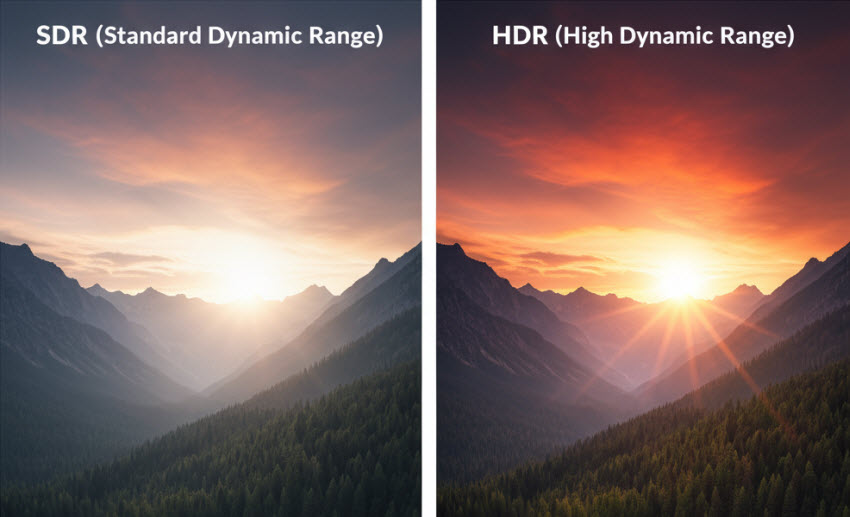
What is SDR vs HDR?
Before diving into SDR to HDR conversion workflows, it’s important to clearly understand what each term means.
Standard Dynamic Range (SDR) refers to video content encoded with a limited range of brightness and color. SDR typically uses 8-bit colour depth and a more modest luminance range (e.g., around 100 nits peak).
High Dynamic Range (HDR) video supports a much greater range of brightness (peaks of 1000 nits or more are common) and a wider colour gamut, often in 10-bit or higher depth.
The core advantage of HDR is its ability to display detail and color closer to what the human eye sees.
- Brighter Highlights: With a peak brightness often exceeding 1000 nits, HDR allows for incredibly bright elements, like the sun or reflections on water, to pop off the screen with realism, which SDR simply cannot achieve.
- Deeper Blacks and Detail: By providing a wider dynamic range, HDR ensures that dark areas have richer blacks without "crushing" (losing) the subtle details within the shadows.
- Wider Color Gamut: The increase from 8-bit to 10-bit or 12-bit color depth and the use of the Rec.8 2020 color space means HDR can display billions of colors. This eliminates issues like color banding and makes all colors more vibrant and accurate.
Converting from SDR to HDR is the process of taking existing SDR footage and transforming it to appear as HDR content, namely boosting dynamic range, color gamut, luminance, and sometimes metadata.
Why Convert SDR to HDR?
If you already have SDR footage, why go through the trouble of converting it to HDR? There are several reasons:
1. Better visual impact: By converting SDR to HDR, you unlock richer highlights, deeper shadows and more vivid colour, which means a stronger visual result for the audience.
2. Future-proofing conten: As HDR displays become more common (HDR TVs, monitors, mobile devices), content that is still SDR will look comparatively “flat” or dated. Upgrading SDR to HDR helps your content stay competitive.
3. Monetisation & platform readiness: Streaming platforms and premium services increasingly prefer HDR content. Converting your SDR archive into HDR can extend its value, letting you release “HDR versions” without full reshoots.
4. Enhanced editing/workflow flexibility: In hybrid workflows (where you produce both SDR and HDR formats), having convertible SDR means you can unify your library, distribute to both SDR and HDR delivery paths, and manage colour more consistently.
Note: However, it’s worth noting that SDR to HDR conversion is not magic. You are starting with limited source information (8-bit, limited dynamic range) so the quality improvement will depend on how good the conversion method is. In other words, “you just cannot upscale SDR to HDR, color and light data is just not there.”
How to Convert SDR to HDR with True Color Fidelity?
With the rapid adoption of 4K and HDR displays, content creators urgently need an efficient SDR to HDR converter to unlock the full visual potential of their footage. Then look no further than Aiarty Video Enhancer. This all-in-one AI video enhancer offers intelligent SDR to HDR conversion to future-proof your video assets
- SDR to HDR Conversion: Aiarty supports intelligent conversion from SDR 8-bit to HDR 10-bit output, granting access to over 1 billion colors and vastly exceeding the limitations of 8-bit.
- HDR to SDR Conversion: Converts HDR footage into standard Rec.709 SDR output with intelligent tone mapping, ensuring natural brightness, balanced contrast, and consistent playback across all devices and platforms.
- Smooth Transitions: It intelligently predicts and fills in missing color data for smoother color gradients and transitions. This effectively eliminates critical SDR-to-HDR bottlenecks like banding and limited gamut.
- Color Correction: After SDR to HDR conversion, you can fine-tune exposure, contrast, saturation, highlights, temperature, etc.
- Comprehensive AI Enhancements: Beyond SDR to HDR, Aiarty also upscales low-res SDR videos to HD/4K, denoises and sharpens, fixes artifacts, removes audio noise, and increases FPS for smoother, natural motion.
By combining intelligent SDR to HDR conversion with these comprehensive AI enhancements, Aiarty Video Enhancer ensures your videos deliver the best visual performance on any modern display.
Convert SDR to HDR in Clicks with Aiarty Video Enhancer
Step 1. Download and install the SDR to HDR converter on your computer. Run it and drag and drop the source SDR 8-bit footage into it.
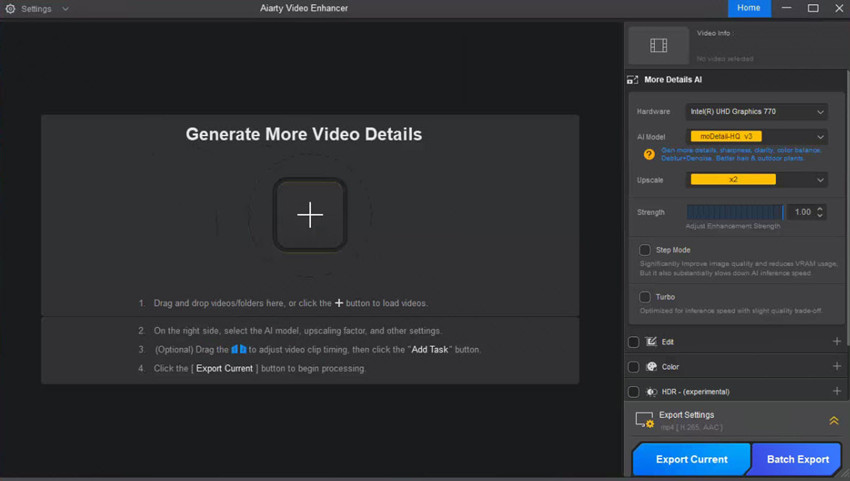
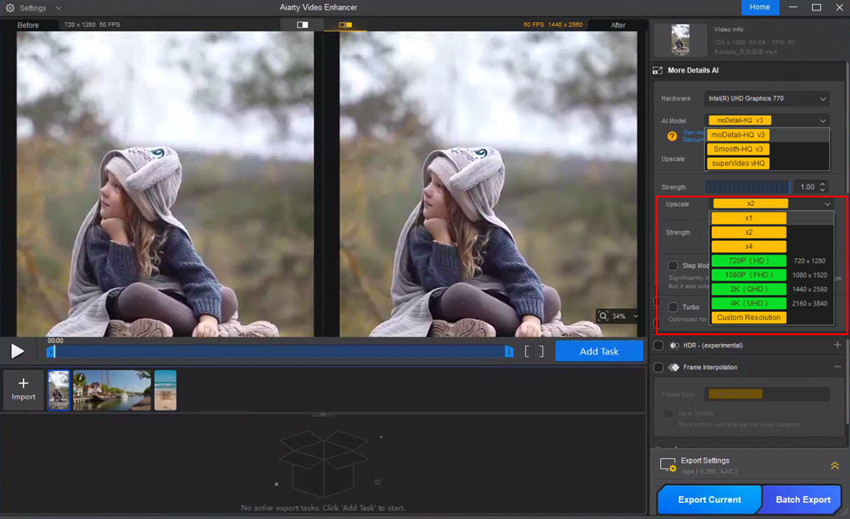
Step 2. Choose an AI model based on the source video. For most clips, choose moDetail to enhance clarity and texture. If the footage is captured in low light and contains visible noise, select the superVideo model instead. Then select an upscaling factor (e.g., 2×, 4×).
Step 3. Scroll down and find the HDR option. Enable the box and there will be 3 HDR models: Neutral, Bright, and Graded.
- Neutral Model: Delivers a balanced, true-to-life HDR look with natural tones and smooth contrast, ideal for portraits and documentaries.
- Bright Model: Boosts highlights and luminance for vivid, high-impact visuals, perfect for outdoor, travel, and lifestyle footage.
- Graded Model: Adds cinematic color grading during HDR conversion, giving your video a filmic, stylized finish without extra editing.
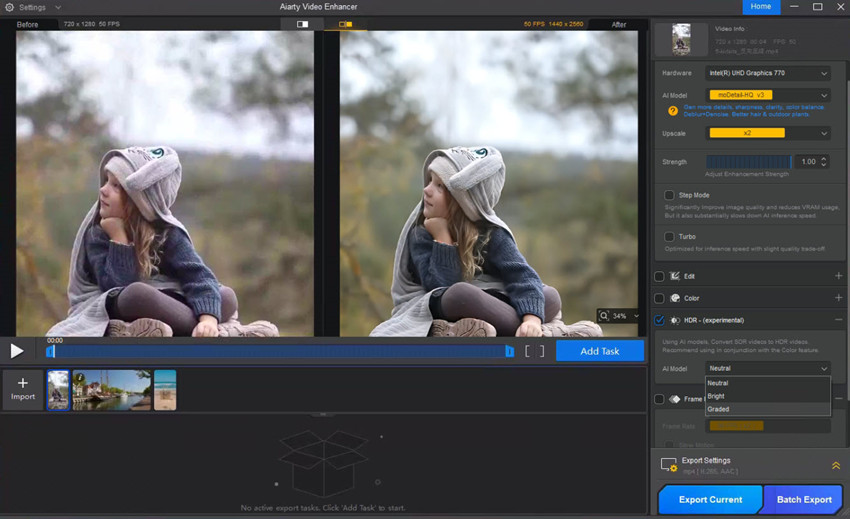
Step 4. The software will instantly generate an HDR preview. You can also enable the Color option to refine tone, saturation, and other color parameters for a customized look.
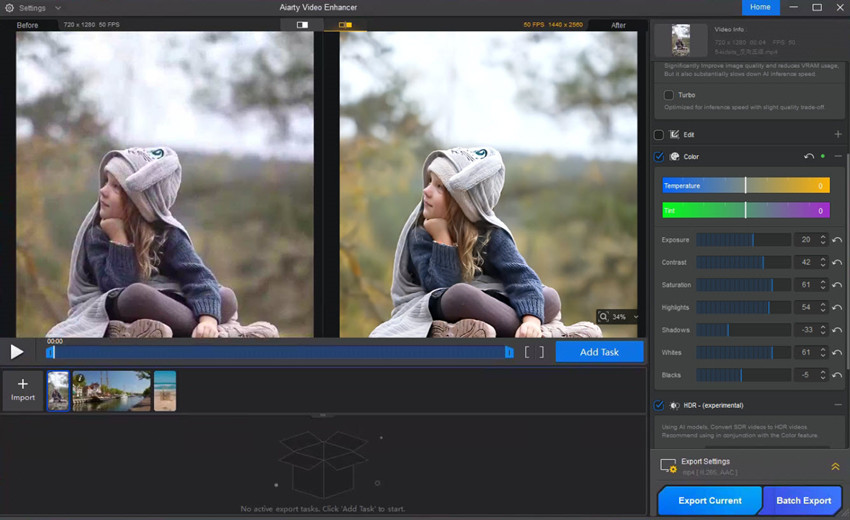
Step 5. Set your output folder, then click Export Current or Batch Export to begin processing. Aiarty Video Enhancer will convert your SDR footage into a 10-bit HDR video with smoother gradients, richer colors, and enhanced visual depth.
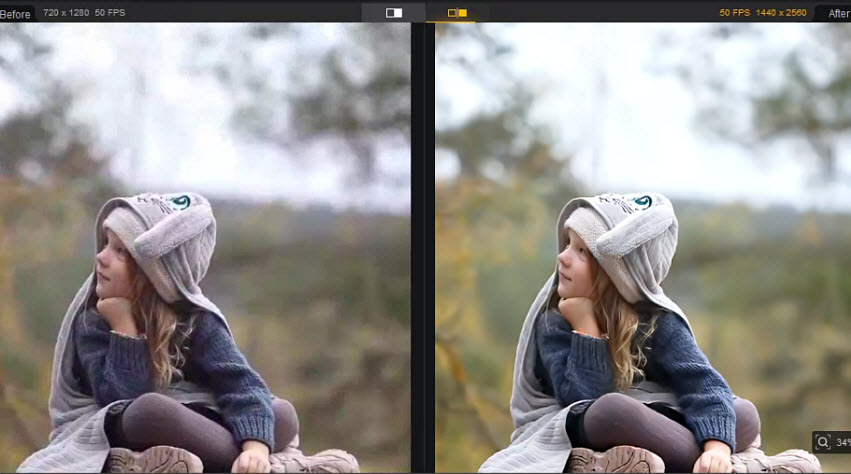
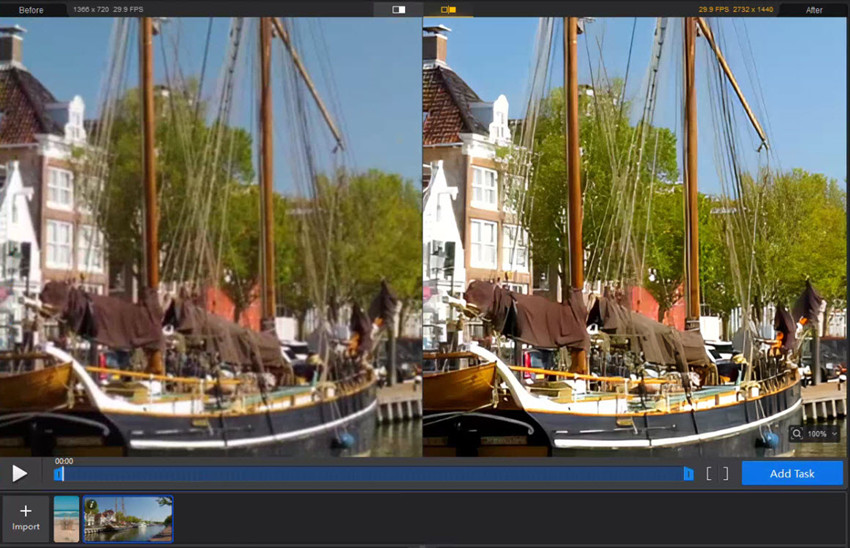
As you can see, Aiarty Video Enhancer doesn’t just improve color during the SDR-to-HDR conversion process, it also fixes a wide range of quality issues, including pixelation, blur, noise, and lack of sharpness. In one workflow, it restores detail, enriches color, and elevates the overall clarity of your footage.
Convert SDR to HDR with Topaz Video
Topaz Video AI’s Hyperion model is designed for advanced SDR to HDR conversion and tone-mapping using deep neural networks. The AI intelligently analyzes each frame to expand dynamic range, restore highlight details, and deliver a more lifelike HDR10 output.
When applied to SDR footage, Hyperion transforms standard 8-bit video into rich 10-bit HDR, producing vivid highlights, smooth color transitions, and enhanced midtone contrast that give your footage a true professional HDR punch. It performs exceptionally well for outdoor, travel, and cinematic scenes, where light gradients, reflections, and fine textures benefit most from AI-powered SDR to HDR enhancement.
One consideration is that Topaz Video AI follows a subscription-based update model (approximately $396/year), which may be more suitable for creators who perform frequent SDR to HDR conversions or regularly update their AI tools.
Step 1. Download and install the SDR to HDR upscaler. Then import your SDR footage into Topaz Video.
Step 2. In the Enhancement Model menu on the right hand, select Hyperion (HDR).
Step 3. Adjust parameters like exposure, saturation, highlight thresh of the HDR settings. Then apply other enhancement if necessary.
Step 4. After all the tweaking and settings, export the HDR video.

Convert SDR to HDR with Davinci Resolve
DaVinci Resolve delivers unparalleled control and precision for SDR to HDR conversion. Unlike automated AI tools, it lets colorists fine-tune every aspect of the tone-mapping process, from highlight roll-off to shadow detail, ensuring that the resulting HDR10 or Dolby Vision output maintains full creative intent.
Using HDR scopes, waveform monitors, and zone-based grading, you can precisely manipulate brightness and contrast to achieve a realistic yet cinematic HDR look. It’s ideal for restoring SDR 8-bit footage into rich 10-bit HDR video with accurate metadata and no color clipping. The manual workflow, however, demands a solid understanding of HDR color science, GPU resources, and time for fine adjustments.
When properly graded, Resolve’s results are broadcast-quality. The same standard used in Netflix, Disney+, and UHD Blu-ray mastering pipelines. It provides one of the most accurate SDR to HDR tone-mapping environments available, with true Rec.2020 color precision and professional-level dynamic range expansion.
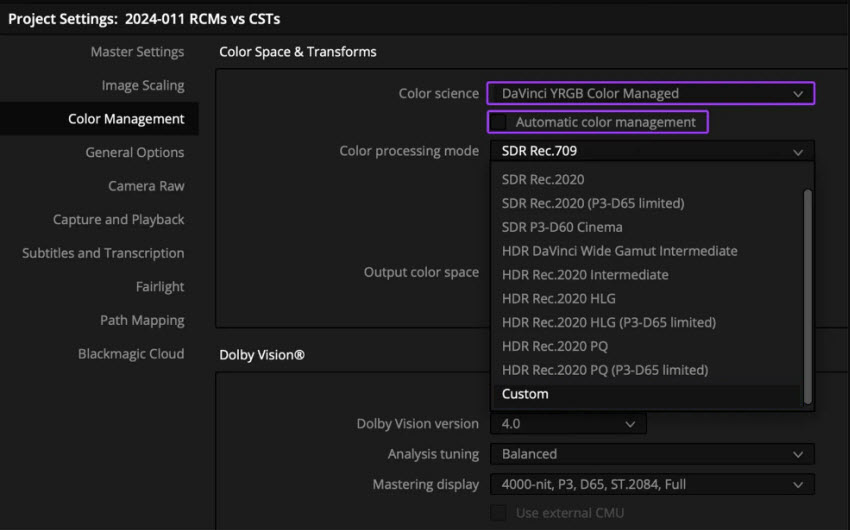
Step 1. Import your SDR footage and open Project Settings. Find Color Management and then DaVinci YRGB Color Managed.
Step 2. Set the Timeline Color Space to HDR10 (Rec. 2020) or HLG for wider color gamut.
Step 3. Use HDR Color Wheels or HDR Tools to manually expand dynamic range.
Step 4. Apply custom LUTs, curves, or soft clipping to shape tone and contrast.
Step 5. Once finished, export the project in HEVC Main10, ProRes 422 HQ, or another 10-bit HDR format for maximum fidelity.
Convert SDR to HDR with Premiere Pro
Premiere Pro provides a flexible and familiar workflow for SDR to HDR conversion, especially for editors who already rely on Adobe’s ecosystem. Its HDR tone-mapping tools and Lumetri Color panel allow you to enhance brightness, contrast, and color vibrancy to achieve visually pleasing HDR results from SDR 8-bit footage.
While not as precise or powerful as DaVinci Resolve’s HDR grading environment, Premiere excels in efficiency and integration within standard editing pipelines. Editors need to manually adjust exposure, highlights, and LUTs to avoid harsh contrast, blown highlights, or oversaturated areas, making careful color management essential for high-quality HDR10 or HLG output.
Premiere’s SDR to HDR workflow is particularly useful for YouTube HDR content, corporate videos, and social media projects, where a practical balance between quality and speed is key. Its support for 10-bit HDR exports ensures smooth gradients and richer color transitions compared to SDR originals.
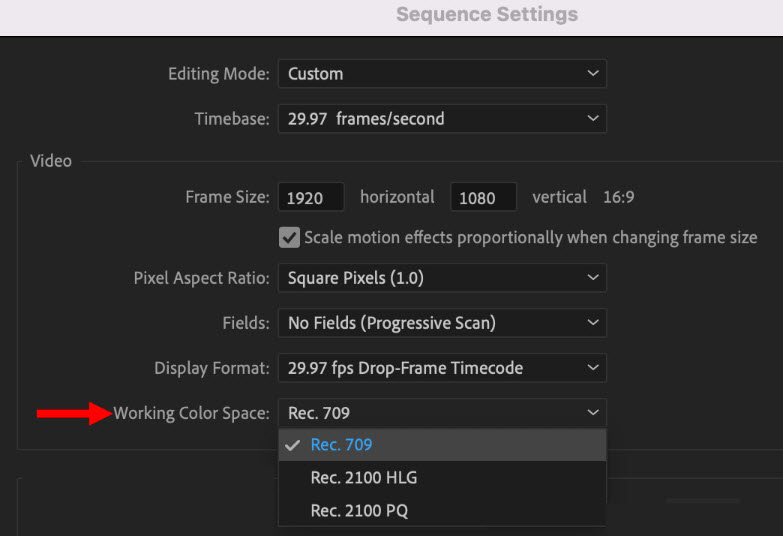
Step 1. Import your SDR clip and open Sequence Settings. Then locate Working Color Space.
Step 2. Choose Rec.2100 HLG or HDR10 PQ to enable HDR grading.
Step 3. Use Lumetri Color to carefully boost exposure, highlights, and saturation without clipping midtones.
Step 4. Apply LUTs or HDR tone-mapping filters to enhance dynamic range and color fidelity.
Step 5. Export with HEVC (H.265) at 10-bit, making sure to enable HDR10 metadata for compatible playback.
Final Thoughts
As HDR becomes the new standard across TVs, mobile devices, and streaming platforms, creators have more reasons than ever to breathe new energy into their SDR footage. The good news is that you don’t need complex workflows to get impressive results, as AI-powered upscalers, professional-grade color grading software, and hybrid approaches all offer paths to cleaner brightness roll-off, deeper blacks, and a more dynamic image overall. No matter which method you choose, the goal remains the same: preserve detail, respect the original look, and elevate your visuals to meet today’s viewing expectations. Done well, SDR-to-HDR conversion can turn ordinary clips into modern, high-impact videos ready for any screen.
 FAQs
FAQs
Yes. SDR can be converted to HDR using AI tools or manual color grading. While true HDR data can’t be fully “created,” SDR-to-HDR conversion expands dynamic range, improves brightness roll-off, and enhances color depth for a more modern, cinematic look.
No. HDR generally provides brighter highlights, deeper shadows, more color detail, and higher dynamic range. SDR is only preferable when working with older displays or when consistent brightness is required across all devices.
Yes. HDR can be down-converted to SDR using tone-mapping to preserve highlights and contrast. This is often done for compatibility with non-HDR screens or broadcast workflows.
You May Also Like


This post was written by Ashley Brown, a videographer turned AI explorer. As an associate writer at Digiarty Software, she dives into the latest AI-powered tools for video enhancement and content creation, offering practical insights and unbiased commentary. Accuracy confirmed by Abby Poole.
