
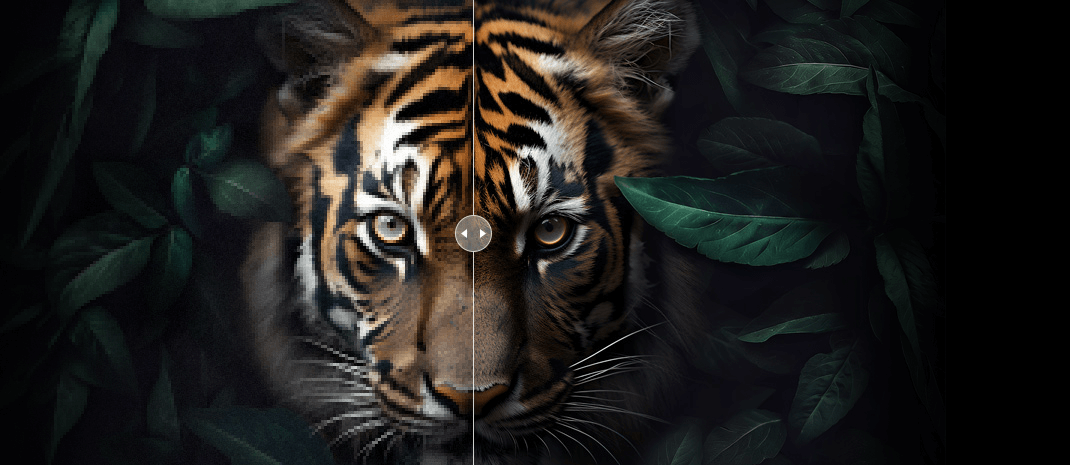
8 Best Photo Sharpening Software in 2026 for Blur, Focus & Fine Detail

Updated on
Summary: The best photo sharpening software depends on why your image looks soft. Aiarty Image Enhancer is a strong choice for local AI sharpening and batch detail recovery; Topaz Photo is better suited to blur and focus recovery; Lightroom now brings Topaz-powered AI Sharpen directly into an existing photography workflow; DxO PureRAW is especially useful for RAW noise and lens softness; ON1 Photo RAW combines sharpening and denoising; Let's Enhance is convenient online; and GIMP remains the best free option for traditional manual sharpening.
A photo can look soft for very different reasons. The focus may have landed slightly behind the subject, camera or subject movement may have introduced blur, high-ISO noise may be hiding fine detail, or a heavy crop may simply contain too few pixels to look crisp at a larger size.
That is why choosing the best photo sharpening software in 2026 is no longer as simple as finding the strongest Sharpen slider. Traditional sharpening increases local edge contrast to make existing detail look more defined. Modern AI tools can go further by reducing blur, recovering focus, suppressing noise, and reconstructing fine textures such as hair, feathers, fur, foliage, fabric, and facial detail.
In this guide, we compare eight photo sharpening tools for different photography workflows, including RAW processing, high-ISO images, wildlife, portraits, missed focus, batch processing, online sharpening, and free manual editing.
Transparency Note: This guide is published by the Aiarty team. Instead of calling Aiarty the universal "Overall Best," we compare each tool by the type of sharpening problem and workflow it handles best. Product features and pricing were rechecked against official sources in August 2026.
Best Photo Sharpening Software at a Glance
Quick picks:
- Best for local AI sharpening & batch detail recovery: Aiarty Image Enhancer
- Best for blur and focus recovery: Topaz Photo
- Best for existing Lightroom workflows: Adobe Lightroom
- Best for RAW lens softness and noise: DxO PureRAW 6
- Best for high-ISO photos: ON1 Photo RAW 2026.5
- Best creative editor with AI sharpening: Luminar Neo
- Best online photo sharpener: Let's Enhance
- Best free traditional sharpening software: GIMP
How We Compare Photo Sharpening Software
There is no useful single benchmark that applies equally to GIMP, Lightroom, DxO PureRAW, and generative AI image enhancers. Instead, we compare each tool around the photographic details and workflow decisions that matter in real editing.
- Fine Detail: Hair, feathers, fur, foliage, fabric, eyelashes, text, and other small structures quickly reveal whether sharpening is useful or simply creating harsh edges.
- Blur Recovery: We consider whether the software is intended only for mild softness or can also address slight motion blur and missed focus.
- Noise & Texture Preservation: Sharpening can exaggerate high-ISO noise, compression artifacts, and color speckles. Strong tools balance clarity with noise control.
- RAW Workflow: RAW photographers may care more about demosaicing, lens correction, camera profiles, non-destructive editing, and denoising than one sharpening slider.
- Control: Users should be able to reduce an effect when skin, fur, foliage, or other textures start looking artificial.
- Workflow: We also consider batch processing, local vs cloud processing, Lightroom/Photoshop integration, supported platforms, export options, price, and learning curve.
Important: No sharpening software can perfectly reconstruct a severely out-of-focus subject or extreme motion blur with full photographic accuracy. The more information missing from the source, the more the result depends on AI inference.
8 Best Photo Sharpening Software in 2026
1. Aiarty Image Enhancer - Best for Local AI Sharpening & Batch Detail Recovery
Platform: Windows and macOS
Best for: Wildlife, portraits, high-ISO photos, low-resolution images, heavy crops, AI-generated images, and photographers who want local batch processing.
Pricing: $59/year or $119 lifetime.
Our Verdict: Aiarty is a strong choice when the priority is recovering natural-looking fine detail across many images while keeping processing local. Its most relevant use cases include wildlife, portraits, high-ISO photos, cropped images, and files where conventional sharpening would amplify noise or halos.
Aiarty Image Enhancer is designed around AI-based detail restoration rather than edge sharpening alone. It can work at the original 1× size when enlargement is unnecessary, or combine enhancement with upscaling when more resolution is required.
The software is particularly useful when the image contains small natural textures such as feathers, animal fur, hair, eyelashes, foliage, fabric, skin, or product detail. These are the areas where overly aggressive sharpening often creates crunchy edges, fake texture, or visible halos.
Aiarty provides multiple AI models for different source types. More-Detail GAN is aimed at stronger texture reconstruction, while Real-Photo takes a more photography-oriented approach. Strength controls allow users to reduce reconstruction intensity when a result begins to look overprocessed, and face restoration can be used separately when portraits need additional attention.
Another advantage is local batch processing. Large wildlife sessions, ecommerce catalogs, event shoots, and image libraries can be processed without uploading every source file to a cloud service.
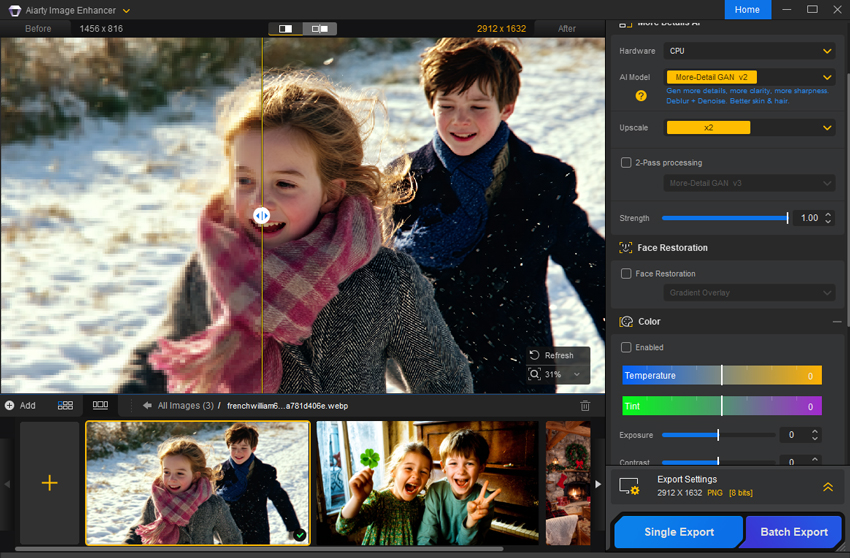
- Local AI sharpening, denoising, deblurring, and detail reconstruction.
- Can enhance at 1× when the goal is sharper detail rather than a larger image.
- Strong focus on hair, fur, feathers, foliage, fabric, and other natural textures.
- Strength control helps reduce overly aggressive reconstruction.
- Face restoration for portrait and old-photo workflows.
- Batch processing and offline workflow.
- AI processing benefits significantly from a modern GPU.
- Photographers who need full RAW cataloging and traditional development controls may still use it alongside Lightroom or another RAW editor.
- Severe blur and badly missed focus cannot be perfectly reconstructed.
2. Topaz Photo - Best for Blur and Focus Recovery
Platform: Windows and macOS
Best for: Missed focus, blur recovery, difficult soft photos, portraits, and photographers who want specialized AI restoration models.
Pricing: Topaz Photo Personal is currently $199 billed annually; monthly billing is also available at a higher effective price.
Our Verdict: Topaz Photo is one of the strongest options when focus recovery and difficult blur matter more than price or simplicity. Its advantage is the combination of Sharpen, Super Focus, Denoise, Recover Faces, and Upscale inside one current product.
The current product photographers should compare is Topaz Photo, not the discontinued standalone Topaz Sharpen AI branding used in older sharpening guides.
Topaz Photo combines sharpening with focus recovery, denoising, face recovery, and upscaling. That makes it especially relevant when an image is not merely a little soft after export, but affected by slight missed focus, minor camera movement, or weak facial detail.
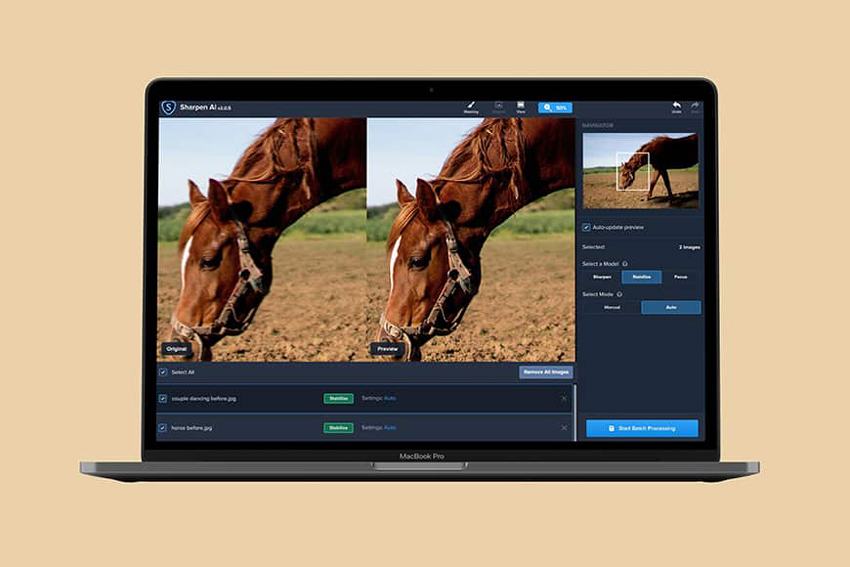
Typical use cases include a bird where focus landed slightly behind the eye, a portrait with mild focus softness, a handheld image with minor motion blur, or an older photo that needs both face recovery and general detail improvement.
- Strong AI tools for blur and focus recovery.
- Sharpen, Super Focus, Denoise, Recover Faces, and Upscale in one application.
- Useful for difficult soft photos that need more than conventional sharpening.
- Photography-focused local workflow.
- More expensive than many alternatives.
- Subscription model may not suit occasional users.
- Strong recovery settings can create unnatural detail if pushed too far.
3. Adobe Lightroom - Best for Existing Photography Workflows
Platform: Windows, macOS, mobile, and web
Best for: Lightroom users, RAW photographers, large photo libraries, and photographers who want sharpening to stay inside their existing workflow.
Pricing: Available through Adobe Lightroom and Photography plans; pricing varies by plan, billing method, and region.
Our Verdict: Lightroom became a much stronger sharpening option in 2026 because Topaz-powered AI Sharpen is now available directly in the photography workflow. For existing Lightroom users, that can eliminate an extra export-and-return step for many soft images.
Adobe added AI Sharpen powered by Topaz to Lightroom in June 2026. The feature can be accessed through Enhance with AI > AI Sharpen and includes balanced and stronger sharpening options.
This matters because many photographers already perform culling, RAW development, masking, denoising, color work, and export inside Lightroom. Instead of automatically moving every slightly soft image to a separate sharpening application, AI Sharpen can now remain inside the same broader editing workflow.
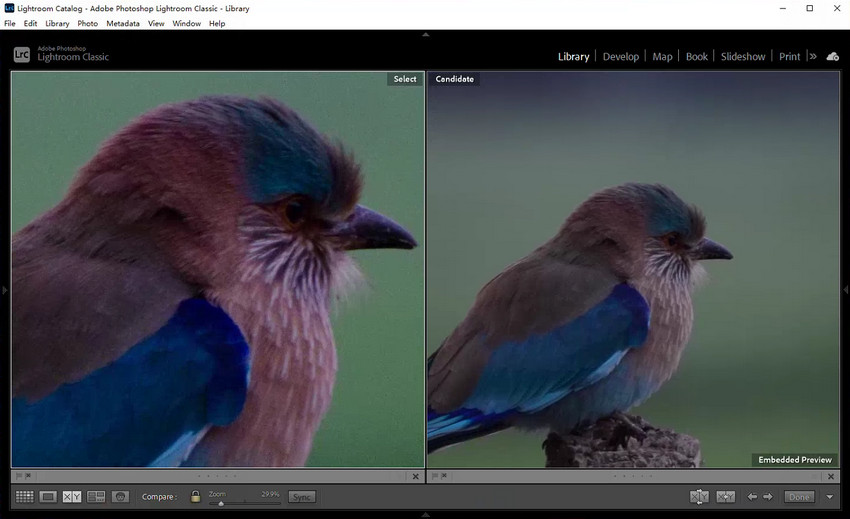
Lightroom is particularly useful when the image needs sharpening alongside camera profiles, lens correction, local masking, exposure adjustment, cataloging, or other standard photography tasks.
- Topaz-powered AI Sharpen integrated into Lightroom.
- Strong RAW development, cataloging, masking, and photo-management workflow.
- Denoising, lens corrections, color, and sharpening can remain in one environment.
- Convenient for photographers already using Adobe.
- Subscription required for the full workflow.
- AI Sharpen uses generative processing/credits depending on the workflow.
- Dedicated restoration tools may provide more specialized controls for difficult blur.
4. DxO PureRAW 6 - Best for RAW Lens Sharpness & Denoising
Platform: Windows and macOS
Best for: RAW photographers, wildlife, landscape, high-ISO photos, lens softness, and photographers who want cleaner source files before editing.
Pricing: $139.99 for a new DxO PureRAW 6 license; upgrade pricing differs.
Our Verdict: DxO PureRAW is the strongest choice here when the question is "How do I get the cleanest, sharpest RAW file from my camera and lens?" rather than "How do I rescue a severely blurry JPEG?"
DxO PureRAW 6 approaches sharpness differently from generative AI sharpeners. It focuses heavily on extracting better image quality from RAW sensor data through demosaicing, DeepPRIME denoising, and camera/lens-specific corrections.
Its lens sharpness workflow is designed to compensate for optical softness across the frame rather than simply adding a universal amount of edge contrast. This makes it particularly useful for wildlife and landscape photographers using long or demanding lenses.
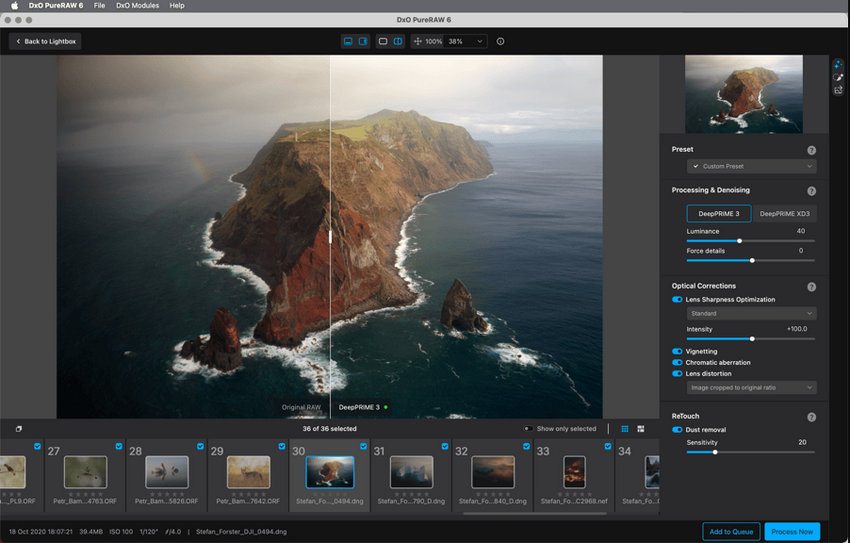
For a noisy high-ISO wildlife file, this can be a better first step than aggressive sharpening: improve RAW quality, reduce noise, correct lens softness, and then apply additional detail recovery only if it is still needed.
- Excellent RAW-first workflow.
- Strong camera/lens-specific sharpness correction.
- DeepPRIME denoising helps preserve useful detail at high ISO.
- Integrates into Lightroom and Photoshop workflows.
- Batch processing and perpetual license.
- Primarily useful for supported RAW files.
- Not intended as a general-purpose JPEG blur-repair application.
- Less focused on missed-focus recovery than Topaz Photo.
5. ON1 Photo RAW - Best for High-ISO Sharpening & Noise Reduction
Platform: Windows and macOS
Best for: High-ISO photography, wildlife, events, RAW editing, and photographers who want sharpening and denoising inside one full editor.
Pricing: Available as a one-time purchase; ON1 also offers subscription options and frequently changes promotional pricing.
Our Verdict: ON1 Photo RAW is particularly useful when noise reduction and sharpening need to be treated as one problem rather than two unrelated steps.
ON1 Photo RAW combines a complete RAW editor with AI tools for sharpening, denoising, masking, resizing, and image organization.
For sharpness specifically, Tack Sharp AI is designed to restore crisp detail in slightly soft or blurred images, while NoNoise AI reduces high-ISO noise. These tools can be used together, which matters because increasing sharpness without controlling noise often makes wildlife, event, and night photos look harsher rather than clearer.
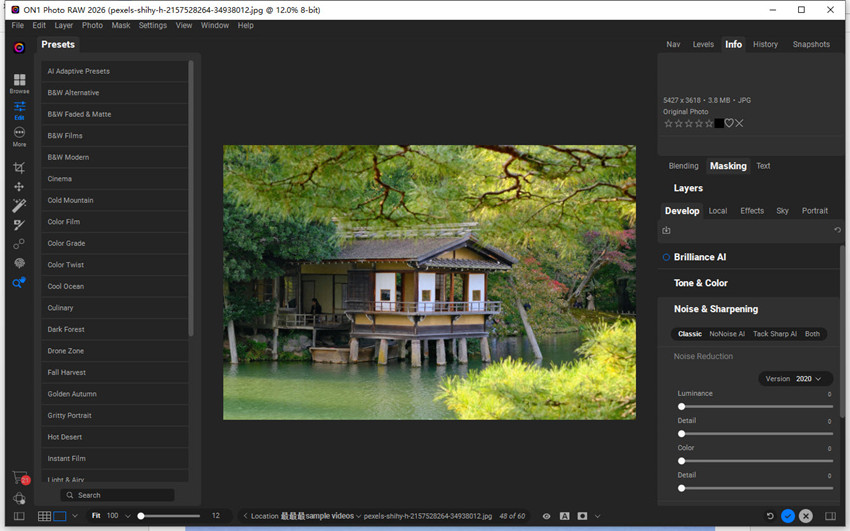
ON1 is therefore a strong fit for photographers who want to stay in a non-Adobe all-in-one environment rather than move between separate denoise, sharpen, catalog, and editing applications.
- Tack Sharp AI for slightly soft or blurry images.
- NoNoise AI integrated into the same RAW workflow.
- Full RAW editor, organizer, layers, masking, and effects.
- Batch processing and local workflow.
- One-time purchase option.
- Larger application than users need for sharpening alone.
- Multiple modules create a bigger learning curve than a dedicated sharpener.
- Aggressive denoise + sharpening combinations still need visual review.
6. Luminar Neo - Best All-in-One Creative Editor with AI Sharpening
Platform: Windows and macOS
Best for: Portraits, travel, landscapes, and photographers who want sharpening alongside creative AI editing.
Pricing: Luminar is sold through one-time and Prime-based options; current pricing and promotions vary by region.
Our Verdict: Luminar Neo makes the most sense when sharpening is only one part of a broader creative edit rather than the entire reason for buying the software.
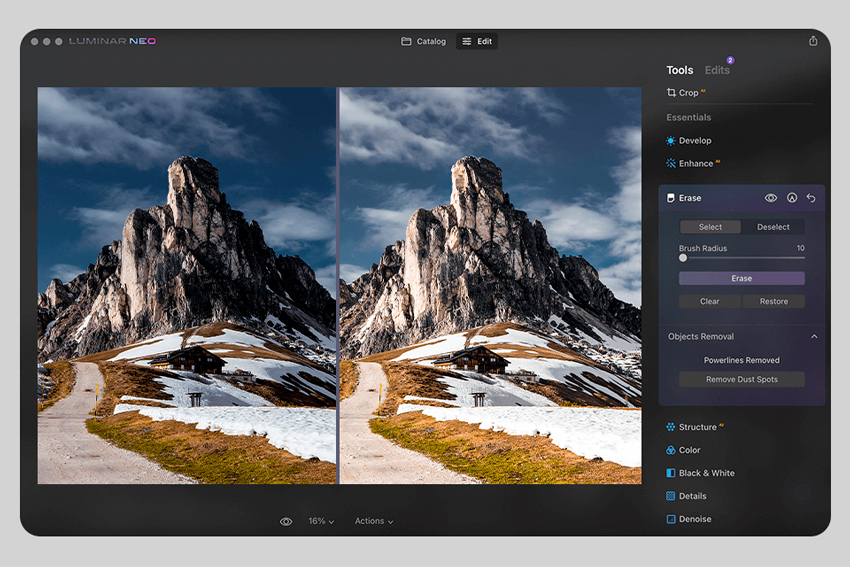
Luminar Neo combines AI sharpening with a larger photo-editing environment. Its Supersharp AI tool includes modes for general blur and motion blur, plus adjustable Low, Medium, and High sharpening strength.
This allows a workflow such as RAW development → sharpening → portrait adjustment → color → creative finish to remain inside one editor. That is convenient for photographers who value speed and visual editing more than highly technical restoration controls.
- Supersharp AI for general blur and motion blur.
- Adjustable sharpening strength.
- Full creative photo editor with RAW support.
- Standalone and plugin-style workflows.
- Overkill if you only need photo sharpening.
- Less specialized than dedicated restoration applications.
- Heavy use of automated effects can produce an overprocessed look.
7. Let's Enhance - Best Online AI Photo Sharpener
Platform: Web
Best for: Users without powerful hardware, ecommerce images, quick browser-based enhancement, and occasional sharpening without installing software.
Pricing: Free credits are available for testing; subscriptions start from $9/month.
Our Verdict: Let's Enhance is the strongest option on this list when convenience and browser access matter more than a local RAW workflow.
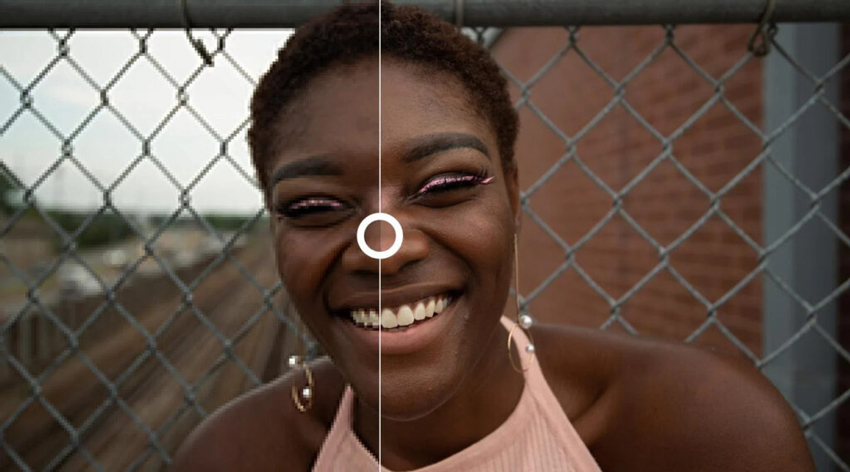
Let's Enhance combines online sharpening with upscaling and image restoration. Instead of using your computer's GPU for AI processing, source images are uploaded and enhanced in the cloud.
That makes it practical when you are working on a lightweight laptop, moving between computers, processing ecommerce images, or only sharpening a few files occasionally. The trade-off is that images need to be uploaded and the service uses credits.
- No software installation required.
- Sharpening and upscaling in one browser workflow.
- Free credits for testing.
- Convenient for ecommerce and occasional enhancement.
- Requires uploading images.
- Credit-based pricing can become expensive for large libraries.
- Less attractive for sensitive or private photography.
- Not a traditional RAW-development workflow.
8. GIMP - Best Free Manual Photo Sharpening Software
Platform: Windows, macOS, and Linux
Best for: Free sharpening, manual control, Linux users, and images that are already fundamentally in focus.
Pricing: Free and open source
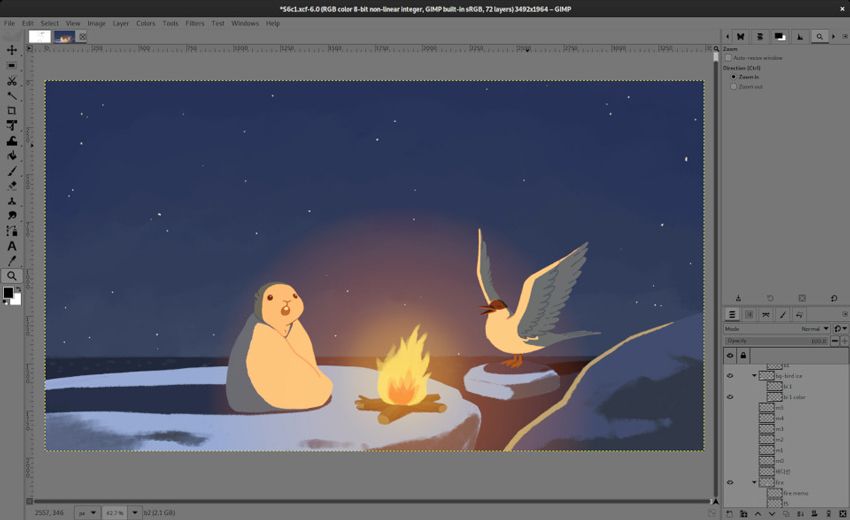
Our Verdict: GIMP remains the best option when you want free, traditional sharpening rather than AI-generated detail.
GIMP remains relevant because not every soft image needs generative AI. Its Sharpen (Unsharp Mask) filter provides conventional edge sharpening and manual control without reconstructing new texture.
One important correction from older versions of this article: GIMP's standard Sharpen and Unsharp Mask tools should not be described as AI-driven sharpening. They are conventional image-processing tools, which makes them a better fit for final output sharpening, local adjustments, and photographs that already contain useful detail.
Check more free open-source image upscalers and enhancers >>
- Completely free and open source.
- Manual Sharpen/Unsharp Mask control.
- Windows, macOS, and Linux support.
- No subscription or cloud processing.
- Full image editor beyond sharpening.
- No dedicated AI focus-recovery model.
- Less automatic than modern AI sharpeners.
- Severe blur is beyond what conventional sharpening can repair.
Best Photo Sharpening Software by Use Case
Best Photo Sharpening Software for Wildlife Photography
Wildlife photographs often combine fine feathers or fur, high ISO, long lenses, heavy crops, and slight focus errors. For fine-detail reconstruction and heavy crops, Aiarty Image Enhancer is a strong option. For a valuable frame with mild focus errors, Topaz Photo is particularly relevant. If the RAW file mainly suffers from high ISO and lens softness, DxO PureRAW or ON1 Photo RAW may be the better first step.
A practical workflow is:
RAW denoise/lens correction → detail recovery → final output sharpening
For capture-side advice, see common sharpness killers in wildlife photography.
Best Photo Sharpening Software for High-ISO Photos
High-ISO sharpening requires restraint because noise can easily be mistaken for texture. ON1 Photo RAW is especially useful because NoNoise AI and Tack Sharp AI live in the same editor. DxO PureRAW is another strong choice when starting from RAW files, while Aiarty can be useful when the denoised image still needs additional fine-detail reconstruction.
Also see: Best Photo Noise Reduction Software in 2026.
Best Photo Sharpening Software for RAW Photos
For a photography-first RAW workflow, the most relevant choices are Adobe Lightroom, DxO PureRAW, and ON1 Photo RAW. Lightroom is best if your library already lives in Adobe's ecosystem, DxO focuses heavily on RAW quality and lens correction, and ON1 provides a broader non-Adobe editor with sharpening and denoising integrated.
Best Software for Slightly Out-of-Focus Photos
A traditional Sharpen slider cannot truly move the focal plane. For slightly missed focus, AI focus-recovery tools are more appropriate. Topaz Photo is the strongest specialist option here, while ON1 Tack Sharp AI, Luminar Supersharp AI, Lightroom AI Sharpen, and Aiarty can also improve mild blur and softness.
Best Photo Sharpening Software for Portraits
Portrait sharpening should prioritize defined eyes, eyelashes, and hair while keeping skin believable. Aiarty's combination of detail reconstruction and face restoration makes it useful for portrait work, while Topaz Photo includes Recover Faces alongside its sharpening tools. Luminar Neo is convenient when sharpening is part of a broader portrait-retouching workflow.
Best Online Photo Sharpening Software
Let's Enhance is the strongest dedicated browser-based option in this list. Choose an online sharpener when local GPU power is limited, only a small number of images need processing, or browser access matters more than a local RAW workflow.
Best Free Photo Sharpening Software
For genuinely free and unrestricted manual sharpening, GIMP is the clearest choice. It does not provide the same AI reconstruction as Topaz, Aiarty, ON1, or Lightroom AI Sharpen, but conventional Unsharp Mask remains useful when the original photo already contains good detail.
How to Choose the Right Photo Sharpening Software
- Identify why the photo looks soft: Slight softness, missed focus, motion blur, high-ISO noise, low resolution, and lens softness require different corrections.
- Do not confuse sharpening with focus recovery: Traditional sharpening improves edge contrast; it cannot fully reconstruct a badly missed focal plane.
- Start from RAW when possible: RAW files provide more original sensor information than heavily compressed JPEGs and allow better denoise/lens-correction workflows.
- Treat noise before aggressive sharpening: High-ISO grain and color noise become more visible as sharpening increases.
- Inspect real photographic textures: Judge results on hair, feathers, eyelashes, foliage, fabric, skin, text, and other fine structures.
- Watch for halos and artificial texture: White edge halos, crunchy foliage, fake pores, repeated patterns, and excessively crisp outlines are signs of over-processing.
- Use 1× enhancement when you do not need more pixels: Upscaling and sharpening solve different problems. Do not enlarge an image simply because the software can.
- Consider your existing workflow: Lightroom users may not need a separate sharpener for every image, while RAW specialists may get more value from DxO or ON1.
- Think about volume and privacy: Local batch software is more practical for hundreds of RAW, wildlife, or client images; an online tool can be simpler for occasional use.
 FAQs
FAQs
There is no single best option for every photograph. Aiarty is a strong choice for local AI detail recovery and batch processing, Topaz Photo is particularly useful for blur and focus recovery, Lightroom is convenient for photographers already inside Adobe's ecosystem, DxO PureRAW is better suited to RAW noise and lens sharpness, and ON1 Photo RAW is useful when sharpening and high-ISO denoising need to work together.
Aiarty, Topaz Photo, Lightroom AI Sharpen, ON1 Photo RAW, and Luminar Neo are all relevant AI sharpening choices. The best option depends on whether the main problem is weak fine detail, missed focus, high-ISO noise, lens softness, or workflow convenience.
GIMP is one of the strongest completely free options. Its Sharpen/Unsharp Mask workflow is a traditional sharpening method rather than AI reconstruction, but it provides useful manual control on Windows, macOS, and Linux.
AI can improve slightly missed focus and reconstruct plausible detail, but it cannot reliably recover information that was never captured. The more severely out of focus the source becomes, the more the result depends on inference rather than true recovered detail.
Not always. AI sharpening is more useful when an image contains blur, noise, weak detail, or mild focus problems. Unsharp Mask can be preferable when the image is already clean and in focus and only needs subtle final sharpening for web or print.
Usually, noise should be controlled before aggressive sharpening. Otherwise sharpening can increase the visibility of grain and color noise. Integrated tools such as ON1, DxO, Lightroom, and Aiarty make it easier to balance denoising and detail recovery in the same workflow.
Lightroom, DxO PureRAW, and ON1 Photo RAW are especially relevant to RAW photographers. DxO focuses heavily on RAW quality and lens correction, while Lightroom and ON1 provide broader cataloging and editing environments.
Yes. Adobe added AI Sharpen powered by Topaz to Lightroom in June 2026. It is available through Enhance with AI and is designed to recover detail and improve clarity in blurry images while preserving a natural appearance.
No. Sharpening mainly changes perceived edge definition, while upscaling increases pixel dimensions. Some AI applications combine sharpening, reconstruction, and upscaling in one workflow, which is why the terms are often confused.
Sharpening primarily increases the visibility of existing edges and detail. Deblurring attempts to reduce softness caused by movement, focus errors, or other blur. Modern AI restoration tools increasingly combine both approaches, but they still solve different underlying problems.
Final Verdict: Which Photo Sharpening Software Should You Choose?
The best photo sharpening software is not necessarily the tool that creates the sharpest screenshot at 400% zoom. It is the one that solves the specific reason your image looks soft while preserving believable photographic texture.
- Choose Aiarty Image Enhancer for local AI detail reconstruction, batch processing, and fine textures such as hair, feathers, fur, foliage, and fabric.
- Choose Topaz Photo when the priority is rescuing slightly blurred or missed-focus photographs.
- Choose Adobe Lightroom if sharpening should stay inside your existing RAW catalog and editing workflow.
- Choose DxO PureRAW 6 when high-ISO noise, RAW quality, and lens softness are the main issues.
- Choose ON1 Photo RAW when sharpening and denoising need to live inside a complete non-Adobe photo editor.
- Choose Luminar Neo when sharpening is only one part of a broader creative edit.
- Choose Let's Enhance for browser-based sharpening without relying on local hardware.
- Choose GIMP for free traditional sharpening and manual control.
Whatever tool you use, resist the temptation to maximize sharpness. A strong result should make the photograph look cleaner and more focused without calling attention to the software that processed it.
You May Also Like


Brenda Peng is an editor at Digiarty Software who focuses on photography, RAW workflows, AI image enhancement, denoising, deblurring, sharpening, and image restoration. She reviews how image-processing tools affect real photographic details such as skin, hair, feathers, foliage, high-ISO noise, and fine texture, with an emphasis on practical editing workflows and natural-looking results.
