


Best Video Quality Enhancer Extensions in 2026: Chrome Tools & AI Enhancers



Watching a blurry or low-quality video in Chrome can be frustrating, especially on a large or high-resolution screen. A video quality enhancer extension may help by forcing higher playback quality, sharpening the image, adjusting brightness and contrast, or applying real-time enhancement while you watch.
But there is an important difference between enhancing video playback and enhancing the video itself. Most Chrome extensions are designed to improve how videos look in your browser, while dedicated AI video enhancers can process the actual video file to reduce noise, fix blur, reconstruct details, and upscale footage to a higher resolution.
So, which option should you use? In this guide, we compare the best video quality enhancer extensions for Chrome, explain what each tool can actually improve, and look at their limitations. We’ll also show when it makes more sense to move beyond a browser extension and use a dedicated AI video enhancer such as Aiarty Video Enhancer for more substantial video quality improvement.
Quick Glance: Best Video Quality Enhancer Extensions
Quick takeaway: Chrome extensions are convenient for improving video playback, and some can even provide real-time AI upscaling. But if you need to actually enhance and export a low-quality video, Aiarty Video Enhancer offers a more complete desktop workflow for upscaling, denoising, deblurring, and detail enhancement.
What Is a Video Quality Enhancer Extension?
A video quality enhancer extension is a browser add-on that improves how videos look during playback. Depending on the extension, it may force HD or 4K playback, sharpen images, adjust colors, or apply real-time AI or GPU enhancement.
Some extensions focus on playback enhancement, while others offer real-time AI upscaling and visual enhancement. They are mainly designed for watching videos on platforms such as YouTube and other streaming sites.
However, improving playback is different from improving the source video. Most extensions cannot permanently remove noise, recover severely lost details, or export a new enhanced video file. If you need to process the actual video, a dedicated AI video enhancer is a better fit.
Best Video Quality Enhancer Extensions for Chrome
Not all video enhancer extensions work in the same way. Some focus on sharpening and color adjustments during playback, while others use GPU or AI processing to upscale videos in real time. Here are some of the most useful options to consider.
1. Video Quality Enhancer
Best for: Sharpening and improving streaming video quality
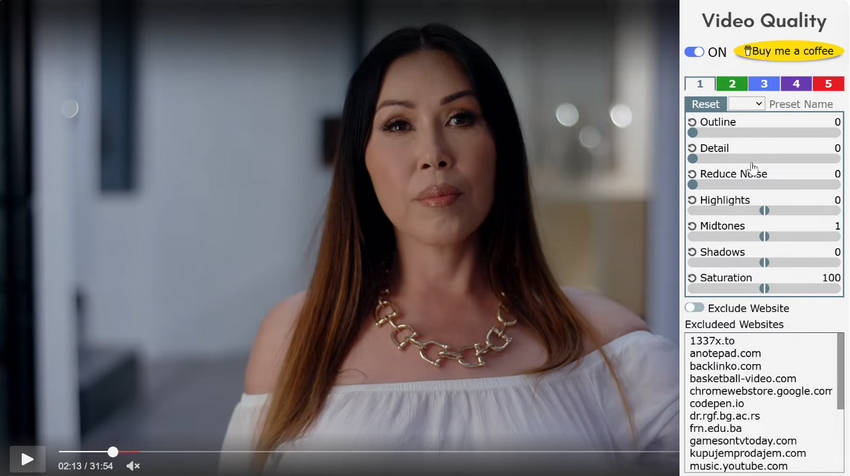
Video Quality Enhancer is designed to improve the appearance of videos across popular streaming platforms, including YouTube, Netflix, Twitch, Prime Video, and Disney+. It provides controls for sharpness, distortion reduction, highlights, midtones, shadows, and saturation, along with presets designed for HD, FHD, 2K, and 4K-like viewing.
- Works across many streaming websites
- Real-time sharpness and color adjustments
- Customizable presets
- No video upload required
- Mainly improves video playback rather than the original file
- Results depend on the source video and browser/GPU performance
2. Video Enhancer - Color Grading
Best for: Quick color and visual adjustments
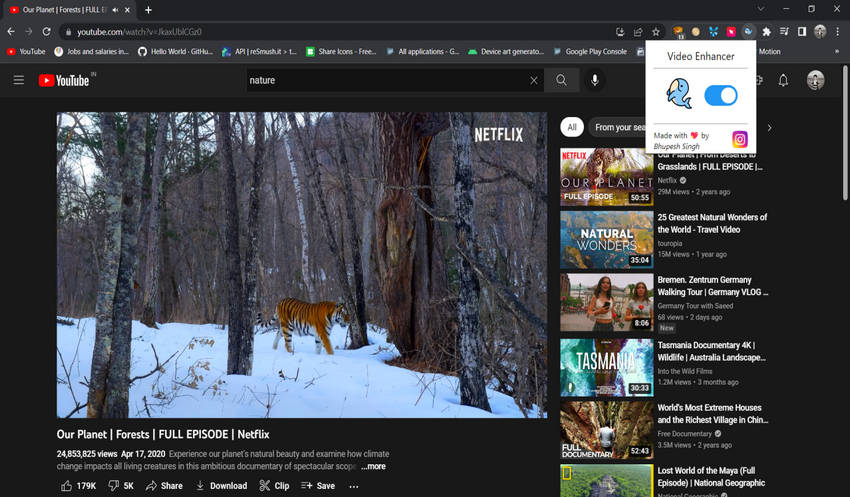
Video Enhancer - Color Grading improves the appearance of videos on platforms such as YouTube, Netflix, and Facebook by applying visual filters in real time. It can make videos look cleaner, sharper, and more colorful without requiring you to download or edit the original video.
The extension is simple to use: turn it on when you want to enhance a video and switch it off to return to the original view. It works particularly well with outdoor scenes, where increased clarity and color can make landscapes and other details more noticeable.
- One-click on/off control
- Enhances sharpness and color through filters
- Works with popular video platforms
- Particularly effective for outdoor footage
- Relies mainly on visual filters rather than AI restoration
- Does not permanently enhance or export the original video
- Results can vary depending on the source footage
3. Enhancer for YouTube
Best for: Improving the overall YouTube viewing experience
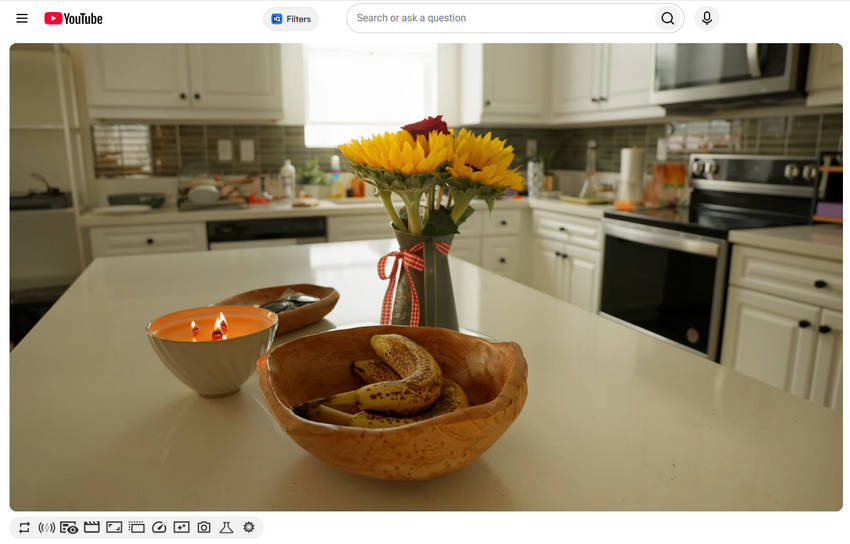
Enhancer for YouTube is more of a YouTube playback and customization tool than a dedicated video quality enhancer. It lets you automatically select preferred video quality, including HD and 4K, while also providing controls for playback speed, volume, player layout, themes, and other YouTube features.
- Automatically select preferred playback quality
- Supports 1080p and 4K preferences
- Extensive YouTube customization options
- Useful for regular YouTube viewers
- Does not actually restore or reconstruct missing video details
- Focuses primarily on playback and YouTube customization
Related Reading: How to Improve YouTube Video Quality
4. RTX Video Enhancer
Best for: NVIDIA RTX users who want real-time AI upscaling
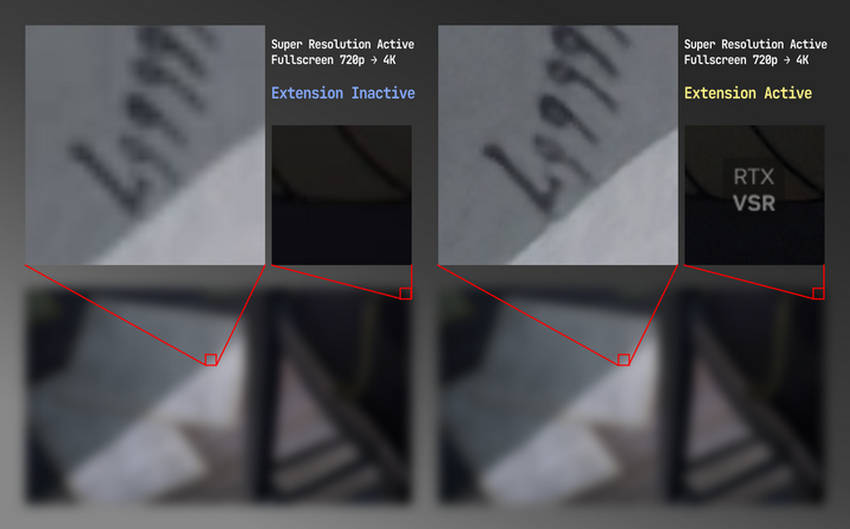
RTX Video Enhancer uses NVIDIA RTX Super Resolution to improve video quality during fullscreen playback on supported streaming platforms. It is particularly useful for users with an NVIDIA RTX graphics card who want better-looking low-resolution video on a high-resolution display.
- AI-powered real-time upscaling
- Uses GPU acceleration
- Designed for high-resolution displays
- Minimal configuration
- Requires a compatible NVIDIA RTX GPU
- Requires Windows and supported NVIDIA drivers
- Primarily enhances playback rather than creating an enhanced video file
5. NexVid
Best for: Real-time video upscaling and anime enhancement
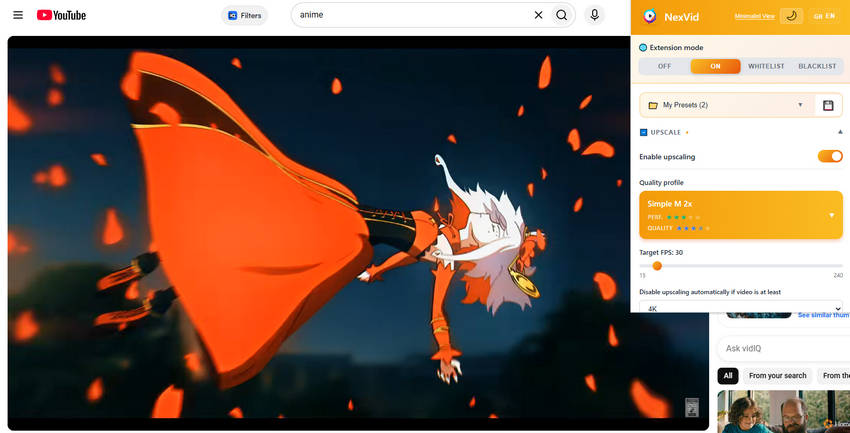
NexVid is a browser-based real-time video upscaler that uses GPU-accelerated Anime4K processing, WebGL shaders, and multiple enhancement profiles. It is particularly interesting for anime, cartoons, movies, and other web video where users want sharper playback without uploading the media.
- Real-time GPU-accelerated processing
- Multiple Anime4K profiles
- Adjustable target FPS and resolution threshold
- Processes video locally without uploading media
- Performance depends heavily on your hardware
- Some features are better suited to anime and animated content
- Designed primarily for browser playback
6. AI Video Enhancer
Best for: AI upscaling and exporting enhanced videos in the browser
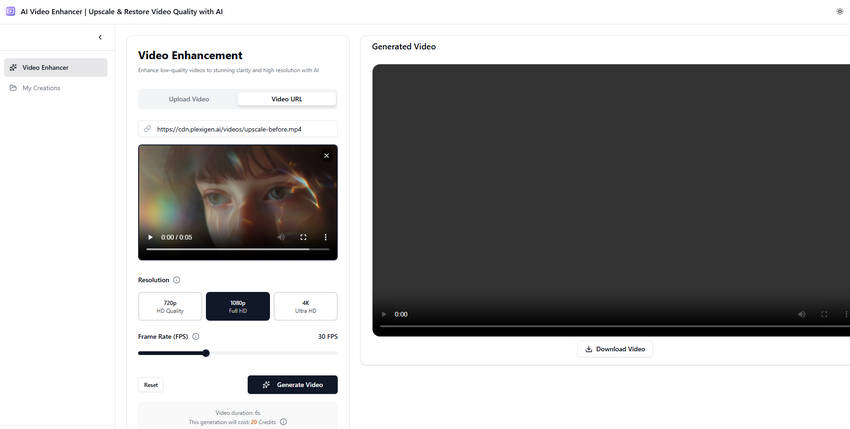
AI Video Enhancer takes a different approach from basic playback filters. It can upscale videos to 4K directly in the browser using local AI processing, with support for formats such as MP4, MOV, WebM, MKV, and AVI. It also provides different processing levels depending on the user's hardware.
- AI-based video upscaling
- Supports output up to 4K
- Local processing
- Supports several common video formats
- Can export an enhanced MP4
- Browser-based processing can be limited by available hardware
- Processing larger or longer videos may take considerable time
- Fewer advanced controls than dedicated desktop video enhancement software
What Can a Video Enhancer Extension Actually Do?
A video enhancer extension can be useful when you want to improve how a video looks while watching it online. Depending on the extension, you may be able to sharpen playback, adjust colors, increase contrast, force a higher playback resolution, or apply real-time AI or GPU-based upscaling.
This makes browser extensions a convenient choice for real-time video viewing. You can turn an enhancement on or off without downloading the video or opening a separate editing program.
However, the right tool depends on what you want to achieve:
- Watching online videos: Extensions are convenient for improving playback quality on platforms such as YouTube, Netflix, and other streaming sites.
- Making minor visual adjustments: Brightness, contrast, saturation, sharpening, and other filters can make a video look better on your screen.
- Real-time upscaling: Some extensions can use AI or GPU processing to upscale video as it plays.
- Improving the actual video file: If you need to permanently enhance, export, or reuse a video, a browser extension is usually not the right tool.
In other words, extensions are mainly designed around how you watch a video, while dedicated video enhancement software is designed around how you improve the video itself. If you need to reduce noise, improve blur, reconstruct details, upscale a local video, or export a higher-quality version, a dedicated AI video enhancer is a better fit.
This is where Aiarty Video Enhancer goes beyond what a typical browser extension can do.
Aiarty Video Enhancer: Enhance, Upscale, and Export Your Video Files
If you need more than real-time playback enhancement, Aiarty Video Enhancer provides a dedicated workflow for improving the actual video file. Instead of applying a visual effect only while you watch, it uses AI models to process the footage and generate an enhanced version that you can export and use elsewhere.
- Enhance the actual video file. Import your video, process it with AI, and export a new enhanced file instead of applying a temporary browser overlay.
- Upscale videos with AI. Increase low-resolution footage from 720p to 1080p or from 1080p to 4K while improving overall clarity and detail.
- Reduce noise and compression artifacts. Clean up noisy or compressed footage, including old videos, downloaded clips, and low-light recordings.
- Improve blur and recover details. Aiarty can help improve mild softness, blur, and lost detail, although severely out-of-focus or heavily motion-blurred footage cannot always be fully recovered.
- Export the enhanced video. Save a new, improved video file that you can edit, share, archive, or play on other devices—not just view with temporary browser enhancement.
Ready to improve your video? Download Aiarty Video Enhancer and see how AI can help upscale, denoise, deblur, and enhance your footage.
How to Enhance and Upscale Videos in Aiarty Video Enhancer
Step 1. Import your video.
Install Aiarty Video Enhancer and drag and drop your video into the program.
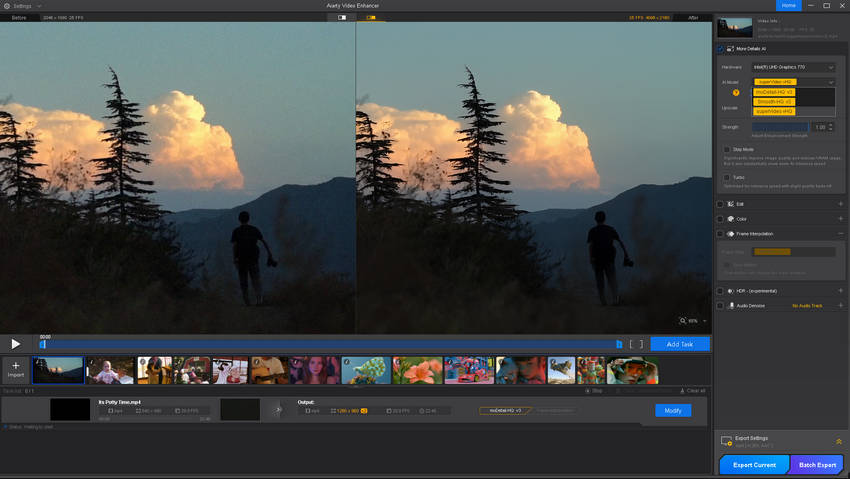
Step 2. Choose an AI model.
Select moDetail-HQ for detailed scenes, Smooth-HQ for general enhancement, or superVideo for noisy, low-light footage.
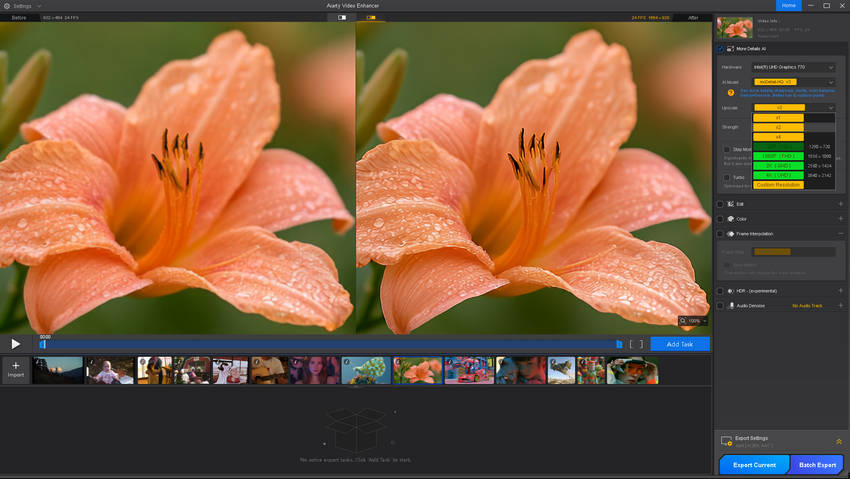
Step 3. Set the output resolution.
Choose x1, x2, or x4 based on your needs, such as upscaling 720p to 1080p or 1080p to 4K.
Step 4. Preview the result.
Adjust Strength to balance clarity and detail, or use Color to fine-tune white balance, exposure, and saturation. Compare the original and enhanced frames before exporting.
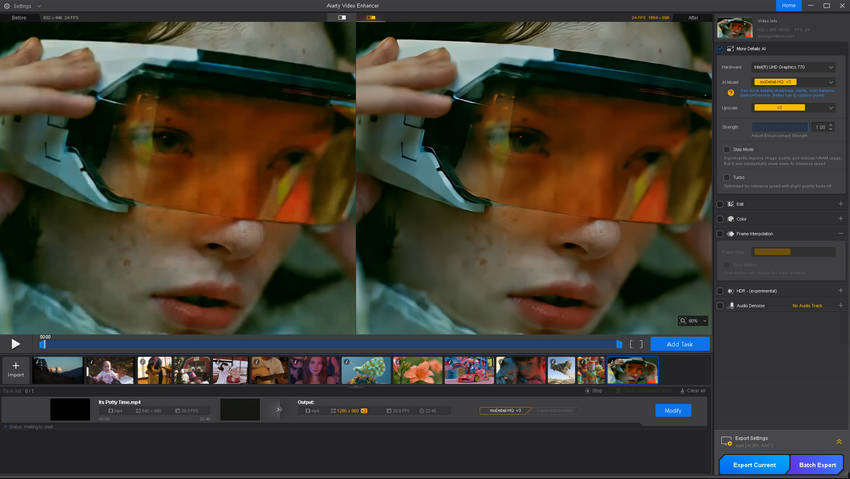
Step 5. Export the enhanced video.
Click Export Current or Batch Export to process and save the enhanced video.
Which Video Quality Enhancer Should You Choose?
The right choice depends on whether you want to improve video playback or the actual video file.
- For YouTube playback: Choose YouTube Enhancer if you mainly want to start videos in 1080p or 4K and control playback settings.
- For better streaming quality: Choose a video quality enhancer extension for real-time sharpening, color adjustments, or visual filters. For AI or GPU-based real-time upscaling, NexVid or RTX Video Enhancer are worth considering.
- For quick visual adjustments: Use an extension such as Video Enhancer - Color Grading when you mainly want to adjust brightness, contrast, saturation, or other visual effects while watching.
- For actual video enhancement: Choose Aiarty Video Enhancer when you need to process a local video file, upscale it to 1080p or 4K, reduce noise and compression artifacts, improve mild blur, or restore details in older footage. You can then export the enhanced video for editing, sharing, or playback on other devices.
In short, Chrome extensions are best for improving what you see in real time, while Aiarty Video Enhancer is the better choice when you want to improve and export the video itself.
Ready to enhance your video? Download Aiarty Video Enhancer to upscale and improve your footage.
 FAQs
FAQs
Yes. Several Chrome extensions can improve video playback with sharpening, color adjustments, higher playback quality, or real-time AI and GPU upscaling. The best choice depends on whether you want simple playback enhancement or more advanced processing.
Yes, but mostly during playback. Extensions can sharpen the image, adjust colors, or upscale video in real time, but they generally do not permanently improve the original video file.
Some extensions can upscale video in real time, including to higher resolutions such as 1080p or 4K. However, this usually changes the playback rather than creating a new upscaled video file. For permanent upscaling, use dedicated video enhancement software.
Chrome extensions can make mildly blurry video appear sharper during playback, but they cannot reliably recover severely lost detail. If you need to process and improve the actual video file, an AI video enhancer is a better option.
The best extension depends on your needs. YouTube-focused extensions are useful for playback controls, while tools such as NexVid and RTX Video Enhancer are better suited to real-time upscaling. If you need to enhance and export a video file, consider a dedicated AI video enhancer such as Aiarty Video Enhancer.
A video enhancer extension mainly improves how a video looks during browser playback. Dedicated AI video enhancer software processes the actual video file, allowing you to reduce noise, improve blur, upscale footage, reconstruct details, and export a new enhanced version.
You May Also Like


This post was written by Brenda Peng who is a seasoned editor at Digiarty Software who loves turning ordinary photos into extraordinary works of art. With AI assistance for brainstorming and drafting, the post is reviewed for accuracy by our expert Abby Poole for her expertise in this field.
