

How to Enlarge a Picture to Poster Size Without Losing Quality



Turning a small photo into a sharp, print-ready poster sounds simple, until the final print comes out blurry, pixelated, or full of strange artifacts.
That’s because enlarging an image for poster printing is not just about making it “bigger.” You need enough pixels, the right DPI, proper aspect ratio handling, and intelligent upscaling technology. Traditional resizing methods simply stretch existing pixels, while AI upscalers generate new detail to preserve sharpness.
Why Image Quality Drops When Enlarging to Poster Size?
When people look up how to enlarge a picture to poster size, they often start with a simple approach: opening the image in a standard editor and increasing the dimensions.
The issue is that traditional resizing tools (like basic scaling in editors) don’t actually add detail: they just stretch what’s already there. Every image is made up of pixels, and when you enlarge it without adding new information, those pixels become larger and more noticeable, which is why you may see a printed poster with:
- Blurry edges where sharp lines should be
- Soft or smeared textures (especially skin, fabric, or foliage)
- Jagged lines on diagonals or text
- Visible pixel blocks (especially in low-resolution images)
- Washed-out or “plastic-looking” details
This becomes much more noticeable in print than on screen. Digital displays can hide minor quality loss because images are shown at relatively small physical sizes, but printing reveals every limitation in resolution. That’s why an image that looks perfectly fine on a phone or laptop can quickly fall apart when converted into a large-format poster, especially if it only has around 1000–2000 pixels on the long edge. When stretched to sizes like 24×36 inches, the lack of detail becomes obvious and the result often looks soft or pixelated.
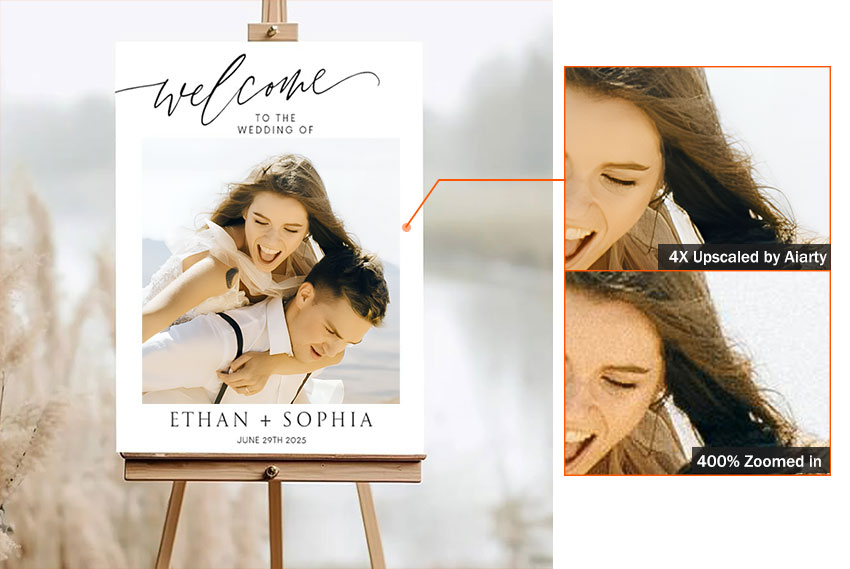
This is also where the real challenge in how to blow up a picture to poster size comes in, not just making the image bigger, but ensuring it still contains enough usable detail to survive the increase in physical size. Because of this, modern workflows increasingly rely on AI upscaling instead of basic resizing. Rather than simply stretching pixels, AI-based tools like Aiarty Image Enhancer attempt to reconstruct missing texture, reduce artifacts, and improve overall clarity, making the final image far more suitable for large poster printing.
What Size Does Your Image Need for Poster Printing?
Before you even start enlarging, the most important step in how to enlarge a picture to poster size is understanding the target resolution you actually need. Here is a formula that tells you how many pixels your image must have to print clearly at a given size:
Required Pixels=Print Size (inches)×DPI
Let’s break it down with real examples:
Also, keep in mind that DPI is flexible depending on viewing distance (you don't always need 300DPI):
- 300 DPI → best for close inspection (framed posters, gallery prints, photography)
- 200 DPI → great balance of quality and file size
- 150 DPI → perfectly acceptable for large wall posters viewed from a distance
So if you’re trying to figure out how to blow up a picture to poster size, and your original image is only, say, 1800×2700 px, you’re working with just a fraction of the required resolution for a high-quality 24×36 print. That gap is what causes quality loss and what needs to be filled through intelligent upscaling.
This is why, in real-world scenarios, learning how to enlarge a picture to poster size isn’t about chasing a perfect number. It’s about balancing resolution, viewing distance, and source image quality. Done right, even a moderately sized image can be transformed into a sharp, print-ready poster, as long as you calculate the target resolution first and use the right enhancement method.
Enlarge Images to Poster Size with Aiarty Image Enhancer
Aiarty Image Enhancer Aiarty Image Enhancer is an AI-powered image upscaling and enhancement tool designed to enlarge small or low-resolution images into high-quality, print-ready visuals. It is especially useful when you need to enlarge a picture to poster size or large-format printing without losing detail.
This is especially useful when you’re trying to blow up a picture to poster size from smartphone photos, web images, AI-generated artwork, old or scanned photos, or slightly compressed JPEGs. Instead of stretching pixels like traditional tools, it uses AI to reconstruct missing details and preserve natural-looking clarity.
- AI Upscaling (2×, 4×, 8×, up to 32K output): Enlarge images to high resolutions for different poster sizes and large-format printing without blur, pixelation, or distortion during scaling.
- Noise, blur, and artifact removal: Clean up low-quality sources such as compressed or noisy images and strengthen fine lines, edges, and textures to keep poster visuals crisp and clean.
- DPI adjustment for posters: Optimize output resolution for standard poster printing requirements.
- Editing features: Adjust brightness, contrast, and saturation for better print appearance, remove unwanted elements and crop images to fit poster layouts before upscaling.
- Batch processing support: Batch enlarge multiple pictures you’re preparing multiple images for print (e.g., posters, marketing visuals, or wall art collections).
How to Enlarge Pictures to Poster Size Step by Step
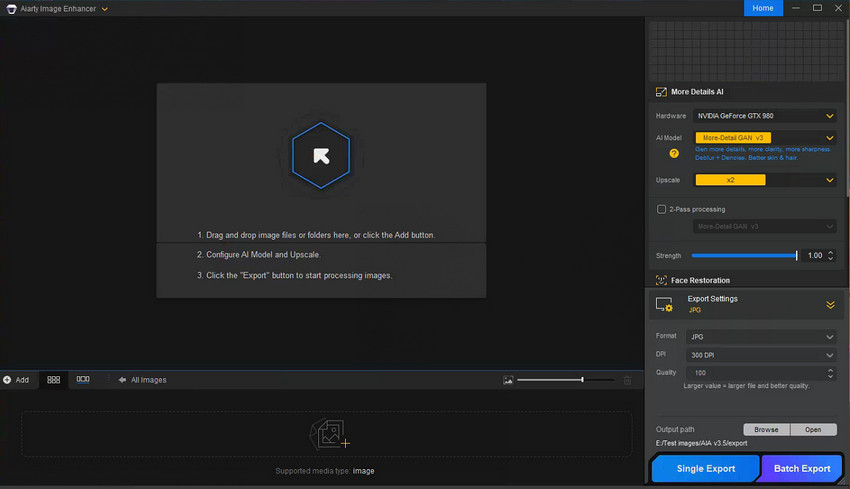
Step 1. Import your image into Aiarty Image Enhancer
Download and open the photo enlargement software on your computer. Then simply drag and drop your image into it. You can add multiple images to enlarge into poster sizes at once. It works for almost all common sources, including smartphone photos, web images, AI-generated artwork, scanned photos, or compressed JPEGs.
Step 2. Choose the AI enhancement model
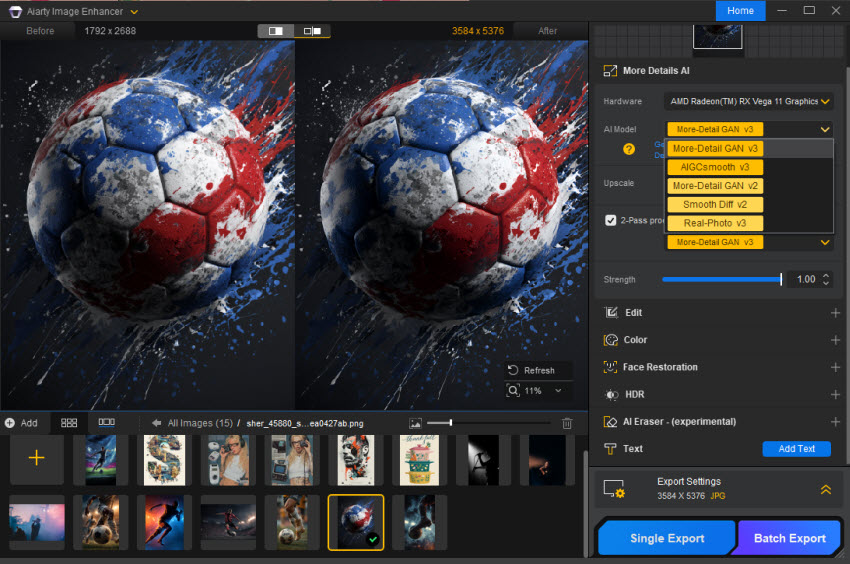
On the right-side panel, select the AI model based on your image type and final poster usage:
- More-Detail GAN v3: Best for posters prints that need sharp edges, textures, and fine details (e.g., photography, architecture, product posters).
- Real-Photo model: Ideal for real-world photo posters, helping preserve natural skin tones, lighting, and realistic details for portrait, travel, or lifestyle prints.
- AIGC Smooth v3: Optimized for anime, illustrations, and AI-generated artwork used in poster design.
Step 3. Set the output size for poster
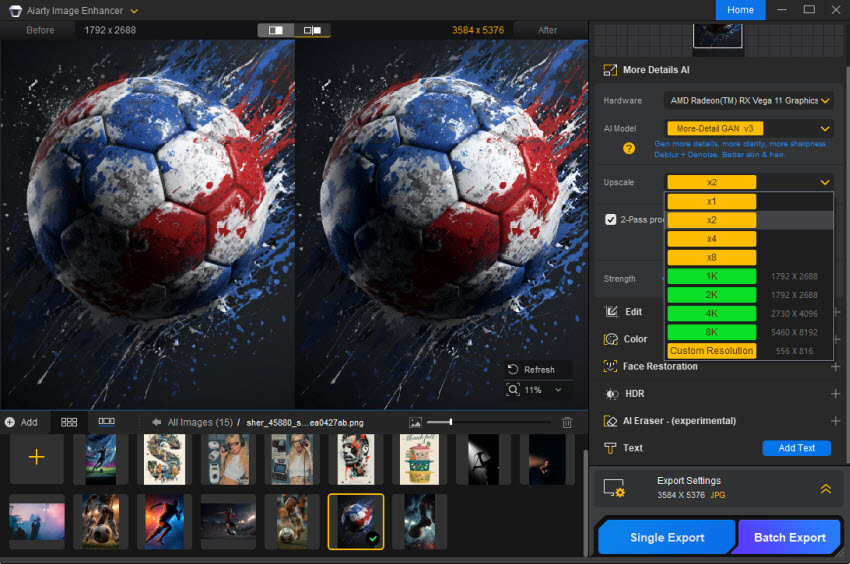
Next, choose how much you want to enlarge the image based on your target poster size. In most how to enlarge a picture to poster size workflows, 2×–4× is usually enough for standard print posters.
Before that, it’s better to first calculate the target resolution using the poster print size and DPI. For example, a 24×36 inch poster at 300 DPI requires a final resolution of 7200 × 10800 pixels. This helps you decide whether a 2×, 4×, or multi-step upscale is sufficient.
Instead of jumping directly to a very high upscale level, it’s often better to scale in stages if the source image is very small. For example, use 2× upscale first, then re-import and upscale again if needed (2× → 4× total). This helps maintain more stable details compared to a single aggressive upscale and reduces the risk of over-sharpening or unnatural textures.
Step 4. (Optional) Refine Color, Clean Up, and Add Text
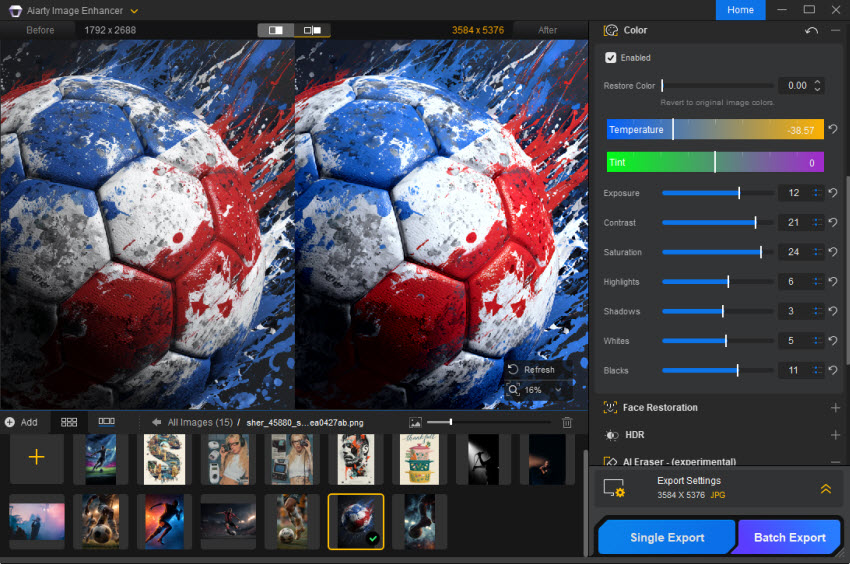
Before exporting your poster, you can optionally fine-tune the image to improve its overall visual impact and layout readiness.
- Color Adjustment: Use color tools to optimize brightness, contrast, saturation, and exposure, ensuring the image looks balanced and visually strong for print.
- AI Object Removal: Remove unwanted elements or distractions from the image to create a cleaner and more focused poster composition.
- Add Text: Add titles, slogans, or design text directly onto the enlarged poster picture.
Step 5. Export with print-ready settings
Finally, go to the Export panel and prepare your file for printing.
- DPI: Set to 300 DPI for high-quality poster printing
- Format: Choose PNG, TIFF for the best output quality, or JPEG for good balance of quality and file size
Then click Single Export or Batch Export and it will start enlarging the poster pictures to the size you choose.
Real AI Poster Enlargement Examples
Can AI actually enlarge a picture to poster size without ruining image quality? To find out, we tested Aiarty Image Enhancer on four different types of poster images. The goal was to see how well it could enlarge images for poster printing while preserving details, reducing imperfections, and improving overall visual quality.
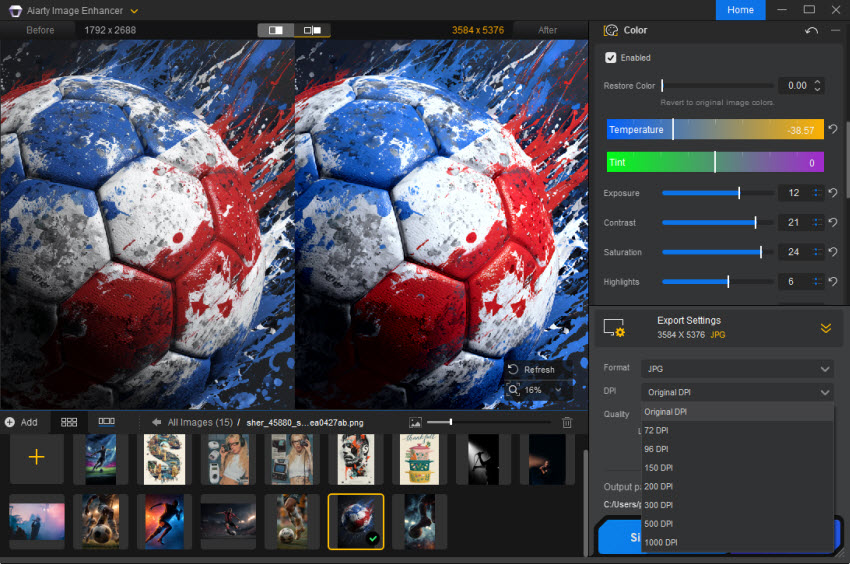
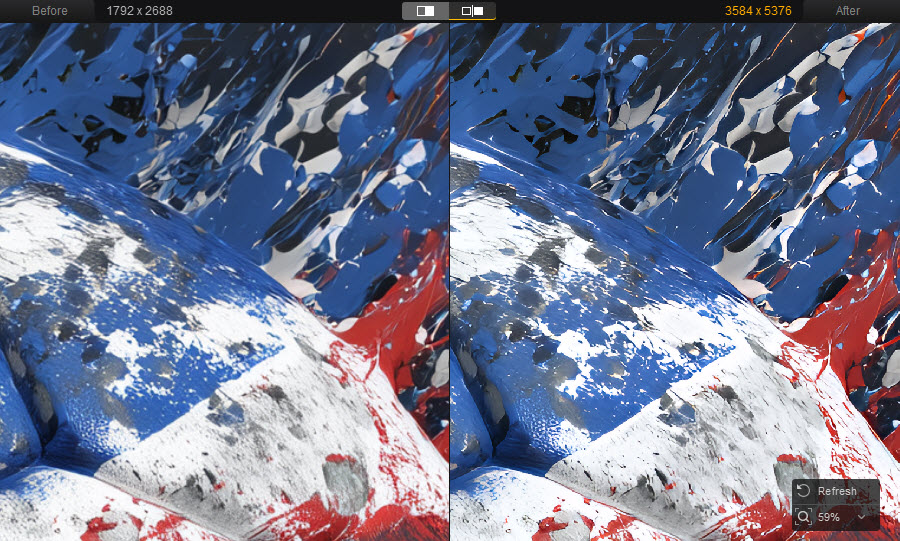
Example 1: Football Poster (1792 × 2688 → 3584 × 5376)
The football poster already had a decent resolution, making it a good candidate for enlargement. After a 2× upscale, the image retained all of its original detail while appearing noticeably sharper. Uniform textures, facial features, and stadium elements remained natural, with no visible quality degradation. The AI enhancement also improved the clarity of fine textures and edges, making the enlarged version look more suitable for large-format poster printing.
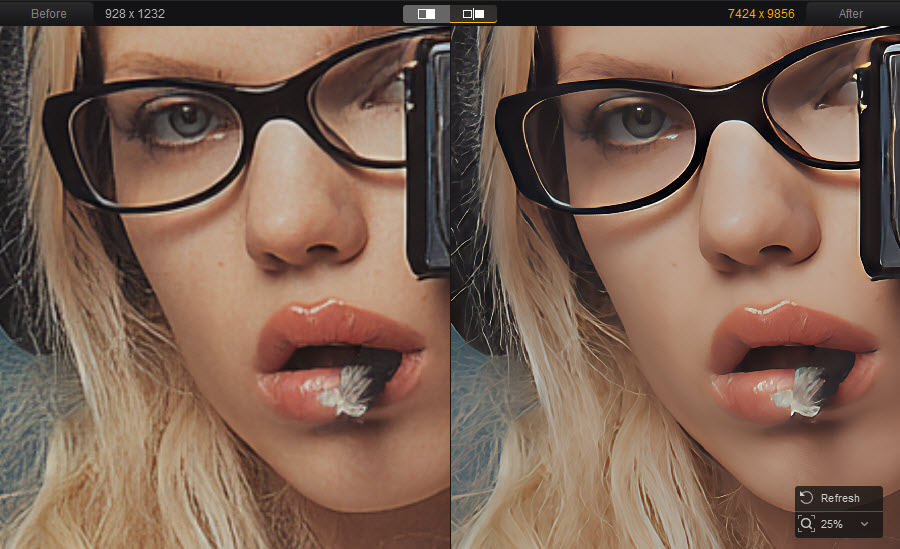
Example 2: Portrait Poster (928 × 1232 → 7424x9856)
Portraits are often the most demanding test because viewers naturally focus on facial details. This original image appeared slightly soft, particularly when blowing up the picture to poster size.
After 8x enlargement, facial features became noticeably clearer, while individual hair strands that previously blended together became much more defined. The enhancement improved sharpness without creating an over-processed look, resulting in a cleaner and more professional portrait poster.
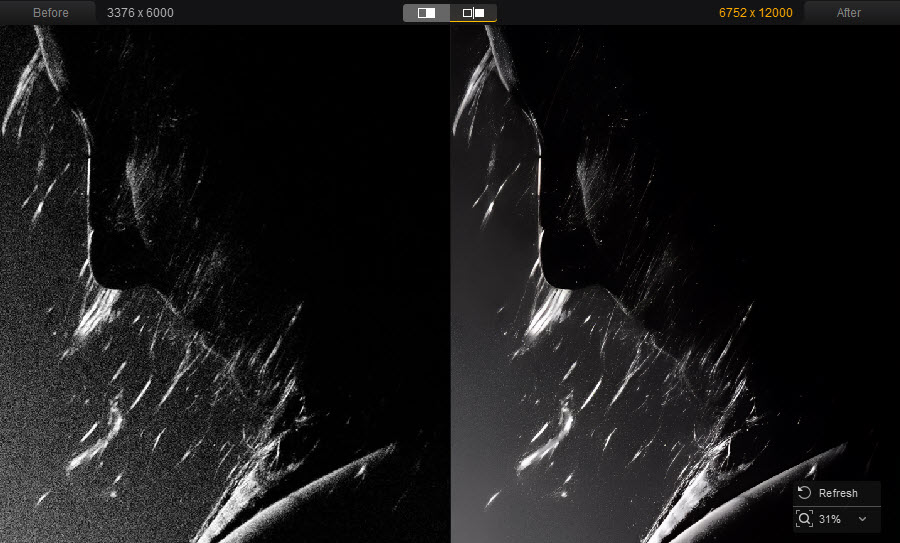
Example 3: Concert Poster (3376 × 6000 → 6752 × 12000)
Concert photography often presents additional challenges due to low-light conditions and visible image grain. The original image contained noticeable noise in darker areas, which became a concern for large-format poster printing.
After upscaling, grain and noise were reduced, while details in the performers' hair and stage lighting became more distinct. The final result maintained the atmosphere of the original concert scene while delivering a much cleaner and sharper poster-quality image.
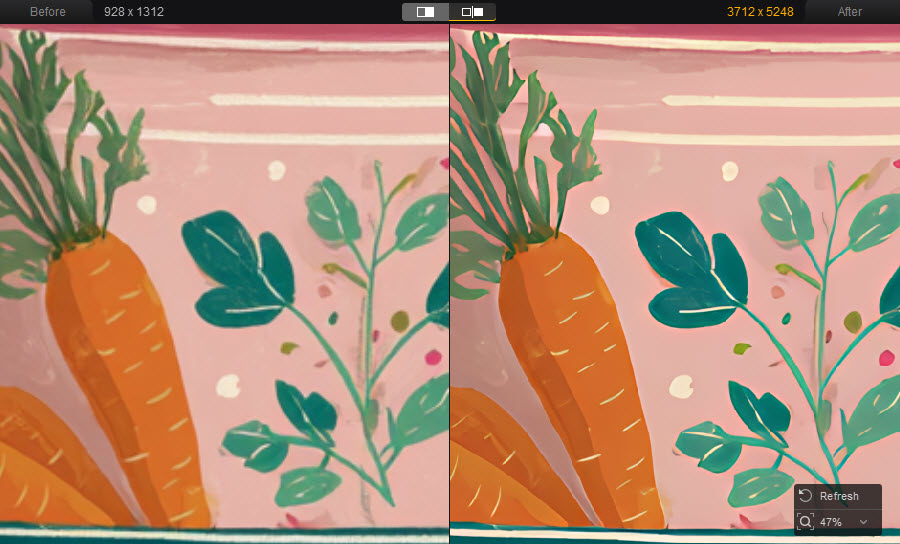
Example 4: AI-Generated Graphic Poster (928 × 1312 → 3712× 5248)
AI-generated artwork frequently contains subtle artifacts, inconsistent edges, and texture irregularities that become more obvious when enlarged to poster sizes.
After 4x upscaling, the graphic poster with Aiarty Image Enhancer, many of these imperfections were removed or significantly reduced. Lines appeared cleaner, edges became sharper, and the overall design looked more polished. The final image had a much cleaner presentation, making it better suited for professional poster printing and promotional use.
Further reading: how to enlarge old photos for poster size
Overall Results
Across all four test cases, Aiarty Image Enhancer improved image quality beyond simple resizing. In addition to increasing resolution, it helped reduce common issues that usually appear in poster printing, such as softness, noise, grain, and blurred details, while also minimizing visible artifacts in AI-generated images.
From photos to digital artwork, the upscaled results were consistently more suitable for large-format printing. Edges appeared clearer, textures were more defined, and the overall output aligned better with typical poster size requirements. This makes AI-based upscaling a practical option to enlarge a picture to poster size without compromising visual quality.
Final Words
Enlarging an image for poster printing isn't just about making it bigger, it’s about making sure it still looks good at a larger size. By calculating the right resolution, choosing an appropriate DPI, and using AI upscaling instead of traditional resizing, you can avoid common issues like blur, pixelation, and loss of detail.
If your source image isn't large enough for printing, Aiarty Image Enhancer provides a straightforward way to upscale photos, artwork, and graphics for poster-sized output. With AI-powered enlargement, sharpening, denoising, and other enhancement tools, it can help turn small images into cleaner, sharper files ready for print.
 FAQs
FAQs
Yes, but the result depends heavily on the original image quality. If the source image contains enough detail, modern AI upscalers can enlarge it while preserving textures, edges, and fine details much better than traditional resizing methods. However, extremely small or heavily compressed images still have limitations.
Not necessarily. One of the most common misconceptions is that every poster must be printed at 300 DPI. In reality, viewing distance matters. Posters are usually viewed from farther away than magazines or photo books, so many printing professionals consider 150–200 DPI sufficient for large-format posters, while 300 DPI remains the gold standard for close viewing.
There’s no fixed answer because the maximum printable poster size depends on the image's original resolution, detail level, and viewing distance. In general:
- High-quality photos can often be enlarged significantly with AI assistance.
- Web images and social media downloads have more limited enlargement potential.
- Extremely small images may still show softness or artifacts after upscaling.
Yes. AI upscaling does more than simply enlarge pixels. Modern models can reconstruct textures, sharpen edges, reduce noise, and remove compression artifacts, making images more suitable for large-format printing. This is one reason AI upscalers have become popular among photographers, designers, and AI-art creators preparing images for posters, canvas prints, and print-on-demand products.
Screens display images at relatively low viewing sizes, which can hide resolution problems. Once the image is enlarged for printing posters, every pixel becomes more visible. A photo that looks sharp on a phone or monitor may not contain enough pixels for a large poster. This is one of the most common questions raised in printing forums and communities.
You May Also Like


This post was written by Brenda Peng who is a seasoned editor at Digiarty Software who loves turning ordinary photos into extraordinary works of art. With AI assistance for brainstorming and drafting, the post is reviewed for accuracy by our expert Abby Poole for her expertise in this field.
