



How to Enhance Screenshot Quality: Make Blurry & Low-Resolution Screenshots Clearer



A screenshot can look perfectly clear on your screen, then turn blurry, pixelated, or hard to read after being resized, compressed, or shared. This is especially noticeable with small text, UI elements, thin lines, and other fine details.
So, how can you enhance screenshot quality without making it look overly sharpened or distorted? The best approach depends on whether you still have access to the original content.
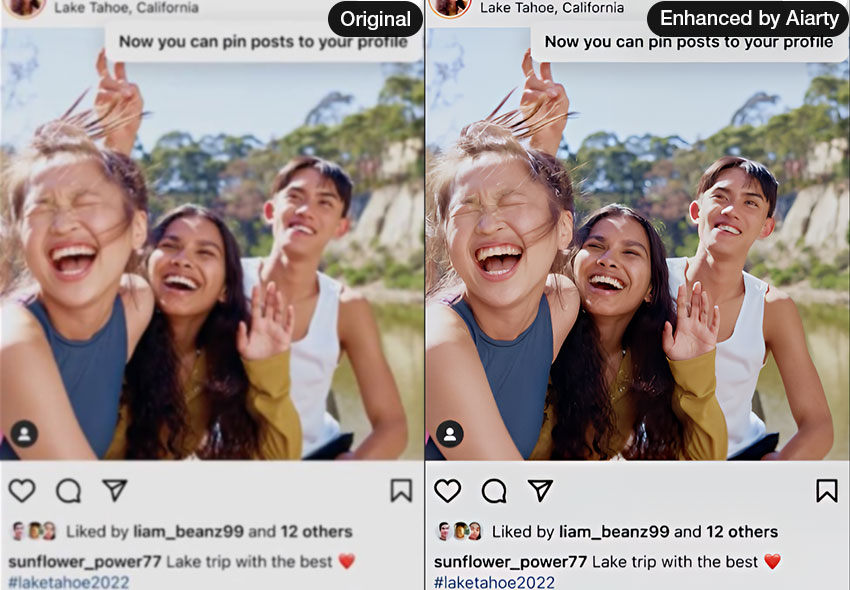
If you can recapture it, taking a screenshot at a higher resolution is usually the cleanest solution. If you only need a larger image, a standard image editor can resize it. But when you already have a blurry, pixelated, or low-resolution screenshot, AI enhancement can do more than simply increase its dimensions by improving clarity, reducing noise and compression artifacts, and refining fine details.
Quick Answer: How to Enhance Screenshot Quality
The right method depends on the condition of your screenshot. If the original content is still available, recapturing it at a higher resolution usually gives the cleanest result. If the screenshot is already clear but too small, resizing it with an image editor may be enough. For screenshots that are blurry, pixelated, noisy, or affected by compression, AI enhancement can help recover clearer details instead of simply making the image larger.
If you already have a low-quality screenshot and cannot recapture it, Aiarty Image Enhancer provides a practical way to improve it before sharing, presenting, or using it elsewhere.
Method 1. Recapture the Screenshot at Higher Resolution
If you still have access to the original webpage, app, document, or other content, recapturing the screenshot at a higher resolution is usually the cleanest way to improve its quality. Unlike upscaling an existing image, a new capture can preserve more of the original text, icons, and fine details from the start.
Before capturing, maximize the window or content area, use the highest practical display resolution, and avoid zooming the source content too far out. If possible, capture the original content directly rather than taking a screenshot of an already resized or compressed image.
But if you only have the existing low-quality screenshot, recapturing may not be an option. In that case, you can either resize it for a larger output or use AI enhancement to improve its clarity and details.
Method 2. Resize the Screenshot with an Image Editor
If your screenshot is already clear but you need a larger image, a standard image editor such as Photoshop, GIMP, or Preview can resize it quickly. For example, an 800 × 600 screenshot can be resized to 1,600 × 1,200 pixels for a larger display or document.
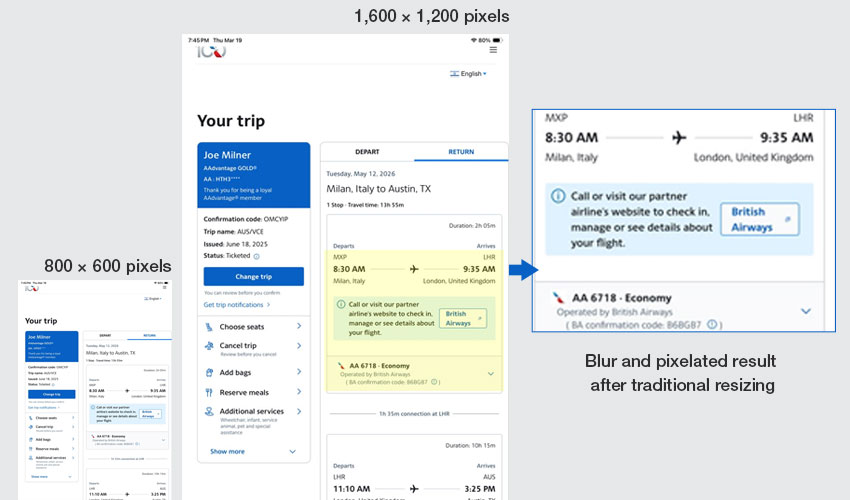
However, resize does not mean enhance. Traditional resizing adds pixels to increase the image dimensions, but it cannot reliably recover details that are already missing. If the original screenshot is blurry, pixelated, or heavily compressed, simply enlarging it may leave text and interface elements looking soft or jagged.
When the goal is not just to make a screenshot larger but to make it clearer, AI enhancement is a better option.
Method 3. Enhance Screenshot Quality with Aiarty Image Enhancer
If you only enlarge a low-quality screenshot, you also enlarge its blur, pixelation, and compression artifacts. AI enhancement takes a different approach by analyzing the image and refining details as it processes the pixels. This can be useful for screenshots with soft text edges, noisy backgrounds, pixelation, or compression artifacts.
For example, a small screenshot with slightly blurred interface text may become clearer after enhancement, while icons, thin lines, and other fine UI details can look more defined. The goal is not to make every edge artificially sharp, but to improve clarity while keeping the screenshot natural.
Step 1: Import Your Screenshot
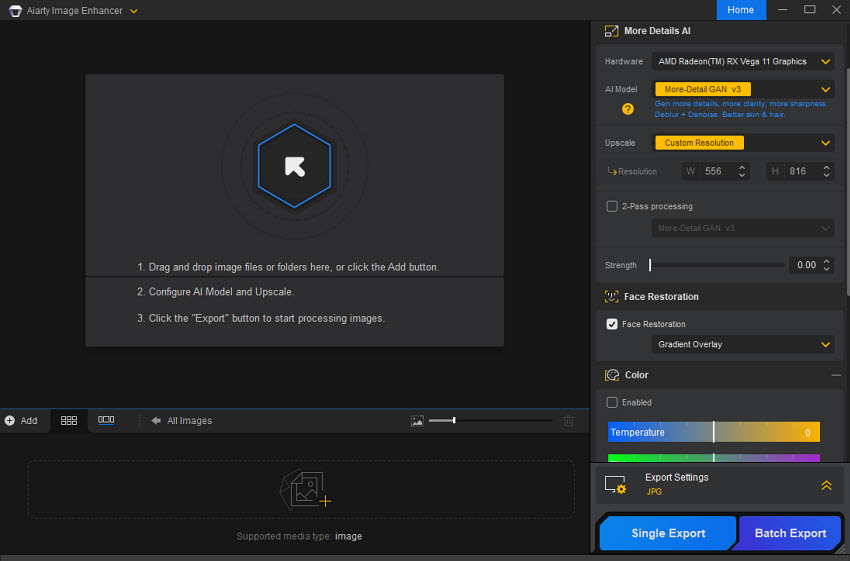
Free download and launch Aiarty Image Enhancer. Drag and drop to import the screenshot you want to improve. You can work with the original image directly, which helps avoid additional quality loss from repeated saving or resizing.
Step 2: Choose an AI Model
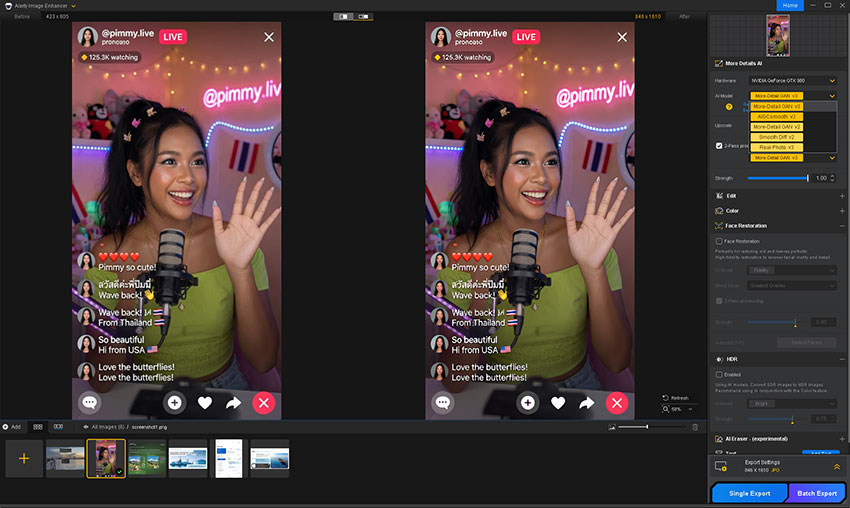
For typical screenshots, More-Detail GAN is a good starting point when you want to recover fine details and improve clarity. If the screenshot contains AI-generated graphics, illustrations, or smoother graphic elements, AIGCsmooth may be more suitable.
Choose the model based on the type of content rather than simply selecting the strongest-looking result. Different models can produce different textures and edge characteristics.
Step 3: Select 1x, 2x, 4x, or 8x
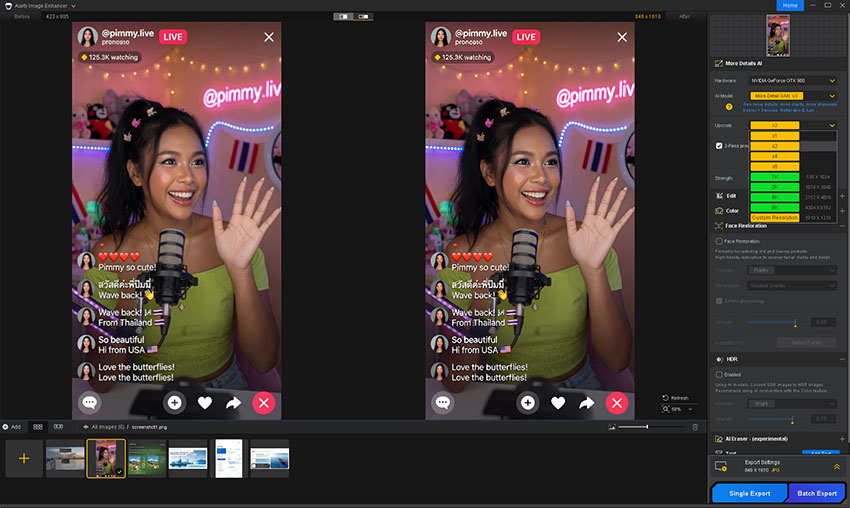
Choose the scale based on the screenshot's original resolution and your output needs. 1x improves quality without changing dimensions, while 2x, 4x, and 8x increase the output resolution.
For most screenshots, 2x or 4x is a good starting point. If you need a larger output, progressive upscaling such as 2x + 2x can sometimes produce better results than directly enlarging the original to 4x.
Step 4: Adjust Strength, Preview, and Export
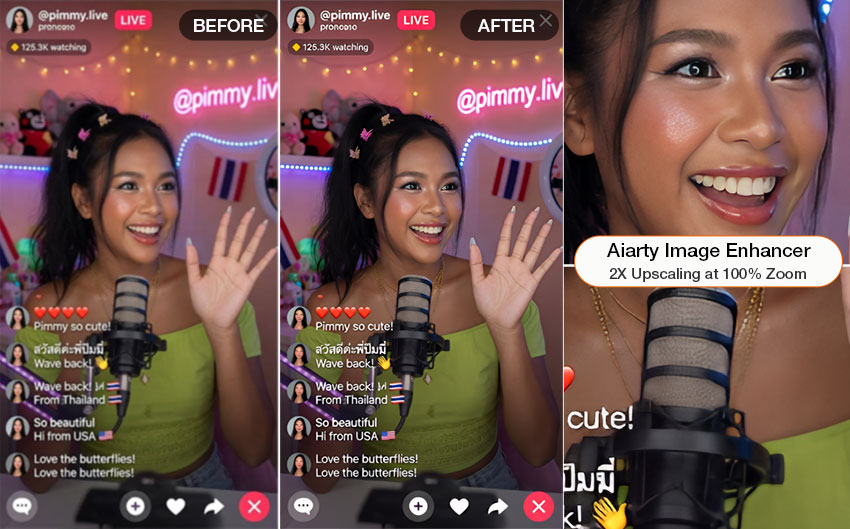
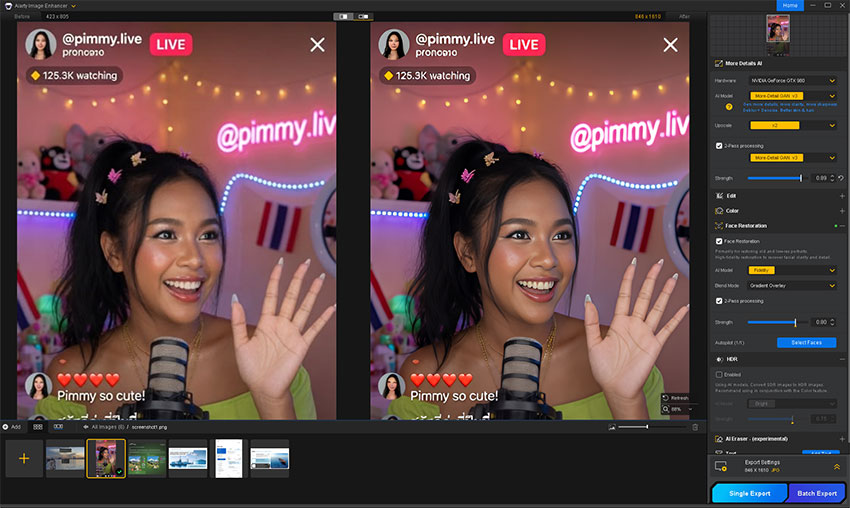
Use the Strength control to balance clarity and natural-looking details. Start with a moderate setting, preview the result, and check small text, icons, thin lines, and other important areas at 100% zoom. If edges start to look too harsh or processed, lower the strength before exporting.
Recommended Settings for Different Screenshots
- Slightly blurry: Start with 1x and moderate Strength to improve clarity without changing the image dimensions.
- Low-resolution: Try 2x for a balance between added detail and output size.
- Very small screenshots: Use 4x when you need a larger output. For better results, consider progressive upscaling such as 2x + 2x.
- Pixelated or compressed: Start with 1x–2x and adjust Strength based on the preview rather than applying maximum enhancement.
- Large output: Use 4x–8x when necessary, but check text, icons, and thin lines at 100% before exporting.
These are starting points rather than fixed settings. The best combination depends on the screenshot's original quality and how you plan to use the final image.
Can AI Make Screenshot Text Clearer?
AI enhancement can help make slightly blurred text, soft edges, UI icons, thin lines, and other existing details look clearer. It works best when the original screenshot is still recognizable but lacks sharpness.
However, AI cannot reliably recover text or details that were never captured. If characters are severely blurred, heavily compressed, or represented by only a few pixels, the result may look clearer without being an accurate reconstruction of the original text.
Related Reading: How to Unblur an Image - 6 Best Apps to Fix Blurry Photos
AI Enhancement vs. Traditional Resizing for Improving Screenshot Quality
Resizing and AI enhancement are not really competing tools. They solve different screenshot problems. Traditional resizing is enough when a screenshot is already clear and you simply need a larger image. But when the screenshot is blurry, pixelated, noisy, or compressed, making it larger does not restore the details that have already been lost.
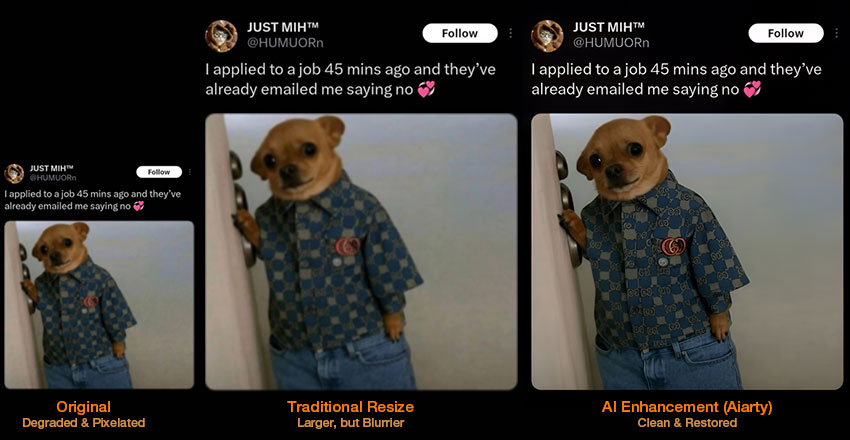
See how traditional resizing and AI enhancement differ when improving low-quality screenshots.
The difference becomes most noticeable when you start with a low-quality screenshot. A conventional resize can give you a larger file, but the enlarged image may still have soft text, jagged edges, visible compression, and missing fine details. AI enhancement attempts to improve those underlying quality issues as it enlarges the image.
So, if your screenshot is already sharp, resize it and keep things simple. If you are trying to make an old, blurry, pixelated, or compressed screenshot genuinely clearer, an AI enhancer such as Aiarty Image Enhancer is the more useful tool to have.
Have a blurry screenshot that needs more than a simple resize? Try Aiarty Image Enhancer now!
How to Keep Screenshots Clear After Enhancement
Once you have improved a screenshot, a few simple habits can help preserve its quality:
- Capture at the highest practical resolution: Start with the clearest source you can. Higher-quality input gives you more detail to work with.
- Avoid repeated resizing: Resize or upscale the image as few times as possible to prevent unnecessary quality loss.
- Keep the original: Save the original screenshot separately so you can always return to it for another edit or enhancement.
- Use PNG for text and UI: PNG is usually a better choice for screenshots with text, icons, sharp lines, and interface elements because it uses lossless compression.
- Don't over-process: Excessive sharpening or enhancement can make text edges look harsh and introduce an unnatural processed appearance. Check the result at 100% before saving.
Conclusion
Enhancing screenshot quality starts with choosing the right approach. Recapture the screenshot when the original content is still available, resize it when you simply need a larger image, and turn to AI enhancement when an existing screenshot is blurry, pixelated, or lacking detail.
For low-quality screenshots that need more than a simple resize, Aiarty Image Enhancer offers a practical way to improve clarity, refine details, and upscale the image while keeping the result natural.
 FAQs
FAQs
If you still have the original content, recapture the screenshot at a higher resolution. For an existing blurry or low-resolution screenshot, AI enhancement can improve clarity, reduce visible artifacts, and refine fine details.
Start with the highest-quality version available and use AI enhancement for mild blur or soft details. Avoid excessive sharpening, which can make text and UI elements look harsh or unnatural.
Yes. You can increase a screenshot's dimensions with an image editor or use AI upscaling for additional detail enhancement. AI tools can upscale the image while also improving visible image quality.
Try AI enhancement at 1x–2x first and check the result before using a higher scale. Severe pixelation cannot always be fully reversed, especially when the original screenshot contains very little usable detail.
If a screenshot is already clear and only needs to be larger, a standard image editor may be enough. For blurry, pixelated, compressed, or low-resolution screenshots, an AI enhancer such as Aiarty Image Enhancer can improve both resolution and visual clarity.
You May Also Like


This post was written by Brenda Peng who is a seasoned editor at Digiarty Software who loves turning ordinary photos into extraordinary works of art. With AI assistance for brainstorming and drafting, the post is reviewed for accuracy by our expert Abby Poole for her expertise in this field.
