


Resizing images sounds deceptively simple, but choosing the wrong tool can bottleneck your entire workflow. If your goal is just quick downscaling for social media or a personal blog, a lightweight image resizer software or a native shell extension will get the job done in seconds.
However, modern digital pipelines demand much more nuance. Whether you need to master how to batch resize images across a massive e-commerce catalog, leverage professional image resizing software for mac and Windows for complex layout adjustments, prepare ultra-sharp assets for physical gallery prints, or use AI to reconstruct low-resolution graphics without pixelation, generic tools simply fall short.
To help you cut through the noise, the following breakdown maps out the best-suited best photo resizing software and specialized utilities categorized by your exact operational scenario and technical needs.
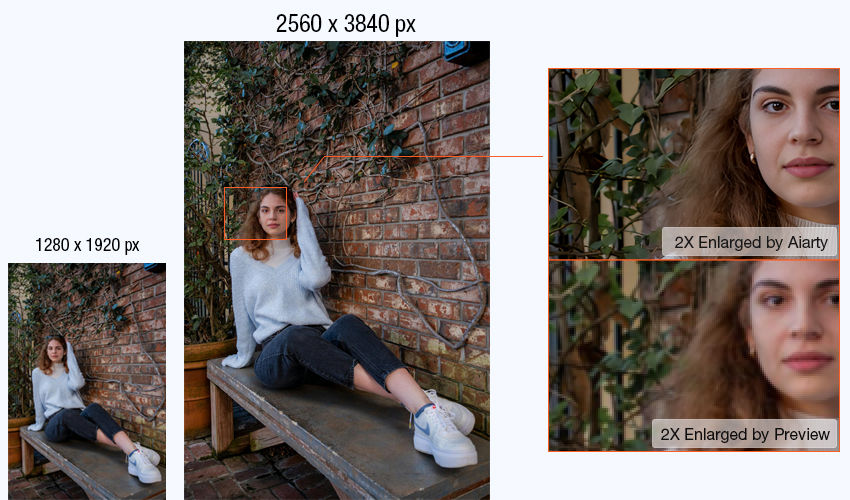
At-a-Glance: Comparing the Best Image Resizer Software
Choosing the right image resizer software depends on what you need to do. Some tools are designed for AI-powered enlargement and improving image quality, while others focus on fast batch resizing, free editing, professional printing, or automated workflows.
The comparison table below highlights the key differences between the best image resizing software options, including supported platforms, batch processing capabilities, and difficulty levels, helping you quickly find the right tool for your workflow.
Aiarty Image Enhancer- Best AI Image Resizer without Losing Quality
Most traditional image resizer software focuses on changing image dimensions. It can make an image smaller or larger, but when enlarging low-resolution photos, it often creates common problems such as pixelation, blurry edges, loss of textures, and unnatural-looking details.
Aiarty Image Enhancer takes a different approach by combining AI-powered image resizing with quality enhancement. Instead of simply stretching pixels, it analyzes image content and improves details during the resizing process, helping users create larger images with better clarity and a more natural appearance.
Unlike basic photo resizing software, Aiarty helps Windows and Mac users to resize images without losing quality.
- Upscale images to 4K, 8K, beyond, or specific pixel dimensions based on different needs.
- Reduce noise, avoid pixelated artifacts, and improve fine details while increasing resolution.
- Crop images into different aspect ratios while maintaining visual quality.
- Export resized images with customizable DPI settings for printing
- Resize multiple images efficiently with batch processing
How Aiarty Image Enhancer Resize and Enhance Images for Different Needs
1. Resize Photos to 4K, 8K, and Beyond for Large Prints
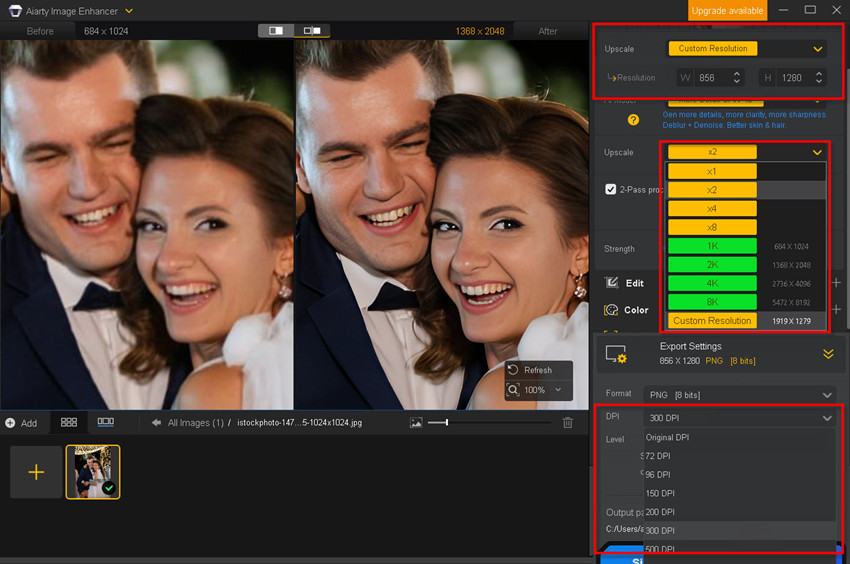
When images need to be resized for professional output, maintaining detail and clarity becomes critical. This is especially important for wedding photos, portraits, and photography projects that need to be displayed in larger formats. Aiarty can resize images to 4K, 8K, and beyond while using AI to preserve more natural details.
For example, a 1200px wedding photo can be enhanced and resized into a higher-resolution image for printing without the common issues of pixelation, blurry edges, or loss of texture often seen with basic resizing methods.
Unlike basic Windows/Mac photo resizing software that only changes pixel dimensions, Aiarty improves image quality during the resizing process.
2. Restore and Improve Low-Resolution Photos
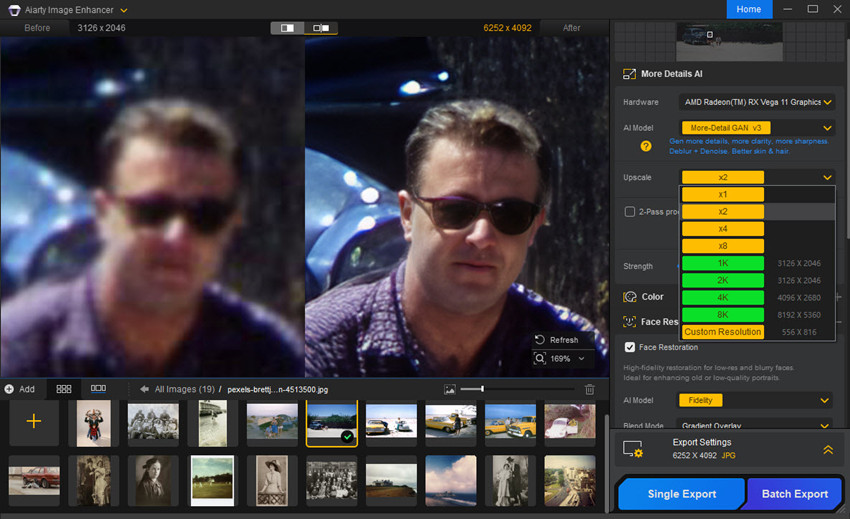
Many users need image resizing because their original photos are too small, compressed, or outdated. This includes old family photos, low-resolution downloads, cropped images, and compressed social media pictures.
Aiarty enhances important visual details while resizing, helping improve facial features, textures, and overall sharpness. This makes it useful for photo restoration, archiving, and reprinting projects.
3. Resize Professional Photos for Profiles and Business Use
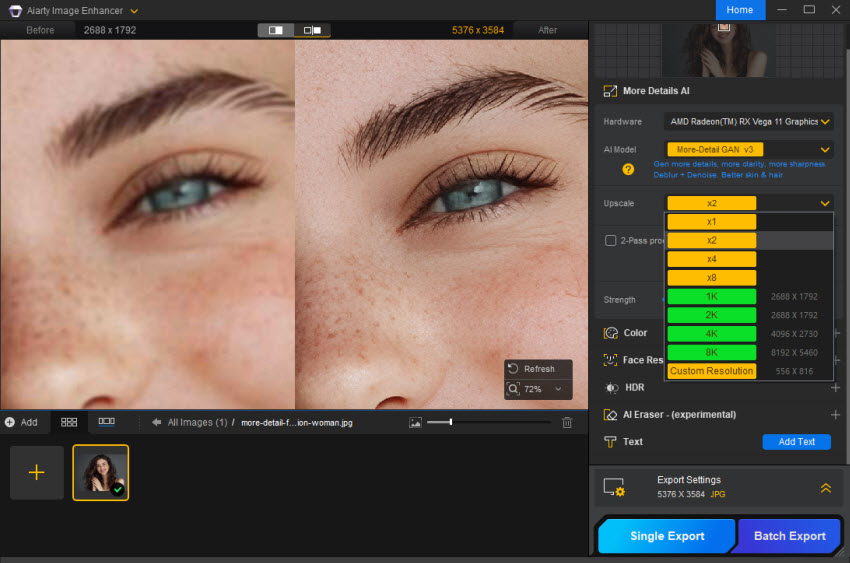
Many people need properly sized, high-quality images for professional purposes, such as profile photos, business portraits, resumes, portfolios, and online profiles.
Aiarty allows users to resize images to specific dimensions while enhancing clarity and maintaining natural details. This is useful when a photo needs to be adapted for different professional requirements without looking blurry or low-quality.
For example, users can turn a high-resolution portrait into a polished profile photo for LinkedIn, company websites, or personal branding while keeping facial details sharp and natural.
4. Optimize Images for E-commerce and Online Content
E-commerce sellers and content creators often work with large image libraries that require consistent dimensions and quality.
With batch processing support, Aiarty helps users resize multiple images without quality loss for product catalogs, online stores, blogs, and marketing materials. This is especially useful when images need to be prepared for different platforms without sacrificing clarity.
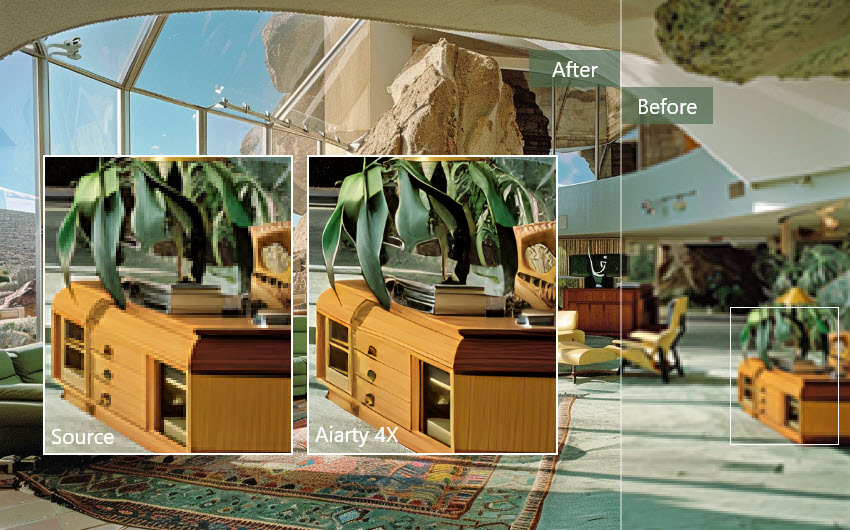
Want to resize photos without quality loss? Try Aiarty Image Enhancer for lossless image resizing.
FastStone Photo Resizer- Best Free Batch Image Resizer for Windows
Best for: Users who need to resize hundreds of images quickly and efficiently
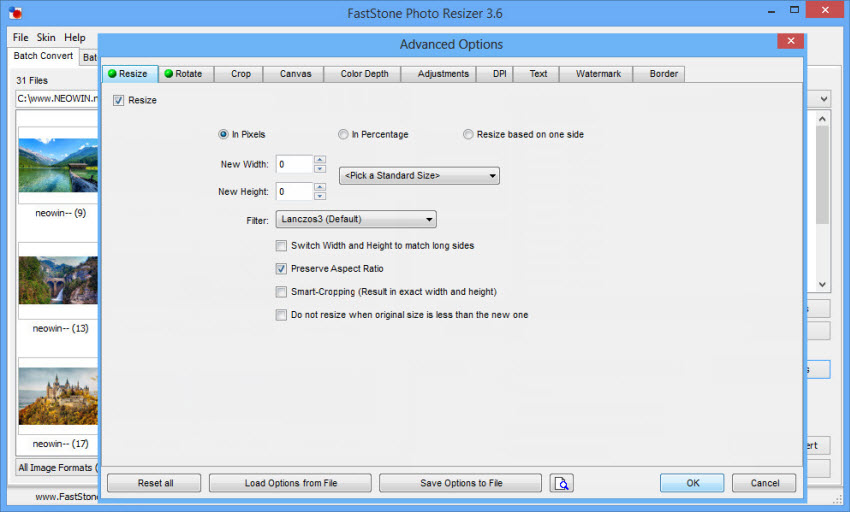
FastStone Photo Resizer is one of the most practical free image resizing software options for Windows users who need fast batch processing. Unlike AI image resizers that focus on improving image quality during enlargement, FastStone is designed for a simpler purpose: changing image dimensions, converting formats, and processing large numbers of files with minimal effort.
It is especially useful when you need to batch resize images for everyday tasks, such as preparing product photos for online stores, optimizing blog images, or resizing event photos before sharing. Users can resize multiple images at once, convert file formats, rename files, add watermarks, and adjust output quality in a single workflow.
FastStone is a great choice if your priority is speed and efficiency rather than AI enhancement. For example, if you have hundreds of photos that need to be resized to the same dimensions, FastStone can complete the task quickly without requiring complicated settings.
Pros
- Free for personal use
- Easy-to-use interface with a short learning curve
- Fast batch image resizing and format conversion
- Lightweight and runs well on most Windows computers
Cons
- The photo resizer software is not for Mac or other systems
- Does not enhance image details when enlarging photos
- Better suited for resizing and conversion than high-quality image enlargement
Topaz Gigapixel AI- Best AI Image Resizer for Professional Enlargement
Best for: Professional photographers who need high-quality image enlargement
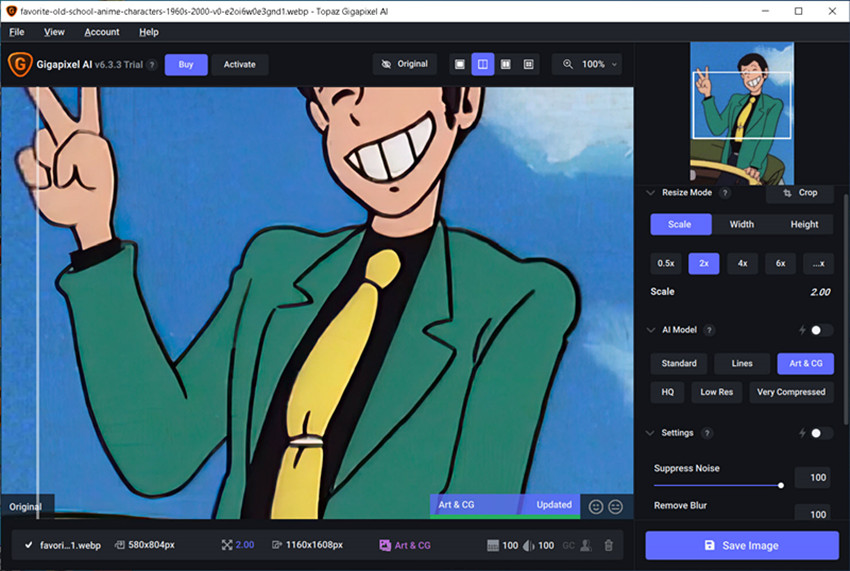
Topaz Gigapixel AI is one of the most well-known AI-powered image resizing software for Mac and Windows to enlarge photos while preserving details.
Gigapixel AI uses AI models to analyze image content and enhance details during enlargement. Gigapixel AI is a strong choice when your main goal is high-quality image enlargement. Compared with basic photo resizer software, it does a better job preserving details such as textures, hair, fur, facial features, and fine landscape elements. This makes it especially useful for photographers who need to resize images for large prints or create larger images from cropped, low-resolution, or older photos.
Pros
- Excellent AI-powered enlargement quality
- Designed specifically for high-resolution upscaling
- Supports batch processing
- Suitable for professional photography workflows
Cons
- More expensive than free image resizer software
- Focused mainly on enlargement rather than general image management
- Faster processing requires stronger hardware
XnConvert- Best Cross-Platform Batch Image Resizer
Best for: Users who need image resizing for Mac, Windows, and Linux that handles complex bulk workflows.
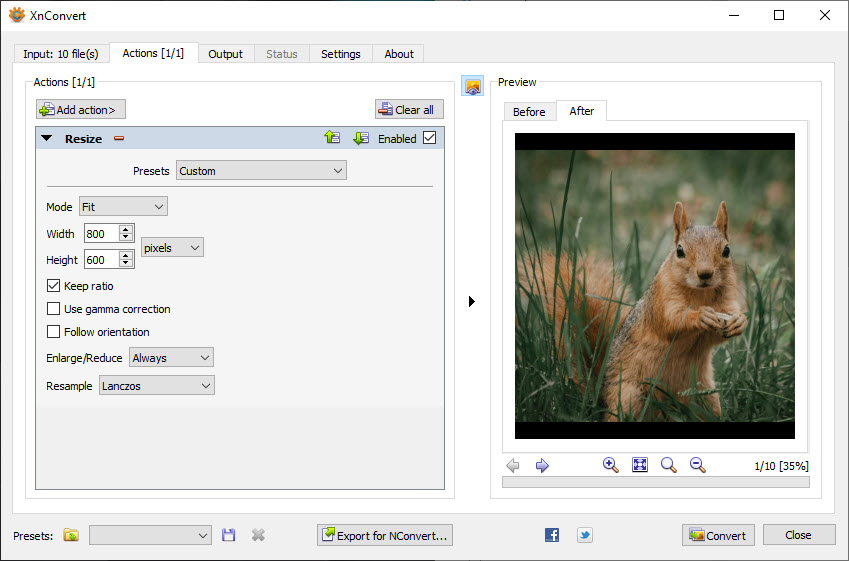
When your project demands processing hundreds of visual assets across different operating systems, basic preview tools fall short. XnConvert stands out as a robust, free image resizer software that treats bulk image modification like a structured assembly line.
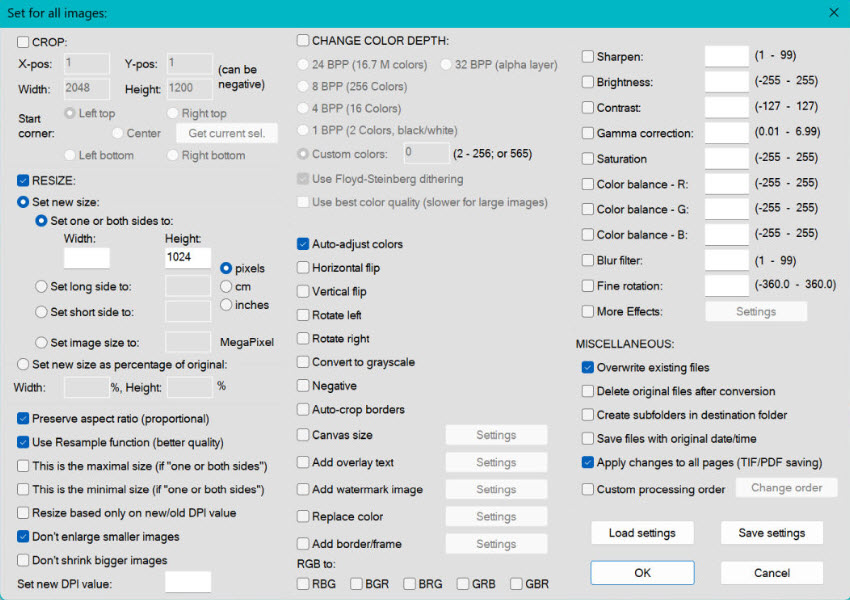
Unlike single-purpose utilities, XnConvert operates on a powerful multi-action queue system supporting over 80 automated operations. Rather than running separate tasks for every adjustment, you can resize image dimensions, crop framing, auto-rotate, insert custom watermarks, strip hidden metadata, and convert formats in a single automated preset. You can also save the configuration as a reusable preset, saving hours of repetitive clicking on future projects.
Pros
- Completely free photo resizer
- Supports Windows, macOS, and Linux
- Combines resizing, renaming, watermarking, and format conversion into one single step.
- Save complex workflow rules to reuse on future batches.
Cons
- Interface requires some learning
- No AI enhancement for improving image quality
IrfanView- Best Lightweight Image Resizer for Windows
Best for: Users who want a fast image viewer with simple resizing tools
IrfanView is a lightweight Windows image viewer that also includes basic image resizing and conversion features. Unlike FastStone Photo Resizer or XnConvert, which is built around batch processing, IrfanView is built primarily around a legendary, ultra-fast image viewing engine.
Its main advantage is speed. The software is extremely small, launches quickly, and supports a wide range of image formats. So it works as a default image resizer software for windows when you need to open, inspect, scale, and save an image before your operating system's native preview has even loaded.
While it handles bulk conversions under the hood, its true strength lies in individual file inspection and immediate touch-ups. The program occupies minimal disk space, consumes virtually zero system memory, and opens massive files in milliseconds.
Pros
- Extremely fast and lightweight.
- Low system requirements.
- Supports many image formats.
- It’s a safe, free image resizing software with decades of stability.
Cons
- The photo resizer software is not for Mac or other systems.
- Interface feels outdated.
- It’s not ideal for large-scale professional workflows compared to tools like XnConvert.
Microsoft PowerToys Image Resizer- Best Quick Image Resizer for Windows
Best for: Windows users who need occasional resizing without opening another application
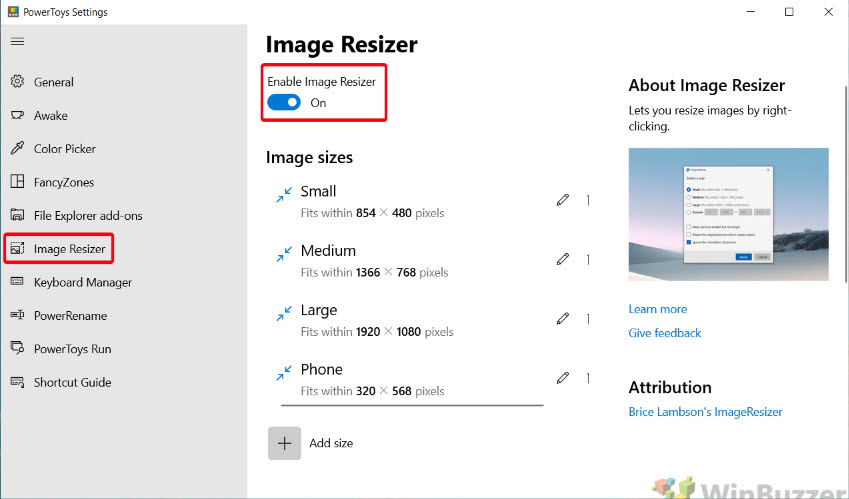
When your daily routine involves shrinking graphics on the fly without launching heavy software, Microsoft PowerToys Image Resizer serves as the ultimate native utility. Developed as part of Microsoft's open-source power-user package, it integrates seamlessly into the Windows File Explorer shell.
There is no cluttered workspace to navigate. Once installed, users can resize images directly from Windows File Explorer by right-clicking a file. You can select one photo or bulk images and can instantly scale them to predefined sizes (Small, Medium, Large, Phone) or specify exact pixel widths and heights. It acts as the fastest image resizer software for windows for everyday office tasks.
Pros
- 100% free image resizing software with zero ads, subscriptions, or bloatware.
- Operates straight from the right-click context menu with zero learning curve.
- Does not consume system resources or require an active dashboard.
Cons
- It’s Windows only.
- No advanced resizing features.
GIMP- Best Free Image Editor with Image Resizing Features
Best for: Users who need resizing plus advanced image editing
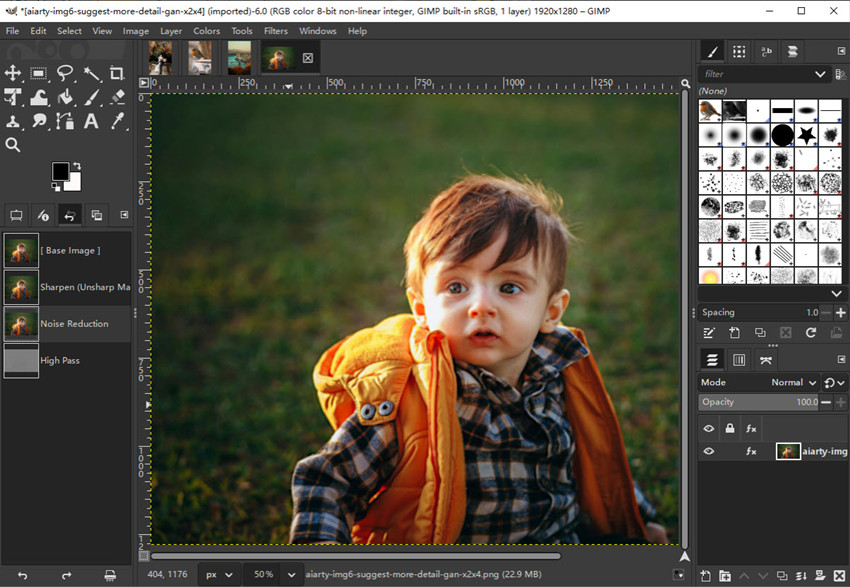
GIMP is not a dedicated image resizer software, but it is one of the most powerful free image editing tools that includes flexible image resizing and export features. Unlike simple photo resizing software that only changes image dimensions, GIMP allows users to edit and optimize images before resizing them.
With GIMP, users can resize images, adjust resolution, crop photos, remove unwanted elements, correct colors, retouch details, and export images for different purposes. This makes it a good choice when resizing is only one part of a larger editing workflow.
For users looking for free photo resizing software with additional editing capabilities, GIMP is a strong choice. However, users who mainly need quick batch resizing may find dedicated tools like FastStone Photo Resizer or XnConvert more efficient.
Pros
- Free image resizing software for Mac, Windows and Linux.
- It allows users to resize, edit, mask, and layer graphics.
- It offers flexible export options.
Cons
- Learning curve is higher.
- Not the fastest choice for batch image resizing.
- More complex than dedicated image resizer software.
ON1 Resize AI- Best Image Resizer Software for Photo Printing
Best for: Photographers preparing images for large-format prints
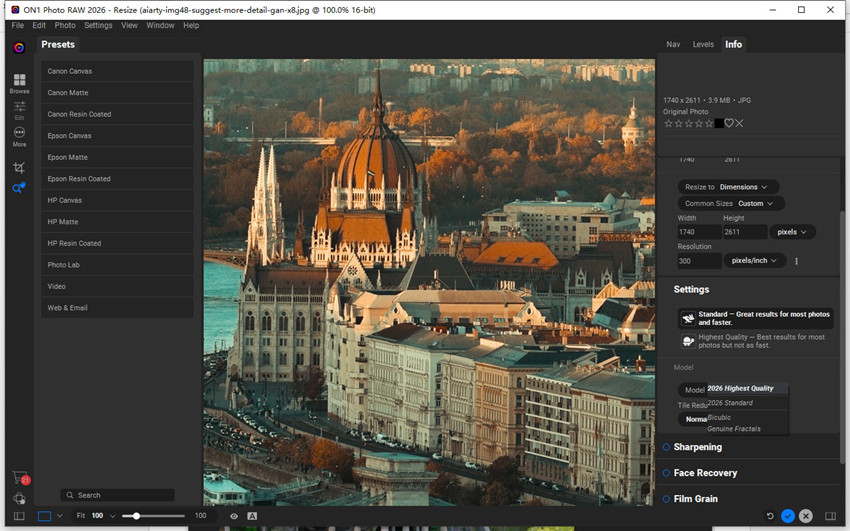
ON1 Resize AI is a specialized image resizer software designed for photographers who need high-quality image enlargement and professional print output. Unlike general photo resizing software that mainly changes image dimensions, ON1 focuses on preparing images for large-format printing while maintaining sharpness, clarity, and overall image quality.
For example, a landscape photographer may capture a detailed image with a camera but need to enlarge it for a large wall print. ON1 Resize AI helps optimize the image size and quality for printing instead of simply stretching the pixels.
Choose ON1 Resize AI if your priority is print-ready image resizing rather than everyday image adjustments. It provides more control over the final output and fits well into professional photography workflows.
Pros
- It resizes images for large-format prints with high quality.
- It can be used as an independent application or a plugin for Adobe Lightroom and Photoshop.
- It offers tools for canvas stretching and multi-panel print setups.
Cons
- Overkill and financially unnecessary than general image resizer software.
- It requires a dedicated GPU and a capable workstation.
ImageMagick- Best Image Resizer Software for Automation
Best for: Developers and advanced users who need automated image processing
ImageMagick is different from most image resizer software in this list because it is built for command-line image processing rather than a traditional graphical interface. Instead of manually resizing images one by one, users can create automated workflows to process large numbers of files with precise control.
It’s a good choice when image resizing needs to be part of a larger technical workflow. It supports advanced operations such as resizing, cropping, format conversion, compression, and metadata handling, making it suitable for developers, web administrators, and technical teams.
However, as it relies on terminal commands, shell scripts, or programming language bindings (like PHP, Python, Node.js, and Ruby) to execute complex, multi-step image transformations programmatically, it requires more technical knowledge.
Pros
- Extremely powerful and customizable for web developers and backend systems handling automated, large-scale image operations.
- Consumes minimal server resources because it lacks a heavy graphical rendering layer.
- Open-source and free photo resizing software for Mac, Windows, and Linux.
Cons
- Entirely text-based with zero visual UI, making it completely unsuitable for non-technical users.
- Writing incorrect syntax in complex batch scripts can accidentally alter or overwrite source files.
How to Choose the Best Image Resizing Software?
The best image resizing software depends on your specific needs. Some users only need to change image dimensions, while others need to enlarge photos, improve image quality, process hundreds of images, or prepare files for professional printing.
Before choosing an image resizer, consider the following factors.
1. Image Quality and Resizing Needs
Basic image resizers only change image dimensions, while AI-powered tools can improve details during enlargement. If you need to resize images without losing quality, create large prints, or restore low-resolution photos, choose AI tools like Aiarty Image Enhancer, Topaz Gigapixel AI, or ON1 Resize AI.
For simple resizing tasks, tools like FastStone Photo Resizer, XnConvert, and PowerToys Image Resizer are usually enough.
2. Batch Processing Support
If you need to process hundreds of images, choose software with batch resizing features. FastStone Photo Resizer and XnConvert are ideal for everyday batch workflows, while ImageMagick is better for automated image processing.
3. Platform and Ease of Use
Choose a tool that matches your system and experience level. For an image resizer for Windows, options like FastStone, IrfanView, PowerToys, and Aiarty work well. For image resizing software for Mac, consider Aiarty, XnConvert, GIMP, Topaz Gigapixel AI, or ON1 Resize AI.
4. Your Final Output Purpose
The best photo resizing software depends on how you use your images. Everyday web and social media resizing requires speed and convenience, while professional photography and printing require better enlargement quality, resolution control, and output options.
Final Thoughts
The best image resizer software depends on what you need to achieve. If you only need to quickly change image dimensions or process many files, lightweight tools like FastStone Photo Resizer, XnConvert, or PowerToys Image Resizer can handle everyday tasks efficiently.
For users who need to resize images without losing quality, enlarge photos for printing, or improve low-resolution images, AI-powered solutions such as Aiarty Image Enhancer, Topaz Gigapixel AI, and ON1 Resize AI provide better results by enhancing details during the resizing process.
Professional photographers may prioritize print quality and output control, while developers and advanced users may prefer automation tools like ImageMagick. Meanwhile, users who need editing flexibility can choose GIMP for a combination of resizing and image manipulation.
 FAQs
FAQs
Yes. There are many free image resizer for Windows/Mac, including FastStone Photo Resizer, XnConvert, IrfanView, GIMP, Microsoft PowerToys Image Resizer, and ImageMagick. They are suitable for basic resizing, batch processing, and format conversion.
To resize images without losing quality, use an AI-powered image resizer that can enhance details during enlargement. Tools like Aiarty Image Enhancer, Topaz Gigapixel AI, and ON1 Resize AI can improve sharpness and preserve details better than traditional resizing methods.
The best choice depends on your needs. FastStone Photo Resizer is great for free batch resizing, Microsoft PowerToys Image Resizer is ideal for quick resizing, and Aiarty Image Enhancer is better for high-quality enlargement and AI enhancement.
For bulk image resizing, popular options include FastStone Photo Resizer, XnConvert, ImageMagick, and Aiarty Image Enhancer. These tools allow users to process multiple images at once, which is useful for photographers, e-commerce sellers, and content creators.
It depends on the resizing method. Reducing image dimensions usually has little impact on quality, but enlarging low-resolution images can cause blur, pixelation, and loss of details. AI-powered resizers can help improve results when increasing image size.
Image resizing changes the pixel dimensions of an image, such as converting a 4000px photo into a smaller version. Image compression reduces file size by removing or reducing image data. Resizing affects image resolution, while compression mainly affects storage size and loading speed.
You May Also Like


This post was written by Brenda Peng who is a seasoned editor at Digiarty Software who loves turning ordinary photos into extraordinary works of art. With AI assistance for brainstorming and drafting, the post is reviewed for accuracy by our expert Abby Poole for her expertise in this field.
