


REAL Video Enhancer Review & Guide: Is This Free Tool Worth It?



If you've been looking for a free, open-source way to enhance video quality, REAL Video Enhancer is one of the tools you're likely to come across. Built around popular AI models for upscaling, frame interpolation, and denoising, it has quickly gained attention among users who want more control over their video processing workflow.
In this article, we'll take a closer look at what REAL Video Enhancer actually is, what it can do, and whether it's a practical choice compared to more polished commercial alternatives.
What Is REAL Video Enhancer?
REAL Video Enhancer is an open-source video enhancement tool built as a graphical interface that combines several AI models into one workflow. Instead of relying on a single proprietary engine, it integrates well-known technologies such as RIFE for frame interpolation and Real-ESRGAN for video upscaling, along with additional modules for denoising and artifact reduction.
In simple terms, it allows users to take low-quality or compressed videos and improve them in multiple ways, making them sharper, smoother, and more visually consistent.
However, it comes with a learning curve, as setup and configuration can require some technical skills.
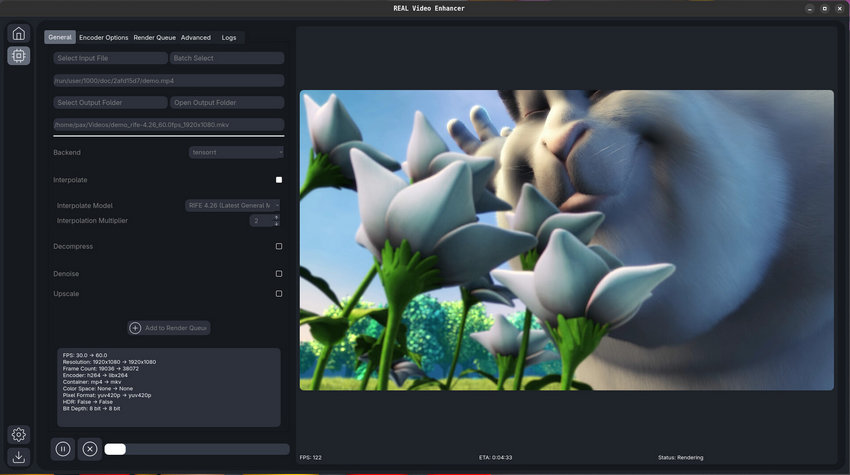
Key Features of REAL Video Enhancer
REAL Video Enhancer brings together several AI-powered modules into a single workflow, making it more than just a simple upscaling tool. Its strength lies in combining different enhancement techniques depending on the type of video you’re working with.
Frame Interpolation (RIFE-based)
One of its core features is frame interpolation, powered by RIFE models. This allows the software to generate intermediate frames between existing ones, effectively converting lower frame rate videos (like 24fps) into smoother playback such as 60fps. It’s especially useful for gameplay recordings, animations, or any footage where motion clarity matters.
AI Video Upscaling (Real-ESRGAN Models)
For resolution enhancement, REAL Video Enhancer integrates Real-ESRGAN-based models. These models are designed to upscale low-resolution footage while reconstructing fine details such as textures and edges. Users can choose different models depending on whether the content is real-world footage or stylized/anime visuals.
Denoising and Compression Artifact Removal
Another important feature is its ability to reduce noise and fix compression artifacts. This is particularly useful for heavily compressed videos from messaging apps, screen recordings, or older footage that has lost quality over time.
Multi-Backend Support
The tool supports multiple compute backends such as TensorRT, NCNN, and PyTorch, allowing users to optimize performance based on their hardware. This makes it flexible for different GPU setups, especially NVIDIA-based systems.
Local Processing Workflow
Unlike cloud-based tools, everything runs locally on the user's machine. This not only improves privacy but also gives users full control over processing settings, models, and output quality.
Pros and Cons of REAL Video Enhancer
Like most open-source AI tools, REAL Video Enhancer offers a mix of impressive flexibility and practical limitations. Understanding both sides is important before deciding whether it fits your workflow.
- Free and open-source: One of the biggest advantages is that it’s completely free to use. There are no subscriptions or paywalls, which makes it attractive for users who want powerful enhancement features without ongoing costs.
- Highly flexible and customizable: Because it combines multiple AI models, users can fine-tune how videos are processed—choosing different models for upscaling, interpolation, or denoising depending on the content.
- Runs locally on your machine: All processing is done offline, which is beneficial for privacy and also avoids upload limitations or cloud processing queues.
- Strong performance potential: On capable GPUs, especially NVIDIA cards, the tool can deliver high-quality results comparable to commercial solutions in certain scenarios.
- Steep learning curve: Setup is not always straightforward. Installation, dependencies, and model configuration may feel overwhelming for non-technical users.
- Performance depends heavily on hardware: Without a strong GPU, processing can be slow, especially for high-resolution videos or frame interpolation tasks.
- Inconsistent user experience: Since it’s an open-source project, stability and UI polish may not match commercial tools. Some users may encounter bugs or configuration issues.
- Not truly "one-click" friendly: Unlike mainstream AI video enhancers, it requires manual setup and understanding of different models and parameters to get optimal results.
Download, Setup & How to Actually Use REAL Video Enhancer
REAL Video Enhancer has two main distribution paths, and which one you choose mostly depends on how comfortable you are with setup.
If you prefer a straightforward installation, the Steam version is the easiest starting point. However, you need to have the Steam desktop application installed before you can install and launch REAL Video Enhancer.
On the other hand, the GitHub version gives you the most control and access to the latest updates, but it also assumes you're comfortable with a slightly technical setup. The project is hosted here:
https://github.com/TNTwise/REAL-Video-Enhancer
Most users working with the GitHub build will need Python 3.10 or higher, FFmpeg, and a compatible GPU environment before the interface can run properly.
Minimum System Requirements (Basic Functionality)
At the lowest usable level, the software can still run on relatively modest hardware:
- A dual-core x64 CPU is enough to get the application started
- A Vulkan 1.3-compatible GPU is required for acceleration
- Around 4 GB VRAM is sufficient when using lightweight NCNN-based processing
- 16 GB RAM is the practical baseline for avoiding crashes during processing
- Storage requirements are minimal, with about 1 GB free space needed for basic NCNN workflows
- Supported on Windows 10/11 (64-bit) and macOS 14+
At this level, the tool is usable, but performance will be limited, especially for higher-resolution videos or multi-model pipelines.
Recommended Setup (Smooth AI Processing Experience)
For a more stable and realistic workflow, especially if you plan to use upscaling and interpolation together, the recommended environment is significantly more demanding:
- A quad-core x64 CPU or better
- An NVIDIA RTX GPU (20 series and above) for TensorRT acceleration
- At least 8 GB VRAM for stable AI model execution
- 32 GB RAM for handling longer videos and multi-stage processing
- Around 16 GB of free storage when using TensorRT-based workflows
- Best performance is achieved on modern Linux distributions (Ubuntu 22.04+), although Windows remains fully supported
What the Actual Workflow Looks Like
After launching REAL Video Enhancer, most of the setup happens inside the General tab, which acts as the main control panel for the entire processing workflow.
The first step is straightforward: click Select Input File and import the video you want to enhance. Then choose where the processed file should be saved using Select Output Folder.
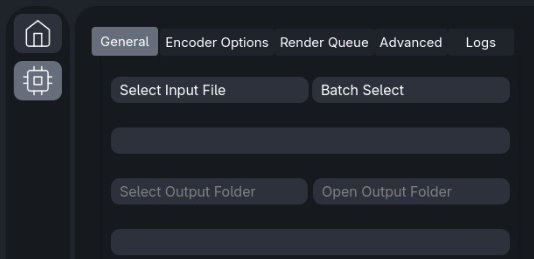
Once the input and output paths are set, the next important choice is the Backend. This determines how the AI models will run on your hardware. If you’re using an NVIDIA RTX GPU, TensorRT is usually the fastest option. NCNN is lighter and works better on lower-end or non-NVIDIA systems, while PyTorch tends to be the fallback option for broader compatibility.

From there, you can enable the enhancement modules you actually need. REAL Video Enhancer keeps these features separated, which makes the workflow flexible but also slightly more technical than one-click commercial tools.
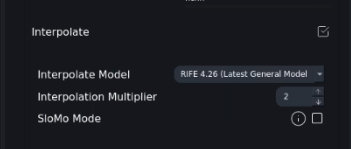
For smoother motion, enable Interpolate. This activates frame interpolation models like the RIFE series, allowing lower frame rate footage to be converted into smoother playback such as 60fps.
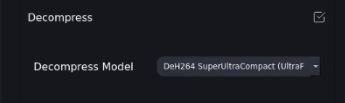
If your source video suffers from heavy compression artifacts, enabling Decompress can help clean up blockiness and restore more usable detail before upscaling.
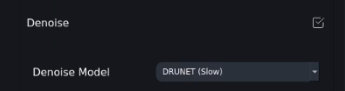
For noisy footage, especially low-light recordings or old videos, turning on Denoise helps reduce grain and visual noise. Models like DRUnet or DnCNN are commonly used here depending on how aggressive you want the cleanup to be.
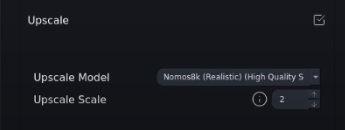
To improve resolution, enable Upscale and select an upscaling model. For realistic footage, models like 4x-ClearRealityV1 or 2x-OpenProteus are often preferred because they enhance detail without creating an overly artificial look. Anime-focused models such as AnimeJaNai V2/V3 Sharp are generally better suited for animated content.
Once all settings are configured, simply add the task to the render queue and start processing. Depending on your hardware and the combination of enabled modules, rendering can take anywhere from a few minutes to several hours.
REAL Video Enhancer Is Powerful, But Not for Everyone
REAL Video Enhancer offers an impressive amount of flexibility for a free open-source tool. The ability to combine interpolation, upscaling, denoising, and decompression into a customizable workflow is something many advanced users genuinely appreciate.
At the same time, it’s also clear that the software is designed more for enthusiasts and technically experienced users than for beginners. Backend selection, model compatibility, VRAM limitations, and occasional installation issues can all become part of the workflow.
For users who enjoy tweaking settings and experimenting with different AI pipelines, that level of control is part of the appeal.
But for people who simply want to enhance videos quickly and reliably, the experience may feel more complicated than necessary.
That’s where commercial tools start to make more sense.
A Simpler Alternative for Everyday Video Enhancement
If your goal is to improve video quality without spending time configuring models and troubleshooting backend issues, tools like Aiarty Video Enhancer provide a much more streamlined workflow.
Instead of manually choosing between TensorRT, NCNN, PyTorch, interpolation models, and denoise pipelines, the software is designed around a more beginner-friendly process with simplified controls.
What Aiarty Video Enhancer Can Do
Aiarty combines several enhancement tools into a single workflow.
Users can:
- upscale low-resolution videos
- generate more texture and detail using AI models like moDetail-HQ v3
- improve sharpness and clarity
- reduce compression artifacts and noise
- apply frame interpolation for smoother motion
- adjust colors
- enhance HDR content
- clean up background noise with Audio Denoise
The software also includes adjustable enhancement strength controls, allowing users to balance detail recovery and natural-looking output more easily.
Compared to open-source workflows, the experience feels significantly more direct and less technical.
What the Workflow Looks Like in Aiarty
Compared to the more technical setup process in REAL Video Enhancer, the workflow in Aiarty Video Enhancer is much more straightforward.
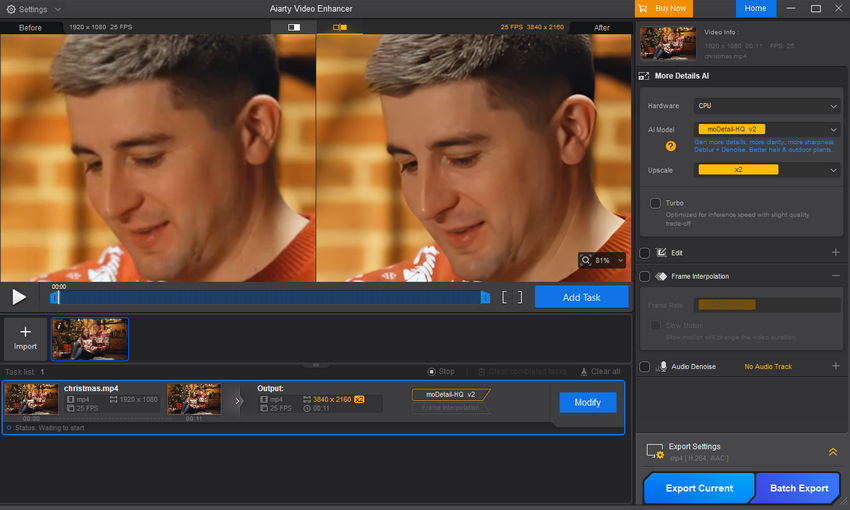
After launching the software, you simply drag in a video or click the "+" button to import your footage. Most of the enhancement controls are located in the panel on the right side, so the entire process stays within a single interface.
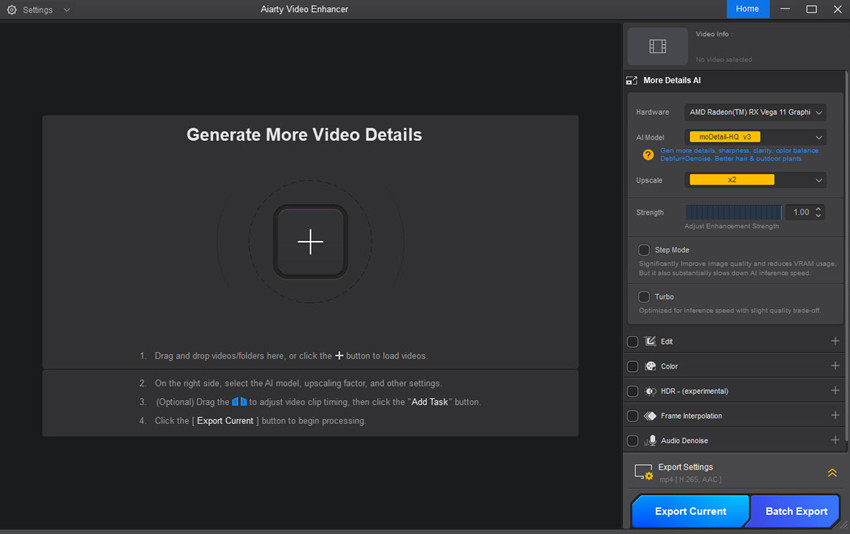
The first step is choosing an AI model. For example, models like moDetail-HQ v3 focus on recovering texture, sharpness, and overall clarity while keeping the output looking relatively natural.
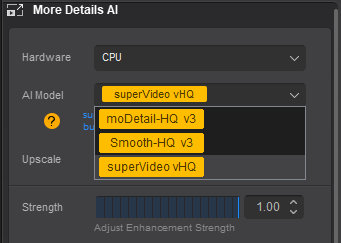
Next, select the upscale ratio depending on your target resolution. In most cases, users will choose 2× upscaling for improving compressed 720p or 1080p footage without making processing unnecessarily heavy.
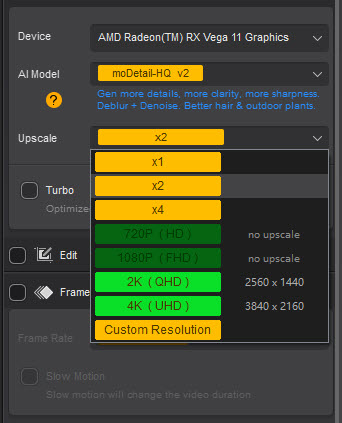
Additional settings can then be enabled as needed. Features like Frame Interpolation, HDR enhancement, Audio Denoise, Turbo Mode, or Step Mode are integrated directly into the workflow instead of requiring separate backend configuration.
Before exporting, the built-in preview function allows you to compare enhancement results and adjust settings if the image starts to look overly processed.
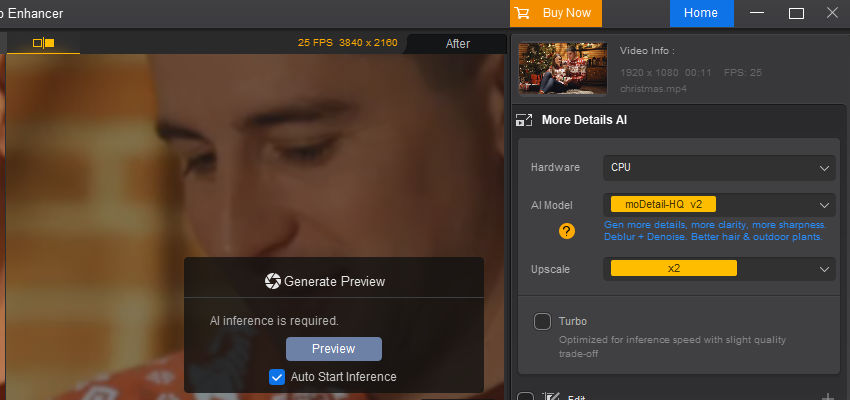
Once everything looks right, click Export Current or Batch Export to begin processing.
Final Thoughts
REAL Video Enhancer is one of the more capable open-source AI video tools currently available, especially considering that it’s free. For advanced users who want full control over interpolation, upscaling, and backend configuration, it offers a surprisingly powerful toolkit.
However, the learning curve is real, and getting the best results often requires both capable hardware and a willingness to troubleshoot.
If you enjoy experimenting with AI workflows, REAL Video Enhancer is absolutely worth trying. But if you prefer a faster and more polished enhancement experience, a dedicated commercial solution may ultimately save you a lot of time.
 FAQs
FAQs
This is one of the more common setup issues reported by users. REAL Video Enhancer relies on portable Python environments and PIP-installed dependencies, which can occasionally fail during installation. In many cases, reinstalling the application or reinstalling the backend packages resolves the issue. Problems are more common when GPU drivers, CUDA components, or Vulkan libraries are outdated or partially installed.
This behavior is normal. Before inference begins, TensorRT performs an optimization process based on your hardware and the resolution of the input video. The initial setup can take several minutes depending on the GPU and model being used. The good news is that this optimization is typically cached, so future renders using the same resolution start much faster.
The most common reason is insufficient VRAM. Some upscale and interpolation models require a large amount of GPU memory during optimization and inference. Systems with limited VRAM may fail during the TensorRT build stage even if the application itself launches correctly. If this happens, switching to CUDA or NCNN backends is usually the recommended workaround.
Most Vulkan-related NCNN errors are caused by hardware limitations, especially low VRAM or older integrated GPUs. In practice, this usually means the GPU runs out of memory during processing. Lowering the resolution, choosing lighter models, or disabling certain enhancement modules can sometimes help stabilize the workflow.
Not entirely. Compared to commercial AI video enhancers, REAL Video Enhancer offers more flexibility and customization, but it also expects users to understand concepts like backends, AI models, and GPU acceleration. For technically experienced users, that level of control can be a major advantage. For beginners, however, the setup and troubleshooting process may feel overwhelming at first.
You May Also Like


This post was written by Brenda Peng who is a seasoned editor at Digiarty Software who loves turning ordinary photos into extraordinary works of art. With AI assistance for brainstorming and drafting, the post is reviewed for accuracy by our expert Abby Poole for her expertise in this field.
