

How to Upscale Images in Canva in 2026 Using the New AI Image Upscaler



If you’ve used for Canva image upscaler a lot, you’ve probably noticed something strange in 2026. Canva quietly removed the older third-party Image Upscaler app that many users relied on for sharper x4/x6/x8 enlargements. Since then, a lot of longtime Canva users are suddenly frustrated with the new AI upscaler.
If you are wondering how Canva upscales image under this new regime, or why your once-crisp designs now look like a watercolor painting gone wrong, you aren't alone. This guide covers everything from the 2026 "how-to" workflow to the latest upscaled results.
Quick Takeaways
- Canva’s new image upscaler replaces the older Image Upscaler app with a built-in Magic Studio tool.
- Canva image upscaler focuses on one-click AI enhancement, but removes manual controls like x2, x4 scaling.
- Many users report that the new Canva upscale image results are softer, with less detail recovery compared to the old version.
- For advanced use cases (old photos, low-res images, product shots), users can to external AI tools like Aiarty Image Enhancer.
What is Canva's New Image Upscaler
In 2026, Canva officially replaced its older third-party Image Upscaler app with a new built-in AI-powered upscaling tool integrated directly into Magic Studio. The original “Image Upscaler” app had quietly disappeared from the Canva Apps Marketplace. Canva describes the new image upscaler as a one-click tool designed to improve image clarity while preserving quality for presentations, social media, print graphics, and online content.
One major difference, however, is that the old version offered dedicated scaling modes like x4, x6, and x8 enlargement, while the new Canva upscale image tool removes those advanced manual options entirely. The current system focuses more on automatic enhancement and simplified editing rather than aggressive super-resolution enlargement.
Features of Canva Image Upscaler
- One-click AI upscaling without manual settings.
- Built directly into Magic Studio along with other AI features.
- Automatic sharpening and cleanup to reduce blur, compression artifacts, and low-resolution softness.
- AI-powered photo enhancement without the need to choose upscale ratios like x2, x4, or x8 manually.
How to Upscale Images in Canva 2026 Workflow
Despite the interface overhaul of the Canva image upscaler, the core mission remains the same: trying to find how to increase resolution of image in Canva without losing detail. Here is the current step-by-step process using the newly mandated Canva image upscaler.
Step 1. Upload and Select
Open Canva and drag your low-resolution image into the workspace, or upload it through the Uploads panel. To activate the Canva image enhancer tools, you must click on the image to highlight it.
Step 2. Upscale the Image in Canva
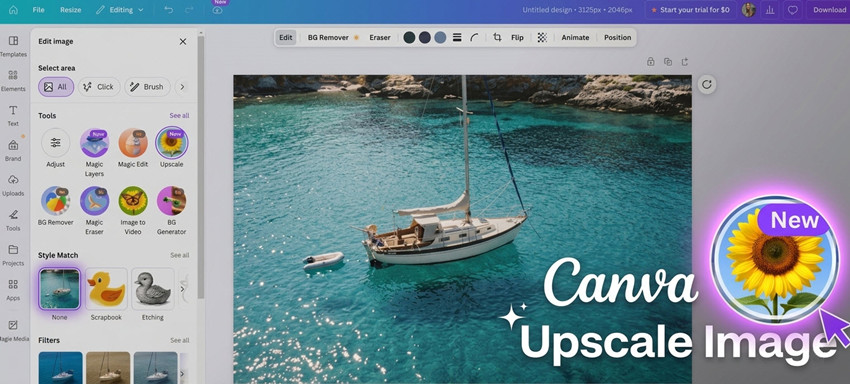
After selecting the image, click " Edit" in the top toolbar to open Canva’s Magic Studio editing panel. Under the Tools section, choose "Upscale."
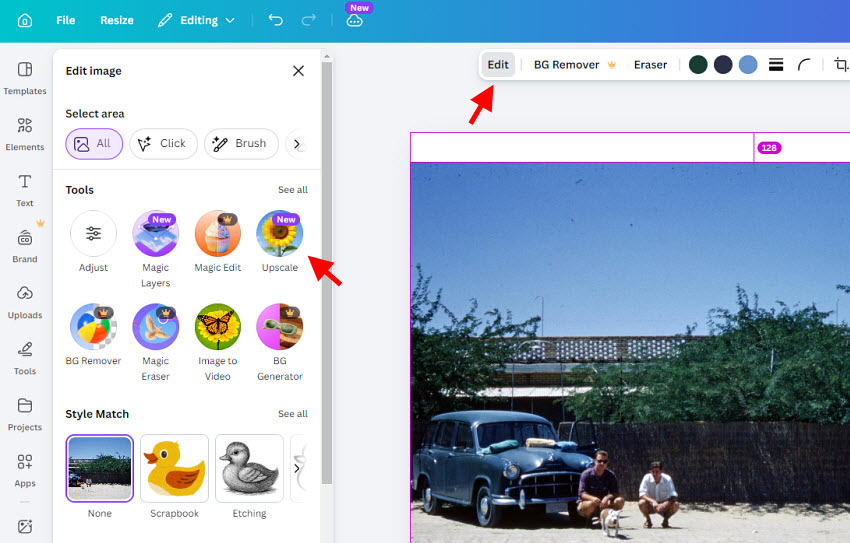
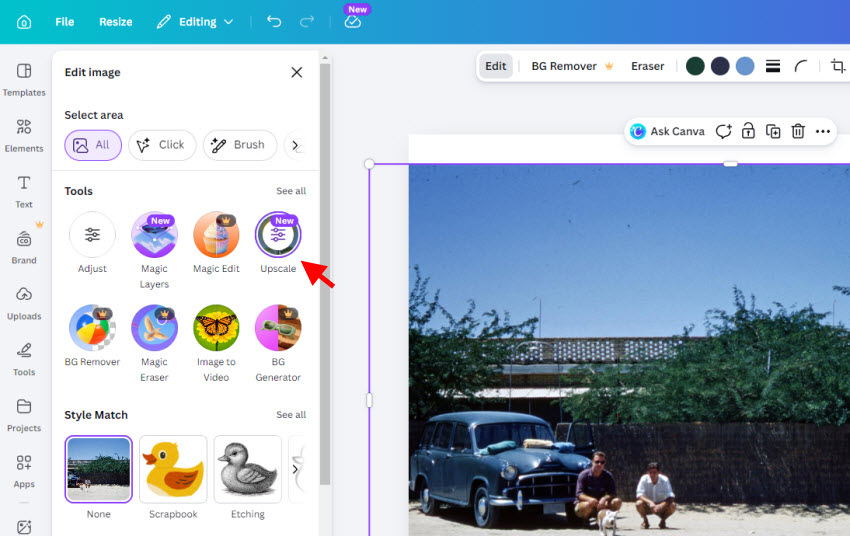
Unlike the older Canva image upscaler, the new version no longer provides manual options like 2x, 4x, or 8x enlargement. Instead, Canva automatically applies AI upscaling and increase resolution with a single click.
The process usually takes a few seconds depending on the image size and internet speed. Once complete, Canva will generate an enhanced version with improved sharpness and resolution.
Step 3. Make Additional Enhancements (Optional)
After Canva upscaling the image, you can use the built-in tools to further enhance the image quality in Canva. For example, you can adjust brightness, contrast, saturation, sharpness, apply filters, perform color correction, remove backgrounds or unwanted objects, and add frames, text, icons, etc.
Step 4. Download upscaled image from Canva
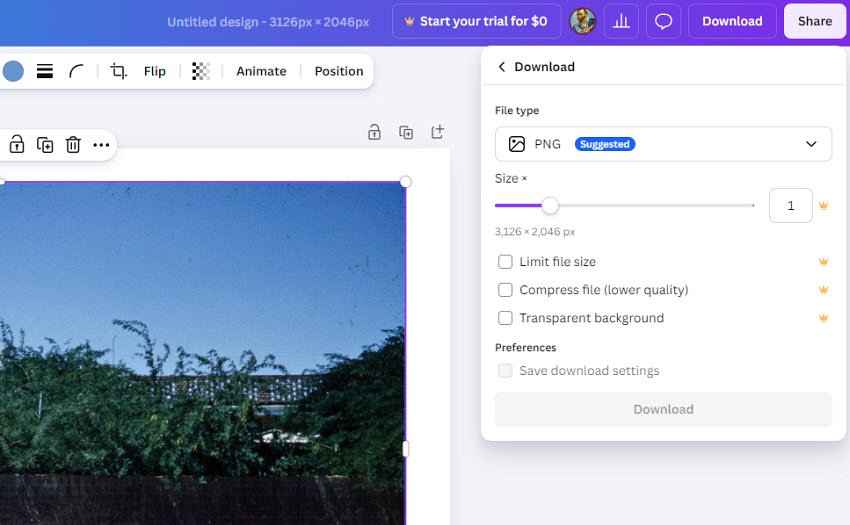
When you’re satisfied with the final result, click the "Download" button in the top-right corner to save the upscaled image from Canva to your local computer. You need to choose the file type, size, and compression quality. For the best image quality, PNG is usually recommended because it preserves more detail after AI enhancement. Finally, click Download.
Real Canva Upscale Image Results: Before vs After Comparison
To better understand how effective the new Canva image upscaler actually is, below are several practical Canva upscale image tests, including portraits, product photos, and low-resolution images, to show how Canva photo enhancerperforms in different scenarios.
Test 1. Upscale an Old Photo (3126×2046)
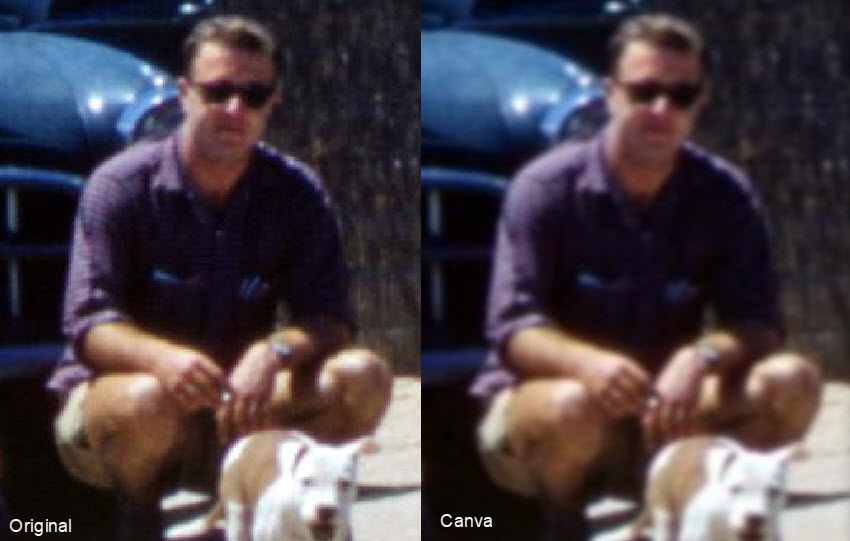
In this test, we tried to upscale an old photo with visible pixelation and aging artifacts when zoomed in. Before enhancement, facial edges and background textures looked rough and blocky at 100% magnification.
After applying the Canva image upscaler, the obvious pixelation was largely removed, and the image appeared cleaner overall. However, in the process, the AI also softened many fine details, resulting in an image that appears noticeably blurrier than the original photo.
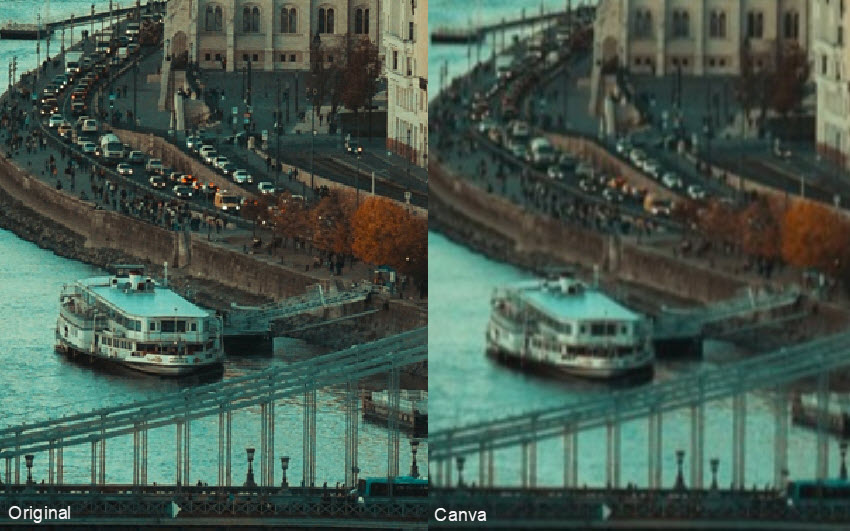
Test 2. Upscale an HD Photo (1740×2611)
We also tested Canva upscale image performance on an already high-definition photo. Since the original image already contained decent sharpness and detail, this test focused on whether Canva could further enhance clarity without degrading image quality.
After upscaling the image in Canva, it appeared softer than the original, with noticeably reduced edge sharpness. The output can even look worse than the original, making the photo less crisp and causing fine details to become unclear or lost.
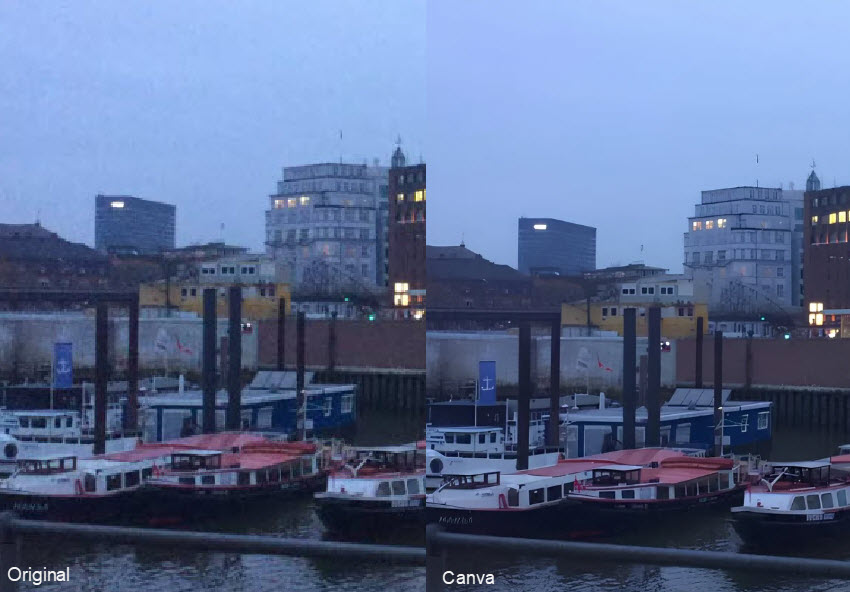
Test 3. Enhance a Low-Resolution Noisy Photo (778×454)
For this test, we used a low-resolution image with heavy visible noise and compression artifacts. The original photo had rough grain, unclear edges, and messy details, especially in darker areas.
This was actually where Canva image/photo enhancer performed the best in the test. After enhancement, most of the visible noise was removed, lines became cleaner, and the overall image looked much sharper and more usable for web or social media content.
However, there were still some trade-offs. Slight color shifts appeared in certain areas, and some fine textures were lost during the denoising process.
What Users Say About Canva Image Upscaler in 2026
After Canva removed the older Image Upscaler app and replaced it with the new built-in AI Upscale tool, many longtime users expressed frustration across Reddit and design forums. Many users feel the new Canva image upscaler is objectively less powerful, less flexible, and slower for real workflows.
1. No upscaling options
One of the biggest complaints is image quality. Users repeatedly mention that the old version produced sharper and more detailed results, especially when enlarging low-resolution images. The previous upscaler offered x4, x6, and x8 scaling options, giving users more control over the enhancement process. In comparison, the new Canva upscale image tool removes those manual options entirely and automatically applies enhancement with a single click.
2. Softer Results and Visual Artifacts
According to user feedback, the Canva increases resolution but also also makes photos look softer instead of sharper. Some users reported that already high-quality images became blurrier after enhancement, while others noticed color shifts, oversaturation, and unnatural contrast changes. Several comments specifically mentioned that facial details, textures, and edges now look overly smoothed.
3. Credit Limits and Slower Workflow
Previously, users could upscale unlimited PNG or JPG images with the older tool, even if processing was slower. Now, Canva’s new image enhancer uses monthly credits, and after hitting usage limits, users may be forced to wait several minutes before processing another image. For creators working with multiple images daily, this significantly slows down productivity.
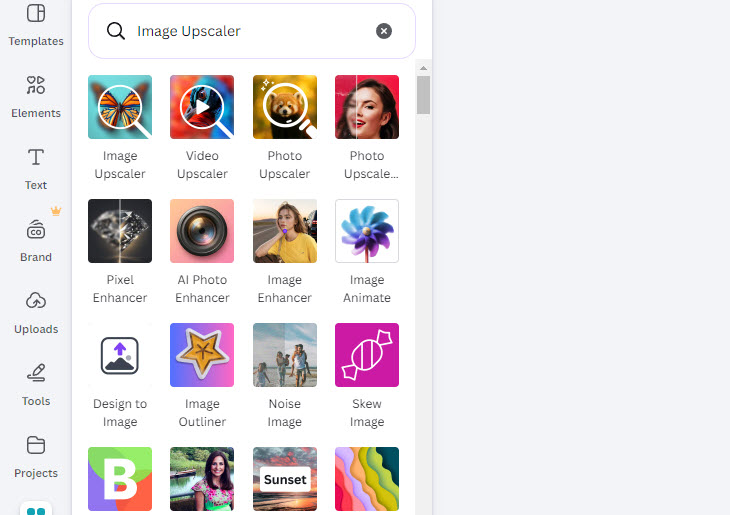
Tips: If you're unhappy with the new Canva image upscaler, you can still search for third-party AI upscaling tools through the Canva Apps Marketplace. However, many of these image enhancer apps rely on separate credit systems or additional subscriptions. In other words, even after already paying for Canva, you may still need to purchase extra credits to continue upscaling or enhancing images at higher volumes.
Best Canva Image Upscaler Alternative in 2026
If the new Canva image upscaler feels too limited, blurry, or inconsistent for your workflow, a dedicated AI image enhancer like Aiarty Image Enhancer is one of the strongest alternatives currently available. Unlike Canva enhance photo tools, Aiarty is built specifically for AI-powered image restoration, detail reconstruction, denoising, and high-quality upscaling.
- Upscale low-resolution images by 2x, 4x, 8x to up to 32K with realistic details;
- Remove noise, blur, and JPEG compression artifacts simultaneously;
- Restore facial details and textures naturally;
- Adjust color settings, convert to HDR, crop, rotate, etc;
- Batch process large numbers of photos efficiently.
While Canva removed the old x4, x6, and x8 scaling options, Aiarty Image Enhancer supports high-level AI enlargement with better control over the final output quality.
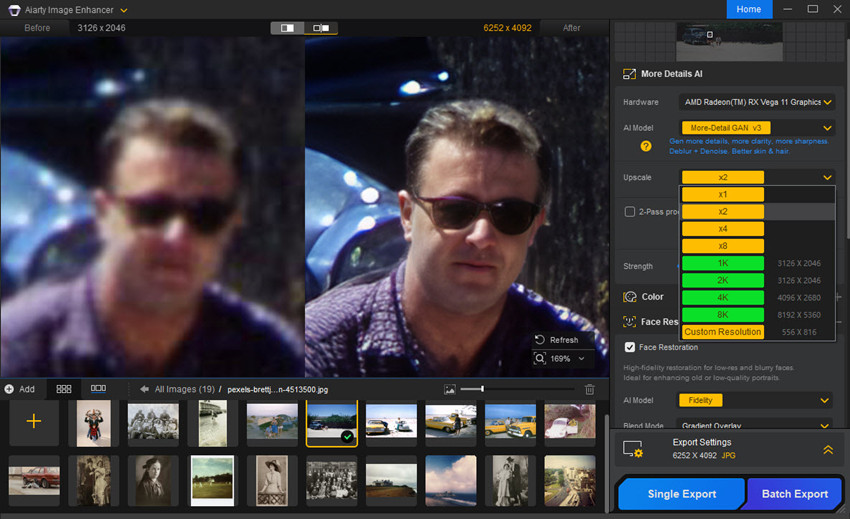
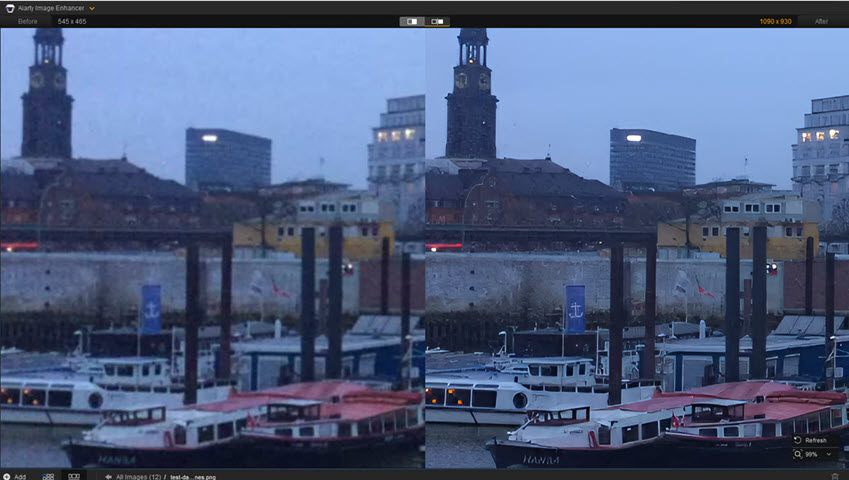
One of the biggest advantages over Canva image enhancer is that Aiarty preserves more natural texture and sharpness during enlargement. In testing, Canva’s photo upscaler often smooths away fine details like hair, skin texture, fabric, or foliage, especially after zooming in. Aiarty’s AI models are much more aggressive at reconstructing detail while keeping the image looking realistic instead of overly softened.
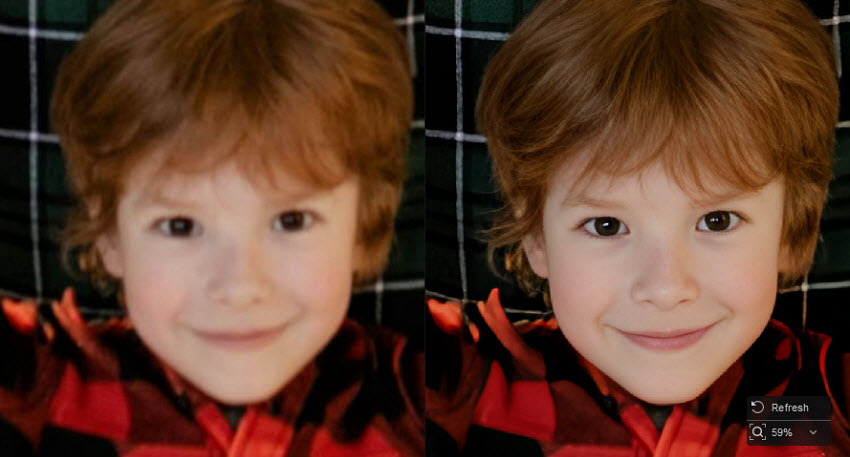
Aiarty also performs significantly better for image denoising. If you tested Canva image/photo enhancer on noisy or low-resolution images, you may have noticed that while Canva removes grain effectively, it sometimes introduces color shifts or loses fine detail. Aiarty balances noise reduction and texture recovery more naturally, making it a better option for restoring old or damaged images.
Final Words
Canva’s new AI image upscaler makes it easier than ever to upscale images directly inside your design workflow. For quick and everyday content creation, the Canva image/photo enhancer is fast, beginner-friendly, and convenient.
However, many longtime users noticed significant changes in image quality, scaling flexibility, and workflow limitations. While the new Canva upscale image tool works well for light enhancement and noise cleanup, it may struggle with heavily pixelated photos, fine texture recovery, or professional-quality enlargements. Issues like softer details, color shifts, removed x4/x6/x8 options, and credit-based usage have also become common complaints among power users.
If you only need simple one-click enhancement, Canva’s built-in AI upscaler is still a useful tool. But for restoring old photos, enlarging low-resolution images, reducing heavy noise, or preserving natural detail, dedicated AI tools like Aiarty Image Enhancer can often deliver noticeably sharper and more realistic results.
 FAQ
FAQ
To upscale an image in Canva, upload your photo, click the image, then select Edit > Upscale inside Magic Studio or the Apps panel. Canva will automatically enhance the image using AI.
Yes. Canva image/photo enhancer tools can improve image clarity, reduce blur, clean up noise, and upscale low-resolution images using AI. However, based on recent user feedback in 2026, results can vary depending on the image type, and some users report softer details or blur after enhancement.
Generally, yes. Lightroom has a more beginner-friendly interface and simpler workflow, while DaVinci Resolve Photo uses a more advanced node-based editing system with a steeper learning curve.
You can convert a photo into HD quality in Canva by using the Canva image upscaler or Canva enhance photo tools.
To export an image at 300 DPI in Canva, first upscale or resize the image, then download it as a PDF Print or high-resolution PNG. Canva itself does not directly let you manually set DPI for every export type, but using larger dimensions and print-quality export settings can help achieve 300 DPI output for printing purposes.
If you need more precise control over print resolution, tools like Aiarty Image Enhancer allow you to upscale images and manually set the output to 300 DPI during export, making it more suitable for professional printing, posters, and high-resolution design work.
You May Also Like


This post was written by Brenda Peng who is a seasoned editor at Digiarty Software who loves turning ordinary photos into extraordinary works of art. With AI assistance for brainstorming and drafting, the post is reviewed for accuracy by our expert Abby Poole for her expertise in this field.
