


You finish an important shoot, transfer the footage to your computer, and hit play—only to find the subject looks soft, faces lack definition, and fine details are missing. Before you give up on the footage, there're still ways to improve its clarity.
Whether your video is slightly out of focus, too soft, or simply lacks sharpness, the right approach depends on the type and severity of the blur. Premiere Pro offers several sharpening tools to enhance existing details, while AI video enhancement can help with more challenging footage that needs advanced restoration.
The key to fixing blurry or out-of-focus video is choosing the right method for your footage. Start with Premiere Pro’s built-in sharpening tools, then consider AI enhancement when traditional adjustments are not enough.
Why Your Video Looks Blurry or Pixelated
Even with AI or Premiere Pro fixes, understanding the root cause of blur helps you optimize results and choose the right tool. Common causes include:
- Focus errors: lens locked onto the wrong subject.
- Camera shake: handheld movement softens details.
- Low-resolution capture: insufficient pixels reduce clarity.
- Compression artifacts: social media or app compression introduces pixelation.
By understanding what causes your video to look blurry—whether it’s focus issues, camera movement, low resolution, or compression artifacts—you can choose the right sharpening or enhancement method. Some footage can be improved with Premiere Pro tools, while more challenging clips may benefit from AI video enhancement.
- Slight softness: Sharpening tools in Premiere Pro can enhance existing details and improve clarity.
- Focus problems: Mild focus issues may improve with sharpening, but severe blur may have limited recovery.
- Low-quality footage: AI enhancement can help improve compressed, noisy, or low-resolution videos.
See how AI enhancement compares with traditional sharpening:
In this guide, you’ll first learn how to sharpen and improve blurry footage in Premiere Pro. Then, we’ll explore when AI enhancement can provide additional improvements beyond traditional sharpening.
How to Fix Out of Focus Video and Sharpen Video in Premiere Pro
Premiere Pro can enhance slightly soft, mildly blurry, or low-resolution footage. The goal is to sharpen what’s already there, not create detail from scratch. With careful adjustments, you can restore mid-range clarity and make soft footage appear cleaner, and upscale video resolution in Premiere Pro.
Step 1. Check Your Footage Before Sharpening
Before applying sharpening effects in Premiere Pro, inspect your clip at 100% or 200% magnification. This helps you understand the severity of the blur and choose the right sharpening approach.
- Are edges soft but still recognizable?
- Are facial features and textures still visible?
- Does sharpening improve details without creating artifacts?
This quick check helps you adjust sharpening intensity properly and avoid over-processing your footage.
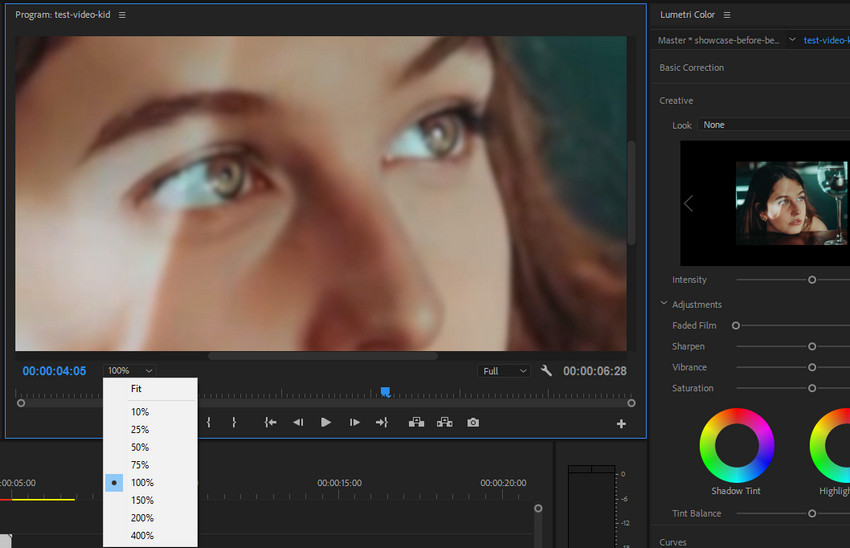
Step 2. Adjust Clarity and Sharpen Controls
The Sharpen control in Premiere Pro increases edge contrast, making your footage appear more defined. Combined with Clarity adjustments, it can improve the overall sharpness of slightly soft videos.
Navigate to Color > Basic Correction. Focus on these two essential sliders:
- Clarity: boosts mid-tone contrast and enhances local texture, helping soft areas pop
- Sharpen: increases micro-sharpness along edges, giving your footage a more defined look
Adjust both sliders slowly and incrementally, constantly monitoring the changes in your preview. Too much clarity can introduce unwanted noise, while excessive sharpening may create halos or glowing edges. Gentle, step-by-step adjustments usually yield the most natural results and prevent your video from looking over-processed.
This step is especially helpful for learning how to sharpen blurry video in Premiere Pro without damaging the natural look of your footage.
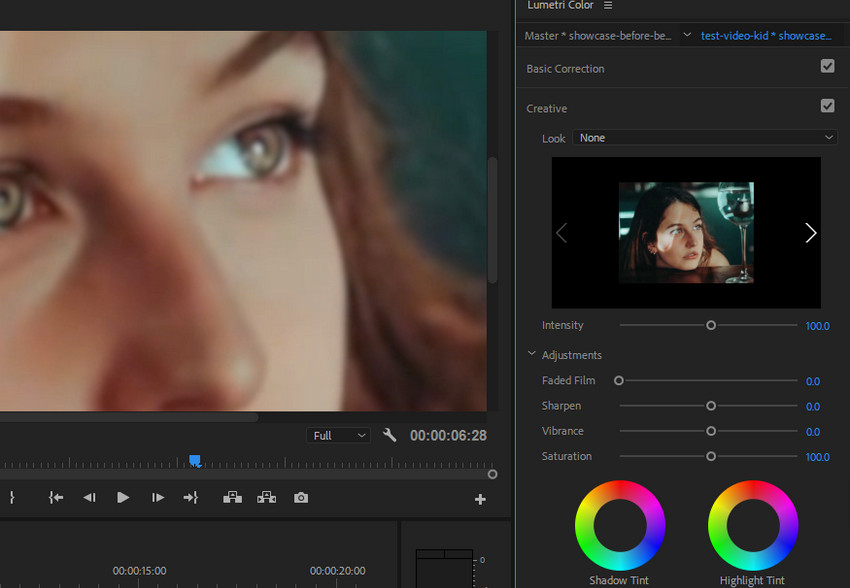
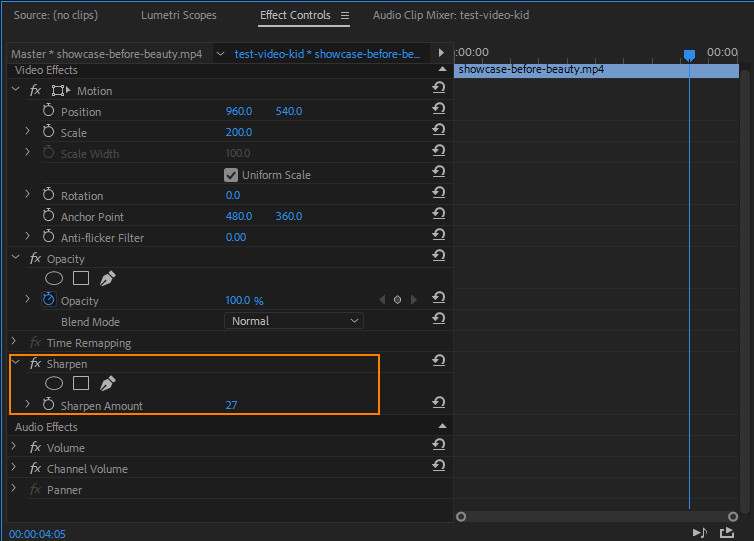
Step 3. Use the Sharpen Effect to Enhance Details
The Sharpen effect is one of the easiest ways to sharpen video in Premiere Pro when basic adjustments are not enough. For more precise control, search for Sharpen in the Effects panel and apply it to your clip. Then tweak the following:
- Amount: 10–40, depending on how subtle or strong you want the sharpening to be
- Edges: continuously monitor edges and stop adjusting if halos or unnatural glow appear
This step allows you to fine-tune the details and is particularly effective for enhancing facial features, textures, and mid-range details without affecting the overall natural look.
Also see: Fix out of focus videos via Premiere Pro resolution enhancement
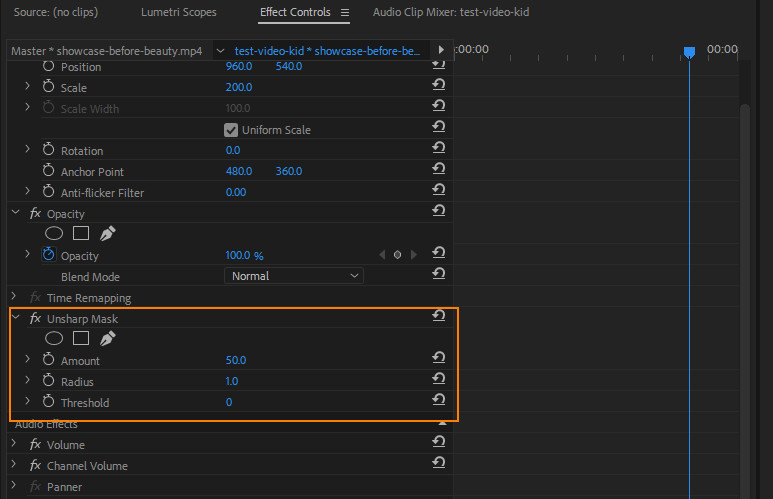
Step 4. Apply Unsharp Mask for Professional Sharpening
Many professionals use Unsharp Mask to sharpen video in Premiere Pro because it provides better control over edges, radius, and noise protection. This effect gives you deeper control over how detail is enhanced, allowing for a more natural and refined result.
- Amount: controls overall strength; start low (50–100) and adjust gradually
- Radius: defines how wide the sharpening effect spreads; smaller values maintain natural edges, larger values can introduce halos
- Threshold: tells Premiere which areas to sharpen; increasing it helps protect skin tones and smoother surfaces from unwanted noise
Unsharp Mask is ideal when you want crisp detail without making your footage look digitally overprocessed. It offers a balanced, professional-level sharpness that works especially well for interviews, product shots, or any clip requiring subtle enhancement.
Step 5. Use High Pass Sharpening for Natural Detail Enhancement
Advanced editors can use the High Pass technique to enhance perceived detail more subtly:
- Duplicate your video layer.
- Apply High Pass to the top layer.
- Set the layer’s blend mode to Overlay or Soft Light.
- Adjust the opacity until the sharpening looks natural.
High Pass helps restore micro-textures and fine details that basic sharpening might miss, all while avoiding heavy digital artifacts that can make footage look artificial.
Sharpening Video in Premiere Pro: What It Can and Cannot Fix
Premiere Pro is a reliable option for sharpening video and improving footage that is slightly soft, mildly out of focus, or lacking definition. Its built-in sharpening tools can enhance existing details, refine edges, and improve perceived clarity while keeping the original look of your footage.
Premiere Pro sharpening works well for:
- Slightly soft or mildly blurry footage – Helps improve clips where details are still visible but edges appear less defined.
- Enhancing existing textures and details – Makes elements such as hair, fabric, objects, and background textures appear clearer and more noticeable.
- Controlled sharpness adjustments – Effects like Sharpen and Unsharp Mask provide flexible control over edge enhancement while helping avoid excessive halos or unnatural artifacts.
However, Premiere Pro sharpening has limitations. It mainly enhances existing details and may not be enough for:
- Severely out-of-focus footage – Cannot recover details that were never captured.
- Heavy blur or degradation – Limited when footage has severe quality loss.
- Missing fine details – Cannot fully restore lost textures or patterns.
For more challenging footage, AI-powered video enhancement can help improve clarity by analyzing frames, reducing noise and artifacts, and intelligently enhancing missing-looking details. However, the final result still depends on the original video quality and the severity of the damage.
When Premiere Pro Sharpening Is Not Enough: AI Video Enhancement for Better Clarity
AI video enhancement has become an advanced alternative when sharpening video in Premiere Pro is not enough. While Premiere Pro sharpening tools can improve edge definition and make slightly soft footage appear clearer, they mainly enhance existing details rather than restore information lost from blur, compression, or low resolution.
Unlike traditional video sharpening in Premiere Pro, modern AI video enhancers analyze frames, reduce noise and artifacts, and intelligently enhance fine details to produce cleaner, sharper-looking footage. This makes AI enhancement especially useful for videos that need more than basic sharpening adjustments.
Among the many options available, Aiarty Video Enhancer stands out for its speed, intuitive workflow, and consistent results. It helps video editors, vloggers, and content creators improve soft, blurry, or low-resolution footage without spending hours fine-tuning sharpening effects manually.
Key Features & Benefits of Aiarty Video Enhancer
- Enhances soft and blurry footage: improves clarity and details beyond traditional Premiere Pro sharpening.
- Restores fine details: helps enhance textures in faces, hair, objects, and backgrounds.
- Reduces noise and compression artifacts: delivers cleaner footage without harsh sharpening effects.
- Upscales videos to HD/4K: improves resolution while maintaining natural-looking details.
- Simple AI workflow: enhances videos automatically without complex manual adjustments.
How Aiarty Video Enhancer Improves Blurry and Soft Videos
Step 1: Download, install, and launch Aiarty. Simply drag and drop your video files into the main interface. Most common formats are supported.
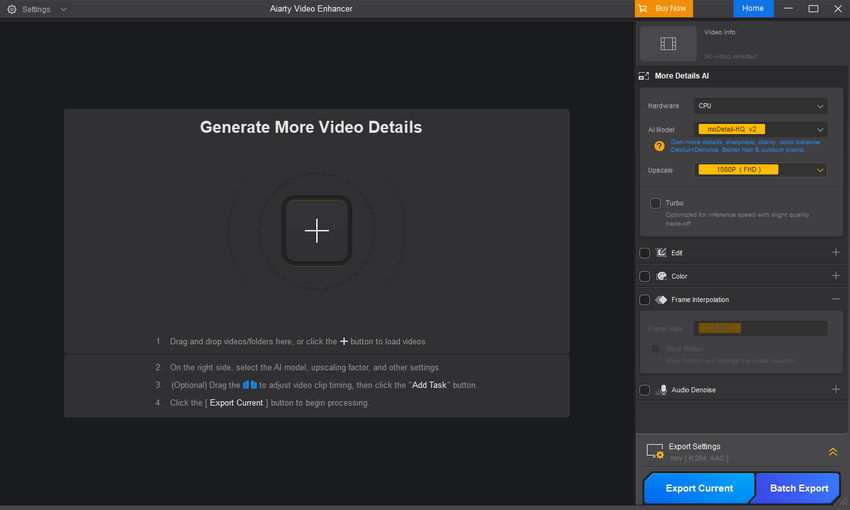
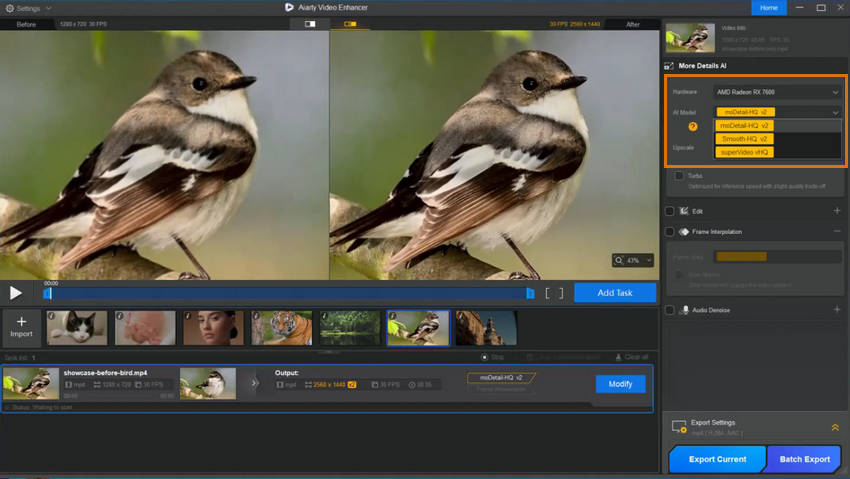
Step 2: On the right panel, select an AI model based on your footage:
- moDetail-HQ v2 for enhancing fine details in clear clips.
- Smooth-HQ v2 for natural restoration with balanced denoising and deblurring.
- superVideo vHQ for challenging footage, including low-light, heavy grain, or high compression.
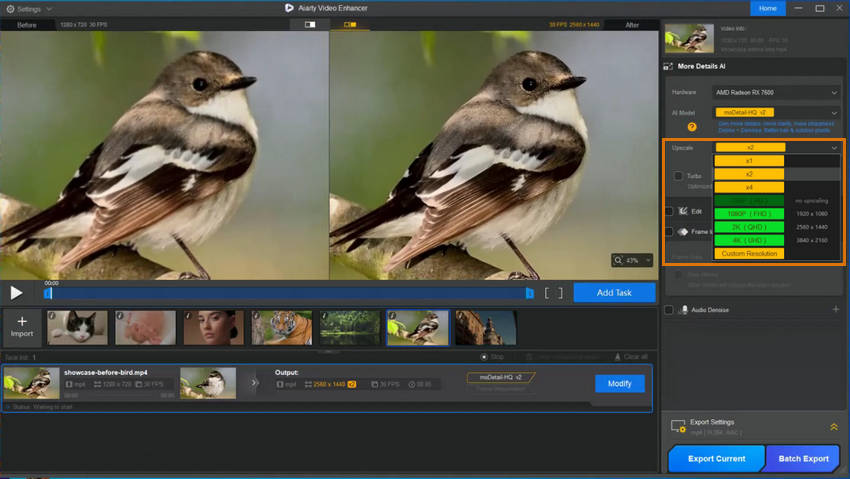
Step 3: Click Upscale and choose a predefined scale (2x, 4x) or set a custom resolution (e.g., 1080p, 4K). The software automatically handles unblurring and denoising in the background.
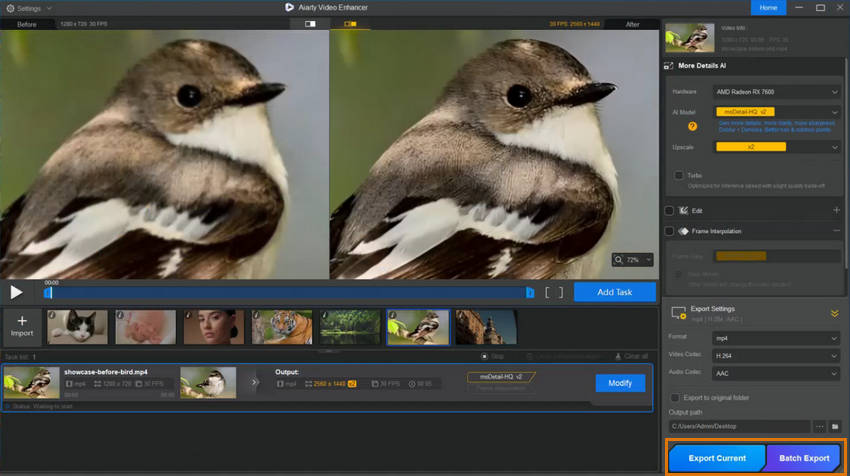
Step 4: Preview the enhanced video side-by-side with the original. Adjust AI model, Strength, or color settings if needed, then click Export Current or Batch Export to save your unblurred video.
Conclusion: Choose the Right Tool for Your Footage
Choosing the right method to fix blurry or soft-focus footage depends on your clip’s needs. Premiere Pro works well for minor softness or slightly out-of-focus shots, improving edges and mid-range textures. For faster, more noticeable results, especially when you need crisp, detailed, and natural-looking footage, Aiarty Video Enhancer intelligently restores textures and sharpness in one step.
For tight deadlines or important clips, starting with AI enhancement is often the most efficient approach. This ensures a high-quality base that can be seamlessly imported back into Premiere Pro for color grading, final edits, or motion graphics.
Try enhancing just one clip! You’ll see the difference instantly and understand why AI can elevate your footage beyond manual adjustments.
 FAQ about Fixing Blurry or Out-of-Focus Video
Yes, but it depends on the severity. Slightly soft or mildly out-of-focus footage can be improved using Premiere Pro’s sharpening and clarity tools. For easier but still good quality, AI tools like Aiarty Video Enhancer can intelligently restore textures and enhance sharpness, producing a much clearer and natural-looking video.
To sharpen a video in Premiere Pro, use the Sharpen effect, adjust Clarity and Sharpen controls in Lumetri Color, or apply Unsharp Mask for more advanced control.
Sharpening can improve the appearance of slightly blurry footage by enhancing edges, but it cannot recreate details that were never captured.
If your video still looks blurry after applying sharpening effects in Premiere Pro, the footage may have lost important details due to focus issues, low resolution, compression, or noise. Sharpening only enhances existing edges, so it has limited ability to restore details that are no longer present.
Premiere Pro sharpening is effective for improving slightly soft footage and making existing details more visible. AI video enhancement can be a better choice for more challenging clips because it can analyze frames, reduce noise and artifacts, and enhance fine details beyond traditional sharpening adjustments.
You May Also Like


This post was written by Ashley Brown, a videographer turned AI explorer. As an associate writer at Digiarty Software, she dives into the latest AI-powered tools for video enhancement and content creation, offering practical insights and unbiased commentary. Accuracy confirmed by Abby Poole.
