


A WebP file that will not open, an unfamiliar camera RAW file, or a missing-plugin message usually points to a specific requirement in IrfanView. The program handles everyday image formats on its own, while its plugin pack adds further file support and optional tools. Installing the appropriate package is straightforward once you know which version of IrfanView you are running and where its files are stored.
This guide covers the official IrfanView plugins download, installation with either an EXE or ZIP package, common format requirements, and the checks to make when a plugin will not load. Version information was checked on October 9, 2026: the official website lists IrfanView and the plugin pack as version 4.76. Individual plugin DLLs can have different version numbers, so an older-looking DLL version does not, by itself, indicate an incorrect installation. [1, 10]
Download the Right IrfanView Plugins
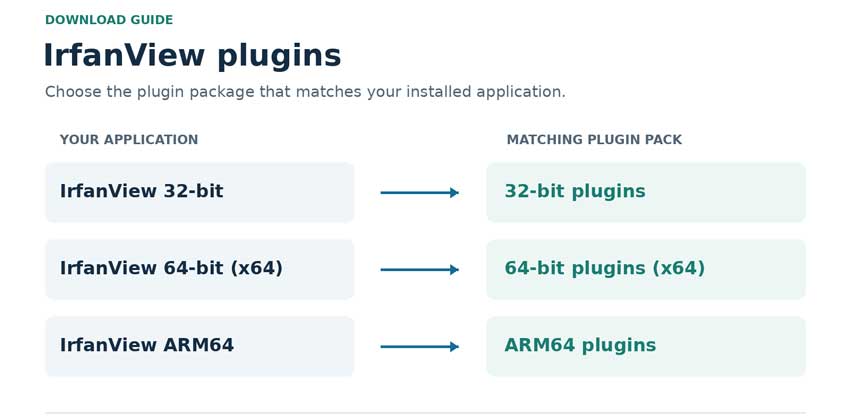
Start with the official website rather than a separate DLL download. IrfanView distributes plugins as a bundle, with different packages for the 32-bit application, the regular 64-bit application, and the ARM64 build. A package intended for one architecture should not be installed into another application's plugin folder. [1–3]
Check the application before choosing a package
Open IrfanView and check its version under Help > About IrfanView. Confirm whether you are using the 32-bit, regular 64-bit, or ARM64 build, then select the corresponding download below. The normal executable names also help identify an installation: i_view32.exe is the 32-bit program and i_view64.exe is the 64-bit program. For ARM64, use the architecture-specific download page. [2, 3, 6]
The distinction matters on 64-bit Windows, which can also run the 32-bit application. A 64-bit operating system is therefore not sufficient evidence that you need the regular 64-bit plugin pack. If you have installed both application versions, keep their folders and plugin packages separate. [2]
Choose an EXE installer or ZIP archive
The EXE installer is the simpler option for a conventional desktop installation. The ZIP archive is useful when you run IrfanView from a portable folder or want to place the plugin files manually. Both routes still require the correct application architecture and destination folder; a ZIP archive does not make incompatible plugins interchangeable. [1–3, 8]
Use the official pages above to obtain the current package rather than bookmarking a version-specific file indefinitely. IrfanView publishes SHA-256 checksums for its downloads, which can help confirm that a downloaded file matches the listed package. Keep the application and plugin pack current together, while checking the plugins page for any separately updated components. [1, 2, 10]
How to Install IrfanView Plugins
Close IrfanView before replacing its plugin files, and locate the folder containing the executable you normally launch. If several copies are installed, work on that copy rather than whichever folder is easiest to find. A desktop shortcut can point to a different installation from the one you have just updated.
Install with the EXE package
- Download the plugin installer that matches your application.
- Run the installer and check that its destination is the intended IrfanView installation.
- Complete the installation, then reopen that copy of IrfanView.
- Open Help > Installed PlugIns and check the relevant component.
- Try the file or operation that previously failed. [1, 7]
For a standard installation, the plugin files belong in IrfanView's Plugins subfolder. The surrounding application folder can vary, particularly if you chose a custom installation location. Finding the executable first is more reliable than assuming every computer uses the same path. [6, 8]
Install manually from a ZIP archive
Extract the plugin archive into the Plugins subfolder of the corresponding IrfanView application. Preserve the archive's internal folders and supporting files rather than copying only whichever DLL appears to match your file extension. The installation readme included in the official plugin archive explicitly identifies the Plugins subdirectory as the destination. [8]
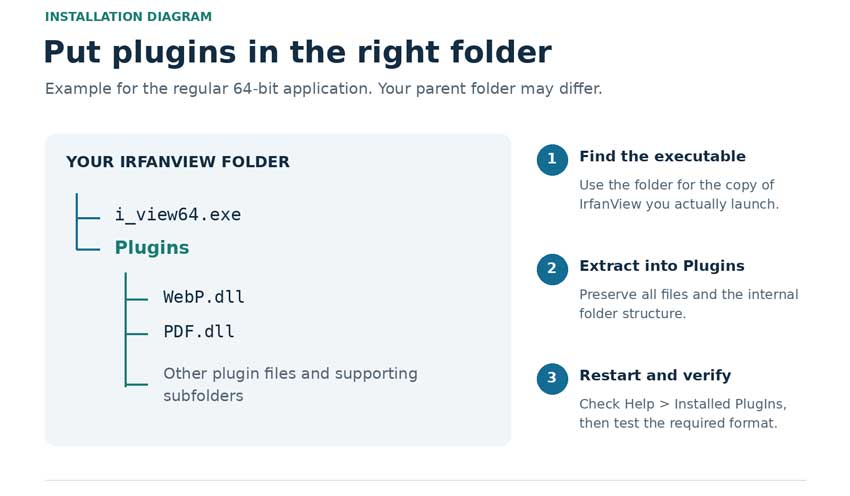
For example, WebP.dll should be in the application's Plugins folder, not stranded inside an extra folder named after the downloaded archive. Follow the included readme if a particular component needs additional files or a separate installation. After extraction, restart IrfanView and verify the result from its installed-plugin list.
Verify the installation and keep it current
In Help > Installed PlugIns, check that the component is listed and enabled. IrfanView's help documentation notes that disabling an installed plugin can produce an error when the program needs it. A successful JPG preview is not a useful test of the WebP plugin, so verify the specific format or feature you installed the pack to use. [7]
When you update IrfanView, obtain the current plugin pack as well. Do not try to make every DLL display the application's version number: components are maintained separately, and their version labels differ in the official list. If an update introduces a problem, confirm the application you launched and repeat the installation check before changing other settings. [1, 10]
Which IrfanView Plugins Do You Need
The practical question is usually which requirement belongs to a particular file or task. IrfanView's supported-format table distinguishes reading from saving and marks formats that require plugins. Being able to open a format does not necessarily mean that IrfanView can export to it. [5]
Component requirements are drawn from IrfanView's current plugin list and supported-format documentation. Consult the included plugin notes for component-specific setup. [1, 5, 8]
WebP and camera RAW files
The WebP plugin supports reading and writing WebP images. Camera RAW support covers numerous formats, but it is worth checking the actual extension and the relevant camera-file support rather than assuming every RAW file is equivalent. IrfanView can also use different RAW loading options; its FAQ explains that loading an embedded preview is faster than decoding the full RAW image. [4, 5, 8]
HEIC and the Windows codec requirement
HEIC needs a separate check because plugin installation alone may not supply its decoding requirements. IrfanView's FAQ lists compatible codecs and, for the Microsoft Store route on Windows 10 or 11, identifies both HEIF Image Extensions and an appropriate HEVC extension. Check those requirements when other formats work but an iPhone HEIC image still will not open. [4]
PDF and Ghostscript
The official list includes a PDF plugin with read-and-save support and a POSTSCRIPT plugin that uses Ghostscript for supported EPS, PS, and PDF operations. These are distinct components, so avoid treating every PDF task as the same installation problem. When a workflow needs Ghostscript, install the build that matches IrfanView's architecture. [1, 5, 8]
Use Plugins for Common Image Tasks
Once the required component is available, most format handling happens through IrfanView's normal commands. You do not need to launch a plugin DLL as if it were a separate application. Start with one file, confirm the result, and move to batch processing after that individual operation works.
Convert WebP to JPG or PNG
Open a WebP image in IrfanView, choose File > Save As, and select JPG or PNG as the output format. Review the available format options before saving, and write the result to a new file so the original remains available. Choose PNG when you need to retain transparency; JPG cannot store an alpha channel.
For multiple images, open File > Batch Conversion/Rename and choose the output format and destination folder. Add the WebP files, then run the conversion on a small sample before processing the whole set. If a single WebP file fails to open, resolve that problem first: batch conversion uses the same underlying format support. [4]
Add compatible Photoshop 8BF filters
Open an image and use Ctrl + K to open the Adobe 8BF filter dialog. Add the folder containing a compatible filter, select it from the list, and run it. The plugin developer namesuppressed documents this workflow, including the folder-selection step. [9]
Compatibility depends on the filter as well as IrfanView. The official plugin page describes a custom menu or folder option under Properties > PlugIns for supported 32-bit 8BF filters in the 64-bit application. That compatibility provision should not be read as support for every Photoshop extension or every 32-bit plugin; check the filter's own documentation and IrfanView's plugin notes. [1, 8]
Fix IrfanView Plugins That Are Not Working
Start by recording which file or operation fails and what the message actually says. A missing DLL, a disabled component, and a missing external codec can lead to similar symptoms but require different remedies. The sequence below keeps the checks focused on the application that is producing the error.
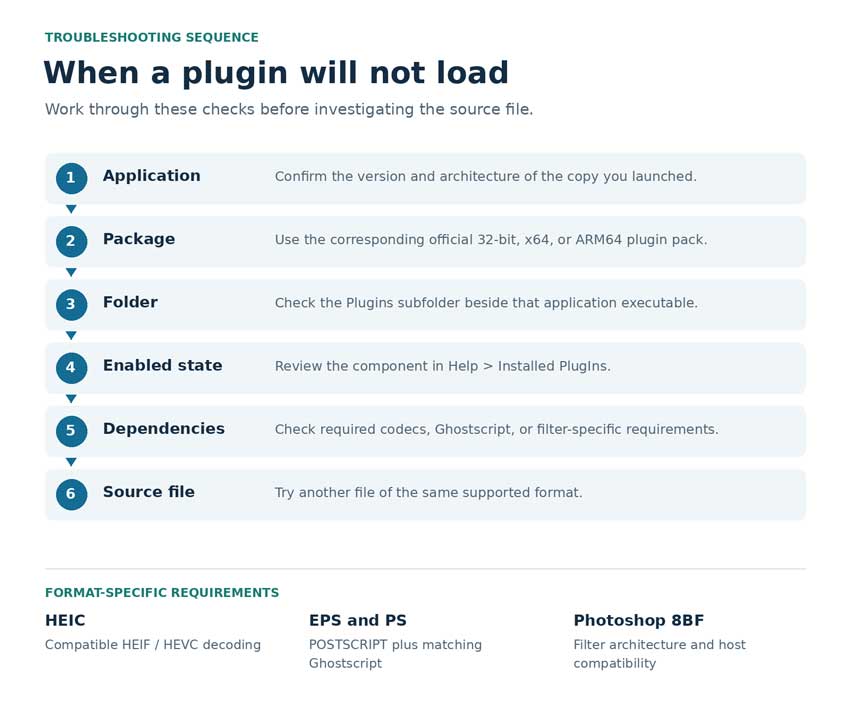
The table combines the official architecture, plugin-state, and dependency requirements. These are diagnostic checks, not a claim that every failure has the same cause. [1, 2, 4, 7]
Check for the wrong installation folder
If you use both 32-bit and 64-bit IrfanView, updating one folder does not update the other. Inspect the target of the shortcut you launch, then check the Plugins folder beside that executable. Portable copies and custom installation folders are particularly easy to overlook when another copy is already on the computer.
Check dependencies before replacing files
When the correct component is present and enabled, review its documented requirements before downloading a replacement DLL. HEIC decoding, Ghostscript-based operations, and some older 8BF filters can depend on software outside the basic plugin pack. Use the vendor's package or documented dependency rather than a similarly named file from an unrelated application. [1, 4, 8]
If the installation checks pass, try another file of the same supported format. One failing file does not establish that the whole plugin installation is broken. It may be damaged, use a variant outside the component's support, or simply require further investigation.
Account for Microsoft Store limitations
The Microsoft Store app has an additional restriction: IrfanView's FAQ says that users cannot add or change plugin files in its protected application folder. Repeatedly installing a desktop plugin pack will not remove that restriction. Use the conventional desktop application and its corresponding plugin pack if your workflow requires additional components. [4]
When an Image Opens but Still Needs Better Quality
Correct format support gets an image into the workflow; its noise, softness, or limited resolution may still need attention. For example, converting a small WebP to PNG changes its container but does not create more photographic detail. If the next task is denoising or enlargement, Aiarty Image Enhancer provides a separate desktop processing step on Windows and macOS. It is not an IrfanView plugin, so its use does not depend on the 8BF filter dialog. [11, 14]
Choose a model and review the strength
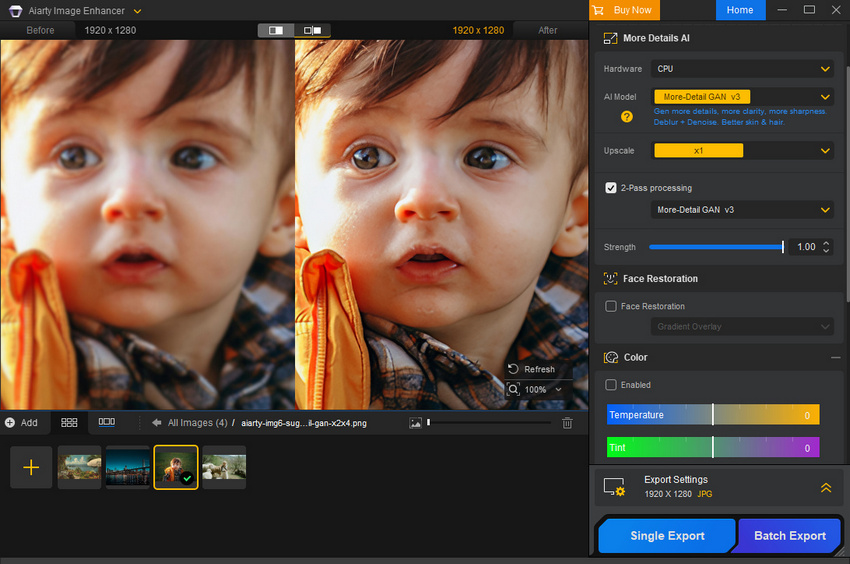
For camera photographs, Real-Photo v3 is designed around photographic fidelity and offers x1 enhancement or x2 enlargement. The x1 setting is useful when the dimensions are already sufficient and the objective is to improve clarity. More-Detail GAN v3 is another option when stronger texture reconstruction is appropriate, while AIGCsmooth v3 is intended for generated imagery. Compare the preview with the source before committing to a model; a setting that suits an illustration may be too assertive for a portrait. [12]
Aiarty's Strength control adjusts the intensity of enhancement, including sharpening and detail generation. Reduce it when edges, skin, or fine textures look excessively processed, and consider the Restore Color control if the enhanced result drifts from the original appearance. Model choice and strength should follow the intended output, rather than a fixed rule that the strongest setting is best. [12, 13]
Keep the handoff and export practical
Aiarty's published specifications list JPEG, PNG, WebP, HEIC, AVIF, TIFF, and numerous RAW formats as inputs. Its output list includes JPG, PNG, TIFF, DNG, AVIF, and HEIC. When a supported source is already available, import that file directly; an extra JPG conversion is not inherently required. For a batch, preview a representative image before applying the chosen settings through Batch Export. [12–14]
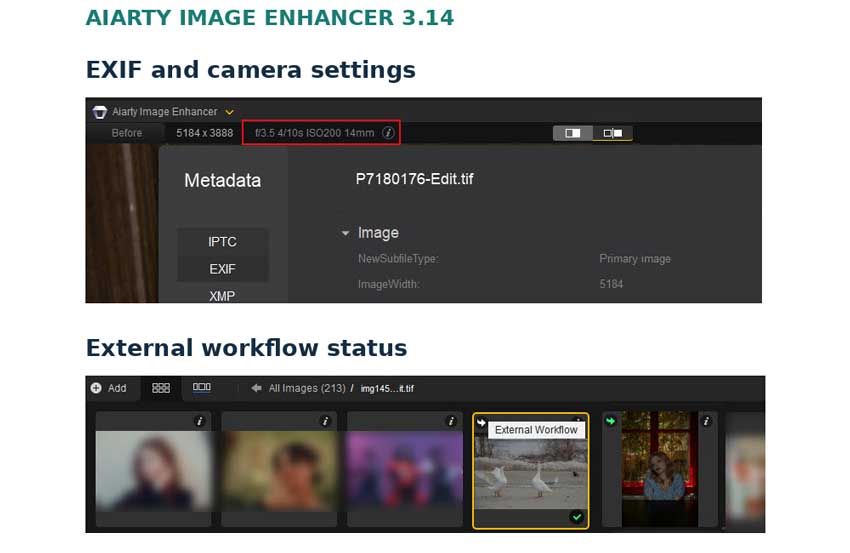
Version 3.14, released on September 22, 2026, adds useful workflow details: EXIF viewing, camera settings in the RAW preview, clearer status labels for externally imported images, and refinements to Lightroom Classic and other supported external-editor workflows. Those integrations should not be assumed to provide an automatic round trip with IrfanView. A straightforward IrfanView workflow is to inspect the source, open it separately in Aiarty, export the processed copy, and reopen that copy for viewing or further conversion. [15]
AI enhancement can infer texture, particularly with strong reconstruction settings. Compare fine detail, faces, and lettering with the source at a useful viewing scale, and retain the original when accuracy matters. The aim is an output that suits the photograph and its use, with enough control to avoid making an already good image look overworked.
Sources
- IrfanView official plugin list and downloads
- IrfanView official 64-bit downloads and compatibility notes
- IrfanView official ARM64 downloads
- IrfanView official FAQ
- IrfanView supported file formats
- IrfanView official installation help
- IrfanView official Installed PlugIns help
- Official plugin package documentation, including
Readme_install.txtandi_plugins.txt, distributed through the official 64-bit download page. - namesuppressed plugin developer instructions for IrfanView 8BF filters
- IrfanView official change history
- Aiarty Image Enhancer official product page
- Aiarty Image Enhancer official user guide
- Aiarty Image Enhancer official technical FAQ
- Aiarty Image Enhancer official technical specifications
- Aiarty Image Enhancer official version history
- IrfanView official homepage and licensing summary
You May Also Like


This post was written by Brenda Peng who is a seasoned editor at Digiarty Software who loves turning ordinary photos into extraordinary works of art. With AI assistance for brainstorming and drafting, the post is reviewed for accuracy by our expert Abby Poole for her expertise in this field.
