


GIMP is one of the most popular free photo editors available today, but unlike Photoshop and other modern editing software, it doesn't come with built-in AI features. If you want tools for AI upscaling, background removal, object cleanup, or image generation, you'll need to rely on third-party plugins.
Fortunately, the GIMP community has developed a variety of AI-powered plugins that can extend its capabilities far beyond traditional image editing. Some focus on enhancing photos, while others bring advanced features like Stable Diffusion image generation directly into GIMP.
In this guide, we'll look at the best GIMP AI tools and plugins, what they can do, and how to choose the right option for your workflow.
Best GIMP AI Plugins and Tools
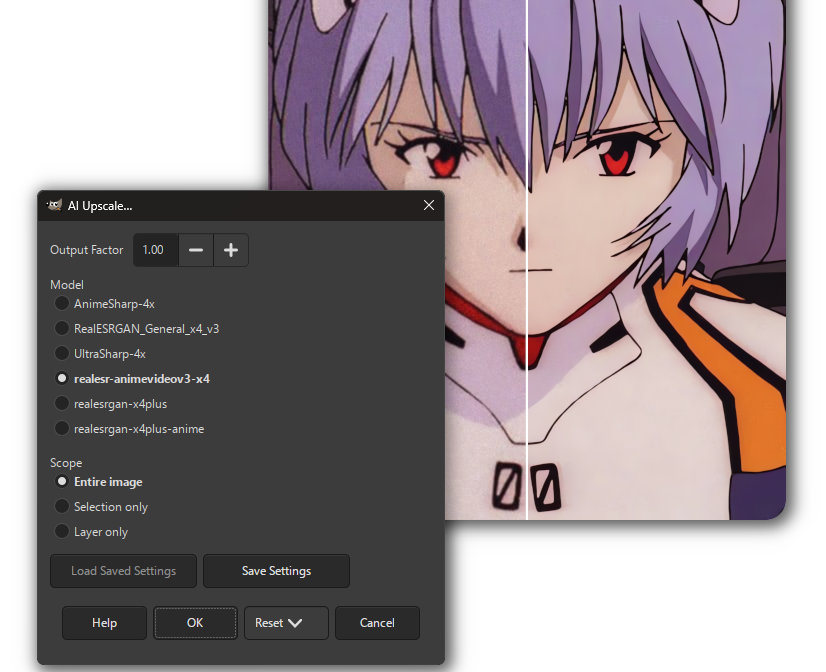
1. GIMP Upscale Plugin – AI Image Upscaler (RealESRGAN) for GIMP 2.10 & 3.0
GIMP Upscale is a lightweight plugin designed for one main purpose: improving image resolution without destroying too much detail. It integrates AI upscaling models such as Real-ESRGAN into the GIMP workflow, allowing users to enlarge low-resolution images directly inside the editor instead of relying on external tools.
In practical use, it works best on images that are slightly blurry or compressed. Old photos, web graphics, and small illustrations tend to benefit the most, with noticeably cleaner edges and more natural textures after processing. The plugin is fairly focused, which makes it easier to understand compared to more complex AI toolkits.
However, it does rely on external models and system setup, which can feel a bit technical for first-time users. Processing time can also increase significantly when working with larger images or weaker hardware.
Despite that, GIMP Upscale remains one of the more practical AI additions for users who simply want better image quality without changing their editing workflow.
Key strengths
- Strong AI upscaling quality with modern models
- Simple and focused workflow
- Works directly inside GIMP
Limitations
- Requires model and dependency setup
- Performance depends on hardware
- Limited to upscaling tasks only
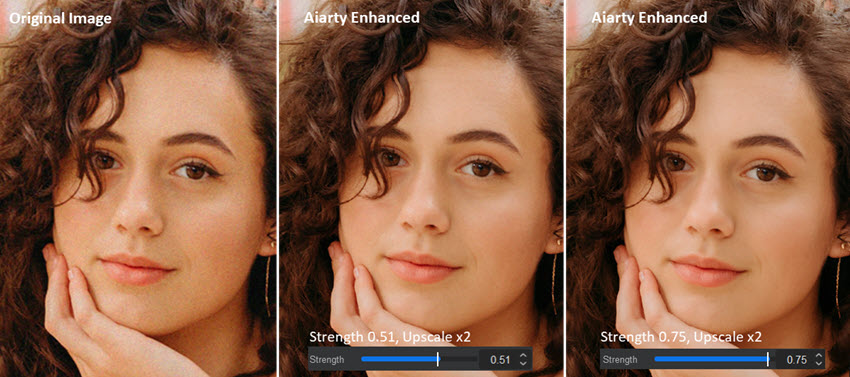
Looking for a simpler way to upscale images?
GIMP Upscale works well, but it requires plugin installation and AI model setup. If your goal is simply to enlarge and enhance photos with minimal effort, Aiarty Image Enhancer offers a more streamlined approach. It can upscale images, reduce noise, and improve clarity in just a few clicks, without configuring plugins or managing external models.
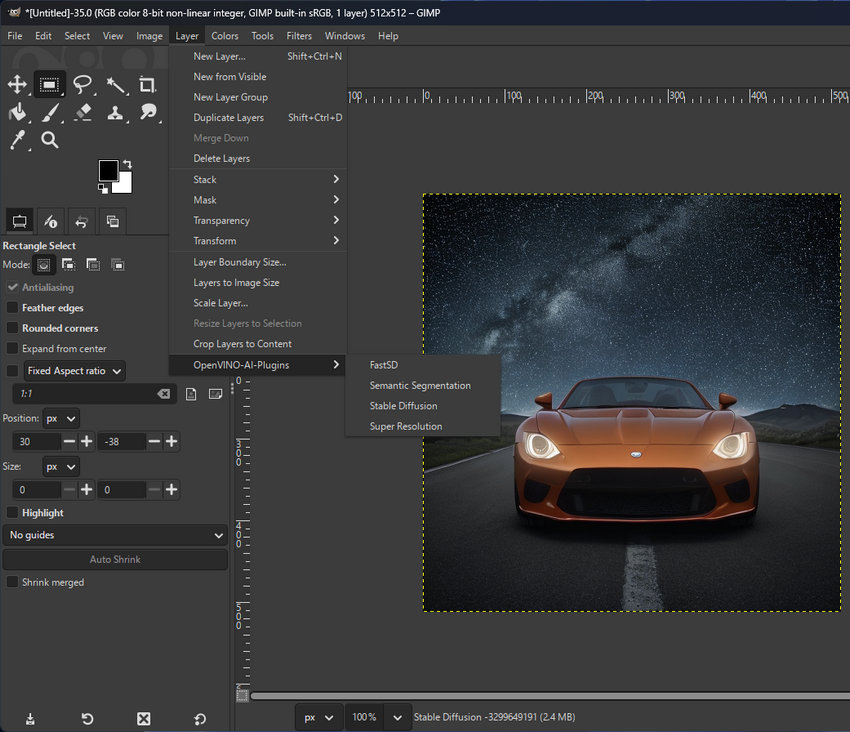
2. OpenVINO AI Plugins for GIMP
Intel’s OpenVINO AI Plugins for GIMP take a broader approach, offering a suite of AI-powered features rather than focusing on a single task. Depending on the setup, users can access tools for image generation, inpainting, segmentation, and super-resolution, all integrated into GIMP’s interface.
What stands out most is the range of functionality. Instead of installing multiple separate plugins, users get a more unified environment where different AI tasks can be handled within the same workflow. This makes it particularly appealing for users who want to experiment with AI editing in a more structured way.
The downside is complexity. Installation and configuration are not beginner-friendly, and performance is closely tied to hardware compatibility. Users outside Intel-supported environments may also encounter limitations in performance or feature availability.
Even so, it’s one of the most complete AI plugin ecosystems currently available for GIMP.
Key strengths
- Wide range of AI tools in one package
- Includes generation, editing, and enhancement features
- Integrated workflow inside GIMP
Limitations
- Complex installation process
- Hardware-dependent performance
- Not very beginner-friendly
3. GIMP AI
GIMP AI acts more like a bridge between GIMP and external AI models rather than a standalone tool with a fixed feature set. It allows users to connect GIMP with AI services for tasks such as image generation, prompt-based editing, and AI-assisted modifications.
Its main appeal lies in flexibility. Instead of being limited to a predefined set of features, users can experiment with different AI models and workflows depending on how the plugin is configured. This makes it more of a creative toolkit than a traditional plugin.
The trade-off is that this flexibility comes with a learning curve. Setup often requires additional configuration, and the user experience can vary depending on how the backend AI services are integrated.
For users who enjoy experimenting with AI workflows rather than just applying quick fixes, GIMP AI offers an interesting middle ground between traditional editing and generative tools.
Key strengths
- Flexible integration with AI models
- Supports image generation and editing workflows
- Highly customizable depending on setup
Limitations
- Requires configuration and setup knowledge
- User experience varies across setups
- Not a plug-and-play solution
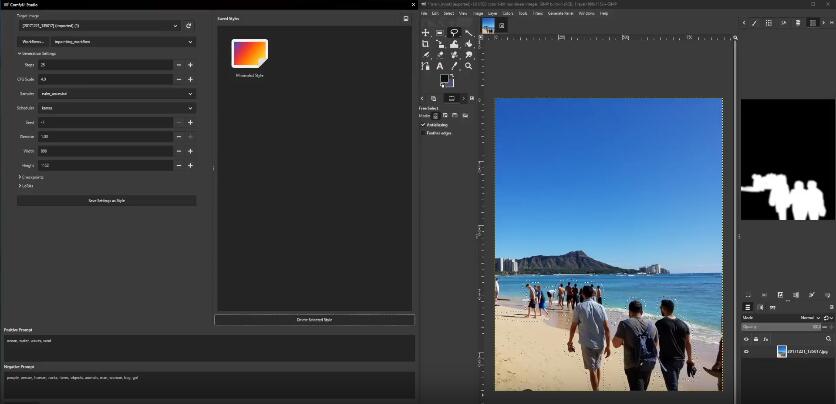
4. GIMP Comfy Tools
GIMP Comfy Tools is built around the idea of connecting GIMP with ComfyUI, one of the most popular node-based interfaces for Stable Diffusion workflows. Instead of replacing existing tools, it focuses on making the exchange between GIMP and ComfyUI smoother.
In practice, this allows users to send images from GIMP into ComfyUI for advanced processing such as ControlNet generation, inpainting, or complex diffusion pipelines, and then bring the results back for further refinement.
This workflow is powerful, especially for users already comfortable with ComfyUI. It creates a more seamless bridge between traditional image editing and node-based AI generation.
The main drawback is that it assumes prior knowledge of ComfyUI. For beginners, the learning curve can be steep, and the plugin itself doesn’t simplify the underlying complexity of diffusion workflows.
Still, for advanced users, it can significantly speed up iterative AI art production.
Key strengths
- Smooth integration with ComfyUI workflows
- Supports advanced diffusion-based editing
- Efficient round-trip editing between tools
Limitations
- Requires ComfyUI knowledge
- Not suitable for beginners
- Setup can be time-consuming
5. GIMP-ML
GIMP-ML is one of the most well-known attempts to bring machine learning directly into GIMP. Rather than focusing on a single task, it provides a collection of AI-powered tools covering image enhancement, denoising, segmentation, style transfer, and super-resolution.
Its biggest advantage is convenience. After installation, multiple AI features become available through a unified plugin package instead of requiring separate tools for every task. For users who want to experiment with machine learning inside GIMP, GIMP-ML offers a good starting point.
That said, development activity has been inconsistent over the years, and some features can feel less polished than those found in dedicated AI image enhancement applications. Results may also vary depending on image type and system configuration.
Despite these limitations, GIMP-ML remains one of the most comprehensive AI plugin collections available for GIMP.
Key strengths
- Multiple AI tools in a single package
- Includes super-resolution and denoising
- Designed specifically for GIMP users
Limitations
- Some features produce inconsistent results
- Installation may require additional dependencies
- Not updated as frequently as commercial alternatives
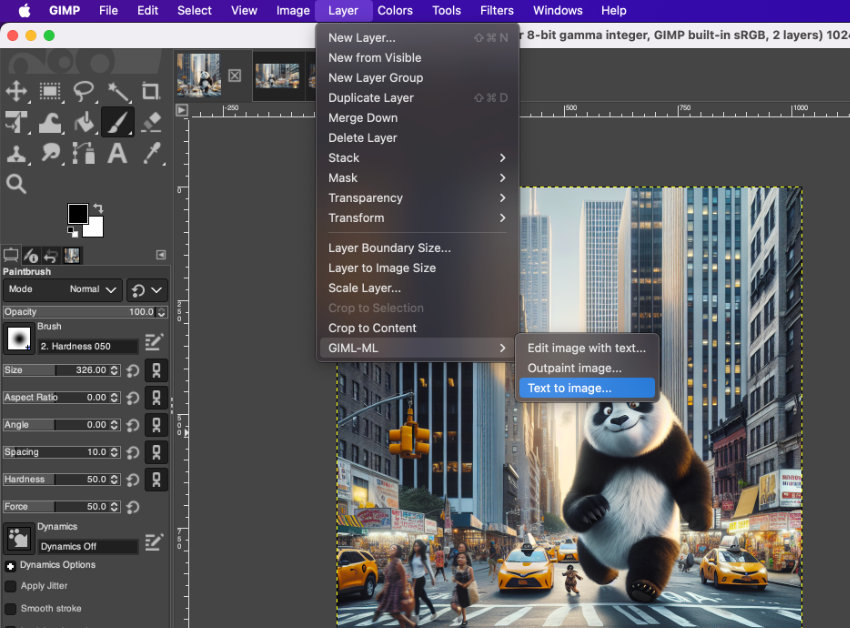
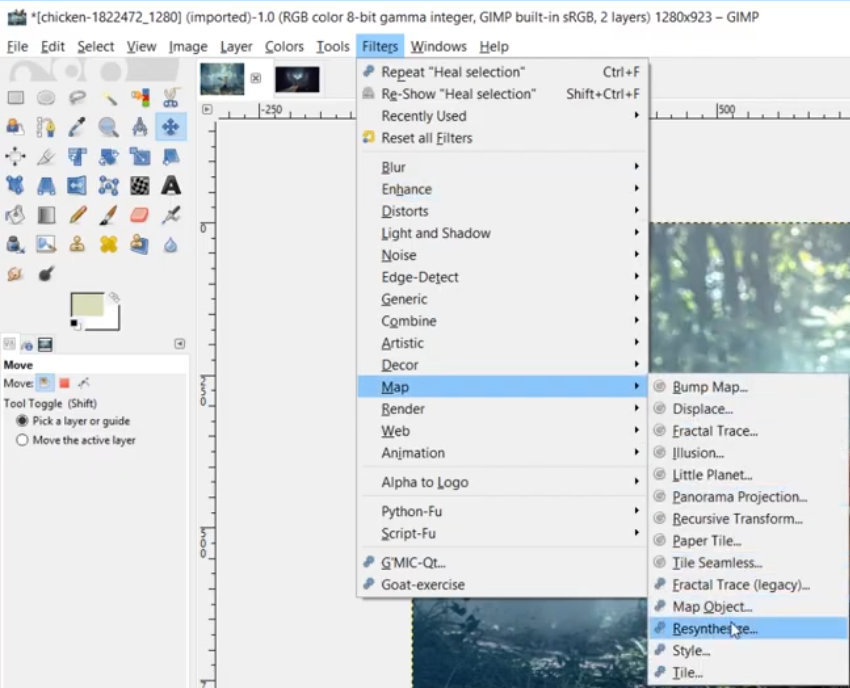
6. Resynthesizer
Resynthesizer is one of those classic GIMP plugins that predates modern AI trends, yet it is still widely used today for one specific reason: content-aware object removal.
Instead of relying on diffusion models, it analyzes surrounding textures and attempts to reconstruct missing areas when an object is removed. For small imperfections like dust spots, wires, or minor distractions, it can produce surprisingly clean results.
However, its limitations become clear when dealing with more complex scenes. Because it doesn’t understand semantic context, larger removals often lead to repeating patterns or visible artifacts.
Even with these constraints, it remains a reliable and lightweight tool for everyday cleanup tasks, especially when you don’t want to rely on heavier AI systems.
Key strengths
- Effective for small object removal
- Lightweight and fast
- Useful for basic photo cleanup
Limitations
- Not a generative AI tool
- Struggles with complex scenes
- Texture-based results can repeat patterns
How to Choose the Right GIMP AI Plugin
There isn't a single best GIMP AI plugin, mainly because each tool solves a different problem. The right choice depends less on features and more on what you actually want to achieve inside GIMP.
If your main goal is improving image quality, such as upscaling low-resolution photos or restoring old images, simpler tools like GIMP Upscale or GIMP-ML are usually enough. They focus on enhancement tasks and don’t require you to dive into complex AI workflows.
For users interested in AI image generation or more advanced editing workflows, options like OpenVINO AI Plugins or GIMP Comfy Tools make more sense. These tools are closer to full AI creative environments, but they also come with higher setup requirements and a steeper learning curve.
If your work is more about quick cleanup tasks, like removing small objects or fixing imperfections, Resynthesizer remains a practical and lightweight choice. It won’t give you modern generative AI results, but it performs reliably for simple edits.
There’s also a more important factor that often gets overlooked: setup complexity. Many GIMP AI plugins require additional installation steps, external models, or even separate AI backends. For some users, this becomes more time-consuming than the actual editing work.
In short, the best plugin depends on whether you prioritize simplicity, flexibility, or advanced AI capability. And in many cases, users eventually realize they don’t need every feature inside GIMP itself to get high-quality results.
How to Install GIMP AI Plugins
Installing GIMP AI plugins is not as straightforward as installing regular filters or extensions. Most of them are hosted on GitHub and require manual setup before they can be used inside GIMP.
In most cases, the process looks something like this:
First, users download the plugin files from the official repository and place them in GIMP’s plug-ins folder. Depending on the tool, additional steps may be required, such as installing Python dependencies, configuring external AI models, or connecting to a local or remote backend.
Some plugins, especially those based on Stable Diffusion or ComfyUI, also require separate AI environments to be running in the background. This means GIMP is only one part of the workflow, not the entire setup.
Because each plugin follows a different installation method, there is no universal setup guide. The experience varies significantly depending on the tool and the user’s system configuration.
For users who are not comfortable working with command-line tools or model setup, this can quickly become the most challenging part of using GIMP AI plugins.
 FAQ
FAQ
Yes, most GIMP AI plugins are free and open-source. Tools like GIMP-ML, Resynthesizer, and many GitHub-based AI integrations can be downloaded without paying. However, some plugins may rely on external AI models or services that have their own costs or system requirements.
No, GIMP does not include native AI features. Unlike modern editors that integrate AI directly, GIMP relies on third-party plugins to add capabilities like upscaling, image generation, or object removal.
There isn’t a single best plugin, but the answer depends on your use case. GIMP Upscale is often preferred for image enhancement, GIMP Comfy Tools and OpenVINO are better for AI generation workflows, while Resynthesizer is commonly used for basic object removal.
In many cases, yes. Some plugins require manual installation through GitHub, and others depend on Python packages or external AI environments like Stable Diffusion or ComfyUI. The setup process can vary significantly between tools, which is why some users prefer standalone AI applications instead.
Not completely. While GIMP plugins can replicate many AI functions such as upscaling or object removal, Photoshop's AI tools are more integrated and easier to use. GIMP offers flexibility, but it usually requires more manual setup and configuration.
You May Also Like


This post was written by Brenda Peng who is a seasoned editor at Digiarty Software who loves turning ordinary photos into extraordinary works of art. With AI assistance for brainstorming and drafting, the post is reviewed for accuracy by our expert Abby Poole for her expertise in this field.
